3DPrintCAD › Guides › Snap legs tool
Snap legs tool: snap-fit clips on any flat face
Add clips that stand out of a flat face and snap into a hole - like the legs under a wheel's centre cap, or the clips that hold a lid or a cover in place. Click a face and the legs appear on it: round a round face, along the sides of any other. Pick one of 12 leg types or draw your own, set the sizes, add a support on the back, drag any leg where you want it.
Watch the tutorial
Every option in under four minutes, with subtitles: a wheel centre cap with curved legs and a lid with legs along X and Y - the 12 types, sizes, supports, how many, dragging a leg and drawing your own. Watch on YouTube ↗
1Open Snap legs and pick a face
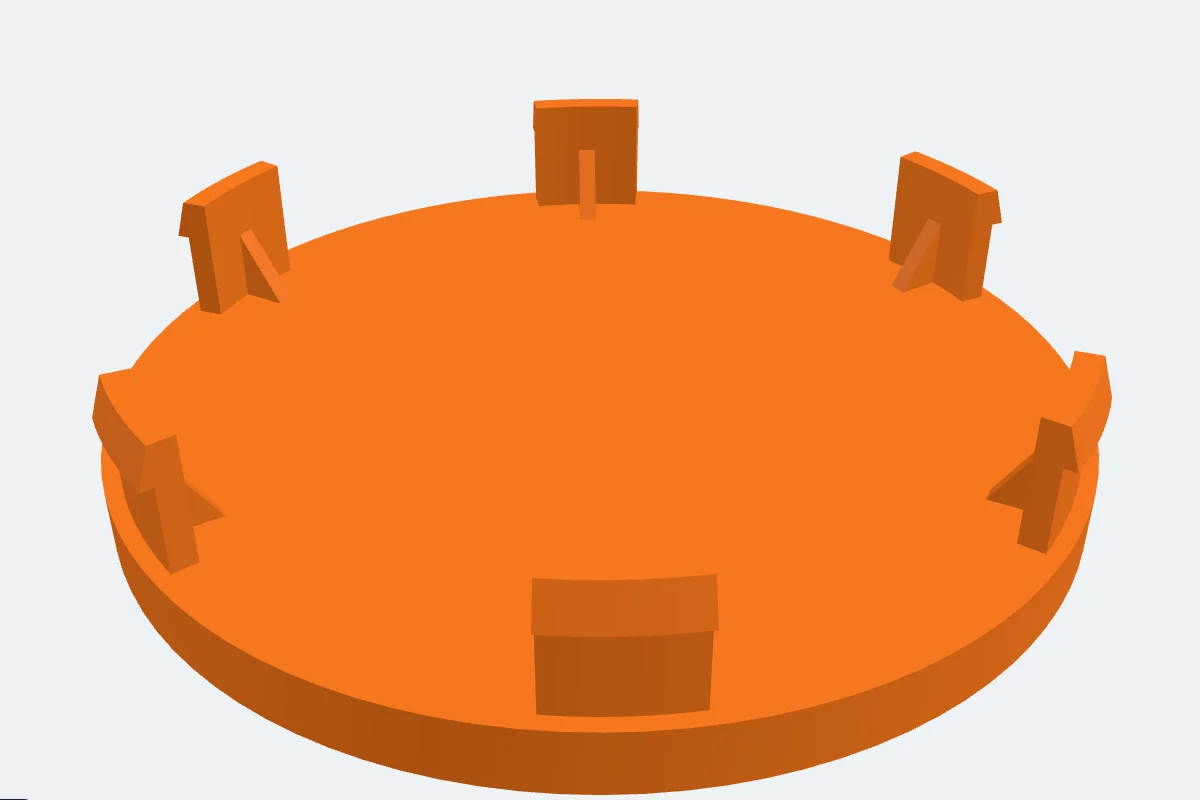
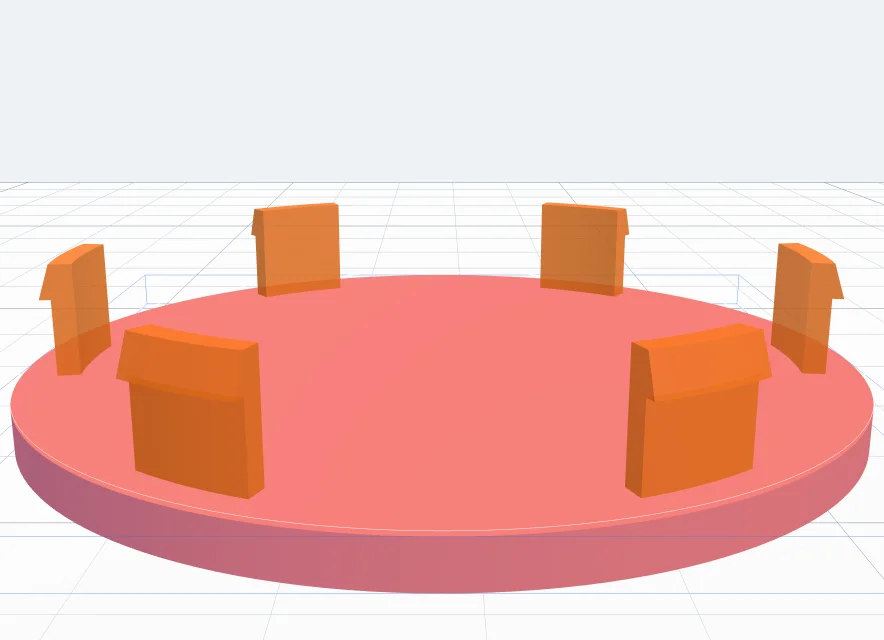
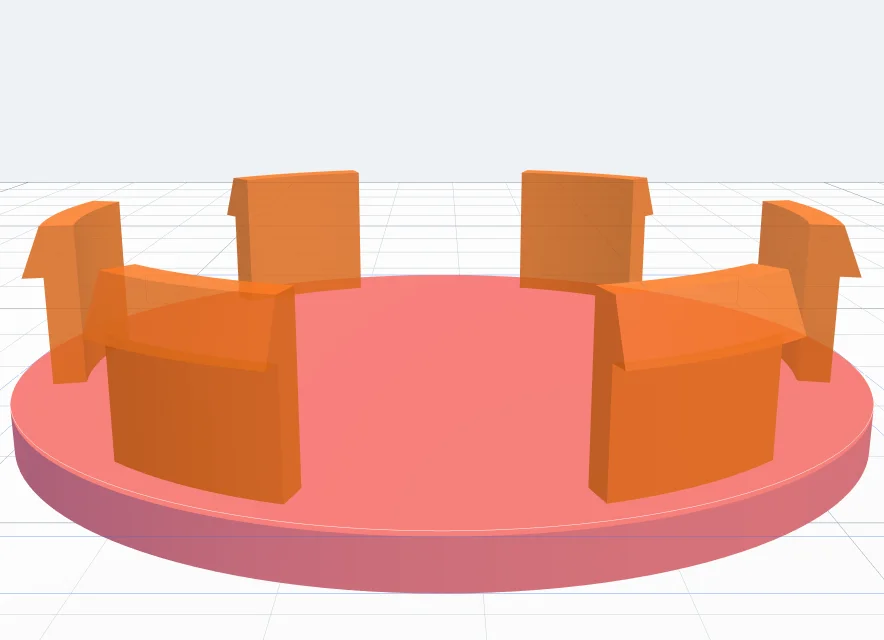
The tool works on any body with a flat face - a shape you made, a generator's result or an imported STL. Here it is a wheel centre cap, a disc 60 mm across and 3 mm thick, lying on its face so its back looks up.
- Select the body and click Snap legs in the Body card.
- Move the mouse over the body: the flat face under it lights up.
- Click the face. The legs appear on it at once, in orange - a preview that follows every setting. Nothing is added until you click Add the legs.
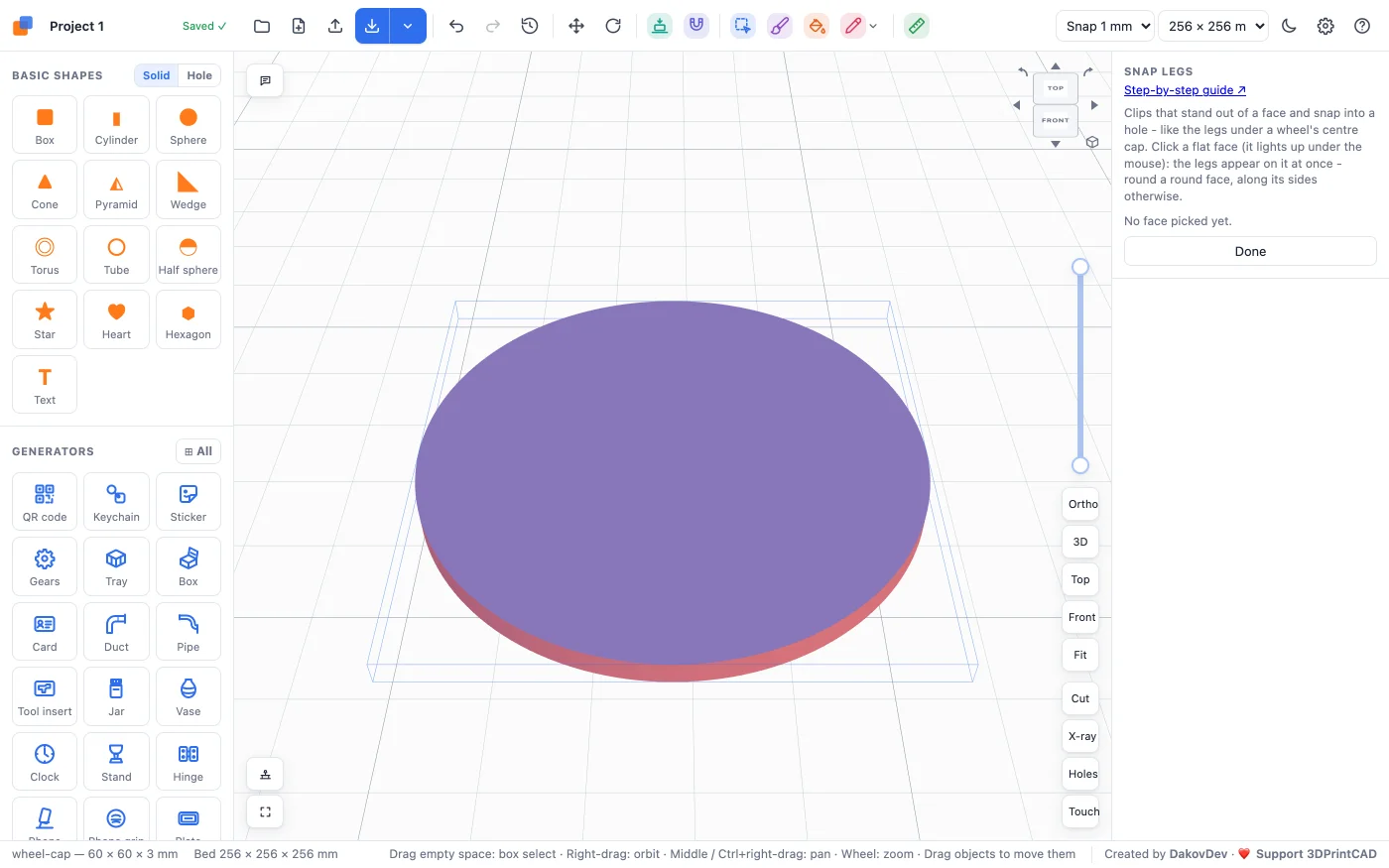
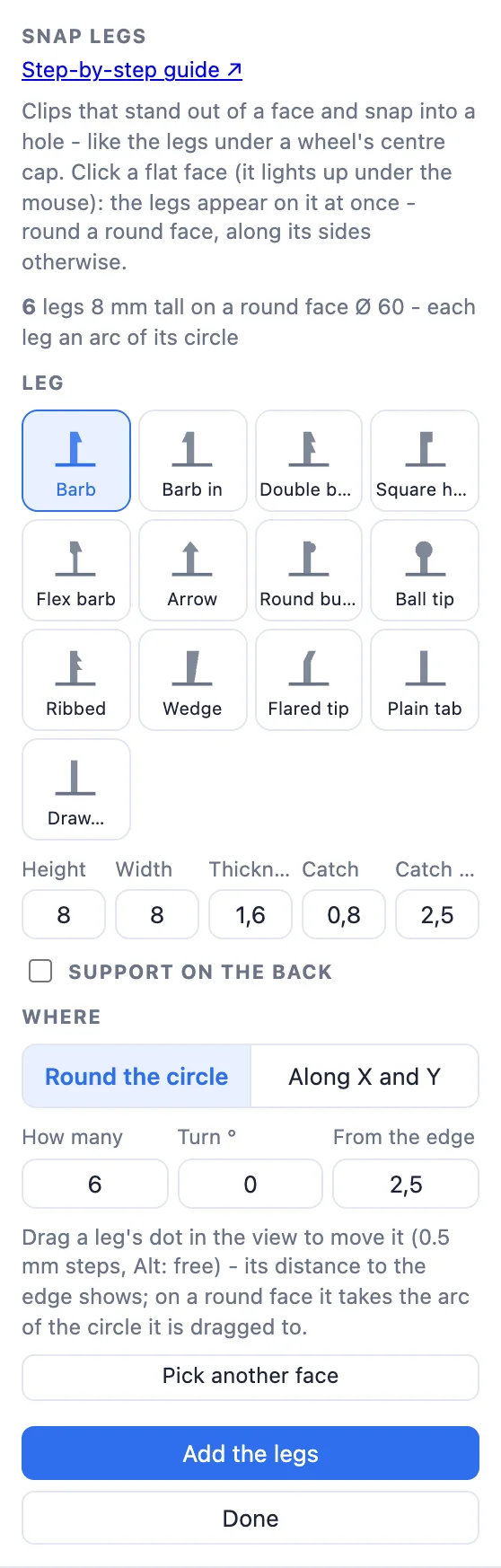
A round face gets its legs round the circle - each leg an arc of the circle it stands on, so it fits a round hole. Any other face gets straight legs along its sides (see the lid). On a round face you can still choose Along X and Y in the Where card.
2The 12 leg types
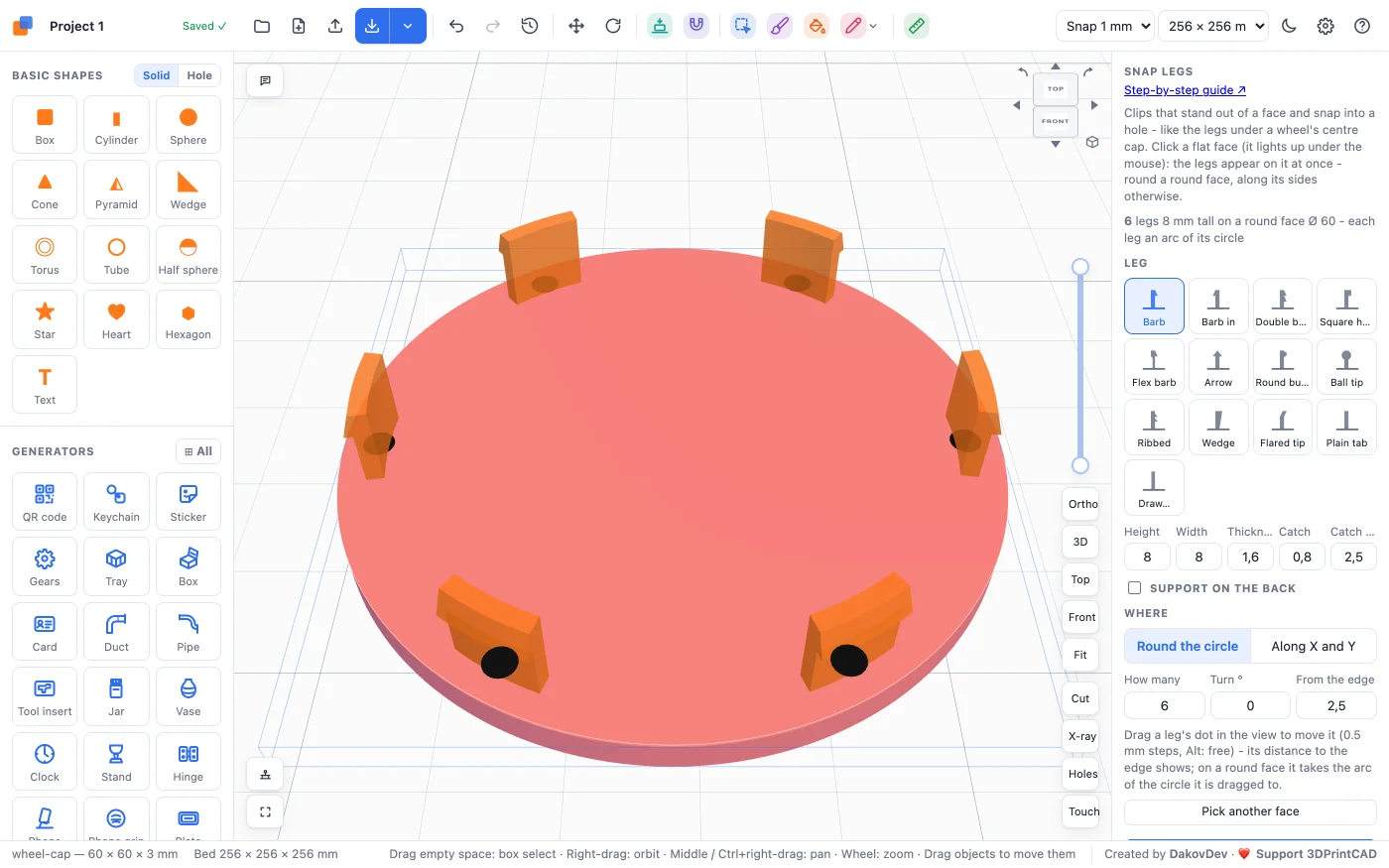
The Leg card shows each type as a small side view. Click one and every leg changes. All of them have their outer side straight, flush with where the hole's wall will be, and the catch (when there is one) points out.
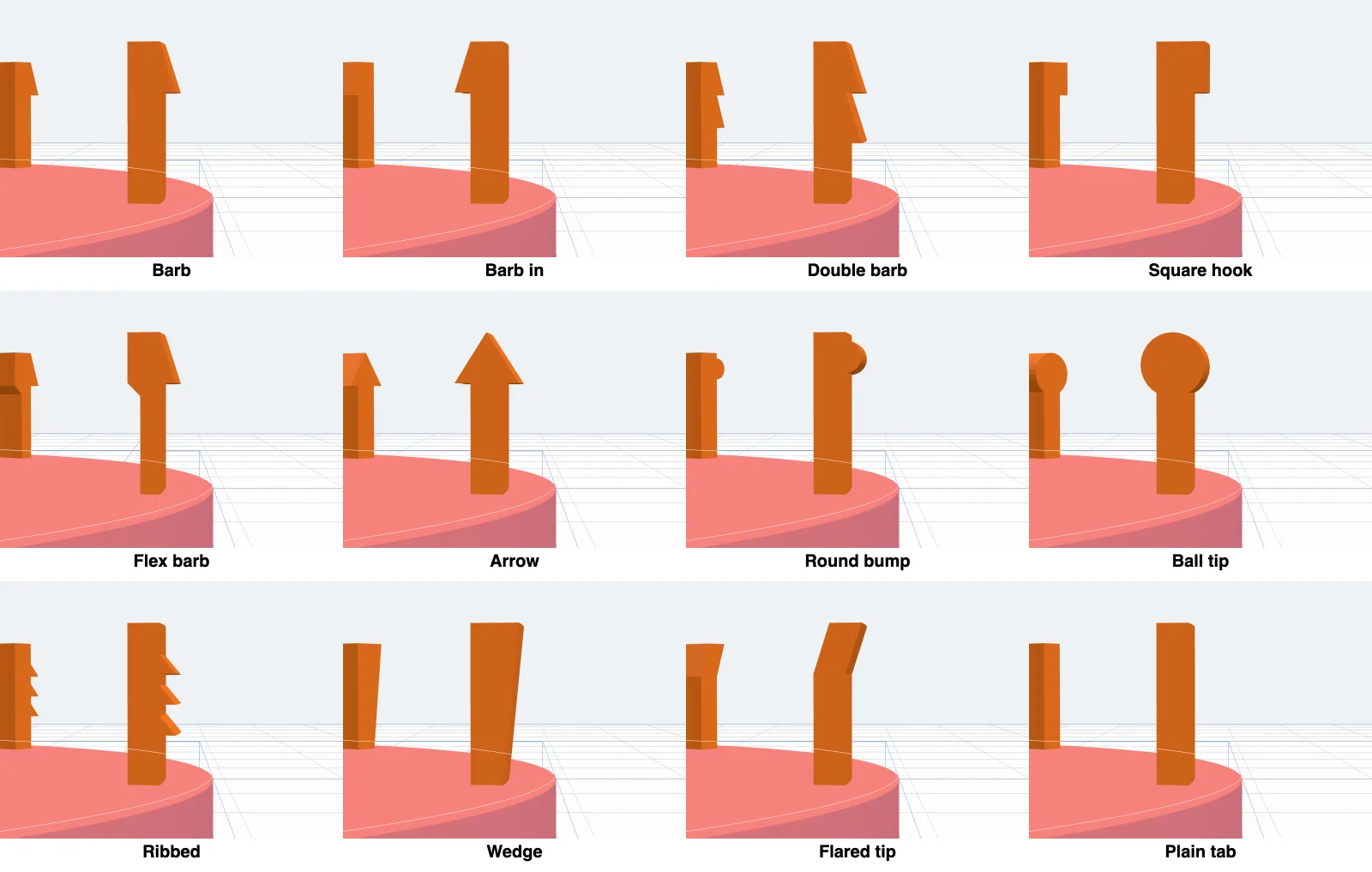
- Barb - the usual clip: a sloped catch at the top that slides in and snaps behind the edge of the hole.
- Barb in - the same with the catch pointing inward, for a rim that grips from the outside.
- Double barb - two catches one above the other, for two thicknesses or a firmer hold.
- Square hook - a square catch: it holds hard, but is harder to push in.
- Flex barb - a thin, springy neck under the catch, so it pushes in easily. Good for stiff plastics.
- Arrow - catches on both sides of the leg, for a slot.
- Round bump - a rounded bead that snaps in and out again, for a lid you take off often.
- Ball tip - a ball on the end, for a snug push fit.
- Ribbed - saw-tooth ribs along the leg: a press fit that grips the hole's wall.
- Wedge - the leg gets thicker toward its tip: a tight press fit.
- Flared tip - the end bends out a little, so it presses against the wall.
- Plain tab - a plain straight tab, no catch: a press fit, or to glue.
3Height, width, thickness and catch
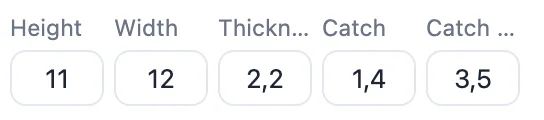
Five numbers under the types set every leg (all in mm):
- Height - how far the leg stands out of the face. Make it the depth of the hole plus the catch.
- Width - how wide each leg is; on a round face, the length of its arc.
- Thickness - the leg's thickness from its outer side in. Thinner bends more easily, thicker holds harder.
- Catch - how far the catch stands out past the leg's outer side: how far it reaches behind the edge of the hole.
- Catch height - how tall the catch is. A taller catch has a gentler slope, so it is easier to push in.
4Support on the back
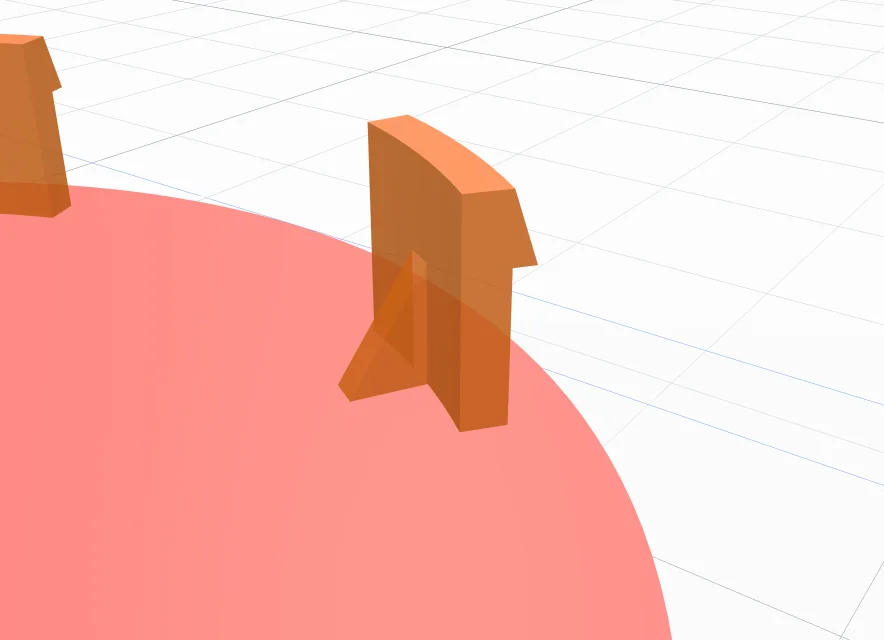
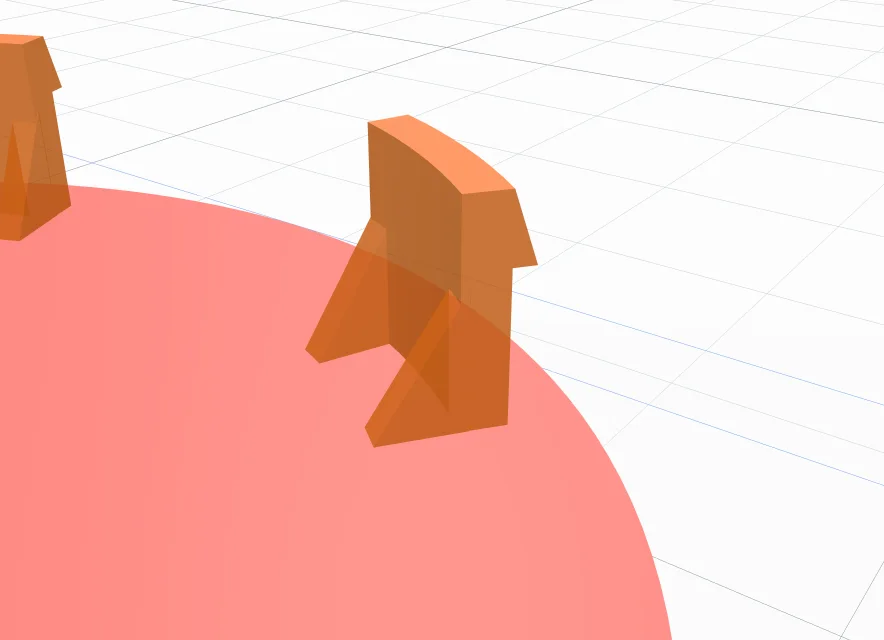
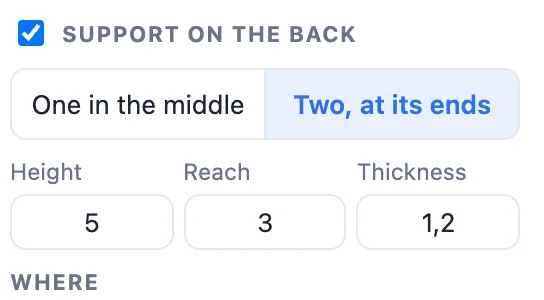
A leg breaks where it meets the face. Tick Support on the back and a small triangle runs from the face up the leg's inner side and makes it stiffer there.
- One in the middle or Two, at its ends - on a round leg each support points at the centre of the circle.
- Height - how far up the leg it reaches (it always stays below the catch).
- Reach - how far in along the face. The same as the height gives 45°, which prints without supports.
- Thickness of the triangle.
5How many, turn and from the edge
The Where card places the legs:
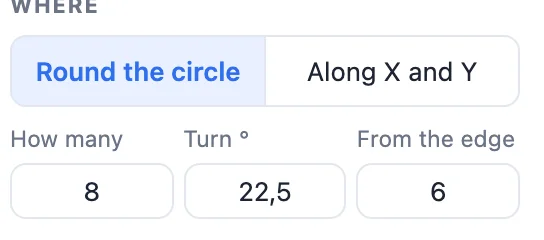
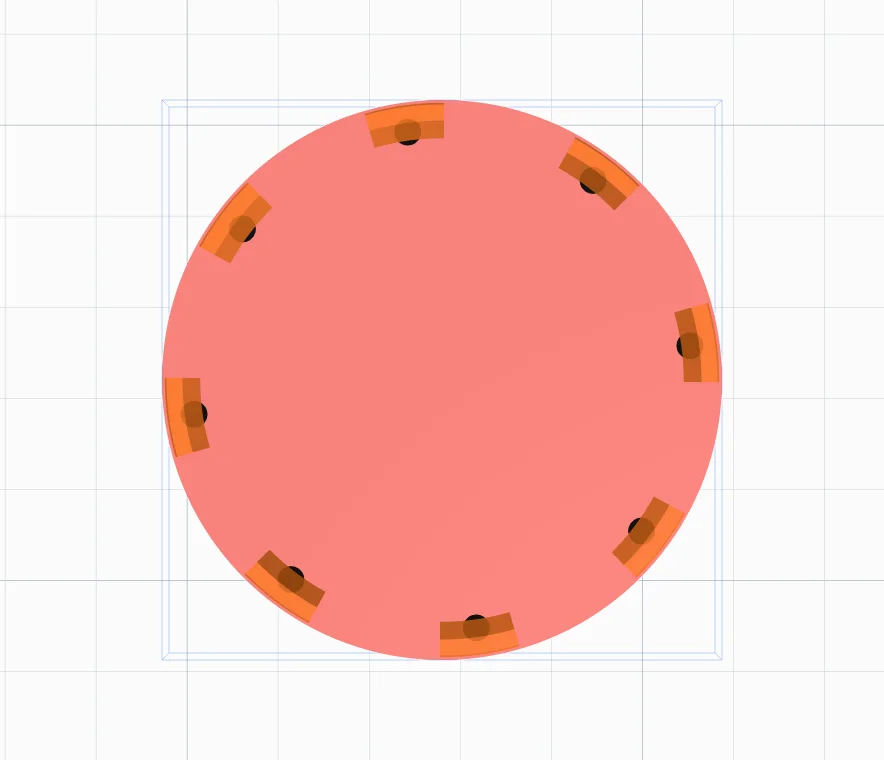
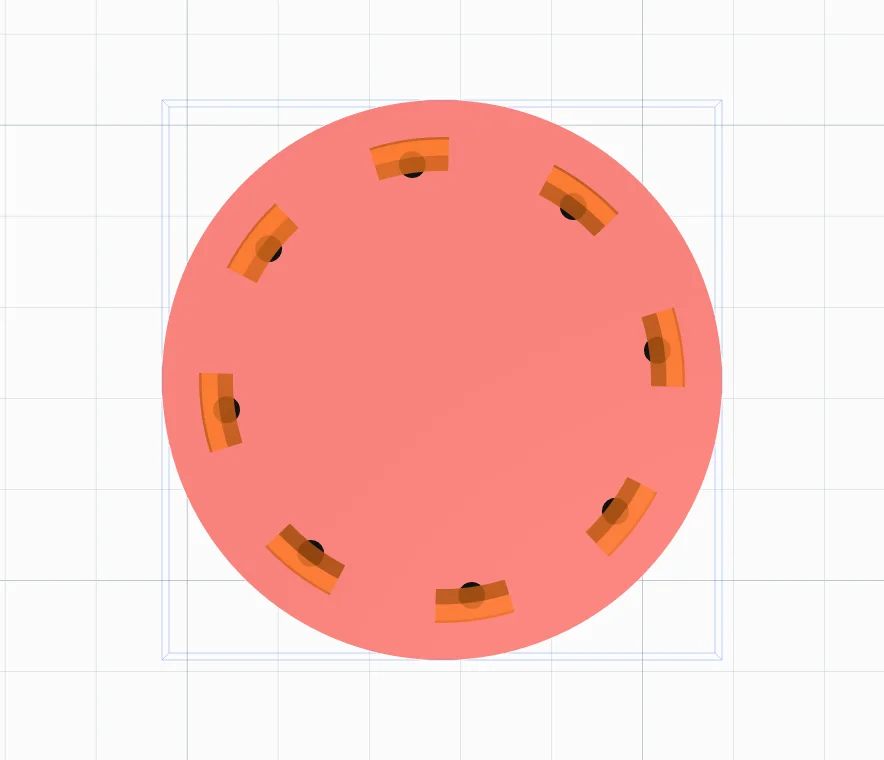
- How many - legs round the circle, spread evenly.
- Turn ° - where the first leg is round the circle, for example to miss a spoke or a notch in the wheel.
- From the edge - how far in from the face's edge the legs' outer side stands. For a wheel cap this is the cap's rim: the legs sit in the hole, the rim lies on the wheel.
- On other faces Along X and Along Y take the place of How many and Turn - see the lid.
6Move one leg by hand
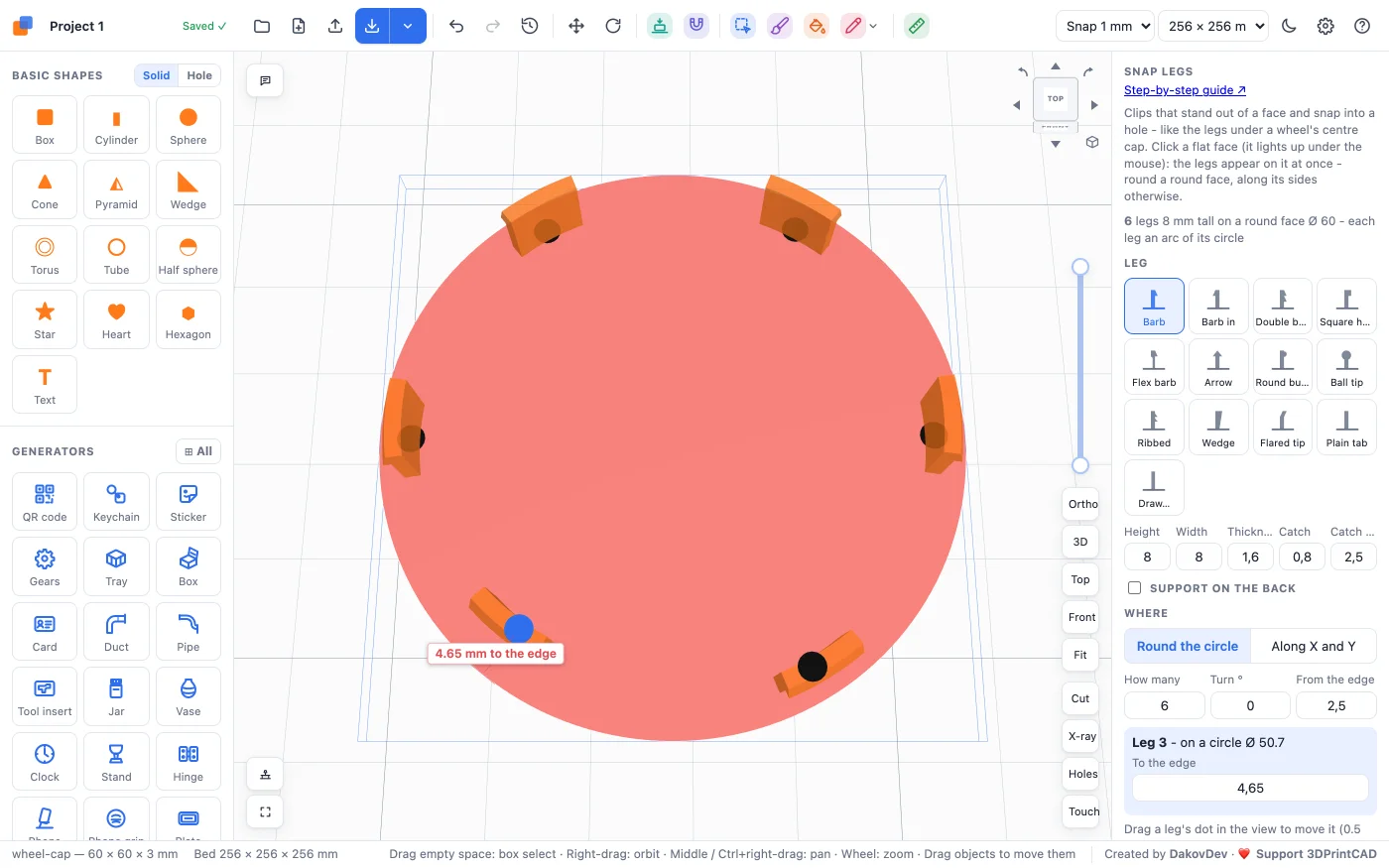
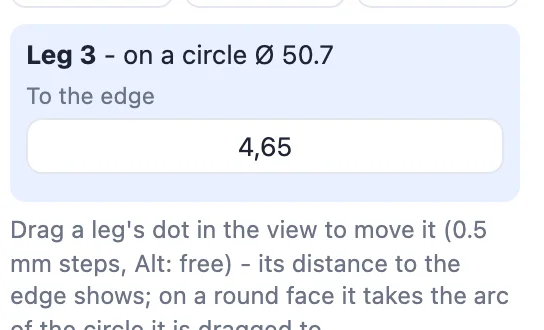
Every leg has a dot in the view. Drag a dot to move that leg (0.5 mm steps; hold Alt for no steps). On a round face it takes the arc of the circle it is dragged to. While it is picked, a red dashed line and a label show its distance to the edge, and the panel shows the same number in To the edge - type a value there to put it exactly that far in.
Put the legs back returns every moved leg to its place; changing how many, the layout or the distance from the edge does too.
7Draw your own leg
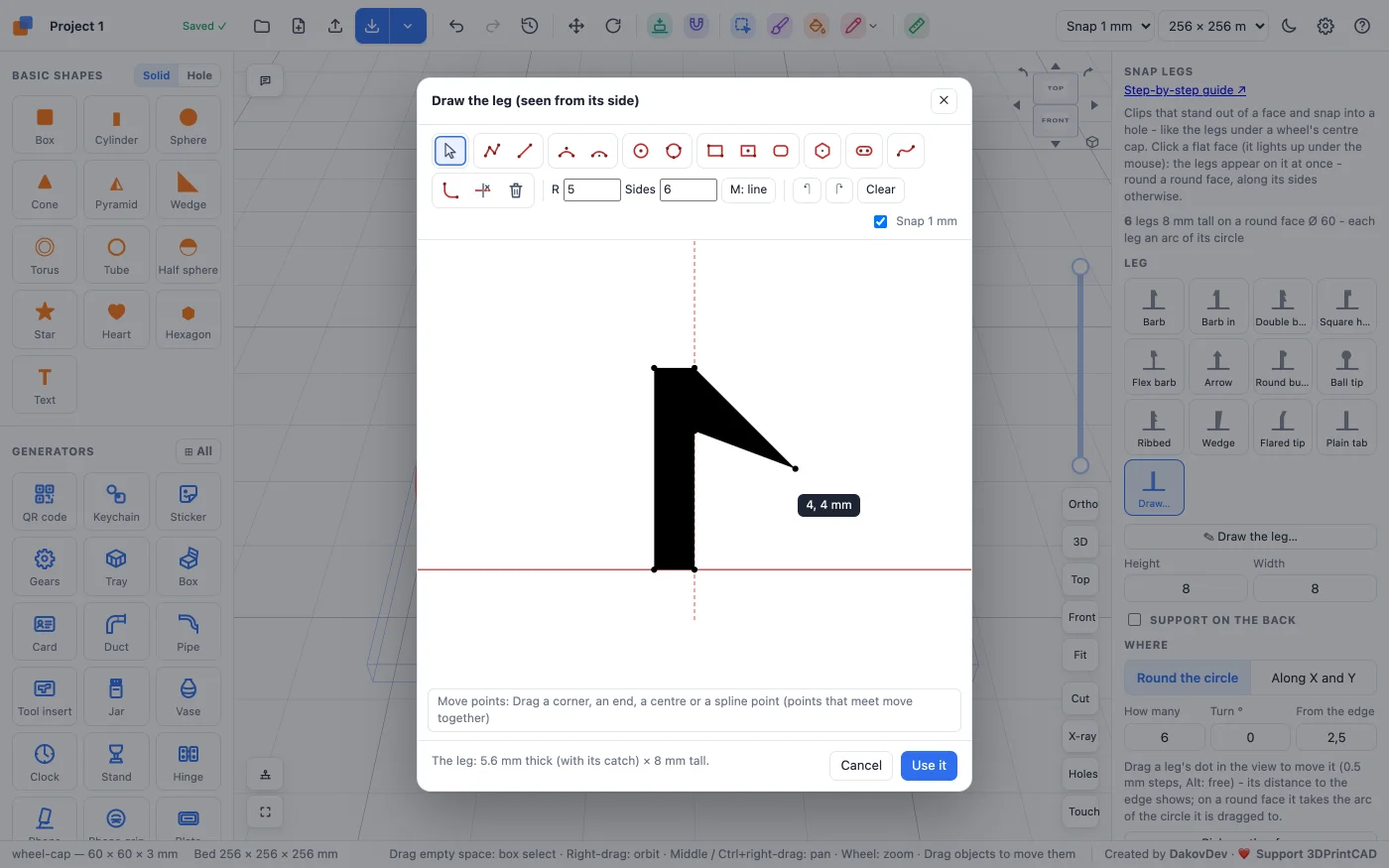
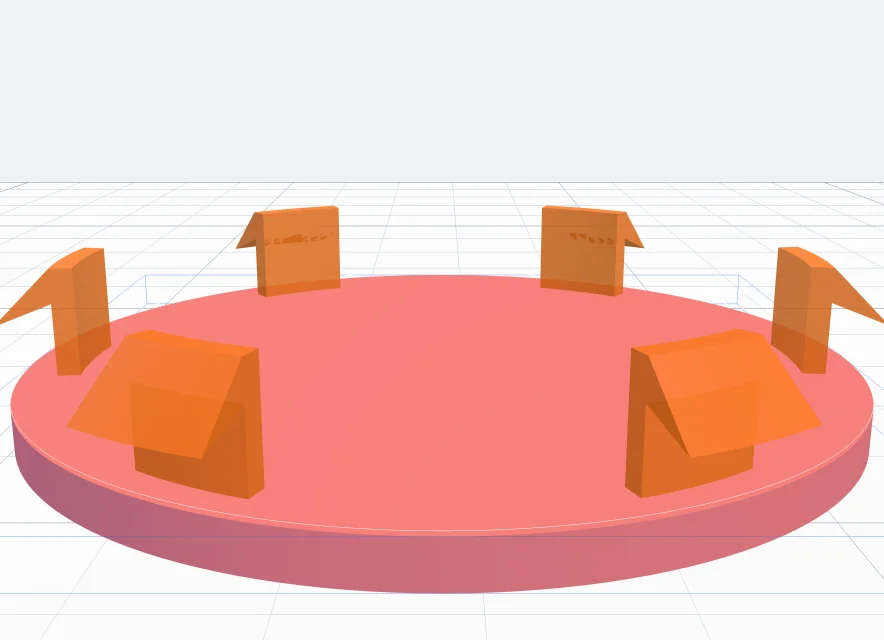
Click Draw… (the last leg tile) to open the outline editor with the leg seen from its side. It starts from the barb; the red lines are the face (across) and the leg's outer side (up). Drag the points, or draw a new shape with the line, arc, circle, rectangle and spline tools. Click Use it: every leg takes your shape, and Draw the leg… opens it again. Height and Width still apply; the shape gives the thickness and the catch.
8Add the legs
Click Add the legs: they are joined to the body into one solid, in one undo step (Ctrl+Z / ⌘Z). Pick another face lets you click a different face first; Done closes the tool.
9A rectangular lid: legs along X and Y
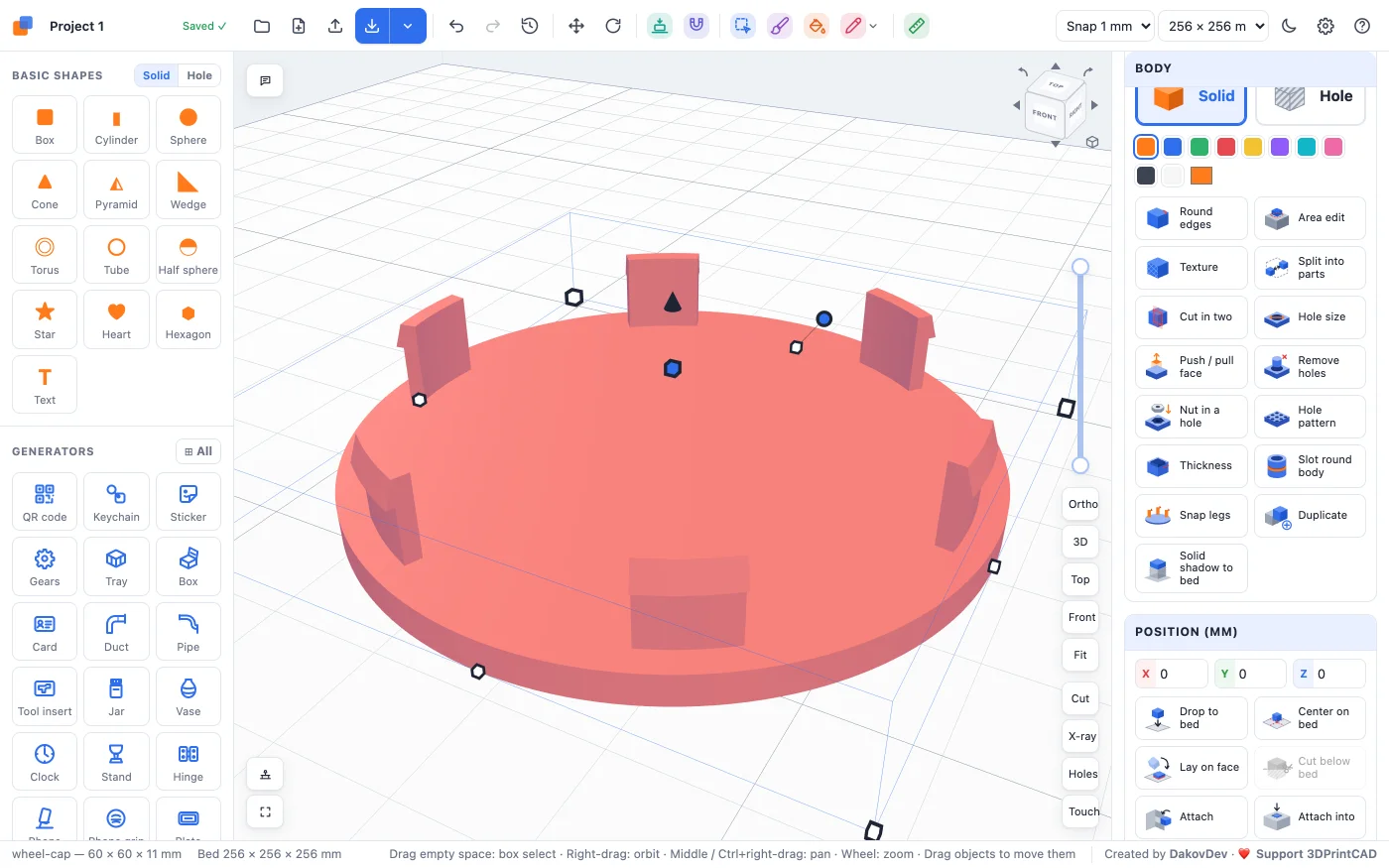
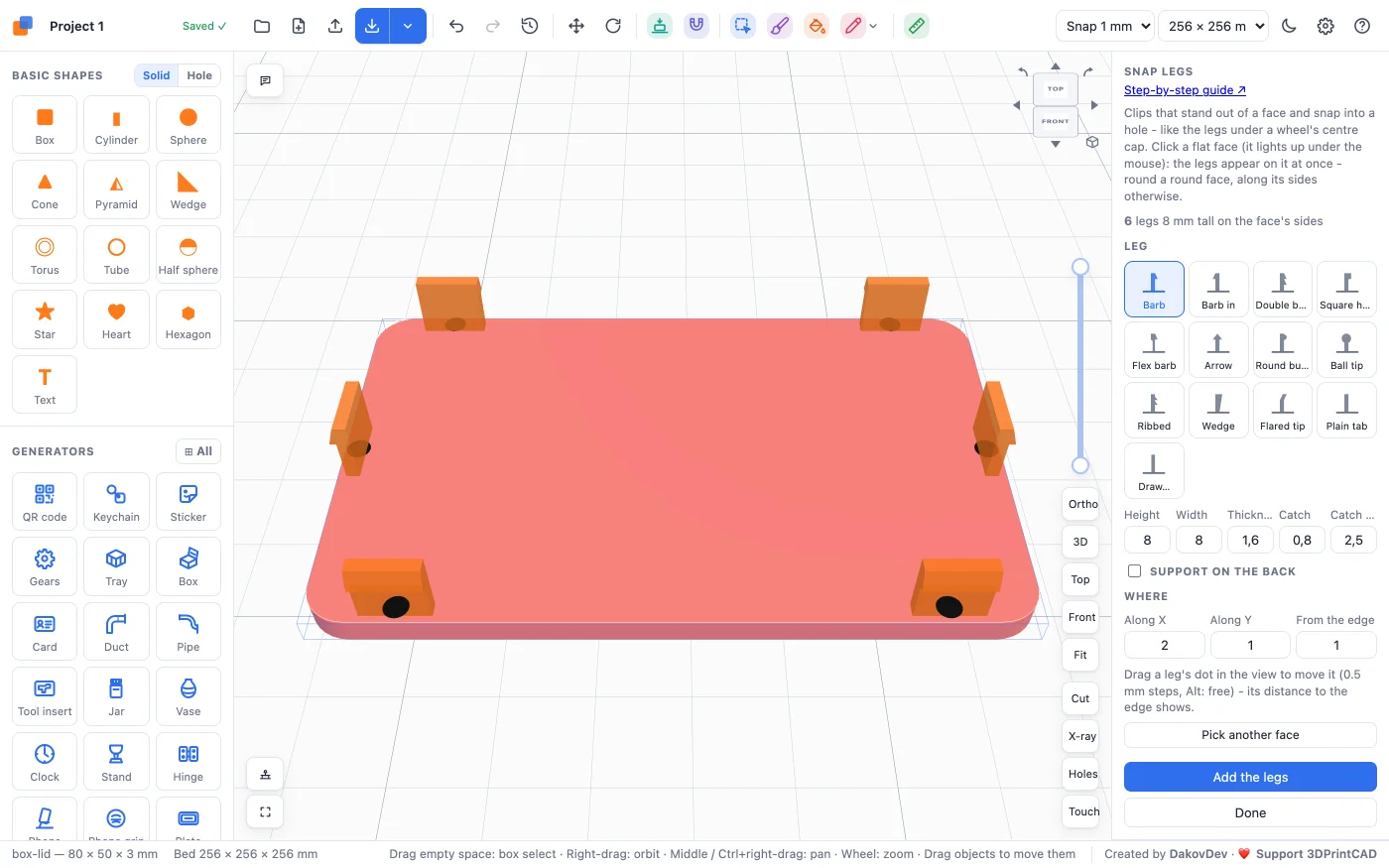
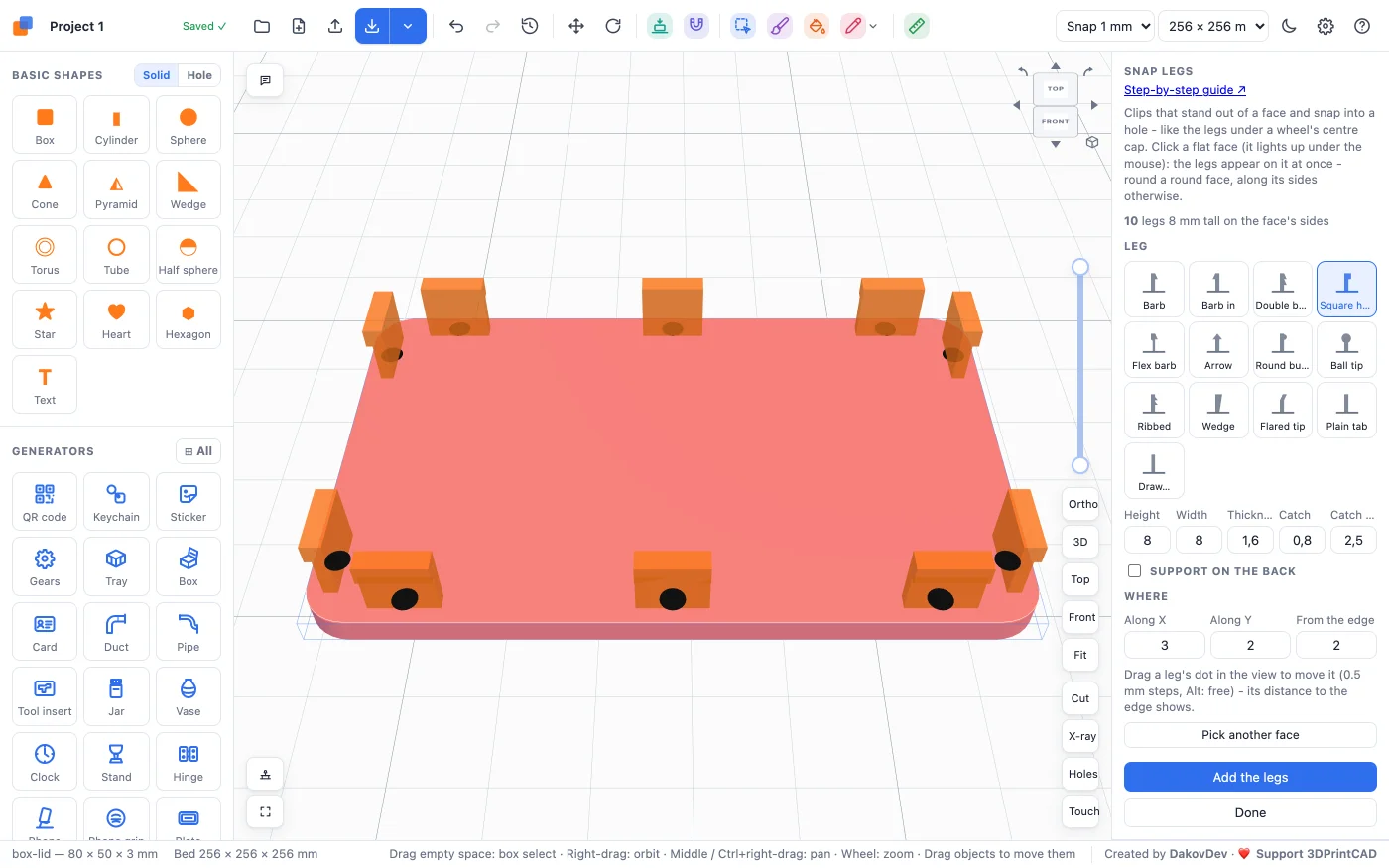
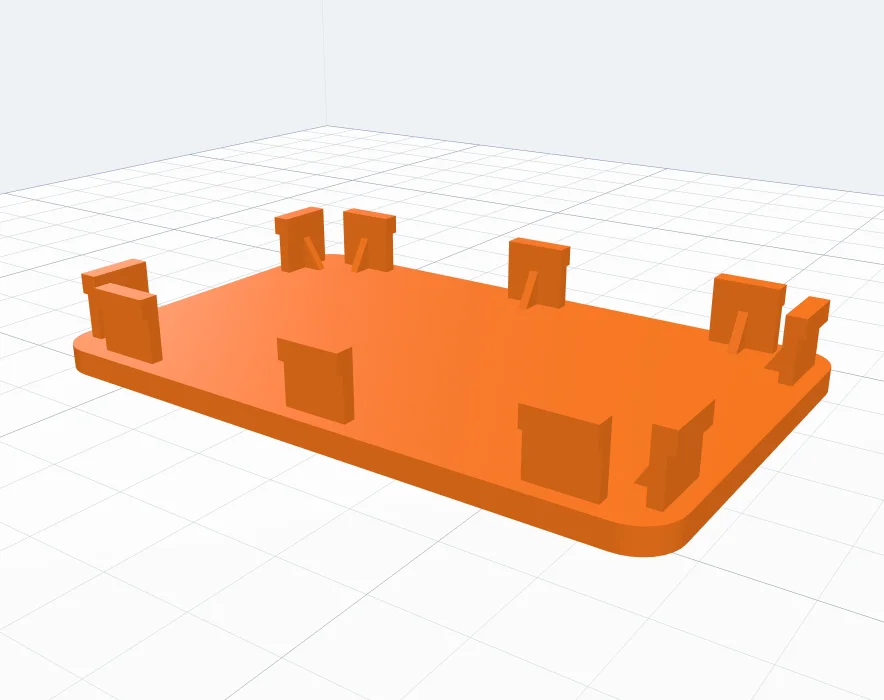
On a face that is not round the legs are straight and stand along its sides. Here a lid 80 × 50 × 3 mm with rounded corners:
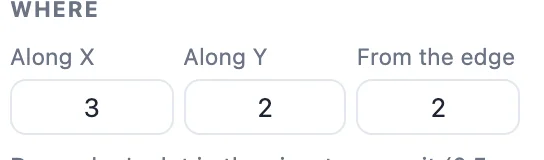
- Along X - legs on each of the two sides along X (front and back), spread over the side.
- Along Y - legs on each of the two sides along Y (left and right). 0 leaves those sides out.
- From the edge - the same as on a round face: the lid's rim that lies on the box.
10Tips for printing
- Print the part with the legs pointing up. The layers then run across the leg and it bends instead of splitting along a layer.
- PETG, ABS and ASA bend before they break and make the best clips. PLA is stiff - make its legs thinner or use Flex barb, and expect it to snap in once.
- Start with a catch of 0.6-1 mm and a leg 1.4-2 mm thick for a 0.4 mm nozzle; print one test leg before the whole part.
- Measure the hole and set From the edge so the legs' outer sides meet its wall - 0.1-0.2 mm inside it for an easier fit.
- Use Support on the back for tall legs, or when the part will be pulled out often.
Questions
How do I add snap-fit clips to a 3D model?
Select the body, click Snap legs in the Body card and click a flat face. The legs appear on it at once; choose a leg type, set the sizes and how many, and click Add the legs.
How do I make a wheel centre cap with clips?
Make or import the cap, click its back face with Snap legs. On a round face the legs go round the circle, each an arc of it. Set how many, how far in from the edge (so they sit in the wheel's hole) and the catch, then Add the legs.
Which leg type should I use?
Barb is the usual clip with a sloped catch that snaps behind the edge of a hole. Square hook holds harder, Flex barb bends more easily, Round bump and Ball tip snap in and out again, and Plain tab is a press fit or for glue. Draw… lets you draw your own.
What is the support on the back?
A small triangle from the face up the leg's inner side. It makes the leg stiffer where it meets the face, so it does not break off. Choose one in the middle or two at the leg's ends, and its height, reach and thickness.
Which material should snap legs be printed in?
PETG and ABS / ASA bend before they break and make the best clips; PLA works for clips that snap in once. Print the part with the legs pointing up, so the layers run across the leg and it bends without splitting.
Add snap legs to your part
Open the app, add a shape or import an STL, and click Snap legs in the Body card.
Open 3DPrintCADAlso see: Basic shapes and body tools, Hole pattern tool, Push / pull face tool, Remove holes tool, Box generator and Bolt generator.