3DPrintCAD › Guides › Push / pull face tool
Push / pull face tool: make part of a 3D model longer or shorter
Click a flat face and drag it out or push it in - that part of the body gets longer or shorter, and everything else stays as it is. A see-through block shows what is added or cut away before you let go, and you can type the exact length too. It works on shapes you made, joined bodies and imported STL files.
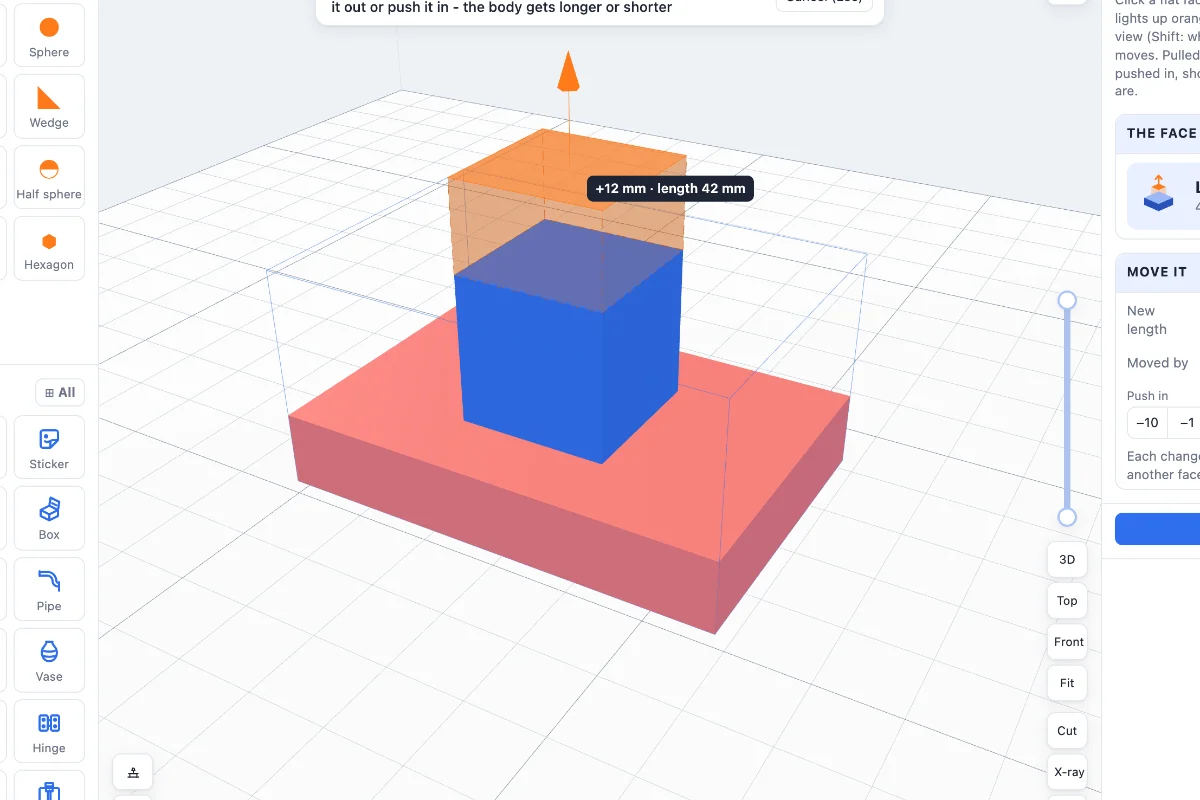
Watch the tutorial
The whole tool in under three minutes, with subtitles: dragging a face out and in, typing the length, any flat face, and a cylinder. Watch on YouTube ↗
1Open the tool and pick a face
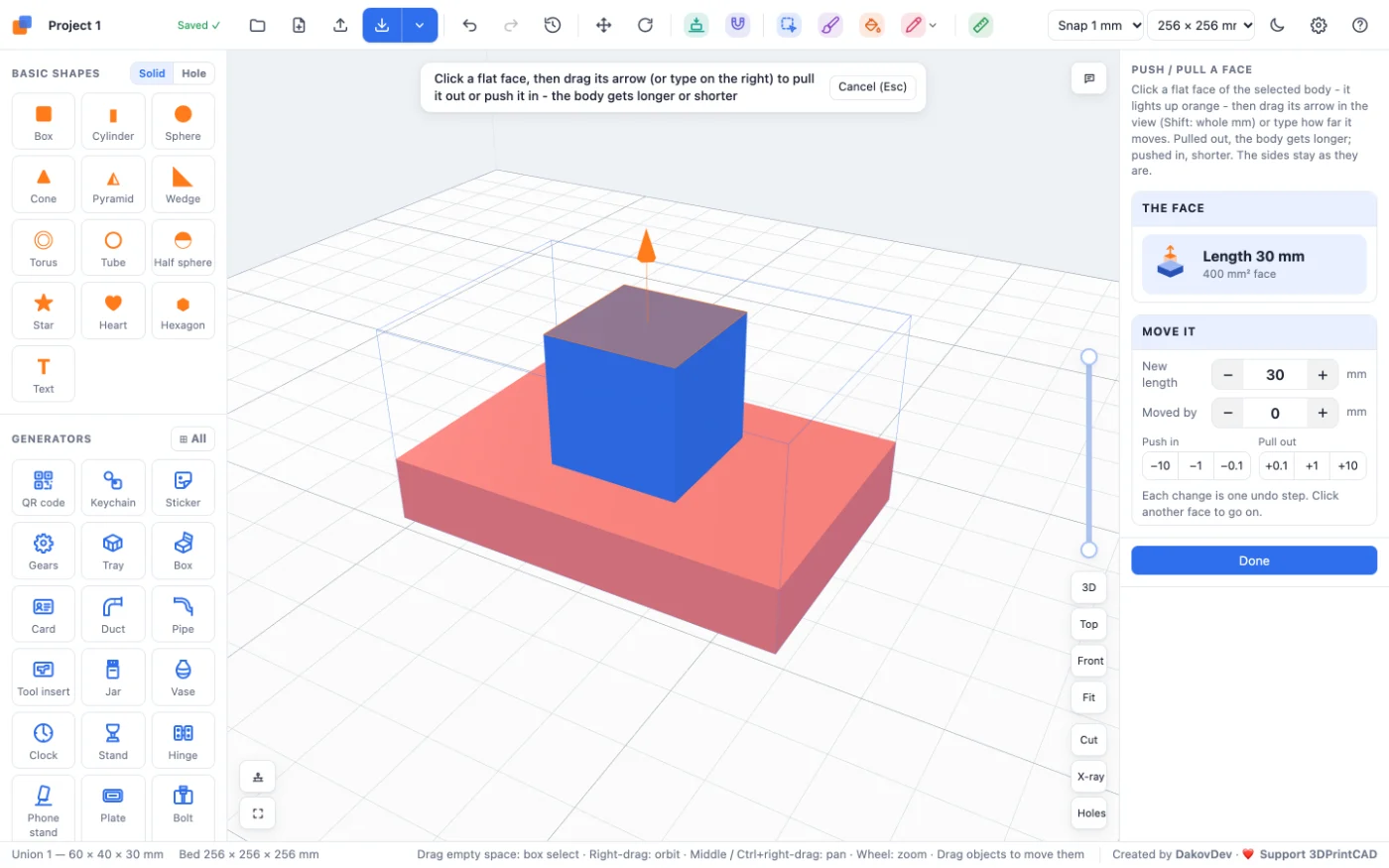
The example is a 60 × 40 × 10 mm plate with a 20 mm cube joined on it (two Boxes from Basic shapes, selected together, then Union).
- Select the body and click Push / pull face in the Body card (next to Hole size).
- Move the mouse over the body: the flat face under it lights up blue.
- Click a face - here the top of the cube. It turns orange, with an orange arrow pointing out of it. The panel shows the part's length there: 30 mm, straight through the cube and the plate.
2Drag it out or in
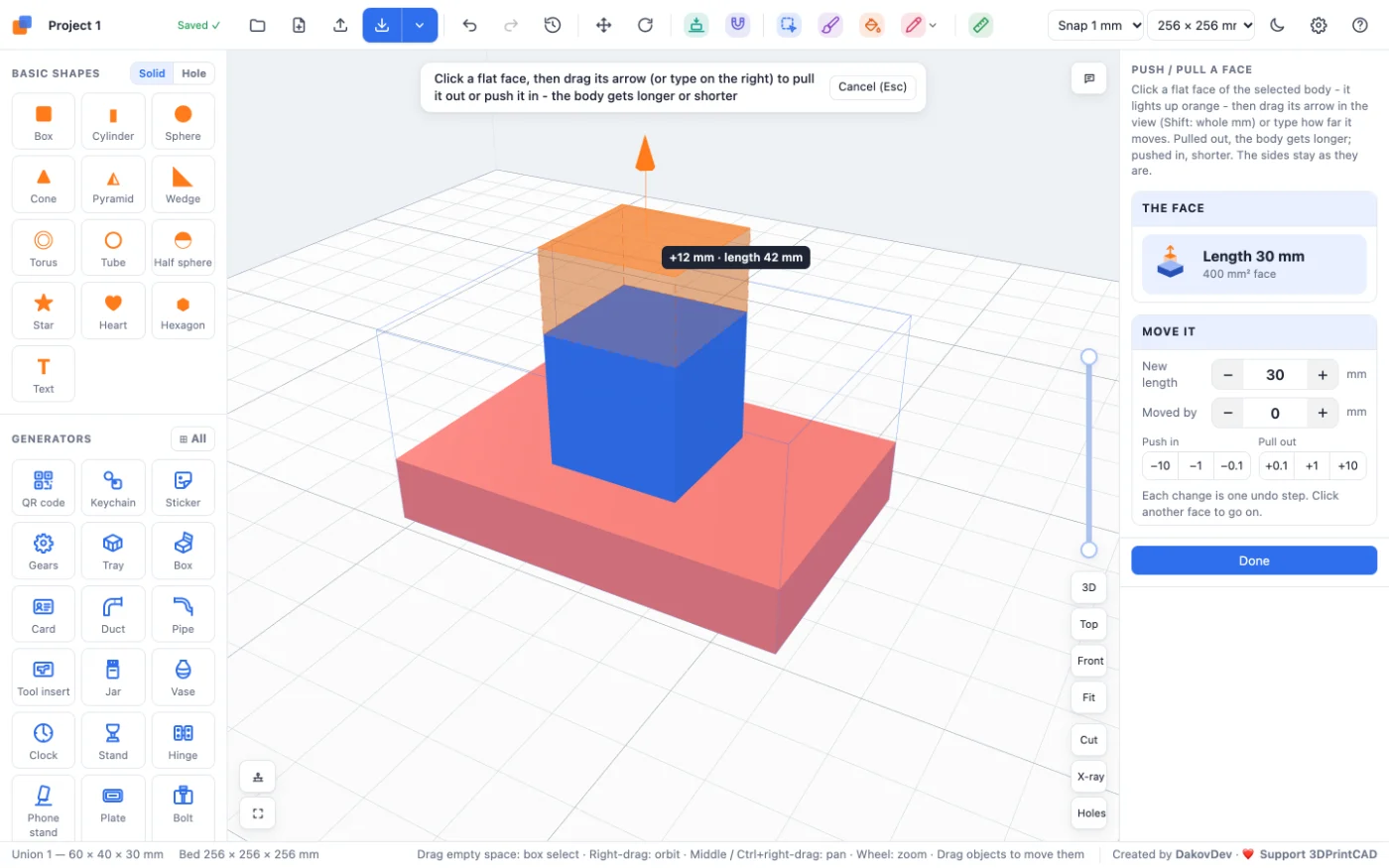
Drag the arrow (or the orange face itself). While you drag:
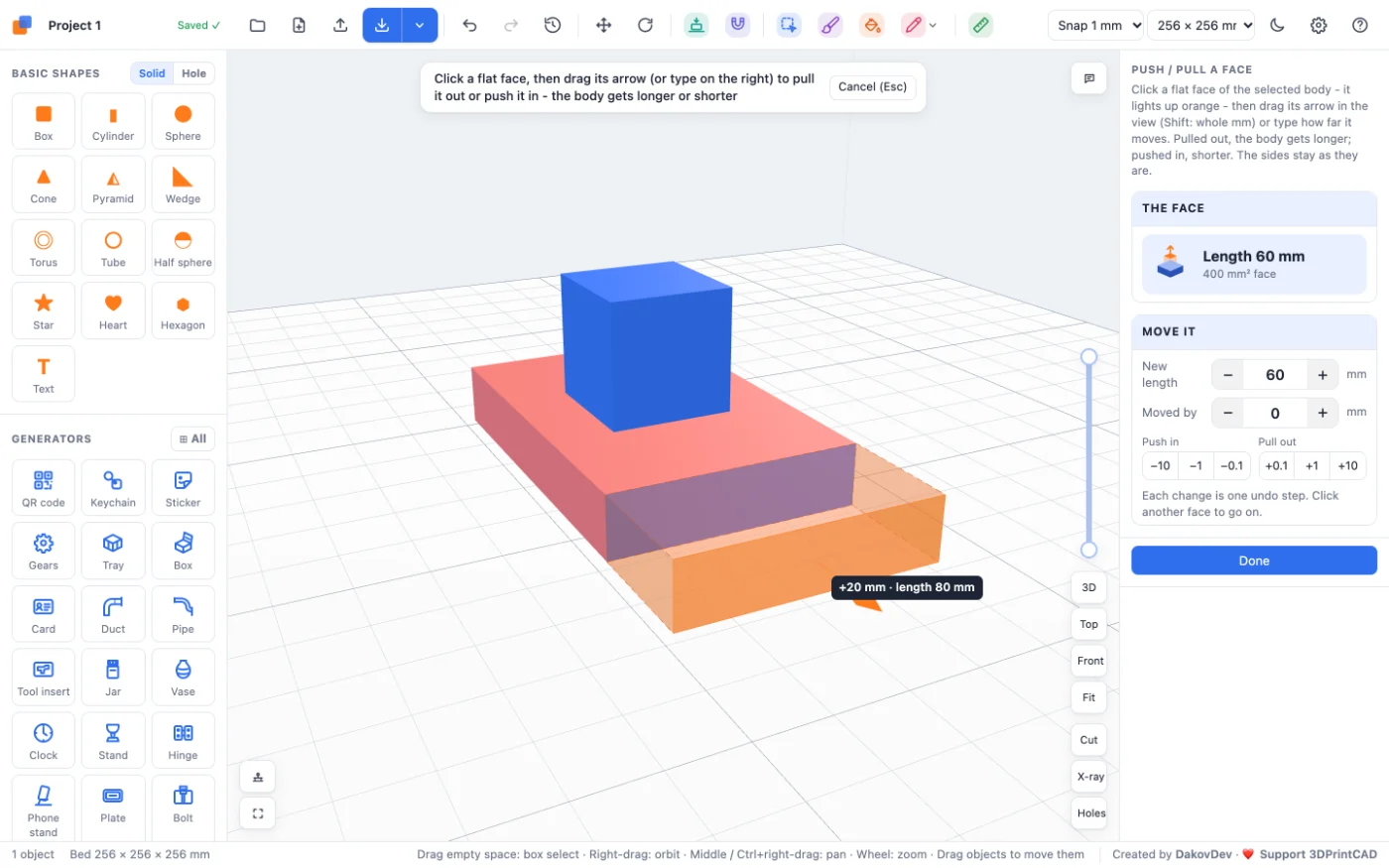
- Pulling out, an orange see-through block with dashed edges shows what will be added.
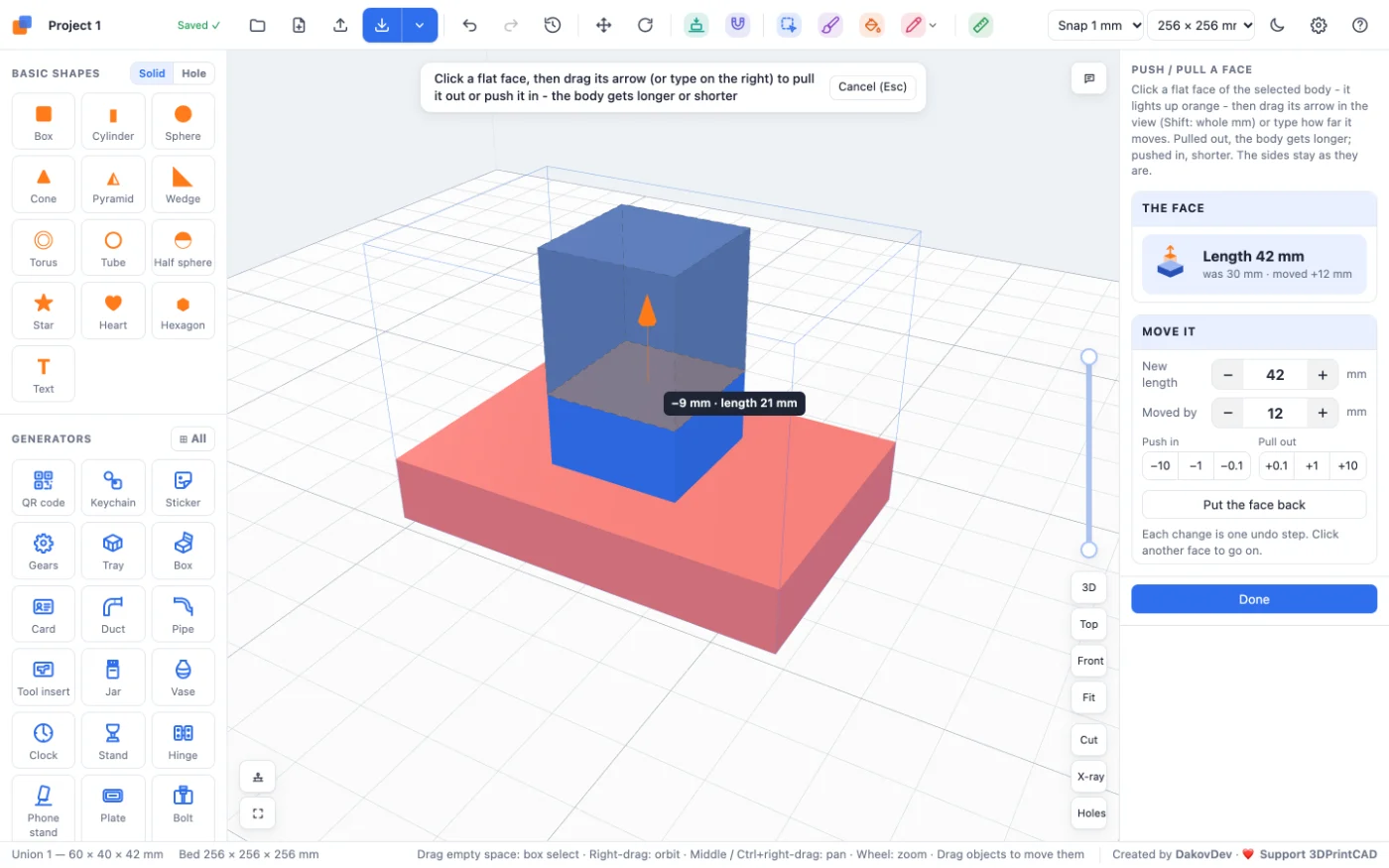
- Pushing in, a grey see-through block - like a hole body - shows what will be cut away. It shows through the body, so you see how deep it goes.
- A label beside the mouse gives the distance and the new length, e.g. +12 mm · length 42 mm.
- It moves in 0.1 mm steps; hold Shift for whole millimetres.
Let go and the body changes: the side walls simply get longer or shorter.
3Type the length
The panel does the same with numbers:
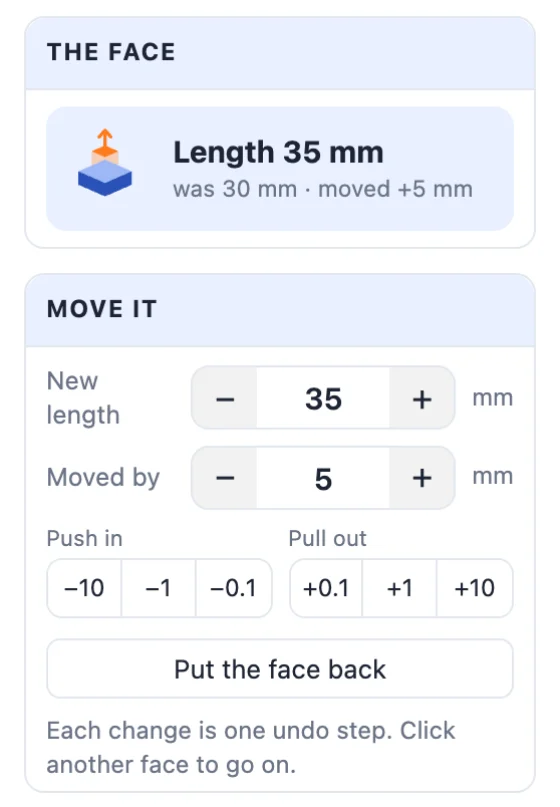
- New length - the part's length through the body from this face. Type 35 and the cube's top moves so the part is 35 mm long.
- Moved by - how far the face has moved from where it was when you clicked it: + out of the body, − into it.
- Push in −10 / −1 / −0.1 and Pull out +0.1 / +1 / +10 mm buttons.
- Put the face back - exactly as it was when you clicked it.
Every change is worked out from the body as it was when you picked the face, so many small steps never pile up rounding errors. Each one is a single undo step.
4Any flat face
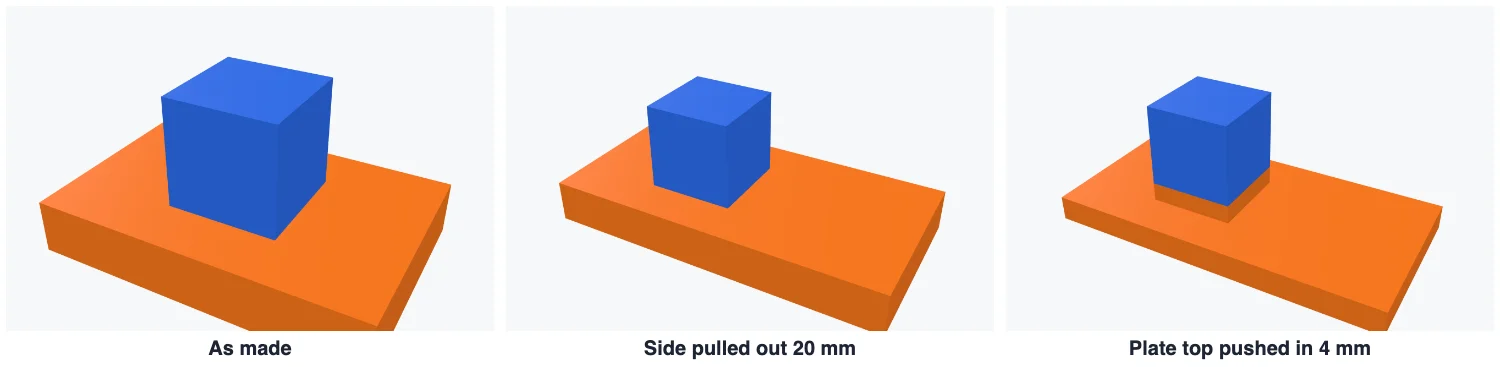
Click any other flat face to go on - a side, the bottom, a face inside a pocket. Here the plate's side is pulled out 20 mm (with Shift, in whole millimetres), then its top pushed in 4 mm.
Only the face you clicked moves. When the plate's top is pushed down, the material under the cube stays, so the cube keeps its place on a short column:
5Cylinders and round parts
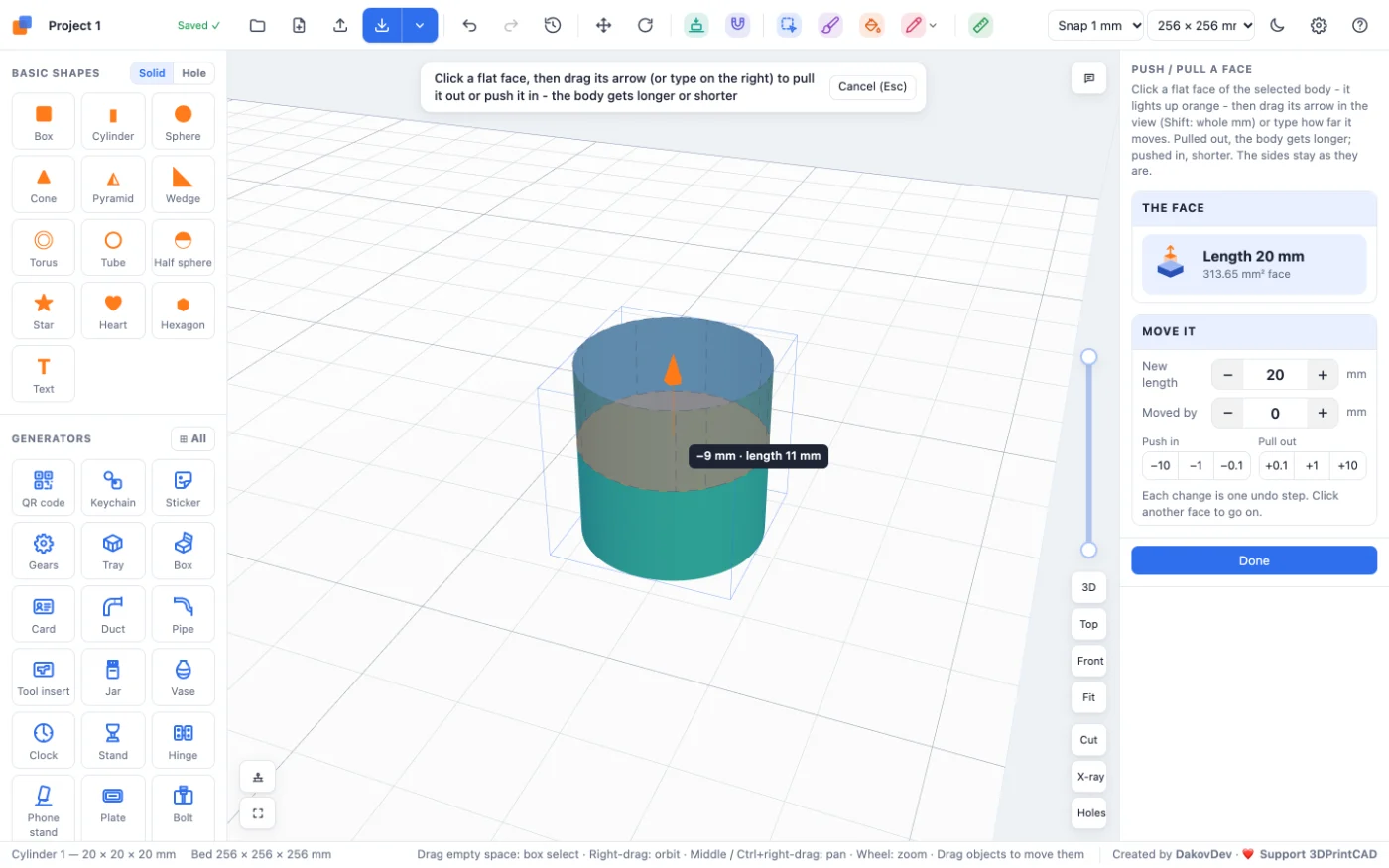
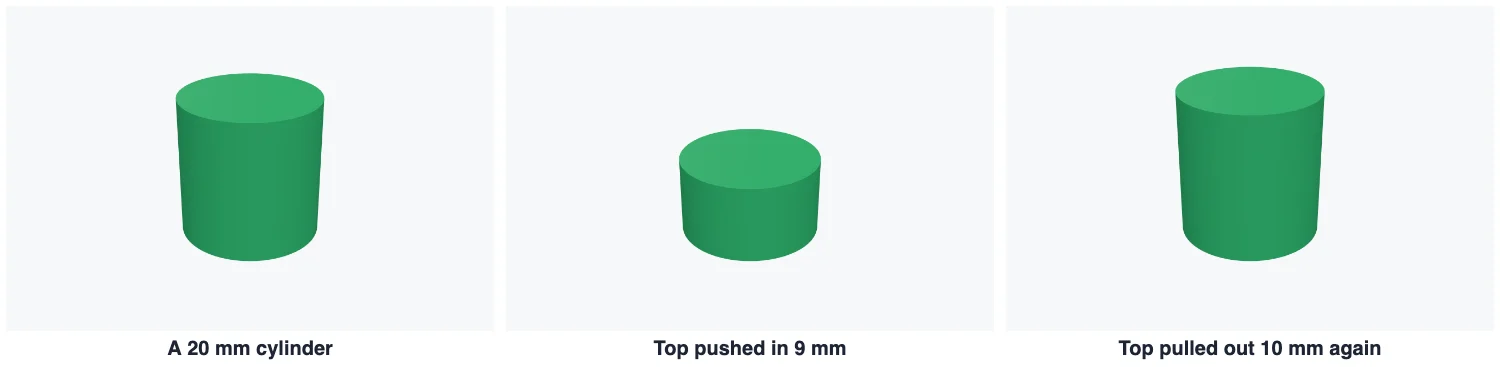
The flat ends of round parts work the same way: click the top of a cylinder and drag it down to make it shorter, or up to make it taller. Its round side is not a flat face - to make a round part thicker or a hole wider, use Hole size instead.
6Good to know
- A face pulled down past the bed (a bottom face) leaves the body below the bed: click Drop to bed in the Position card afterwards.
- A face can go in at most a little less than the part's length - further would cut the part away - and a step that would make the body fall apart is refused with a message.
- Painted colours are kept.
- On a box with rounded edges only the flat part of a face moves; the rounded band round it stays where it is.
- Ctrl+Z / ⌘Z undoes the last change (it also closes the tool - click the face again to go on).
Questions
How do I make one part of a 3D model longer?
Select the body, click Push / pull face in the Body card and click the flat face at the end of that part. Drag its arrow out, or type the new length on the right. The side walls get longer and the rest of the model stays as it is.
Does it work on STL files?
Yes. It works on any body: a basic shape, a joined body, a generator's result or an imported STL. The face only has to be flat.
What is the length shown in the panel?
The part's length measured straight through the body from the middle of the face you clicked. Type a new one and the face moves so the part gets that long.
Why is a column left standing when I push a face down?
Only the face you clicked moves. When something stands on that face, like a cube joined on a plate, the material under it stays, so the cube keeps its place.
How far can I push a face in?
Up to just short of the part's length. Pushing further would cut the part away, so the tool refuses it, and also any step that would make the body fall apart.
Change a size in one drag
Open the app, add a shape or import an STL, and click Push / pull face in the Body card.
Open 3DPrintCADAlso see: Basic shapes and body tools, Resize an STL file, Hole pattern tool and Sketch tool.