3DPrintCAD › Guides › Hole pattern tool
Hole pattern tool: honeycomb and holes on any surface
Cut a pattern of holes into any face of a model - flat, round or a ball. Honeycomb, circles, slots or your own shape, in a grid, rows, rings, a spiral or at random, on the whole face or only in a rectangle you drag. It makes boxes, baskets, pen holders and covers lighter, faster to print and better looking.
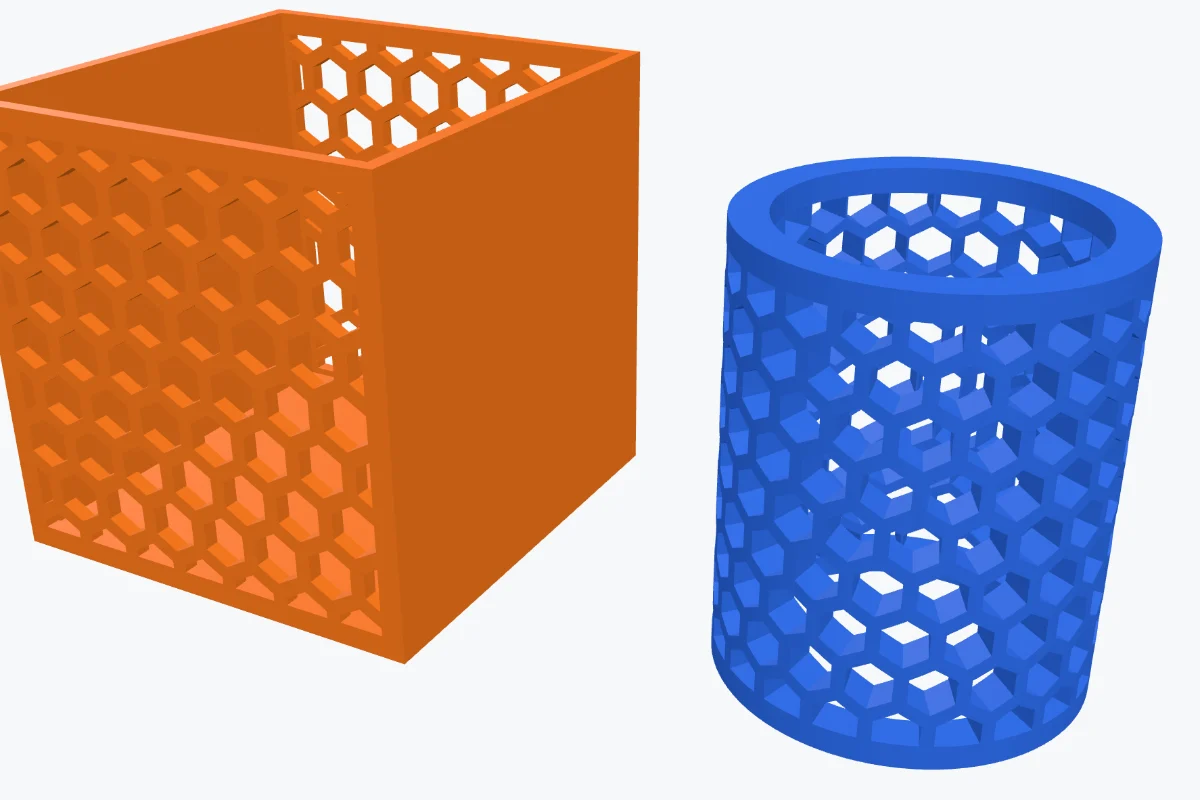
Watch the tutorial
Every option in about five minutes, with subtitles: a hollow box with Thickness, every hole shape, size and layout, a rectangle you drag and turn, an SVG heart, through both walls - and holes all the way round a tube. Watch on YouTube ↗
1Make a hollow box
The tool works on any body - a shape you made, a generator's result or an imported STL. For a basket, start with a box:
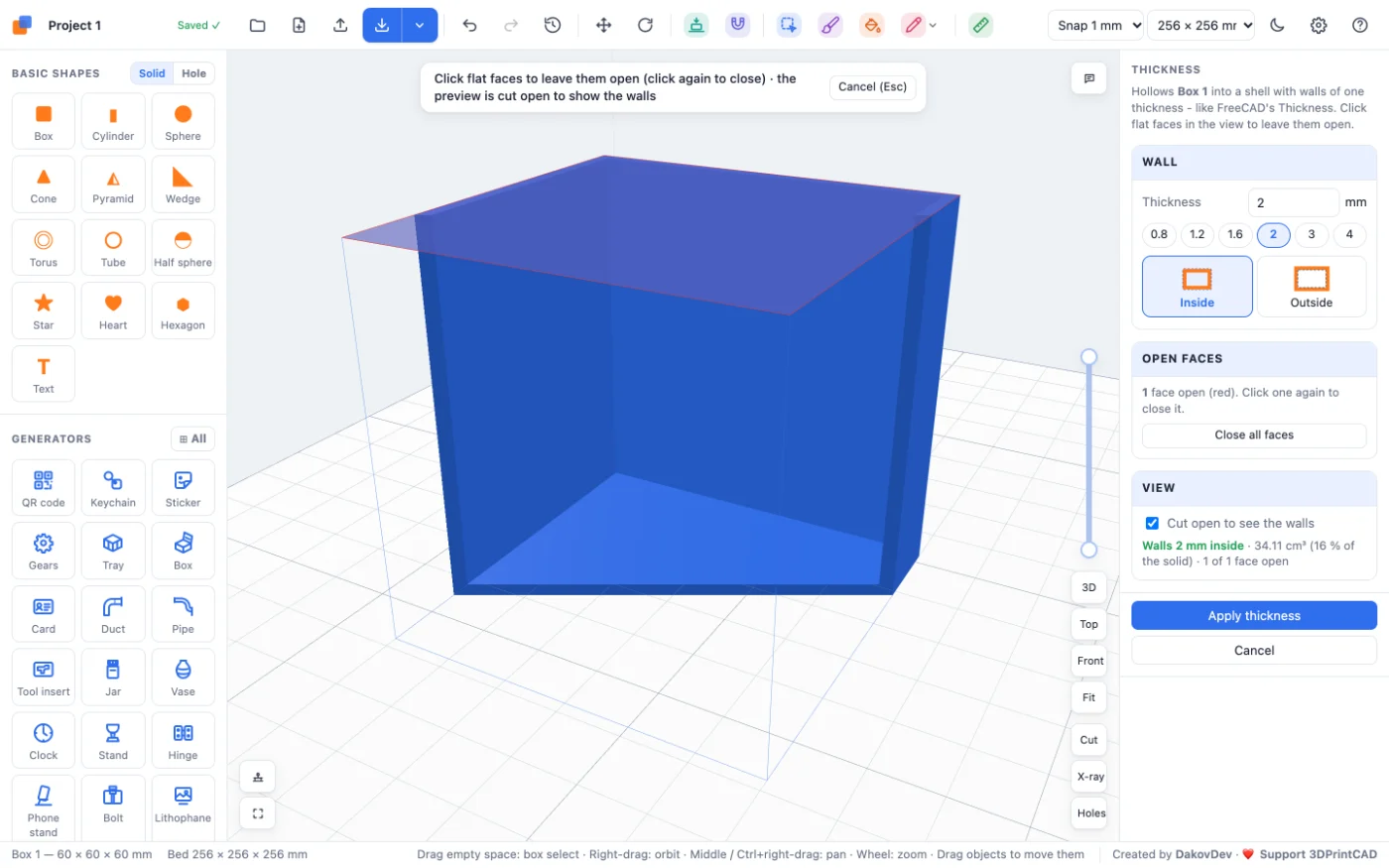
- Click Box in Basic shapes and click on the bed to put it down. In the Size card type 60 × 60 × 60 mm.
- Click Thickness in the Body card. Pick a wall of 2 mm and Inside (the wall grows inward, so the outside size stays) - or Outside, where the box's shape becomes the hollow.
- Click the top face to leave it open (it turns red). Tick Cut open to see the walls to look inside.
- Click Apply thickness: an open box with 2 mm walls.
2Open Hole pattern and pick a face
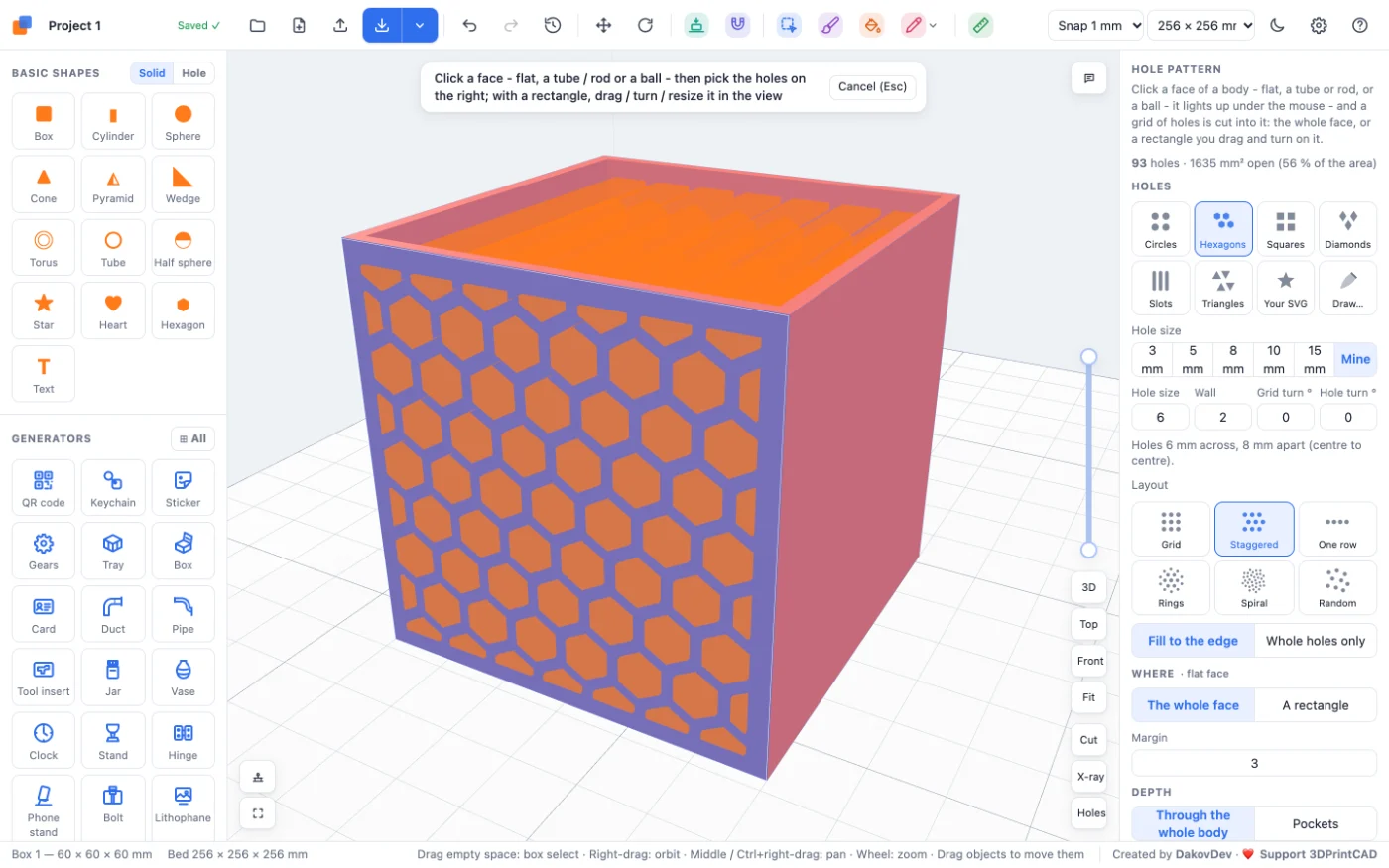
Select the body and click Hole pattern in the Body card. Move the mouse over the body: the face under it lights up. Click a face and the holes appear on it in orange - a preview that follows every setting at once. Nothing is cut until you click Cut the holes; then the tool closes and the body stays selected. Click Hole pattern again for the next face.
3Hole shapes and size
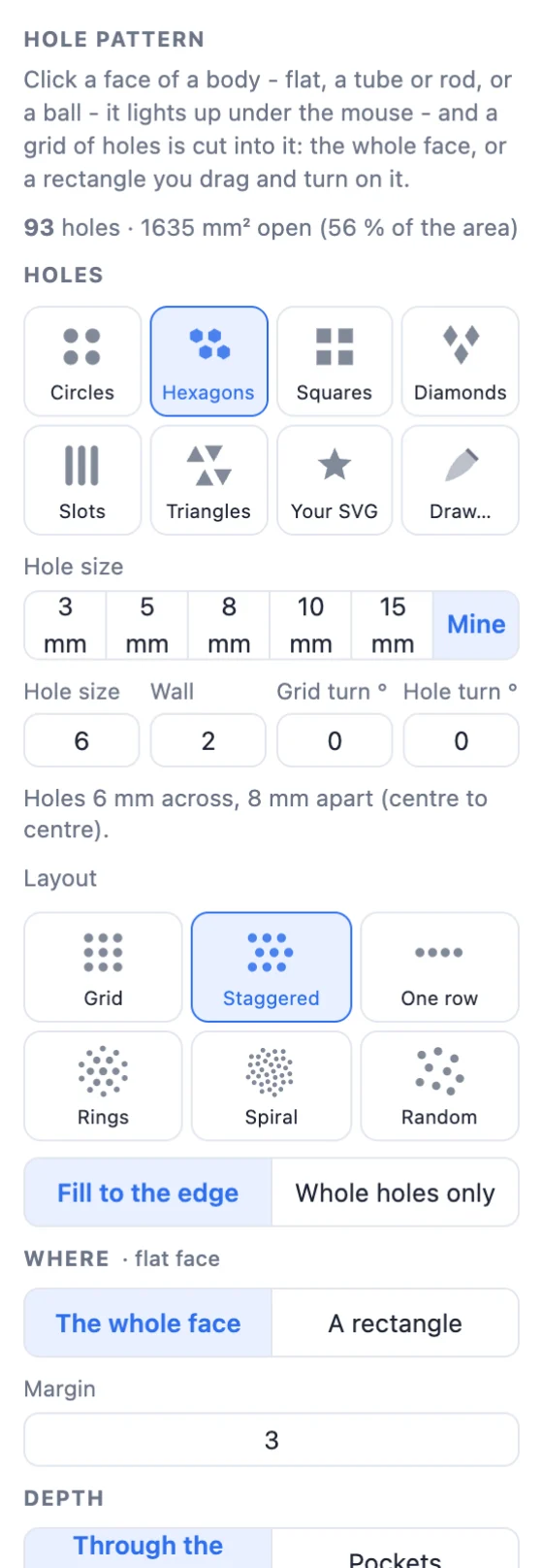
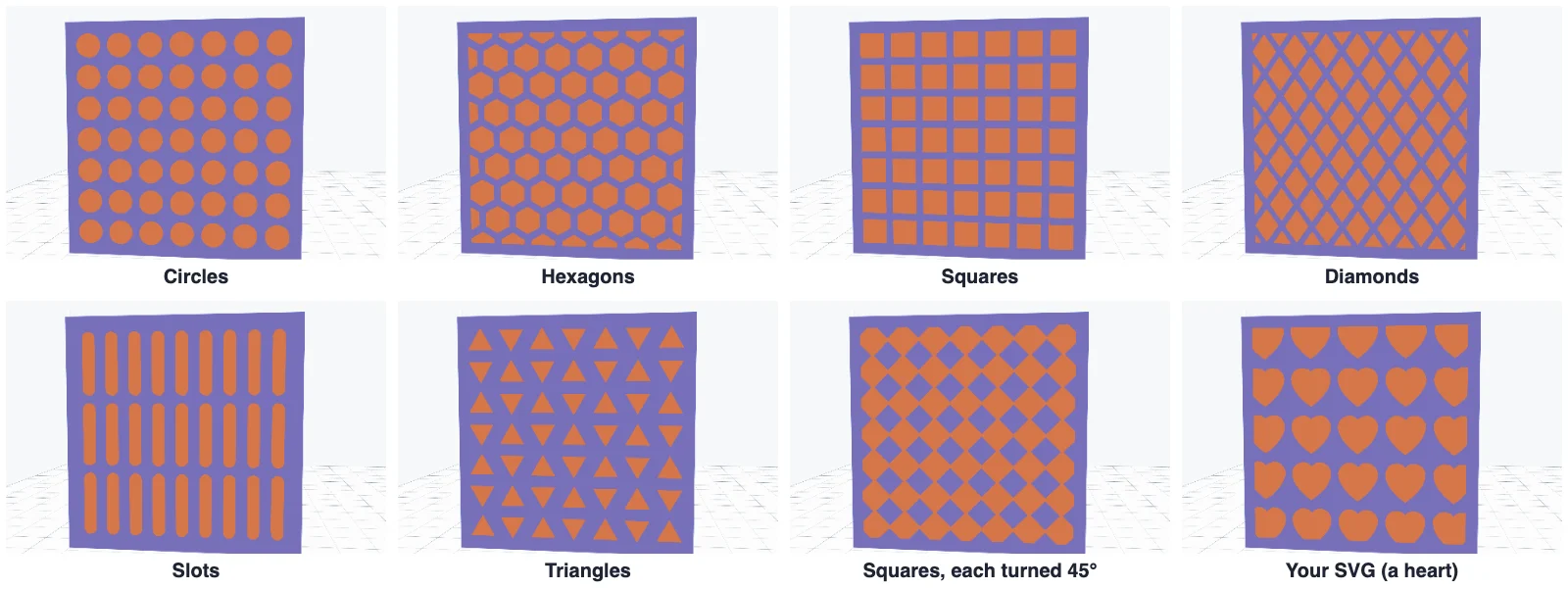
- Circles, Hexagons, Squares, Diamonds, Slots, Triangles - the built-in holes.
- Your SVG loads an SVG file (a heart, a star, a logo); Draw… opens the sketch editor to draw the hole yourself. Either is scaled so its larger side is the hole size.
- Hole size: quick chips 3, 5, 8, 10 and 15 mm, or Mine - type any size.
- Wall is the bar between two holes. Changing it keeps the holes the same size; only the spacing changes. The line under the fields gives both: "Holes 6 mm across, 8 mm apart (centre to centre)".
- Grid turn turns the whole pattern; Hole turn turns every hole on its own.
4Layouts
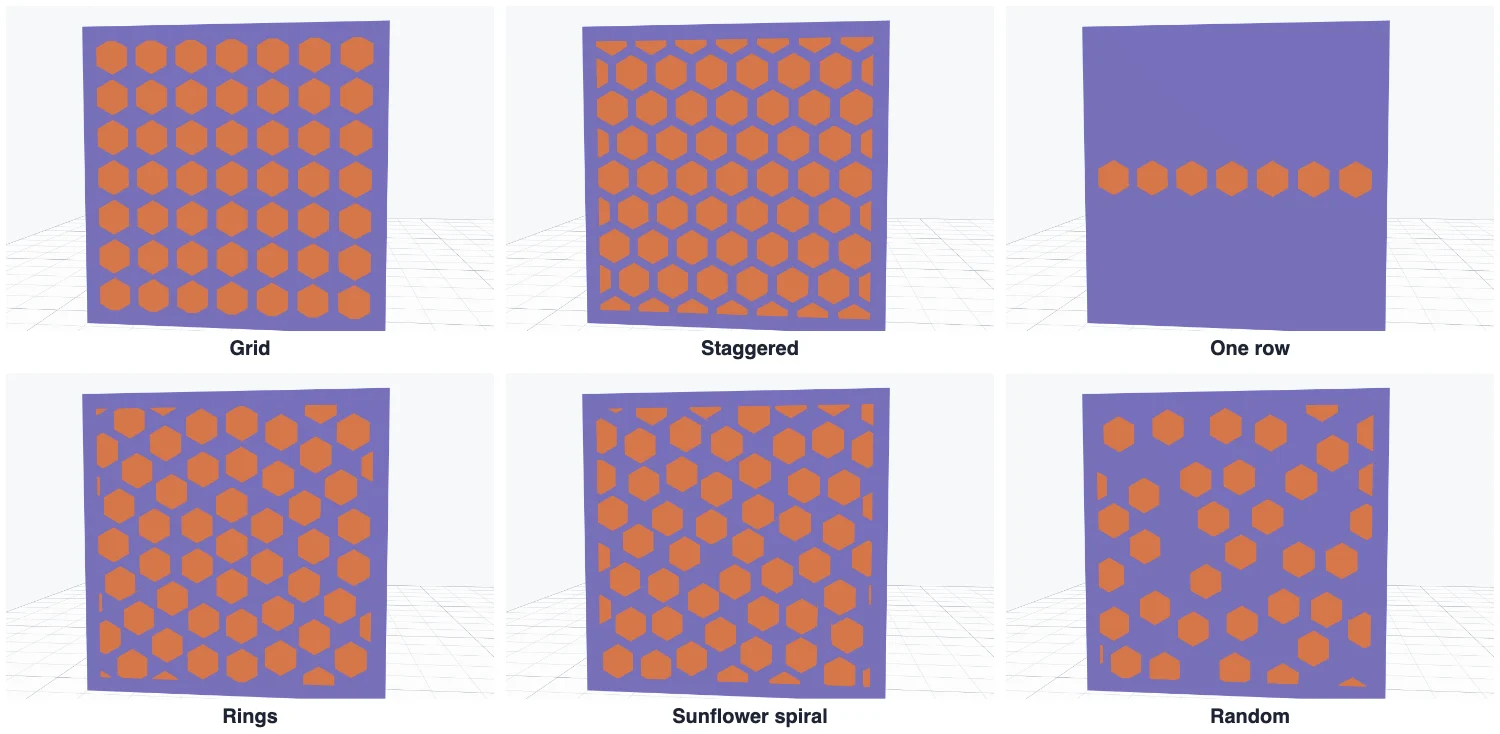
- Grid - rows and columns.
- Staggered - every other row moved half a step: the honeycomb look (hexagons and diamonds start with it).
- One row - a single line across the middle.
- Rings - circles of holes round the middle.
- Spiral - a sunflower spiral, evenly spread.
- Random - scattered, never closer than a step; Shuffle deals again.
5Fill, margin and turning
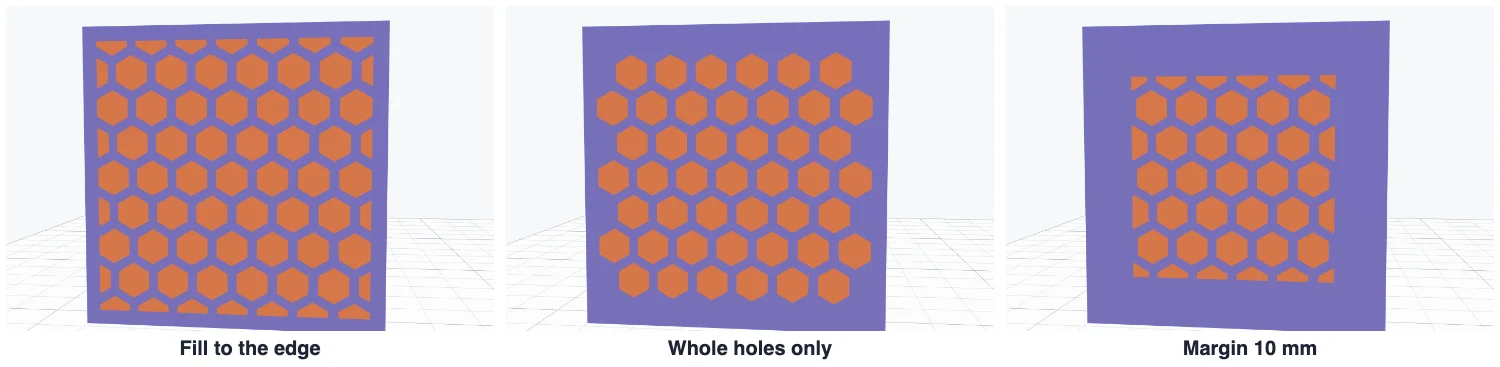
Fill to the edge fills the face and cuts the holes off at its border - a full pattern inside a frame. Whole holes only keeps just the holes that fit completely. Margin is the solid border kept round the face's edges (3 mm to start with).
6Only part of the face: a rectangle
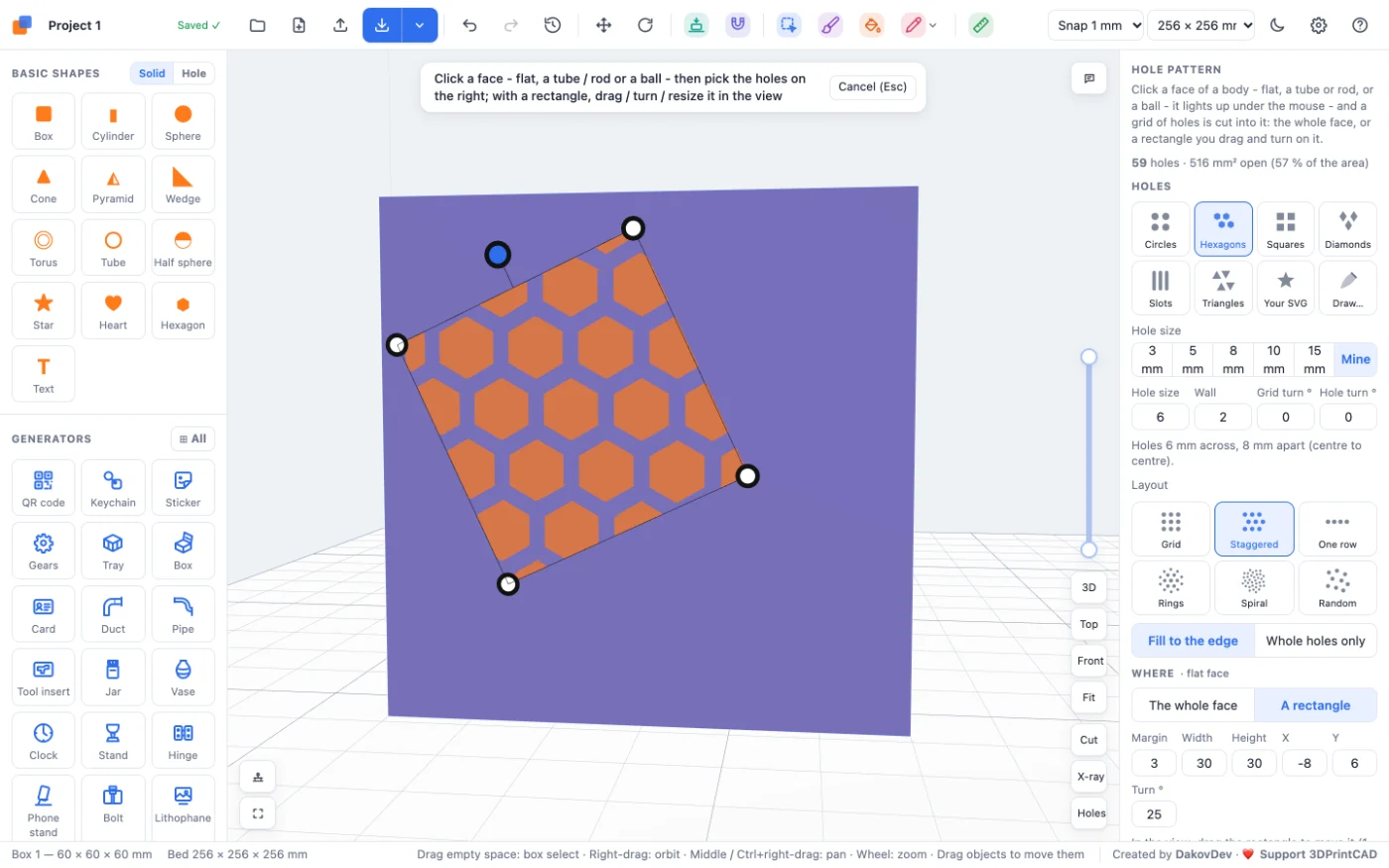
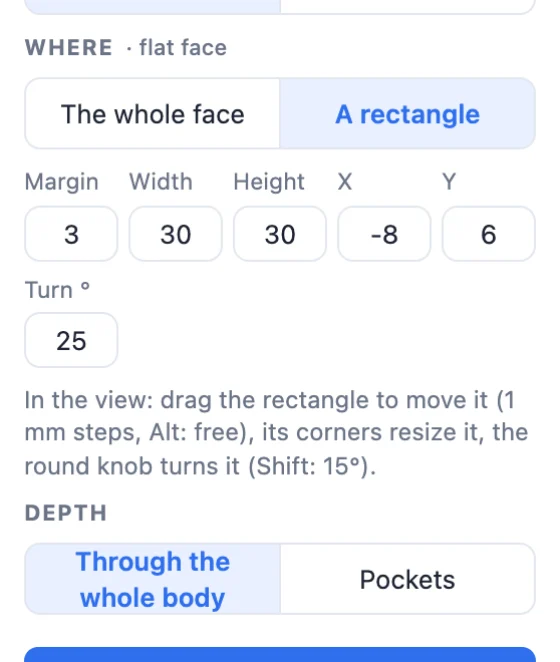
Choose A rectangle under Where. The pattern is cut only inside it, and you edit it right in the view:
- Drag inside it to move it (1 mm steps; hold Alt to move freely).
- Drag a corner to resize it.
- Drag the round knob to turn it (Shift: 15° steps).
- Or type Width, Height, X, Y and Turn in the panel.
7Pockets or through the whole body
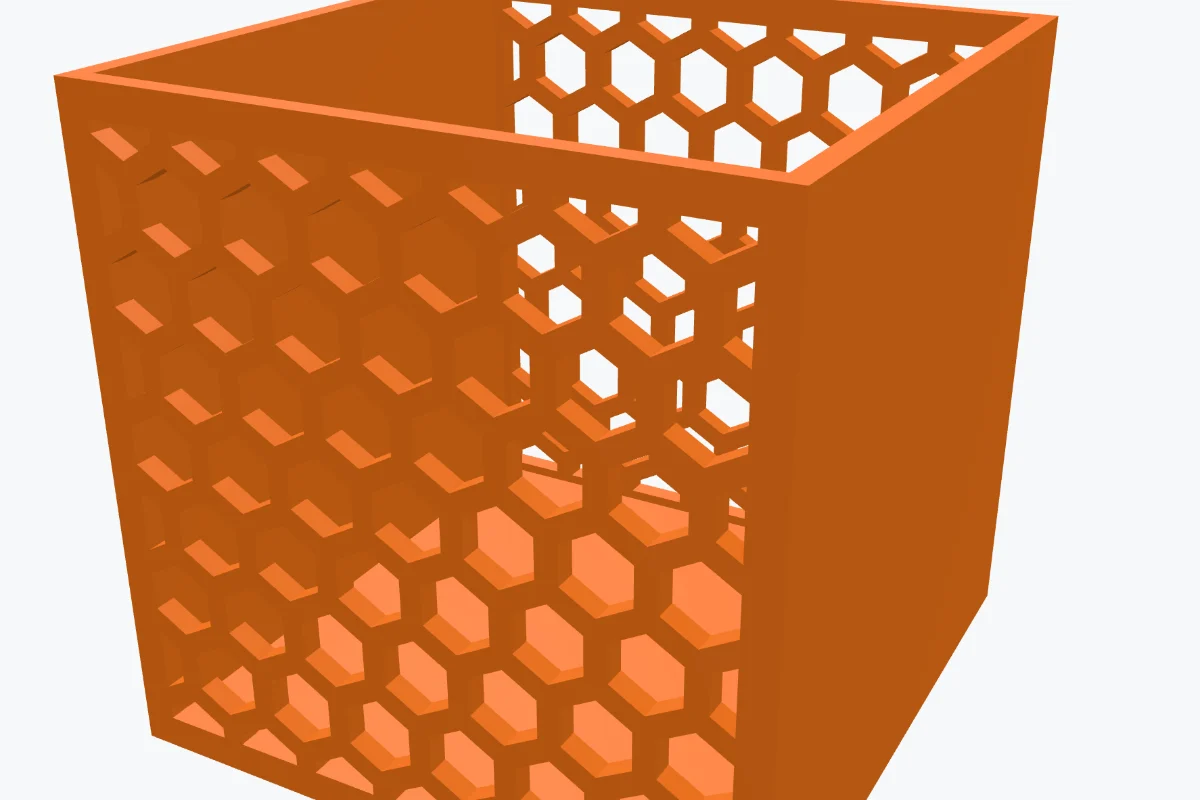
Through the whole body sends every hole right through the body along the face's direction - on the hollow box, the holes in the front wall go through the back wall too. Pockets cuts only as deep as you set (Depth), for a textured surface that stays closed.
8Tubes, rods and balls
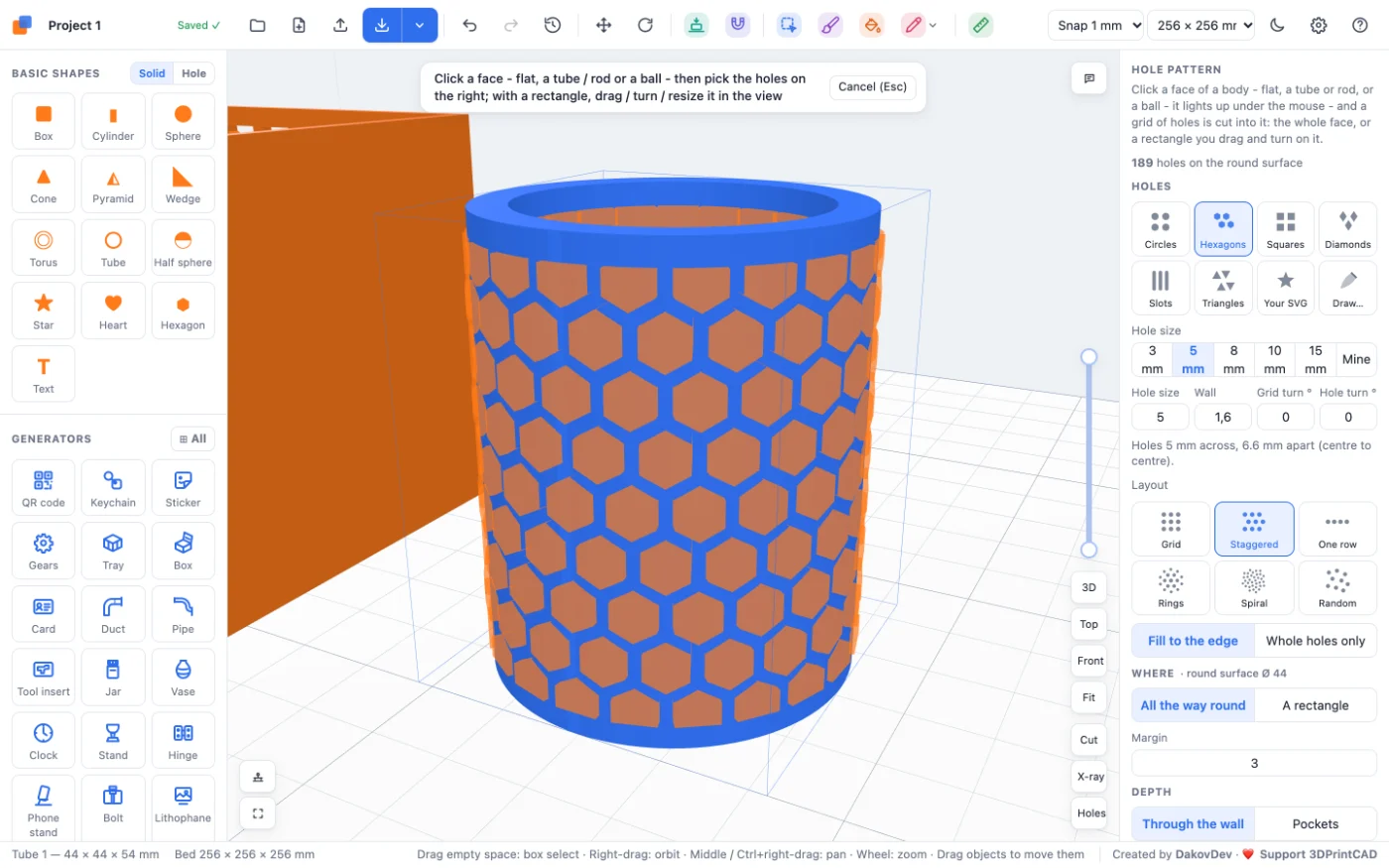
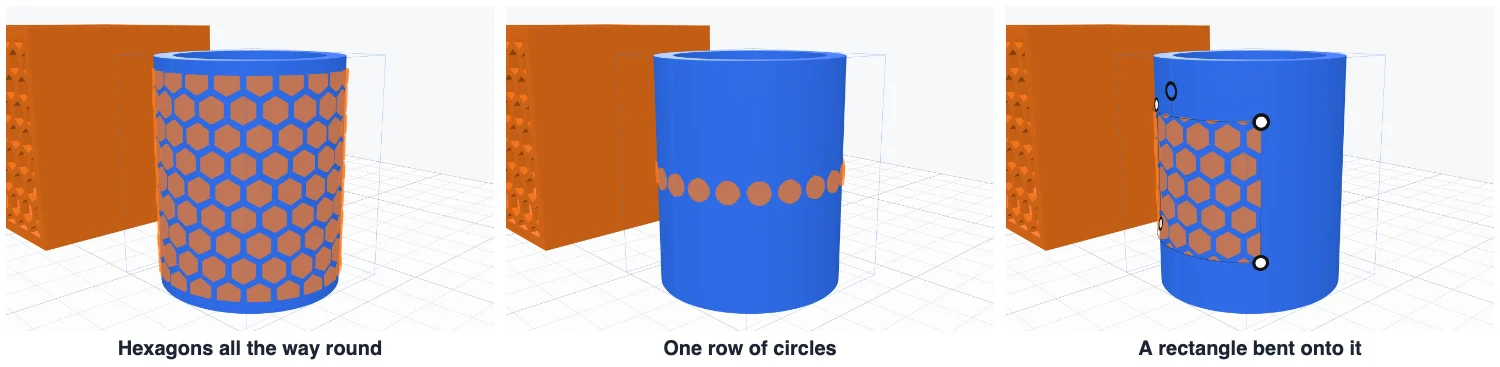
Add a Tube (here 44 × 44 × 54 mm), open Hole pattern and click its round side. The tool finds the round surface and the holes go all the way round it, between its ends minus the margin - Grid, Staggered and One row work there. A rectangle is bent onto the surface and dragged along it. Through the wall cuts to the axis (only this wall), or choose Pockets.
On a ball, the holes are laid in rings round the point you click, out to the angle you set (Out to °, 180 = the whole ball) - or as a spiral or at random.
9Tips for printing
- Keep the wall between holes at least 2-3 line widths (1.2-1.6 mm for a 0.4 mm nozzle).
- In upright walls, hexagons and diamonds have a pointed top, so they print without supports or bridging; circles and squares bridge their top - fine when they are small.
- When holes turned on their own run into each other, the panel warns you - the part could fall apart.
- Every cut is one undo step (Ctrl+Z / ⌘Z).
Questions
How do I make a honeycomb pattern on a 3D model?
Select the body, click Hole pattern in the Body card and click a face. Choose Hexagons and the Staggered layout, set the hole size and the wall between the holes, and click Cut the holes.
Does it work on round surfaces?
Yes. Click the round side of a tube or rod and the holes go all the way round it; click a ball and they are laid in rings round the point you clicked. A rectangle can also be bent onto the surface.
What does Through the whole body do?
Every hole goes right through the body along the face's direction, so on a hollow box the holes in the front wall continue through the back wall too. Pockets cuts only as deep as you set.
Can I use my own hole shape?
Yes. Choose Your SVG to load an SVG file, or Draw… to draw the shape in the sketch editor. It is scaled so its larger side is the hole size.
Why does a part fall apart after cutting?
When the holes are turned on their own or the wall is very thin, neighbouring holes can run into each other. The panel warns when that happens: make the wall wider, the holes smaller or turn them back.
Add a pattern to your model
Open the app, add a shape or import an STL, and click Hole pattern in the Body card.
Open 3DPrintCADAlso see: Basic shapes and body tools, Box generator, Tray generator, Vase generator, Sculpt tool and Paint tool.