3DPrintCAD › Guides › Vase generator
Vase generator: shapes, patterns and spiral vase mode
Make a vase or a plant pot in a minute: pick a shape and pull it into the outline you want, add a spiral, ribbed, diamond or petal pattern, and print it hollow - or solid, for your slicer's spiral vase mode. Everything happens in your browser and the vase is ready for the slicer.
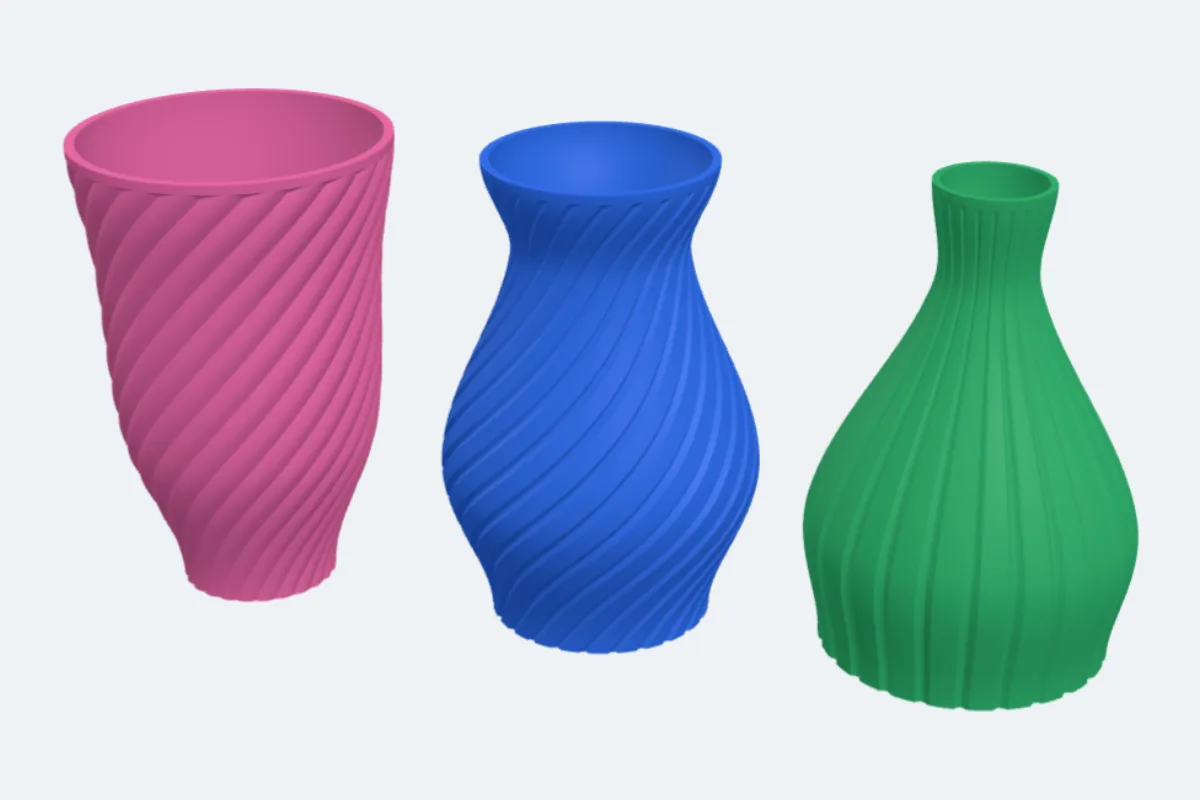
Watch the tutorial
The whole generator in under two minutes, with subtitles: shapes, the outline sliders, patterns, hollow or vase mode. Watch on YouTube ↗
1Open the vase generator
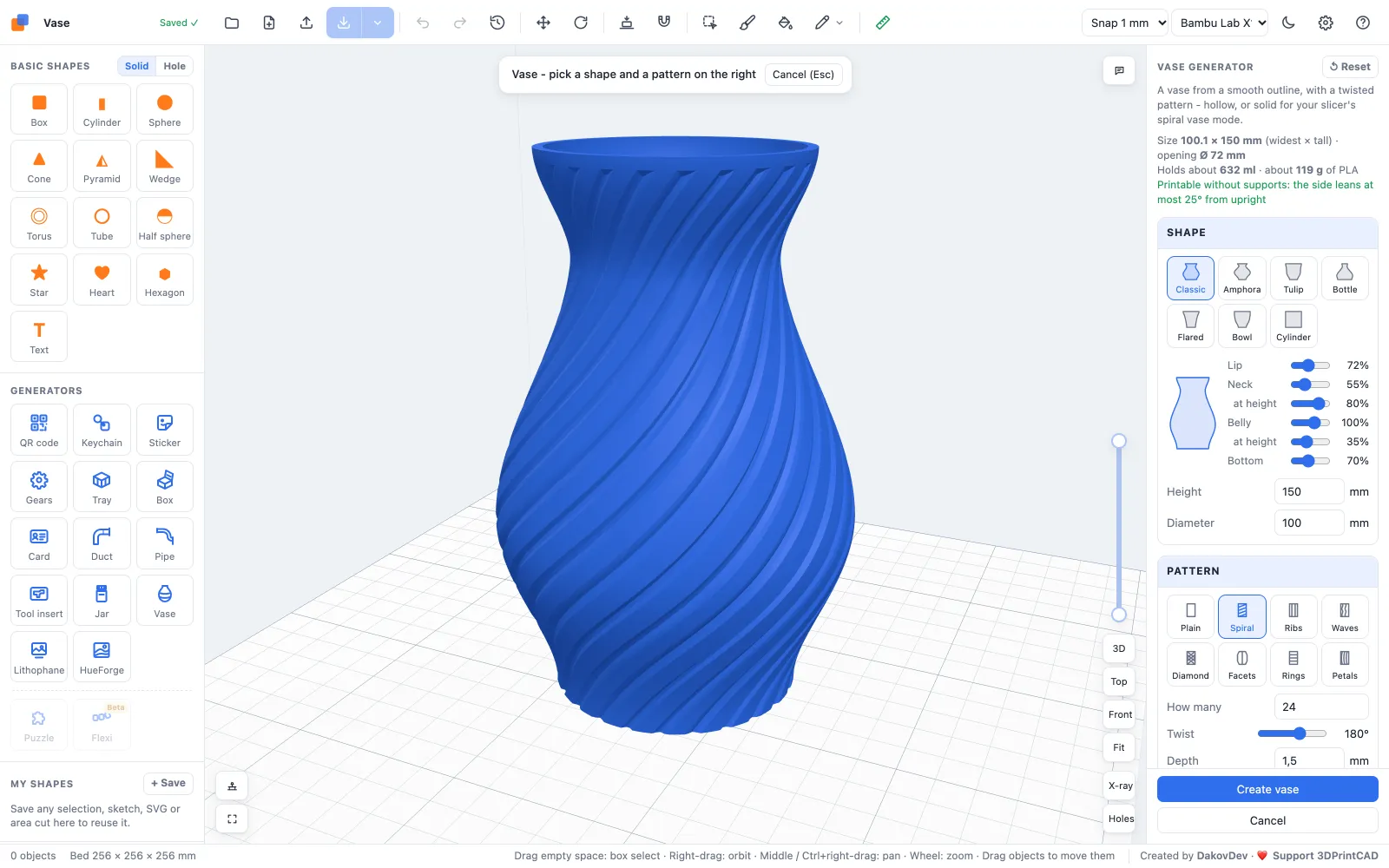
Open the app and click Vase under Generators on the left (or use this link). A classic vase with a spiral pattern appears. Every setting on the right updates the preview, and the lines at the top give its size, the opening, how much it holds, the plastic it takes and how far its side leans - so you know it prints without supports.
2Shape
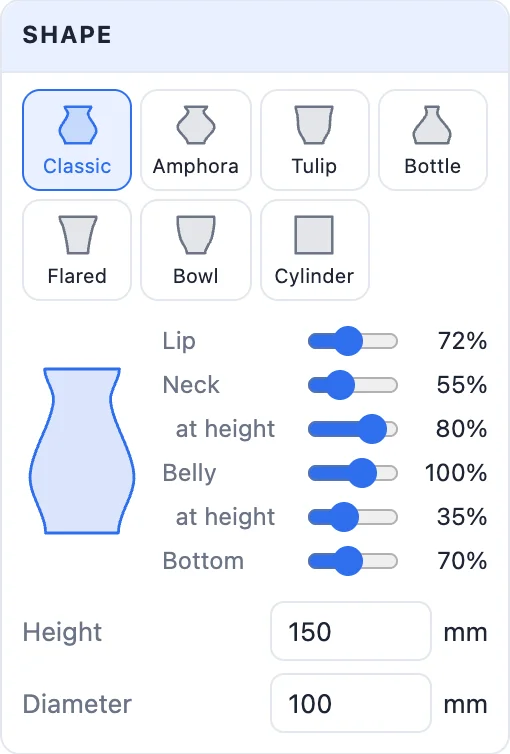
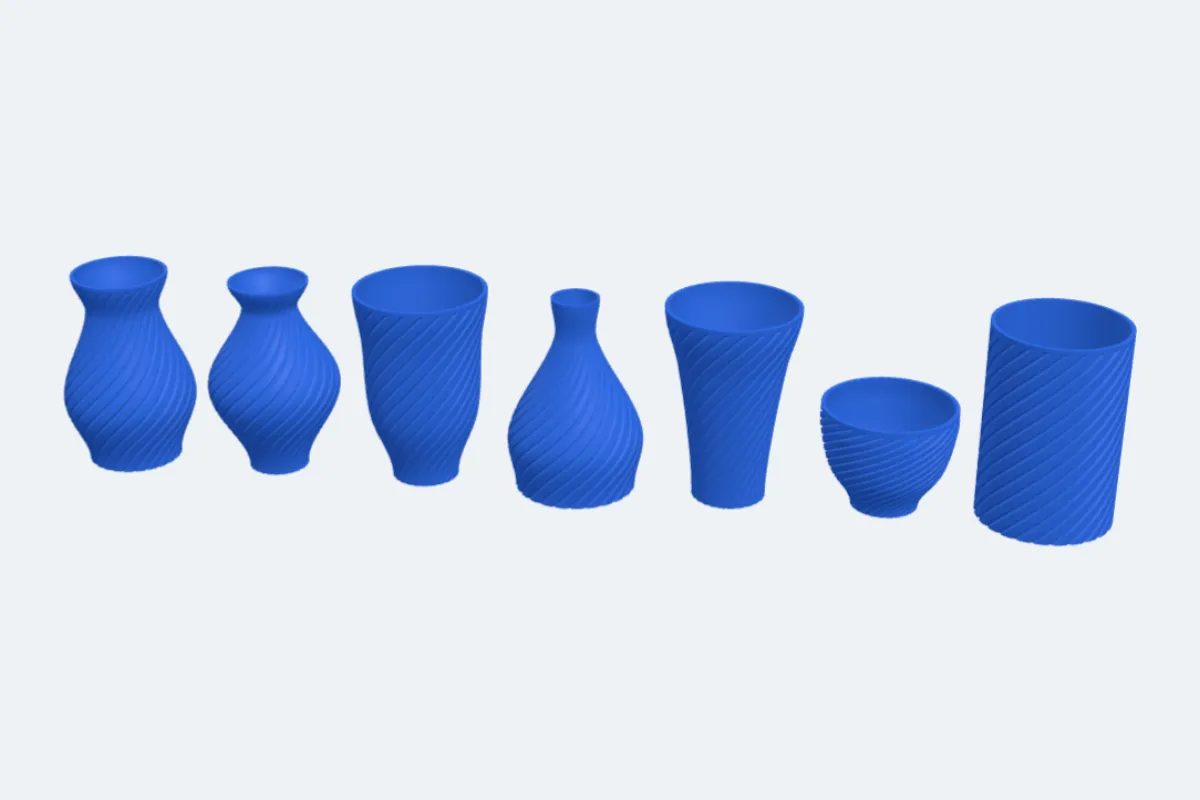
Start from a shape: Classic, Amphora, Tulip, Bottle, Flared, Bowl or Cylinder. Then shape it with the sliders - each is a share of the diameter, and the outline beside them follows as you drag:
- Bottom - the width at the foot.
- Belly and its height - the widest point.
- Neck and its height - the narrowest point near the top.
- Lip - the width at the opening.
- Height and Diameter in mm.
3Pattern
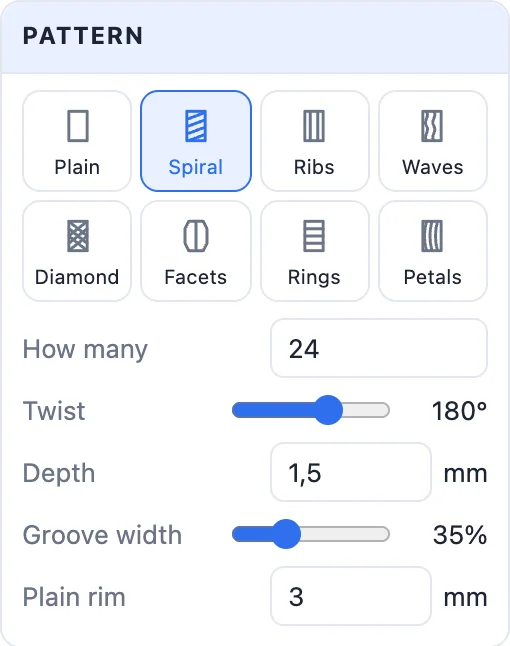
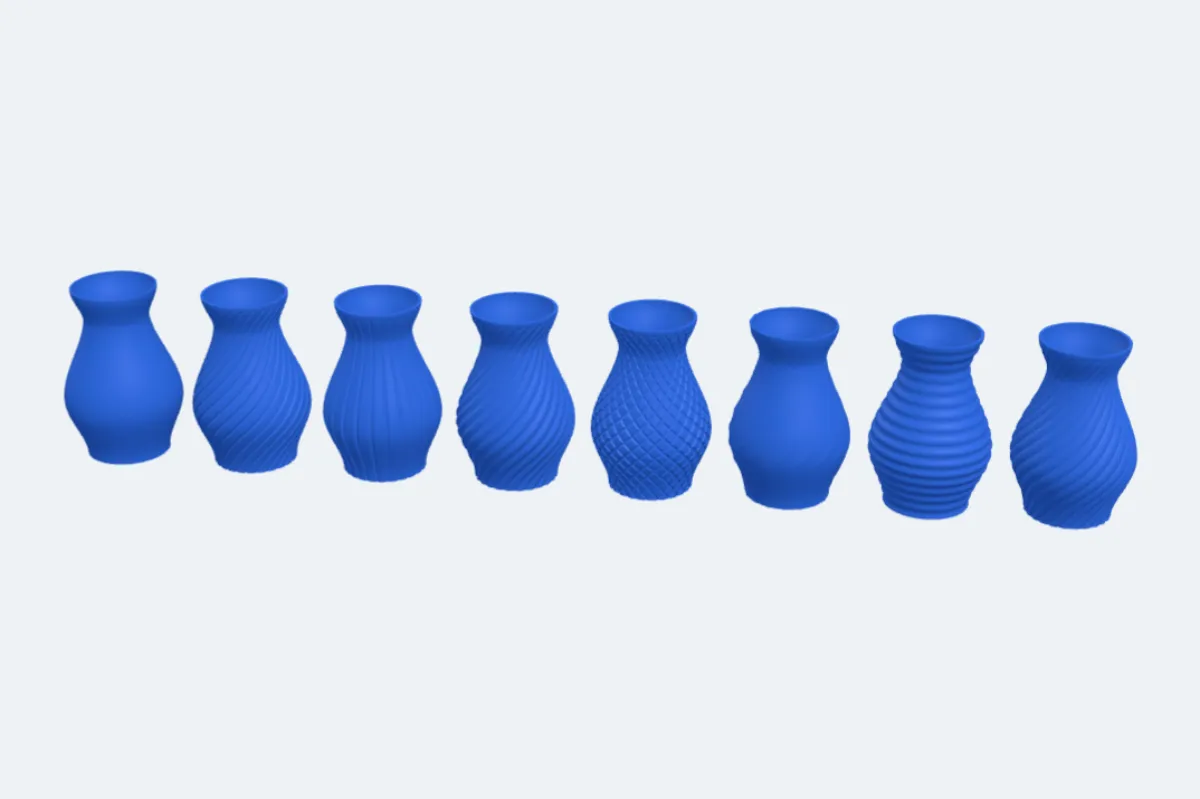
A Pattern runs round the outside: Plain, Spiral, Ribs, Waves, Diamond, Facets, Rings or Petals. Set How many, the Twist from bottom to top, the Depth and the Groove width. A Plain rim keeps a smooth band at the top. The pattern follows the outline, so the grooves bend with the vase.
4Walls: hollow or vase mode
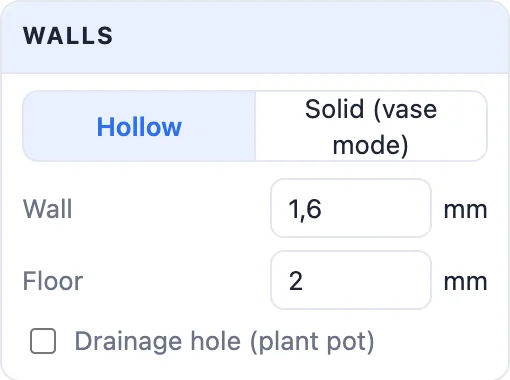
- Hollow - a real vase with a Wall and a Floor. The wall keeps its thickness at every height, even under the pattern. Drainage hole turns it into a plant pot.
- Solid (vase mode) - a solid shape for your slicer's spiral vase mode (Orca and Bambu: Spiral vase; PrusaSlicer: Spiral vase; Cura: Spiralize outer contour). The slicer prints only the outside, one continuous line: fast, light and seamless.
5Create and print
Pick a Colour, click Create vase and Export an STL. The panel tells you how far the side leans: under 45° it prints without supports. Wide flared tops and bowls lean the most - lower the lip or the belly a little if the panel warns you.
Questions
Hollow or solid - which should I choose?
Hollow makes a finished vase with a real wall and floor. Solid is for your slicer's spiral vase mode: it prints only the outside in one continuous line, which is faster and lighter, but the wall is only one line thick, so it is more delicate.
Will it print without supports?
The panel says how far the side leans from upright. Under 45° it prints without supports; it warns you when a flared lip or a bowl leans more.
Can I make a plant pot?
Yes. Choose Hollow and tick Drainage hole: a hole goes through the floor. A wider shape like Flared or Bowl makes a good pot.
Can I change a vase after creating it?
Yes. Double-click the vase (or select it and click Edit generator) and the generator opens with its settings.
Make your vase now
Open the vase generator, pick a shape and a pattern, and print.
Make a vase nowAlso see: Jar generator, Lithophane maker, Box generator and all guides.