3DPrintCAD › Guides › Jar generator
Jar generator: jars with screw lids that fit
Make a jar with a screw lid that turns on and off the first time: pick a shape and a profile, add a spiral, ribbed or diamond pattern, a label or a whole labelled set, a narrow neck or jars that screw onto each other. The thread is checked for you before you print. Everything happens in your browser and the jar is ready for the slicer.
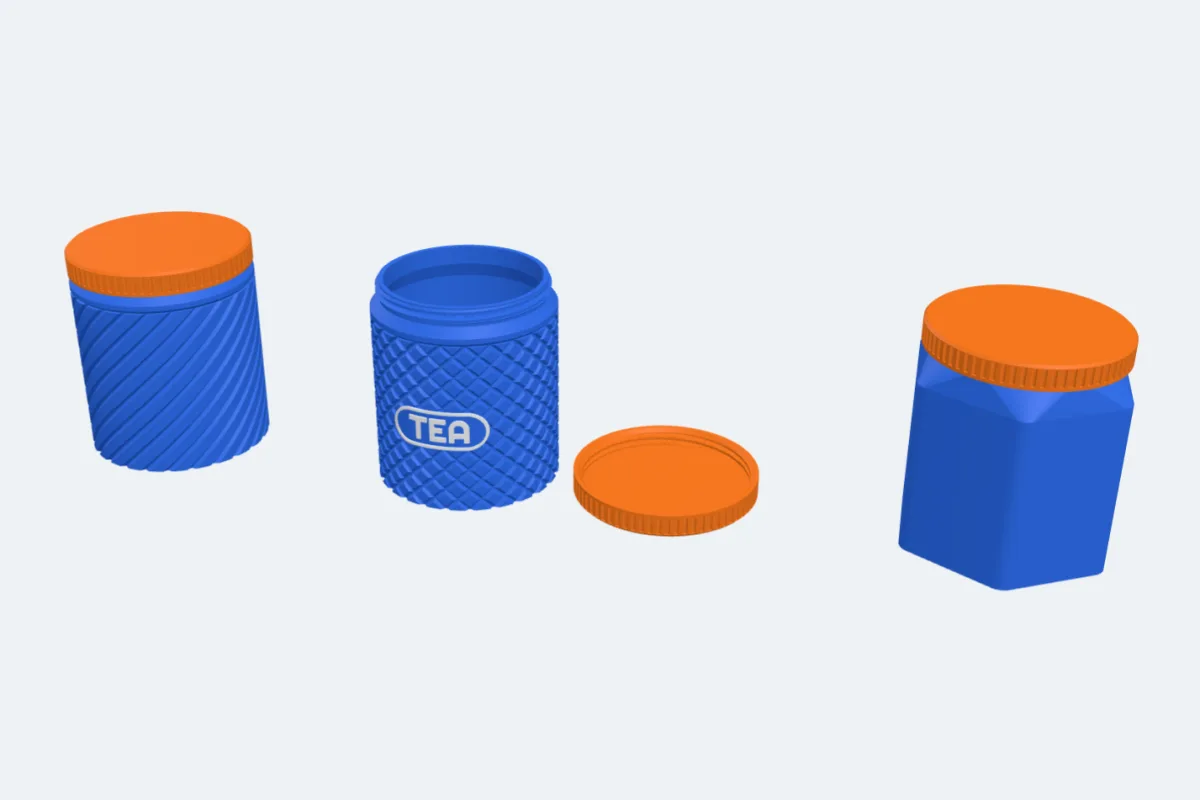
Watch the tutorial
Every option in just over two minutes, with subtitles: shapes, profiles, patterns, labels, the thread and the lid. Watch on YouTube ↗
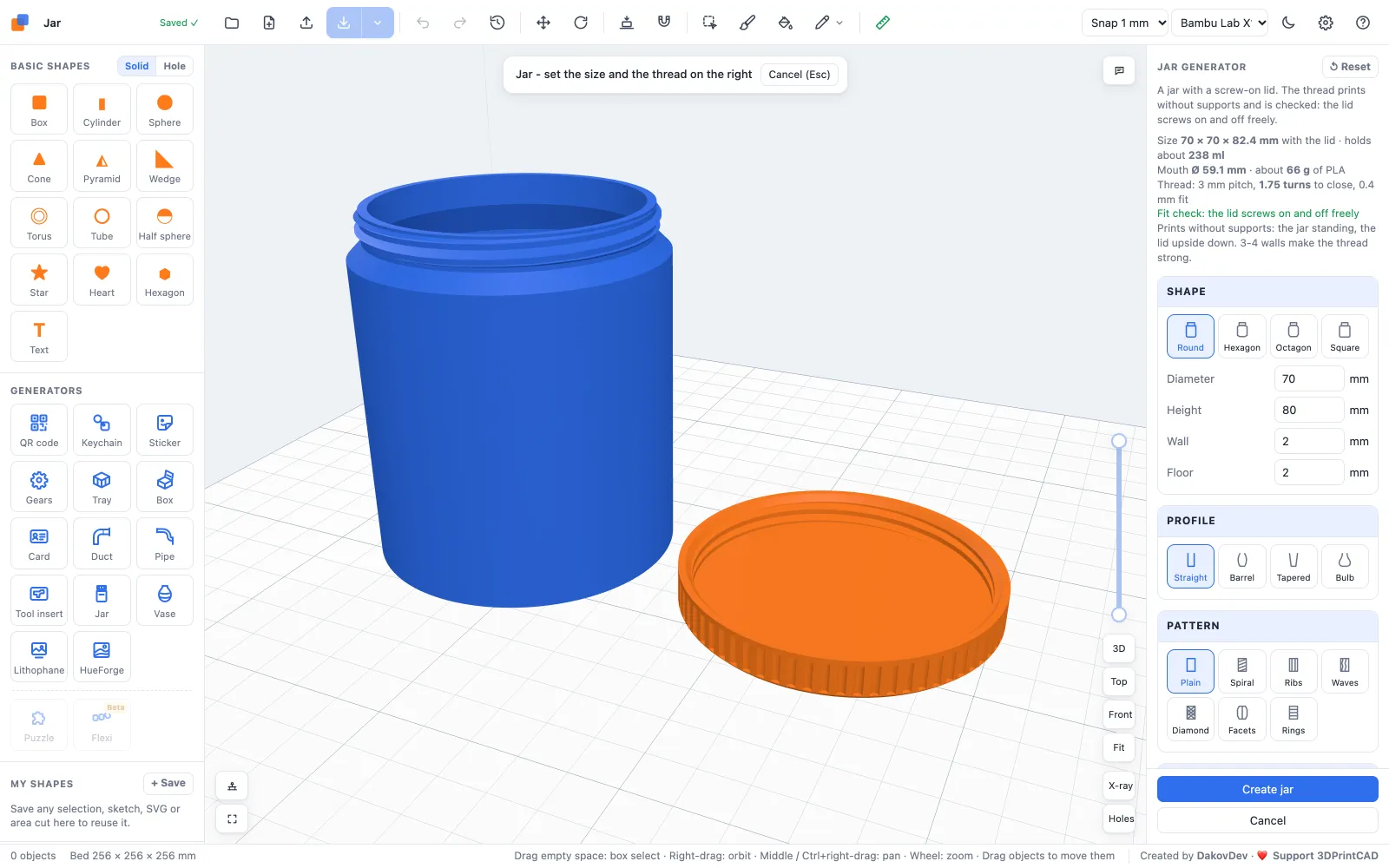
1Open the jar generator
Open the app and click Jar under Generators on the left (or use this link). A round jar with a screw lid appears. Every setting on the right updates the preview; the lines at the top give the size, how much it holds, the thread and the result of the fit check - the lid turned all the way on and off again without touching the jar.
2Shape and profile
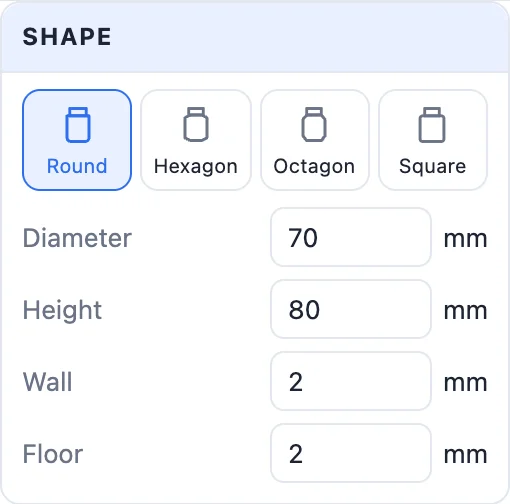
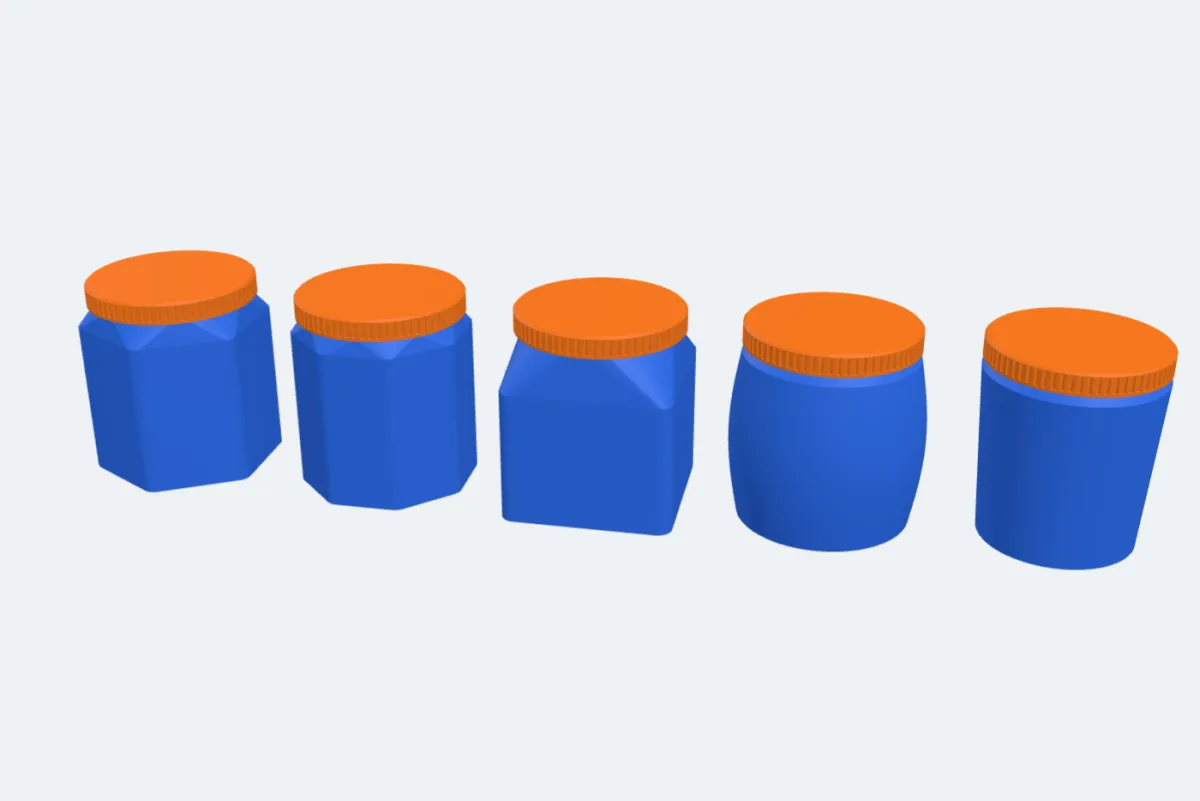
- Shape: Round, Hexagon, Octagon or Square (with round corners), its Diameter (across the flats) and Height.
- Wall and Floor thickness.
- Profile: Straight, Barrel, Tapered or Bulb, with how much it bulges. The jar bends smoothly and the inside follows, so the wall keeps its thickness.
3Patterns
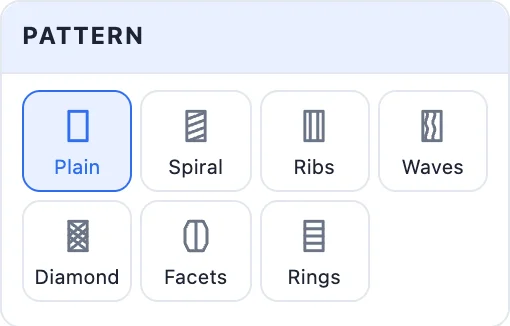
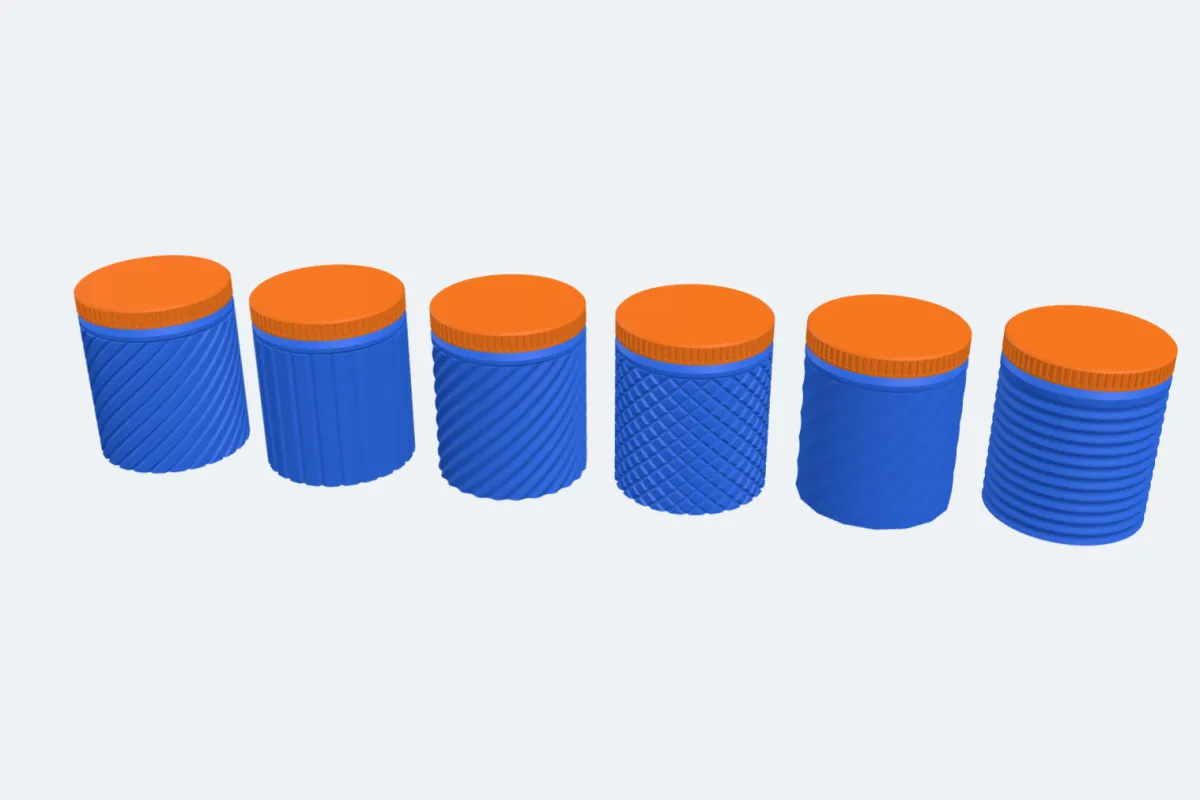
Round jars can have a Pattern on the outside: Spiral, Ribs, Waves, Diamond, Facets or Rings, with how many, the twist from bottom to top, the depth and the groove width. The wall is measured inside the pattern, so it never gets thin, and the pattern ends below the shoulder with a 45° edge.
4Mouth, stacking and labels
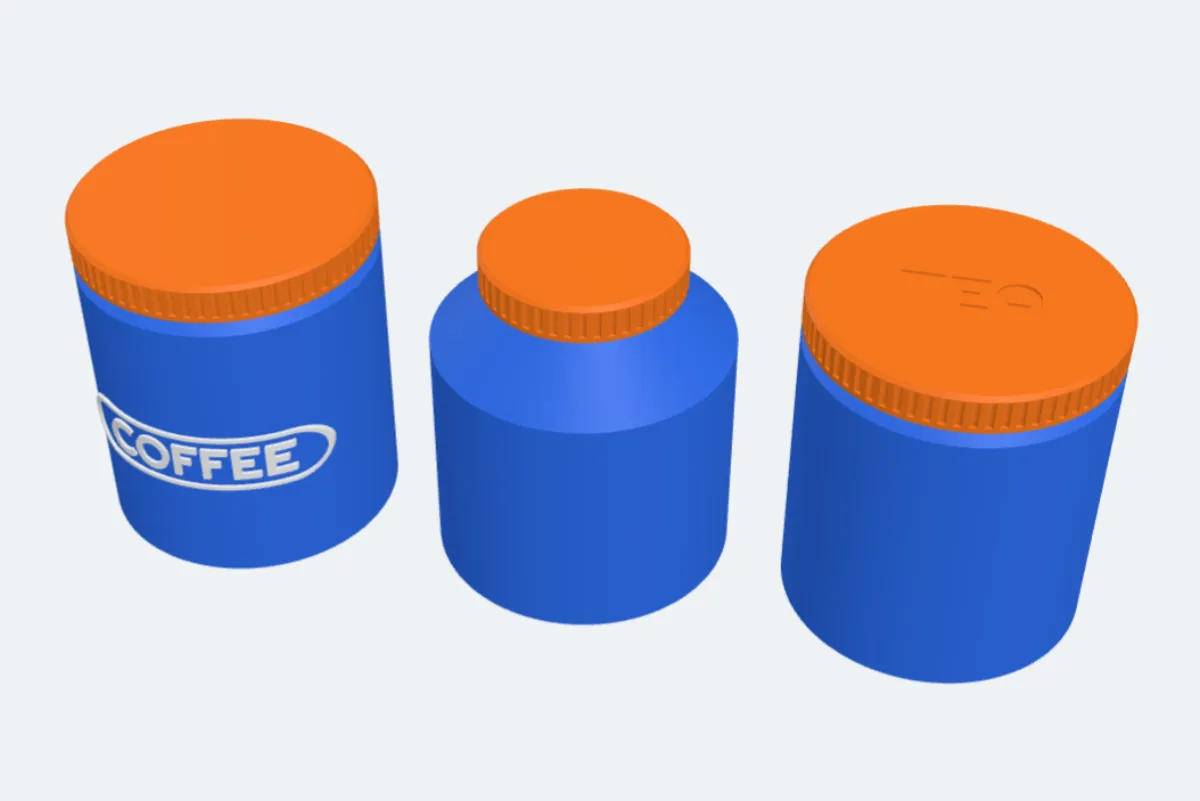
- Mouth: Wide (the lid as wide as the jar) or Narrow neck (a bottle-like neck with its own diameter, a 45° shoulder outside and inside).
- Stackable: the bottom gets a threaded socket, so a jar screws onto the jar below - a tower of jars with one lid on top.
- Label on the side: a text on a pill-shaped badge on the front, raised or engraved, in any font. Type several labels with commas (Rice, Pasta, Sugar) and you get a set: one jar per label, each in its own colour.
- Text on the lid: engraved or flush on the lid's top.
5Thread and lid
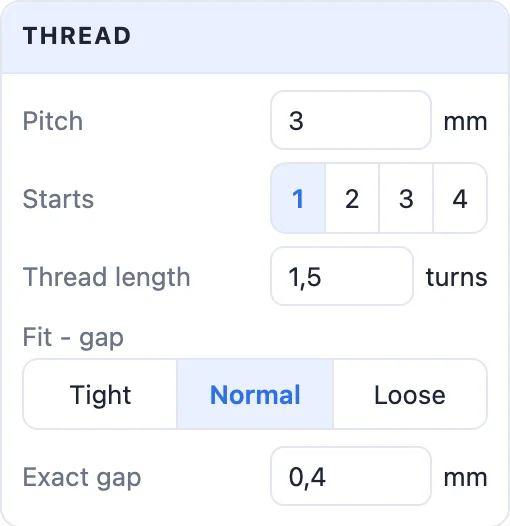
- Pitch - the thread's step (3 mm by default), the number of starts (1-4: with more starts the lid closes in a shorter turn) and the Thread length in turns.
- Fit: Tight 0.3, Normal 0.4 or Loose 0.55 mm, or the exact gap. The lid's thread is the jar's own thread grown by the gap, so they always match.
- Lid wall, Lid top and the grip: Knurl, Ridges or Smooth.
The thread has 60° flanks and a lead-in at both ends, so it starts easily and prints without supports. It is right-handed: the lid unscrews anticlockwise.
6Create and print
- Print layout: Ready to print (the jar standing, the lid upside down beside it) or Closed.
- Separate parts keeps the jar, the lid and the label as parts with their own colours.
- Click Create jar, then Export. Print it without supports; 3-4 walls make the thread strong.
Questions
Will the lid screw on?
Yes - the panel checks it: the lid is turned all the way on and off along its thread and must never touch the jar. Normal fit (0.4 mm) suits most printers; use Loose if your printer prints a little wide.
Do I need supports?
No. The thread has 60° flanks and lead-ins, the jar prints standing and the lid upside down.
Can I make a set of labelled jars?
Yes. Turn on Label on the side and type the labels with commas (Rice, Pasta, Sugar): Create jar makes one jar per label, each in its own colour, up to 12.
What does Stackable do?
The bottom of the jar gets a threaded socket like the lid, so it screws onto the jar below. Several jars make a tower with one lid on top.
Can I change a jar after creating it?
Yes. Double-click the jar (or select it and click Edit generator) and the generator opens with its settings.
Make your jar now
Open the jar generator, choose a shape, a pattern and a label, and print.
Make a jar nowAlso see: Box generator, Vase generator, Tray generator and all guides.