3DPrintCAD › Guides › Remove holes tool
Remove holes from an STL file - then add bolts and nuts
Old screw holes in the wrong place, the wrong size, or for screws you don't have? Fill them: Remove holes finds every round hole in a body - a counterbore and the screw hole under it too - and fills it with solid material. Then the Bolt generator puts new holes for a bolt and a nut exactly where you want them. The example is a Parkside battery adapter STL with four counterbored screw holes, turned into a part that bolts on with four M3 bolts and nuts.
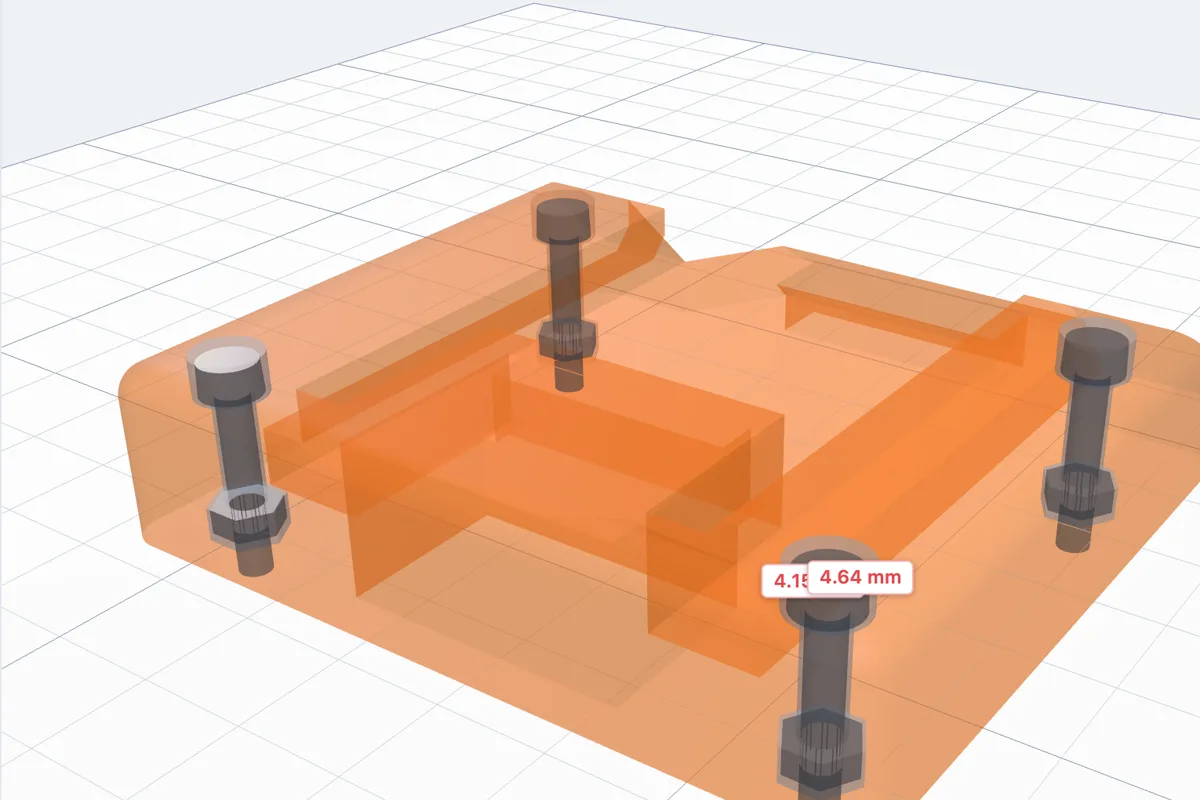
Watch the tutorial
The whole job in under three minutes, with subtitles: the adapter's four counterbored screw holes filled, then four M3 bolts with nuts put in their places and cut in. Watch on YouTube ↗
1Import the STL
Start a new project and click Import in the toolbar (or drop the file on the bed). STL and 3MF files work. The adapter is 72 × 78 × 16 mm. It has four screw holes, each a Ø 7 mm counterbore 12 mm deep over a Ø 3 mm hole through the last 4 mm.
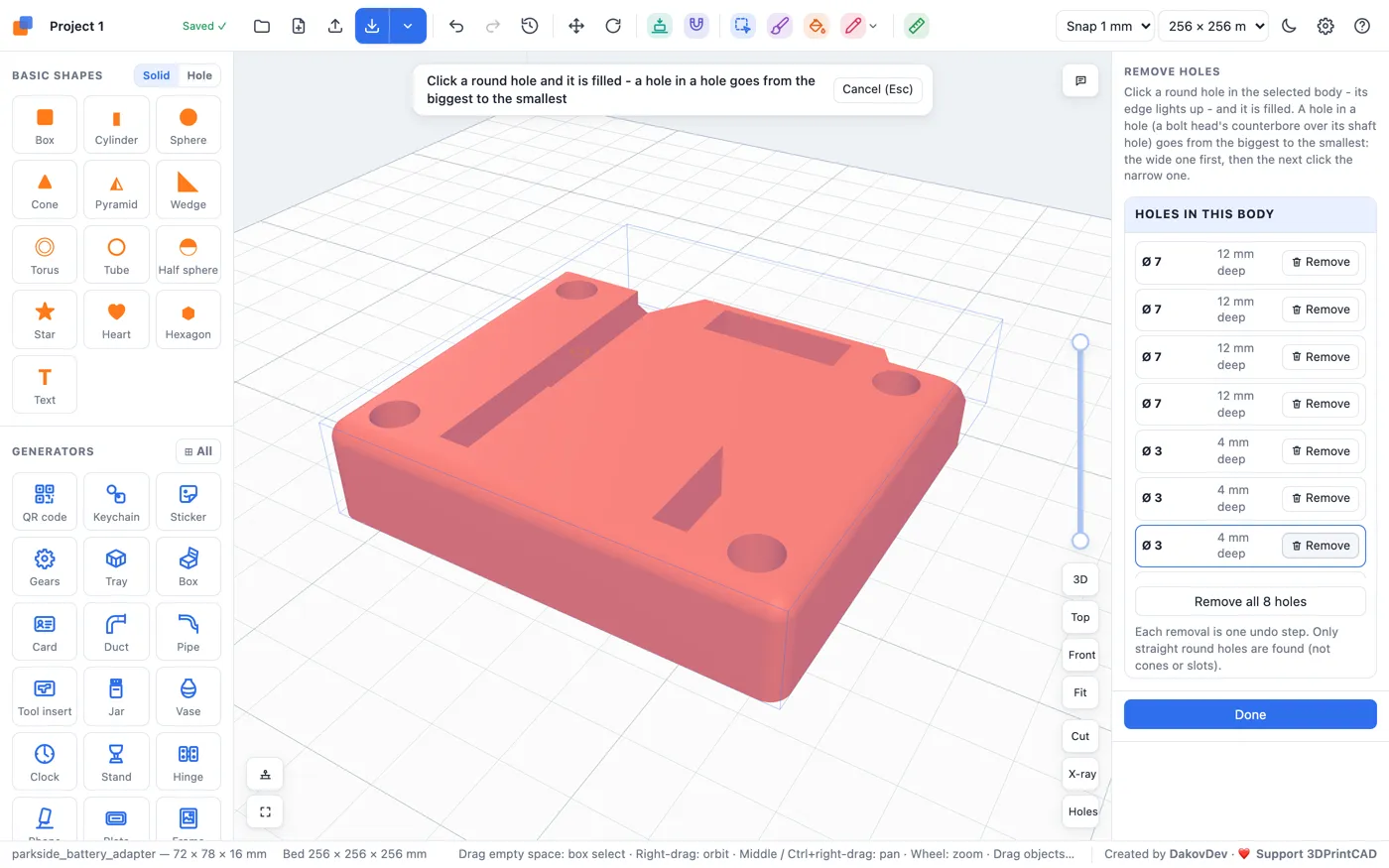
2Open Remove holes
- Click the body to select it.
- Click Remove holes in the Body card (after Push / pull face).
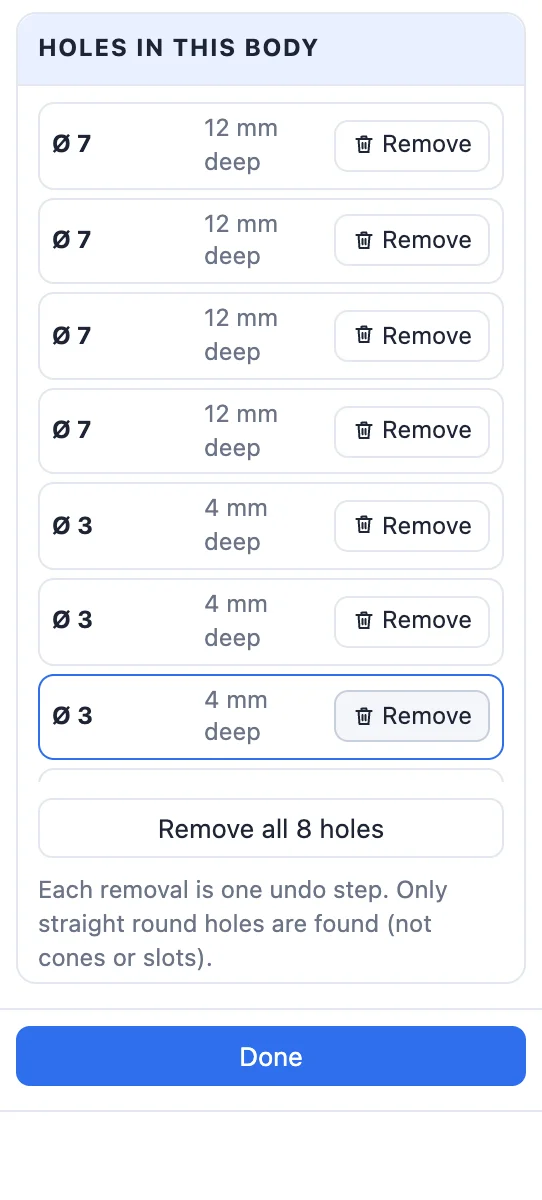
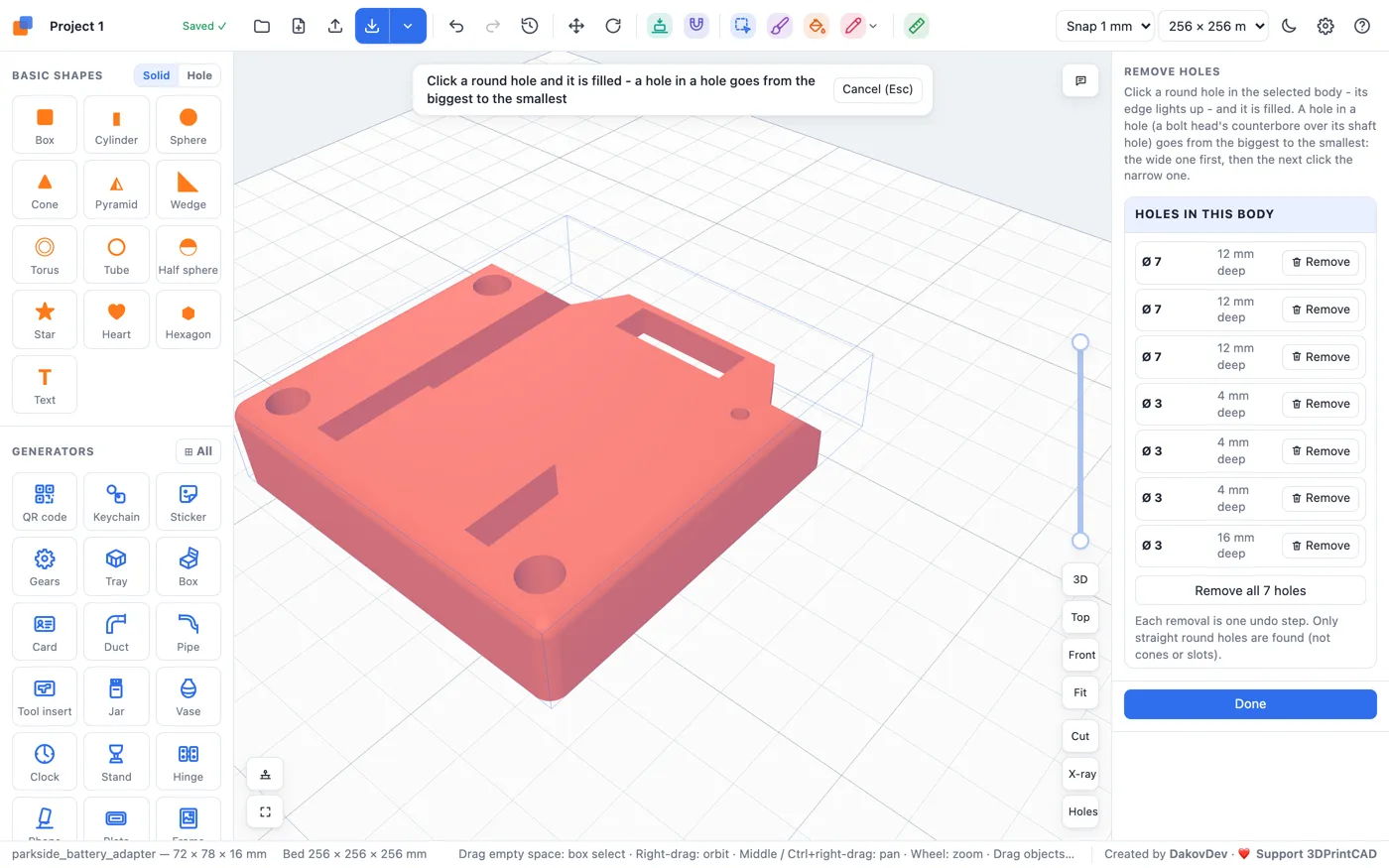
The panel lists every straight round hole in the body, the widest first, with its diameter and depth - here four Ø 7 counterbores and four Ø 3 holes under them. Move the mouse over a row and that hole is marked in the view.
3Fill a hole - biggest first
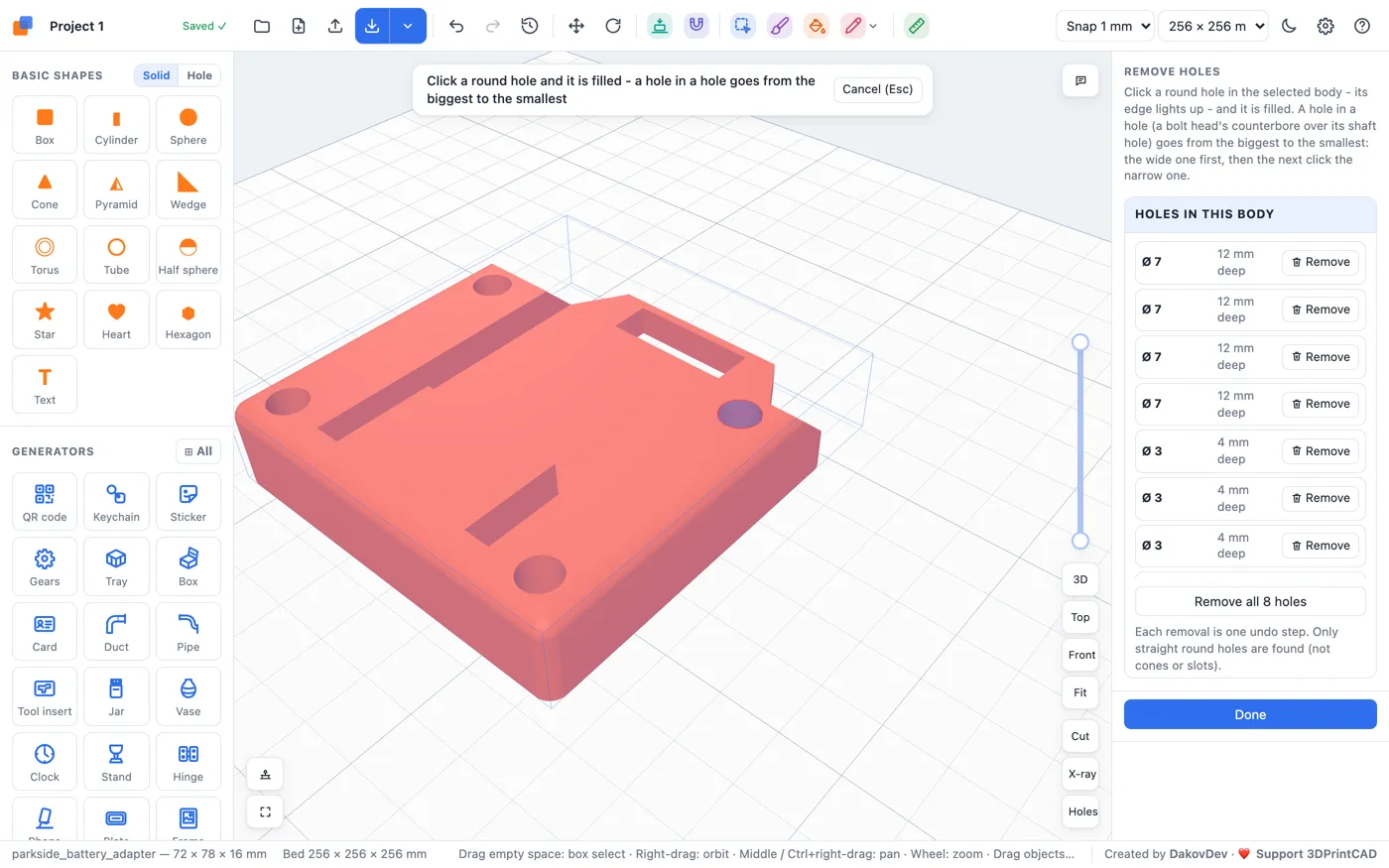
Move the mouse over the body: the round hole under it lights up, its edge marked on the circle. Click it and it is filled.
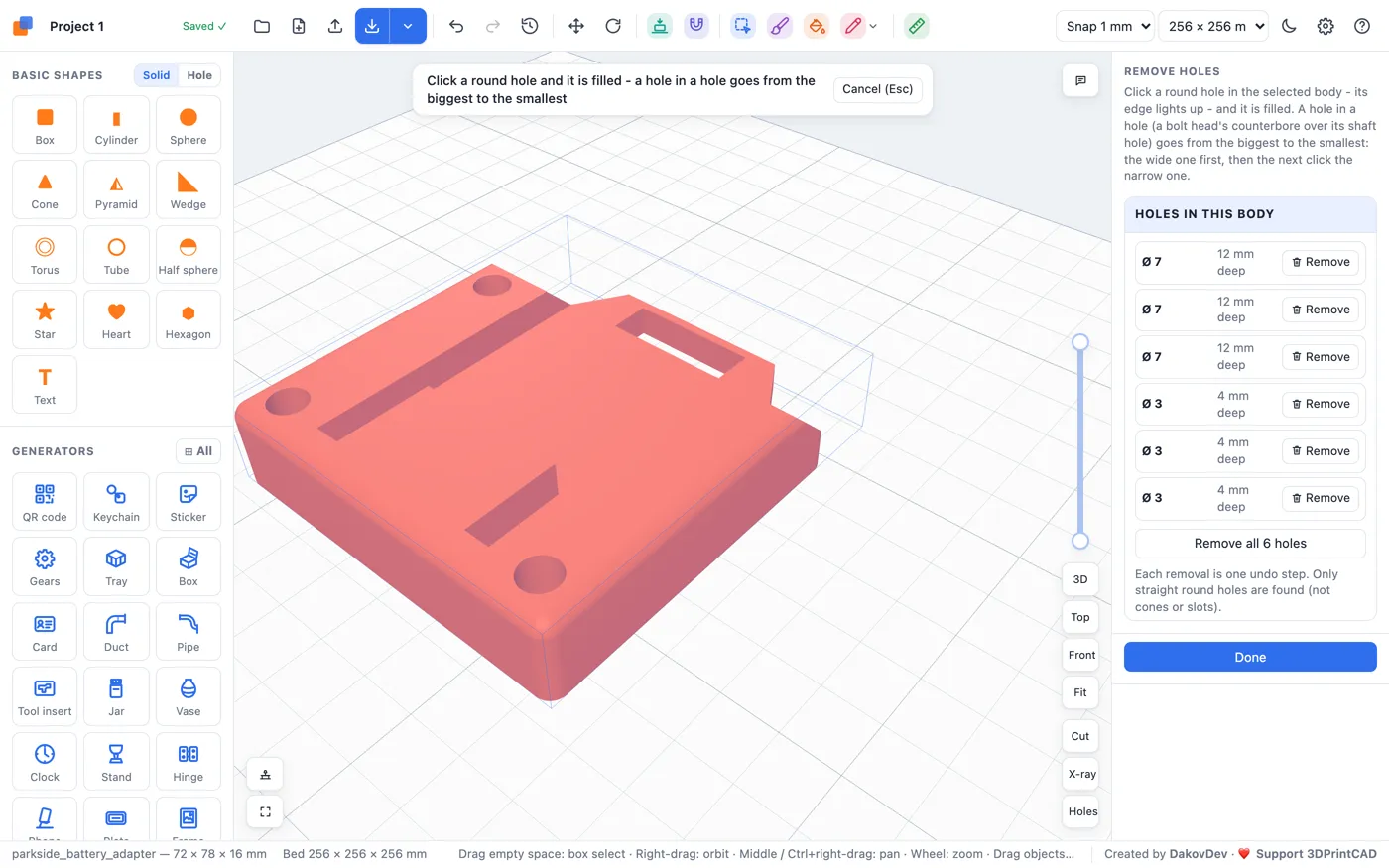
A hole in a hole - a counterbore for a bolt's head over its screw hole - goes from the biggest to the smallest. The first click fills the Ø 7 counterbore and leaves the Ø 3 hole open, now running up through the fill. Click again and the Ø 3 hole is filled too, so the hole is gone.
4Remove all
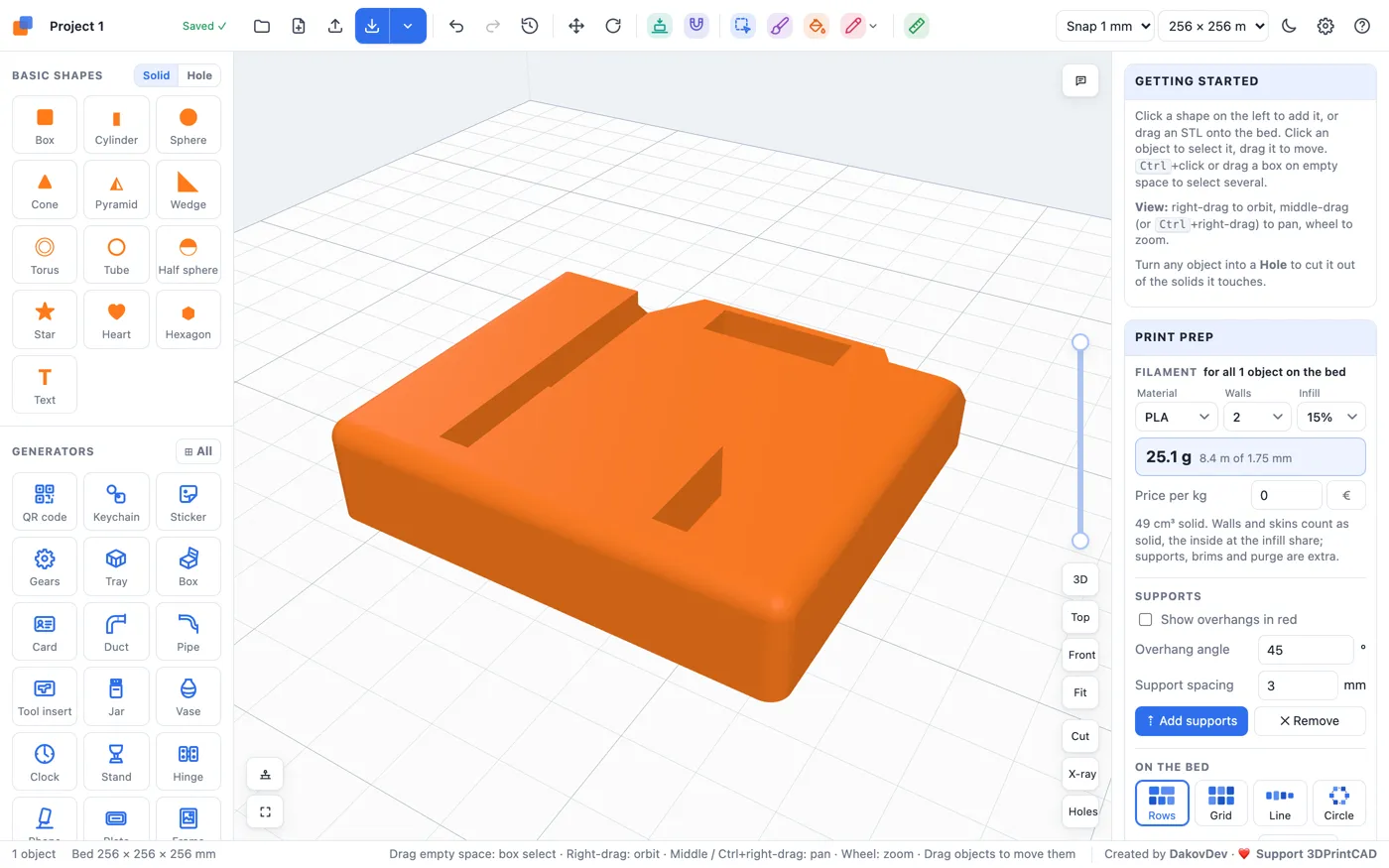
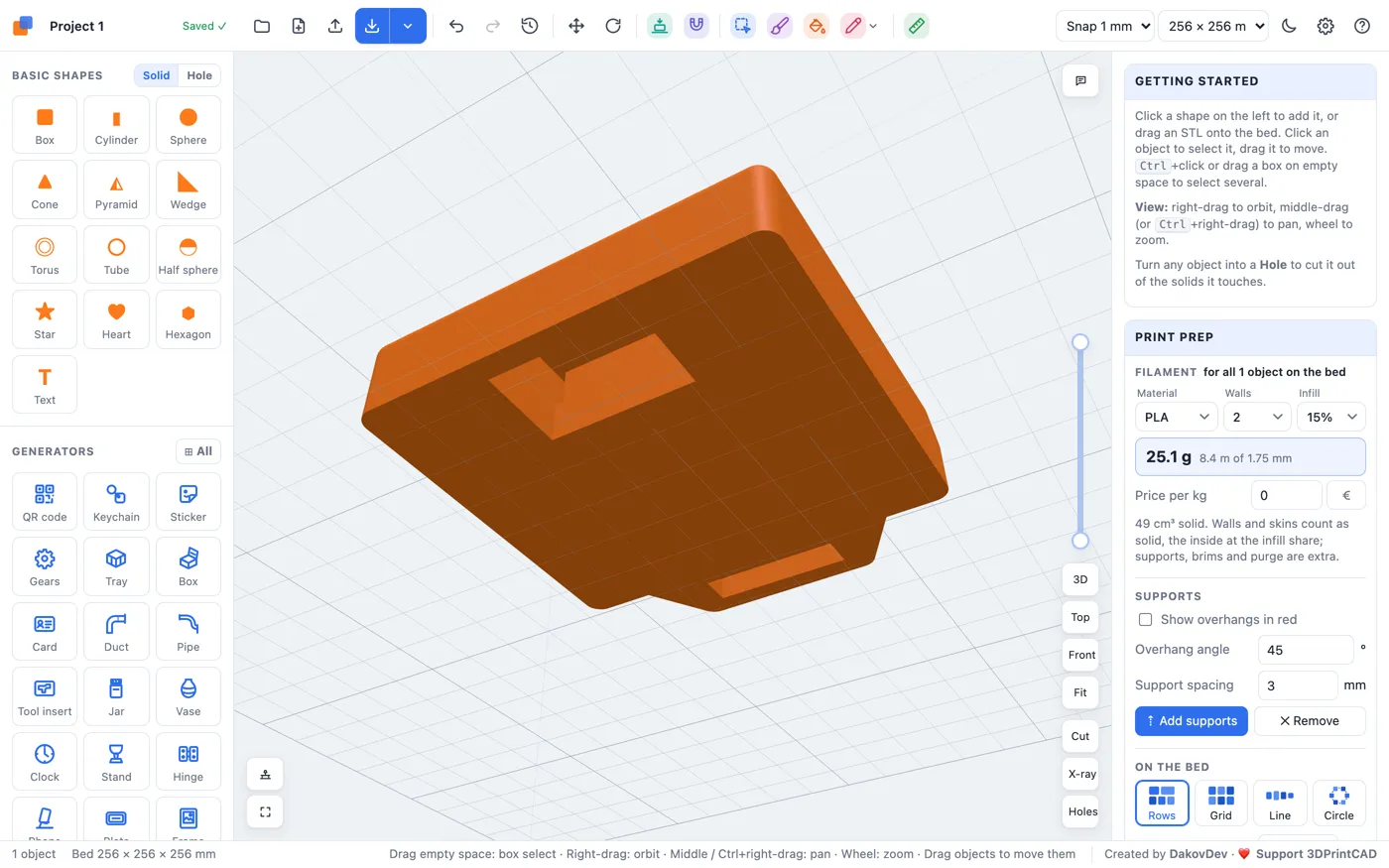
Remove all fills every hole in the list at once - each counterbore together with the screw hole under it - in one undo step. Click Done: the adapter is one solid block, flat on the top and underneath.
5Put bolts and nuts in their places
Now new holes, for M3 bolts with nuts, in the places of the old ones. With nothing selected, click Bolt in Generators.
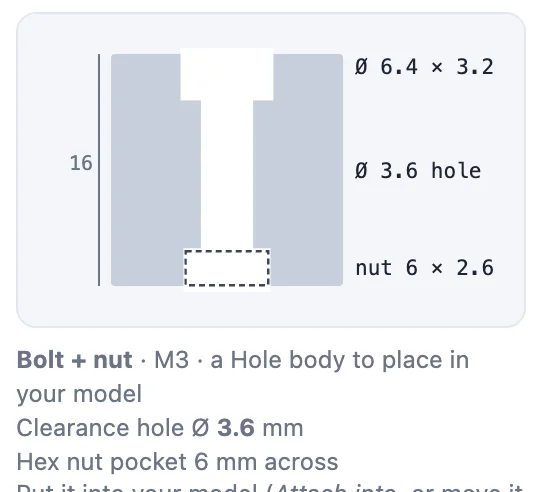
- What goes in it: Bolt + nut is already chosen - a clearance hole, the bolt's socket head sunk in at the top and a hex nut in a pocket underneath. M3 is the starting size; pick another in Size.
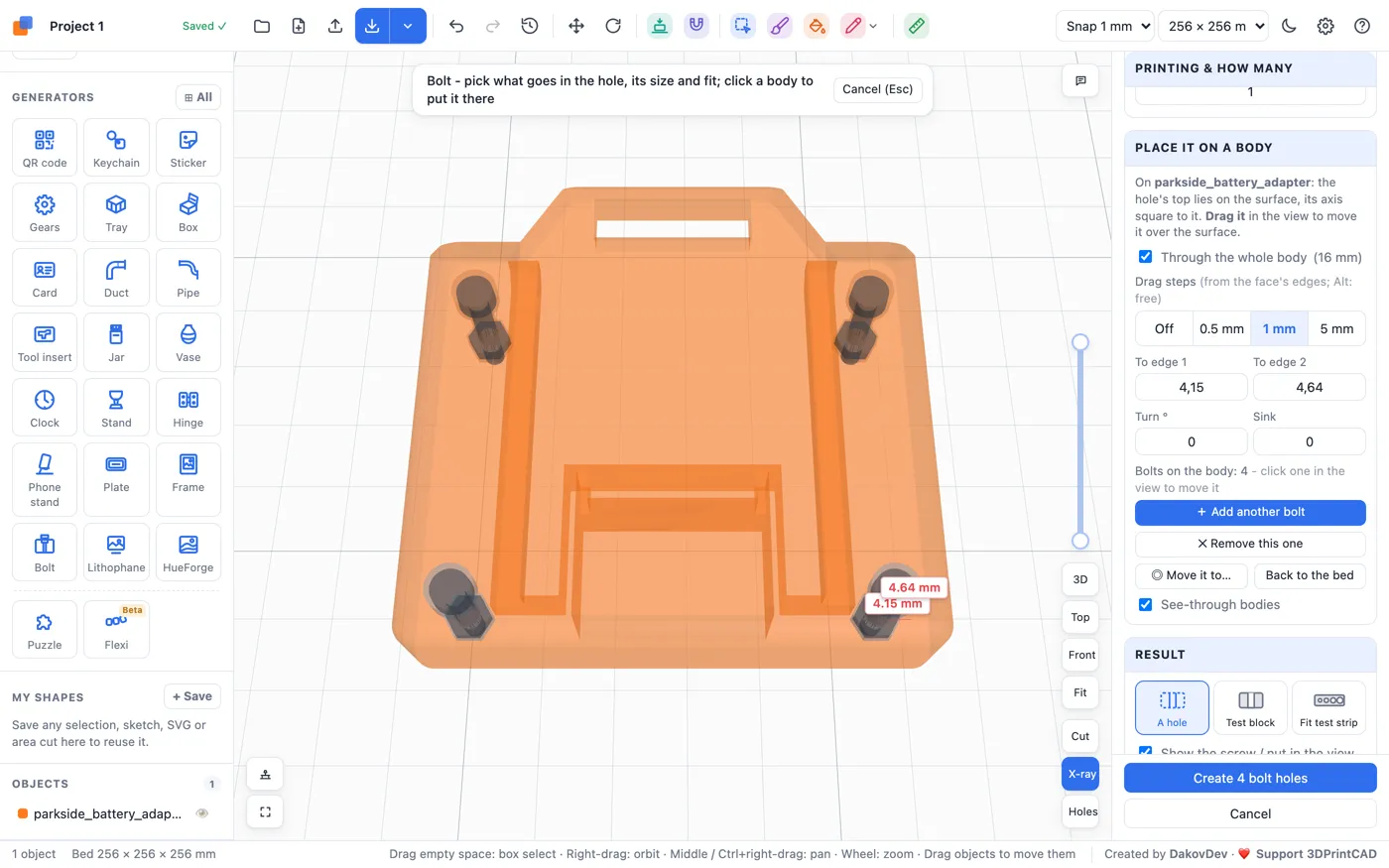
- Click Click a body's surface…. X-ray turns on, so you see inside the part.
- Hold Alt and click where the first hole was. With Alt the bolt goes exactly where you click. Without it, it snaps to whole millimetres from the face's edges. The red lines and labels give its distance to the two nearest edges, and To edge 1 / To edge 2 take a typed distance.
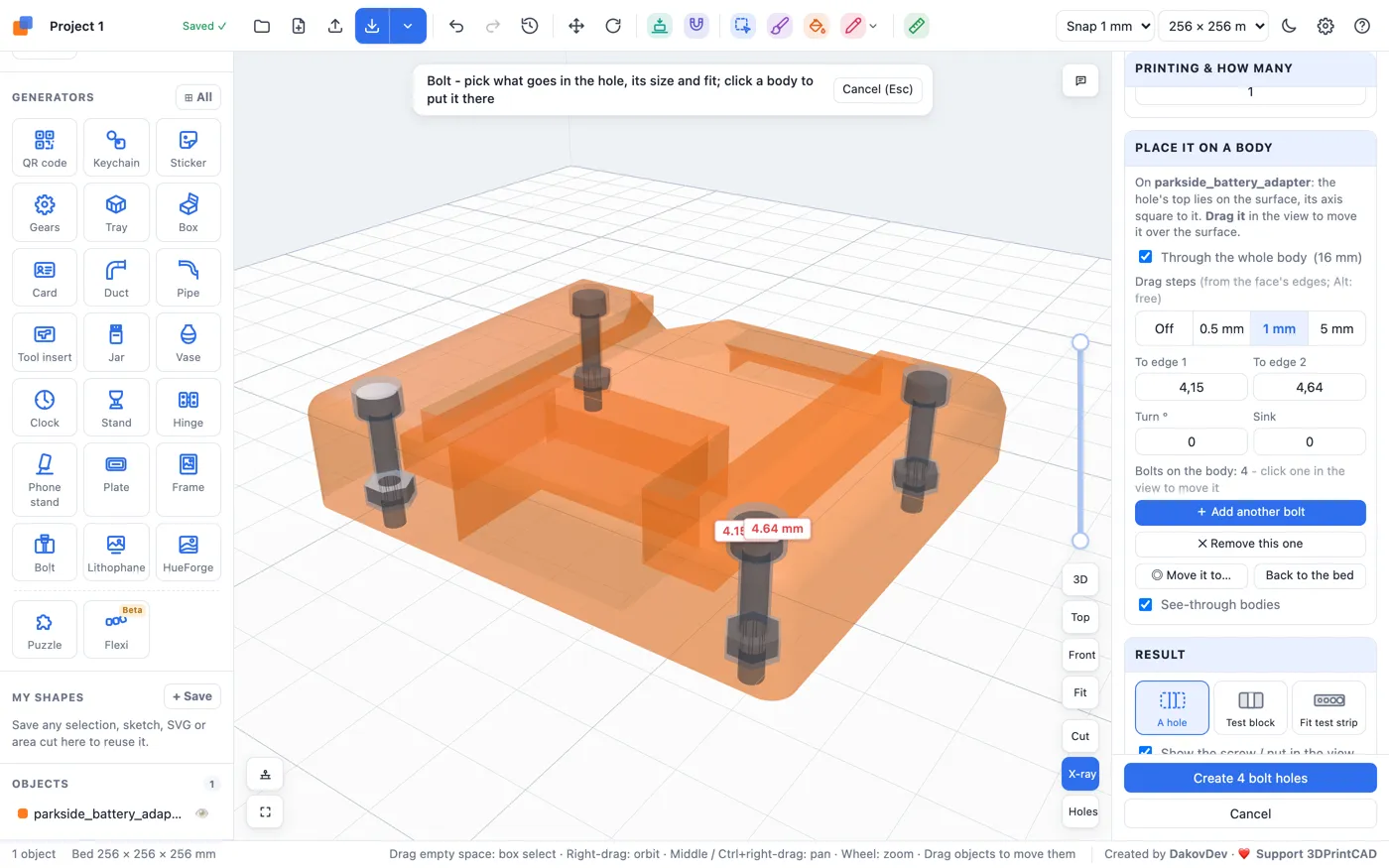
- Tick Through the whole body: the hole is as long as the part is thick there - 16 mm - so the nut lands on the bottom face.
- Click + Add another bolt and click the next place. Repeat for every bolt. Click one of them in the view to move it again.
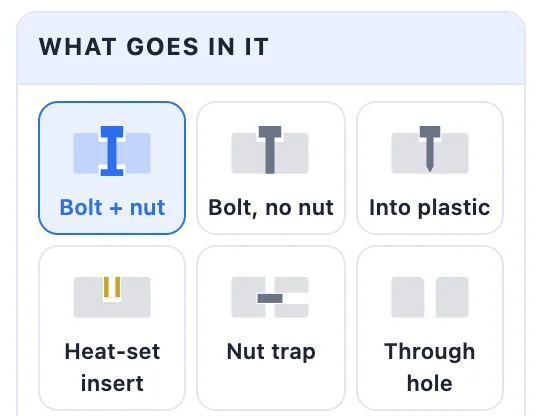
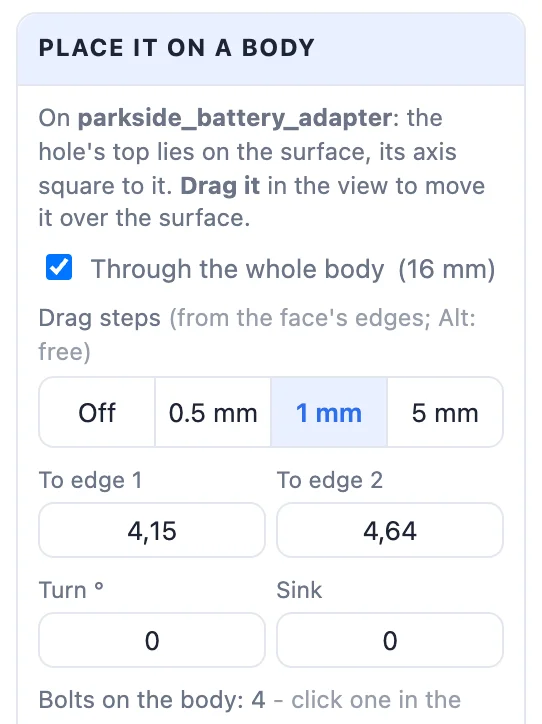
The panel's drawing shows the hole you will get: the head's pocket (Ø 6.4 × 3.2 mm), the Ø 3.6 mm clearance hole and the nut's pocket (6 mm across, 2.6 mm deep).
6Cut them in and check
Click Create 4 bolt holes. You get four Hole bodies in the part. Click Cut them in now in the message, and they are cut into the adapter. The result is one watertight solid, ready to export.
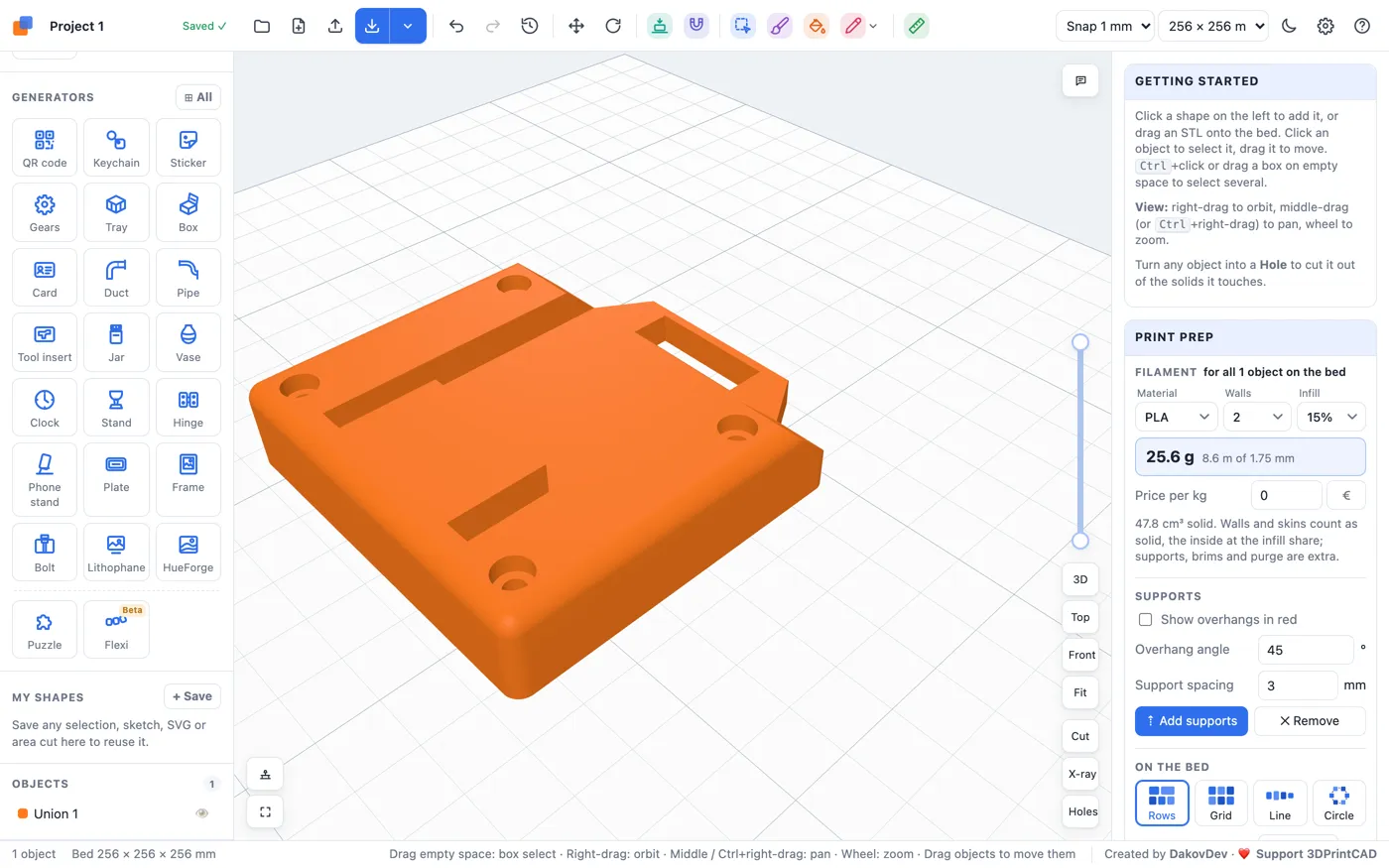
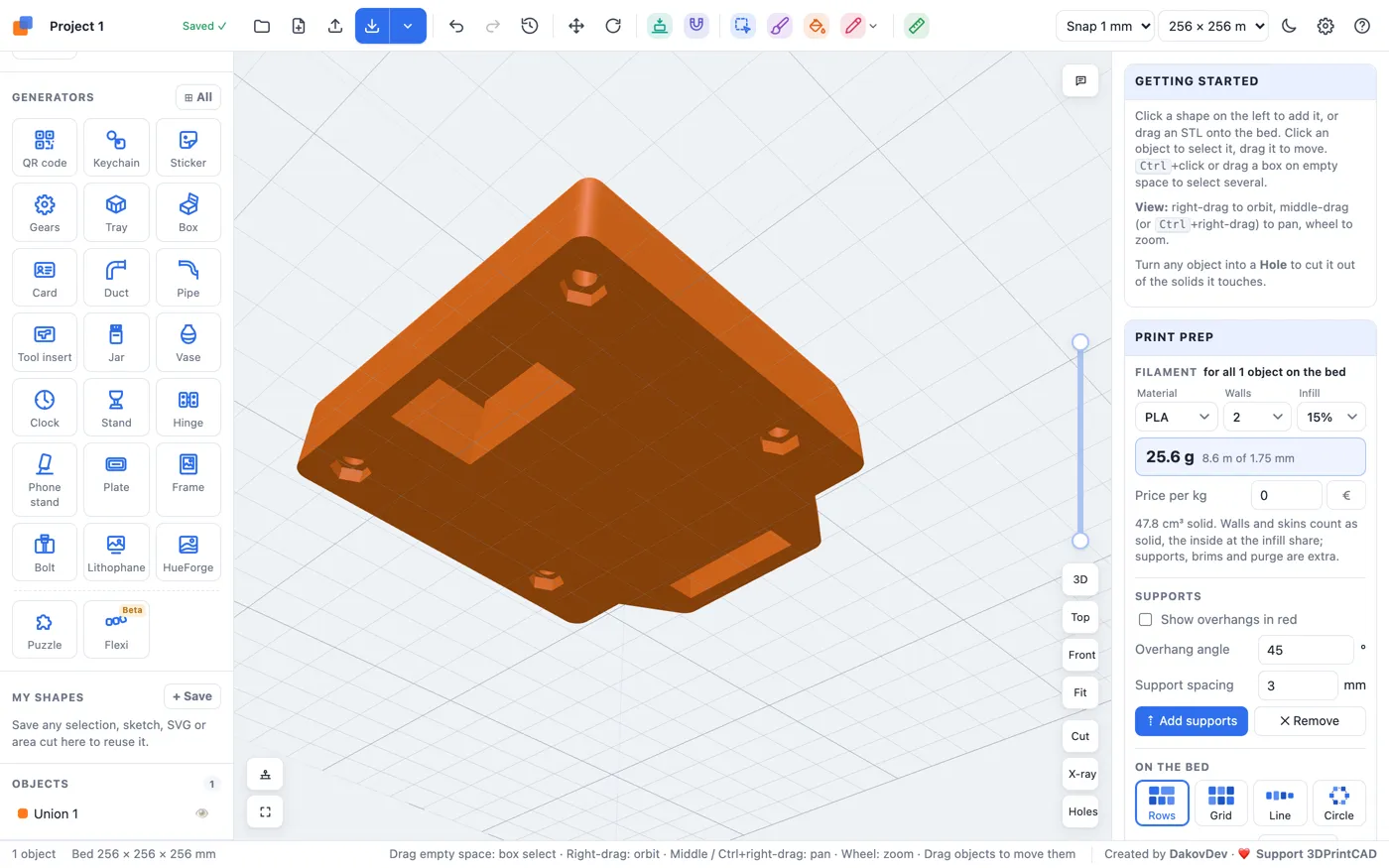
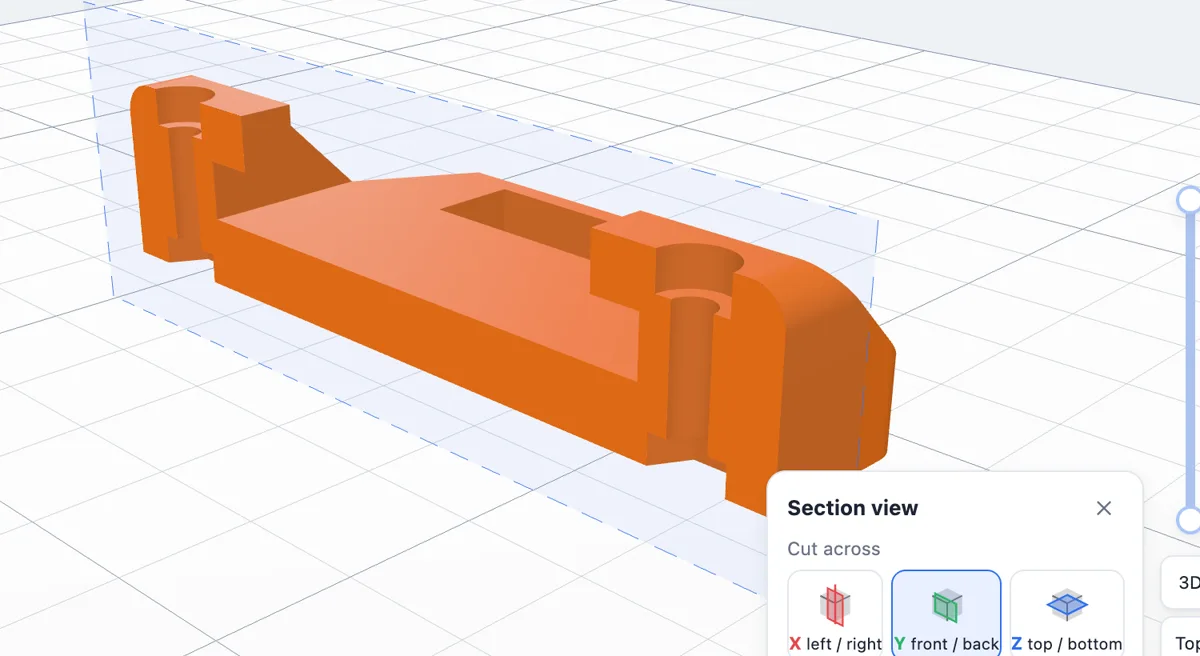
To look inside, click Cut by the view buttons, choose Y, type the hole's position (12) and Flip side: the section through two of the bolts shows the head's pocket, the bolt's hole and the nut's pocket.
7Good to know
- Only straight round holes are found - through or blind, any size. A cone (a countersink), a slot or a square hole is not.
- Clicking a round part (a peg, a cylinder standing on the body) is refused - only holes are filled. To make a hole narrower or wider instead of filling it, use Hole size; to put a nut or a heat-set insert into an existing hole, use Nut in a hole.
- If you need the new bolts exactly where the old holes were, measure the holes first: the Measure tool snaps to a round hole's centre. Then type the distances into To edge 1 / To edge 2.
- Painted colours on the body are dropped when a hole is filled.
- Each removal is one undo step: Ctrl+Z / ⌘Z brings the hole back.
Questions
How do I fill a hole in an STL file?
Import the STL, select it and click Remove holes in the Body card. Every round hole is listed; click one in the view or click Remove in the list, or Remove all for every hole at once. The hole is filled with solid material.
What about a counterbore over a screw hole?
A hole in a hole goes from the biggest to the smallest: the first click fills the wide counterbore and leaves the screw hole open through it, the next click fills the screw hole. Remove all fills both in one step.
Which holes does it find?
Straight round holes of any size, through or blind. Cone-shaped holes (a countersink), slots and square holes are not found.
How do I put a bolt and a nut where the old hole was?
Open the Bolt generator (Bolt + nut is the first type), click Click a body's surface… and click the spot holding Alt, so it lands exactly there. Tick Through the whole body, add more bolts with + Add another bolt, then Create bolt hole and Cut them in now.
Does it keep the STL watertight?
Yes. The holes are filled by joining solid cylinders into the body, so a watertight STL stays watertight and in one piece. Each removal is one undo step.
Old holes gone, new bolts in
Open the app, import your STL, and click Remove holes in the Body card.
Open 3DPrintCADAlso see: Bolt generator, Push / pull face tool, Basic shapes and body tools and Hole pattern tool.