3DPrintCAD › Guides › Bolt generator
Bolt generator: screw, nut and insert holes that fit
Holes for screws, bolts, nuts and heat-set inserts that fit your print the first time: pick what goes in, its size and how it should fit, and the generator draws the hole with the right clearance, head pocket and nut trap. Put the holes straight into your model, or print a test block or a fit test strip first.
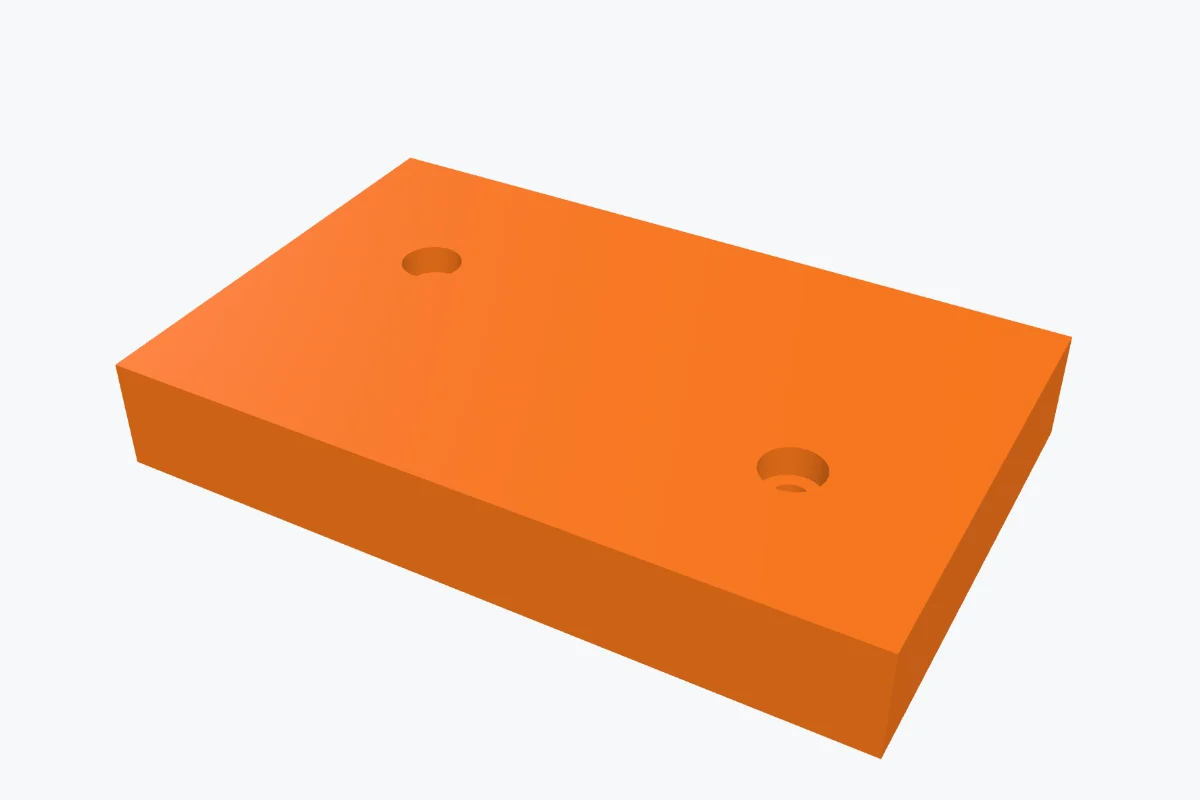
Watch the tutorial
Every option in three minutes, with subtitles: what goes in the hole, sizes, heads and nuts, the fit, holes lying down, a fit test strip - and bolts placed on a plate and cut in. Watch on YouTube ↗
1Open the Bolt generator
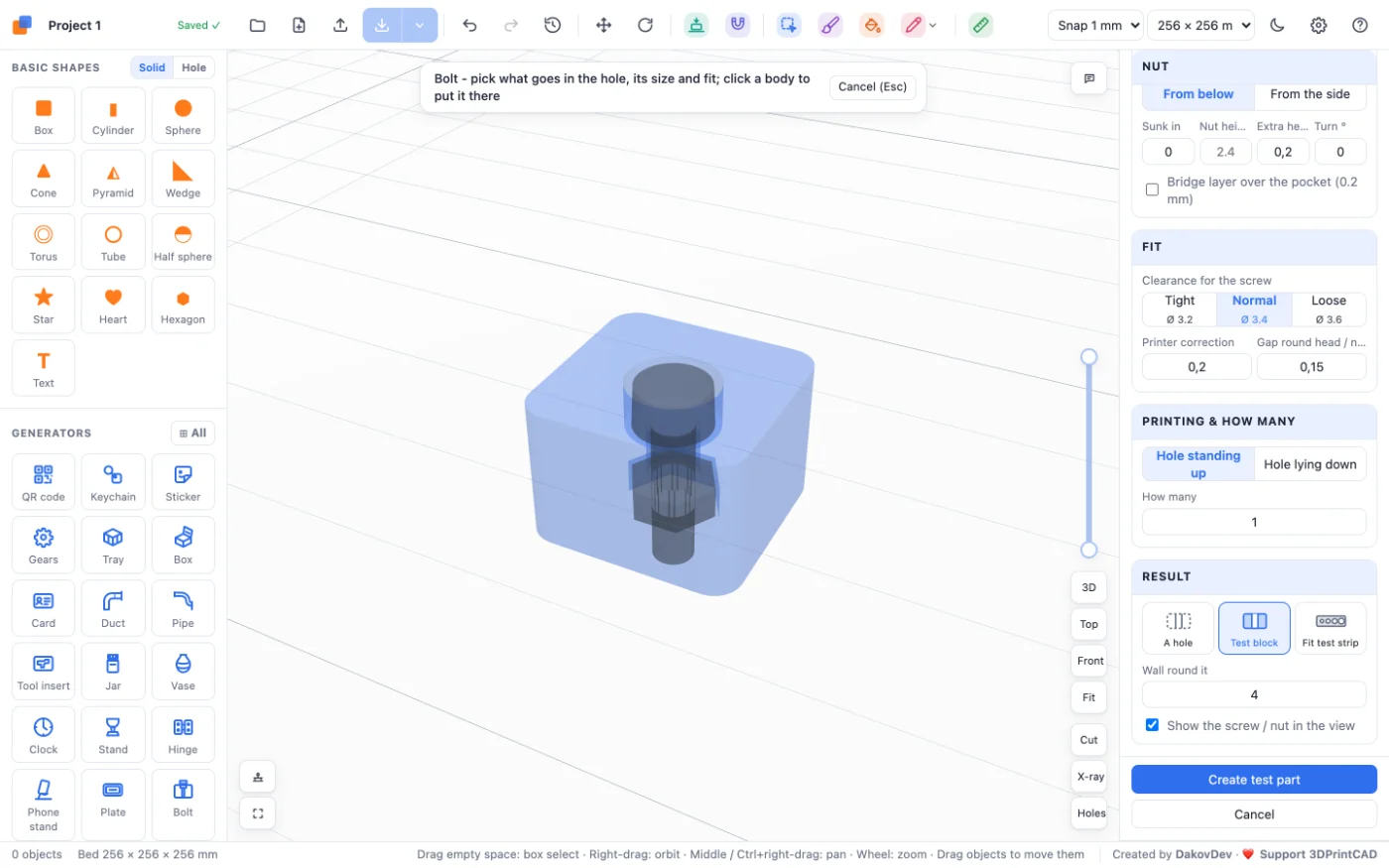
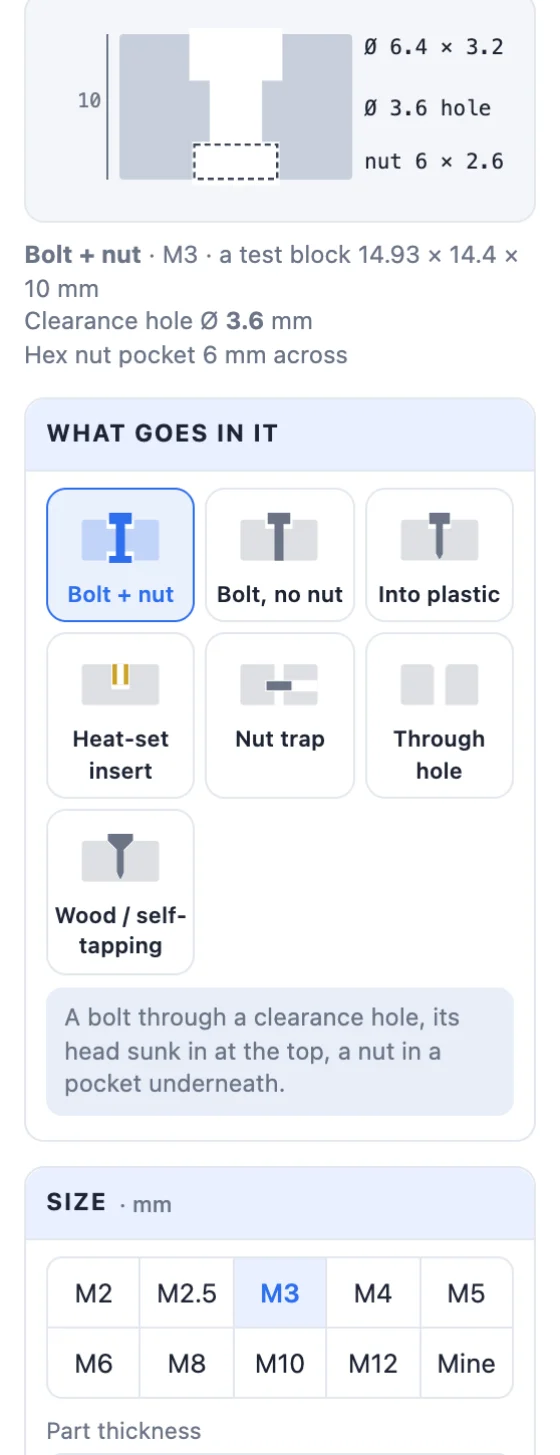
Open the app, start a new project and click Bolt under Generators on the left. At the top of its panel a cross-section shows the hole cut through, with the screw, the nut and every size; it changes with every setting. Show the screw / nut in the view draws a see-through fastener in the 3D view too.
2What goes in it
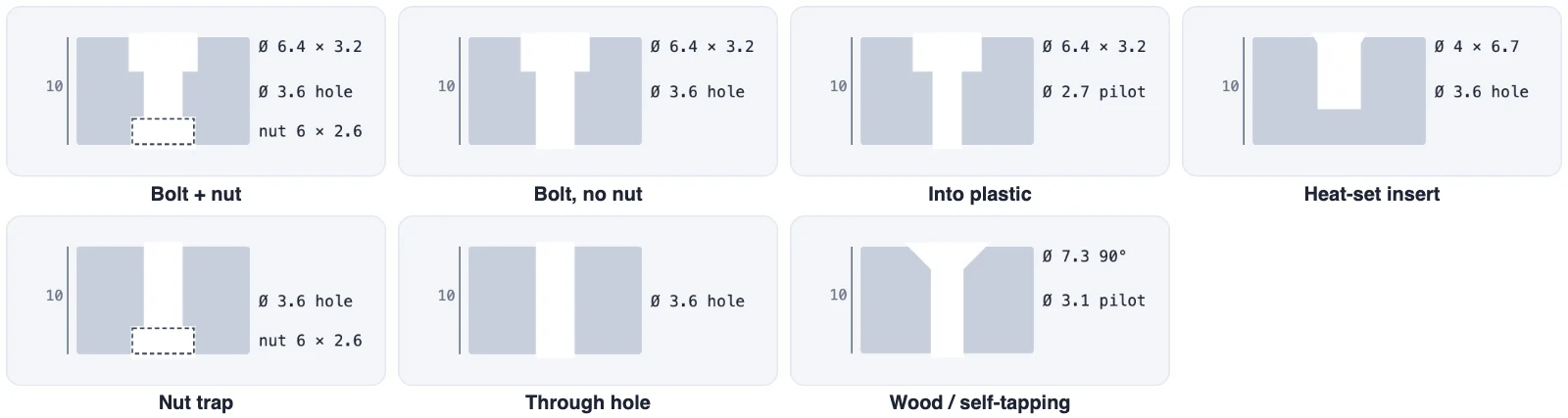
- Bolt + nut - a clearance hole, a pocket for the head and a nut trap.
- Bolt, no nut - the same without the nut: the bolt screws into a thread somewhere else.
- Into plastic - a pilot hole: the screw cuts its own thread in the print. It can be blind (stops inside the part).
- Heat-set insert - a hole for a brass insert you press in with a soldering iron.
- Nut trap - a nut pocket with the bolt's hole, or only the nut's pocket.
- Through hole - a plain clearance hole, chamfered at the top and the bottom if you like.
- Wood / self-tapping - ST2.2-ST5.5 screws: a hole where the screw grips, or one it passes through.
3Size and the part's thickness
Pick the metric size, M2 to M12 (or Mine to type the screw's Ø), or for wood screws ST2.2 to ST5.5. Part thickness is how thick the material is where the hole goes - the hole runs from its bottom to its top.
4The head
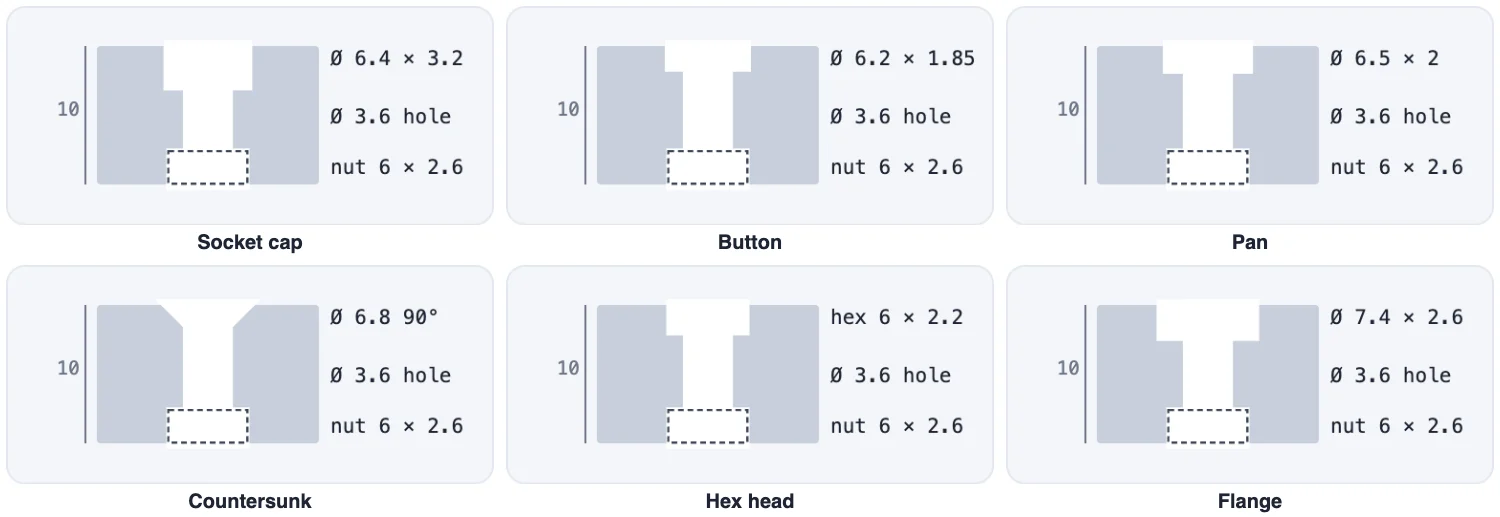
Pick the head: Socket cap, Button, Pan, Countersunk (a 90° cone), Hex head, Flange or None. How deep the head sits: Level with the top (sunk in until its top is flush), On top (only the hole) or My depth.
5The nut
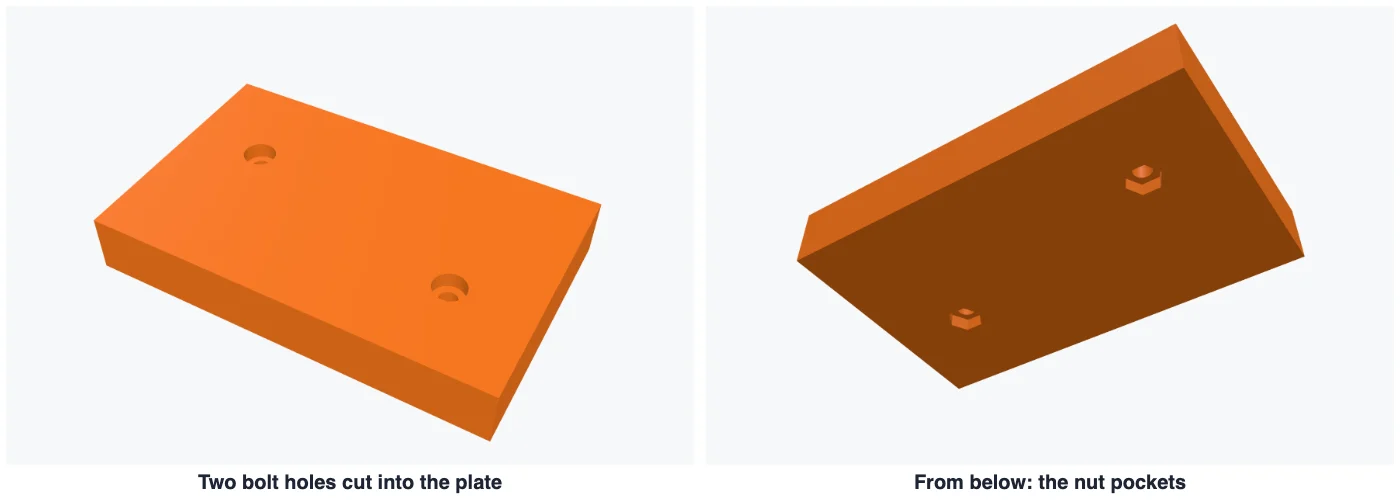
Pick the nut: Hex nut, Nyloc (taller), Square or No nut. From below makes a pocket in the bottom face to drop it in (how far it is sunk in, and its turn); Bridge layer over the pocket prints a thin 0.2 mm layer over it, so the roof does not sag - poke it through afterwards. From the side makes a slot at the height you choose to slide the nut in - open on one side or both. Nut height takes a thinner or thicker nut than the standard.

6Heat-set inserts
With Heat-set insert the hole uses CNC Kitchen's sizes for the screw size. My insert takes the inner Ø, outer Ø and height from your seller's drawing. Room below leaves space for the plastic the insert pushes down; Lead-in chamfer helps it start straight; Clearance hole on through the part is for a screw coming in from the other side.
7The fit
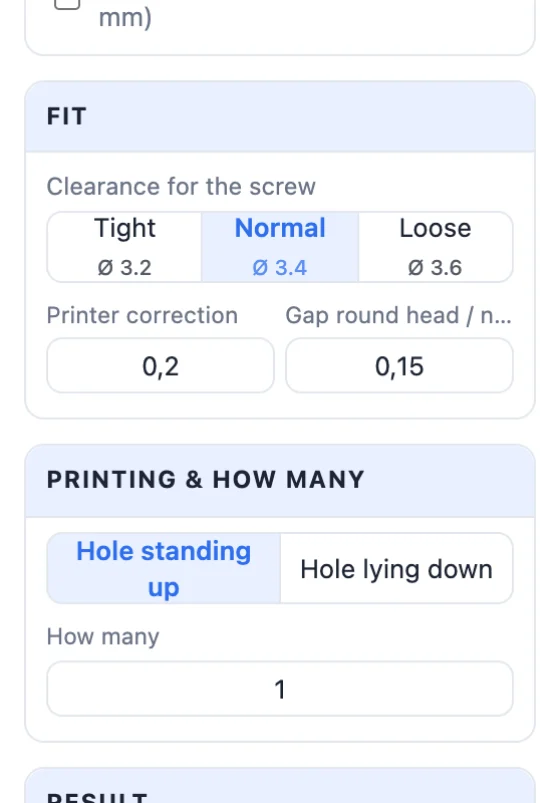
Choose Tight, Normal or Loose - each button shows the hole's Ø. For a pilot hole it is how hard the screw grips; for a clearance hole, how much play the bolt has. Printer correction (0.2 mm by default) is added to every hole, because printed holes come out small. Gap round head / nut sets the room round the pockets, and the chamfers soften the edges.
8Lying down, rows, test block and fit strip
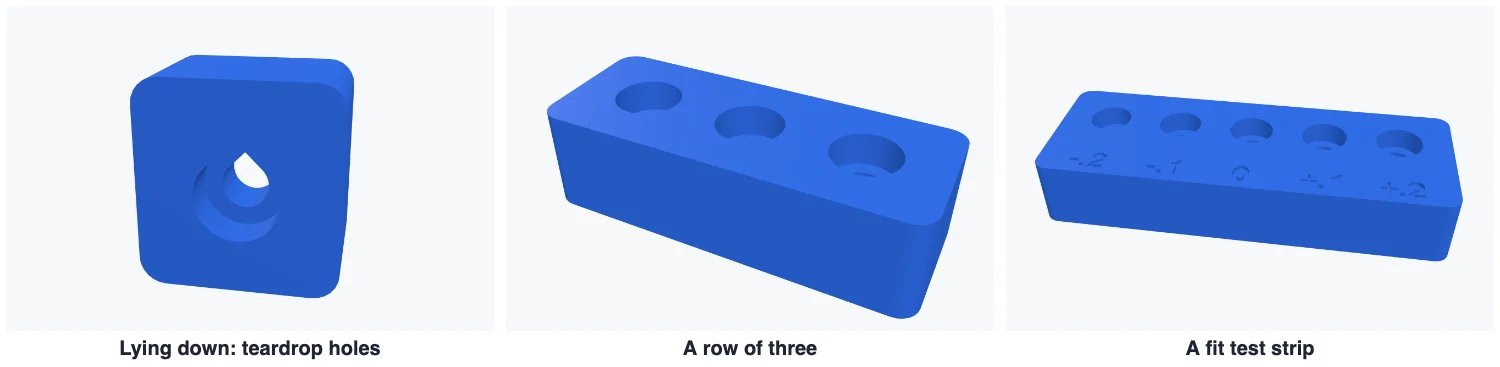
- Hole standing up or Hole lying down - lying down, Teardrop holes give every round hole a 45° point on top, so it prints without supports.
- How many - a row or a grid of holes: how many per row and the spacing.
- The Result: A hole (a Hole body that cuts your model), a Test block (the hole in a block with a wall round it, to print and try) or a Fit test strip - several holes, each a step wider, the steps engraved in front: print it, see which one fits, and use that.
9Put the bolts into your model
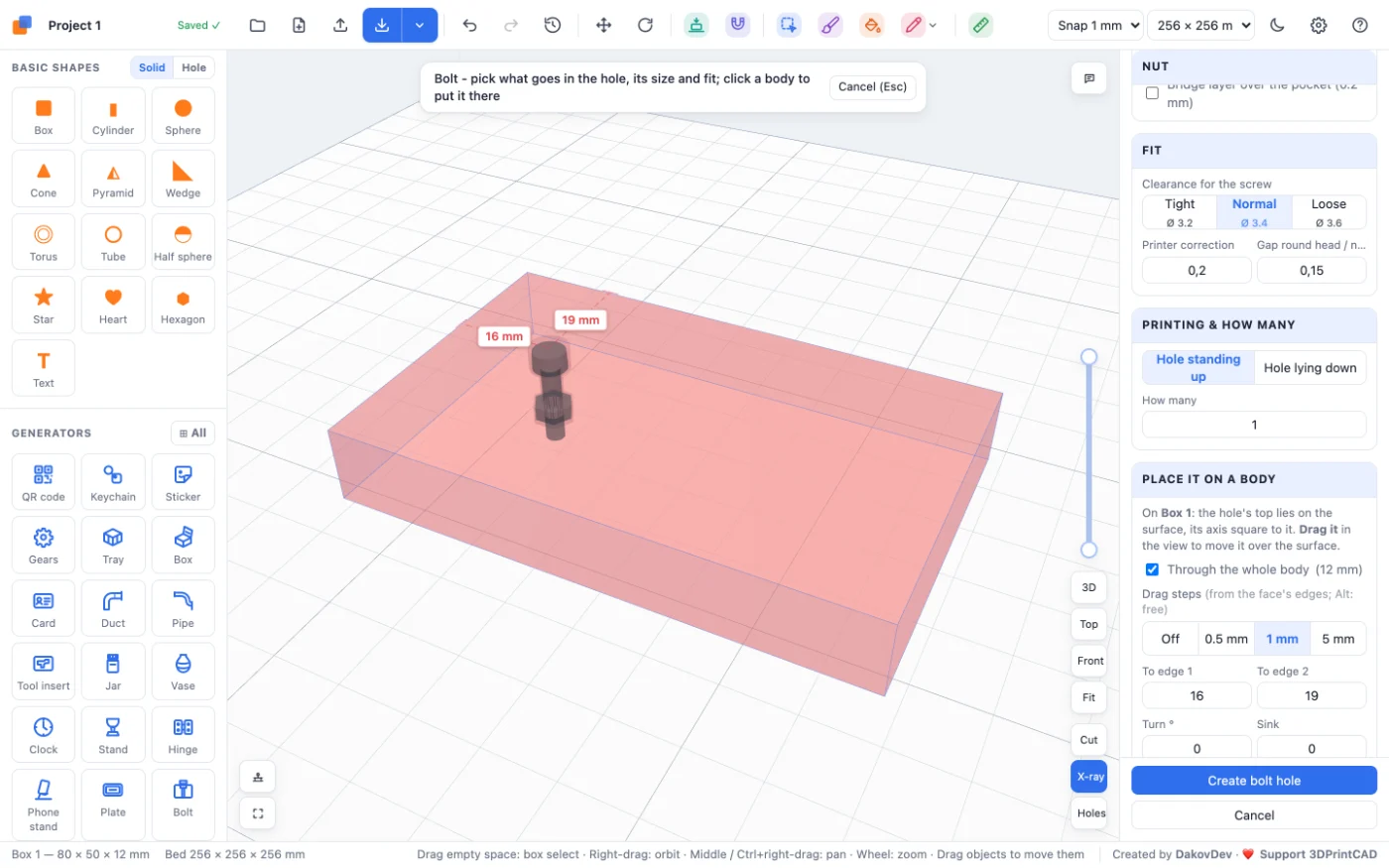
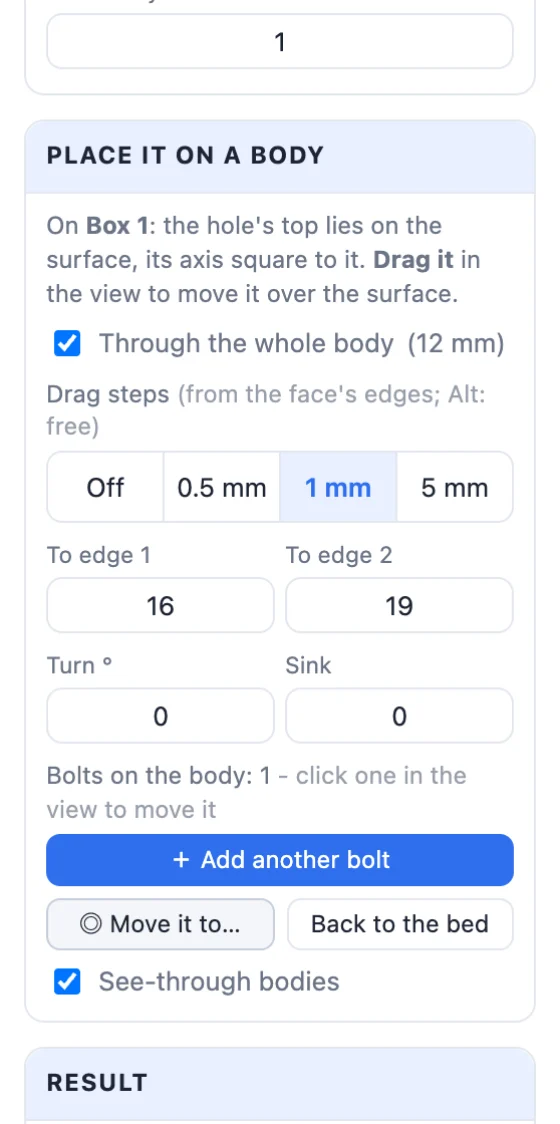
- With A hole chosen, click Click a body's surface… and click the face where the bolt goes. The hole's top sits on that surface, its axis square to it (the bodies turn see-through so you can see it).
- Drag it over the surface - onto other faces and other bodies too. The red dashed lines give the distances to the face's two nearest edges, in Drag steps of 1 mm (Off / 0.5 / 1 / 5; hold Alt for no steps); type a distance into To edge 1 / 2 to set it exactly.
- Through the whole body measures the thickness there, so the nut lands on the far face. Turn turns it about its axis, Sink moves it in or out.
- + Add another bolt and click again for each more bolt; click one in the view to move it.
- Click Create bolt holes, then Cut them in now in the message.
10Tips for printing
- Print a fit test strip once for each printer and material, and set the printer correction from it.
- Holes standing up print the roundest. Lying down, keep teardrops on.
- A nut pocket from below with the bridge layer prints cleanly; drill or poke the layer open afterwards.
- Screws into plastic hold best with at least 3 walls (perimeters) round the hole.
Questions
What hole size do I need for an M3 screw in a 3D print?
For an M3 bolt to pass through, a clearance hole of about 3.4 mm (Normal fit). For an M3 screw that cuts its own thread in the plastic, a pilot hole of about 2.5 mm. The Bolt generator gives both, plus the printer correction, which makes up for printed holes coming out small.
Why do my printed holes come out too small?
The plastic squeezes inwards round a hole, so most printers print holes 0.1-0.3 mm small. The Printer correction (0.2 mm by default) is added to every hole. Print a fit test strip to find your own value.
How do I make a hole for a heat-set insert?
Choose Heat-set insert. The hole uses CNC Kitchen's sizes for the screw size, with room below for the plastic the insert pushes down and a small lead-in chamfer. With My insert you type the sizes from your seller's drawing.
How do I put the hole into my own model?
Keep the result as A hole and click Click a body's surface…, then click where the bolt goes. Drag it over the surface - the red lines give the distances to the edges - add more bolts, click Create, then Cut them in now.
Can a hole lying sideways print without supports?
Yes. Choose Hole lying down and keep Teardrop holes on: every round hole gets a 45° point on top, so its roof prints without supports.
Make holes that fit
Open the app, pick your screw and put the holes into your model.
Open the Bolt generatorAlso see: Hinge generator, Box generator, Basic shapes and body tools (Hole size, Nut in a hole) and Hole pattern tool.