3DPrintCAD › Guides › Hinge generator
Hinge generator: print-in-place hinges for 3D printing
Make a hinge for a box, a lid, a door or a case, in the size you need. Most kinds print already joined and turn right off the bed - no assembly, no supports. Pick the kind, set the size, the play and the screw holes, and export it in two colours.
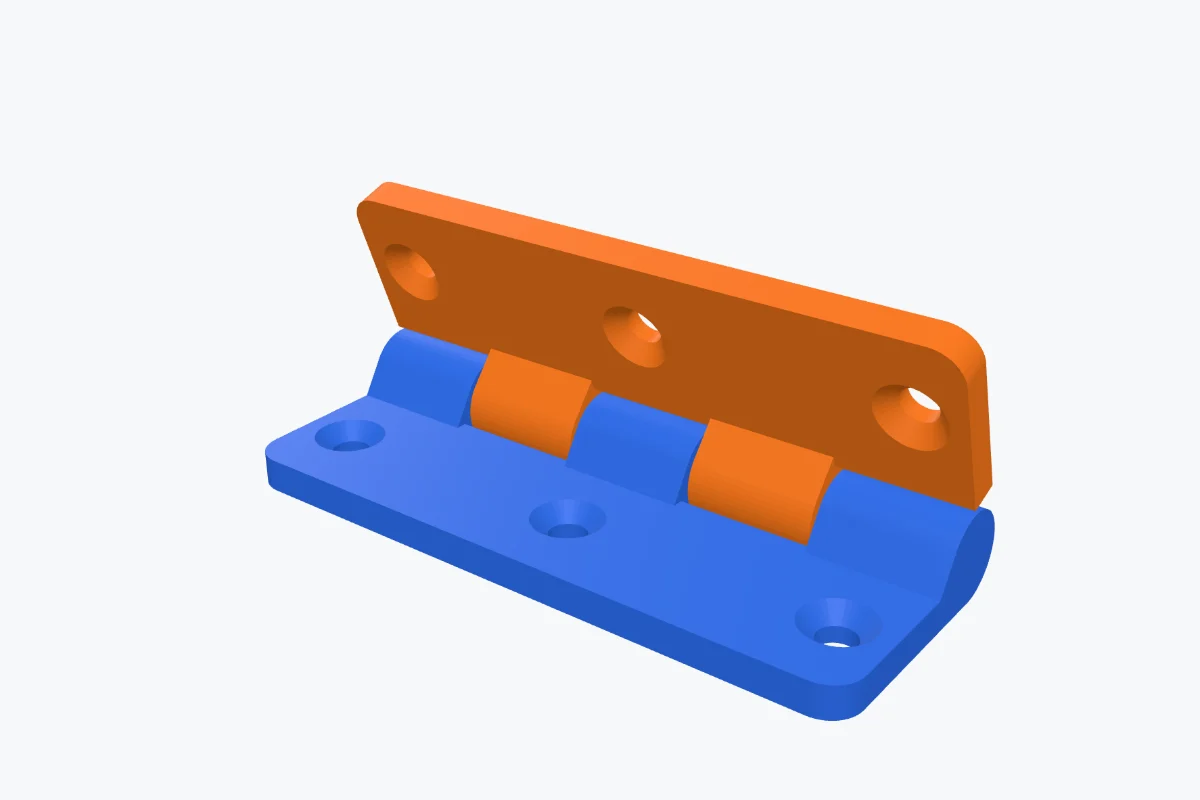
Watch the tutorial
Every option in under two and a half minutes, with subtitles: all eight kinds, size and knuckles, what holds it together, the play, leaves and screw holes, the folded view and several on one plate. Watch on YouTube ↗
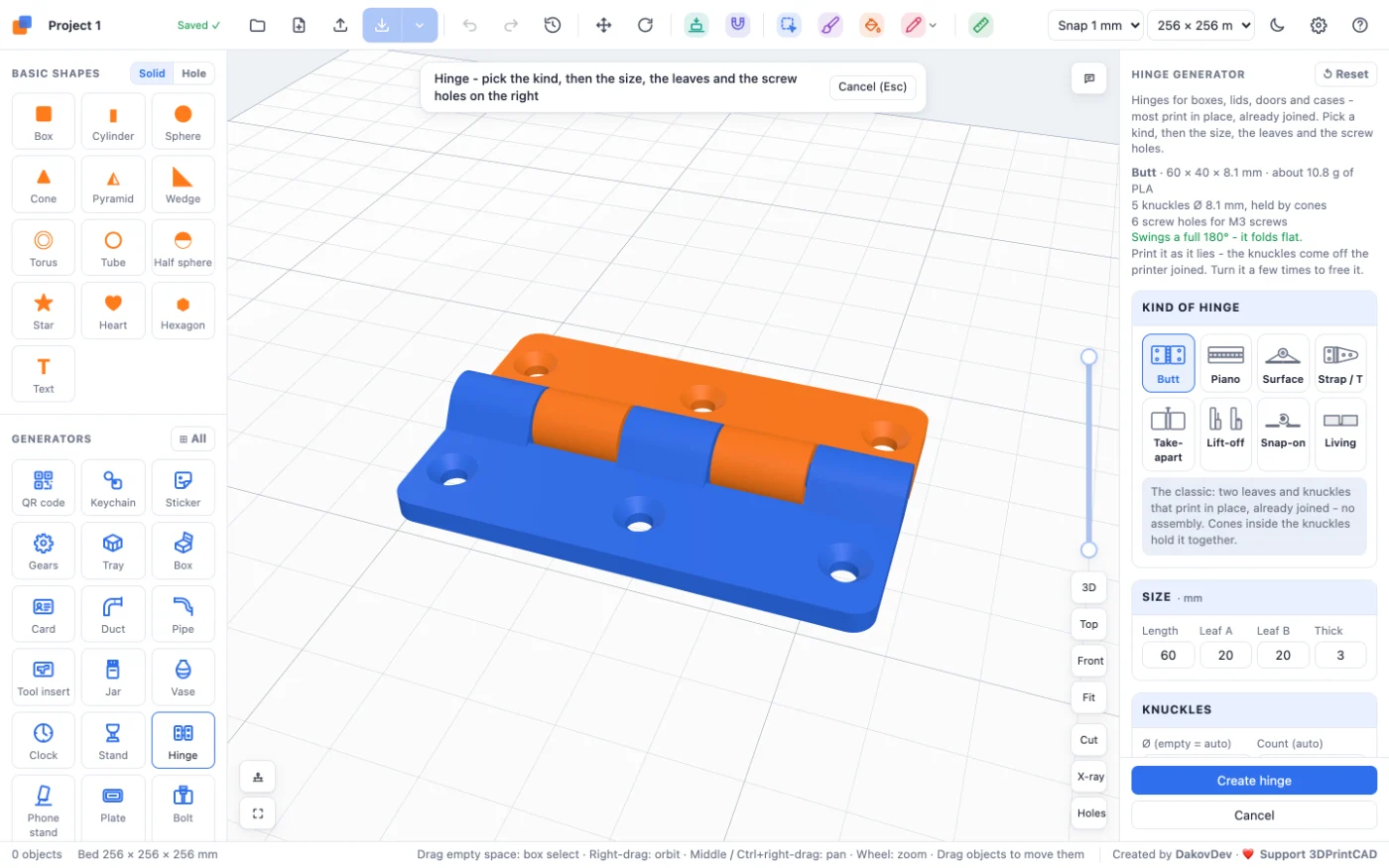
1Open the Hinge generator
Open the app, start a new project and click Hinge under Generators on the left (or use the button above). A butt hinge appears on the bed and its settings open on the right. Every change shows at once in the view; the line at the top of the panel tells you how far the hinge swings and whether the two leaves touch.
2The eight kinds of hinge
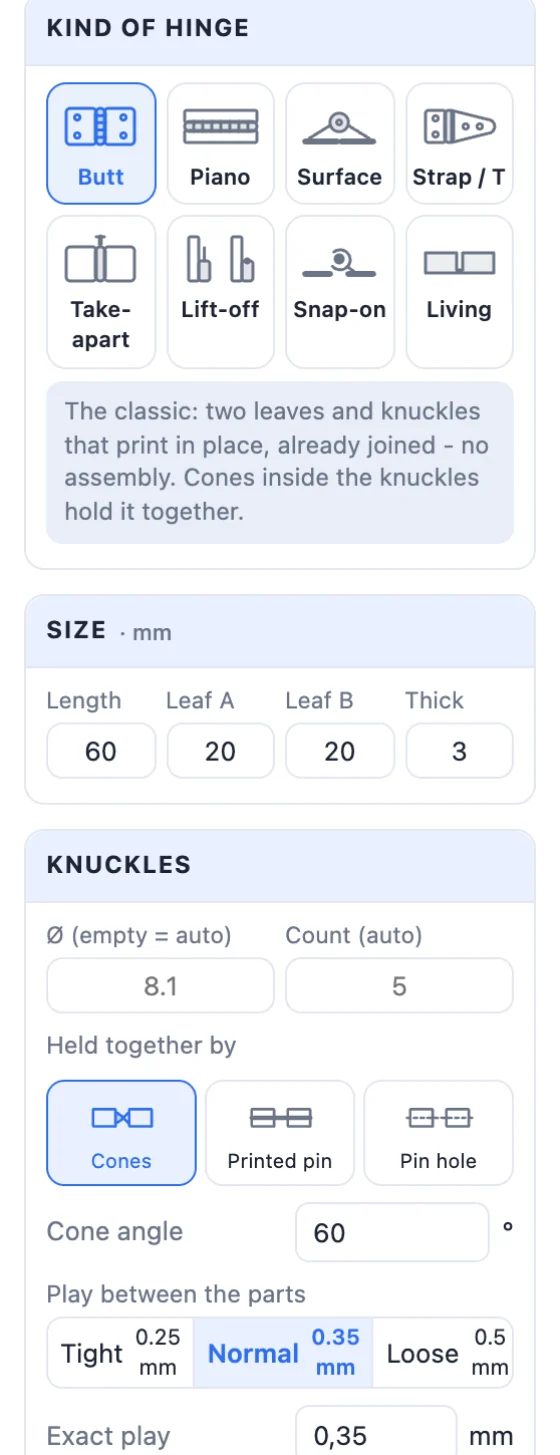
- Butt - the classic: two leaves side by side, joined by knuckles. Prints in place.
- Piano - long, with many small knuckles and narrow leaves: lids, doors, folding boards. Prints in place.
- Surface - both leaves lie flat with the knuckles on top, to screw onto the outside of a box and its lid. Prints in place.
- Strap / T - a short leaf and a long tapered strap, the gate and shed door look. Prints in place.
- Take-apart - the knuckles have a hole for a pin you push in: 1.75 mm filament, a nail, a screw - or a printed pin.
- Lift-off - a pin on one part, a sleeve on the other: lift the door off. Both print standing, knuckle down, without supports. Choose which side the pin leaf goes.
- Snap-on - printed apart, then clipped together: a C-shaped knuckle snaps over a rod. Clip opening sets how tight it snaps.
- Living - one piece with a thin bending strip between the leaves; set its thickness and width. Print it in PP, PETG or TPU.
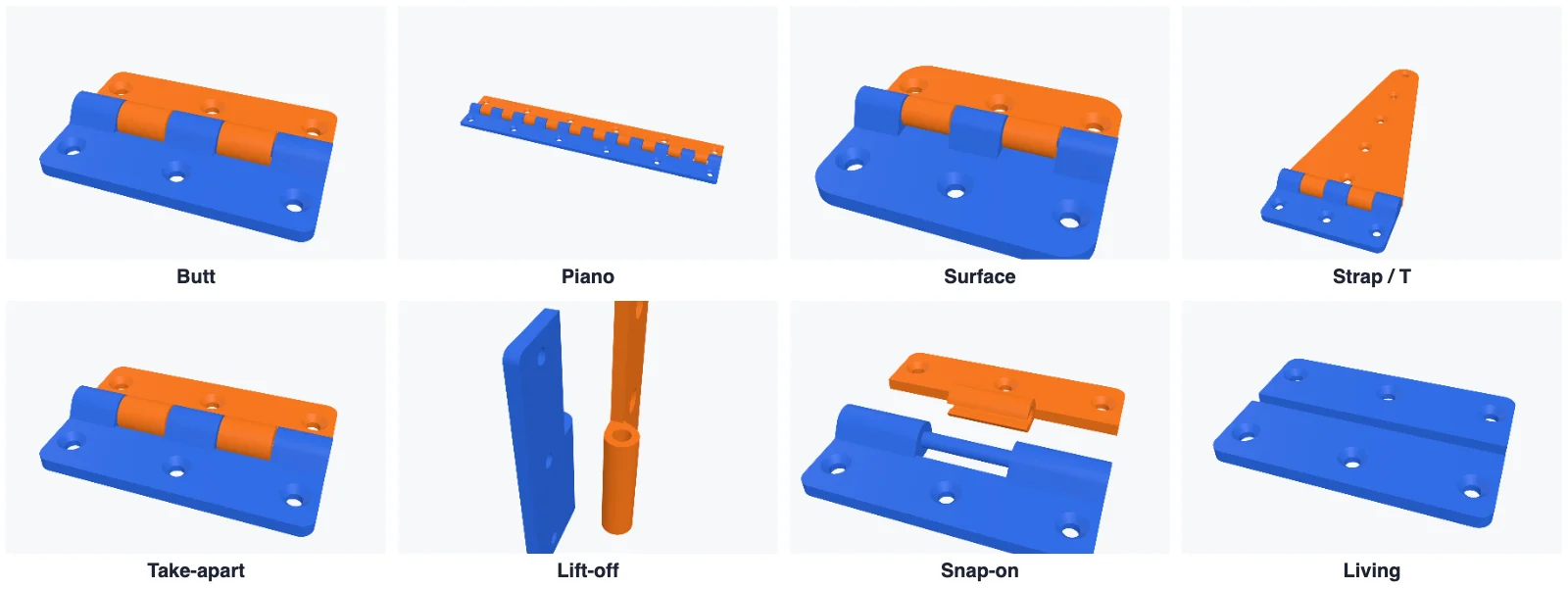
Switching the kind starts it with settings that suit it; everything below can still be changed.
3Size and knuckles
In the Size card type the Length (along the knuckles), the width of Leaf A and Leaf B (from the middle of the knuckles to the outer edge) and the Thickness of the leaves. A strap hinge also has the width of the strap's end.
In the Knuckles card you can type the knuckles' Ø and their Count. Leave them empty and the generator picks them from the length and the thickness - the automatic values show in the empty fields.
4What holds it together
The hinges that print in place (butt, piano, surface, strap) are held together in one of three ways:
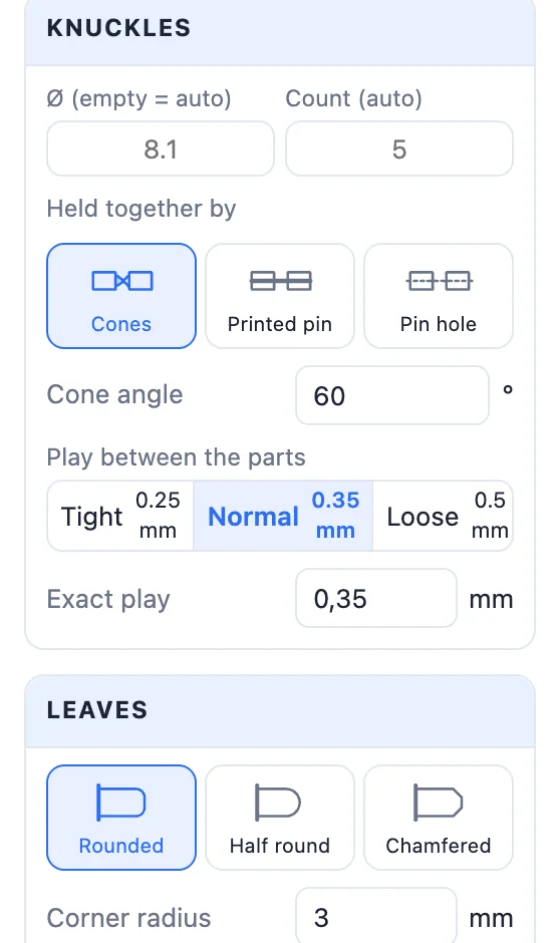
- Cones - cones on one leaf's knuckles sit in cone-shaped sockets in the other's. They print without supports. Cone angle: steeper prints more cleanly, flatter holds deeper.
- Printed pin - a pin printed in place through all the knuckles. Stronger for long hinges.
- Pin hole - a hole through all the knuckles for a pin you add, so the halves come apart. Pick the pin: 1.75 mm filament, a 2 mm nail, M3 or M4 - or type your size and the room round it. Print a pin too adds a pin with a head, lying flat.
5The play
The play is the gap all round the moving parts. Normal (0.35 mm) works on most printers; Tight (0.25 mm) wobbles less on a well tuned printer; Loose (0.5 mm) is for a printer whose hinges come out stuck. Exact play takes any value from 0.1 to 1 mm.
6Leaves and screw holes
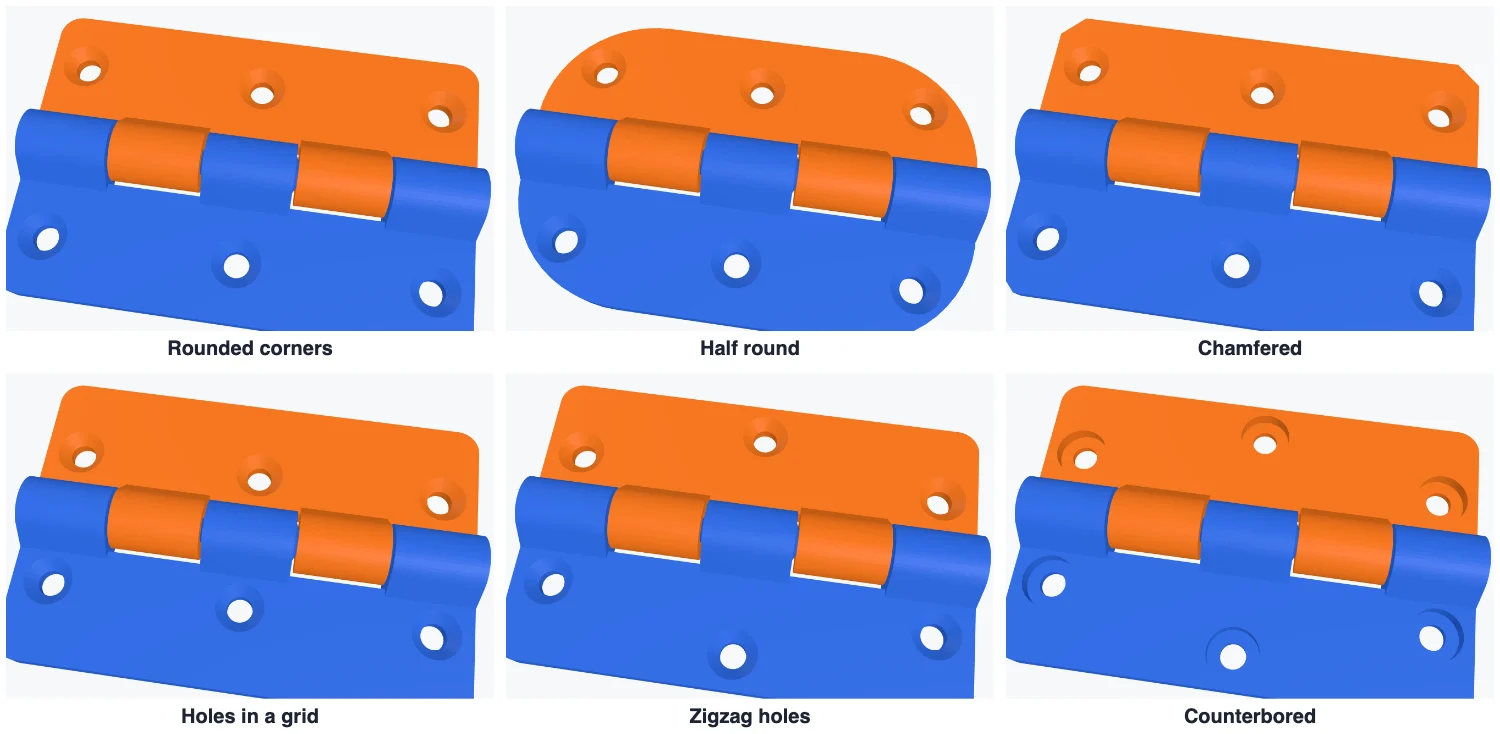
The Leaves card gives the outer corners: Rounded (with a corner radius), Half round or Chamfered.
Tick Screw holes to add them. Pick the screw - M2 to M5, wood screws 3 or 4 mm, or your own hole and head size - and the head: Countersunk, Counterbore or Plain. The layout is Auto (two rows when the leaf is wide enough), Line, Grid or Zigzag, with how many along and across. A hole whose head would reach past a rounded edge moves in until it fits.
7See it folded
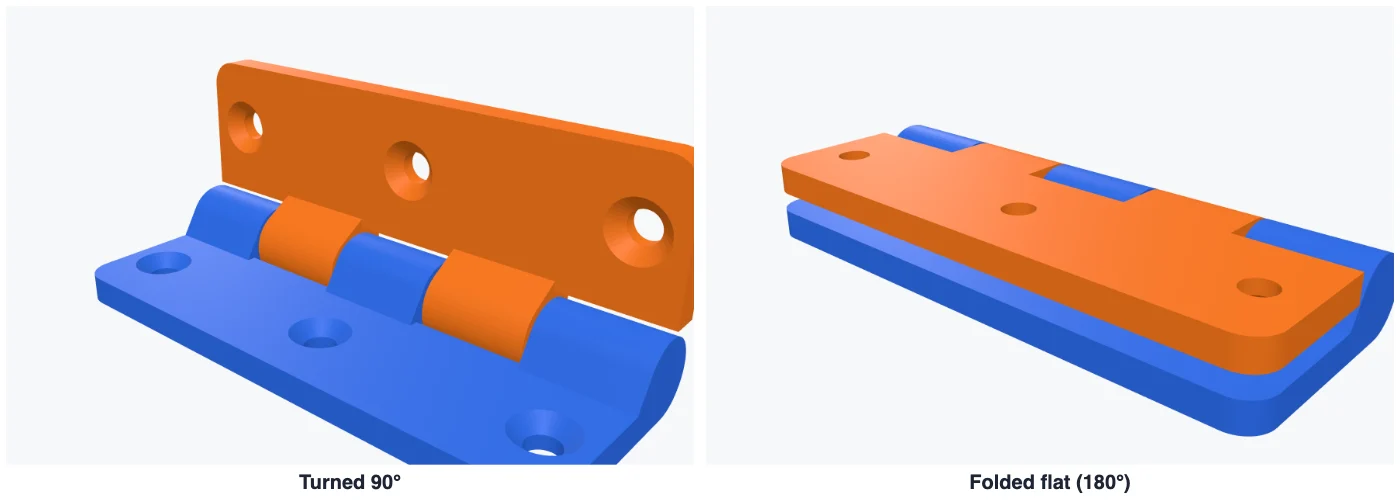
In Layout & colours, Folded turns leaf B about the knuckles so you can check the motion; drag the Turned slider from 0 to 180°. The panel's info line says how far it can swing before the leaves meet - 180° means it folds flat. Lift-off and snap-on hinges show Put together instead. Switch back to As printed before you export.
8Several hinges, colours and export
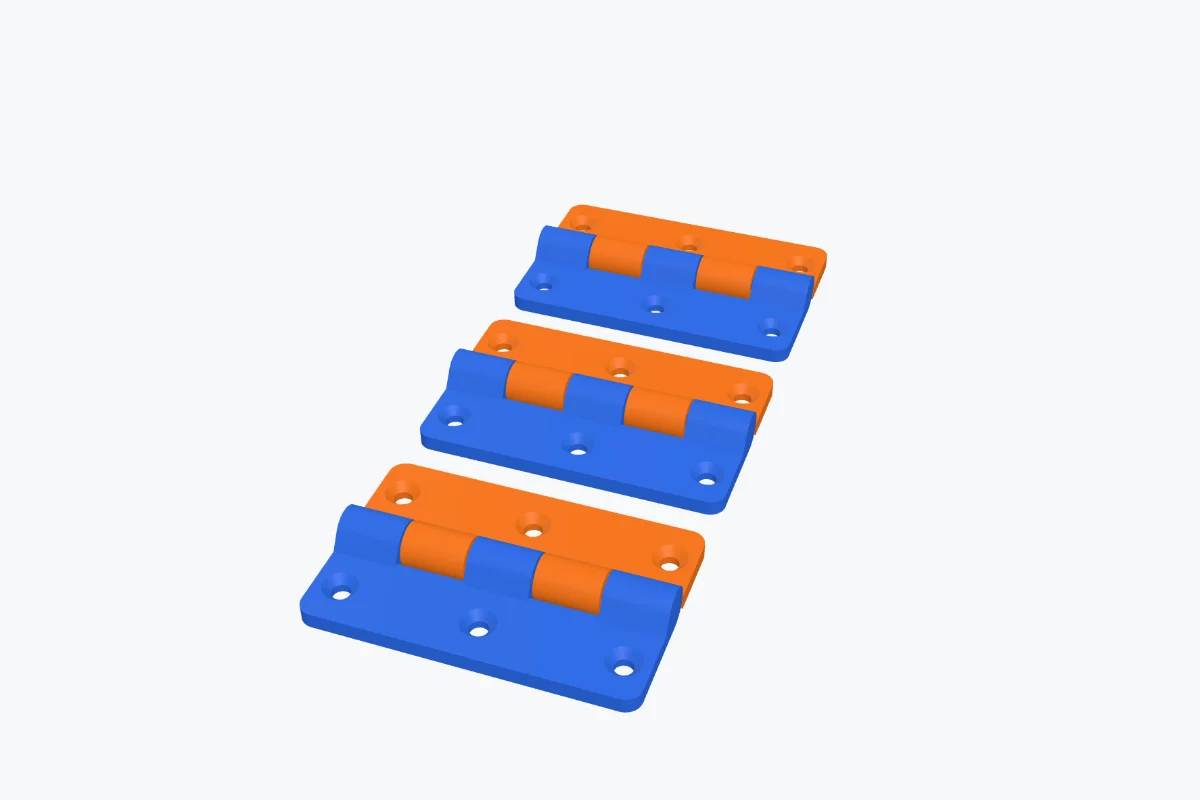
How many puts up to 8 hinges side by side on one plate. Each leaf has its own colour (and the pin, when one is printed). Click Create hinge, then export it: STL for one colour, or Multi-colour 3MF to print the two leaves in their colours. To change it later, double-click it.
9Tips for printing
- Print in-place hinges flat, as they come out of the generator - no supports.
- If a hinge is stuck, bend it firmly once; it loosens the knuckles. If it still does not turn, print it again with Loose play.
- A squashed first layer (elephant's foot) can fuse the knuckles to each other: level the bed and don't print the first layer too close to it.
- For a living hinge use PP, PETG or TPU and print the strip lying flat.
Questions
Does a print-in-place hinge really turn off the bed?
Yes. The butt, piano, surface and strap hinges print already joined, with a gap (the play) all round the moving parts. If it comes out stuck, bend it firmly once to loosen it, or make it again with the Loose play.
Which play should I choose?
Normal (0.35 mm) works on most printers. Use Tight (0.25 mm) on a well tuned printer for a hinge with less wobble, and Loose (0.5 mm) when the hinge comes out stuck.
What is the difference between cones and a printed pin?
Cones on one leaf's knuckles sit in cone-shaped sockets in the other's: they print without supports and are fine for most hinges. A printed pin runs through all the knuckles and is stronger for long hinges. A pin hole leaves room for a pin you add - 1.75 mm filament, a nail or a screw - so the halves come apart.
Can I take the hinge apart?
Choose Take-apart (a pin you push in), Lift-off (one part lifts off the other's pin, like a door) or Snap-on (a clip that snaps over a rod and pulls off again).
What material is best for a living hinge?
PP, PETG or TPU. A living hinge is one piece with a thin strip that bends; in PLA it breaks after a few bends.
Make your hinge
Open the app, pick a kind of hinge and set it to your box or door.
Open the Hinge generatorAlso see: Box generator (boxes with hinged lids), Bolt generator, Flexi generator and Tray generator.