3DPrintCAD › Guides › SVG to 3D model
SVG to 3D model: turn any SVG into a 3D print
A logo, an icon, a drawing or a cut file - add the SVG and it becomes a 3D body. Set its size and thickness, give it a colour, put a border round it (a joined base like a keychain, a frame, a plate…), smooth out jagged edges, and place it on the bed, on top of a body, or anywhere on a surface - flat, or bending round a curve. Everything can be changed again later.
Watch the tutorial
Every SVG option in about three minutes, with subtitles: size, solid or hole, colours, borders, smooth edges, editing it later, on a dome and on a cylinder. Watch on YouTube ↗
1Add an SVG file
Click SVG file in Basic shapes (after Text) and choose an .svg file - a logo, an icon from an icon set, a drawing from Inkscape or Illustrator, a cut file. You can also drop the file on the bed. Filled shapes and outlines (strokes) are both read; holes in a shape stay holes.
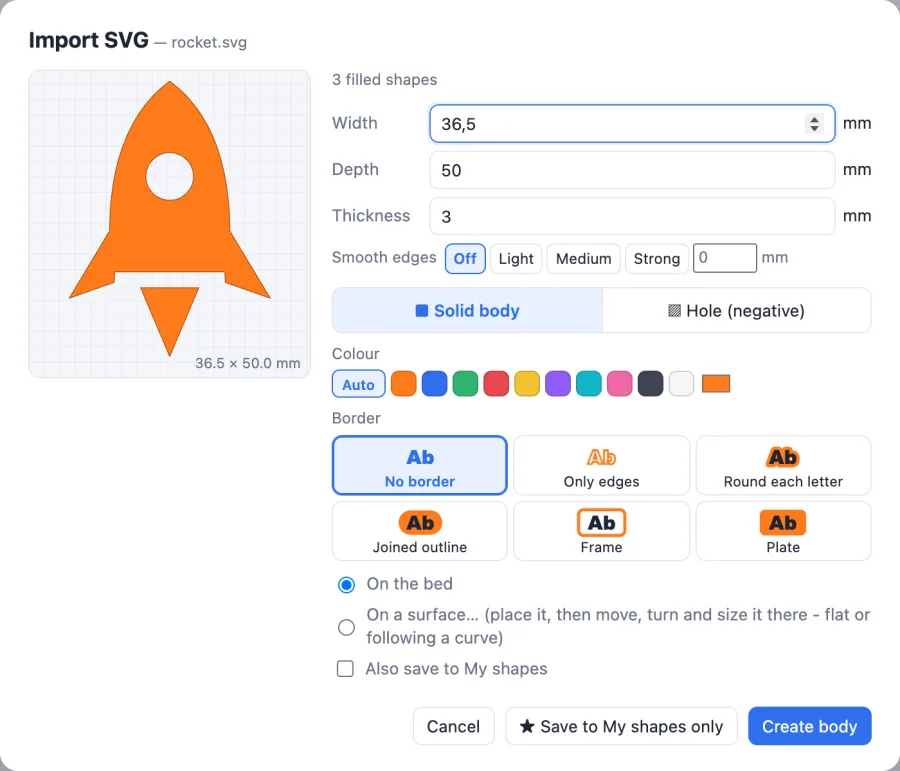
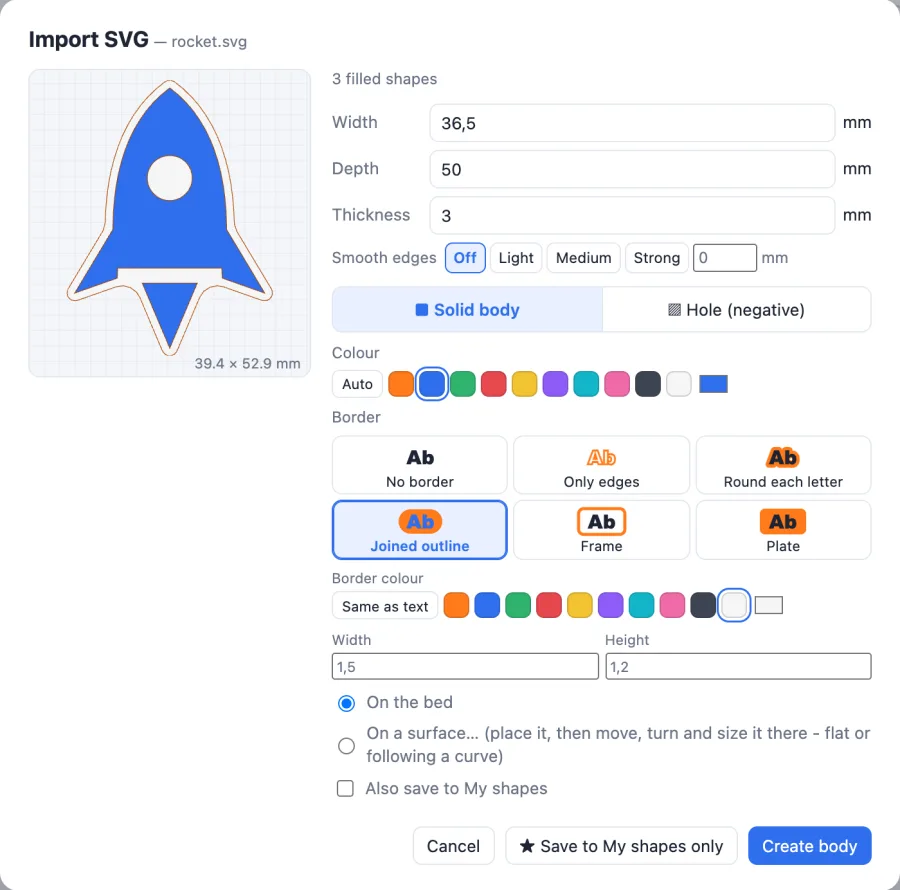
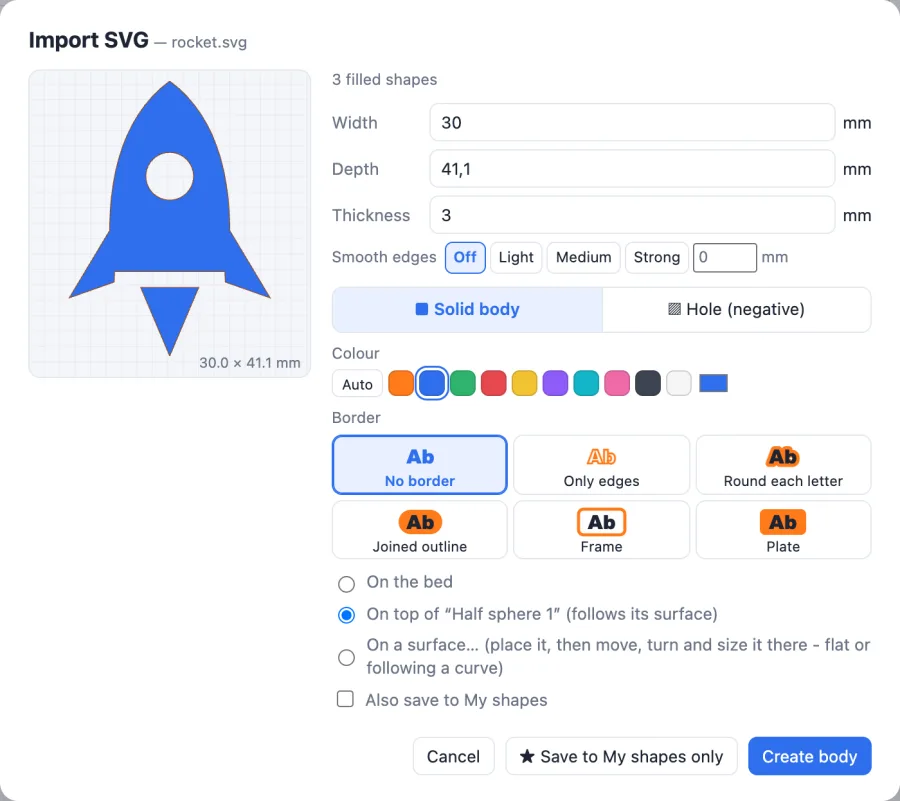
The Import SVG window opens. On the left a live preview of the outline, with its size in mm under it - it changes as you change anything on the right. Above the fields it says what was found in the file (here 3 filled shapes) and, when the SVG gives its size in real units, that size.
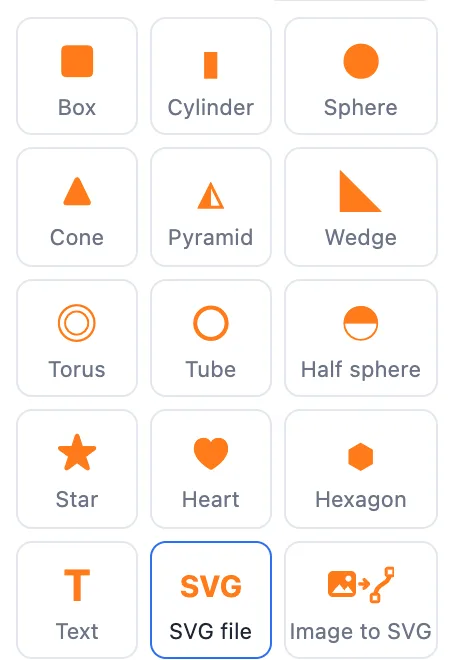
Not got an SVG yet? Image to SVG (the next tile) turns a picture, a photo or a logo into a clean SVG first.
2Size, thickness, solid or hole
- Width and Depth - its size on the bed in mm. They are linked: change one and the other follows, so the shape never stretches. An SVG without a real size starts with its longer side at 50 mm.
- Thickness - how tall the body is (3 mm here).
- Solid body - a normal body you print.
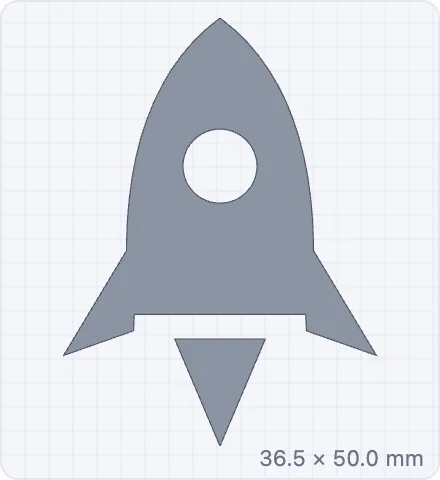
- Hole (negative) - a body that cuts: put it into another body and use Union (or just export) and the shape is cut out of it - to engrave a logo or make a pocket of its shape. It shows grey in the preview.
3Colour
The Colour row gives the body its colour. Auto takes the next colour of the palette, a swatch takes that colour, the last box any colour you like. The preview fills in that colour, so you see at once how it looks with its border.
4Border: six styles
A border is built round the shape and joined to it - the same borders as for 3D text (their names talk about letters, but they work on any shape):
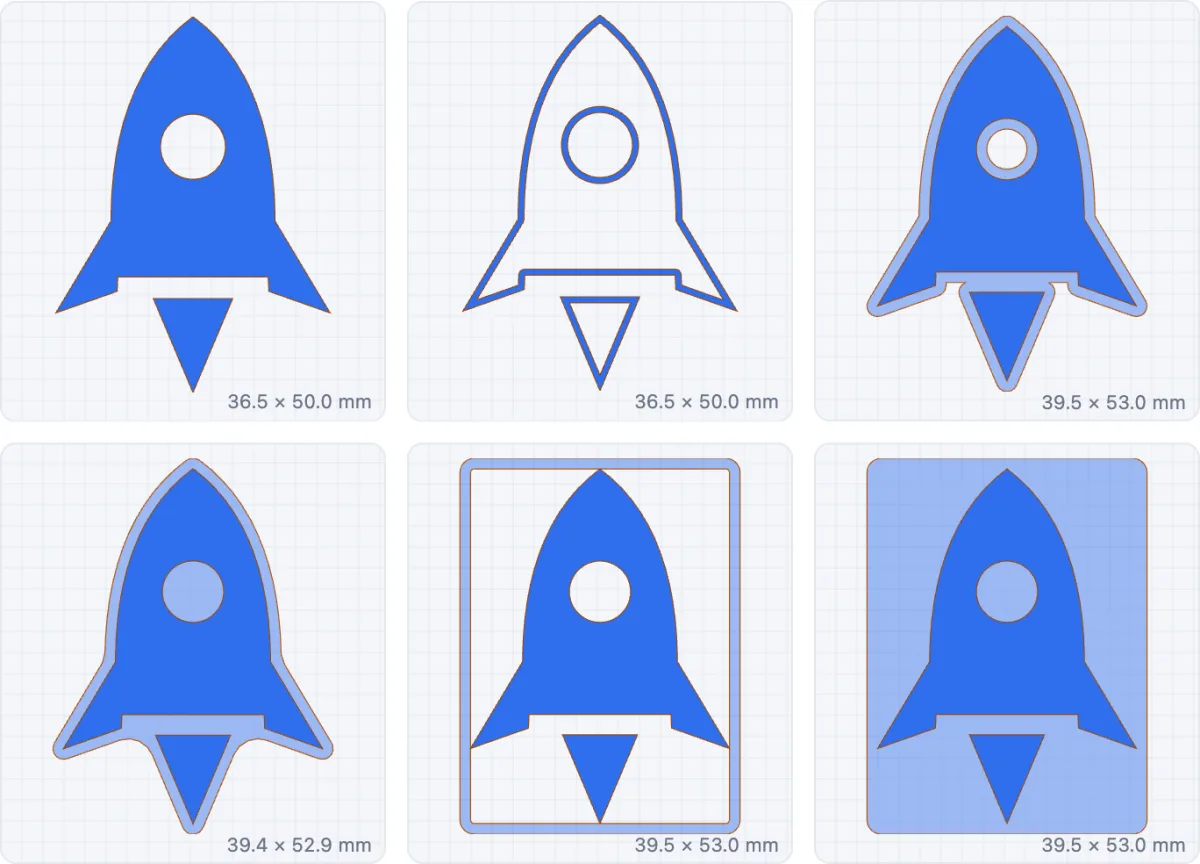
- No border - just the shape (every SVG starts like this).
- Only edges - the shape hollowed out: only its outline stands, Edge mm thick. Good for big, bold shapes.
- Round each letter - a band round every piece of the shape. With Gap 0 the pieces stand on it; with a gap the band is a separate ring round them.
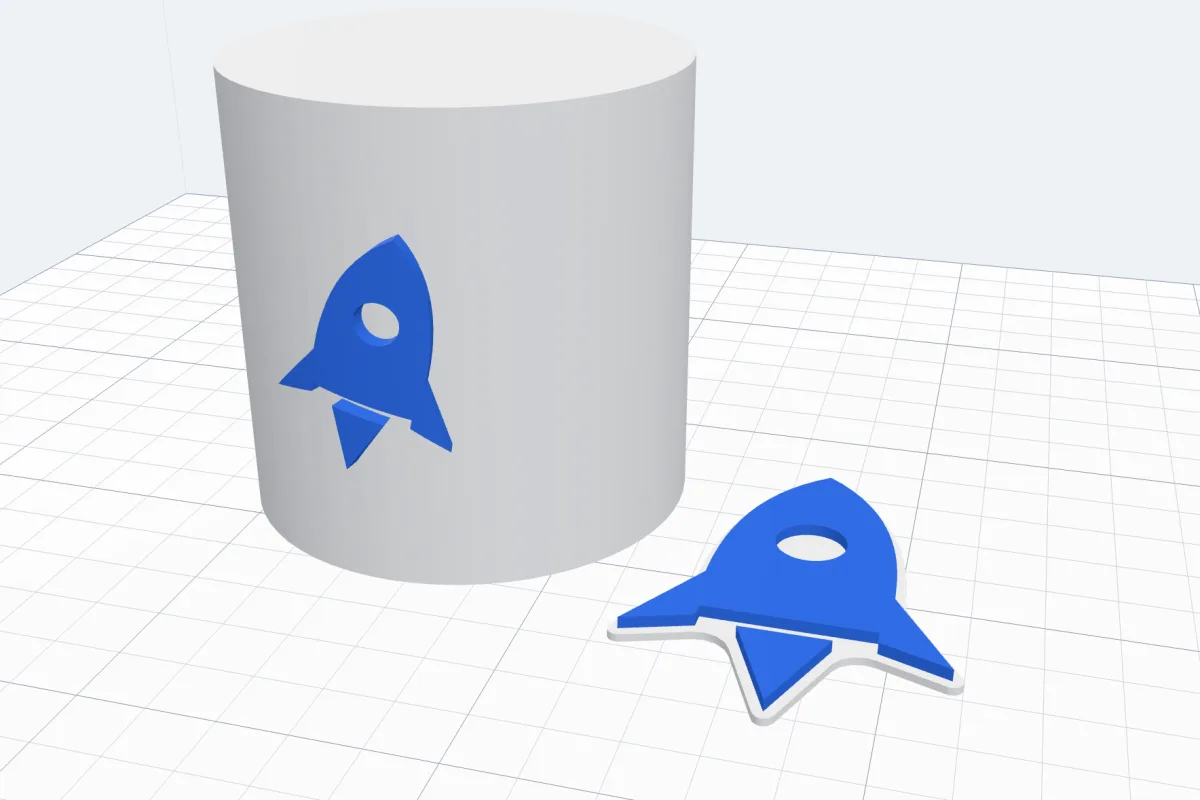
- Joined outline - one base under the whole shape, its pieces joined into one: the look of a sticker or a name keychain. The rocket's flame and its window are part of the base now, so it prints as one piece.
- Frame - a rounded rectangle round the whole shape (Gap from it, Corners radius). Pieces that do not touch it stay separate.
- Plate - that rectangle filled: a plate under the shape.
For every style but No border you set the Width (or Edge) and the Height - how high the border stands from the bed; the shape keeps its own thickness, so a lower border makes it stand out. Border colour gives the border a colour of its own (Same as text keeps the shape's).
5Smooth edges
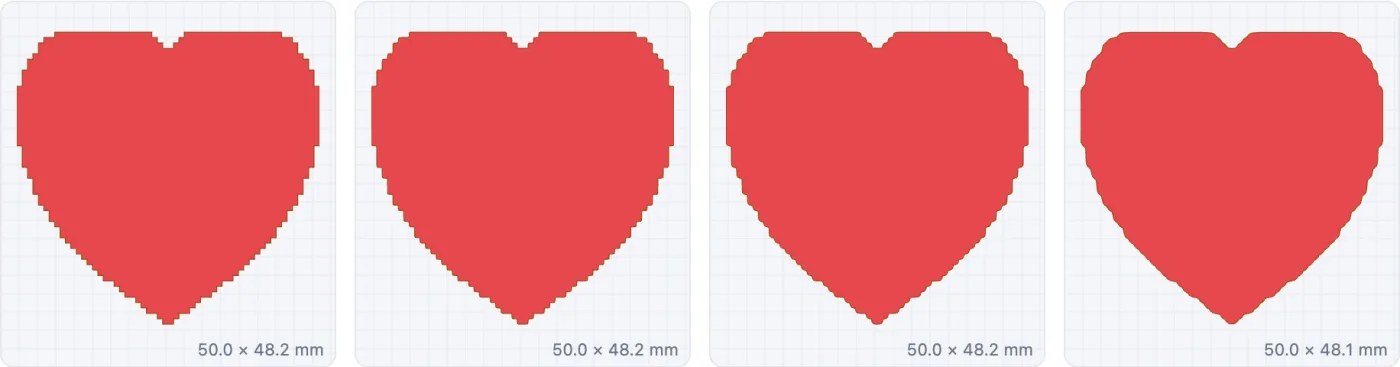
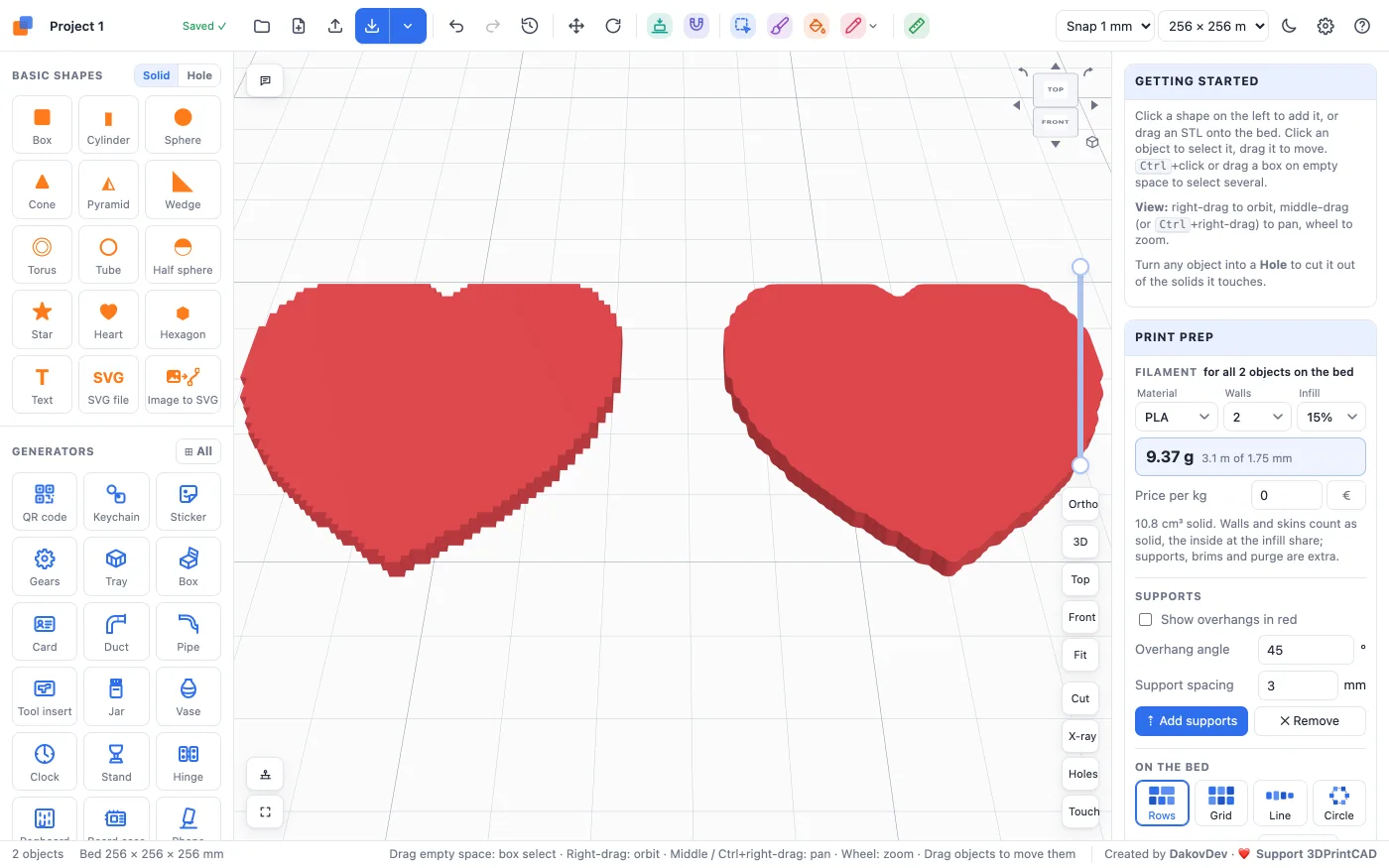
SVGs traced from pictures, and pixel art, often have stepped or jagged edges - every step would print. Smooth edges irons them out: small notches are filled, spikes are rounded off, and the outline is averaged over the distance you choose.
- Off - exactly as drawn.
- Light (0.3 mm), Medium (0.6 mm), Strong (1.2 mm) - or type any value up to 10 mm in the box.
- A thin line on its own is kept. A very thin part joined to a bigger shape can be rounded away by Strong - choose less if you need it.
6On the bed
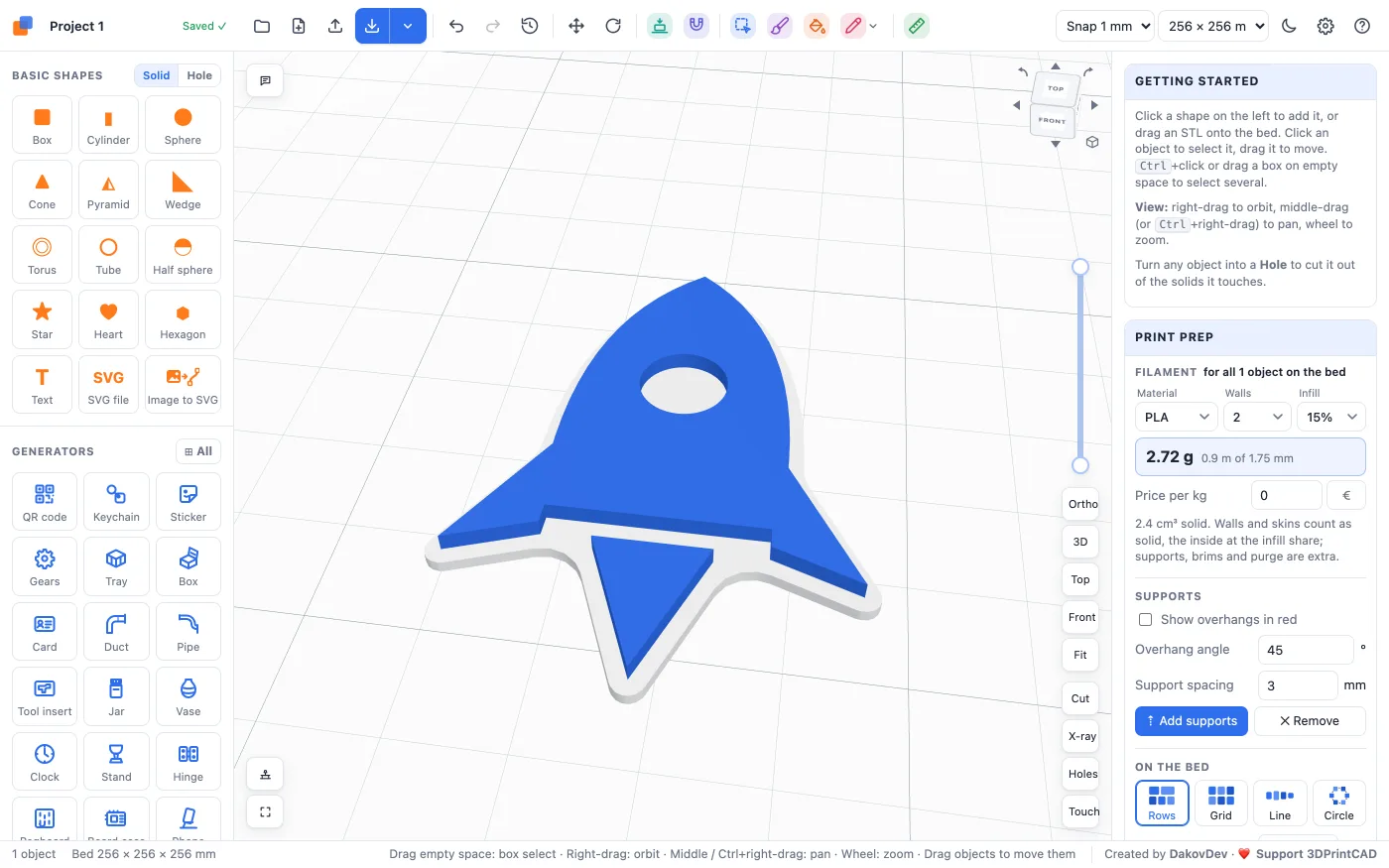
At the bottom of the window you choose where it goes. On the bed puts the body flat on the bed, in an empty spot, and selects it. Also save to My shapes keeps a copy in your shape library; Save to My shapes only keeps it there without adding it now.
7On top of a body
Select a body before you add the SVG and the window offers On top of “…” (follows its surface) - and picks it for you. The shape goes on the middle of the body's top and bends with its surface: here a rocket on a dome.
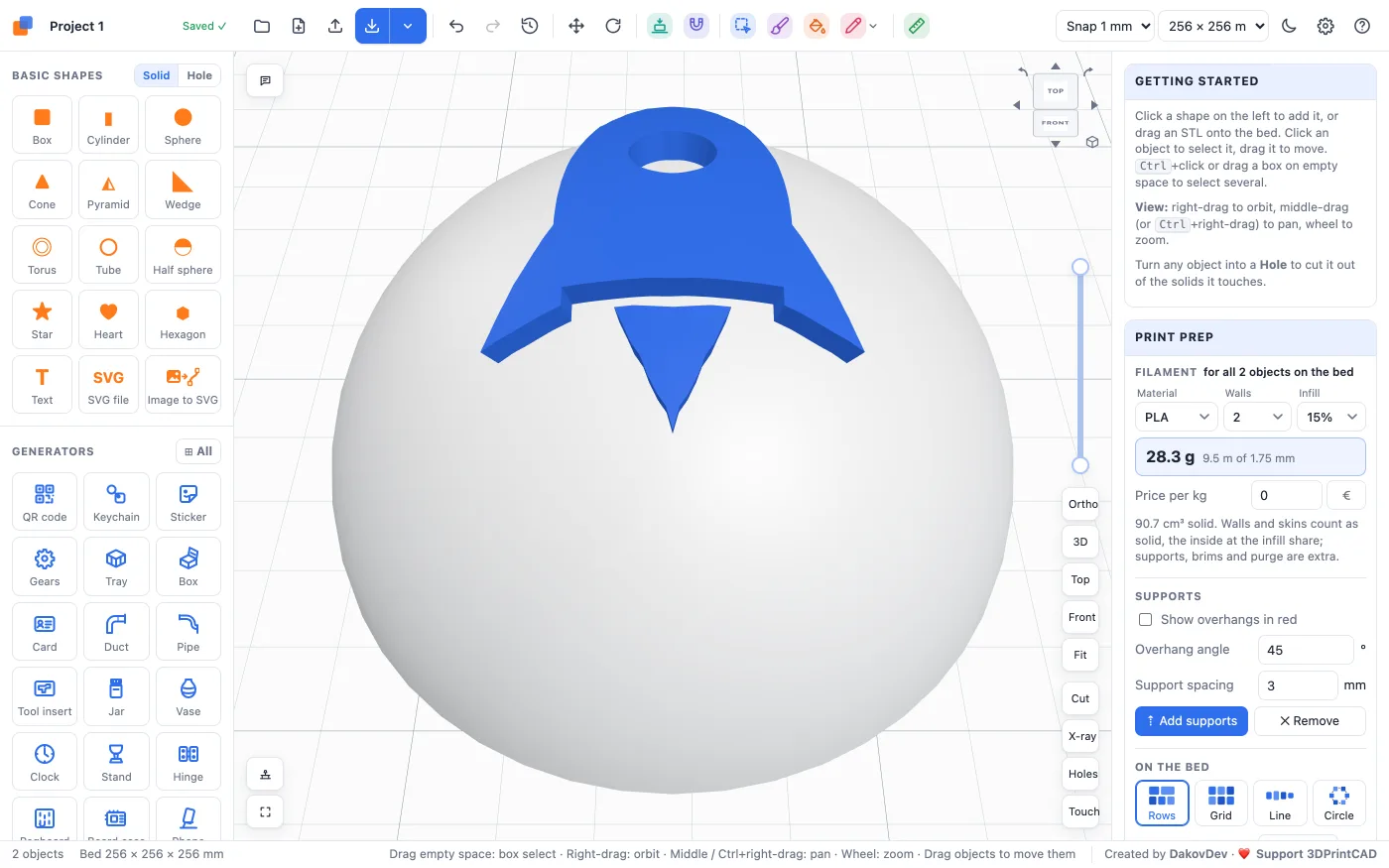
It stays a body of its own. The message after it offers Merge now (join them into one) - for a hole, Cut it in now.
8On a surface: flat or following a curve
For any other place - the side of a cup, a slanted face, another body - choose On a surface… and click Place it on a surface….
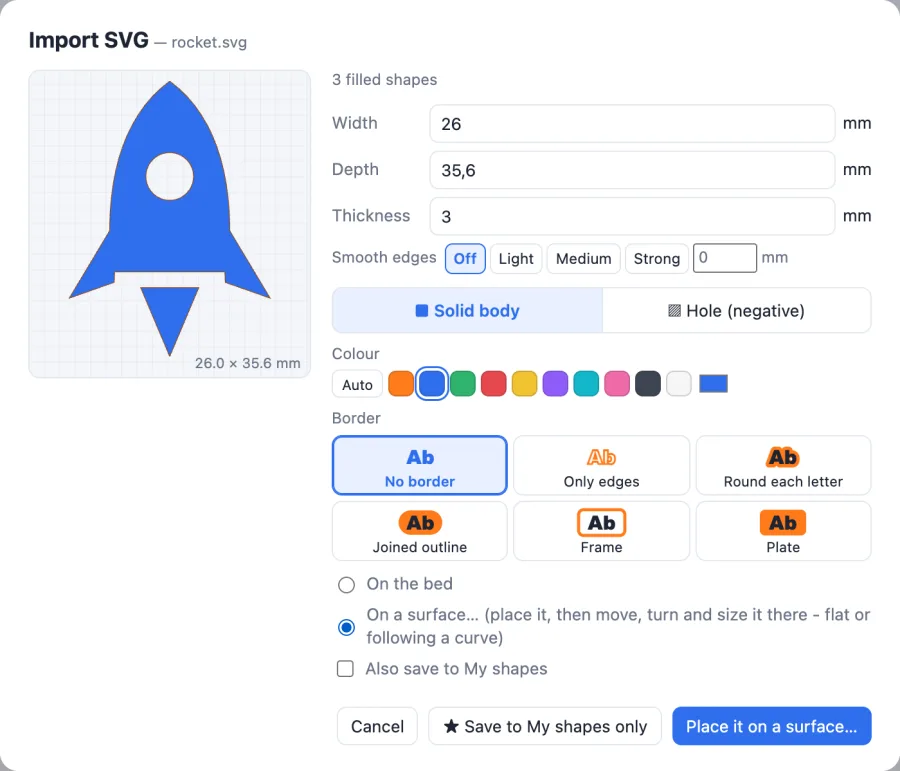
- Point at a body: a see-through copy of the shape follows the mouse over its surface.
- Click to put it there. Now it is shown as it will be, with a dashed box round it, a blue knob above it and a white dot at a corner.
- Drag the shape to move it along the surface - even onto another body. Drag the blue knob to turn it (1° steps, Shift 15°). Drag the white dot to size it.
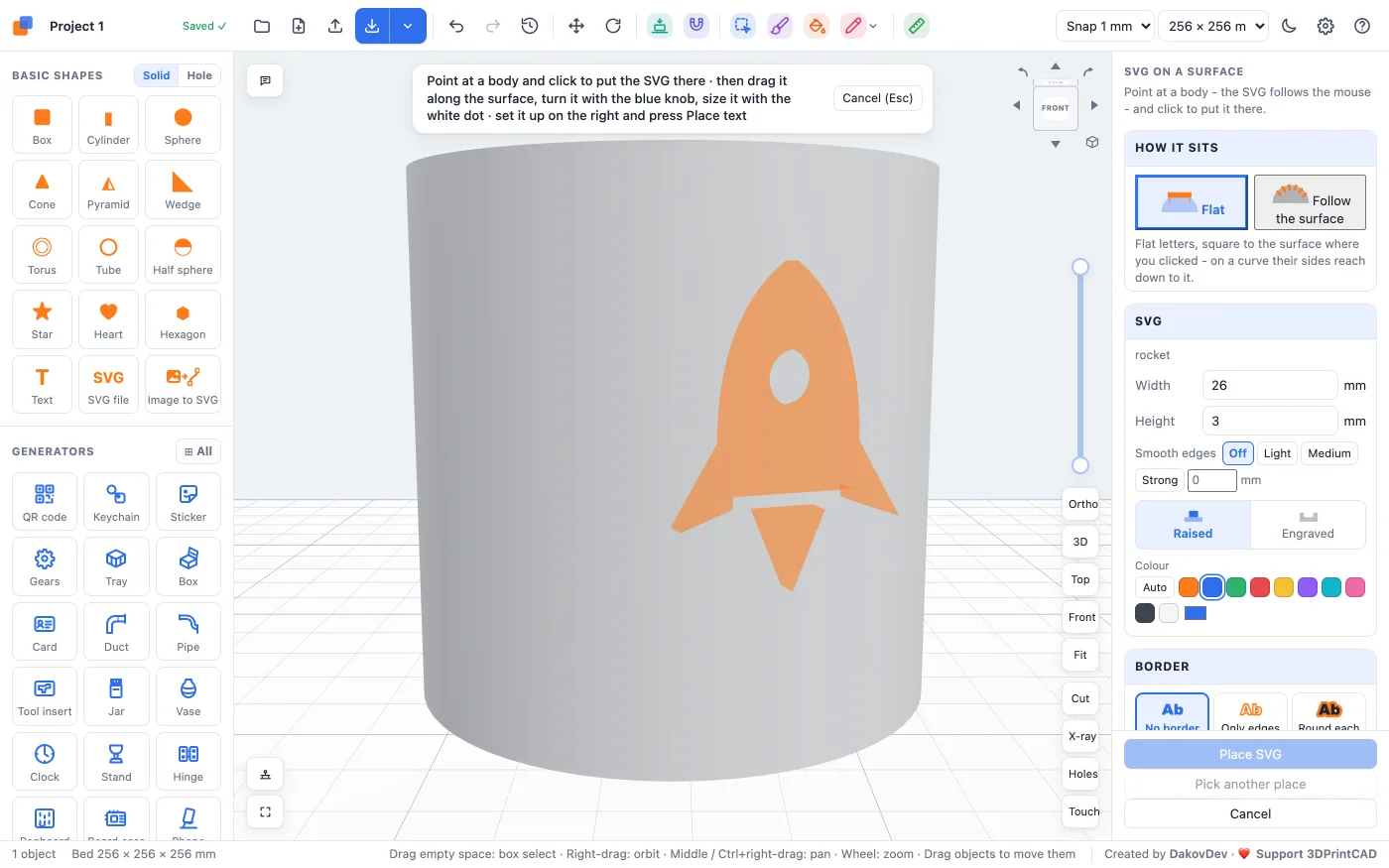
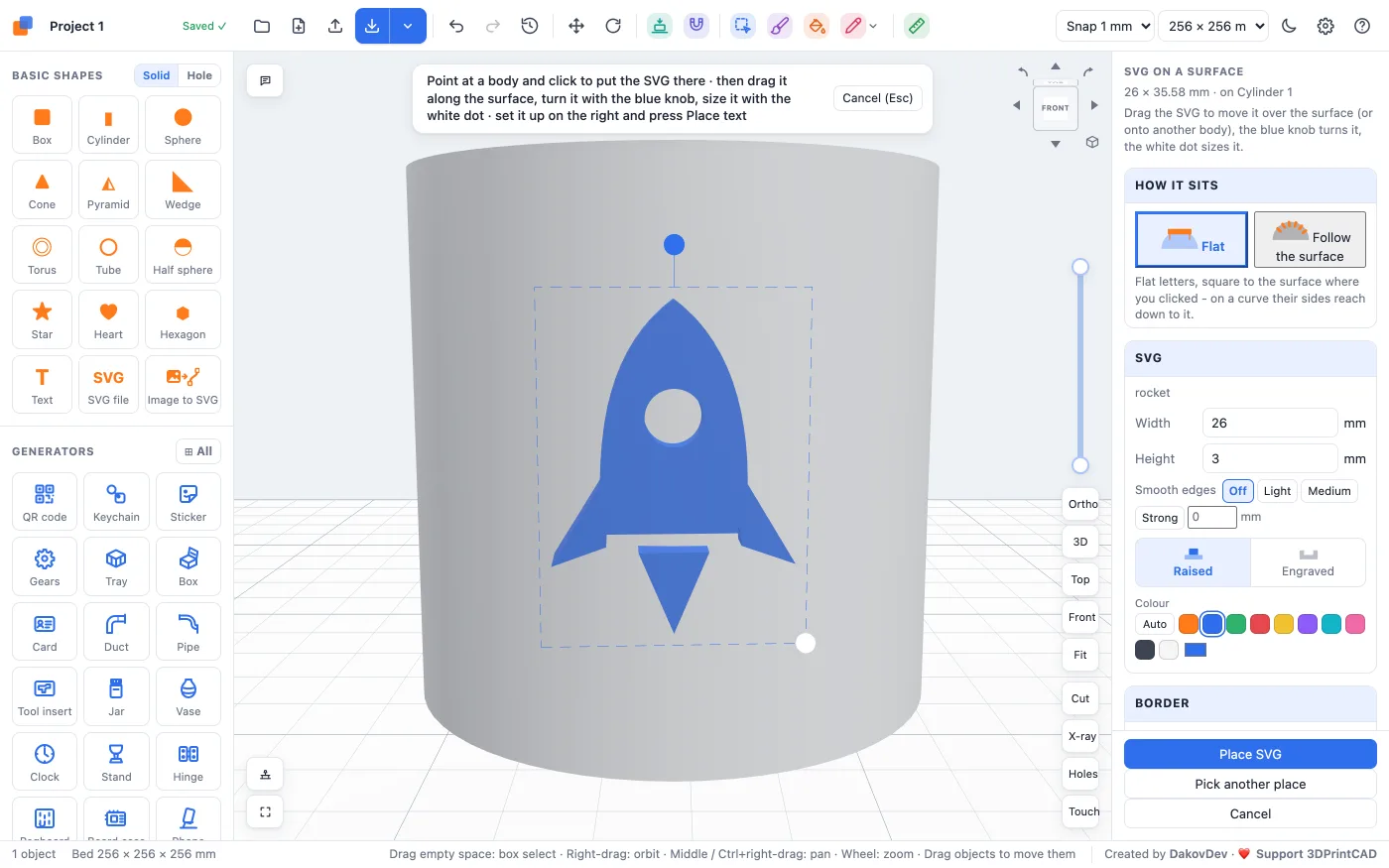
The panel on the right sets it up:
- How it sits - Flat keeps the shape flat, square to the surface where you clicked; on a curve its back reaches down to the surface, so there is no gap. Follow the surface bends it round the surface like a sticker - round a cylinder or a ball.
- SVG - its width, height (or depth), Smooth edges, Raised or Engraved (cut into the surface) and its colour.
- Border - the same six styles as in the window.
- Turn - the angle, or −90° / −15° / Upright / +15° / +90°.
- Preview - Show the body with the SVG joined (or cut in) shows the result; Join it to the body when placed joins them into one body (for engraved: cuts it in) when you click Place SVG. Unticked, the SVG stays a body of its own that you can still move and edit.
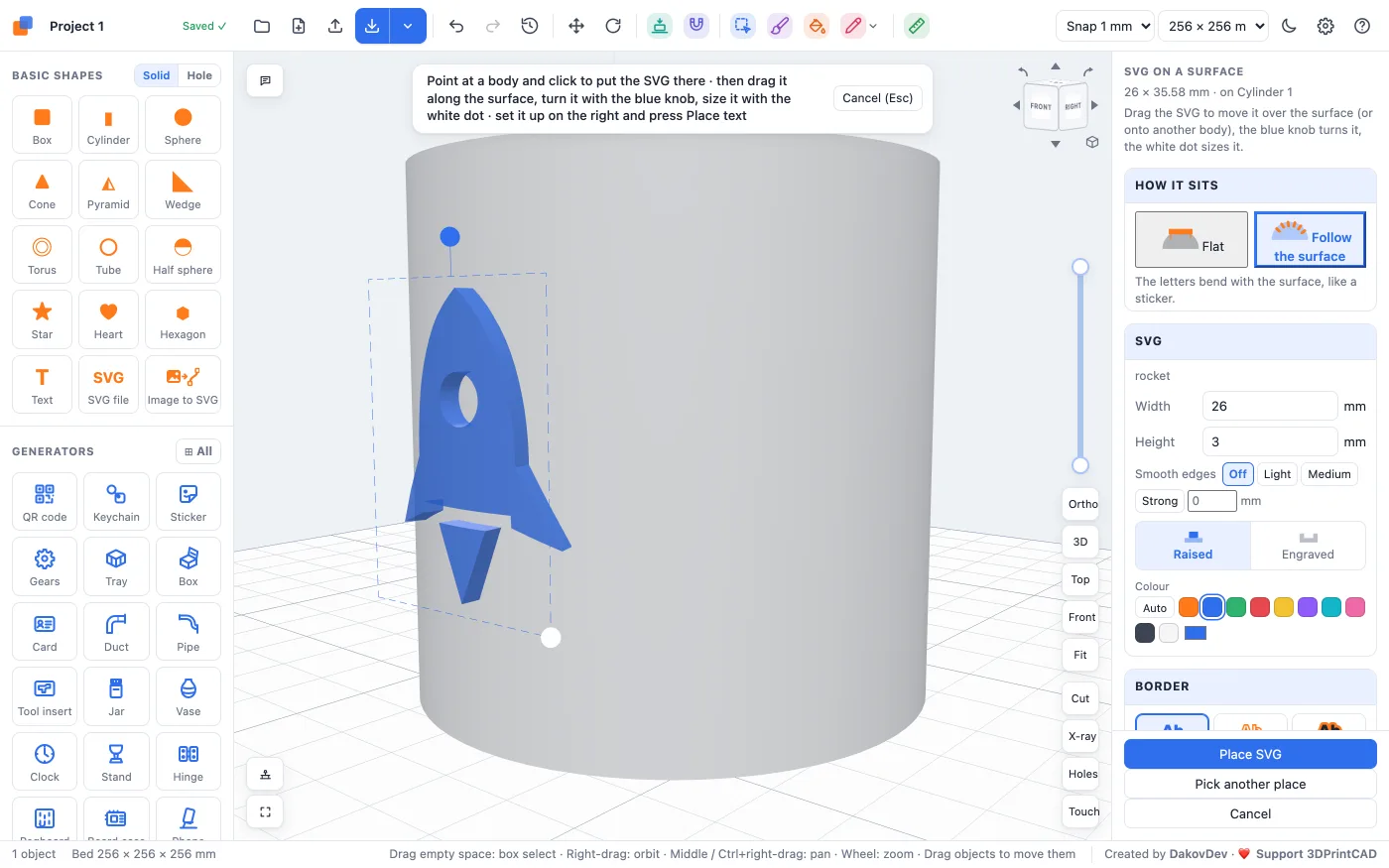
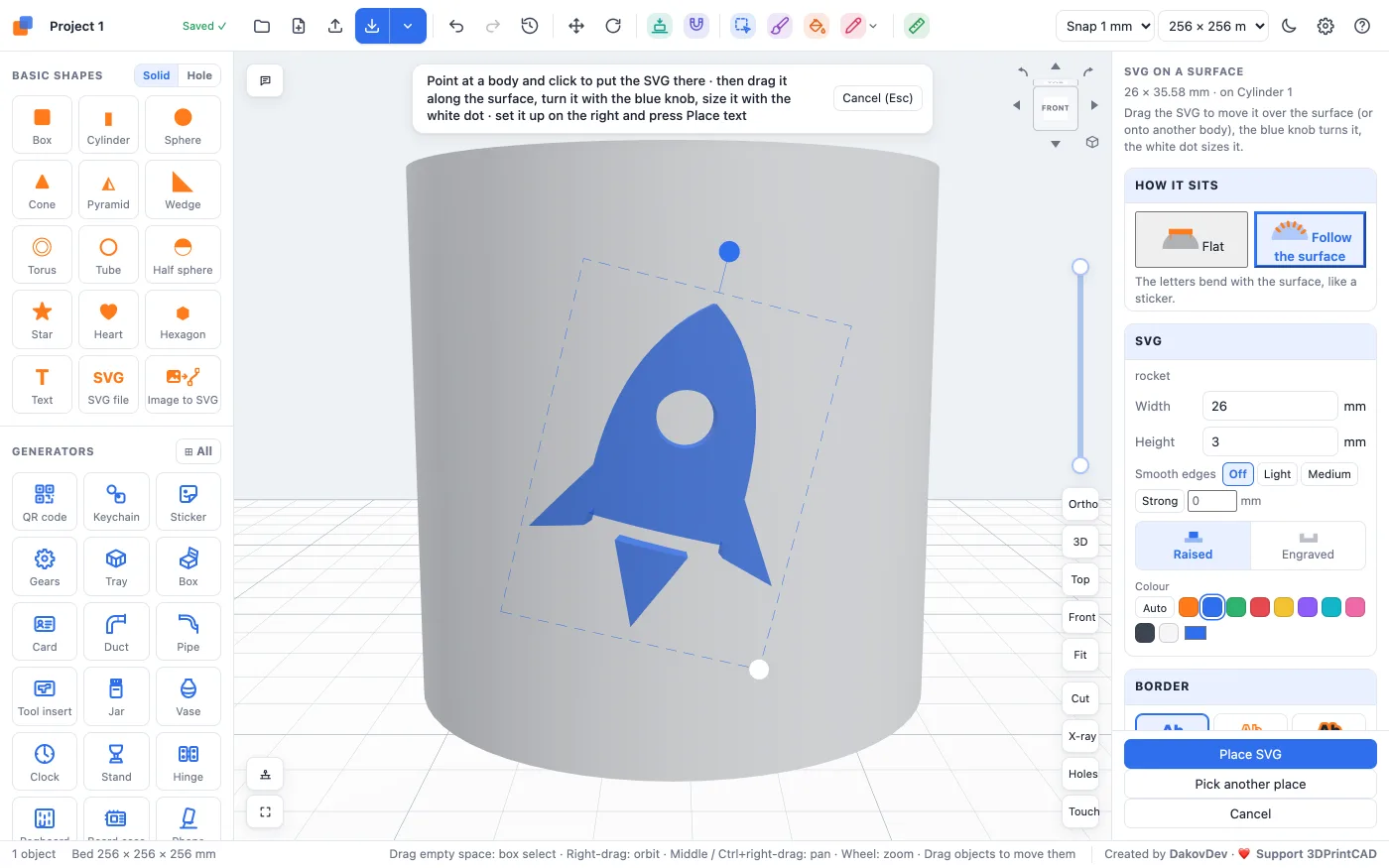
Click Place SVG. Pick another place lets you click somewhere else; Cancel (or Esc) leaves without adding it.
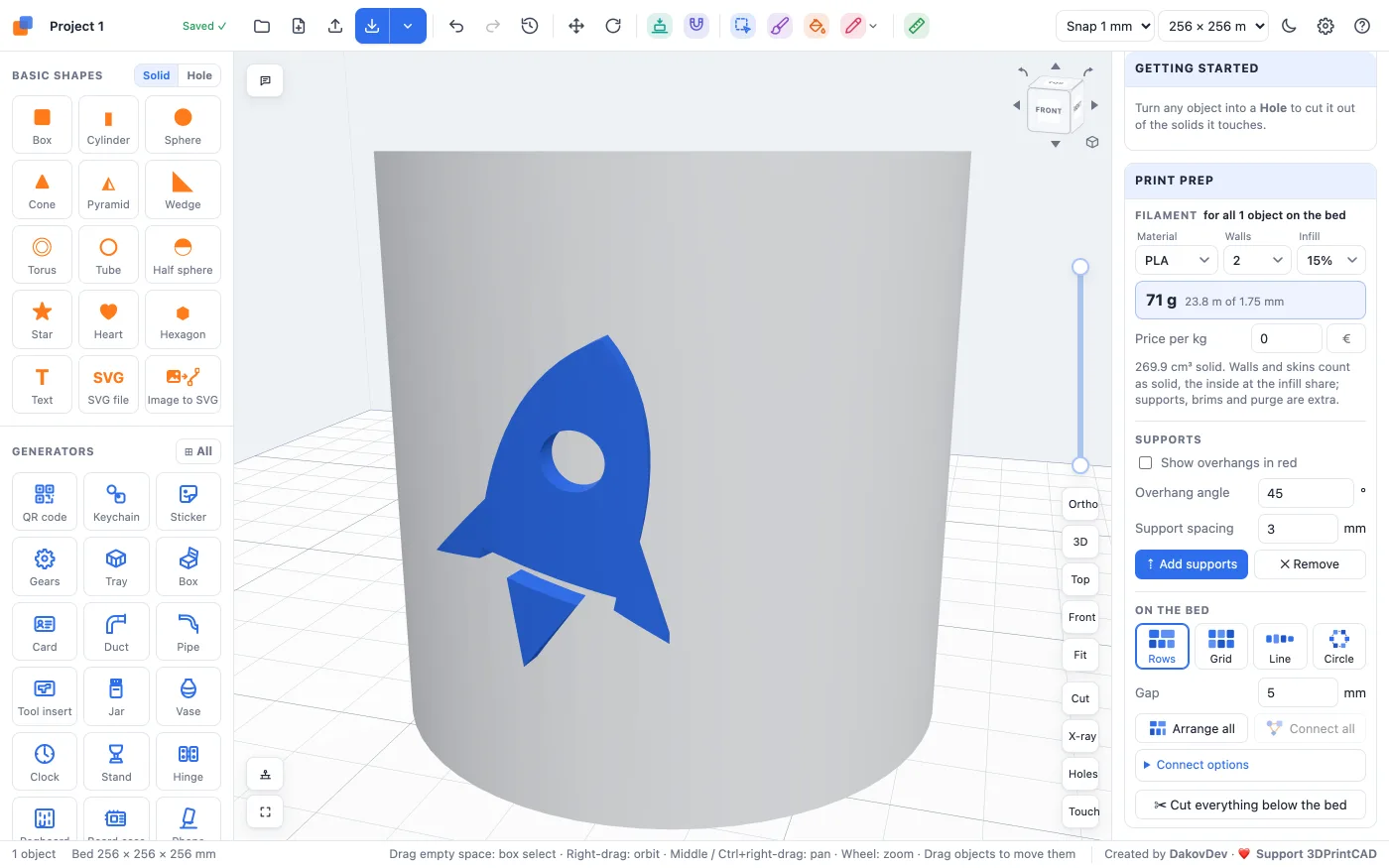
9Change it later: the SVG card
Select a body made from an SVG and its panel gets an SVG card with the file's name: Width, Thickness (or Depth for a hole), Smooth edges, Shape colour and the Border with its colour and sizes. Every change rebuilds the body at once - also one that sits on a surface, which keeps following it. Ctrl+Z / ⌘Z undoes it.
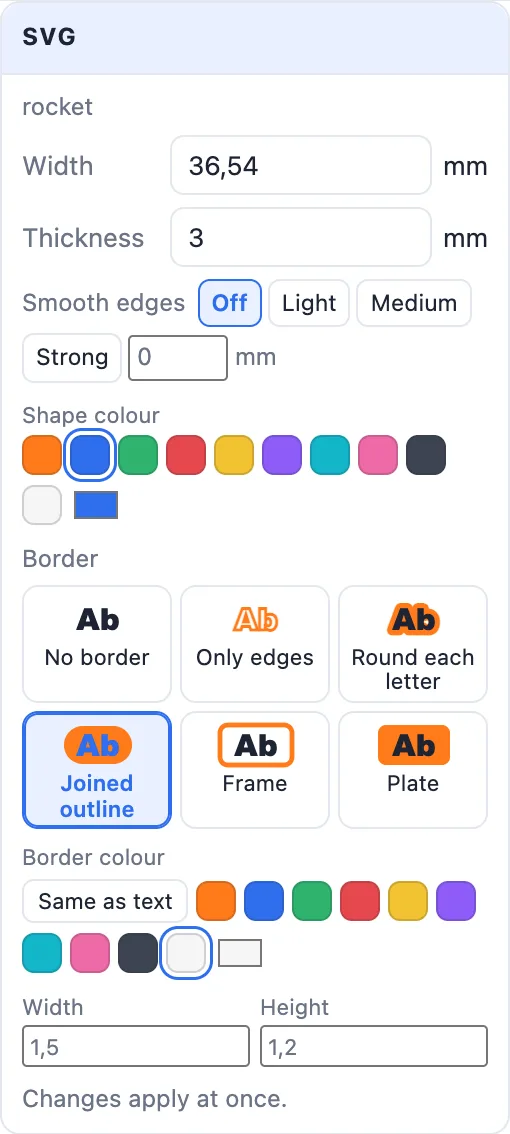
10Printing in colour
A shape and its border in two colours stay two colours in one body. Export with Export ▸ Multi-colour 3MF: OrcaSlicer and Bambu Studio open it with each colour on its own filament (AMS / multi-colour printer). On a single-colour printer, a border lower than the shape lets you change filament at the border's height instead - the shape then prints in the second colour.
11Tips
- Thin lines print badly: keep strokes at least 0.8-1 mm wide at the size you print. A Joined outline border holds small pieces together.
- Traced pictures: start with Light or Medium smoothing; use Strong for pixel art.
- For a raised logo on a box or a lid, On a surface… with Flat gives the cleanest result on a flat face; use Follow the surface on cups, bottles and balls.
- To engrave a logo, choose Hole (negative) - or Engraved on a surface.
- Need the SVG first? Image to SVG traces a picture, and can put a body per colour on the bed straight away.
Questions
How do I turn an SVG into a 3D model?
Click SVG file in Basic shapes and choose the file. The import window shows its outline: set the width (the depth follows) and the thickness, pick a colour and a border if you like, and click Create body. It lands on the bed as a 3D body you can export as STL or 3MF.
My SVG has jagged or stepped edges. How do I smooth them?
Use Smooth edges in the import window (or later in the SVG card): Light, Medium or Strong, or type an exact value in mm. It fills small notches, rounds off spikes and evens out the outline. Traced pictures and pixel art benefit most.
How do I put an SVG on a curved surface?
Choose On a surface… in the import window and click Place it on a surface…. Point at a body and click: the SVG sits there. Pick Follow the surface to bend it round a cylinder or a ball, or Flat to keep it flat. Drag it, turn it with the blue knob, size it with the white dot, then Place SVG.
Can I print an SVG in two colours?
Yes. Give the shape one colour and its border another (Border colour). The body keeps both colours, and Export ▸ Multi-colour 3MF puts each on its own filament in the slicer.
Can I change the SVG after it is placed?
Yes. Select the body: the SVG card in the panel changes its width, thickness, smoothing, colour and border, and the body is rebuilt at once - also when it sits on a surface.
Turn your SVG into a 3D print
Open the app and click SVG file in Basic shapes.
Open 3DPrintCADAlso see: Image to SVG, Add text to a 3D model, Basic shapes and body tools, Keychain generator and Plate generator.