3DPrintCAD › Guides › Image to SVG
Image to SVG: turn any picture into a clean SVG and a 3D print
Drop a PNG or JPG into the Image to SVG studio and it is traced at once. Start from a preset - a logo, a photo, black and white, a one-colour stencil, line art, a silhouette, shades of grey or pixel art - then fine-tune the colours, remove the background, clean up specks and holes, set the curves and corners, and touch it up by hand. Download the SVG, keep it to edit later, or put it on the bed as a multi-colour 3D print.
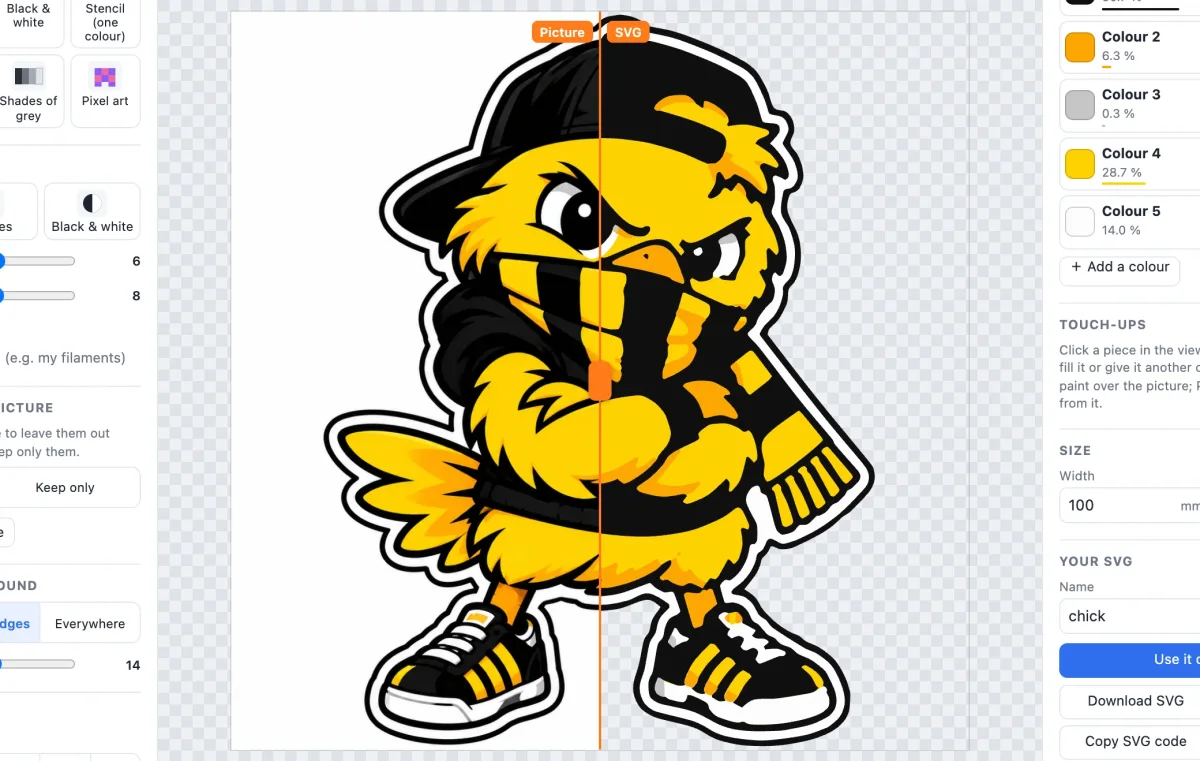
Watch the tutorial
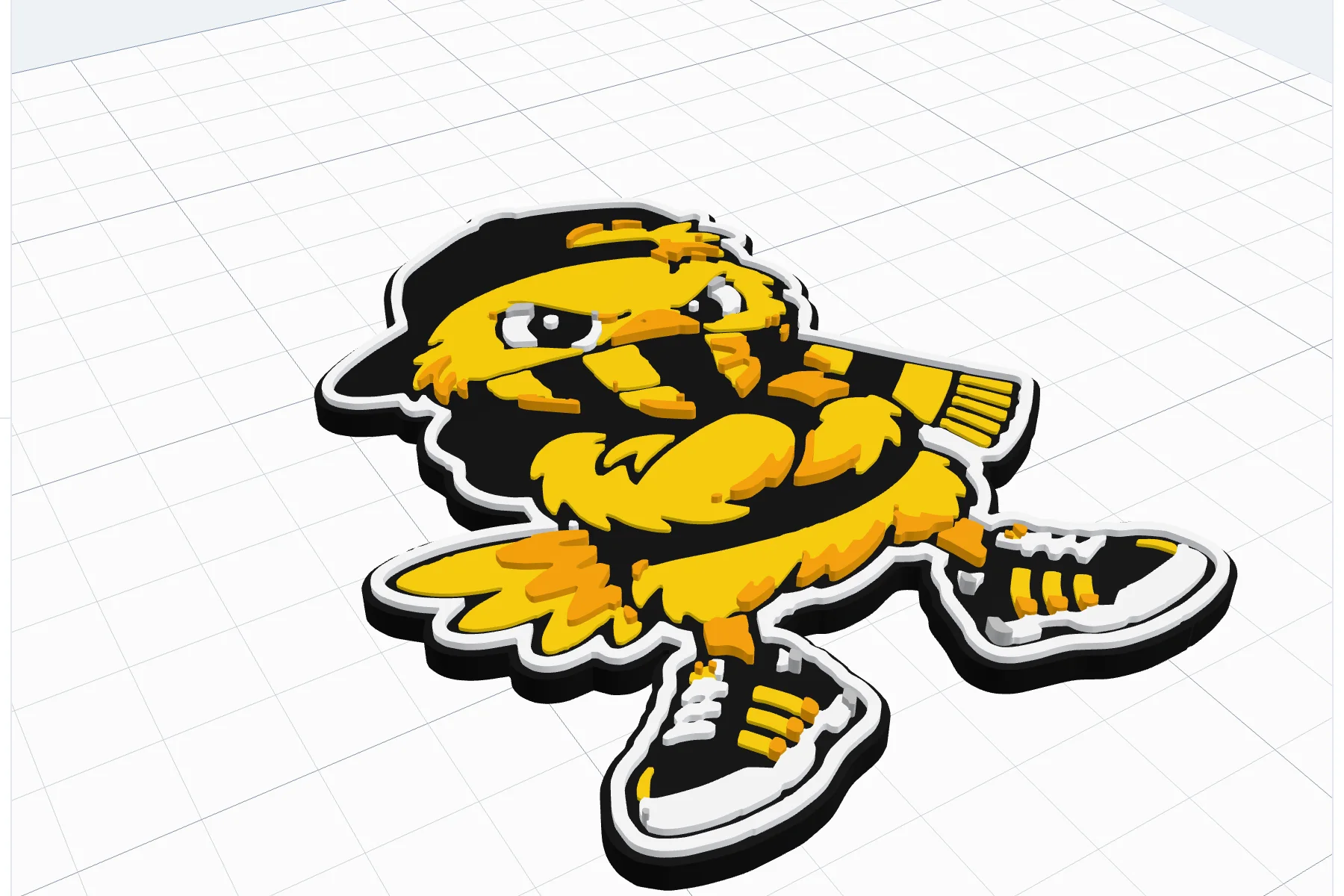
Every option on one picture, with subtitles: the presets and views, colours, colours left out or kept, the background, the picture, clean-up, curves and corners, touch-ups, My SVGs - and at the end the mascot on the bed as a body per colour. Watch on YouTube ↗
1Open the studio and a picture
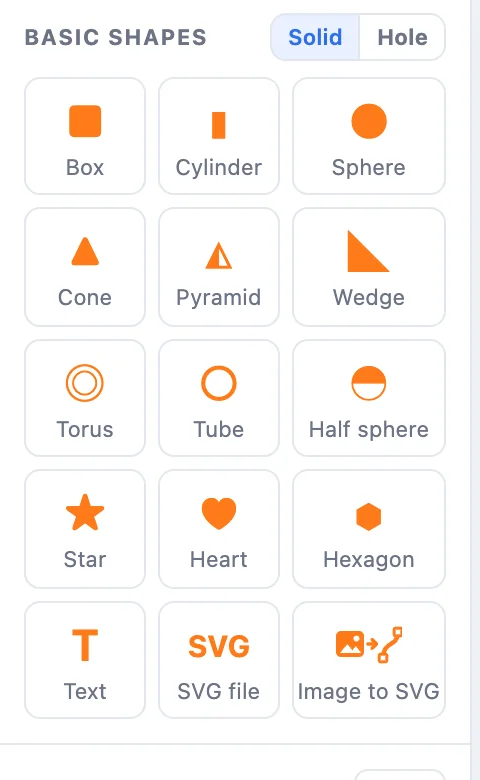
- Click Image to SVG in Basic shapes, next to SVG file. The studio opens over the whole window.
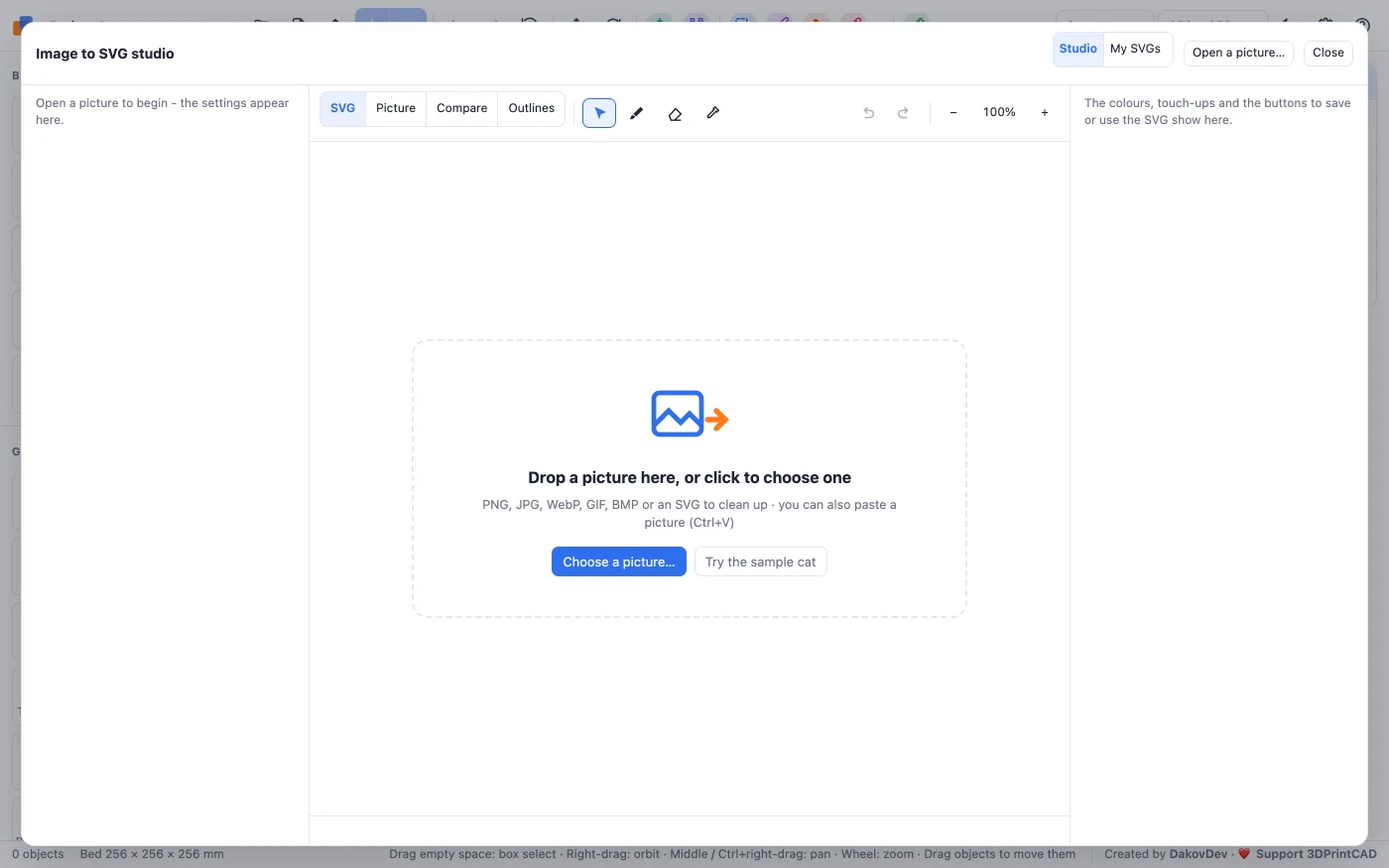
- Drop a picture on it, paste one (Ctrl+V / Cmd+V) or click Choose a picture…. PNG, JPG, WebP, GIF and BMP work - and an SVG, to clean it up. Try the sample cat gives you one to play with.
- It is traced at once with the Logo / clip art preset. Every change is traced again in a fraction of a second.
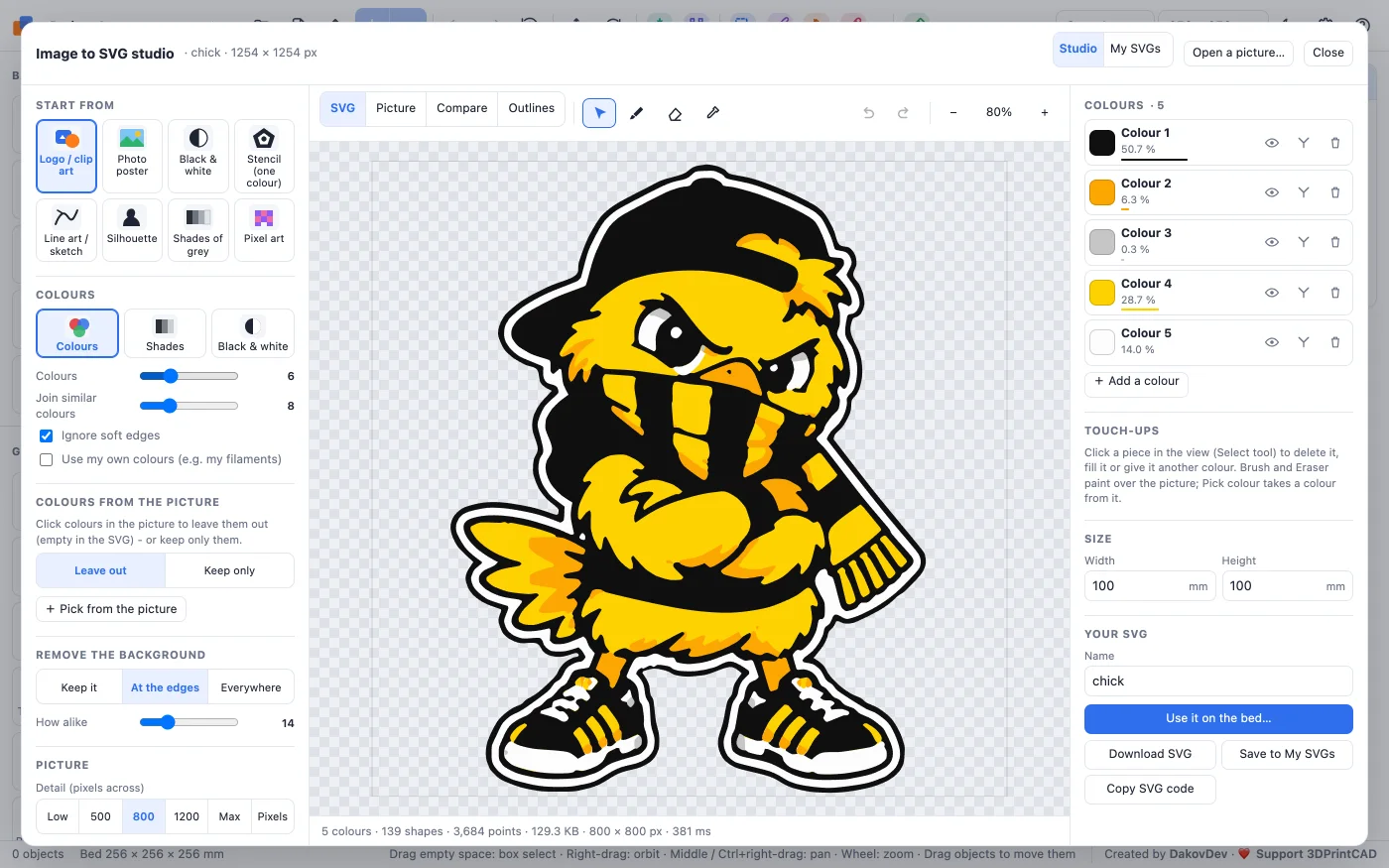
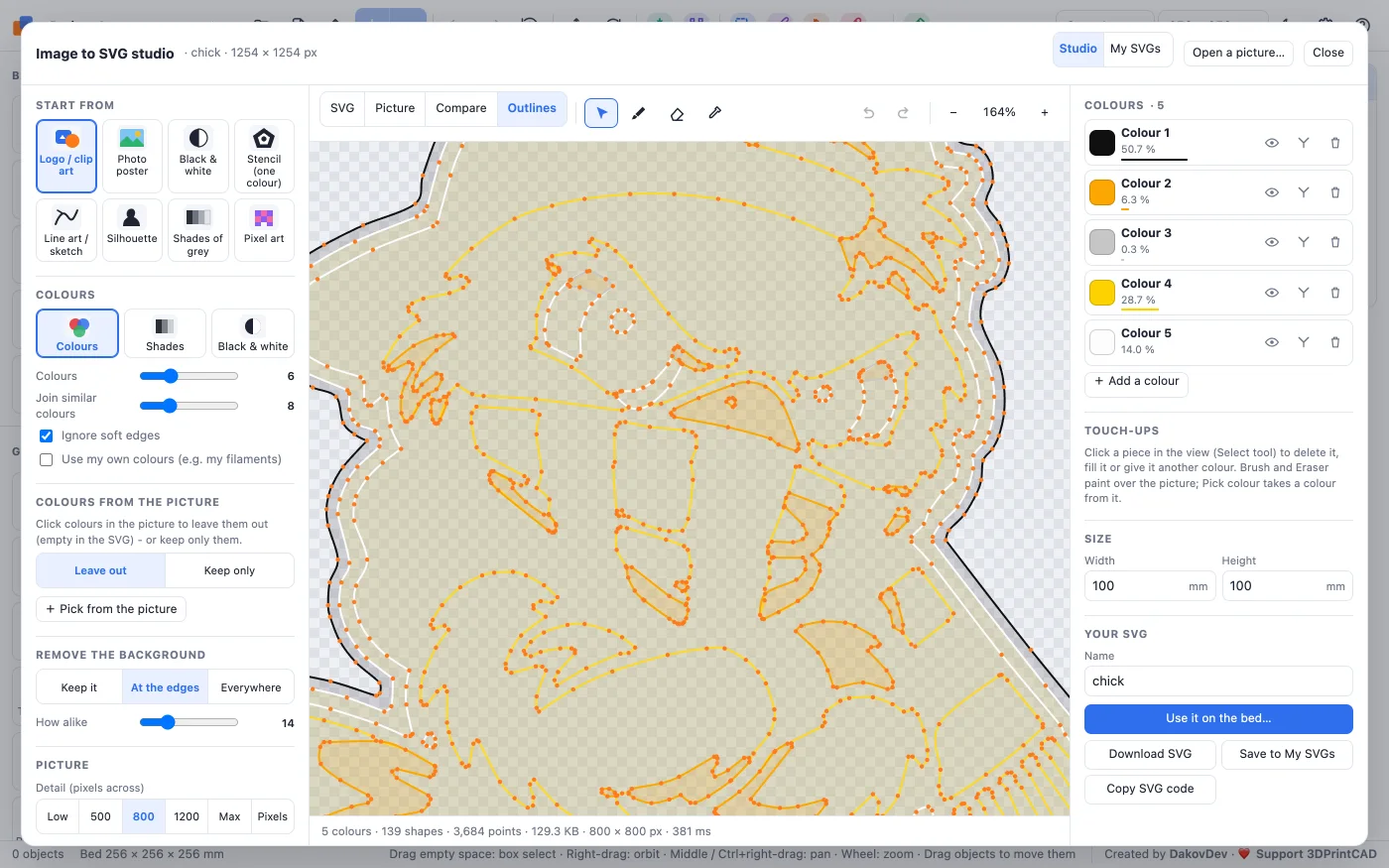
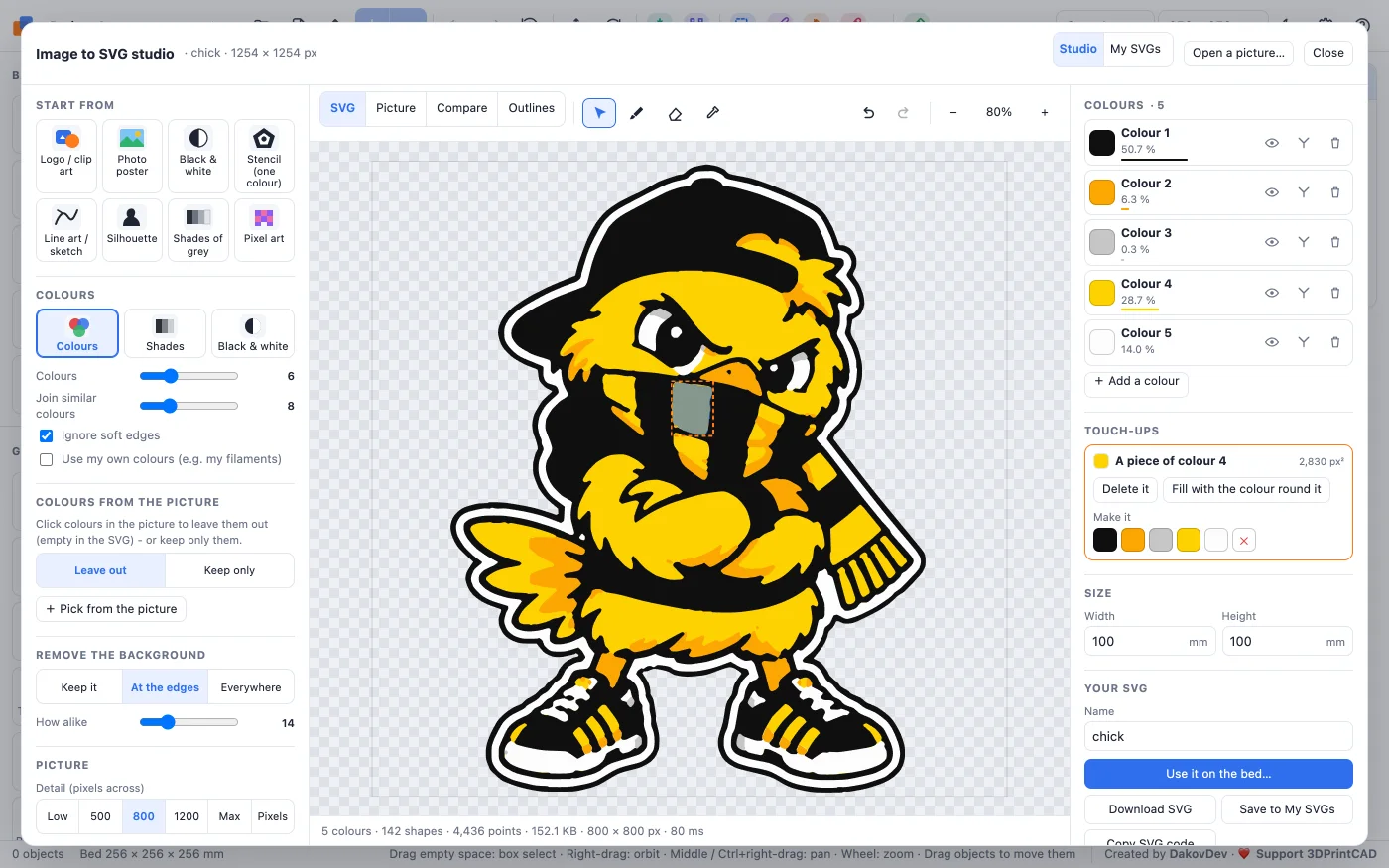
The studio has three columns: the settings on the left, the view in the middle, the colours, touch-ups and the result on the right. The line under the view says how many colours, shapes and points the SVG has and how big the file is.
2The views
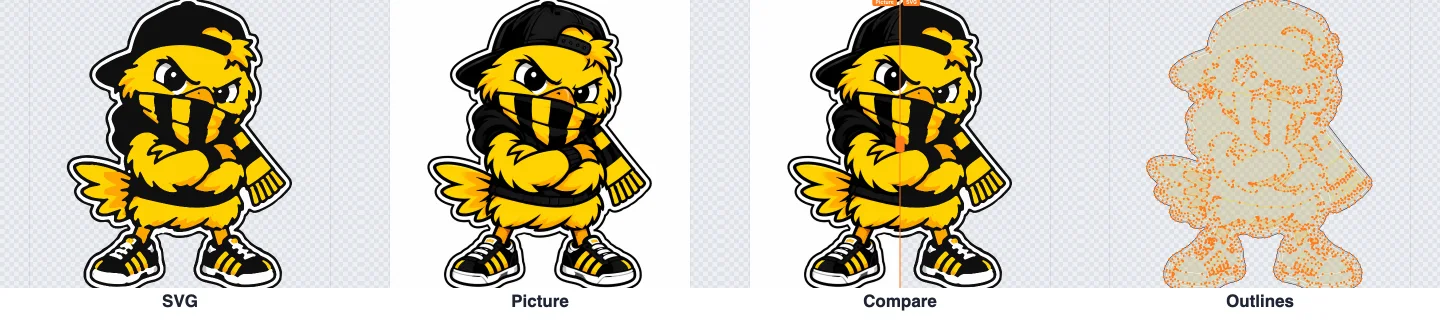
Above the view: SVG (the result on a checkerboard - the checks are what stays empty), Picture (the original), Compare (the picture left of the orange line, the SVG right of it - drag the handle) and Outlines (every shape's outline with its points, to judge how detailed the file is). Zoom with the mouse wheel, pan by dragging; F or the percentage fits the picture again.
3Start from a preset
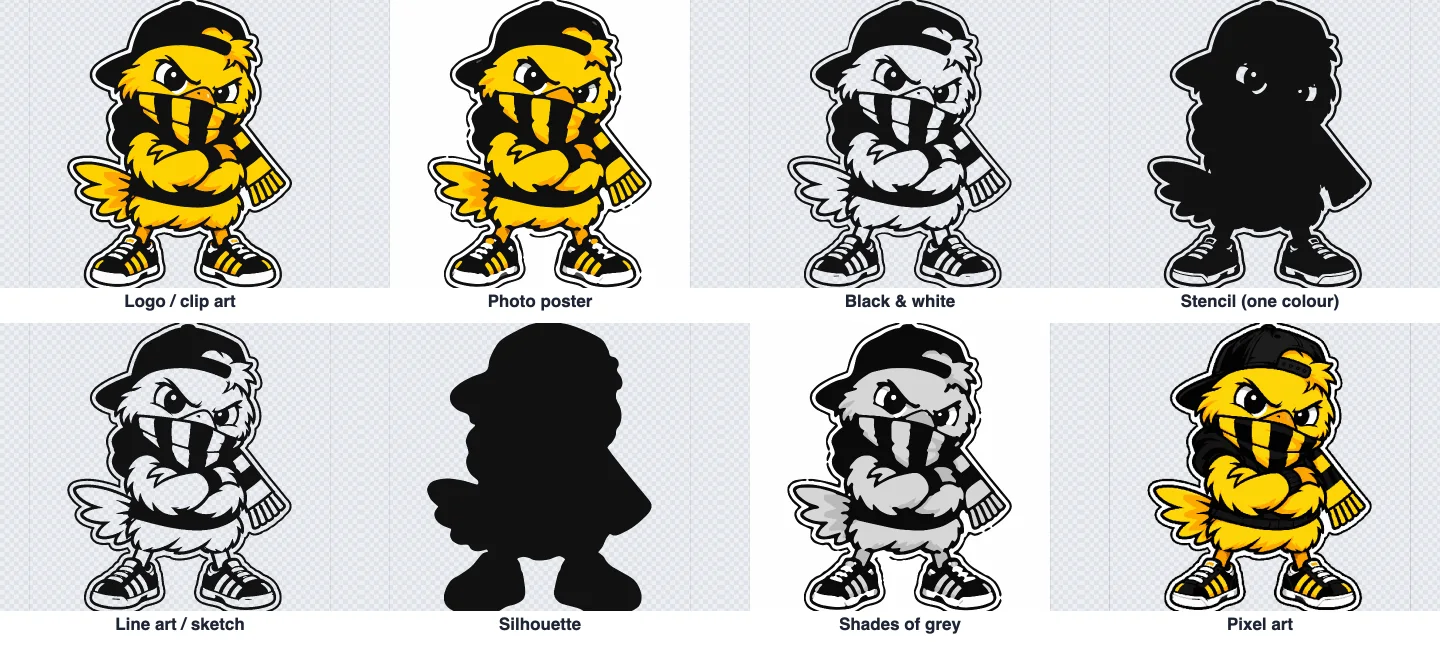
A preset sets many settings at once - a good start that you then fine-tune:
- Logo / clip art - flat colours, clean edges and sharp corners.
- Photo poster - more colours, softened, the background kept.
- Black & white - one colour: the dark parts, with an automatic threshold.
- Stencil (one colour) - every colour that is not the paper becomes the shape.
- Line art / sketch - thin lines kept and sharp detail.
- Silhouette - only the outline, every hole filled.
- Shades of grey - a few grey levels, lithophane style.
- Pixel art - exact square pixels at the picture's own size. A very small picture starts with it by itself.
4Colours
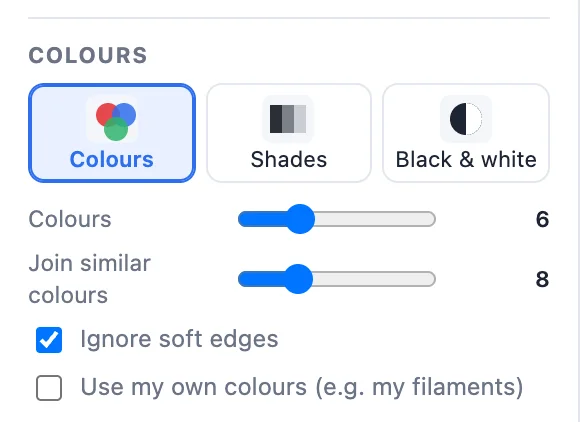
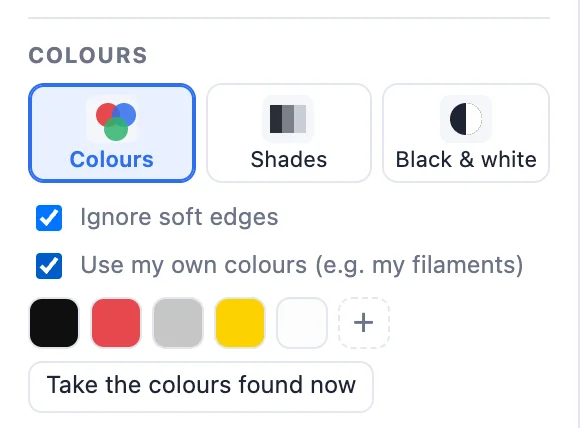
Pick Colours, Shades or Black & white. For colours:
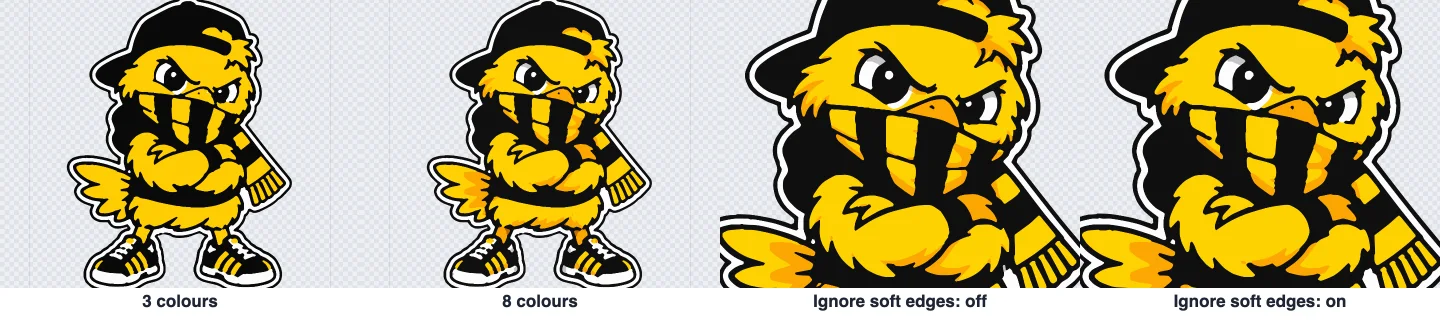
- Colours - how many (2-16). Fewer colours make simpler shapes.
- Join similar colours - shades closer than this become one.
- Ignore soft edges - the blurred edge between two colours (anti-aliasing) would become a thin outline of its own colour; it takes the colours on either side instead. Leave it on.
- Use my own colours - for example your filaments: every pixel takes the nearest one. Change a swatch, ✕ removes one, + adds one, Take the colours found now starts from the trace.
Shades gives 2-8 grey levels.
5Black & white and stencils
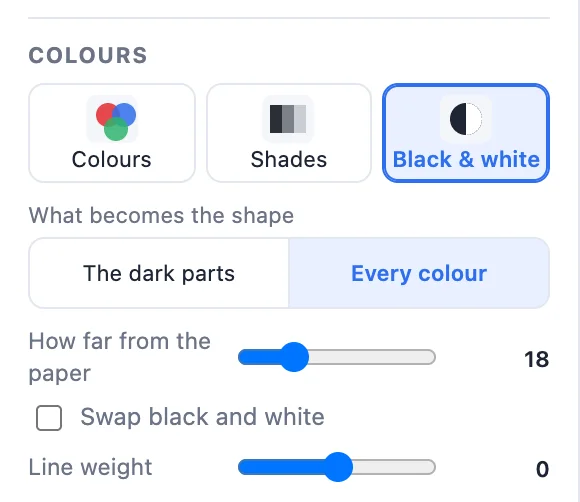
In Black & white, What becomes the shape:
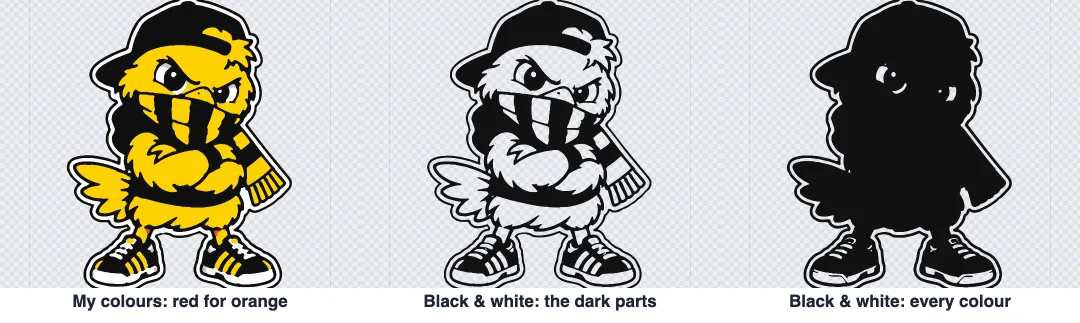
- The dark parts - everything darker than the Threshold. Automatic threshold picks the best split for you.
- Every colour - everything that is not the paper colour, whatever its colour: a colourful logo becomes a one-colour stencil. How far from the paper sets how different a colour must be.
- Swap black and white - the light parts become the shapes.
- Line weight - makes the shapes a few pixels thicker or thinner (lines that are too thin will not print).
6Colours from the picture
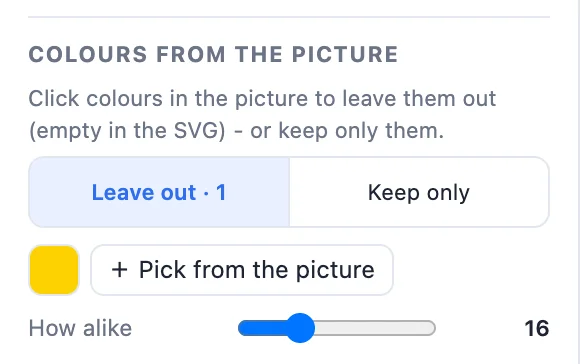
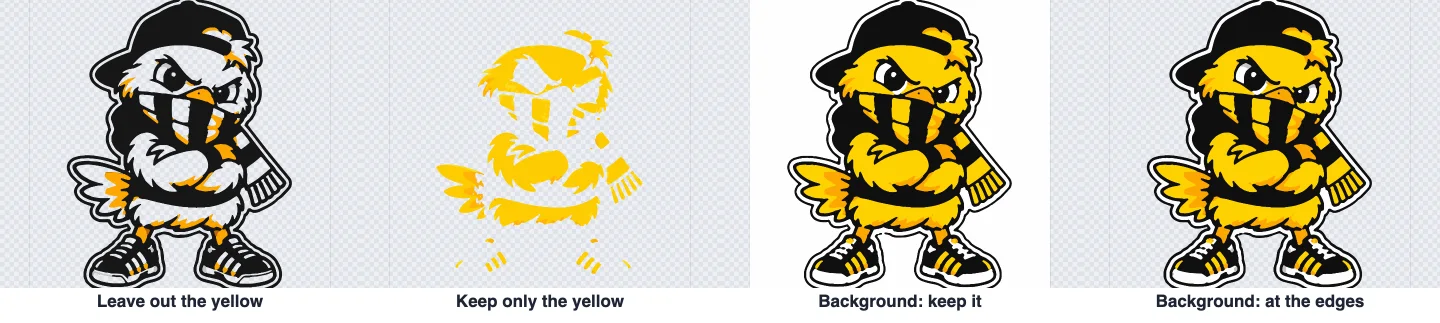
Click colours in the picture to Leave out (they become empty in the SVG) or to Keep only (only they stay). Click + Pick from the picture - the view shows the original picture while you pick - and click the colour. A click on a soft edge is fine: the clearest colour nearby is taken. The picked colours show as swatches; ✕ takes one back, How alike sets how close a colour must be to count. It works in every mode - in a stencil it is how you leave out, say, a grey ring.
7Remove the background
- Keep it - the whole picture is traced (a transparent PNG always keeps its own outline).
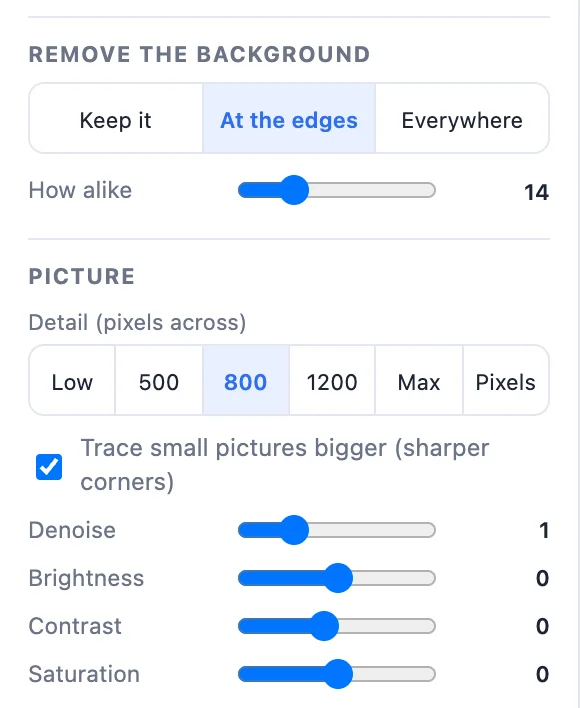
- At the edges - the colour at the picture's edges is background, flood-filled inward.
- Everywhere - that colour is background everywhere, also inside letters like O and A.
- How alike - how close a colour must be to the background colour.
8Prepare the picture
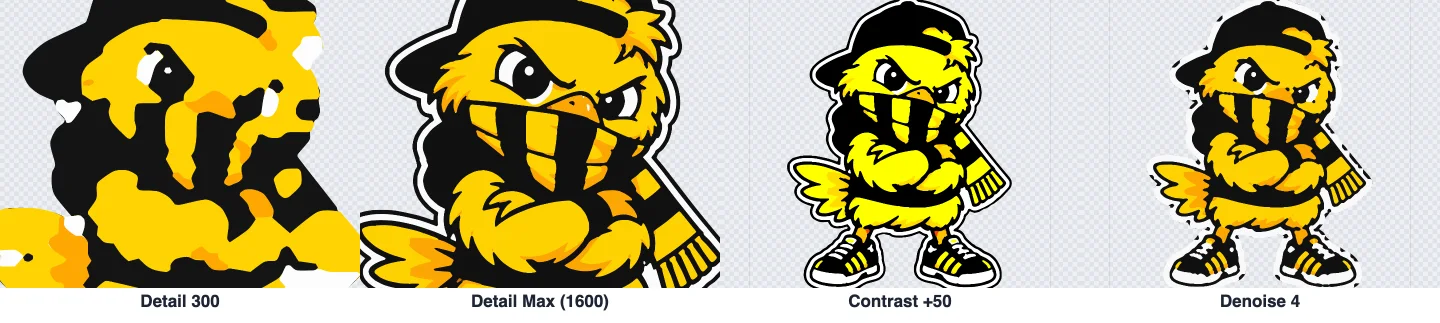
- Detail - how many pixels across it is traced at: Low (300), 500, 800, 1200 or Max (1600), or Pixels (the picture's own pixels, for pixel art). More detail, finer shapes - and a bigger file.
- Trace small pictures bigger - a picture smaller than the detail is enlarged up to 4 × before tracing: corners and thin lines come out much cleaner. Leave it on.
- Denoise - softens the picture first (photos, JPEG noise).
- Brightness, Contrast, Saturation - change the picture before it is traced, for example to split two close colours apart.
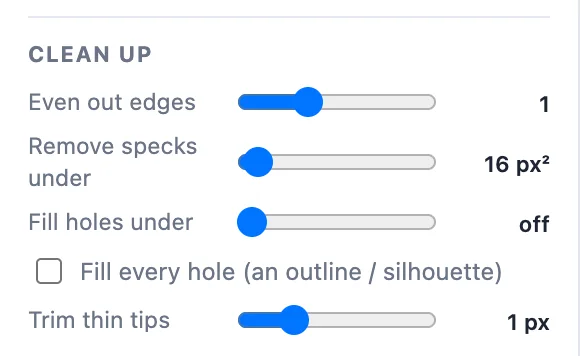
9Clean up
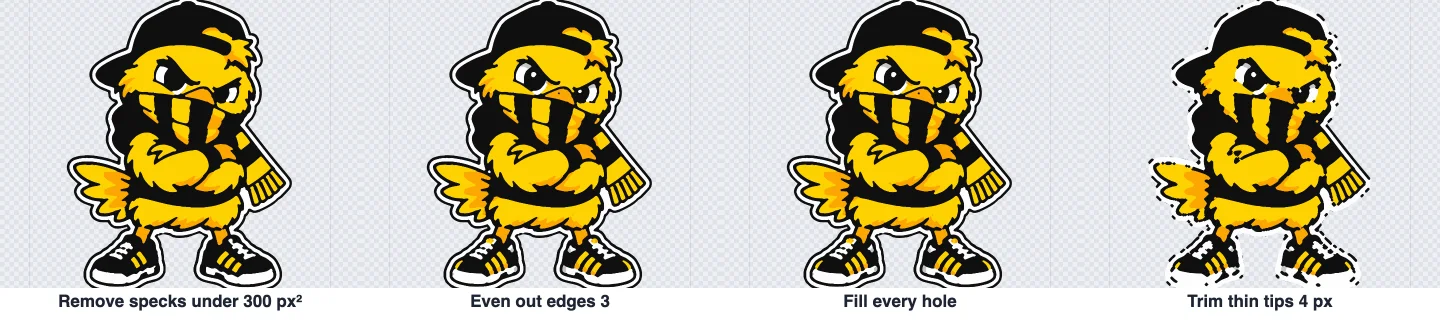
- Even out edges - removes ragged, noisy pixels along the edges.
- Remove specks under - small pieces take the colour round them.
- Fill holes under - small gaps inside the picture are filled; Fill every hole keeps only the outline.
- Trim thin tips - parts thinner than twice this - ragged points and hairlines at corners - take the colour round them.
10Shapes: smoothness, curves, corners
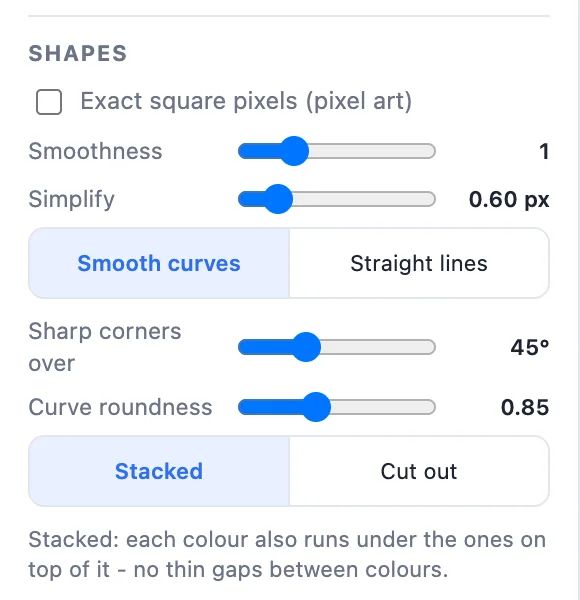
- Exact square pixels - pixel art: the squares' own edges.
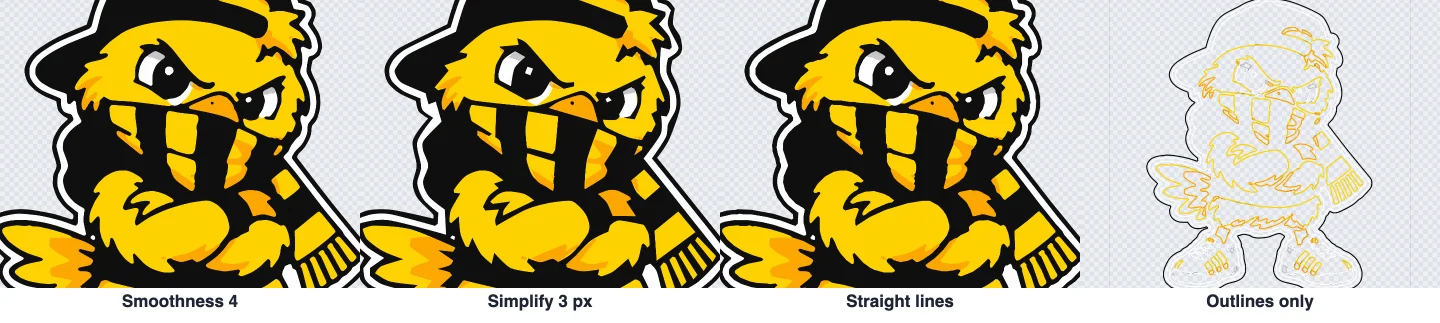
- Smoothness - how round the outlines are traced.
- Simplify - fewer points: a smaller file and smoother shapes; too much loses detail.
- Smooth curves or Straight lines between the points.
- Sharp corners over - where the outline turns more than this, the corner stays sharp. Curve roundness - how full the curves are.
- Stacked - each colour also runs under the colours on top of it, so there are no thin gaps between colours. Cut out - every colour is its own area, nothing overlaps (for cutters and laser engravers).
11Output: filled or outlines
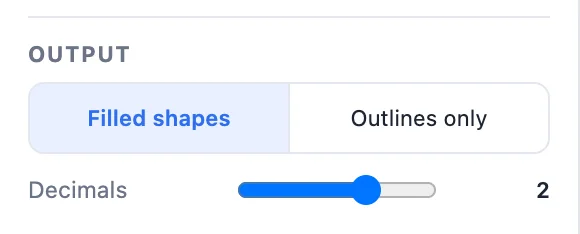
Filled shapes or Outlines only with a Line width (for plotters and cutters). Decimals - fewer decimals make a smaller file.
12The colours list and touch-ups
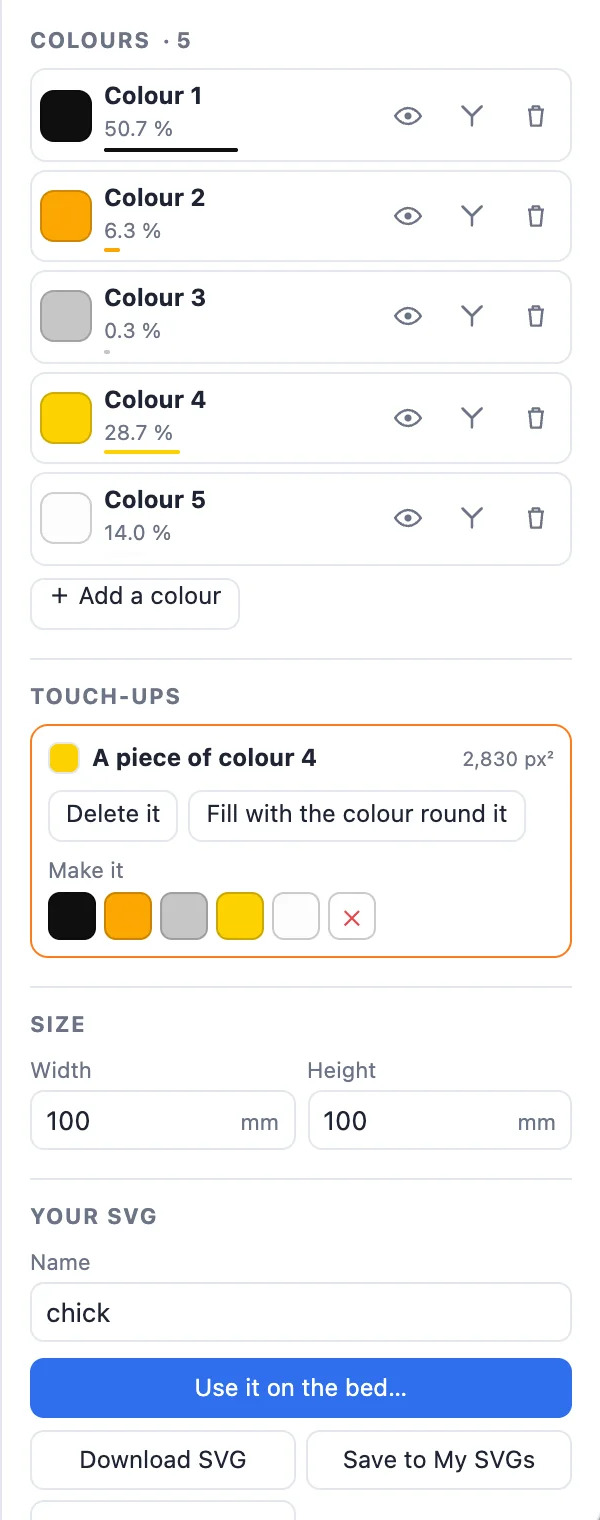
On the right every colour has a row: its share of the picture, a swatch (click to change the colour), an eye (hide it - it is left out of the SVG), join (click it, then Into this on another colour) and a bin (remove it - it becomes empty). Bring back returns removed colours; + Add a colour gives a new one to paint with.
Touch-ups, with the tools above the view:
- Select (V) - click a piece: it is tinted, and you can Delete it, Fill with the colour round it or give it another colour (the swatches under Make it). Delete / Backspace deletes it.
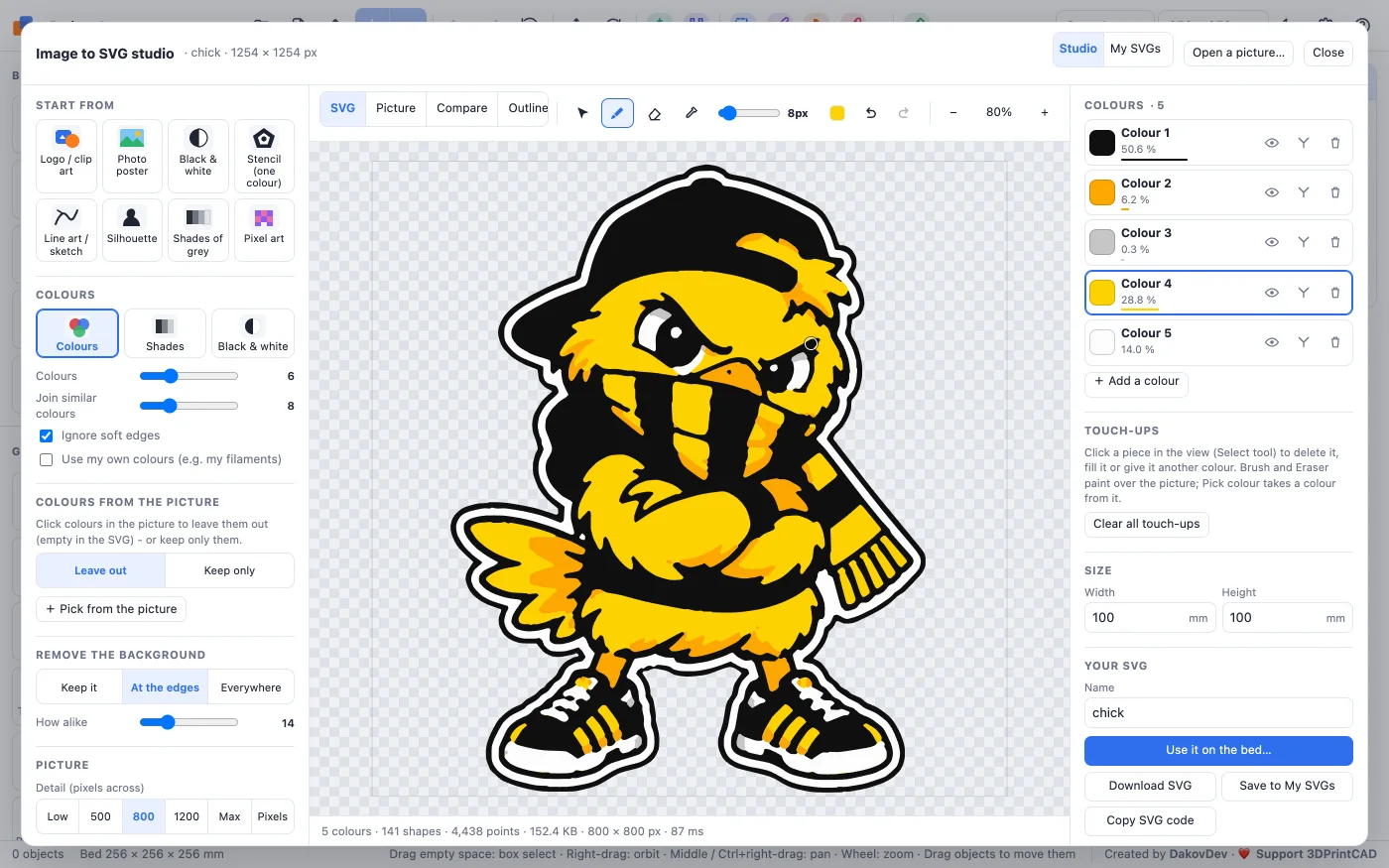
- Brush (B) and Eraser (E) - paint with a colour (click a colour's name to paint with it) or erase to empty; [ and ] change the size.
- Pick colour (I) - takes the brush colour from the picture.
- Undo / redo (Ctrl+Z / Ctrl+Shift+Z) step back through every change, settings included. Clear all touch-ups removes the brushwork.
13Size, download and My SVGs
- Size - the SVG's width or height in mm (the other follows).
- Download SVG or Copy SVG code.
- Save to My SVGs - kept in this browser with its picture and every setting and touch-up. The My SVGs tab lists them: Edit opens one again exactly as it was, On the bed, Download or delete.
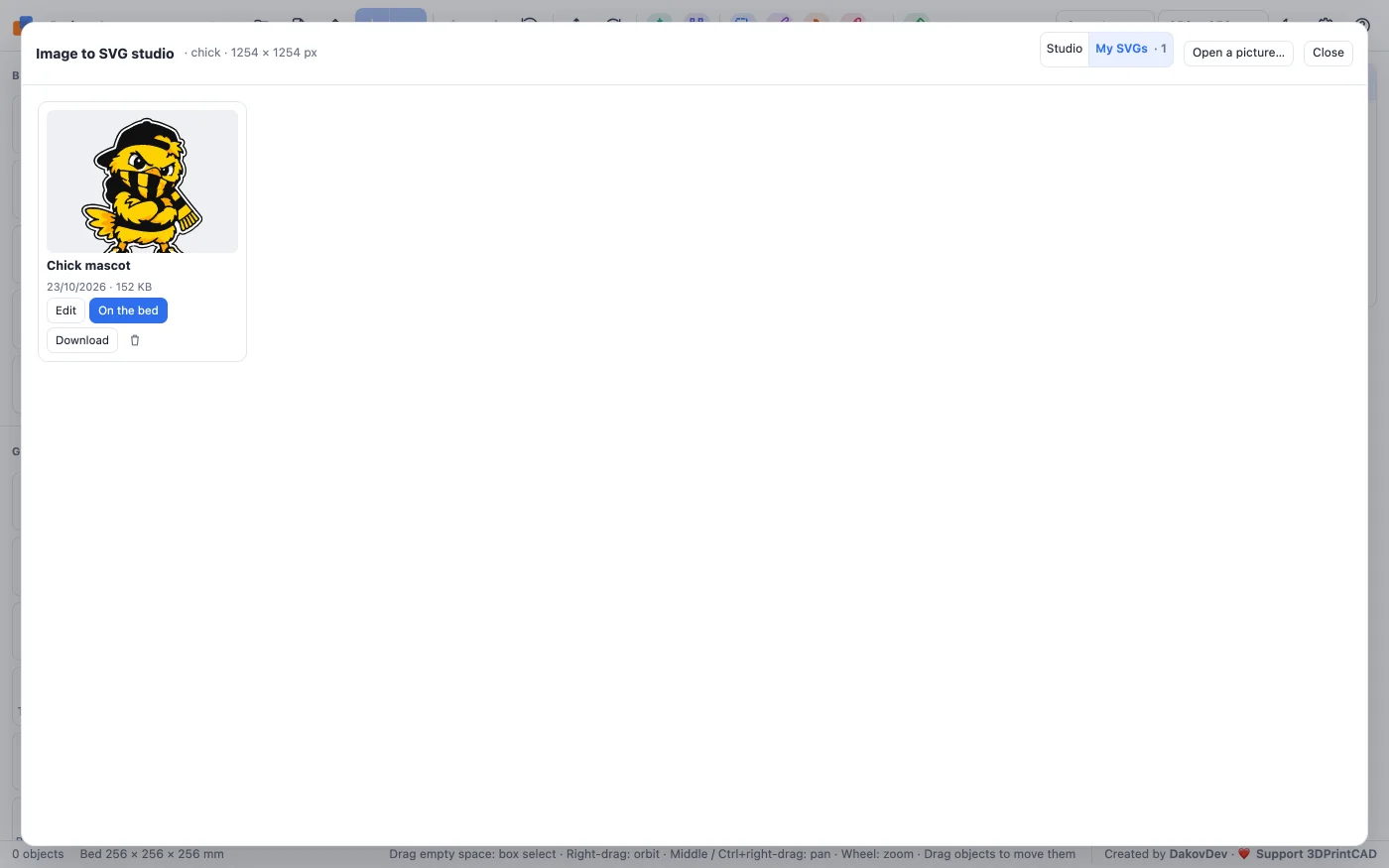
14Put it on the bed
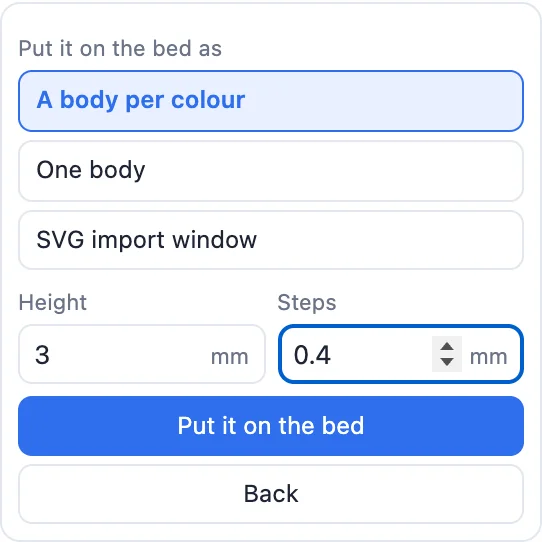
Use it on the bed… asks how:
- A body per colour - every colour its own part, side by side without overlaps, ready for a multi-colour print. Height sets the thickness, Steps makes each colour stand that much higher than the one under it (0 = all flat).
- One body - all colours joined into one solid.
- SVG import window - the usual SVG window: size, solid or hole, or on a surface.
Then Export ▸ Multi-colour 3MF prints every colour in its own filament - or one colour after another with a filament change.
15Tips
- Try settings at detail 800 - it is quicker - and switch to Max for the final SVG.
- For a logo, start with Logo / clip art; for one colour, Stencil, then leave out any colour you do not want.
- For 3D printing, keep the number of colours to your printer's filaments, and remove tiny specks: they print badly.
- A colour taking only a fraction of a percent is usually an edge or a shadow: join it into its neighbour.
- Lines thinner than about 0.4 mm on the print will not print - raise the line weight, or make the SVG bigger.
Questions
How do I convert a PNG or JPG to SVG?
Click Image to SVG in Basic shapes, drop or paste the picture, and it is traced at once with the Logo preset. Change the preset or the settings, then click Download SVG.
Which preset should I use?
Logo / clip art for flat colours, Photo poster for photos, Black & white or Stencil (one colour) for a single colour, Line art for drawings with thin lines, Silhouette for the outline only, Shades of grey for a few grey levels and Pixel art for exact square pixels.
How do I remove a colour from the SVG?
In Colours from the picture, choose Leave out, click Pick from the picture and click the colour in the picture - it becomes empty. Keep only does the other way round. In Colours mode the bin in the colour list removes a whole colour too.
Can I make a 3D print from the picture?
Yes: Use it on the bed puts the SVG on the bed as one body, or as a body per colour that do not overlap - export a Multi-colour 3MF and every colour prints in its own filament. Steps make each colour stand higher than the one under it.
Are my pictures uploaded anywhere?
No. Everything is traced in your browser. SVGs you keep in My SVGs are stored in this browser only.
Turn your picture into an SVG
Open the studio, drop a picture, and pick a preset.
Open the Image to SVG studioAlso see: Image to 3D sticker & keychain, Plate generator, HueForge generator, Lithophane maker and Basic shapes and body tools.