3DPrintCAD › Guides › Plate generator
Plate generator: signs, name plates and birth letters
Make a door sign, a name plate, a workshop sign or a big letter that stands on its own, in several colours. Pick the shape, add a border, texts, logos and pictures, drag them where you want, and print it in one multi-colour piece - or as separate pieces that snap together on a printer with one colour.
Watch the tutorial
Every option in about three minutes, with subtitles: shapes and borders, how texts are made, items past the edge, selecting several and turning them together, separate pieces, the Birth letter and its colours, an SVG's contour and a hollow letter. Watch on YouTube ↗
1Open the Plate generator
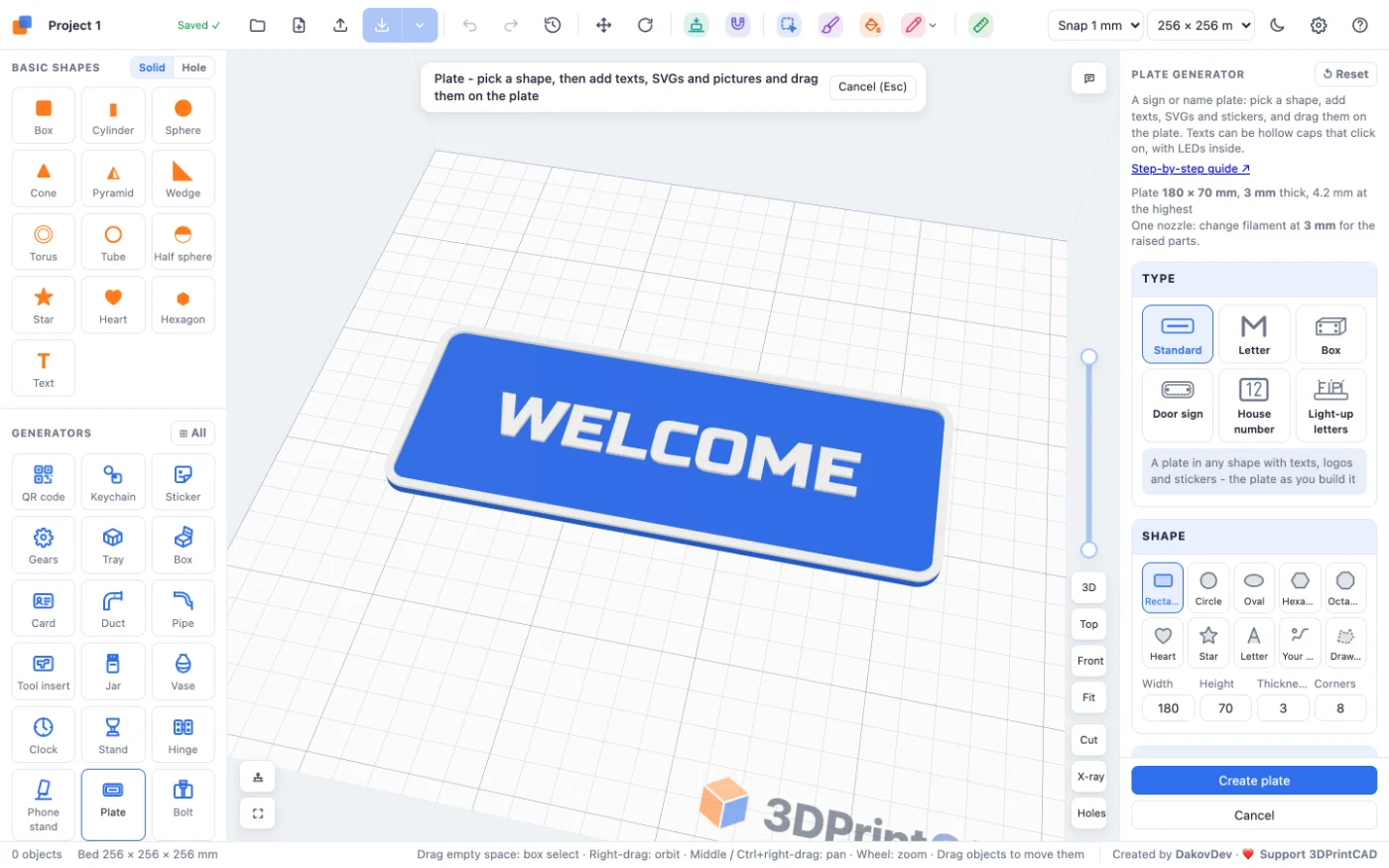
Open the app, start a new project and click Plate under Generators on the left. A plate with the word WELCOME and a raised border appears, and its settings open on the right. The line at the top of the panel gives the size, the thickness and, for raised parts on one nozzle, the height to change filament.
2Types
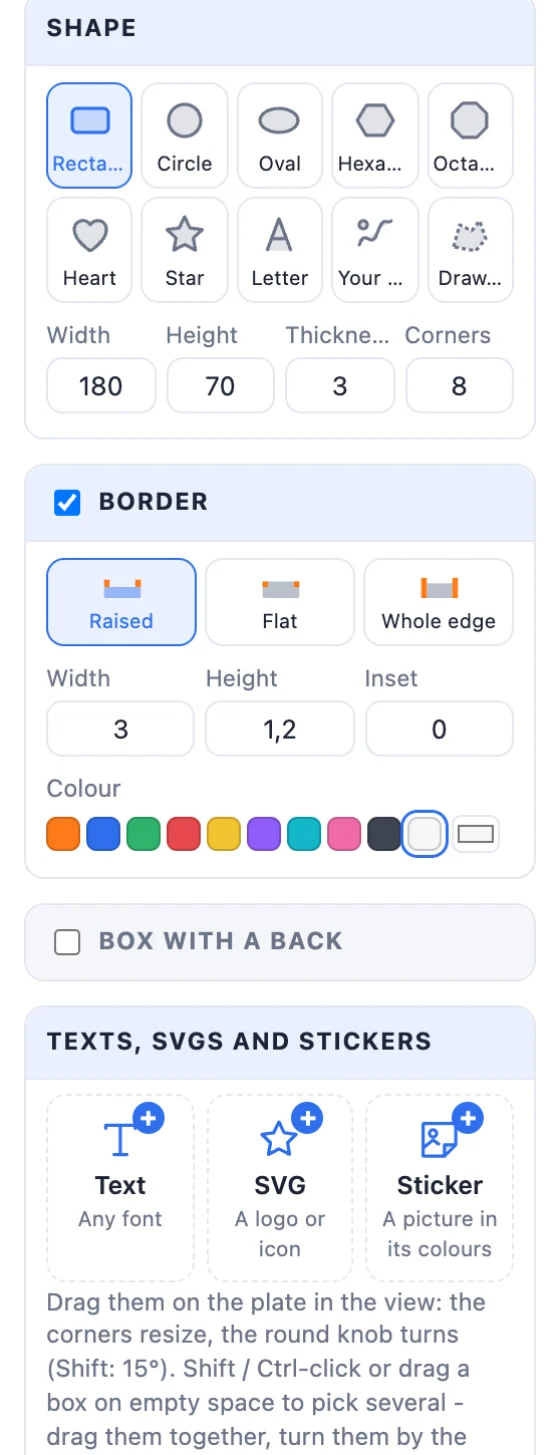
The first card, Type, sets the plate up for one kind of thing in one click - every setting can still be changed afterwards:
- Standard - a plate in any shape that you build up yourself (everything below).
- Letter - a thick letter that stands on its own, like a birth letter (below).
- Box - a sign box: the plate is the front of a hollow box, its back screwed on with 4 bolts (below).
- Door sign - rounded, a raised border, the name and two screw holes.
- House number - big, thick numbers with a whole-edge border and screw holes.
- Light-up letters - hollow cap letters with room inside for LEDs.
For every type but Standard, Make it yours under the tiles changes the text (or the letter), the plate colour and the border colour.

3Shape, size and thickness
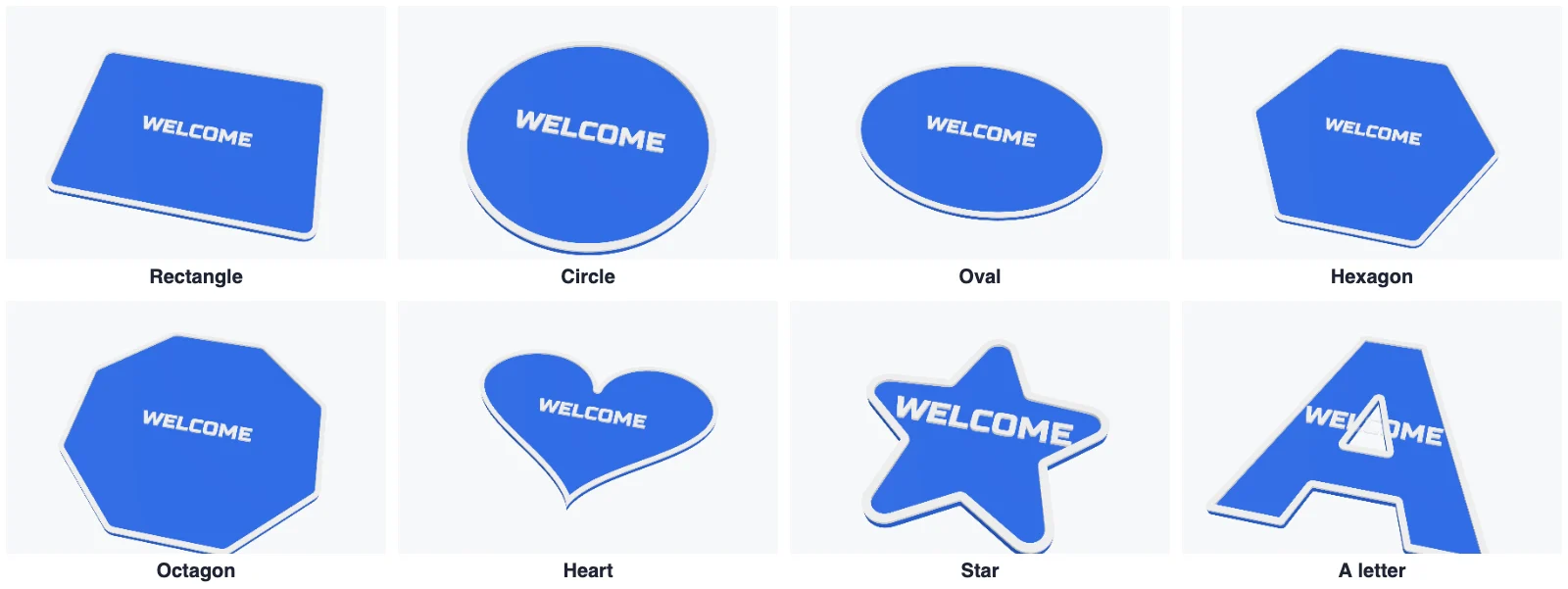
The Shape card has Rectangle, Circle, Oval, Hexagon, Octagon, Heart, Star, Letter (type one or more letters and pick a font), Your SVG (any outline from a file) and Draw… (draw it in the sketch editor). Type the Width, Height, Thickness (up to 60 mm - a 20-30 mm letter stands on its own) and the corner radius; a letter, an SVG or a drawing can be grown with Grow.
4The border
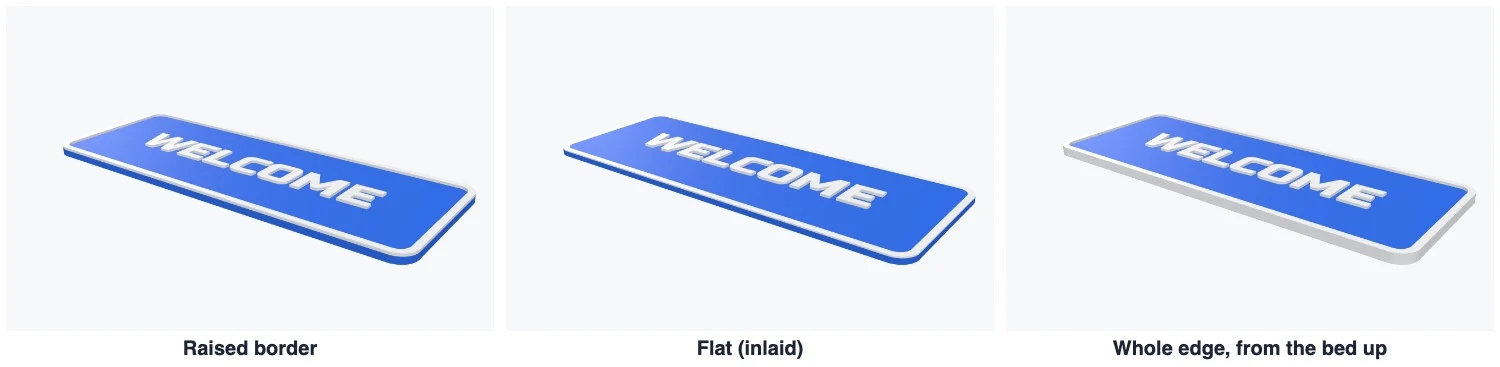
Tick Border and pick how it is made: Raised (a rim standing on the plate), Flat (inlaid level with the face, in its own colour) or Whole edge (the whole side from the bed up in its colour, standing up by the height). Set the width, the height and how far in from the edge it starts.
5Texts, SVGs and stickers
In Texts, SVGs and stickers add as many as you like:
- Text - up to six lines, any font (also your own TTF / OTF), its size, straight or curved up / down along an arc.
- SVG - a logo or icon from an SVG file, by its height. Its Contour makes the lines thicker or thinner (mm all round), or keeps Outline only - a band of the width you set round its edge.
- Sticker - a picture: its colours are found and each one becomes a part. In Colour heights raise or sink each colour (presets Flat, Dark up, Light up, Steps), change any colour, or make one the backing.
Each one has its own card with its size, X, Y, turn and colour.
6Raised, flat, engraved or caps
How it's made sets every item at once; each item's card can choose its own:
- Raised - standing on the face by Raised by.
- Flat - inlaid level with the face, in its own colour (needs a multi-colour print).
- Engraved - cut into the face by the depth.
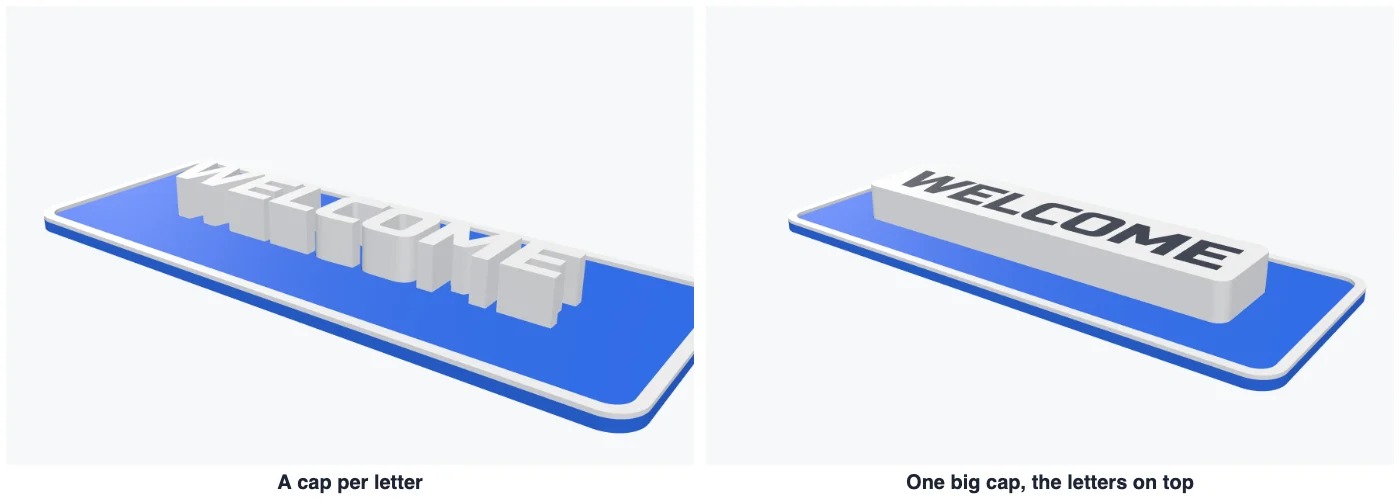
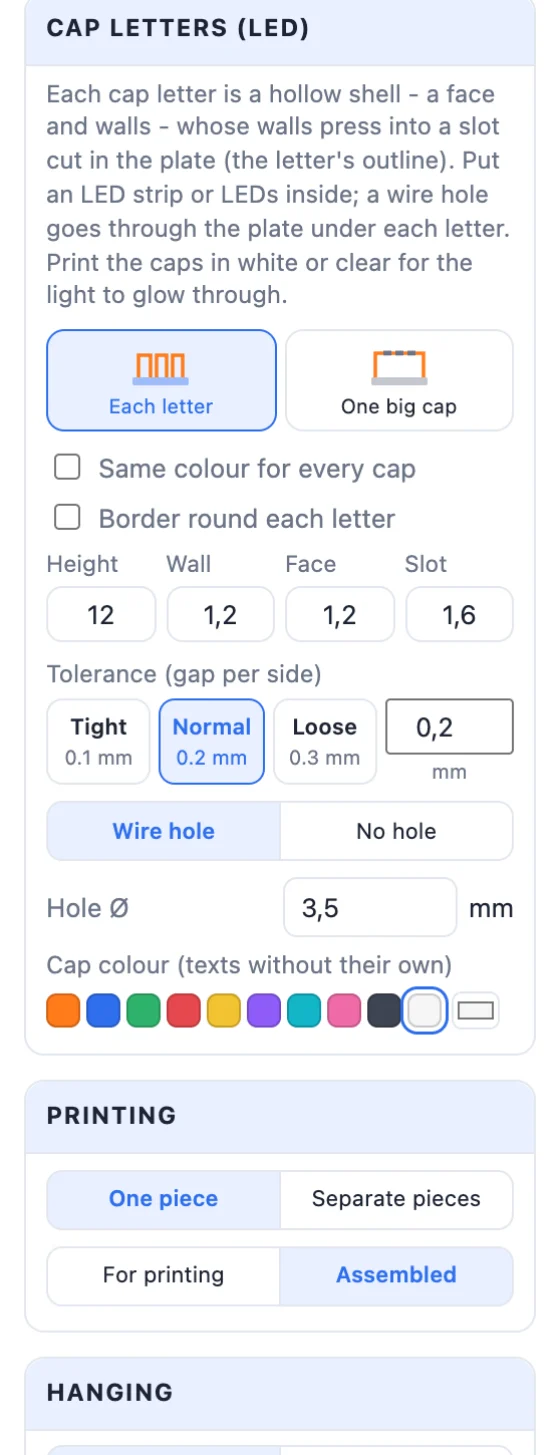
- Cap - hollow letters for LEDs: each letter is a shell whose walls press into a slot cut in the plate, with room inside for LED strips and a wire hole under each. The Cap letters card sets their height, the wall, the face, the slot's depth and the tolerance (Tight 0.1 / Normal 0.2 / Loose 0.3 mm or any value), one colour for all caps, and a border round each letter - a band on its face or the whole wall in another colour. Or choose One big cap: one hollow box over all the letters (a rounded box or their outline), with the letters flat, raised or engraved on its top and an optional border.

7Move, resize and turn in the view
Click an item on the plate to select it (its card is highlighted). Drag it to move it - it snaps to the middle lines, Alt moves it without snapping; pull a corner to resize it; turn it by the round knob (Shift: 15° steps). A small item lying inside a bigger one (a date in a calendar) is picked first; click again to reach the one under it.
- Several at once: Shift / Ctrl / Cmd-click adds an item, or drag a box on empty space. A dashed box goes round all of them - drag any of them to move them together, turn them by the group's knob, resize them by its corners. Ctrl / Cmd+A selects every item.
- Copy and paste: Ctrl / Cmd+C and Ctrl / Cmd+V (each paste lands a little further along), Ctrl / Cmd+D duplicates - or the ⧉ button in a card.
- Delete or Backspace removes what is selected; Ctrl / Cmd+Z brings it back.
- Double-click an item to open its card: the panel scrolls to it and it flashes; a text gets the cursor, ready to type.
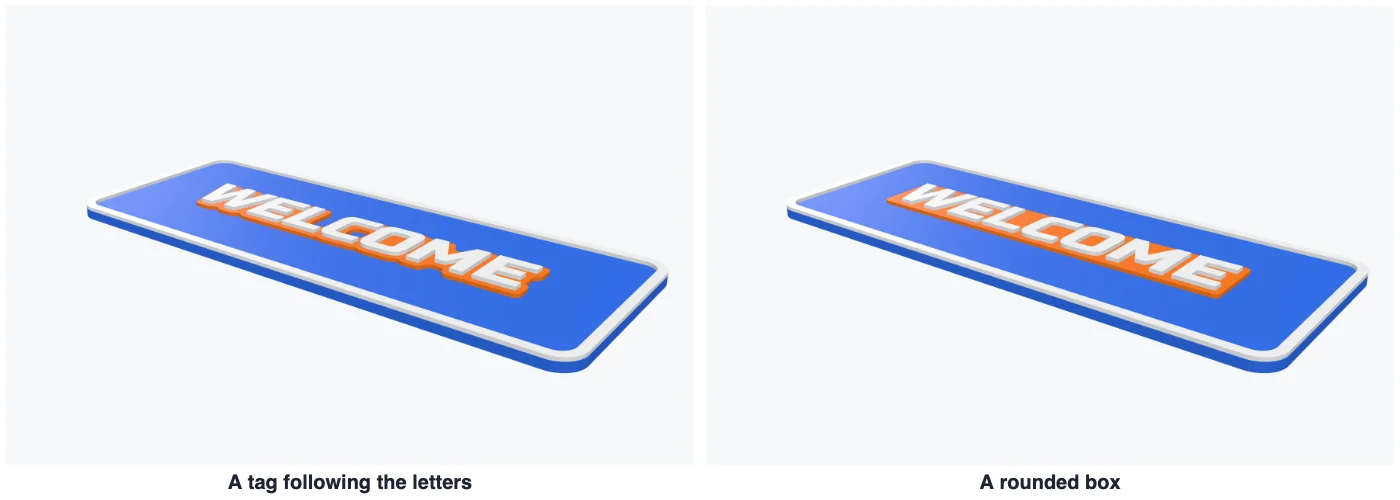
8A tag behind a text
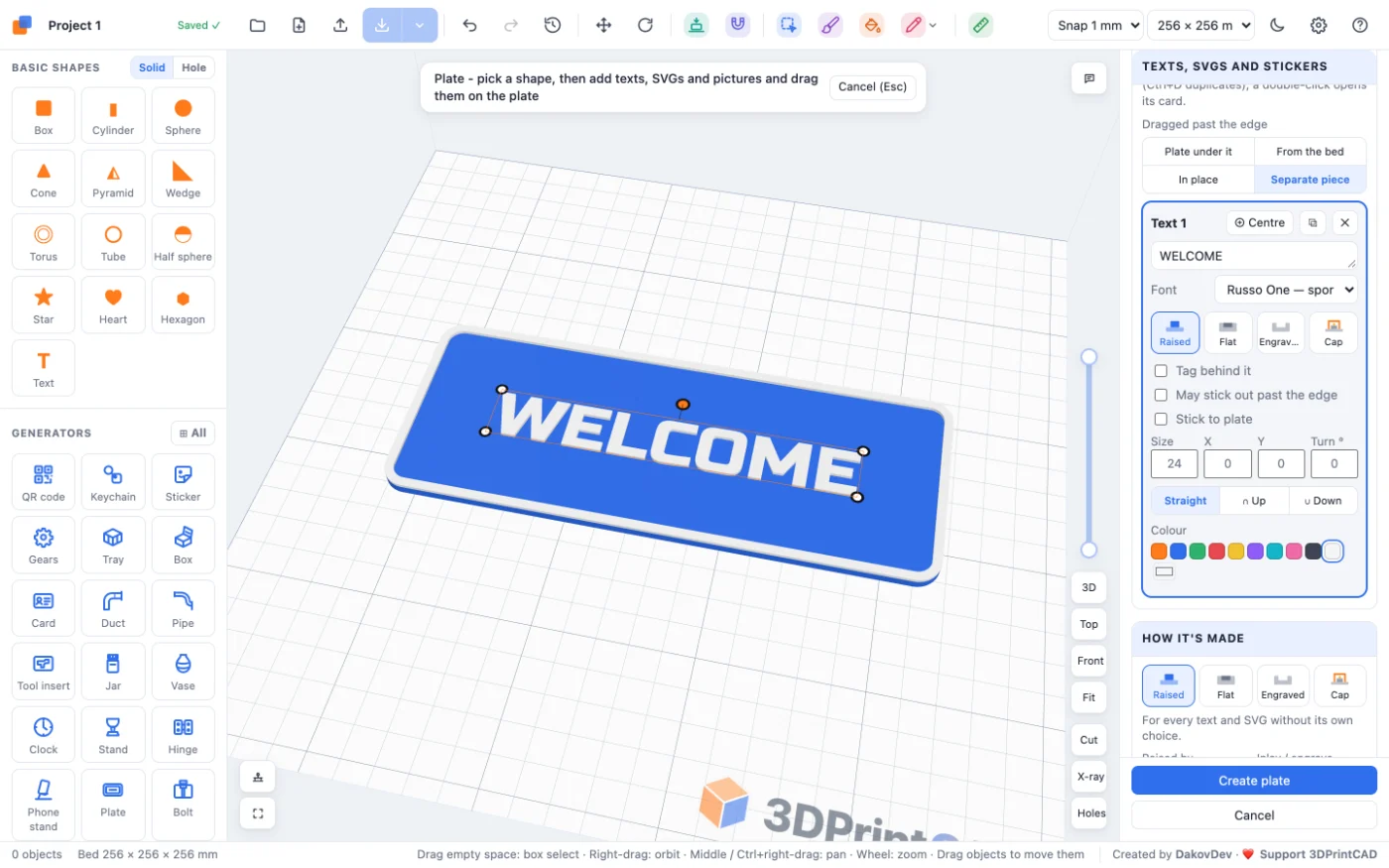
A raised text or SVG can stand on a tag in its own colour - like a name on a white label. Tick Tag behind it, choose Outline (its letters grown all round) or Rounded box (with its corner radius), and set the margin, the height and the colour.
9Past the edge
Drag a text, SVG or sticker past the plate's edge and it is no longer cut off. Its card's May stick out past the edge says what holds it there:
- Plate under it - the plate grows out under it, as thick as the plate and in its colour; the border goes round the new outline.
- From the bed - the part past the edge stands up from the bed, in the item's own colour.
- In place - a thin piece on the face, printed there with the plate in its colour (turn on supports in the slicer for the part hanging past the edge).
- Separate piece - a thin piece printed on its own, laid flat below the plate, and glued onto the face.
Stick to plate (under the choices) makes the item part of the plate itself: one solid, in the plate colour, printed with it - never a piece to glue or snap in. Dragged past the edge above the items sets what dragging does by default. A whole-edge border that stands above the plate is cut back wherever something lies over it, so the item lies flat on the edge.
An item that is cut off at the edge (not set to stick out) shows its missing part see-through, so you can see it and drag it back - for example after changing the letter.
10One piece or separate pieces
- One piece - a multi-colour print (export a Multi-colour 3MF), or one nozzle with a filament change at the height the panel gives for raised parts.
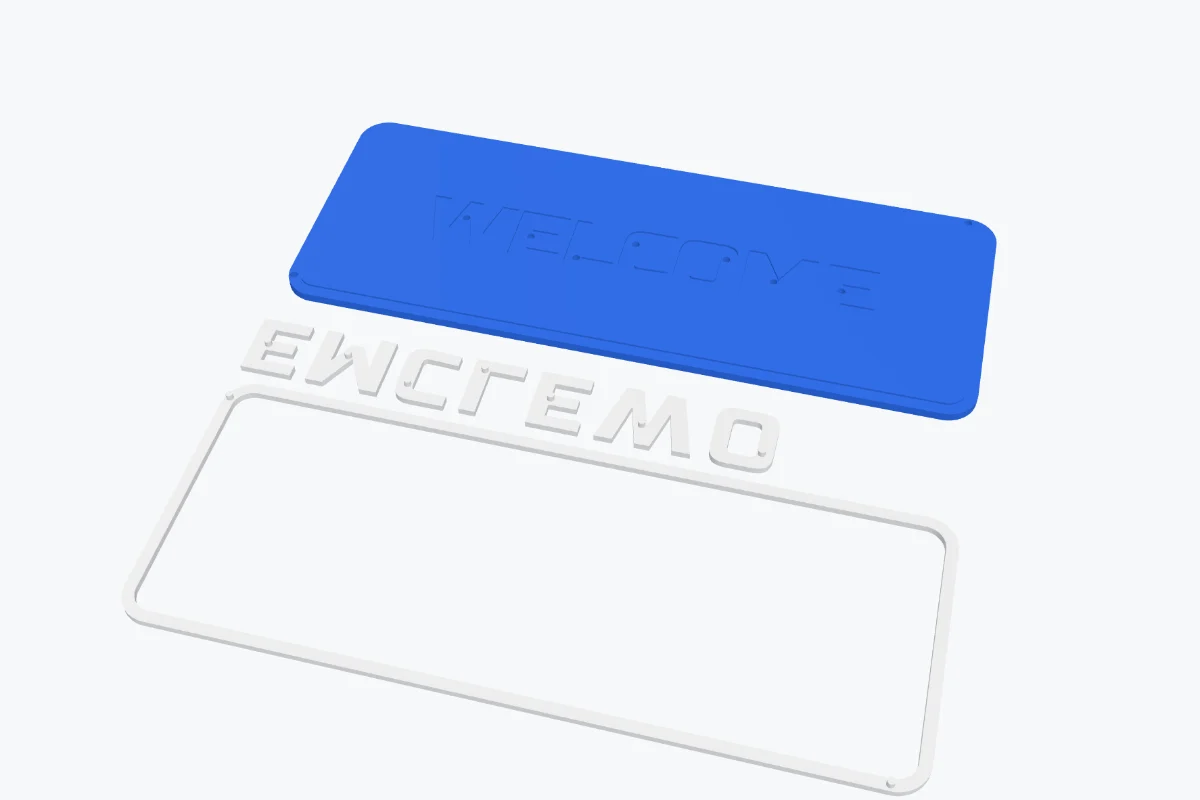
- Separate pieces - for a printer with one colour: every coloured part is its own print, laid face down below the plate, and presses into a pocket in the plate; small snap pegs (their Ø, length and fit) hold it. A whole-edge border becomes a ring the plate drops into.
For printing lays everything out flat on the bed; Assembled shows it put together.
11The Birth letter template
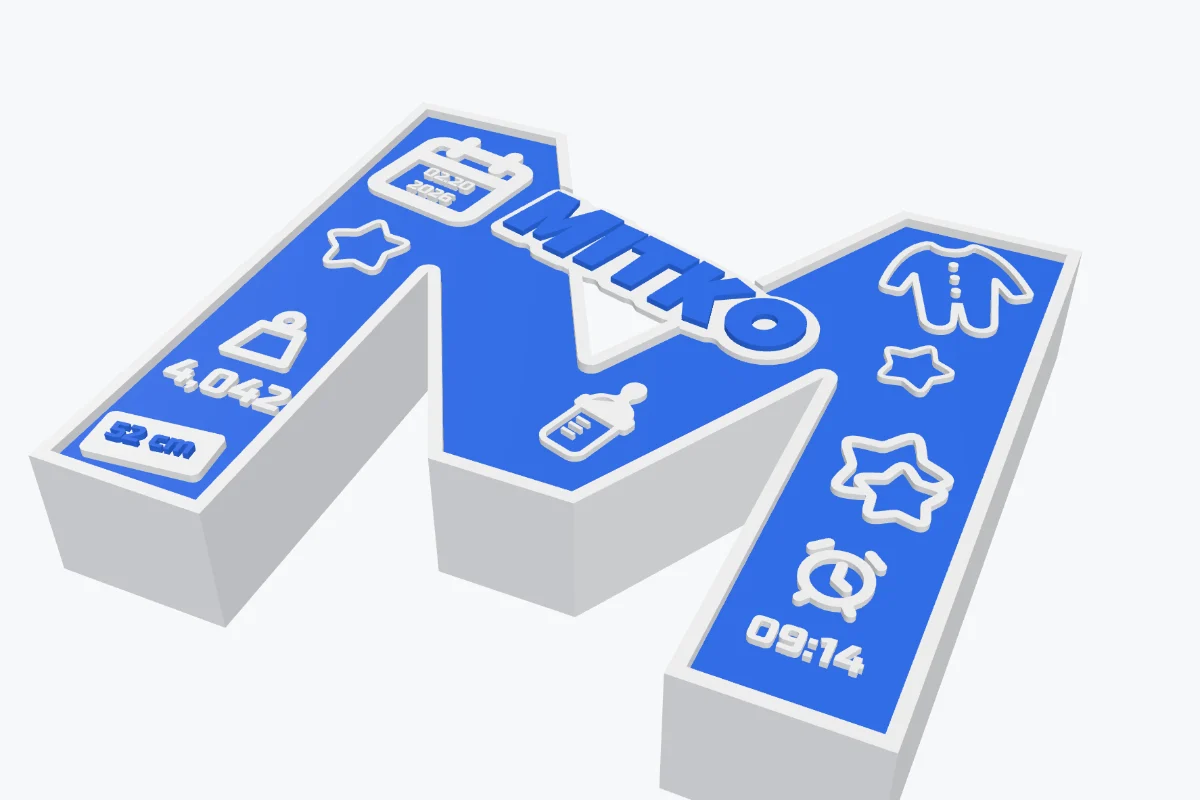
Choose the Letter type: a 25 mm thick blue M with a white whole-edge border, the name Mitko on a white tag across the top of the M (a separate piece, printed on its own and glued on), the date in a calendar, the weight, the length on a white box, the time, stars, baby clothes and a bottle. Make it yours right under the types changes the letter, its font and the plate and border colours; double-click any text to type your own.
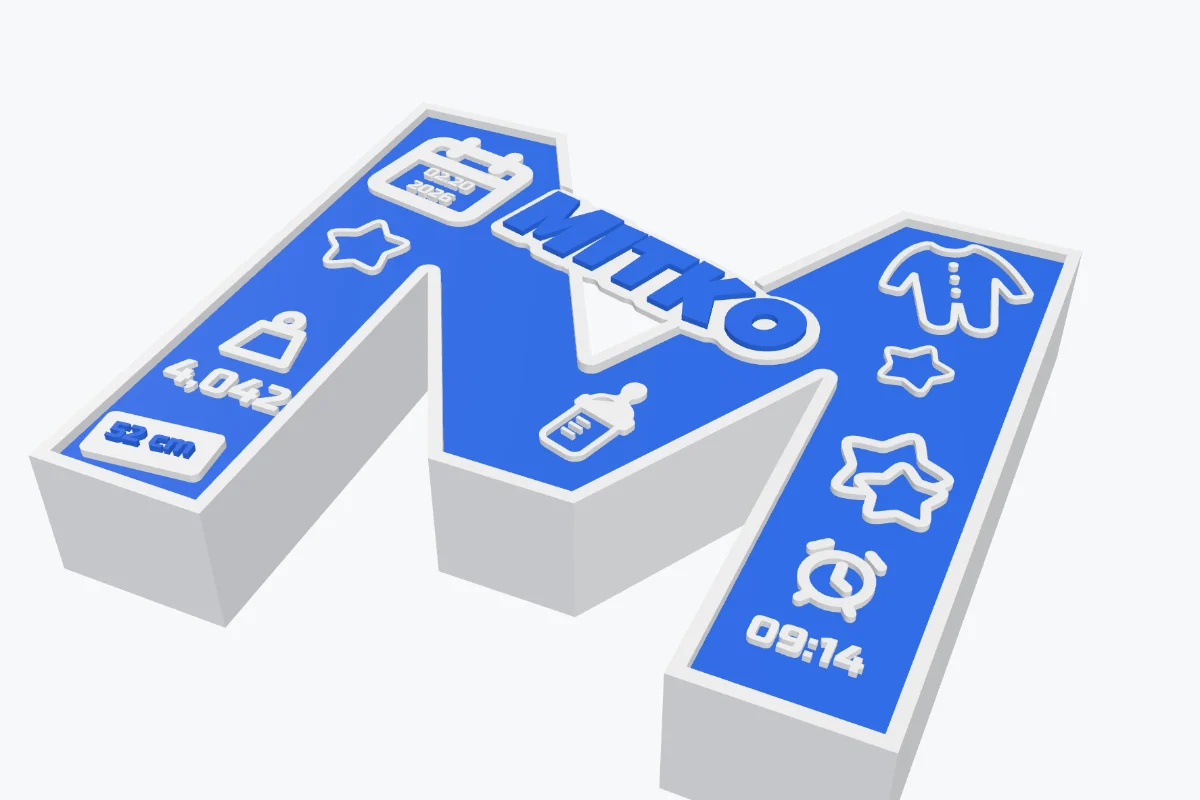
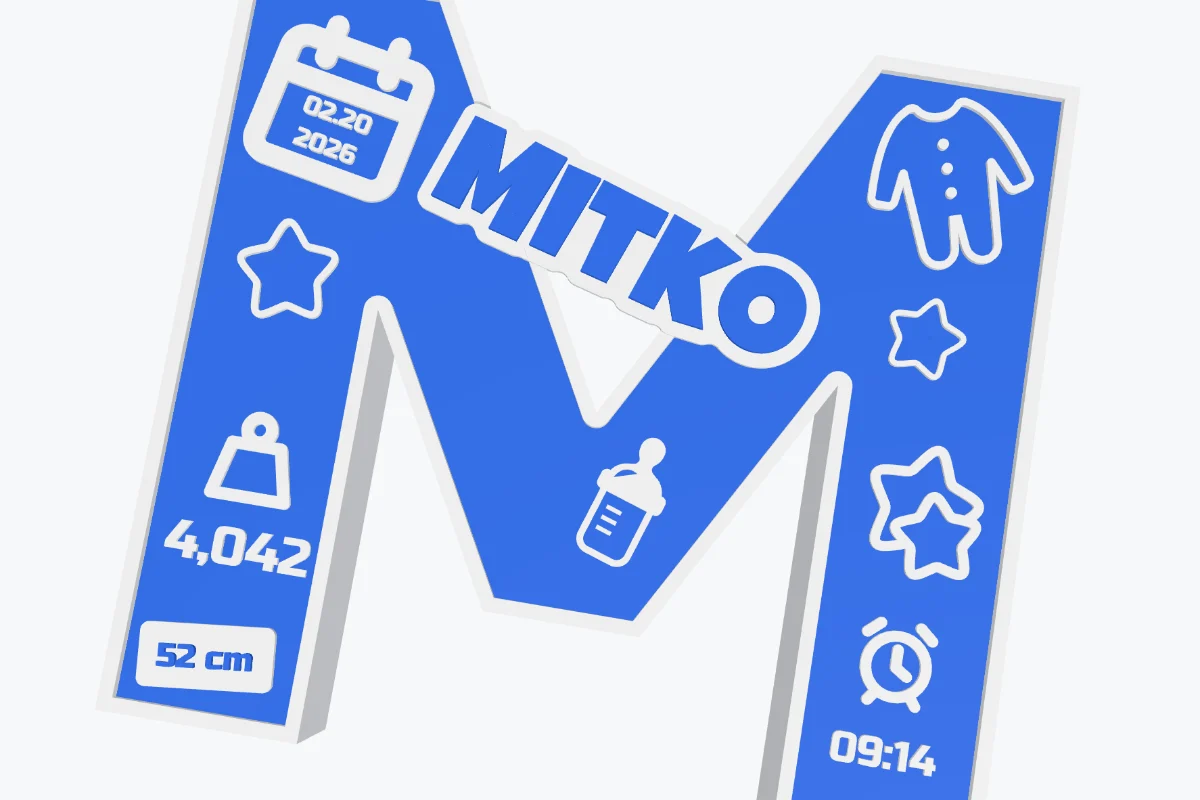
A thick letter prints lying face up, as shown, and then stands on its bottom edge.
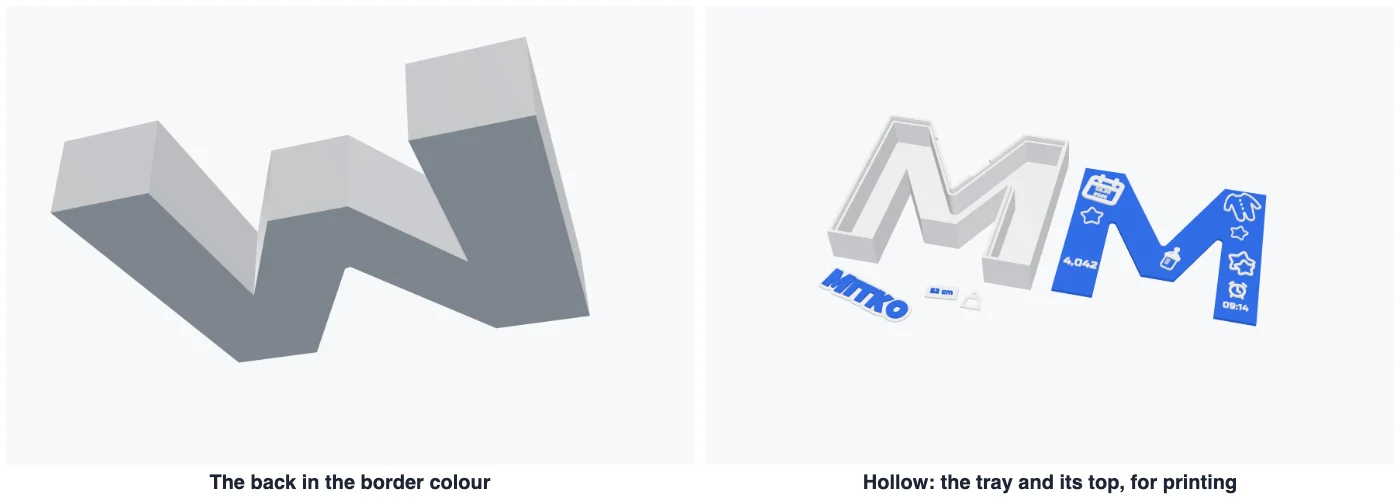
12A back in the border colour, or hollow
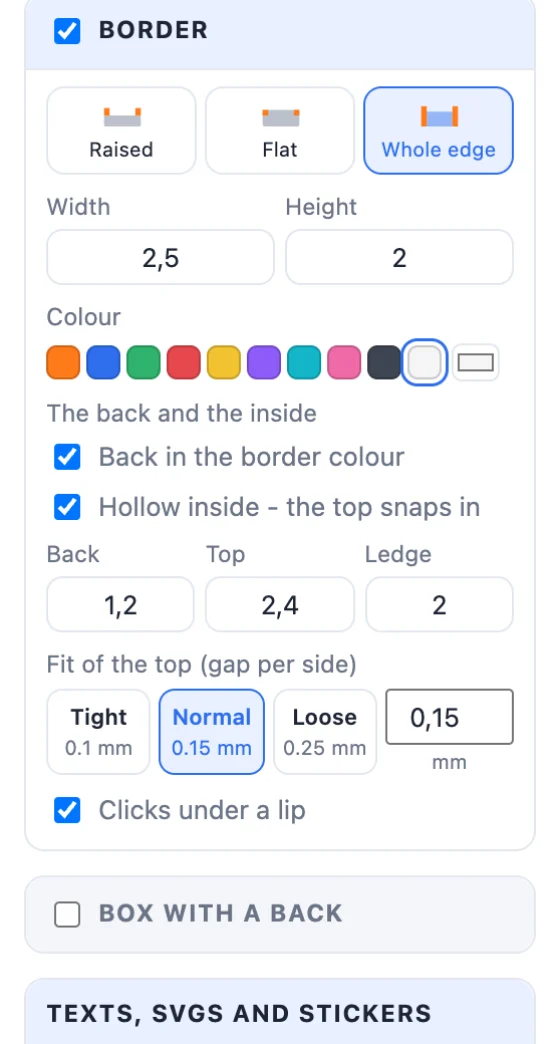
With a Whole edge border, the Border card offers The back and the inside:
- Back in the border colour - the border and the whole back are one piece (a tray) in the border colour, the plate on top of it; set how thick the back is.
- Hollow inside - the top snaps in - the inside is empty (room for LEDs): the border and the back are a tray with a ledge round the inside, and the top is a lid of its own that drops onto the ledge and clicks under a small lip on the rim. Set the top's thickness, the ledge, the fit (Tight 0.1 / Normal 0.15 / Loose 0.25 mm) and whether it clicks under a lip. For printing, the lid lies beside the tray with everything on it.
13A box with a back
Tick Box with a back (the Box type does it for you) and the plate becomes the front of a hollow box - room for LED strips, wires or a battery. Walls go back from the plate by the Depth, a post stands in each inside corner, and a back panel drops in between the walls and is screwed to the posts with 4 countersunk screws. Set the depth, the walls, the back's thickness, the screw size (M2.5, M3, M4), Into the plastic (a pilot hole - the screw cuts its own thread) or Heat-set inserts, and how snugly the back fits. Hanging holes go through the back. The info line says which screws to get.
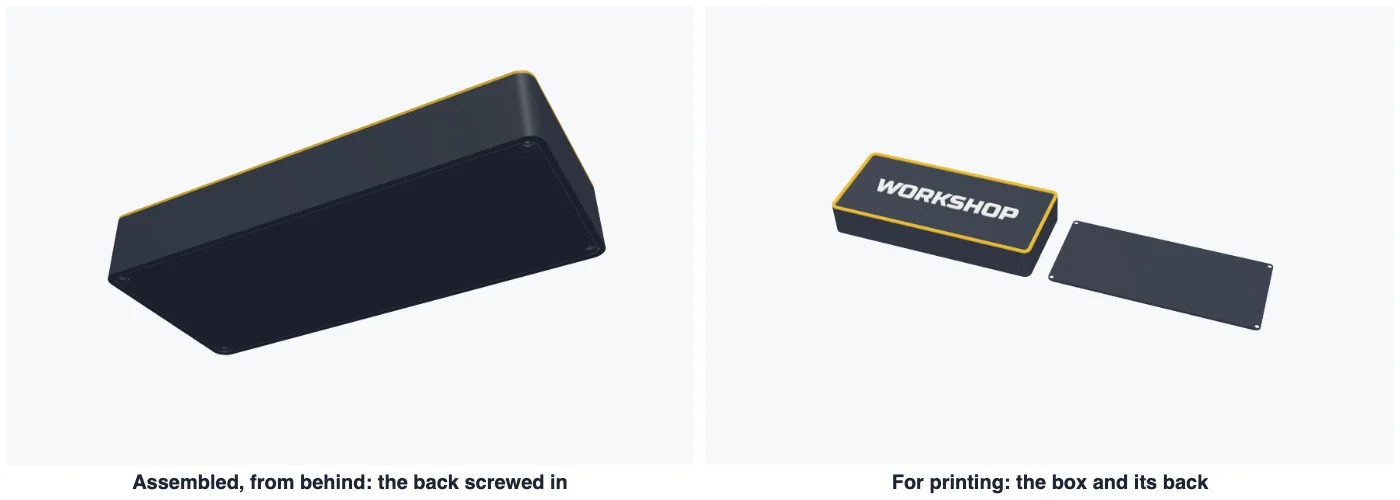
For printing the back lies beside the box. The box prints face up (its face bridges the inside - use supports inside for a big box), or face down when every item on it is flat or engraved.
14Hanging it and export
Hanging adds two countersunk screw holes near the top (their Ø), clear of the border. Then click Create plate and export: a Multi-colour 3MF keeps every colour as its own part for OrcaSlicer, Bambu Studio or PrusaSlicer; STL exports one file, or one per part. Double-click the plate later to change it.
15Tips for printing
- Thin script fonts (Lobster and the like) print best at 10 mm and up; a tag behind them makes small text stronger.
- Raised parts 1.2 mm high are 6 layers at 0.2 mm - enough to see, quick to print.
- Separate pieces: start with the Normal fit; if the pieces are loose, a drop of glue holds them.
- LED caps: thin white or natural PLA lets the light through; a face of 0.8-1.2 mm glows evenly.
Questions
Can I print a multi-colour sign on a single-colour printer?
Yes, two ways. With raised texts, pause the print and change filament at the height the panel gives. Or choose Separate pieces: every coloured part is printed on its own, face down, and snaps into a pocket in the plate with small pegs.
How do I make a birth letter?
Choose the Letter type. You get a 25 mm thick blue M with a white border, the name Mitko on a white tag, the date in a calendar, the weight, the length on a white box, the time, stars, baby clothes and a bottle. Change the letter, the texts and the colours to your own.
What are cap letters?
Hollow letters whose walls press into slots cut in the plate, with room for LEDs inside and a wire hole under each. You set the height, the wall, the face and the fit - or make one big cap over all the letters with the letters on its top.
Can a text or a picture reach past the edge of the plate?
Yes. Drag it past the edge and choose in its card what holds it there: Plate under it (the plate grows out under it), From the bed (it stands up from the bed in its colour), In place (printed on the face with the plate) or Separate piece (printed on its own and glued on). Stick to plate makes it part of the plate itself.
Can the letter be hollow?
Yes, with a whole-edge border. Tick Back in the border colour, then Hollow inside: the border and the back become one tray with a ledge inside, and the top is a lid of its own that drops in and clicks under a small lip.
Make your sign
Open the app, pick a shape and add your texts.
Open the Plate generatorAlso see: Sticker generator, Keychain generator, Business card generator, Clock generator and Phone stand generator.