3DPrintCAD › Guides › Add text to a 3D model
Add text to a 3D model: fonts, borders and text on a surface
Type a name, a label or a message and get 3D letters ready to print. Use several lines and over 50 fonts - bubble, script, handwritten or your own - with bold, italic, underline and alignment, and bend the text round an arc. Give it a border in its own colour, or put it on any body you have, flat or bent round a curve.
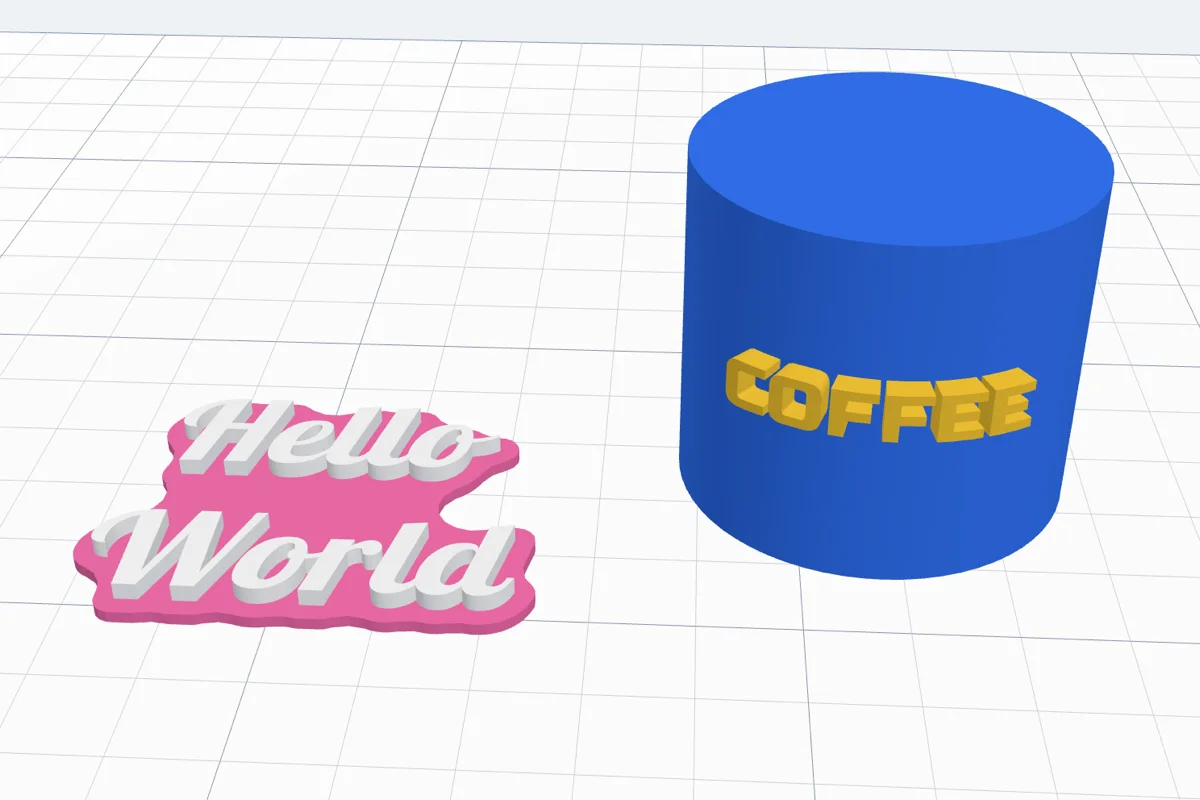
Watch the tutorial
Every text option in under four minutes, with subtitles: the Text window, fonts, formatting, curves, colours and borders, editing it later and text on a cylinder. Watch on YouTube ↗
1Open the Text dialog
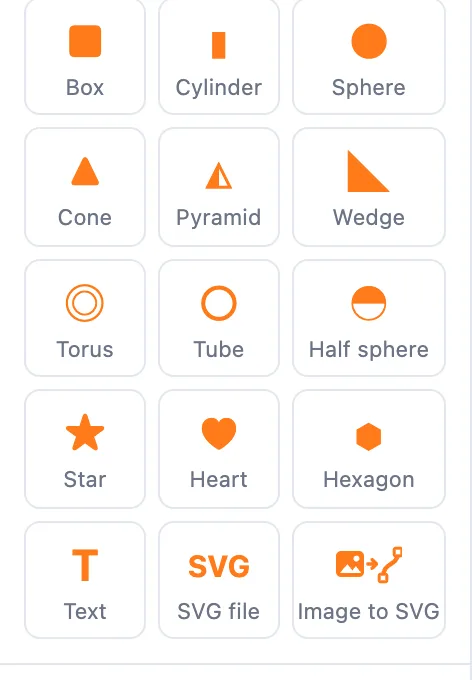
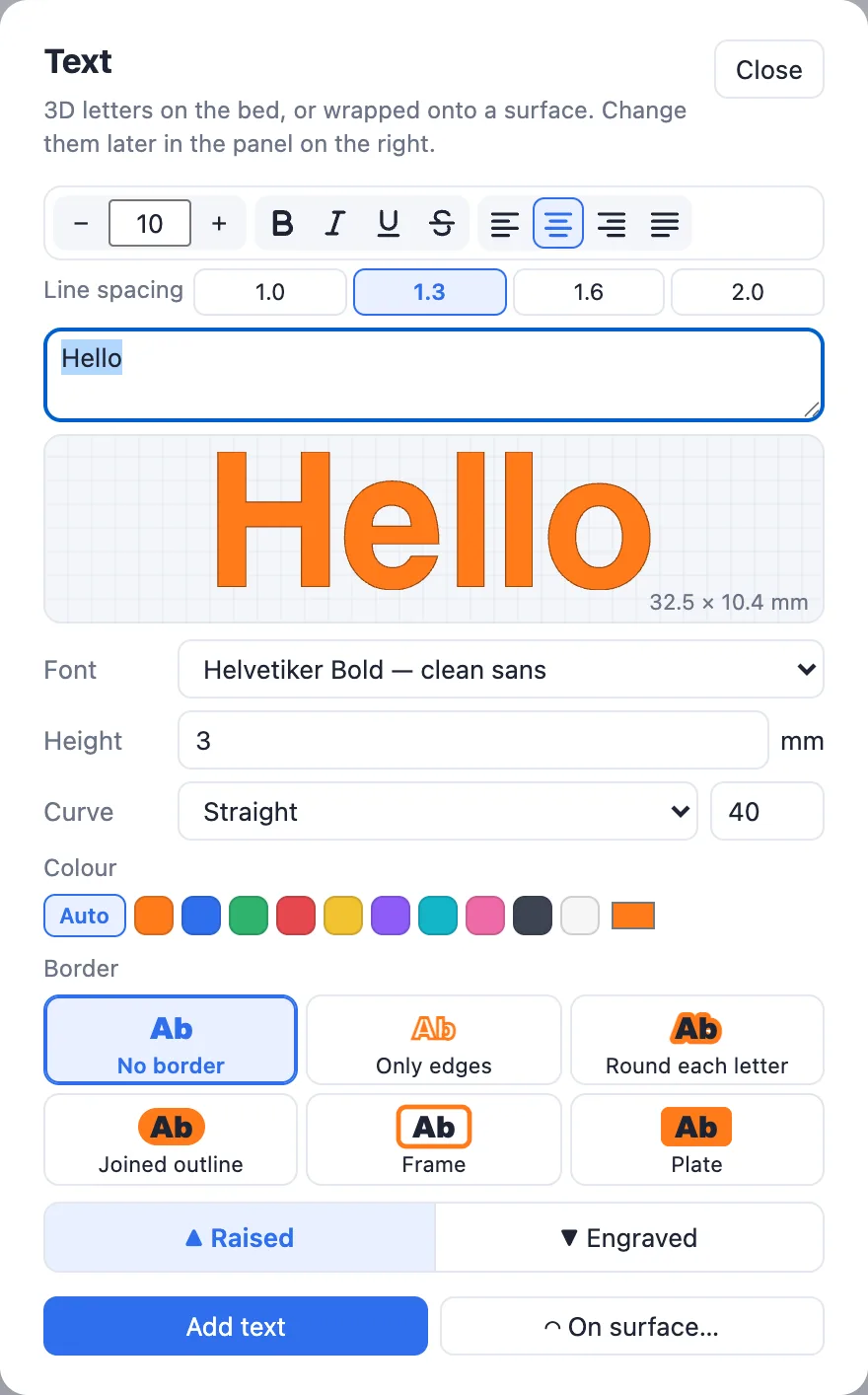
Click Text in Basic shapes (the left panel). The Text dialog opens with everything in one place: the format bar on top, the text box, a live preview, the font, the height, the curve, the colour and the border. At the bottom, Add text puts the letters on the bed and On surface… puts them on a body you already have.
2Type your text - several lines
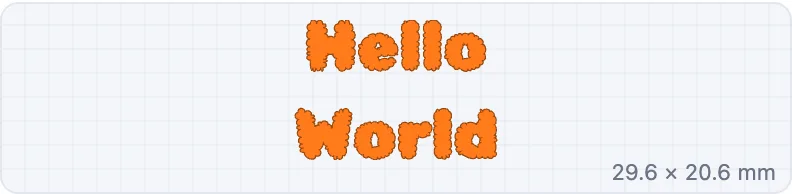
Type in the text box. Shift+Enter starts a new line (up to 6 lines); Enter alone adds the text, like clicking Add text. The preview under the box shows the letters exactly as they will be built - font, format, curve and border - and their size in mm in its corner. Orange is what stands up; a border shows lighter.
3Fonts - and your own
The Font menu has over 50 fonts in groups: Classic, Bubble, Script (joined letters), Handwritten, Bold & fun, Groovy 70s, Display & tech and Elegant & historic. Fonts marked Кирилица also have Cyrillic letters. A letter a font does not have is borrowed from a similar font, and the app tells you which letters were borrowed.
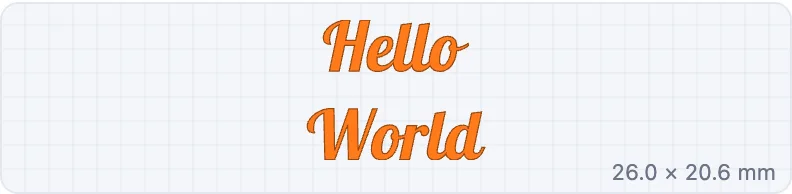
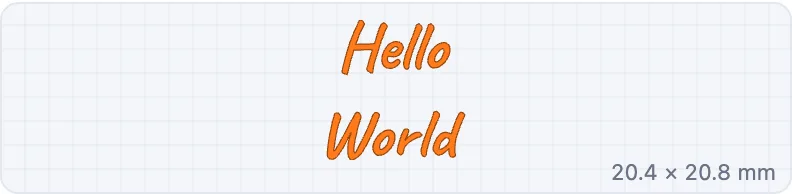
Your own font: at the bottom of the menu, under My fonts, choose + Upload a font (TTF / OTF / WOFF)…. The font is kept in this browser and appears in every font menu of the app, in the Text dialog, the keychain, the plate and the rest. ✕ Remove one of my fonts… takes one out again.
4Size, bold, italic, underline and alignment
The bar at the top of the dialog formats the whole text:

- − 10 + - the letter size in mm (the height of a capital letter, about). Type a size or step it by 1 mm.
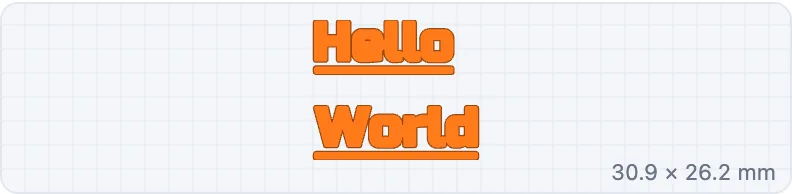
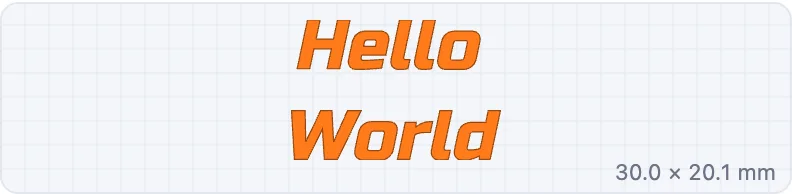
- B bold (thicker letters), I italic (slanted 12°), U underline, S strike-through - a bar under or through each line that prints with the letters. Shortcuts while typing: Ctrl / ⌘ + B, I, U and Ctrl / ⌘ + Shift + X.
- The four alignment buttons put the lines to the left, centred, to the right, or spread to the same width (justified - the words of every line but the last spread out).
- Line spacing 1.0 / 1.3 / 1.6 / 2.0 - how far apart the lines are, times the letter size.
5Height, curve, raised or engraved
- Height - how tall the letters stand (mm). 1-3 mm is usual for a label, more for letters that stand on their own.
- Curve - Straight, ∩ Arc up or ∪ Arc down, with the arc's radius in mm (smaller bends more). The letters keep their spacing along the arc - for a name over a picture or round a badge.
- ▲ Raised makes the letters a solid body; ▼ Engraved makes them a hole body that cuts into whatever it touches when you join them (Union) or export.
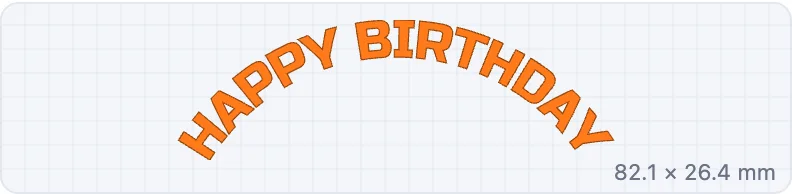
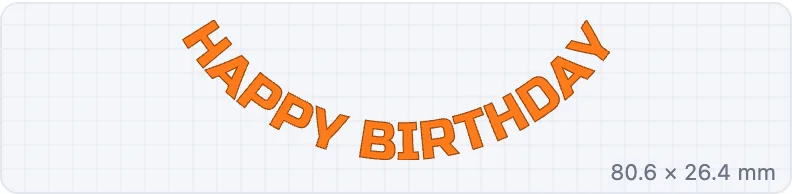
6Colour and border
Colour sets the letters' colour: Auto takes the next colour of the palette, or pick a swatch or any colour. Border adds a shape round the letters, built with them as one body. Every new text starts with No border; the border's sizes and colour are kept for the next text.
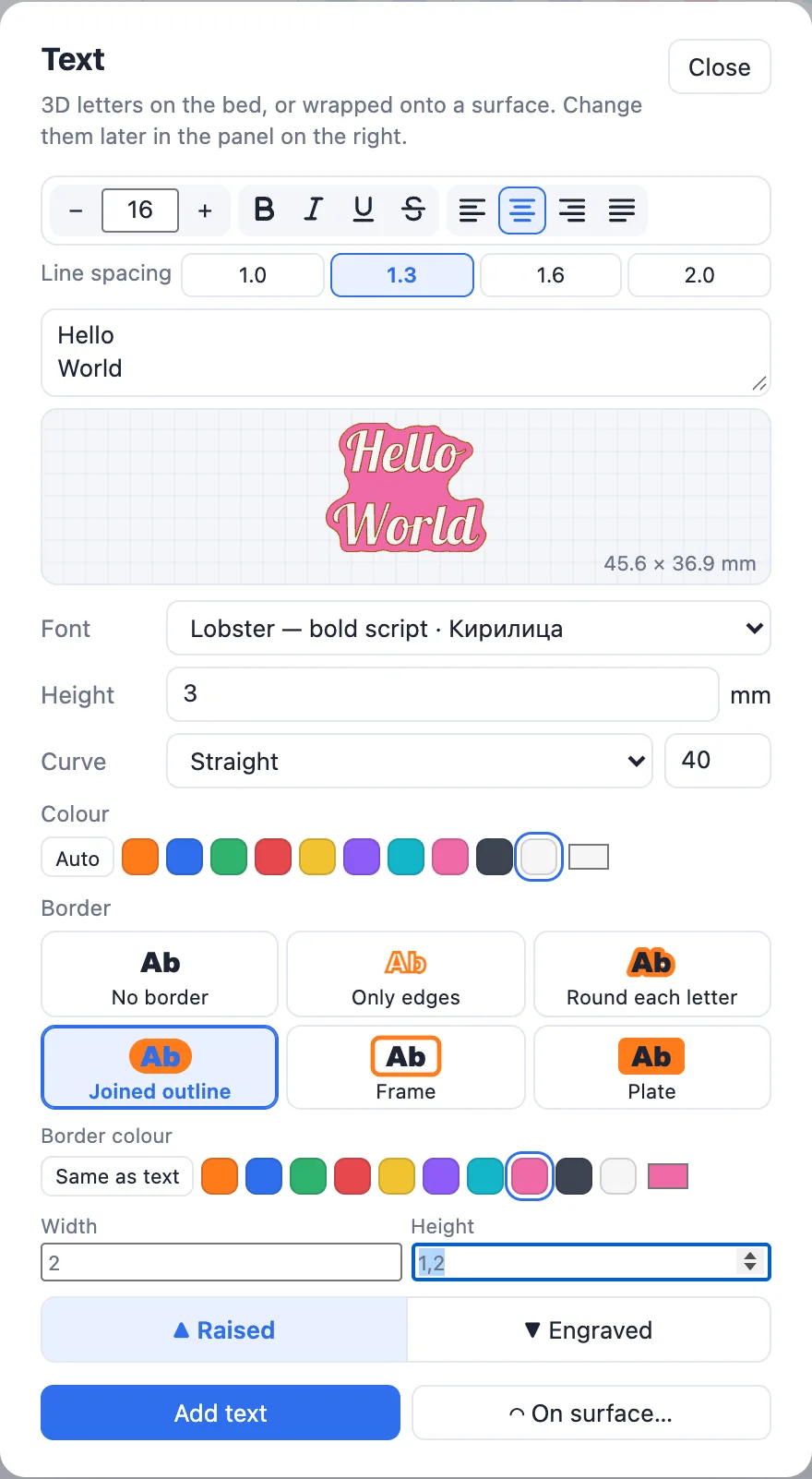
The six border styles:
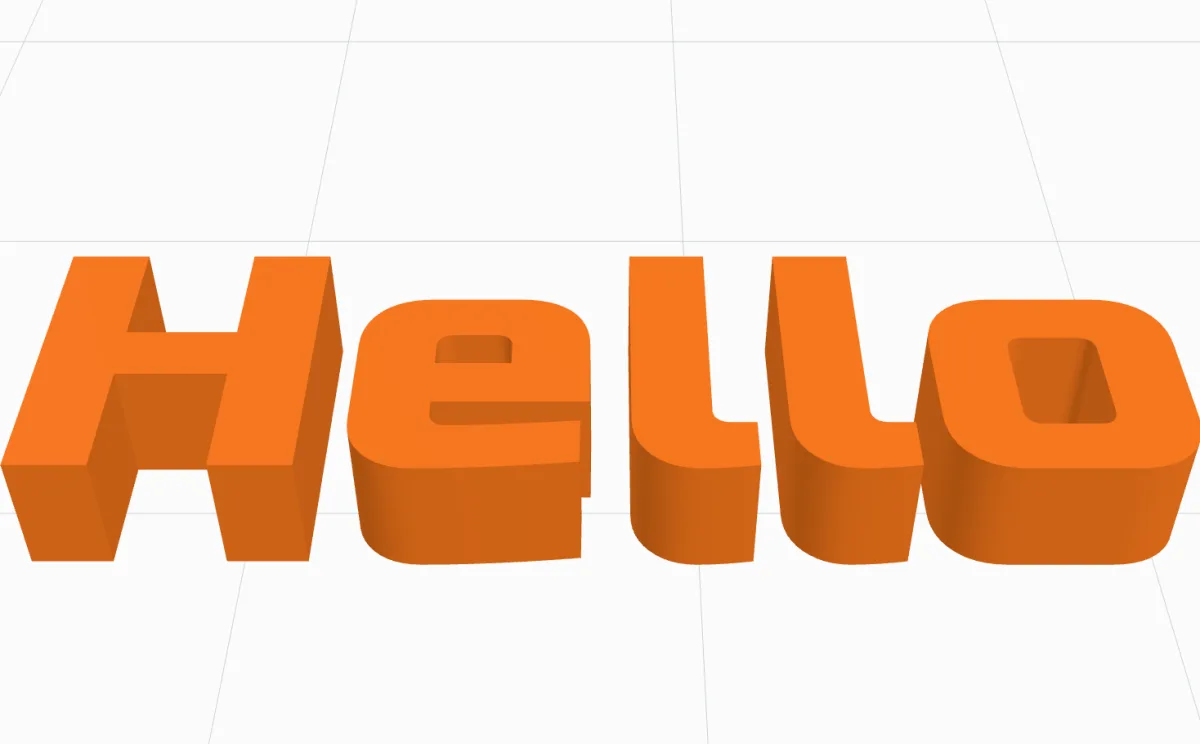
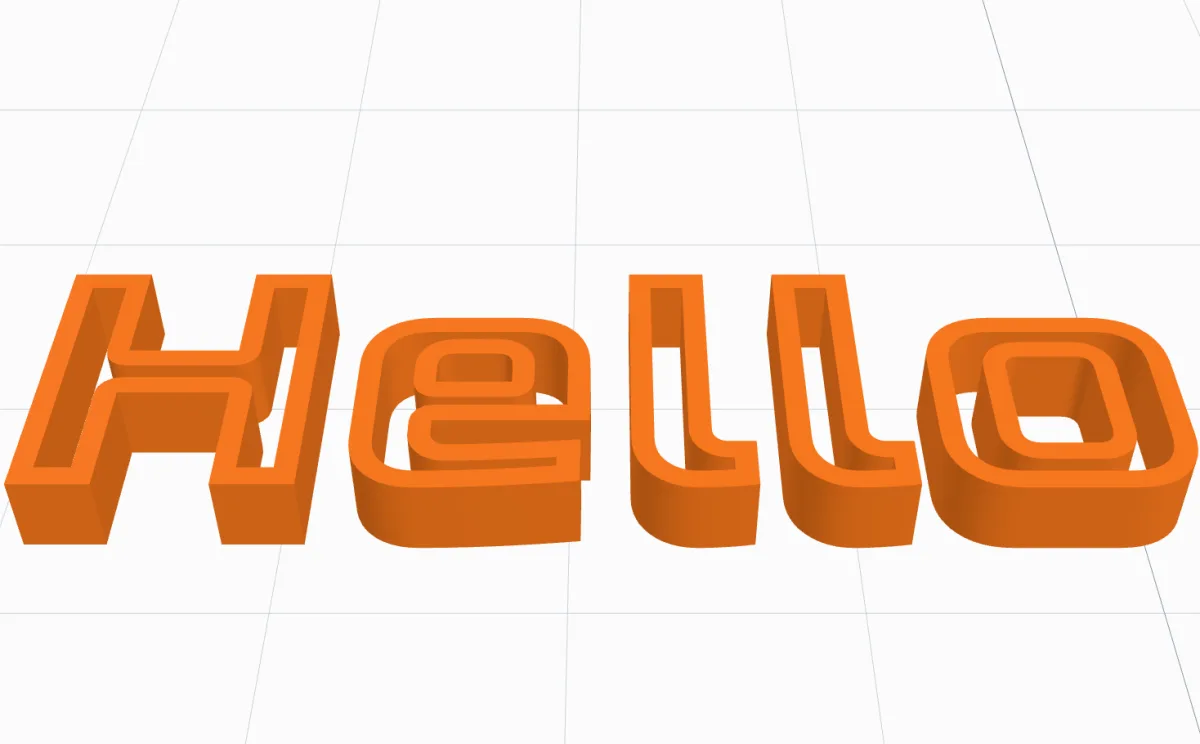
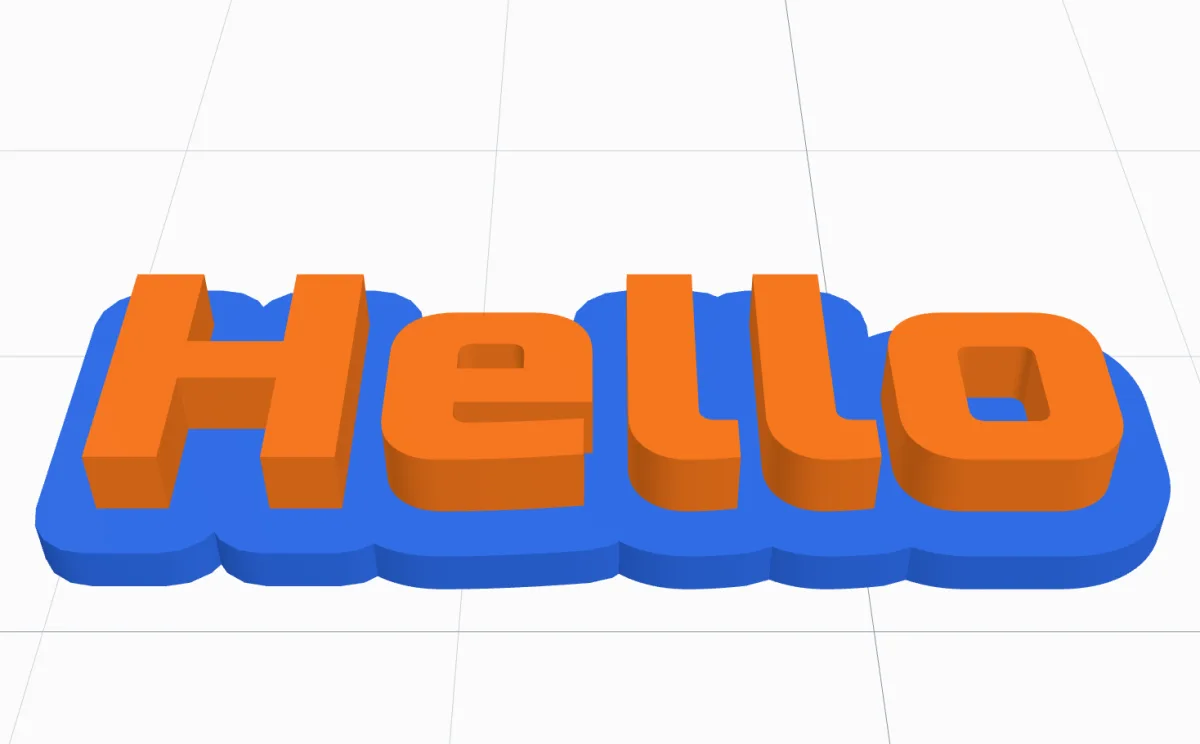
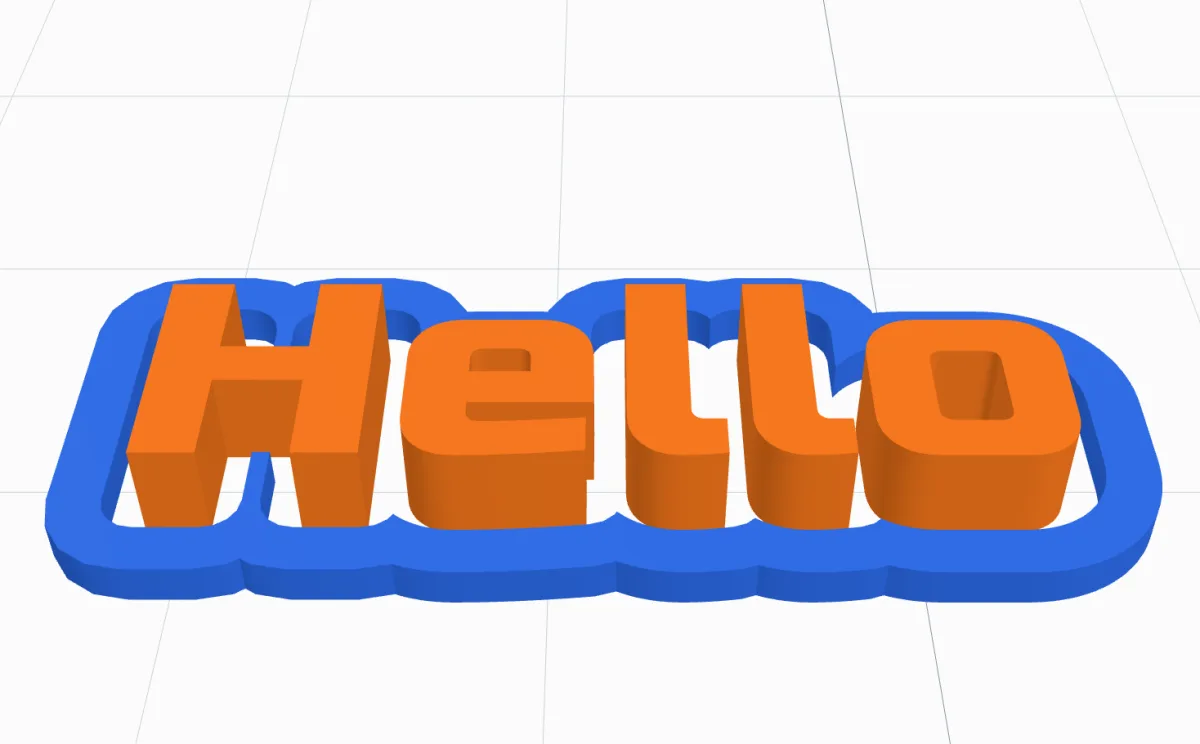
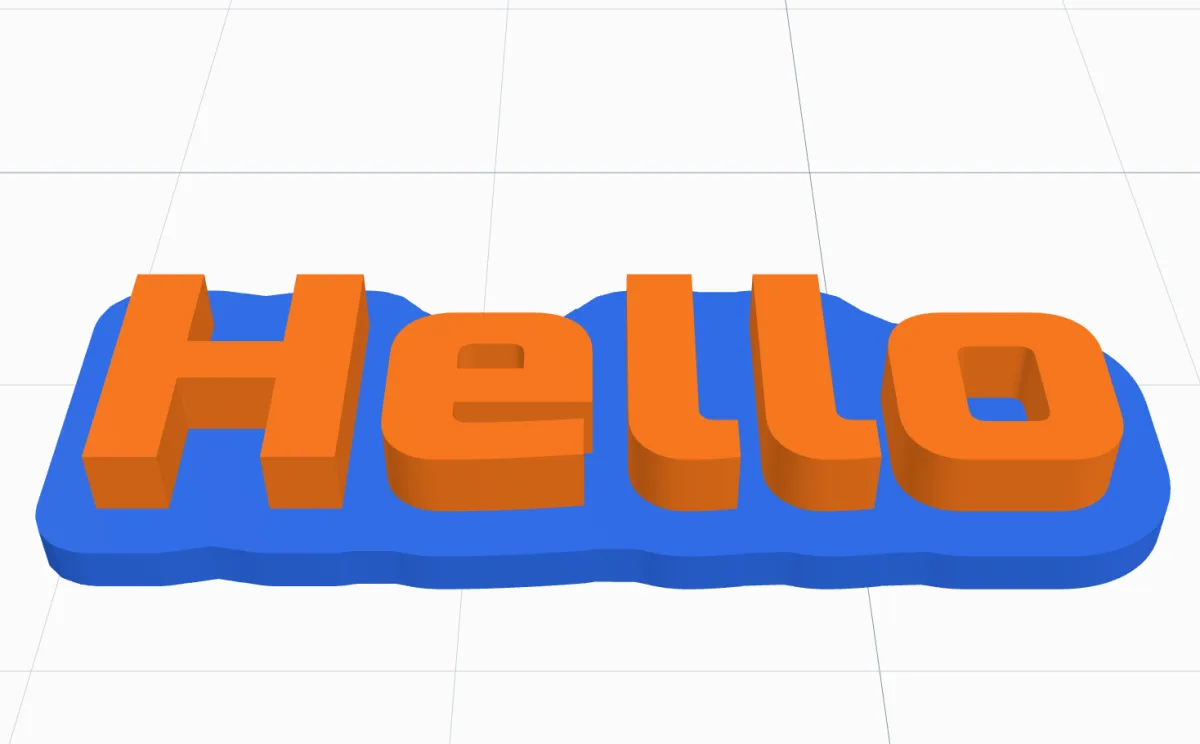
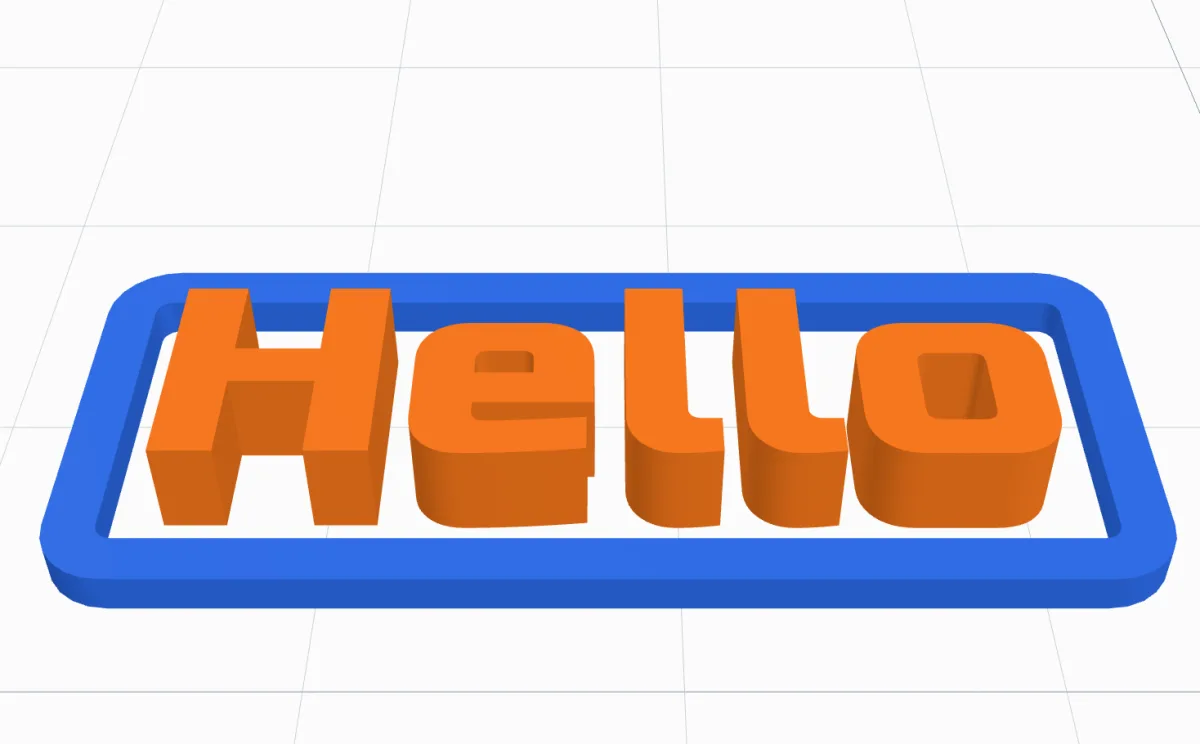
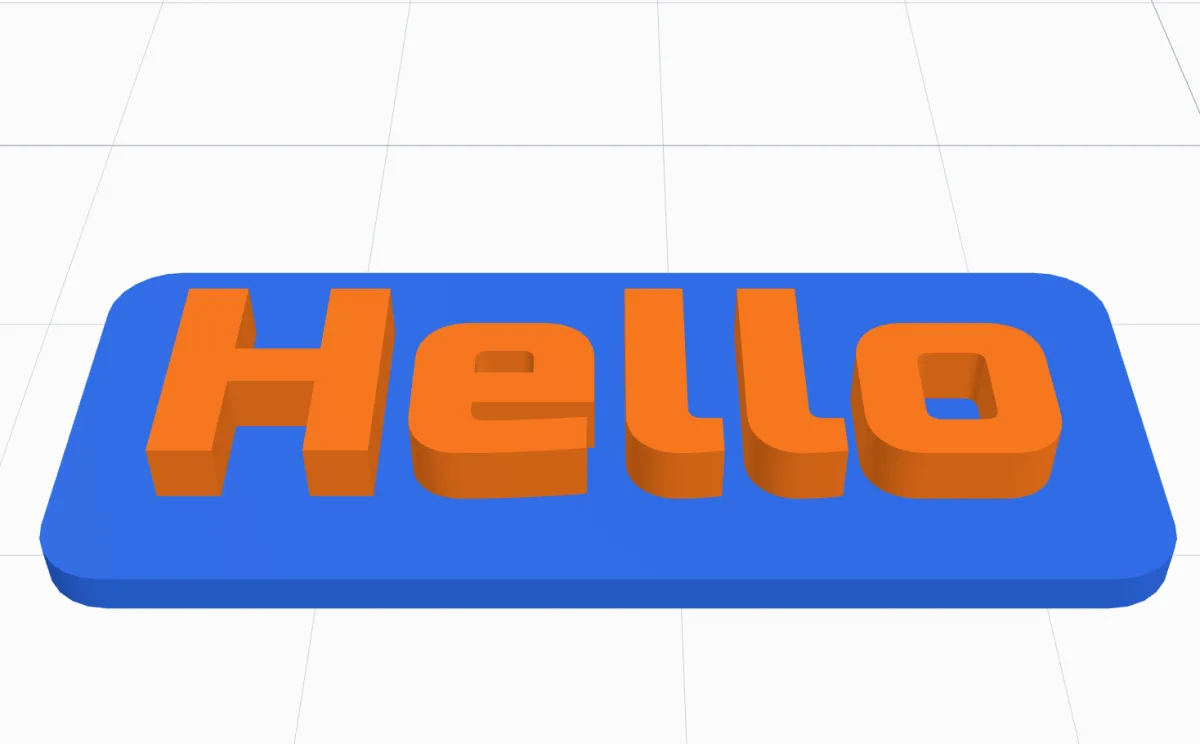
Under the tiles, the numbers that apply to the chosen style (mm):
- Width (or Edge for Only edges) - how wide the border is.
- Height - how high the border stands from the bottom; the letters keep their own height.
- Gap - the space between the letters and the border (Round each letter, Frame, Plate).
- Corners - the corner radius of the Frame and the Plate.
- Border colour - Same as text, or a colour of its own for a two-colour print (see below).
7Add it and change it later
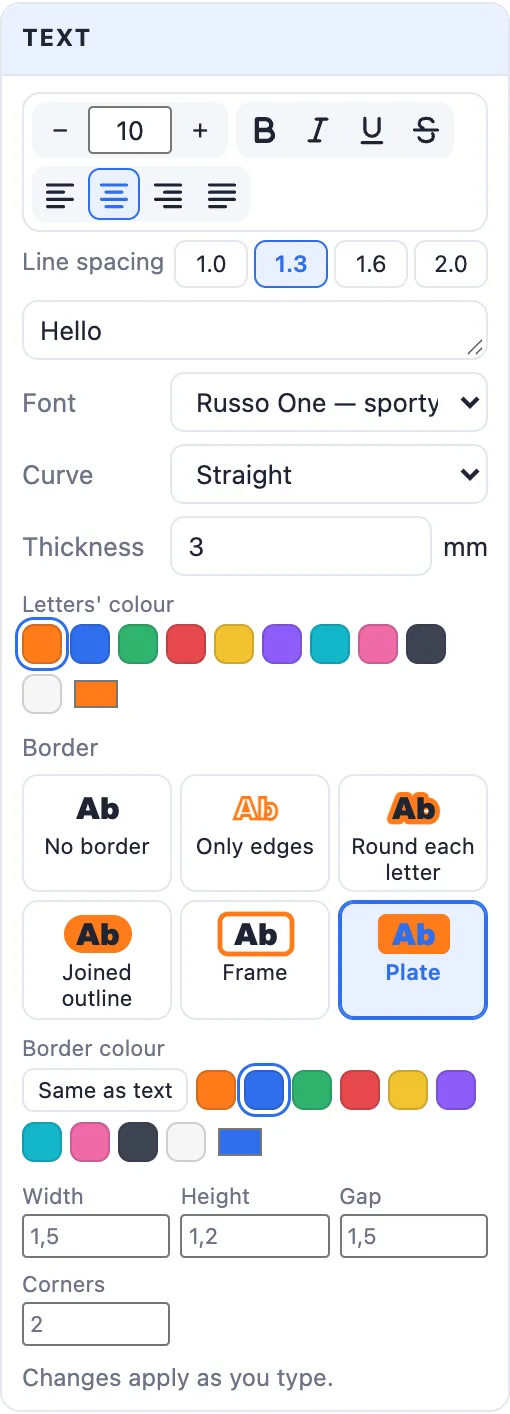
Click Add text (or press Enter in the text box): the dialog closes and the letters stand on the bed, selected. Nothing is fixed: the body's panel on the right gets a Text card with the same controls - the format bar, the text, font, curve, thickness, the Letters' colour and the Border - and every change rebuilds the letters at once. Move, turn and resize the text like any other body.
8Text on a surface
To put text on a body you already have - a cup, a box, a sign, a sphere - set it up in the Text dialog and click On surface… instead of Add text.
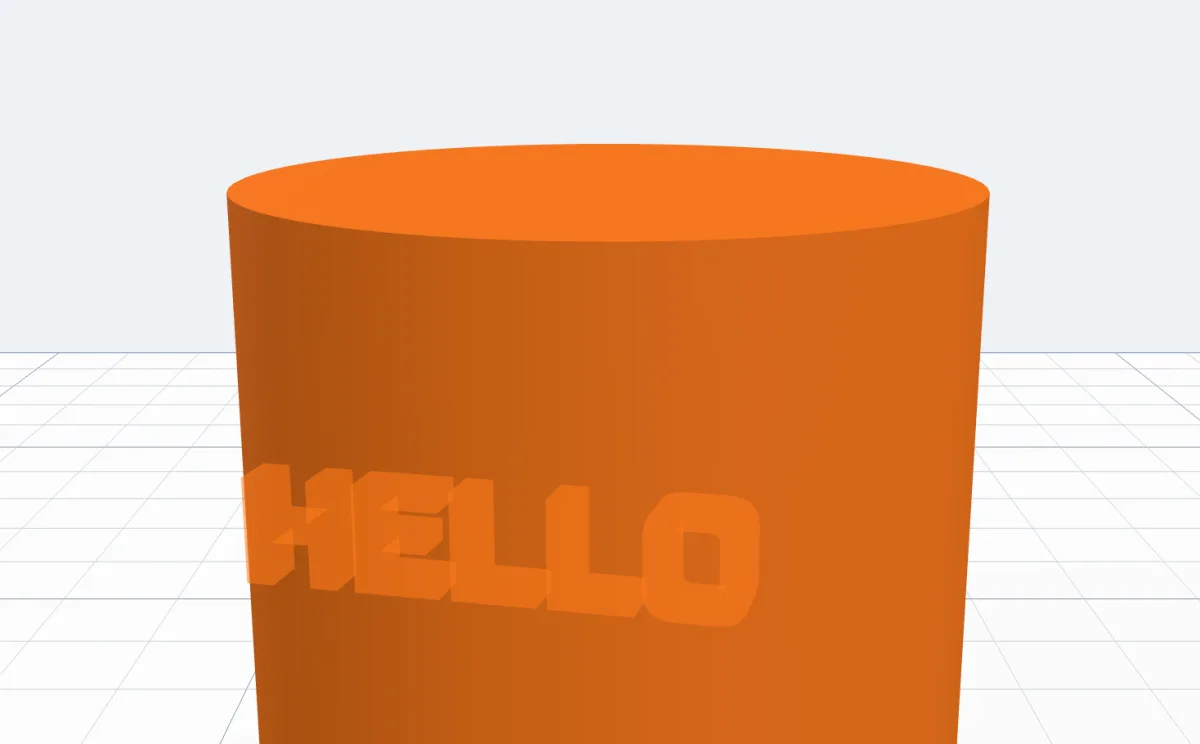
- Move the mouse over the body: a see-through copy of the text follows the surface under it.
- Click where it goes. The text is built there, with a dashed box round it, a blue knob above it and a white dot at its corner.
- Drag the text to slide it over the surface (even onto another body), drag the blue knob to turn it (1° steps, Shift 15°), drag the white dot to size it (Shift: whole mm).
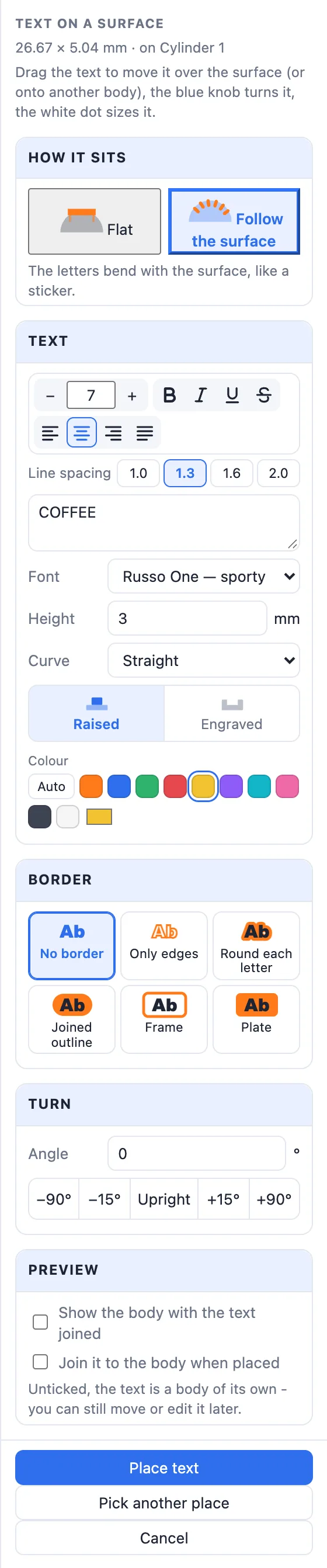
- Set it up in the panel on the right and click Place text.
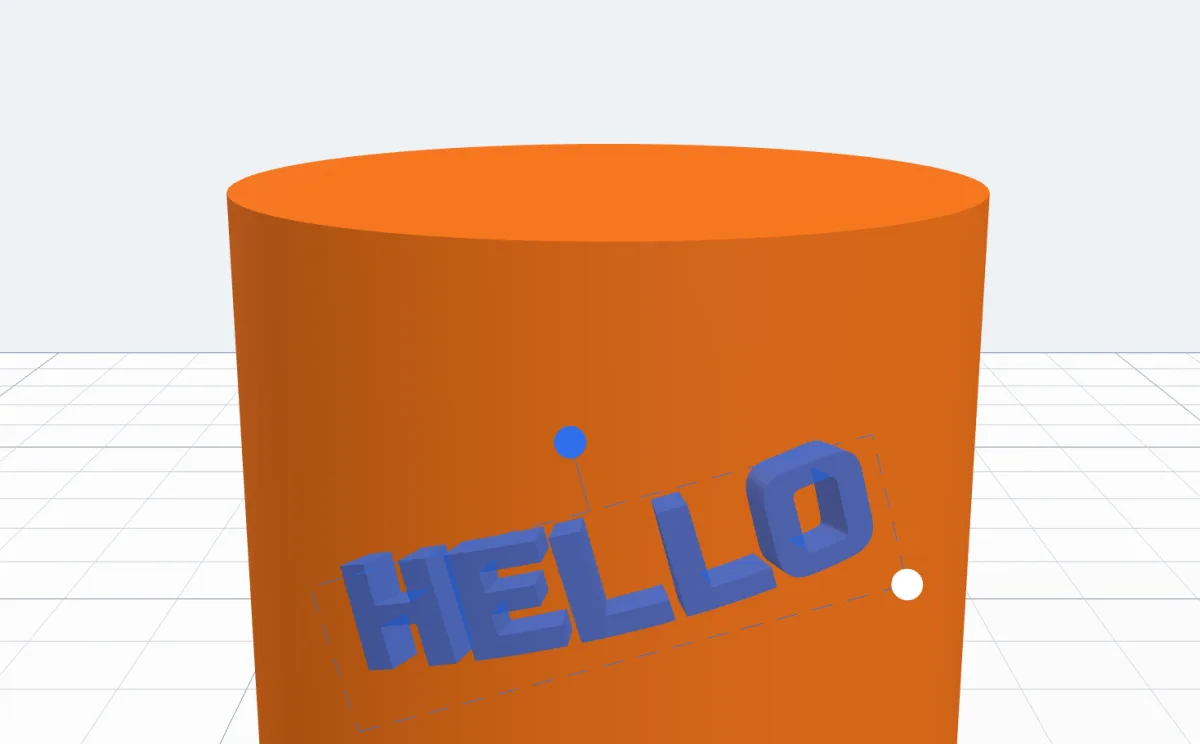
How it sits - two tiles at the top of the panel:
- Flat (the default) - the letters stay flat, on the plane of the point you clicked; on a curved body their bottom reaches down to the surface, so nothing floats.
- Follow the surface - the letters bend with the surface, like a sticker: round a cylinder, a ball or any curved face.
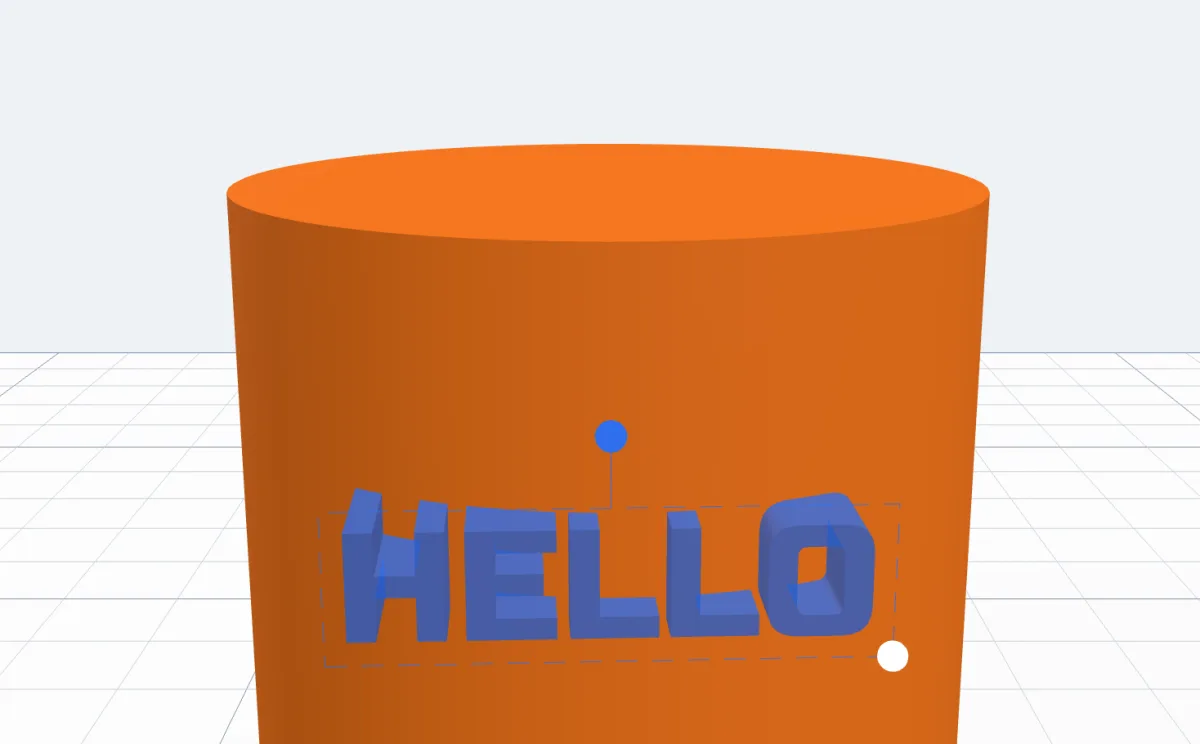
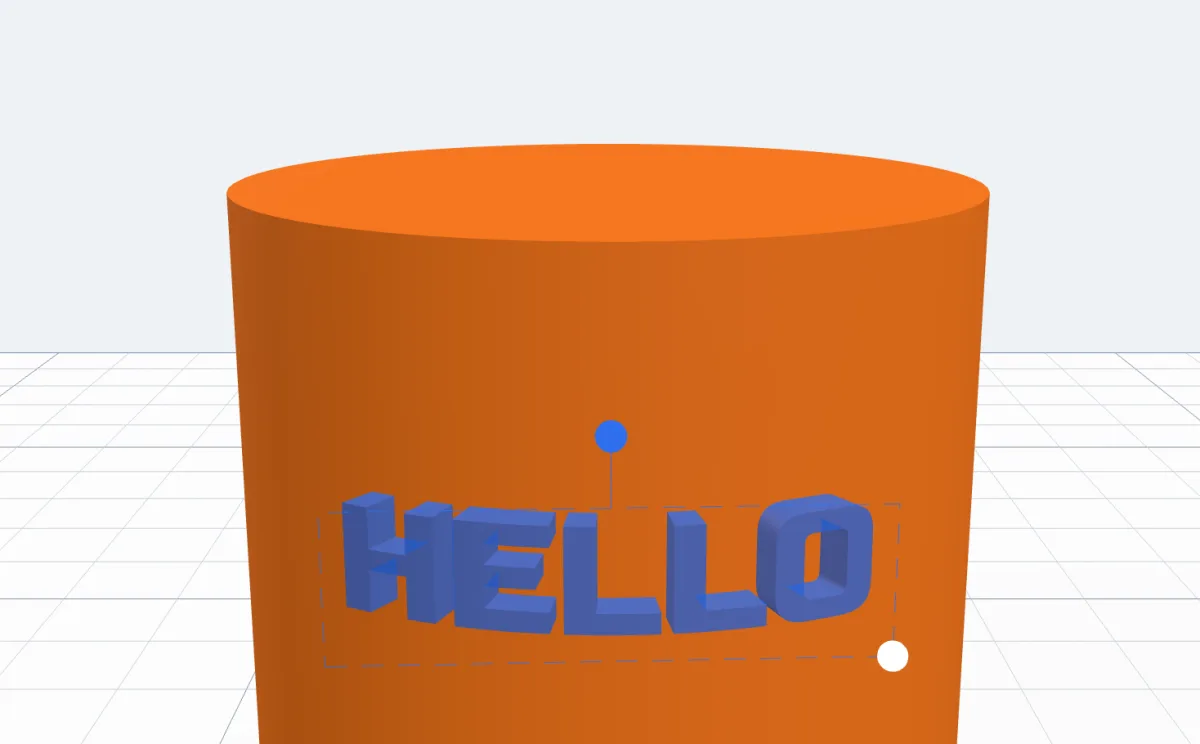
The rest of the panel:
- Text - the format bar, the text, font, height (or depth) and curve, as in the dialog.
- Raised or Engraved - letters standing up from the surface, or cut into it.
- Colour of the letters, and the Border with all six styles.
- Turn - an exact angle, or −90° / −15° / Upright / +15° / +90°.
- Show the body with the text joined (or cut in) - previews the finished body.
- Join it to the body when placed (or Cut it into the body) - unticked, the text stays a body of its own that you can still move or edit.
- Pick another place starts again; Cancel leaves without adding anything.
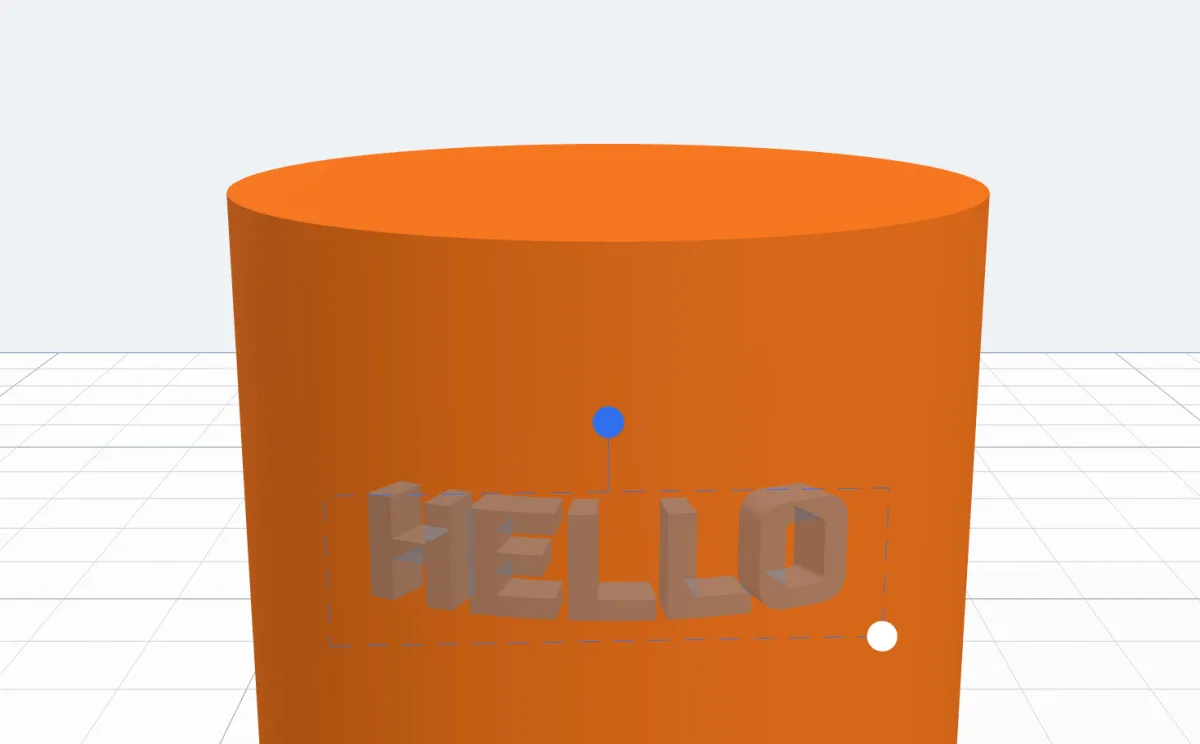
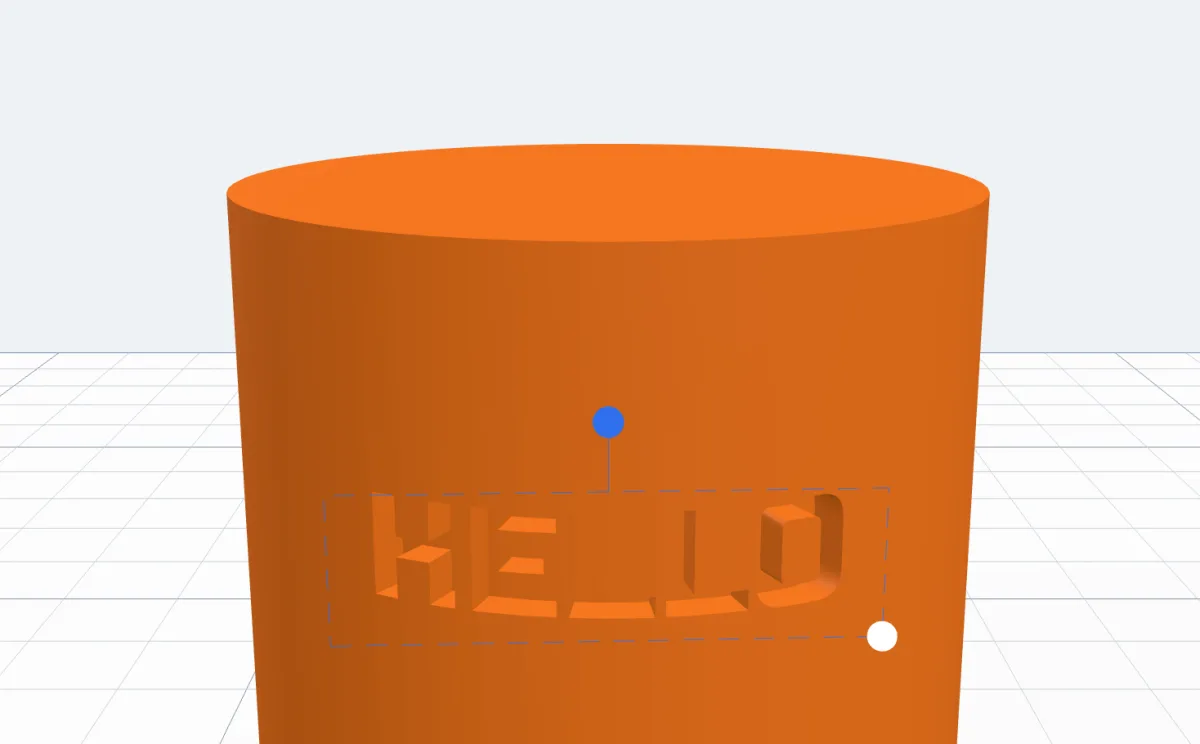
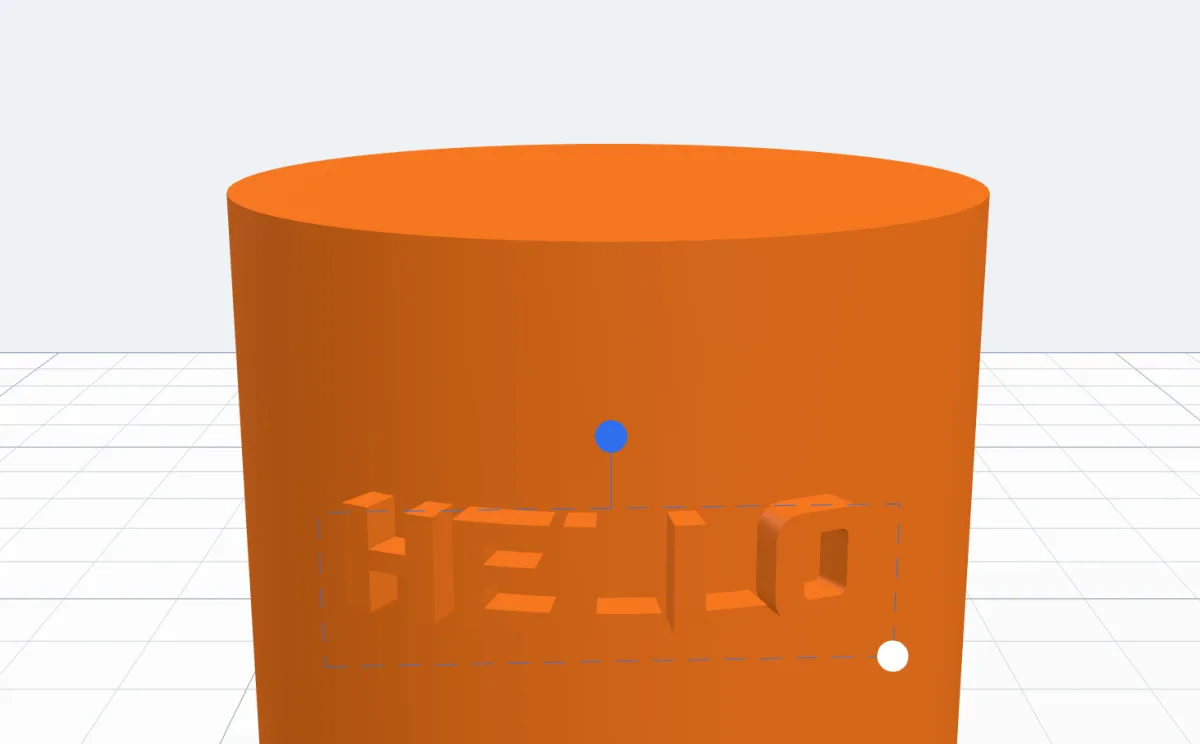
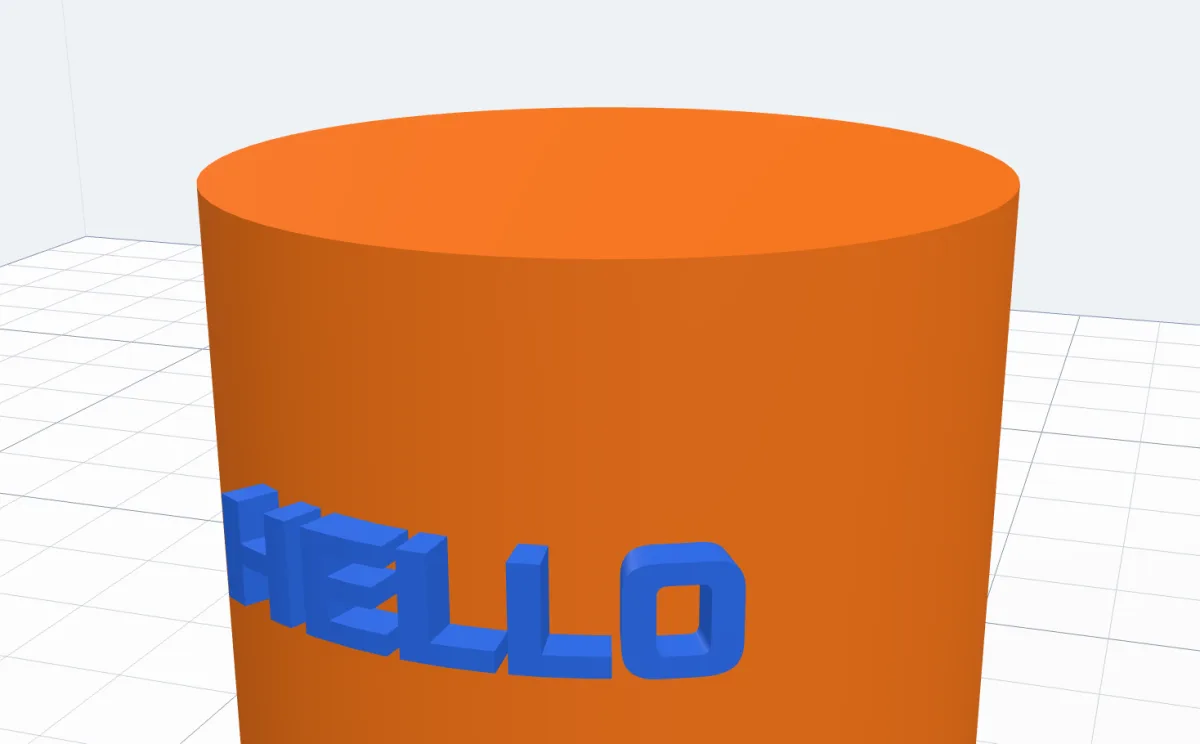
A placed text remembers where it sits: change its text, font or size in its panel later and it is built again on the same spot, still flat or still bent round the body.
9Print it in two colours
The letters' colour and the border's colour are kept on the body, also after you join it with other bodies. Export with Export ▸ Multi-colour 3MF: OrcaSlicer, Bambu Studio and PrusaSlicer get each colour on its own filament, ready for an AMS or any multi-colour printer. On a single-colour printer, a raised text on a plate can be printed with a filament change at the height where the letters start.
10Tips for printing text
- Letters smaller than about 5 mm need a bold font; thin strokes under 0.4-0.5 mm (one nozzle width) may not print. B makes any font a little thicker.
- Script fonts with joined letters (Lobster, Pacifico) print as one piece; for loose letters use Joined outline or Plate so they hold together.
- Raised text on a curved surface prints best with the curve facing up; engraved text needs no supports.
- For a two-colour label, a border 1-1.5 mm high under 2-3 mm letters gives a clean colour change.
Questions
How do I add text to a 3D model for printing?
Click Text in Basic shapes, type your text, choose a font, a size and a height, and click Add text - the letters stand on the bed as a 3D body. To put the text on a body you already have, click On surface… instead and click that body.
How do I make text with several lines?
In the text box press Shift+Enter for a new line (Enter alone adds the text). Up to 6 lines; the alignment buttons put them left, centred, right or spread to the same width, and Line spacing sets how far apart they are.
How do I put a border round 3D text?
Pick one of the Border tiles in the Text dialog: Only edges (hollow letters), Round each letter, Joined outline (one shape under all the letters, like a name keychain), Frame or Plate. Set its width, height, gap and corners, and give it a colour of its own for a two-colour print.
How do I put text on a curved surface like a cup or a cylinder?
Click On surface… in the Text dialog and click the body. Choose Follow the surface to bend the letters round it, or Flat to keep them flat. Drag the text to move it, the blue knob turns it and the white dot sizes it; Place text puts it there - joined to the body, or cut into it when engraved.
How do I print text in two colours?
Give the letters one colour and the border another (Colour and Border colour in the Text dialog). Export with Export ▸ Multi-colour 3MF: the slicer gets each colour on its own filament, for an AMS or other multi-colour printer.
Can I use my own font?
Yes. Open the Font menu and choose + Upload a font (TTF / OTF / WOFF)… at the bottom. The font is kept in this browser and shows under My fonts in every font menu.
Add your text
Open the app and click Text in Basic shapes.
Open 3DPrintCADAlso see: Add an SVG to a 3D model, Basic shapes and body tools, Image to SVG, Keychain generator and Plate generator.