3DPrintCAD › Guides › Slot round body
Slot round body: cut a groove or add a ridge all the way round a 3D model
An O-ring groove inside a tube, a groove round a box, a snap ridge on a lid - the Slot round body tool runs a shape all the way round a body, along the wall you put it against, whatever that wall's outline. The body is shown cut open so you see exactly what you get, and you can drag the slot up and down with its distances to the top and the bottom. It works on shapes you made and on imported STL files.
Watch the tutorial
Every option in under three and a half minutes, with subtitles: inside and outside, the shapes, smooth sides, a ridge, drawing your own, a box, upright and at an angle. Watch on YouTube ↗
1Open the tool
The first example is a tube: Tube from Basic shapes, made 40 mm across and 30 mm tall in the Size card.
- Select the body and click Slot round body in the Body card (after Thickness).
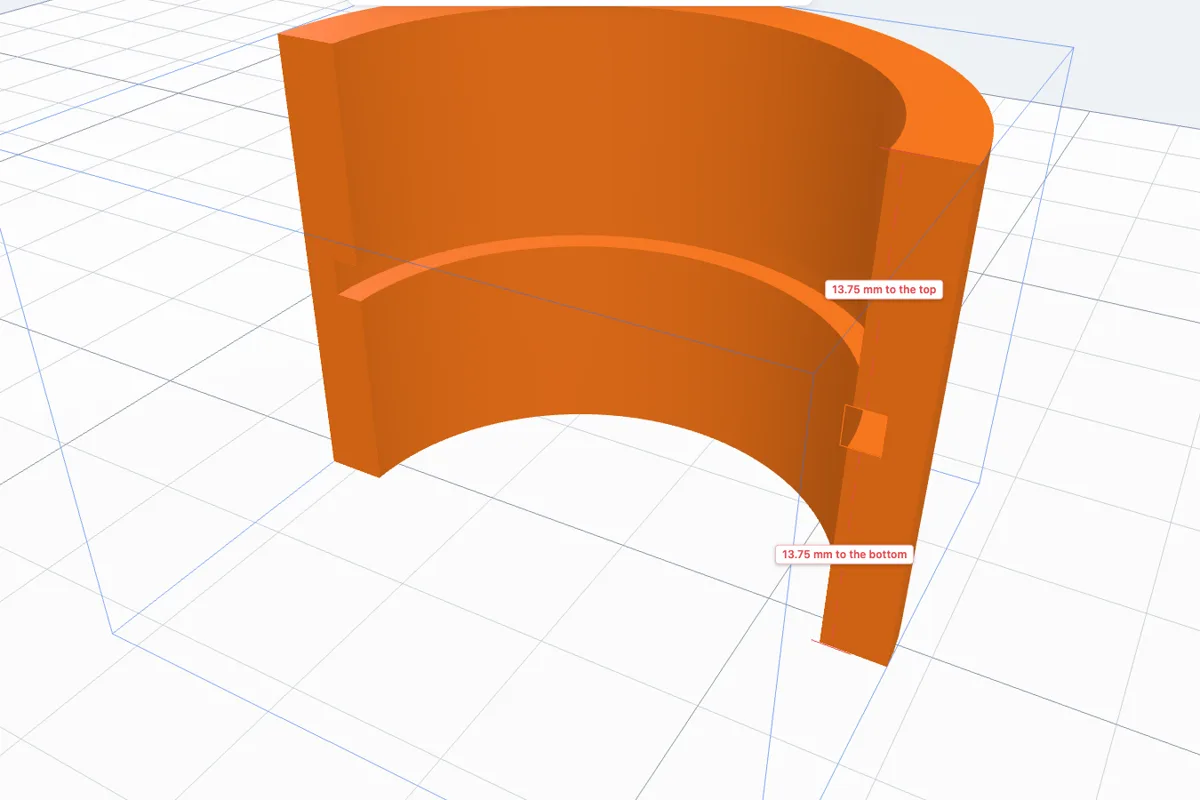
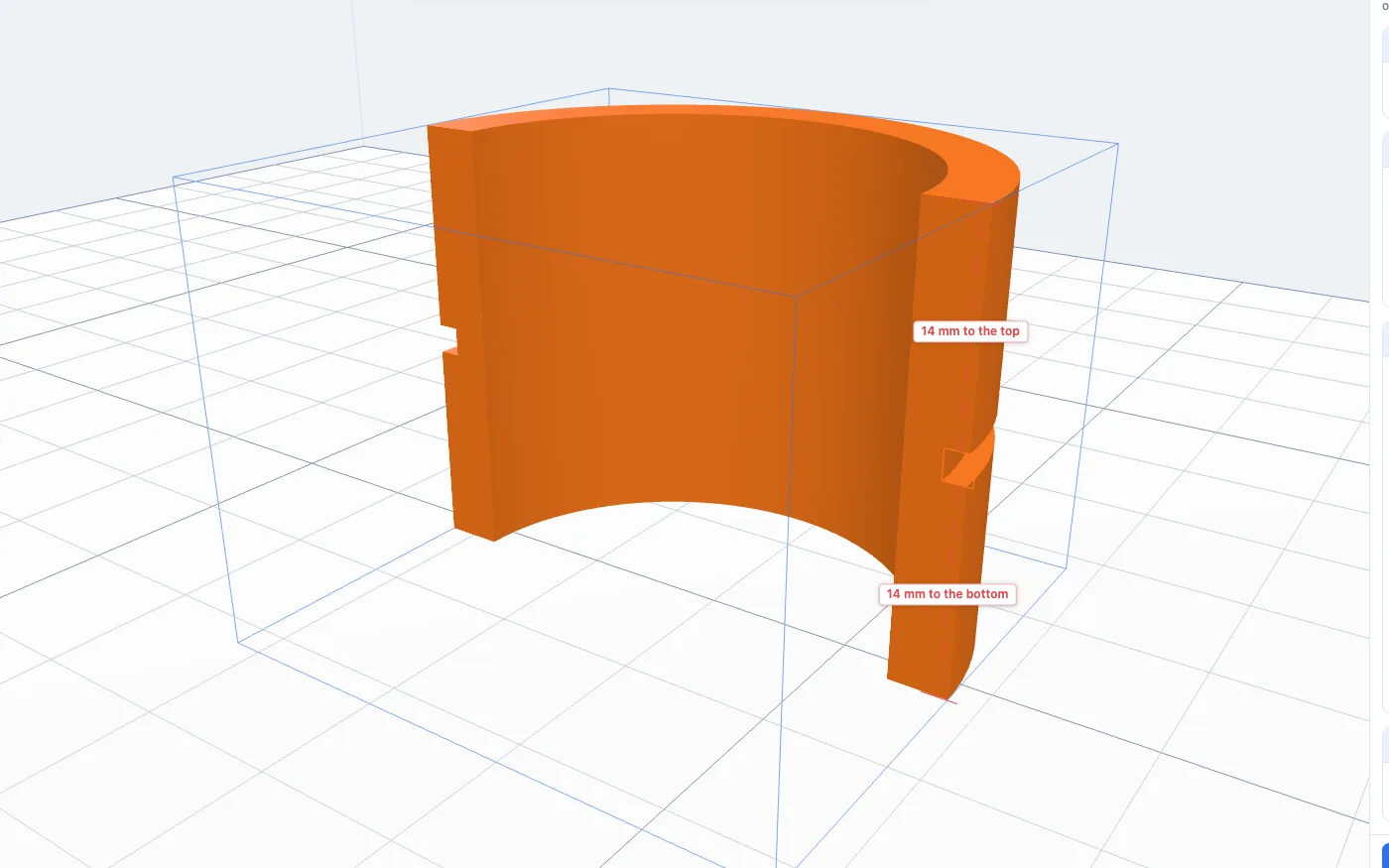
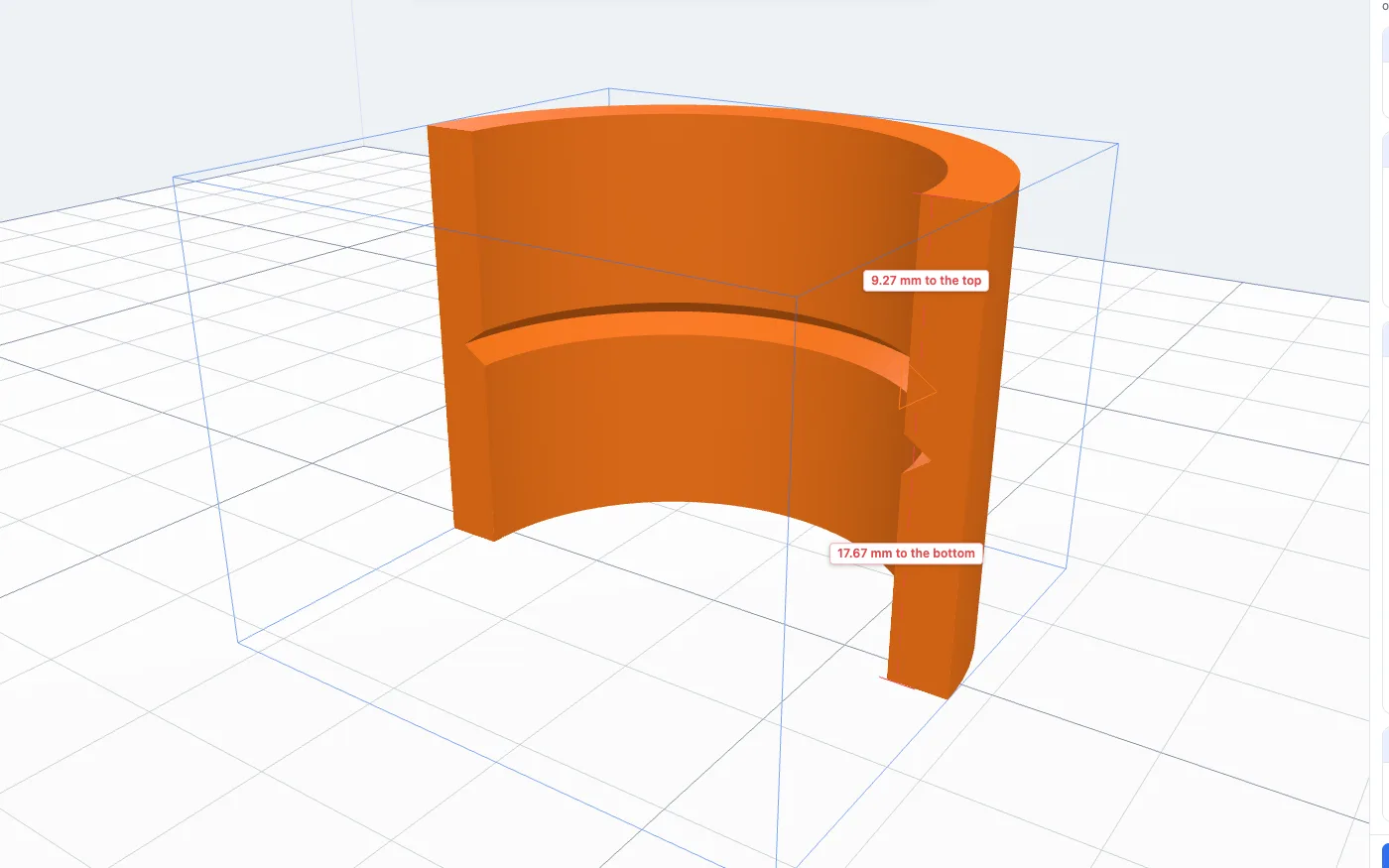
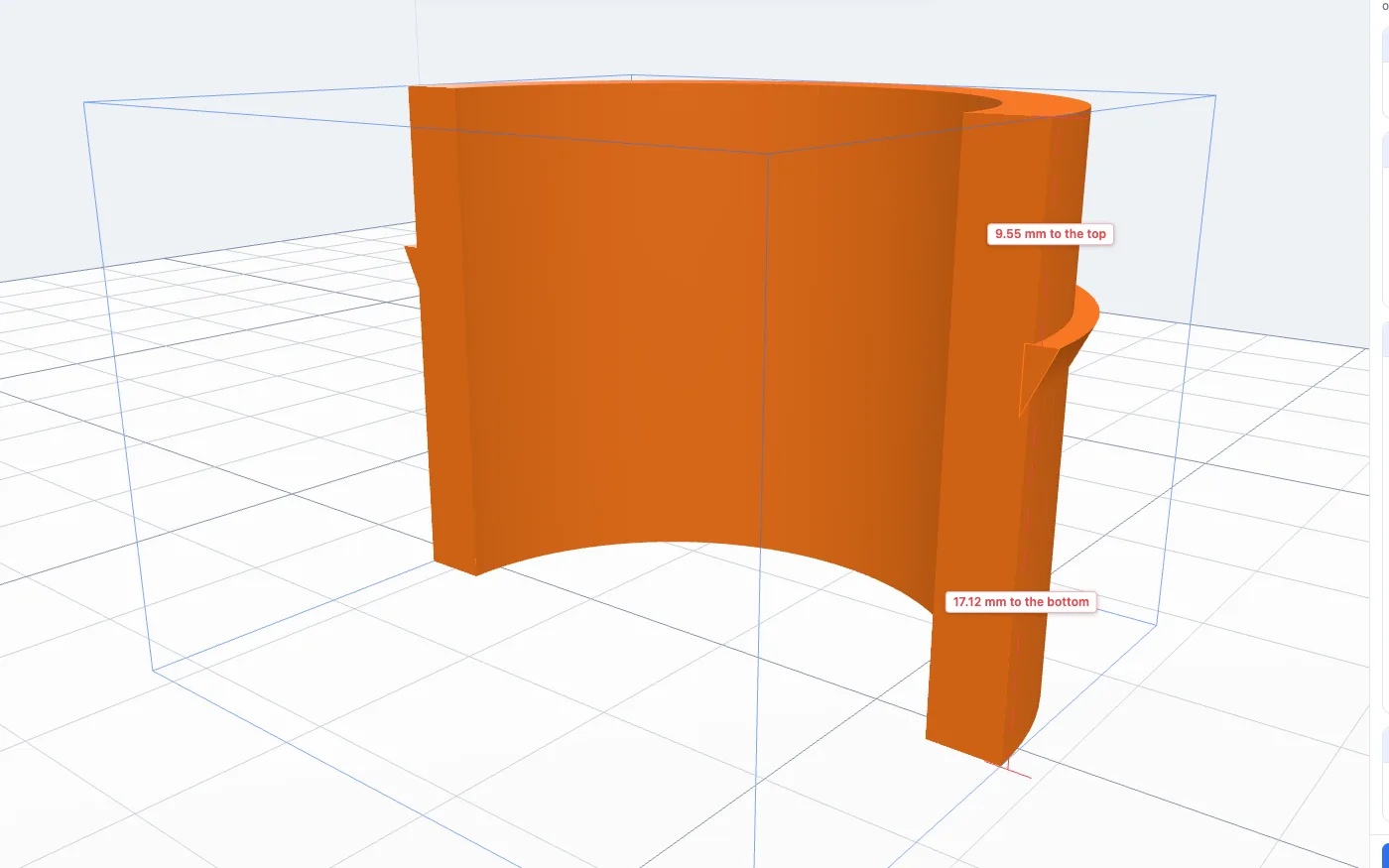
- The body is shown cut open on the side facing you, and a square groove is already there, 2 mm wide and 1.5 mm deep, half way up, on the outside wall. Its shape on the cut is outlined in orange.
- Two red dashed lines with labels show how far the slot is from the body's top and bottom.
2Outside or inside
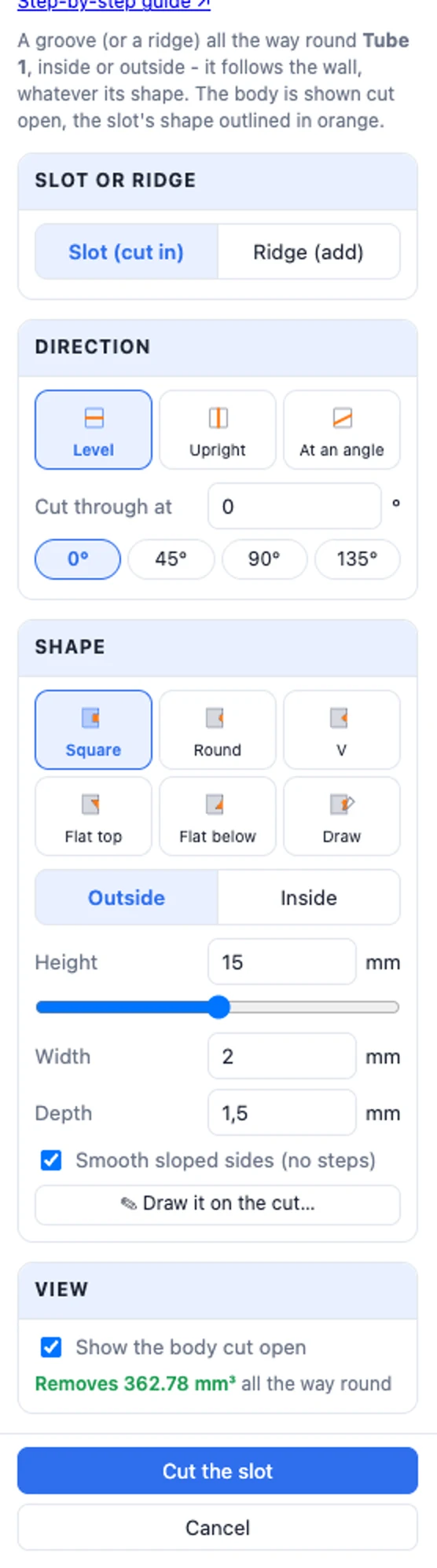
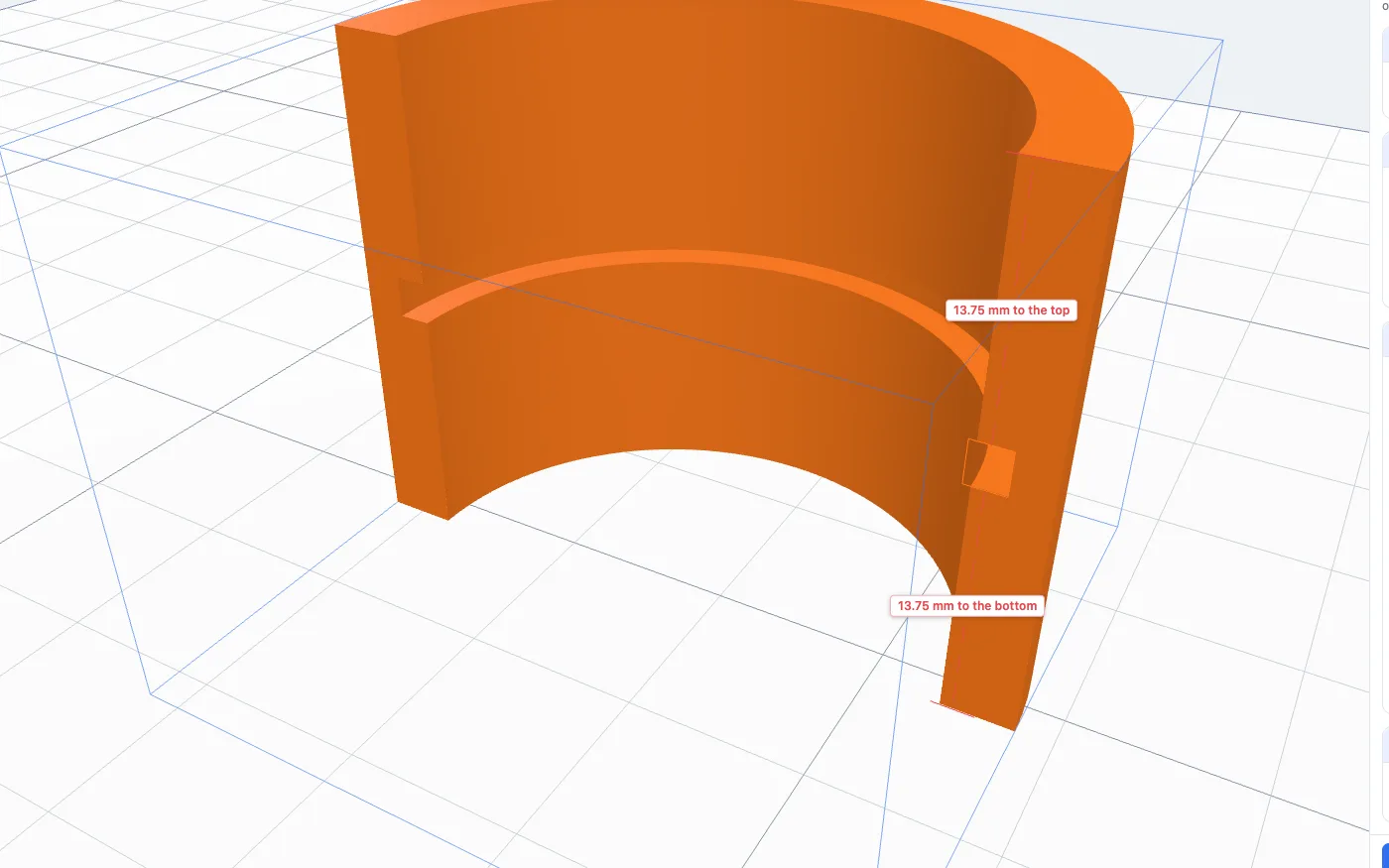
Outside puts the slot on the body's outer wall, Inside on its inner wall - inside a tube, a cup or a ring. That is an O-ring groove: here 2.5 mm wide and 1.8 mm deep, all the way round the inside of the tube.
Inside is greyed out where the cut has no inner wall at that height (a solid body), and the slot stays on the outside.
3Size and height
- Width - how tall the groove is along the wall (for the Round shape: its Diameter).
- Depth - how far it goes into the wall. For a ridge it is called Height out: how far it stands out.
- Height - where it is, in mm up from the body's lowest point. Type it, or slide the bar under it. For an upright or leaning slot this is called Position: where it is across the body.
The panel's last line says how much material the slot removes (or the ridge adds) all the way round, and warns you when a cut would split the body into pieces.
4Drag it along the body
Move the mouse over the orange outline - the cursor turns into a hand - and drag it up or down. While you drag, only the outline and the two distances move; the slot is made again when you let go. It moves in 0.1 mm steps (hold Alt for any position) and stops when it reaches the top or the bottom of the body.
5The shapes
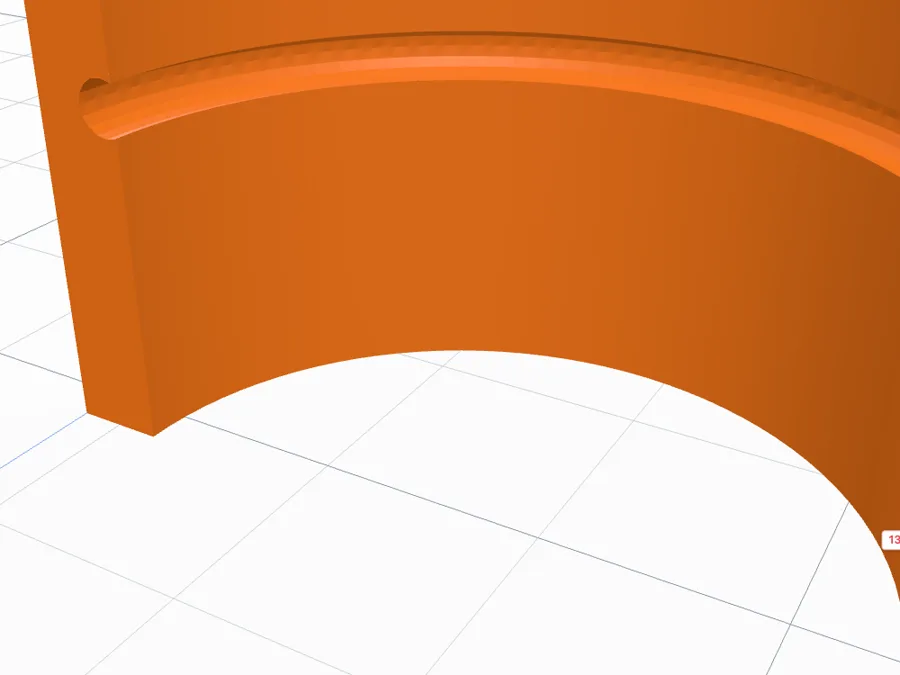
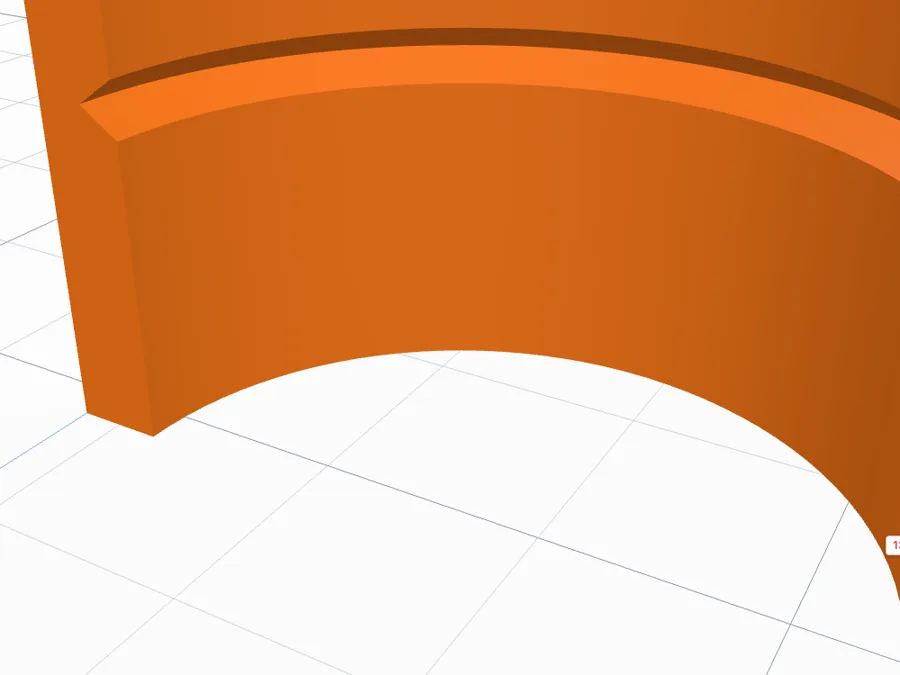
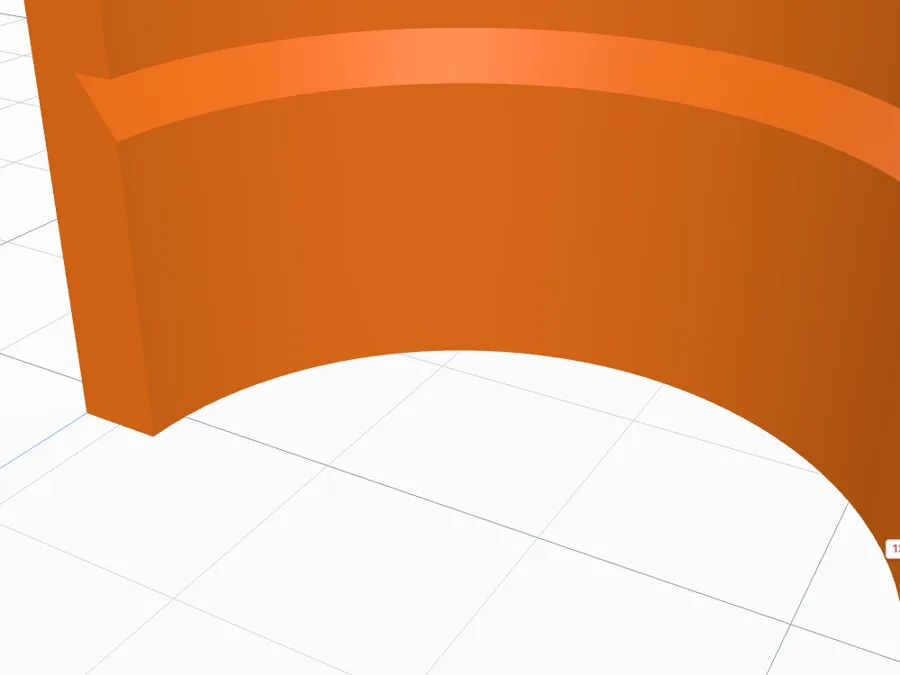
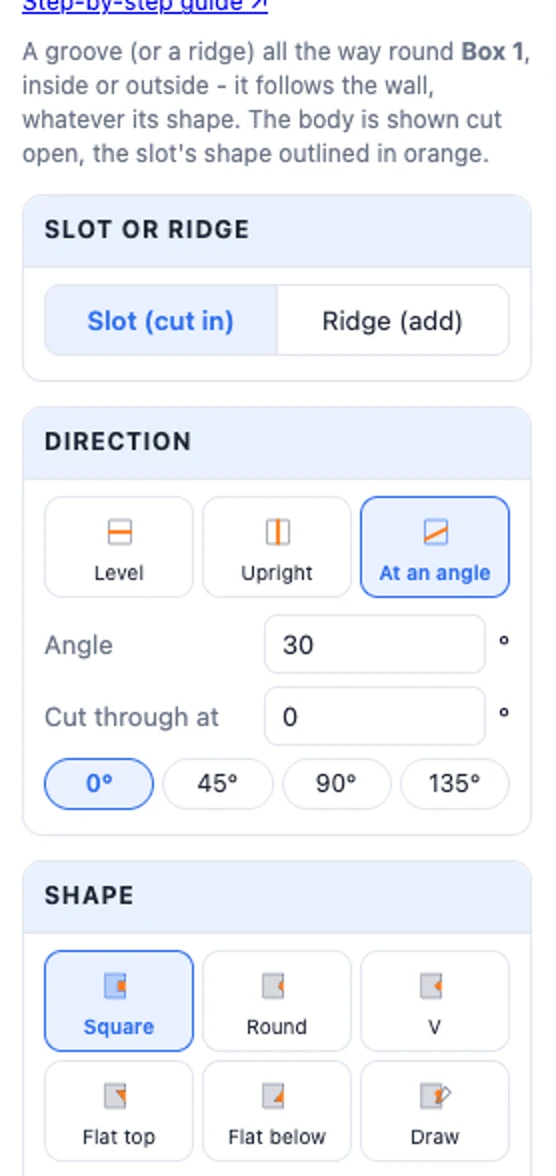
The Shape tiles: Square (an O-ring groove), Round, V, Flat top and Flat below - two right triangles against the wall, one flat on top and sloped below, the other the other way round - and Draw (your own shape, below).
6Smooth sloped sides
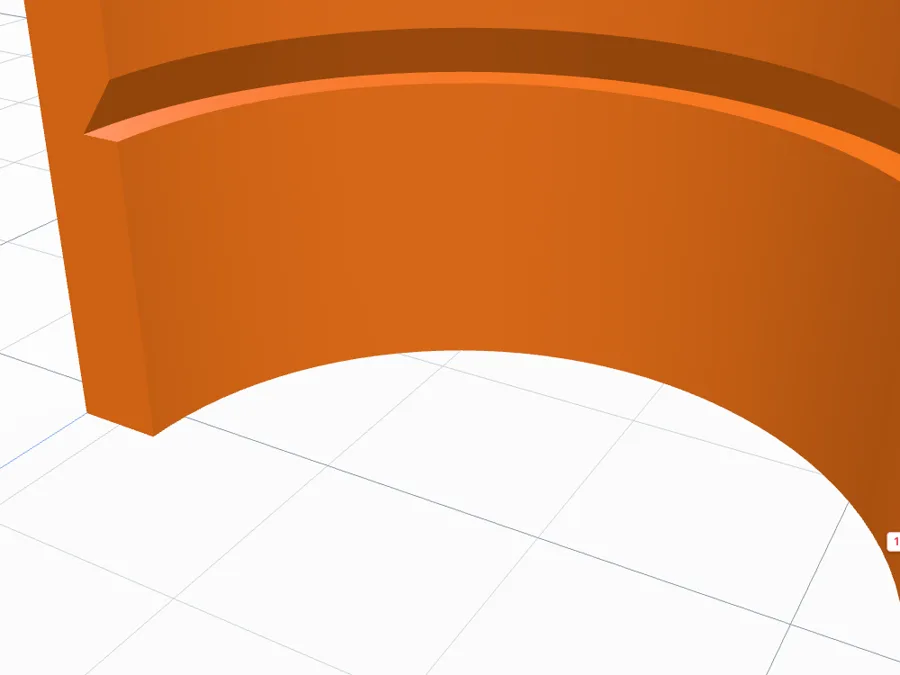
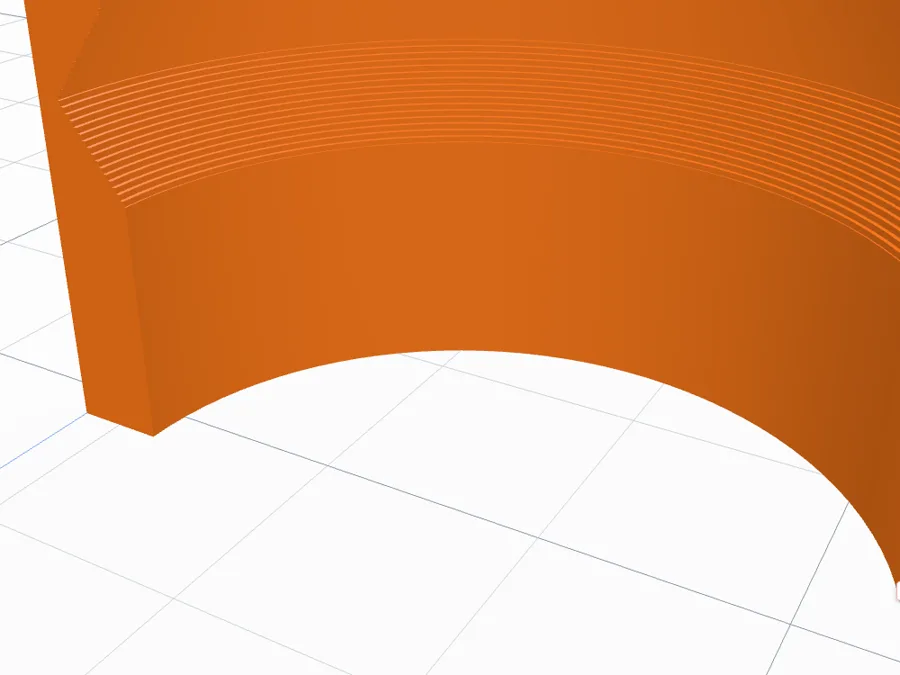
Smooth sloped sides (no steps) is on by default: a V, a round or a drawn slope is made as one smooth slope. Untick it and sloped sides are built from thin steps (0.1 mm when the slot is applied) - the way the tool also works where the body's wall changes along the slot, such as a tapered wall.
7Slot or ridge
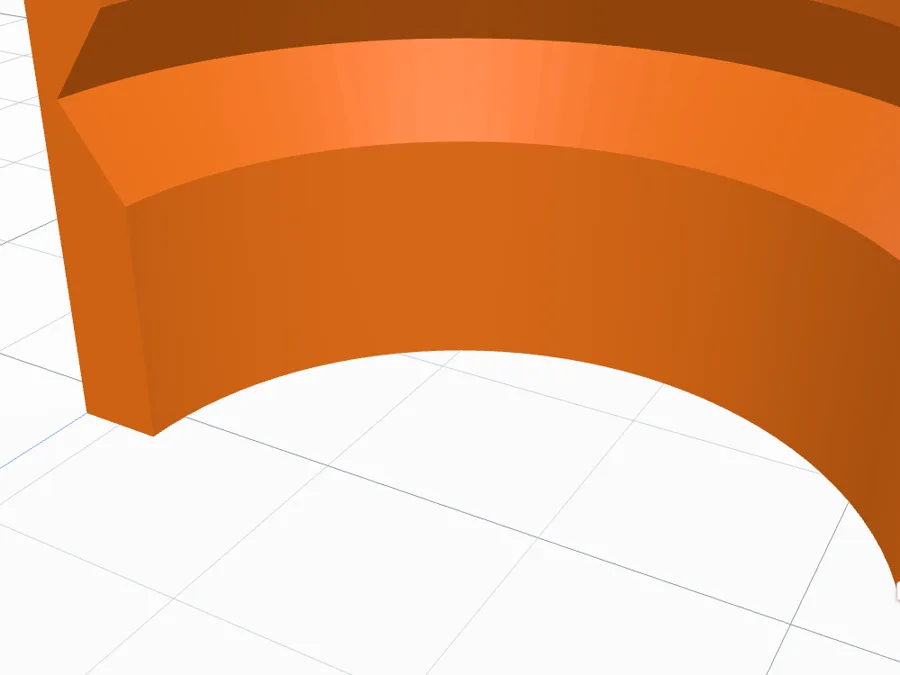
At the top of the panel: Slot (cut in) cuts the shape into the wall, Ridge (add) adds the same shape standing out of it. A Flat top ridge on the outside is a snap lip: its flat top holds a lid or a ring, and its slope underneath prints without supports.
8Draw your own shape
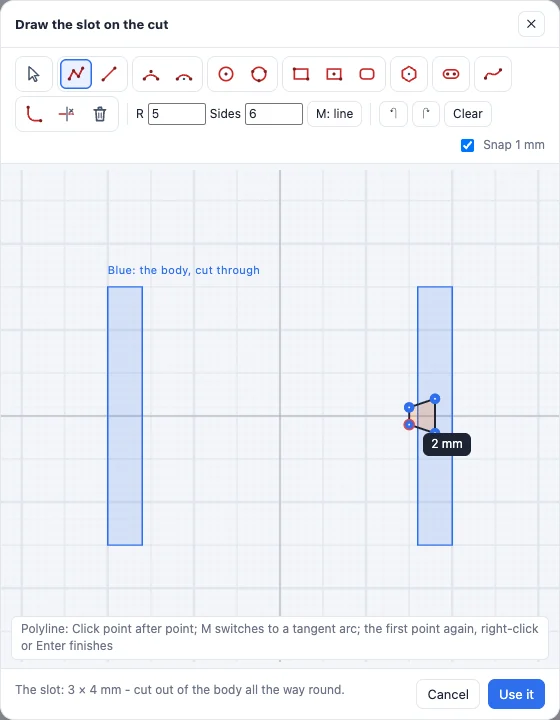
Click Draw it on the cut… (or the Draw tile). The body is shown cut through in blue - draw a closed shape against one of its walls with the sketch tools (polyline, arcs, circles, rectangles, rounded corners…). Points snap to the cut's corners and to the 1 mm grid. The editor starts from the shape you were using, so you can also just change it. Use it and the shape runs all the way round the body along that wall - here a dovetail groove inside the tube.
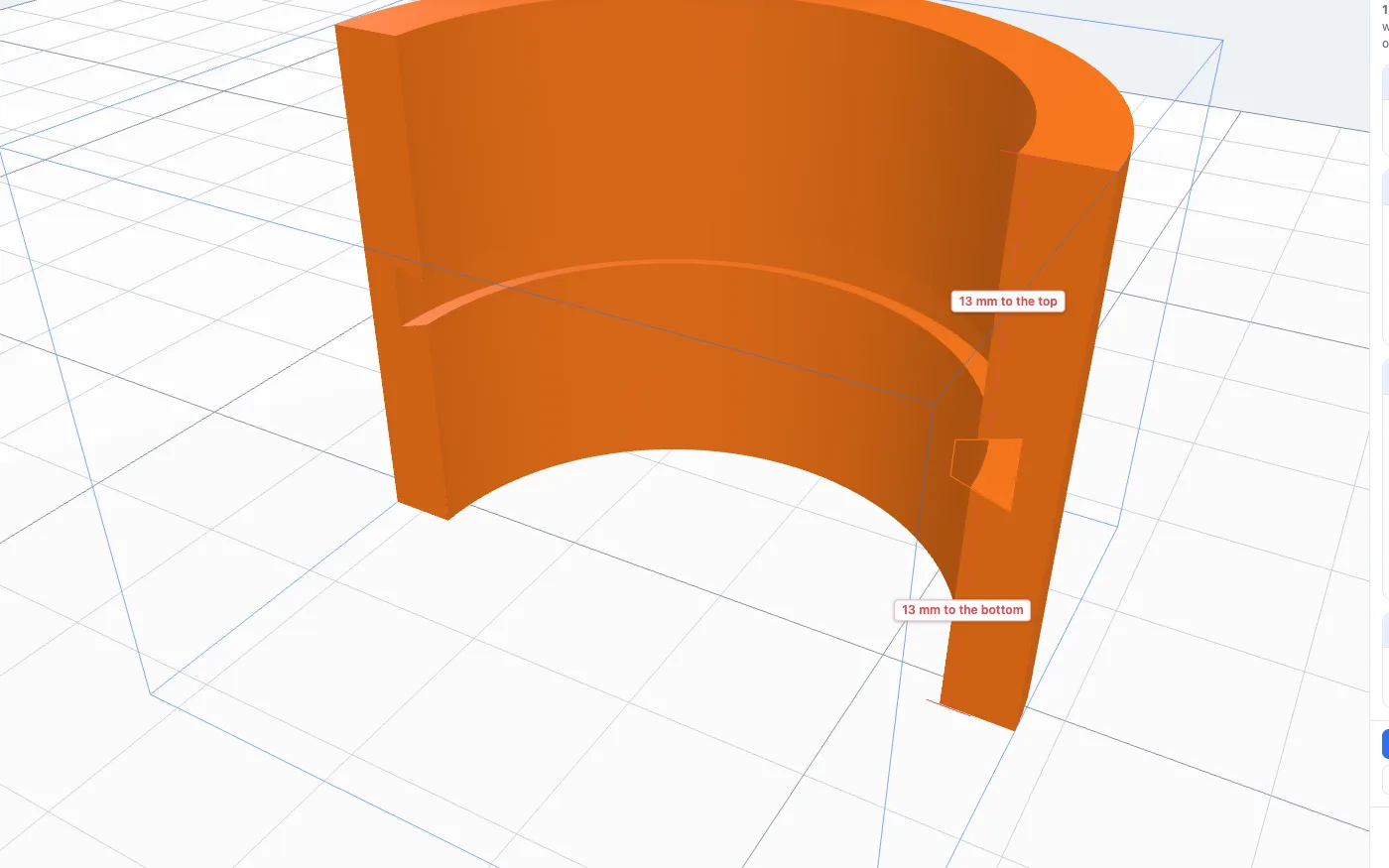
A drawn slot is dragged in the view like the others; Change the drawing… opens it again.
9See the whole body
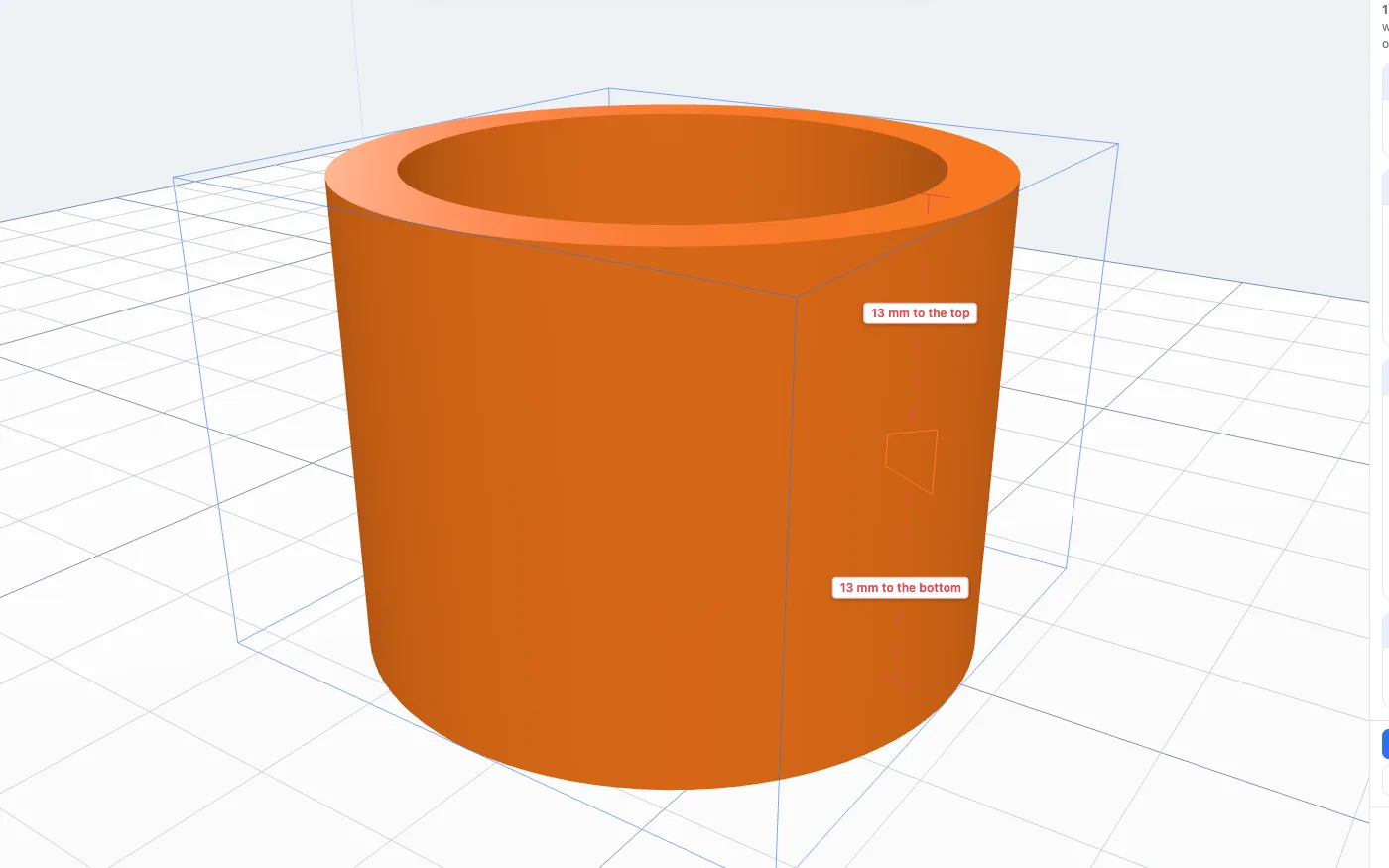
Untick Show the body cut open to see the whole body with the slot in it; tick it again to look inside.
10Level, upright or at an angle
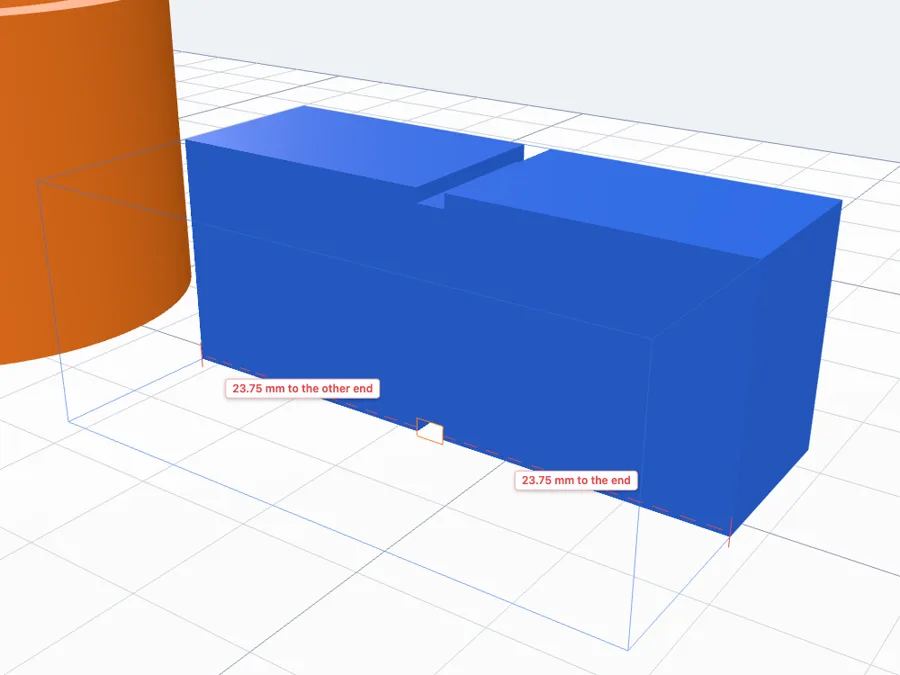
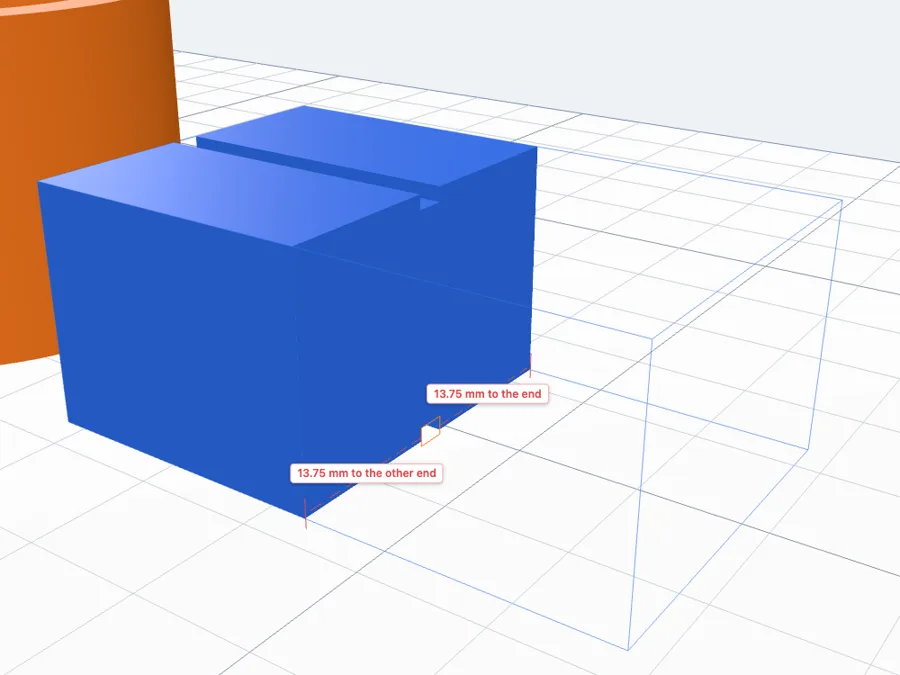
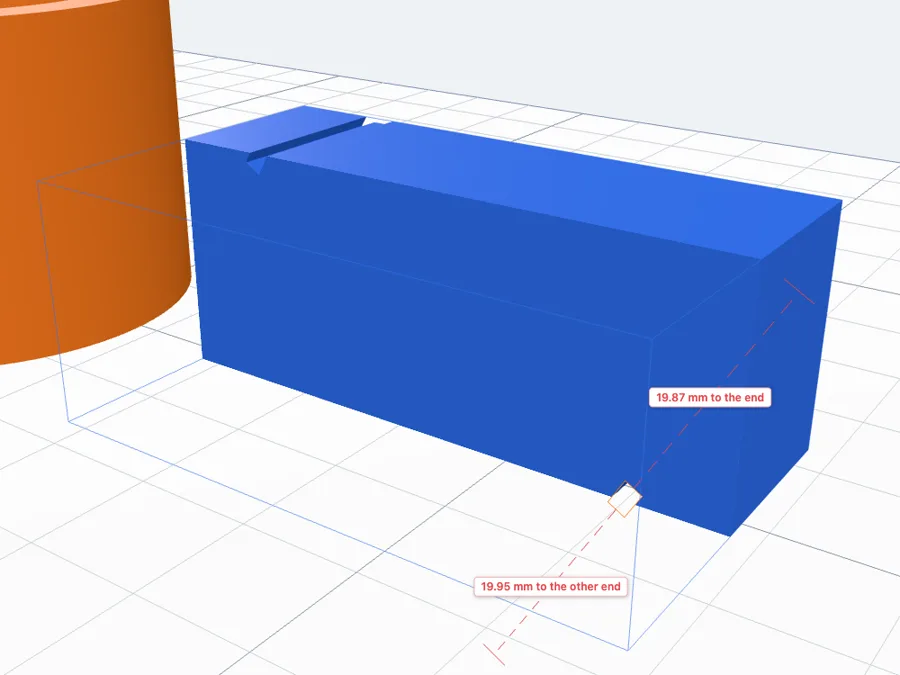
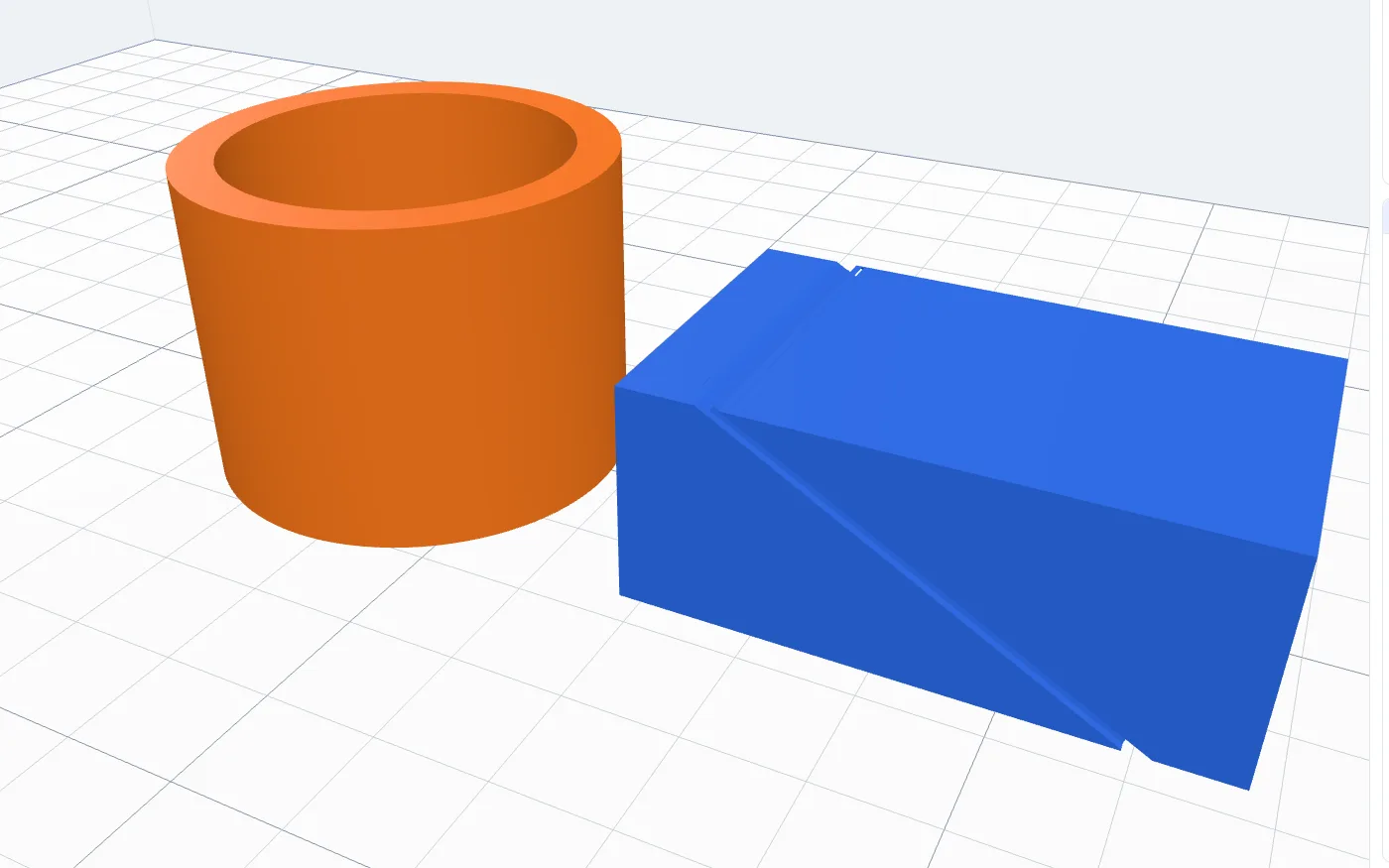
The second example is a box, 50 × 30 × 20 mm. A slot round it follows its outline, corners and all:
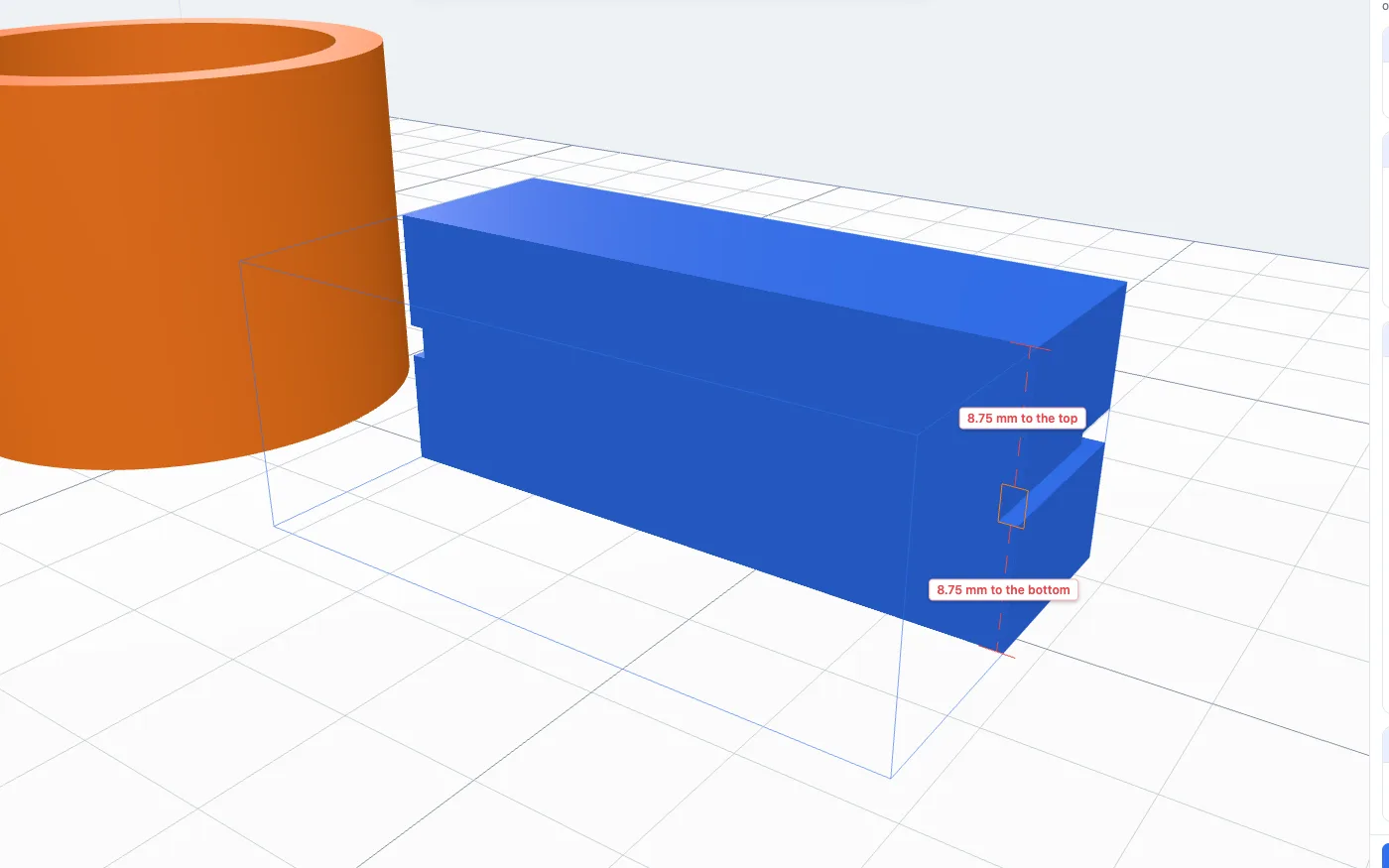
- Level - round the body at one height.
- Upright - round the body over the top and under the bottom.
- At an angle - leaning by the Angle you type (−89 to 89°).
- Cut through at - turns the cut, and with it an upright or leaning slot, round the body: type an angle or pick 0°, 45°, 90° or 135°.
11Apply it
Click Cut the slot (or Add the ridge). The body is changed in one step - Ctrl+Z / ⌘Z undoes it - and its colours are kept. Cancel (or Esc) leaves the body as it was.
12Good to know
- The slot follows the wall it is drawn against, at every height of the slot - it works on round, square and drawn outlines, and on imported STL files.
- For an O-ring, make the groove a little narrower than the cord is thick, and its depth about 75-80 % of the cord.
- A groove cut too deep into a thin wall would split the body: the panel warns you before you apply it.
- Printed lying flat, a flat-top ridge's slope underneath needs no supports; a flat-below ridge is the one to print upside down.
Questions
How do I cut an O-ring groove inside a tube?
Select the tube, click Slot round body in the Body card, pick Inside and the Square shape, type the groove's width and depth and its height from the bottom, then click Cut the slot. The groove runs all the way round the inside wall.
Does it work on shapes that are not round?
Yes. The slot follows the wall it is drawn against, whatever its outline: a box, a hexagon, a heart, a drawn shape or an imported STL.
What is the difference between a slot and a ridge?
Slot (cut in) cuts the shape into the body's wall; Ridge (add) adds the same shape standing out of the wall. A ridge with a flat top on the outside makes a snap lip that prints without supports.
Can the slot go upright or at an angle?
Yes. Level runs round the body at one height, Upright runs over the top and under the bottom, and At an angle leans it by any angle you type. Cut through at turns it round the body.
Can I draw my own groove shape?
Yes. Click Draw it on the cut: the body is shown cut through in blue, and the shape you draw against one of its walls runs all the way round the body - a dovetail, a half round, anything closed.
A groove all the way round, in one click
Open the app, add a shape or import an STL, and click Slot round body in the Body card.
Open 3DPrintCADAlso see: Basic shapes and body tools, Push / pull face tool, Hole pattern tool, Sketch tool and Box generator.