3DPrintCAD › Guides › Lid / cap tool
Lid / cap tool: a lid for any 3D printed container
Select a box, a pot, a tube or any container and get a lid made to fit it. The container turns see-through with the lid on it, so you see how it fits while you choose: a plug, a cap, a flat or a flush lid, held by a push fit, a click, a slope, pins, magnets - or on round ones a screw thread or a twist lock. Every size and the fit are yours to set.
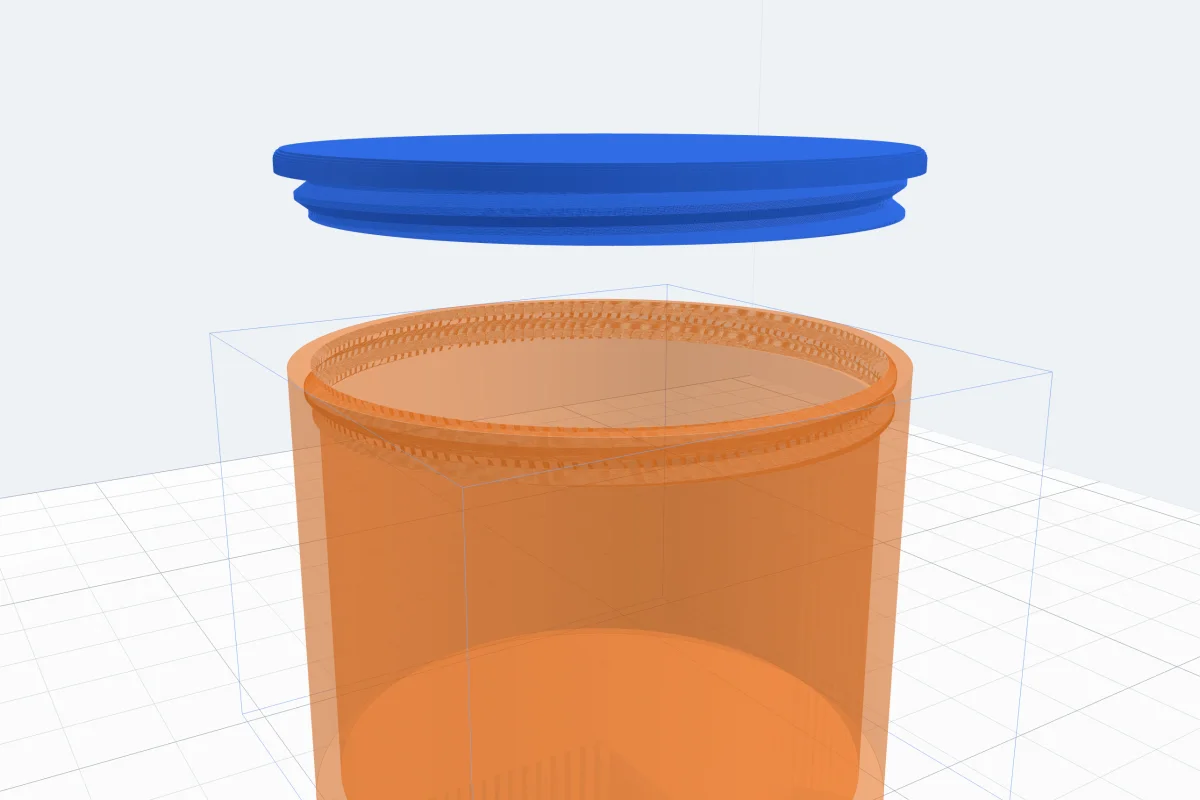
Watch the tutorial
Every option in under four minutes, with subtitles: the four lid types, all seven ways of closing - with the screw thread and the twist lock - sizes, fit, edges and handles, on a round pot and a rectangular box. Watch on YouTube ↗
1Open the tool
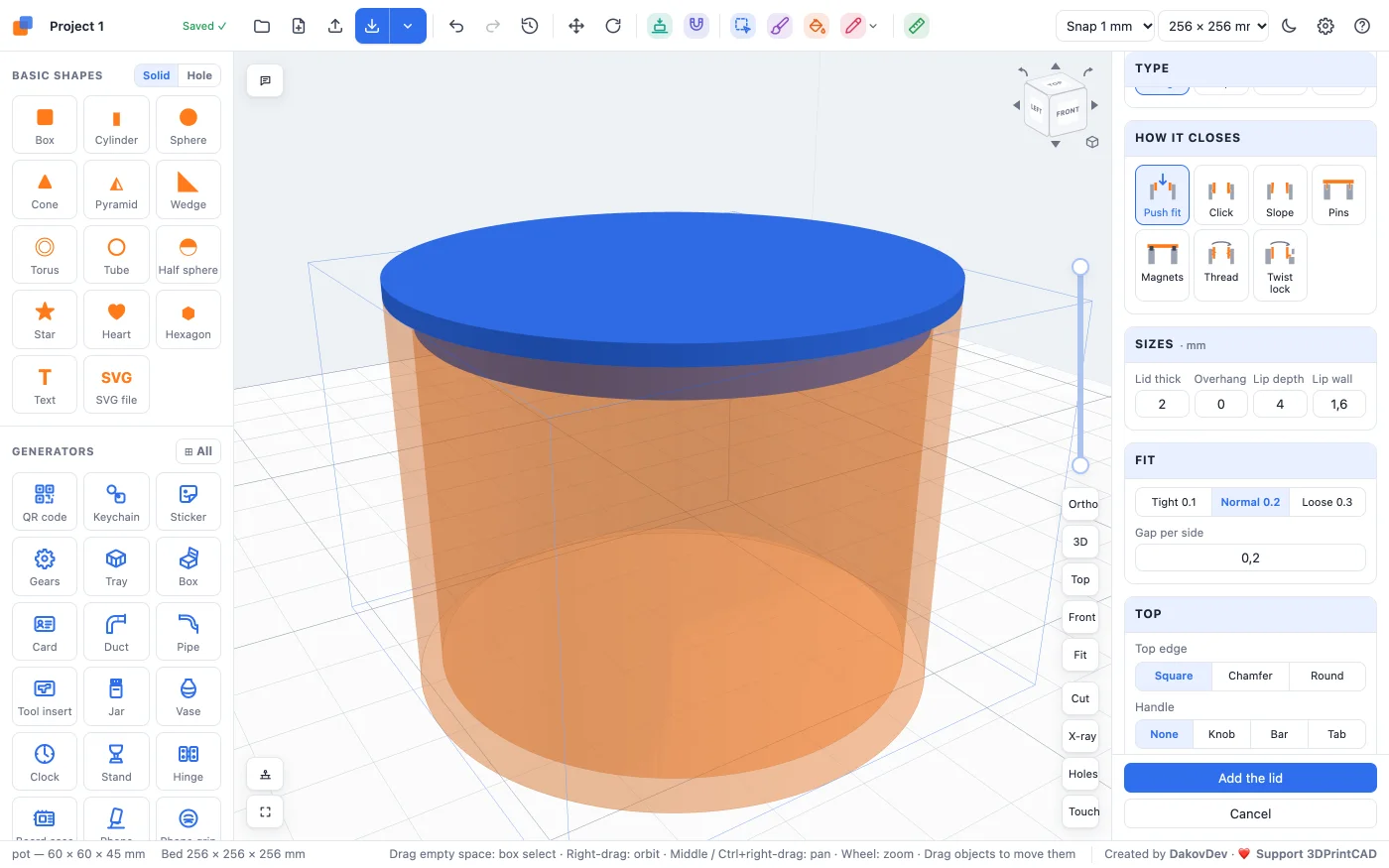
The tool works on any solid body that is open at the top - one you made in 3DPrintCAD, a generator's result or an imported STL. Here it is a round pot, 60 mm across and 45 mm tall, with a 2.6 mm wall.
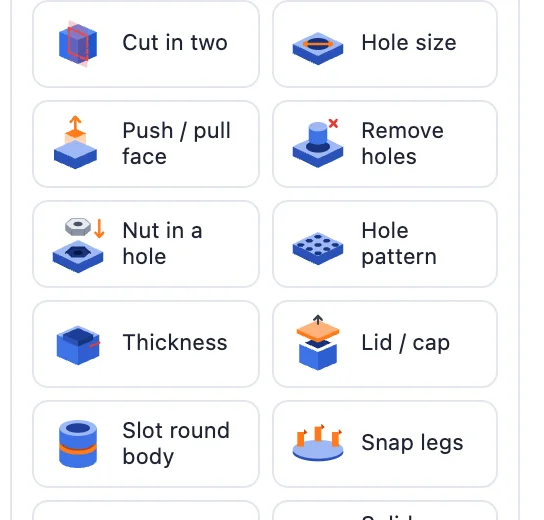
- Select the container and click Lid / cap in the Body card.
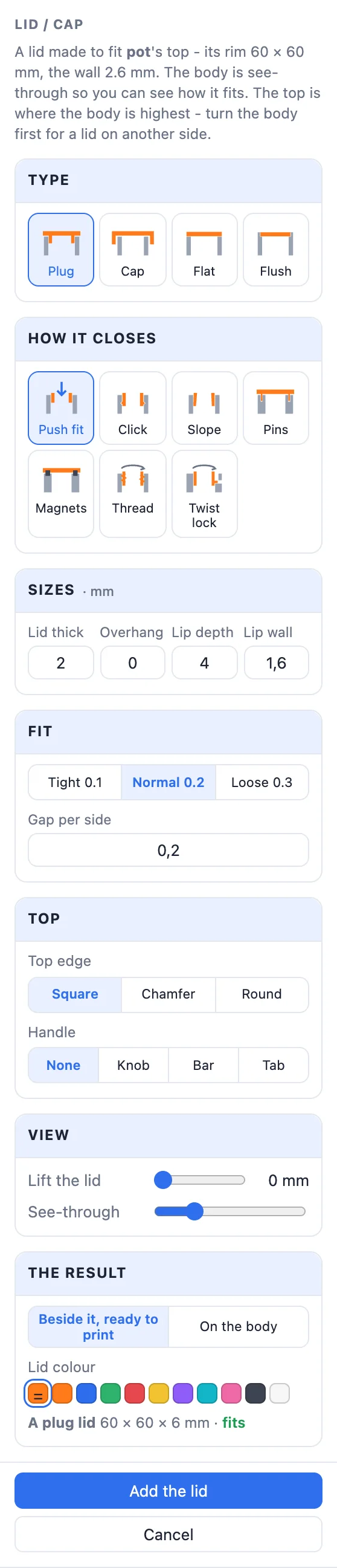
- The container turns see-through and a lid appears on it - a preview that follows every setting. The panel says what it found: the rim's size and the wall's thickness.
- The lid goes on the container's highest side. For a lid on another side, turn the body first.
2Plug, cap, flat or flush
- Plug - a plate on the rim with a lip that goes down into the opening. It fits the opening's narrowest part.
- Cap - a skirt that goes down over the outside. It fits the container's widest part, so a rounded top edge is no problem.
- Flat - a plate that sits on top, held by pins or magnets.
- Flush - a ledge is cut into the rim and the lid drops into it, level with the top.
A container that is closed on top can only take a cap or a flat lid.
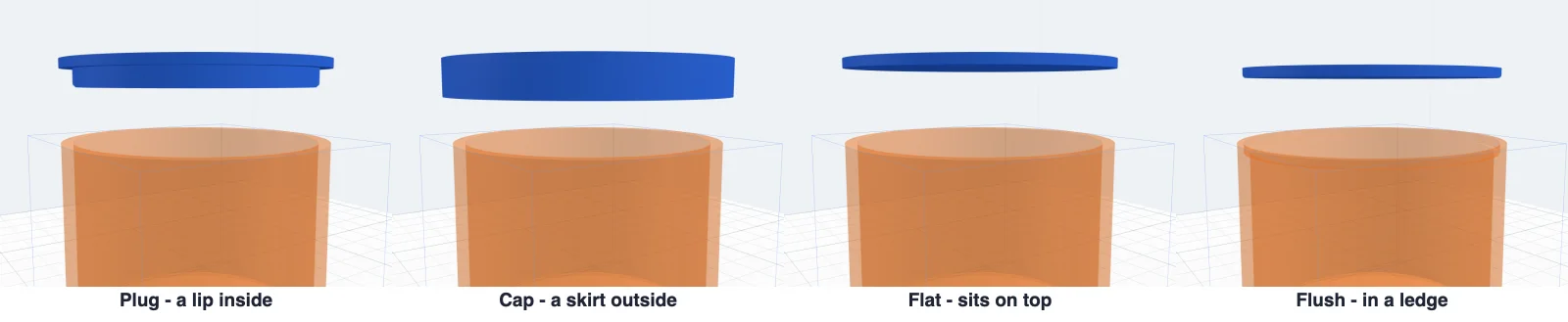
3How it closes
- Push fit - held by the fit alone.
- Click - a 45° bead on the lip or skirt clicks into a groove cut into the container. Bead is how far it stands out (more holds harder), From the end where it sits.
- Slope - the plug's lip narrows toward its end (2°, 3°, 5° or 8°), so it wedges in and finds its place by itself.
- Pins - pins under the lid go into holes in the rim: how many, their Ø and length.
- Magnets - pockets in the lid and the rim for round magnets: sizes 3 × 2 to 10 × 3 or your own, and how many. Glue the magnets in.
- Thread and Twist lock - for round containers, see below.
Pins and magnets go round the middle of the rim. A warning shows when the rim is too thin for them - a 6 mm magnet needs a rim about 7 mm thick.
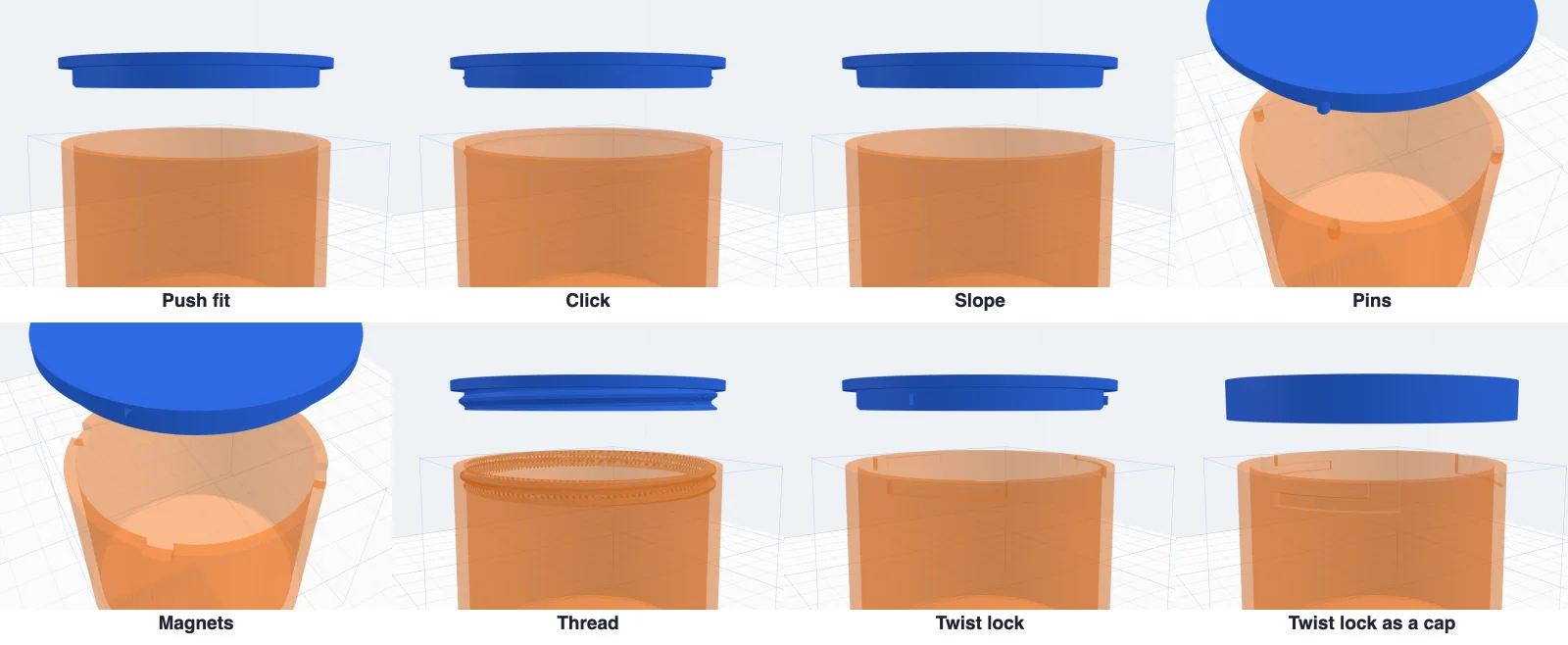
4A screw thread
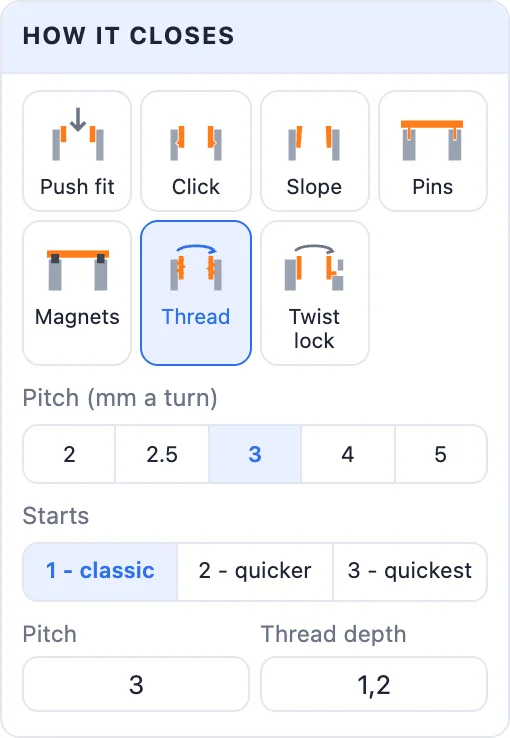
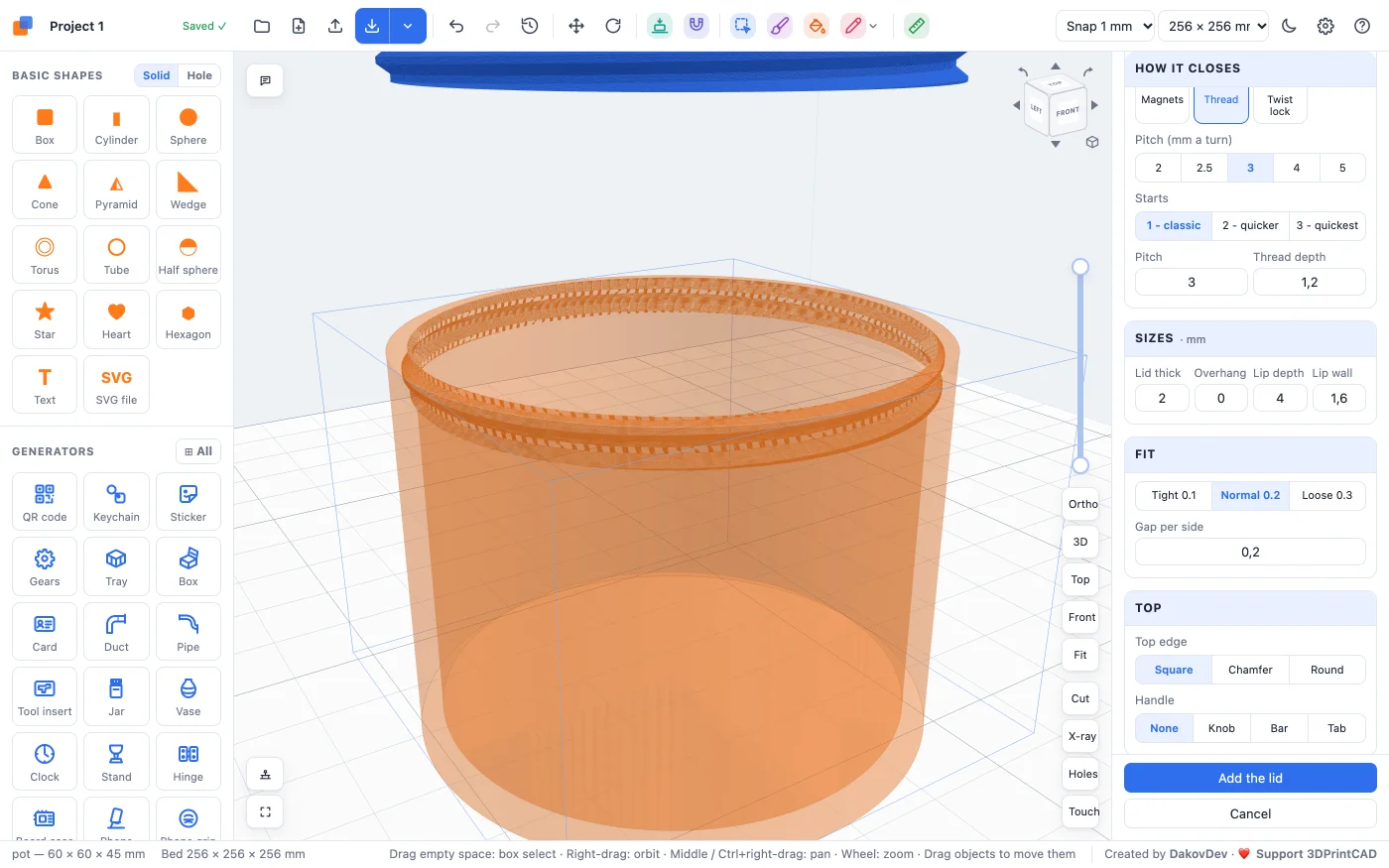
On a round container Thread makes a screw-on lid. With a Plug the lip is the screw and a matching thread is cut inside the wall; with a Cap the thread is cut round the outside and the cap is the nut.
- Pitch - how far it moves in one turn: 2, 2.5, 3, 4 or 5 mm, or any value.
- Starts - 1 is a classic thread; 2 or 3 close in fewer turns.
- Thread depth - how far it is cut into the wall. Leave at least 0.8 mm of wall.
It closes clockwise and opens anticlockwise, like a jar; the panel says how many turns it takes.
5A twist lock
Twist lock is a bayonet: lugs on the lip (a plug) or inside the skirt (a cap) drop into L-shaped slots cut into the container, and a short clockwise turn locks the lid. Choose the turn (30°, 45°, 60°, 90° or any), how many Lugs (2-6), their width, height and depth, and the Lock depth - how far below the rim the slots turn.
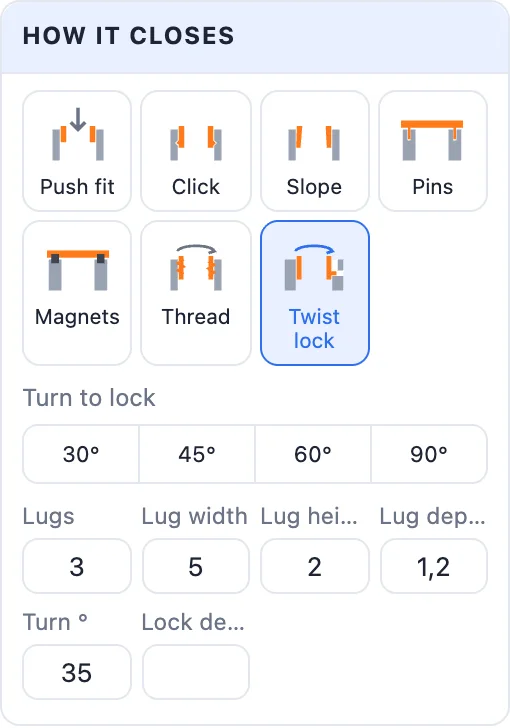
The thread and the twist lock need a round opening (Plug) or a round container (Cap). Their tiles are greyed out otherwise, and the panel tells you when the other type would work.
6Sizes and fit
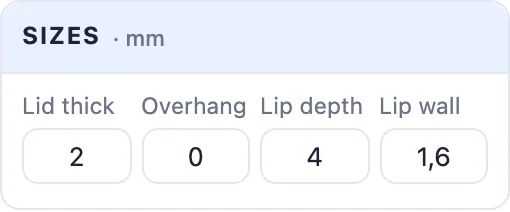
- Lid thick - the plate's thickness (made thicker by itself for magnets).
- Overhang - how far the lid reaches past the container all round.
- Lip depth and Lip wall (0 = a solid plug), Skirt depth and Skirt wall, or the Ledge of a flush lid.
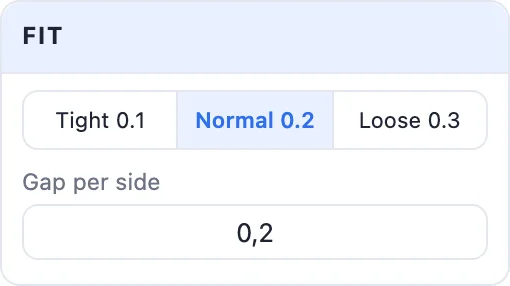
- Fit - the gap per side: Tight 0.1 (a press fit), Normal 0.2 or Loose 0.3, or any value.
7The top edge and a handle
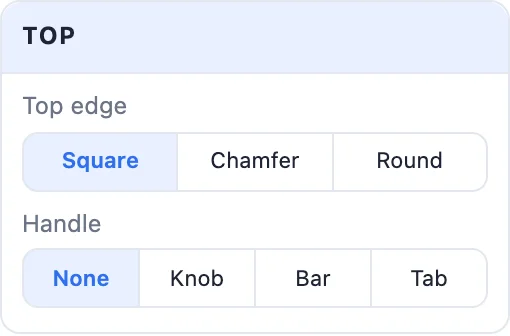
Top edge: Square, Chamfer or Round, and its size. Handle: a Knob (its Ø and height), a Bar across the lid or a finger Tab sticking out at the front.

8Lift the lid to look inside
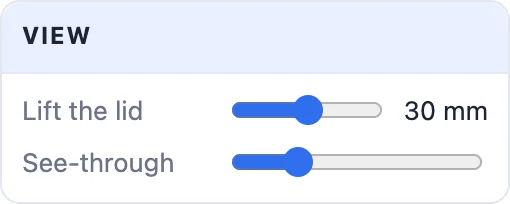
Lift the lid raises it above the container (only in the view) so you can see the lip, the thread or the lugs and what is cut into the container. See-through sets how clear the container is.
9Add the lid
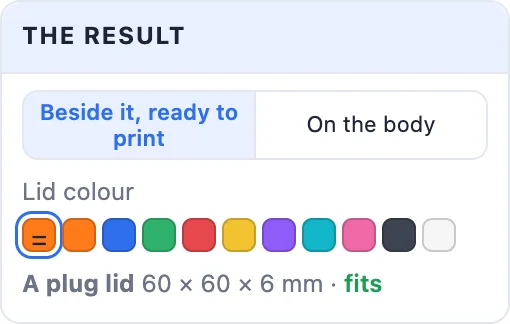
Under The result choose Beside it, ready to print (the lid turned over beside the container) or On the body (in place, closed), and the lid's colour - the container's, or any swatch. Click Add the lid: the lid becomes a new object, Lid for …, and whatever the closing needs (a groove, a thread, slots, holes, pockets or a ledge) is cut into the container - one undo step.
10A rectangular box
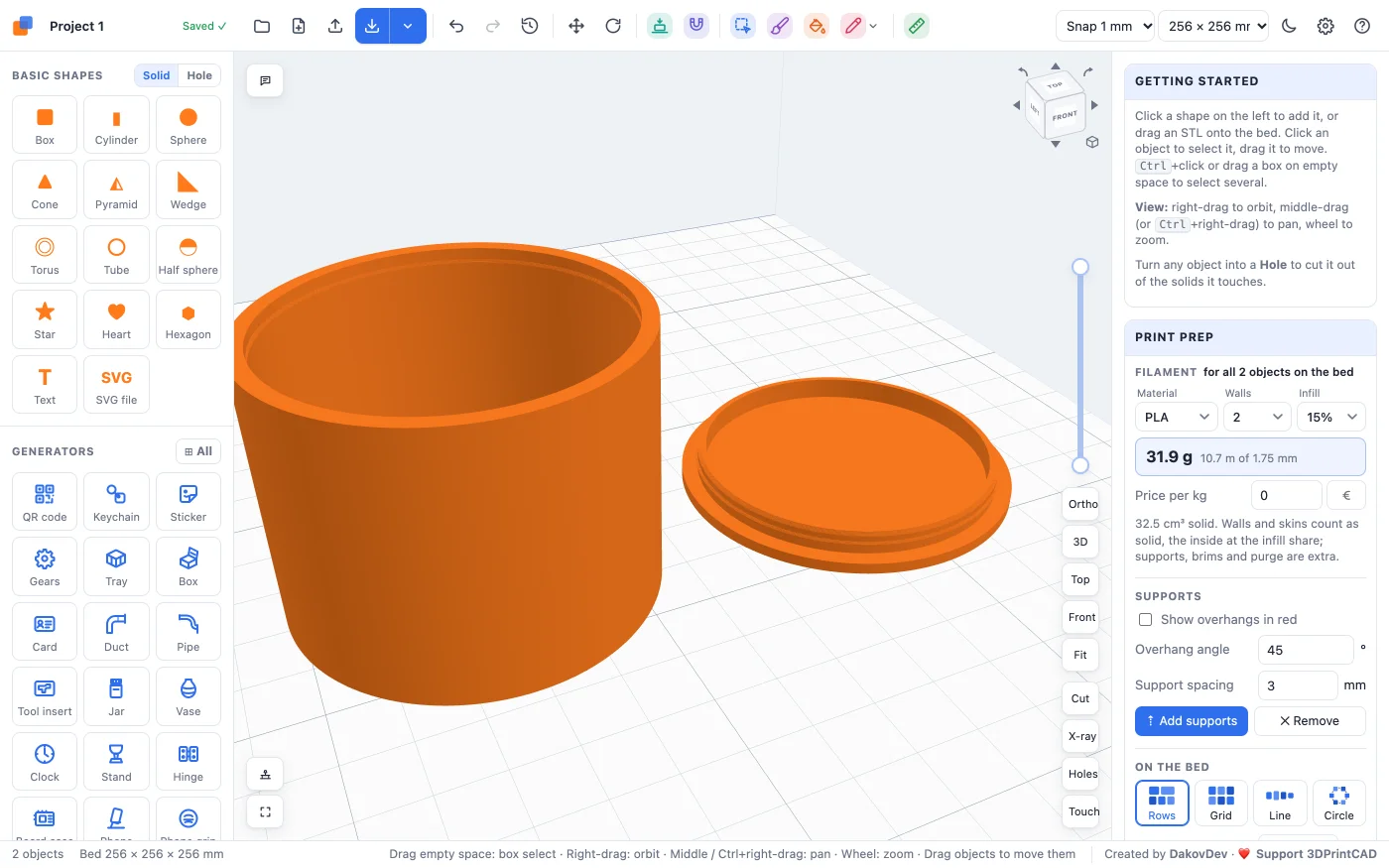
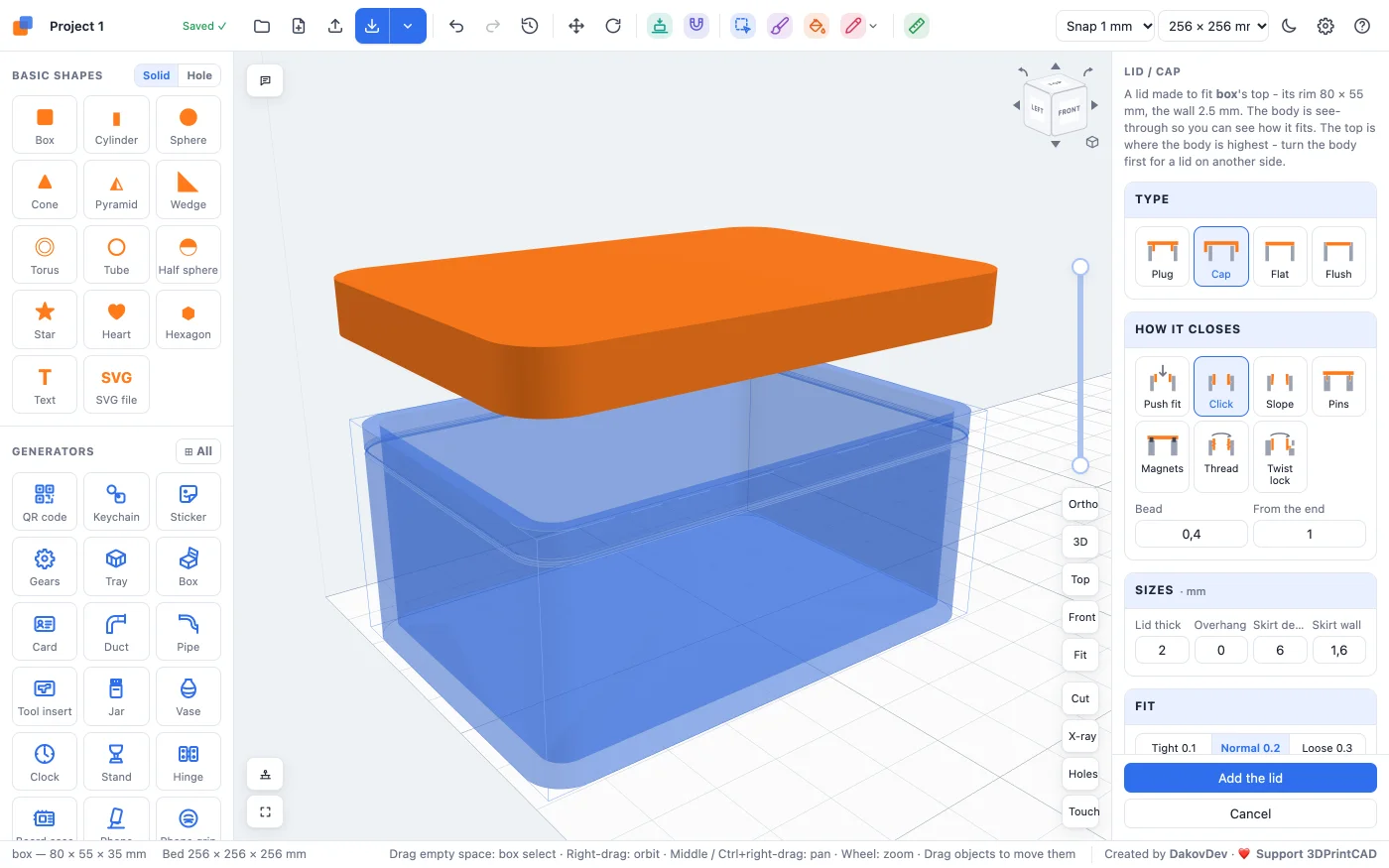
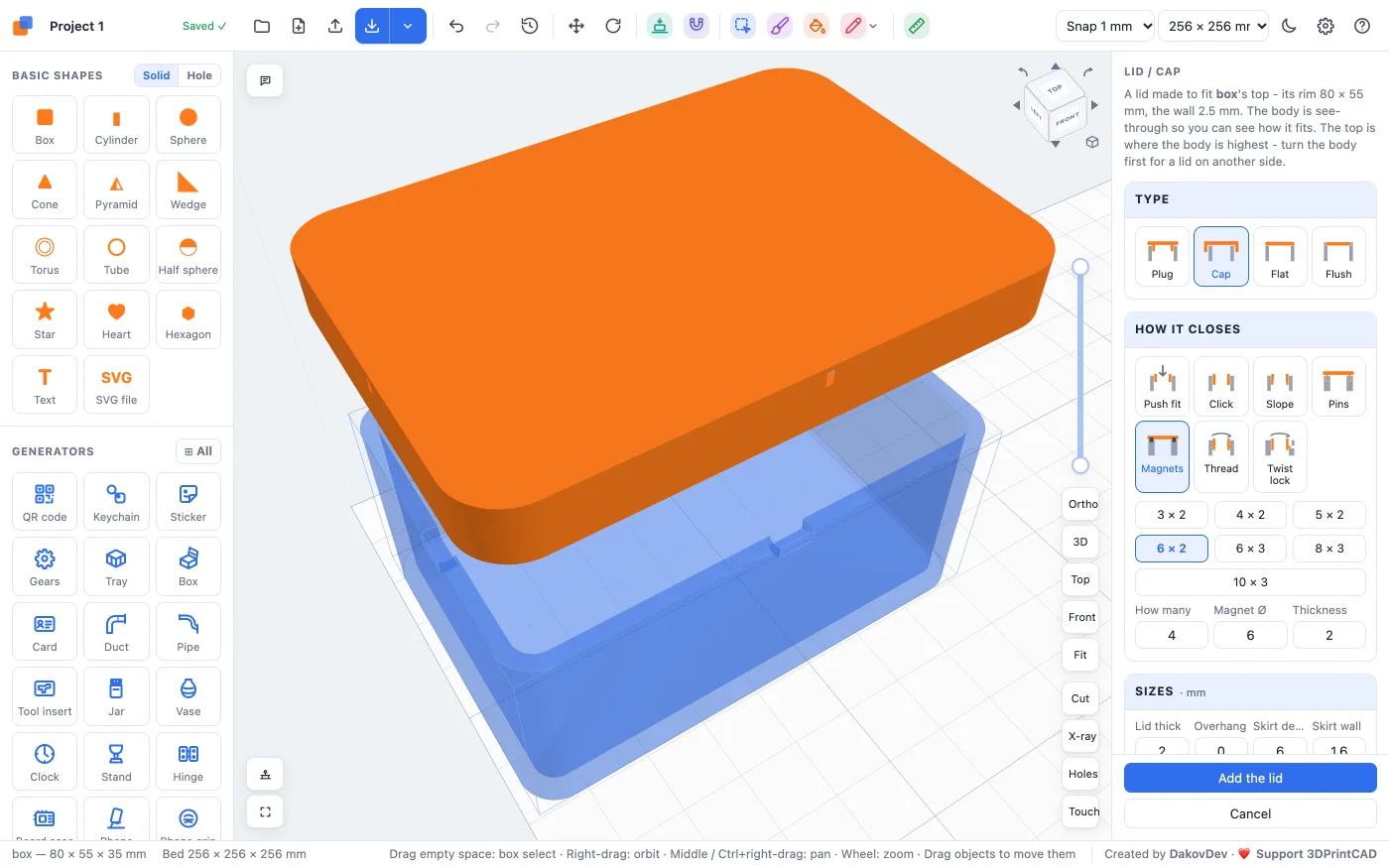
Any shape works - here a box 80 × 55 × 35 mm with rounded corners, a cap with a click, then magnets. A thread or a twist lock needs a round box.
11Tips for printing
- Print the lid upside down - Beside it, ready to print lays it that way. A lid with a knob or bar prints standing on its lip and needs supports.
- Start with Normal fit; if it is too tight or loose, change the fit and print only the lid again.
- A click lid and a twist lock work best in PETG, which bends without breaking.
- A thread prints best with a pitch of 3 mm or more and a depth of about 1.2 mm.
- For magnets, pause the print at the pocket's height (shown in the panel) or glue them in afterwards.
Questions
How do I make a lid for a 3D printed container?
Select the container, click Lid / cap in the Body card and the lid appears on it at once, the container see-through. Pick the type, how it closes and its sizes, then click Add the lid.
Can I make a screw-on lid?
Yes, on a round container: pick Thread. With a Plug the lip is the screw and a thread is cut inside the container's wall; with a Cap the thread is cut round the outside and the cap is the nut. Choose the pitch, 1-3 starts and the depth.
What is a twist lock?
A bayonet: lugs on the lid drop into L-shaped slots cut into the container, and a short clockwise turn locks it. Choose how many lugs, their size and the turn.
Does the tool change my container?
Only when the closing needs it: a groove for a click lid, a thread, slots for a twist lock, holes for pins, pockets for magnets or a ledge for a flush lid. It is one undo step with the new lid.
What fit should I use?
Normal (0.2 mm per side) for most printers. Tight (0.1) gives a press fit, Loose (0.3) a lid that comes off easily. Print a lid first and change the fit if needed.
Make a lid for your container
Open the app, make or import the container, and click Lid / cap in the Body card.
Open 3DPrintCADAlso see: Board case generator, Box generator, Jar generator, Basic shapes and body tools and Snap legs tool.