3DPrintCAD › Guides › Board case generator
Board case generator: cases for Raspberry Pi, ESP32, Arduino and LoRa boards
Pick your board and get a case that fits it: every port cut out where it is, the board held on standoffs, pins or clips, a lid with vents or a fan, and a way to mount it - on a wall, a DIN rail, a monitor or an aluminium frame. Raspberry Pi, ESP32, Arduino, Coralboard, RAK WisBlock, LilyGO T-Beam and Heltec boards are built in, and any other board can be typed in.
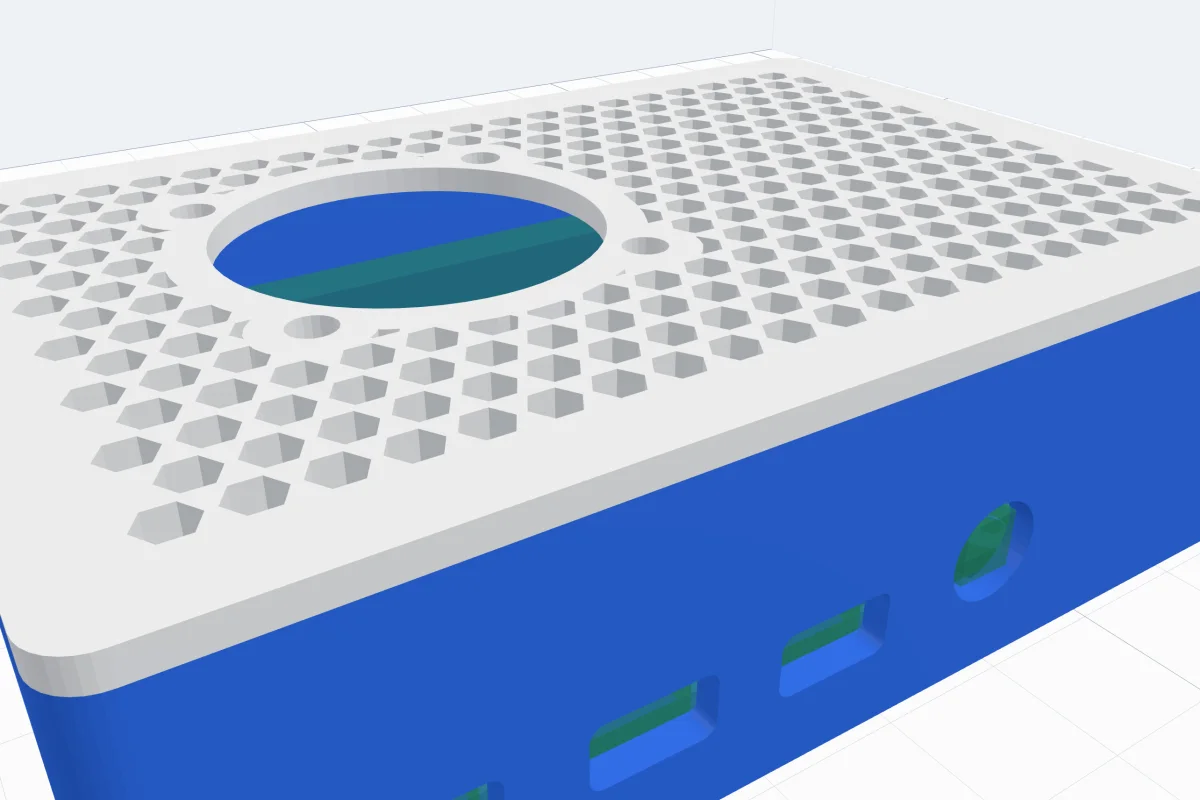
Watch the tutorial
Every option in about four minutes, with subtitles: picking the board, how it is held (snap pins and clips with their fit), ports, lids, vents and a fan, every mount, WisBlock modules and your own board. Watch on YouTube ↗
1Open the generator
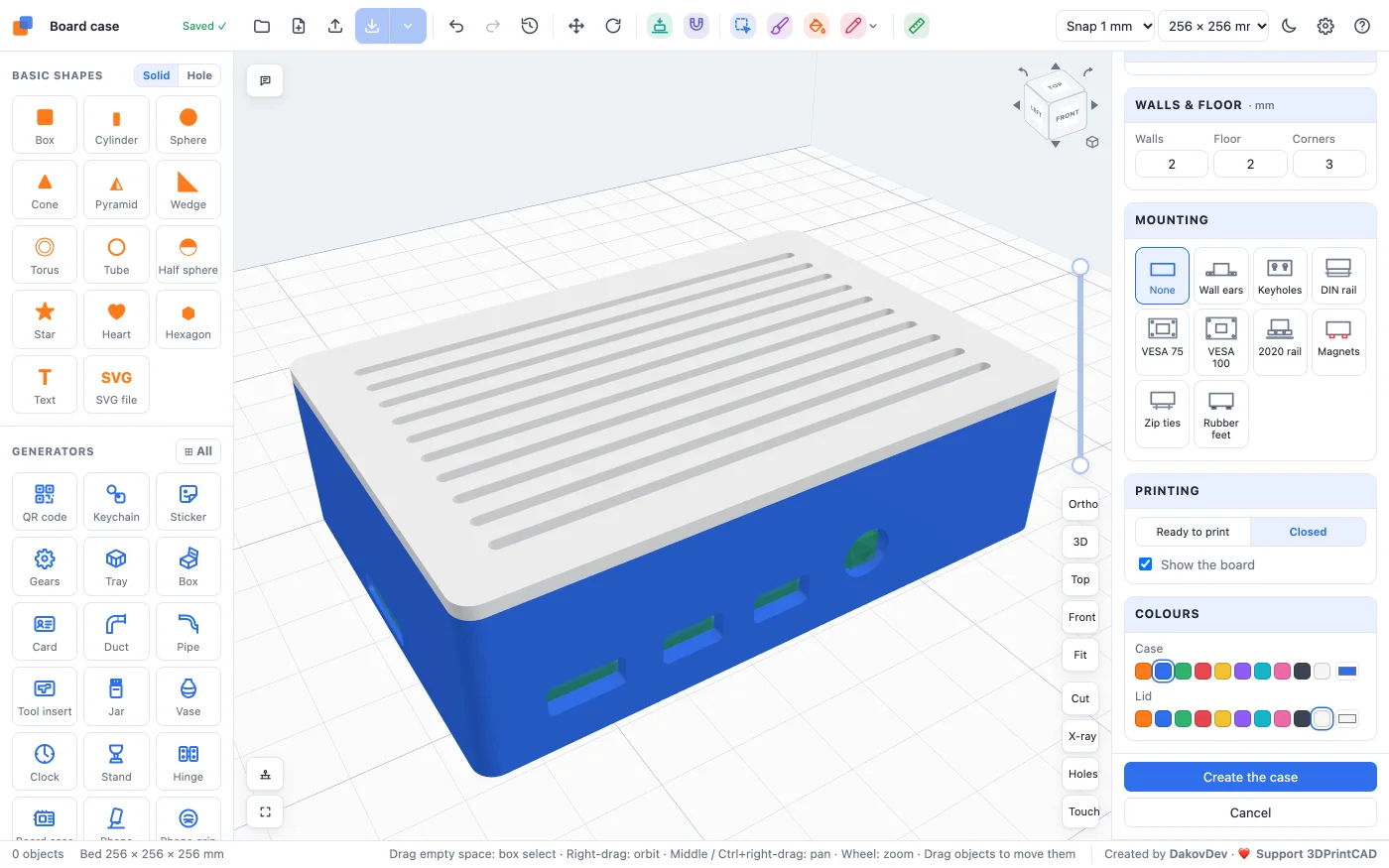
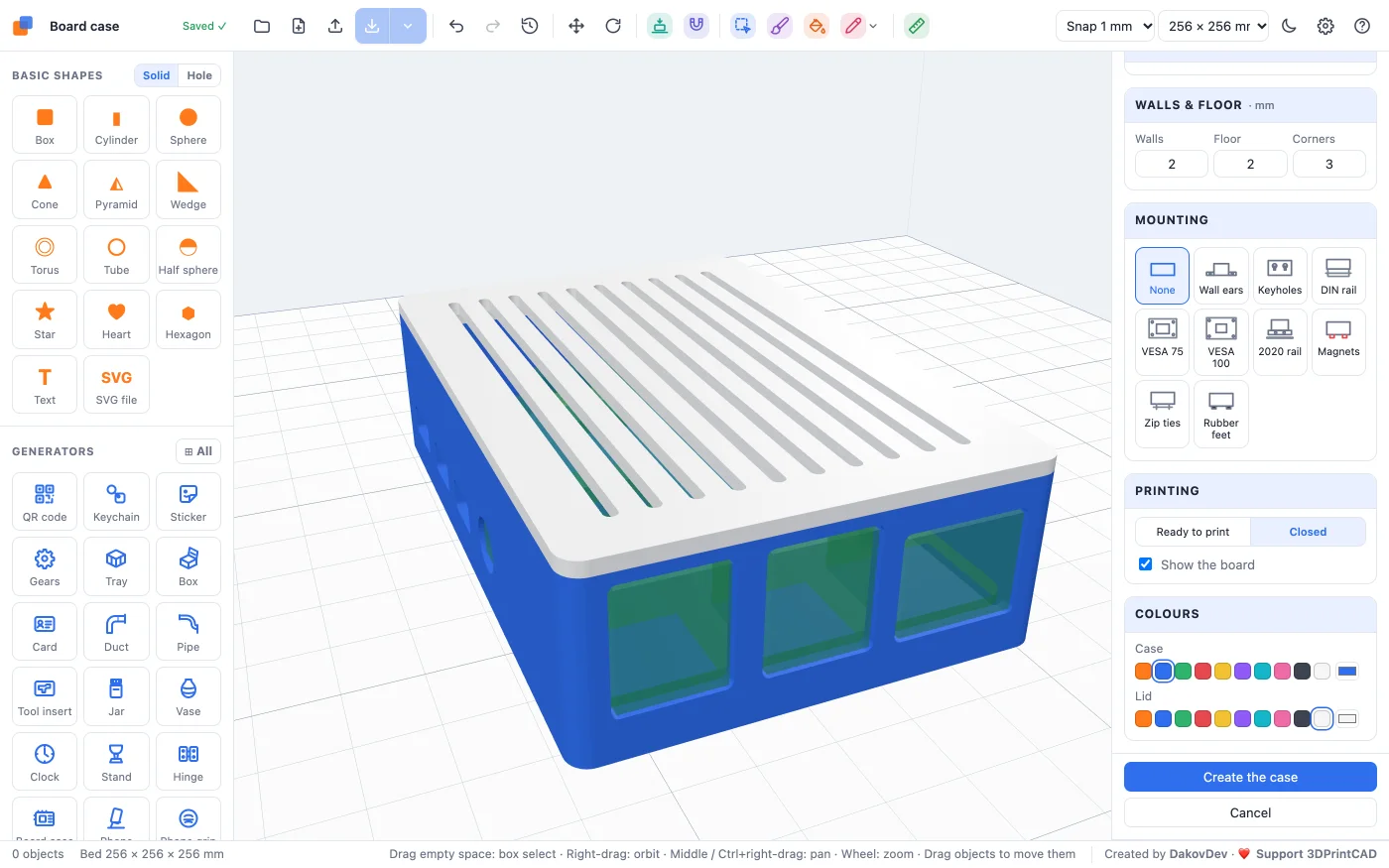
Click Board case under Generators in the left panel (or open the app from the button above). It starts with a Raspberry Pi 4 in a box with a snap lid. Every change shows at once in the view, with a see-through green model of the board inside, so you can see where every part and port sits. Nothing is added to your project until you click Create the case.
2Pick your board
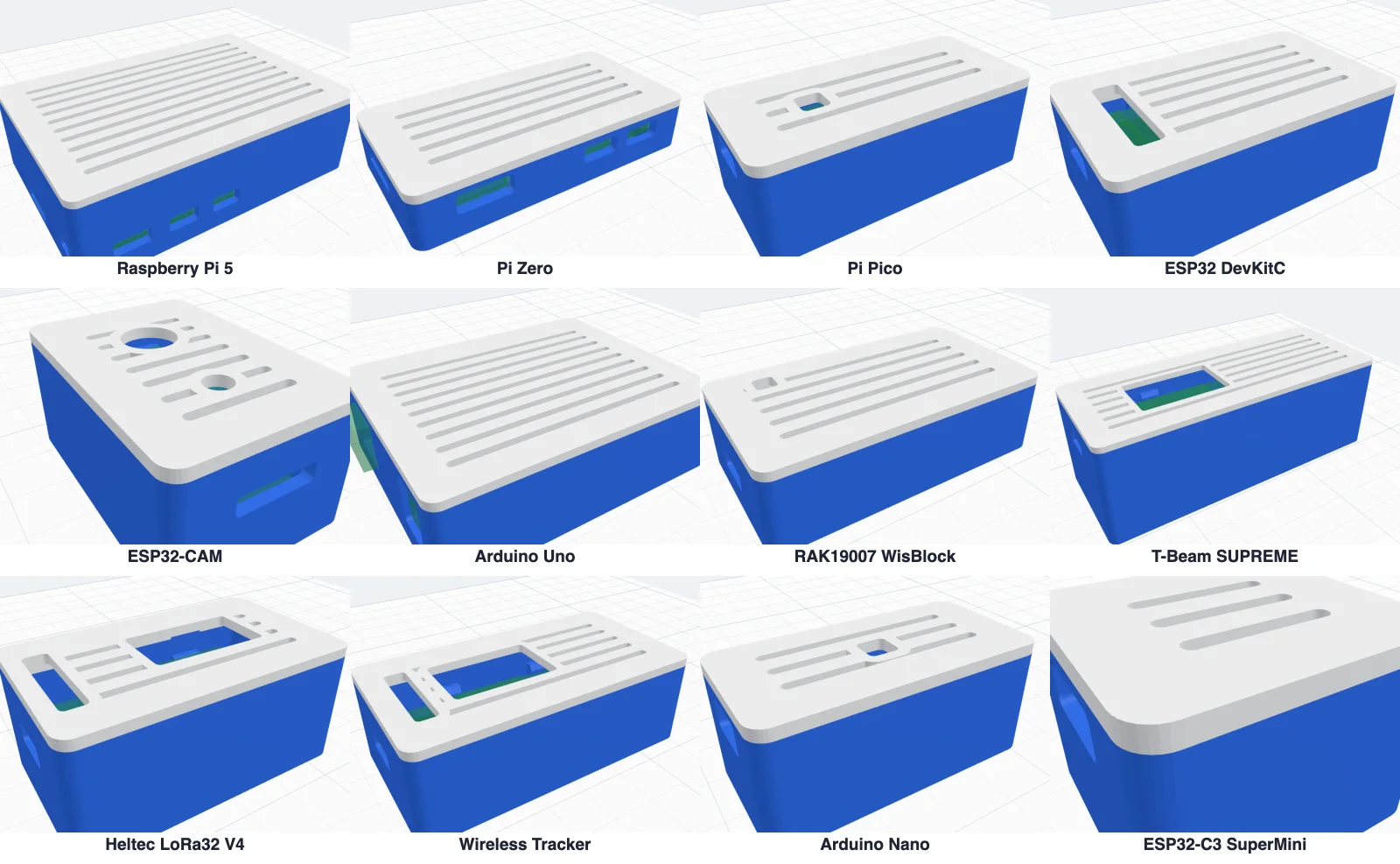
The The board card lists the boards in groups, each with its size. Click one and the case is rebuilt round it - its size, its mounting holes, every port and the room it needs above and below.
- Raspberry Pi - Pi 5, Pi 4 B, Pi 3 B / B+ (and 2 B, 1 B+), Pi 3 A+, Pi Zero / W / 2 W, Pi Pico / W / 2.
- ESP - ESP32 DevKitC (38 pin), ESP32 DOIT DevKit V1 (30 pin), ESP32-S3 DevKitC-1, ESP32-C3 SuperMini, Seeed XIAO, NodeMCU v2 and v3, Wemos D1 Mini, ESP32-CAM.
- Arduino - Uno R3 and Nano.
- RAK WisBlock - the RAK19007, RAK5005-O, RAK19003 Mini and RAK19001 Dual IO base boards (see WisBlock modules).
- LilyGO T-Beam - S3-Core, SUPREME and 1W, with room for the 18650 cell underneath and a window over the display.
- Heltec - LoRa32 V4, V4-R8 and V3 / 3.1, Wireless Stick Lite V3, Wireless Tracker v1.0 / v1.1 / V2 and Wireless Paper, from Heltec's own drawings.
- Custom - any other board, see your own board.
Boards whose connectors are placed from photos rather than the maker's drawings say so under the list - check them on the see-through board, and change any position with Adjust as custom.

3Box, tray or holder plate
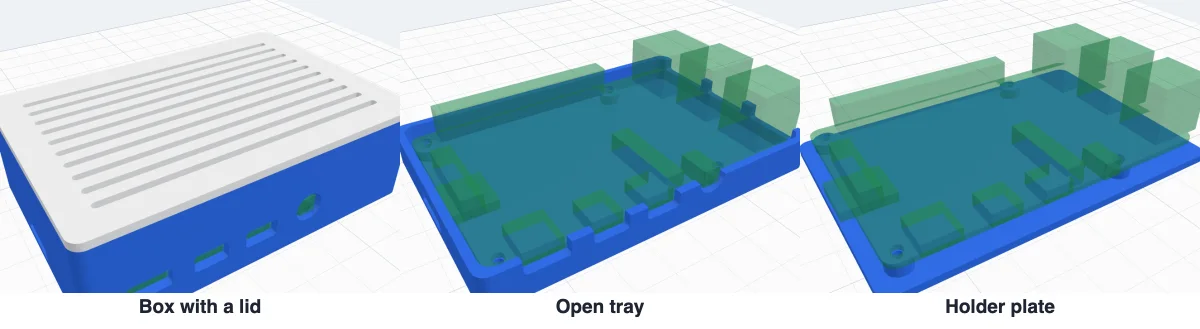
- Box - walls up to the tallest part of the board plus Headroom, and a lid.
- Tray - an open tray, its walls Walls above the board mm higher than the board.
- Holder plate - just a plate with the standoffs, to fix the board to something.
4How the board is held
A board with mounting holes sits on standoffs, one under each hole. Choose what goes through them:
- Screws - a pilot hole for a self-tapping screw (M2, M2.5 or M3, picked from the hole size).
- Inserts - a hole for a brass heat-set insert, for screws you take out often.
- Bolt + nut - a hole right through and a hex pocket for the nut underneath.
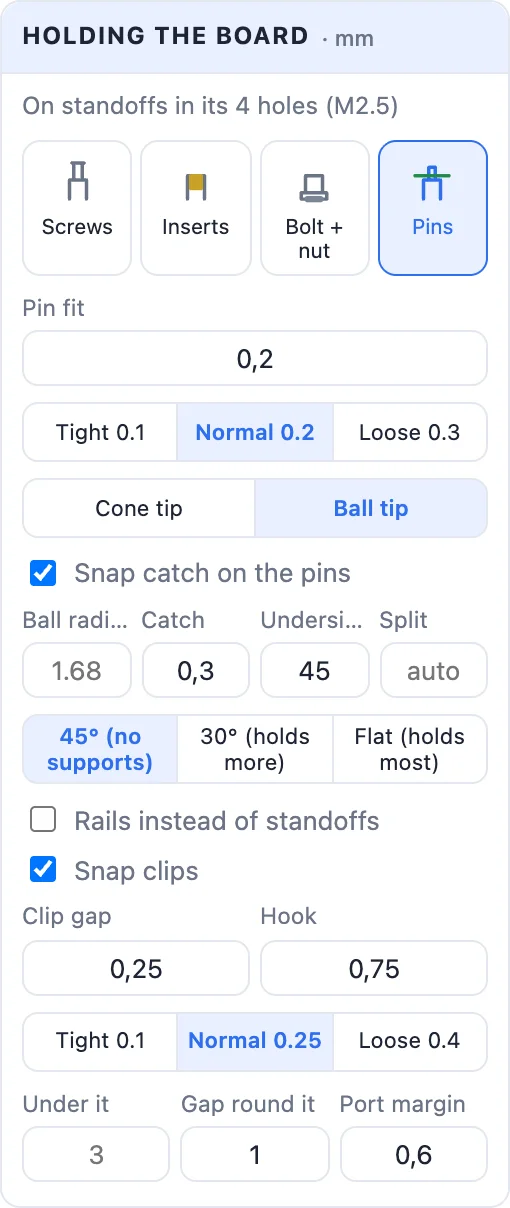
- Pins - a pin through the hole, nothing to screw. Pin fit is how much thinner it is than the hole (Tight 0.1 / Normal 0.2 / Loose 0.3), Above the board how far it stands up.
Pins can have a Cone tip or a Ball tip, and a Snap catch: the pin is split down the middle and gets a head that reaches past the hole, so the board clicks over it and cannot lift off. Its Catch sets how far the head reaches out, Underside ° the slope under the head (45° prints without supports, Flat holds hardest), Split the slot's width, and on a ball tip Ball radius makes the ball bigger.
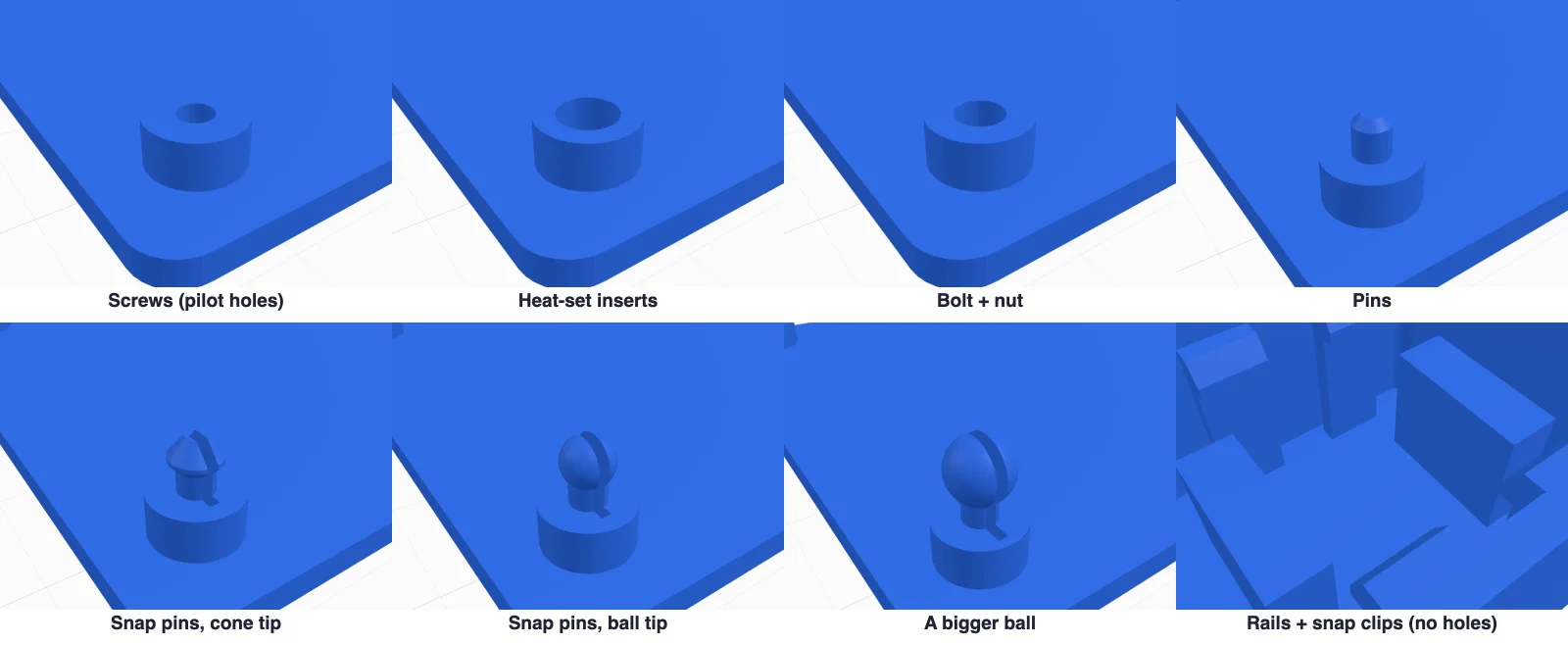
A board without holes (an ESP32-C3 SuperMini, a Wemos D1 Mini) rests on rails under its ends and clicks in under snap clips beside its long edges. You can use rails and clips on any board. The clips keep clear of the ports and of parts near the edge, and have their own fit: Clip gap (Tight 0.1 / Normal 0.25 / Loose 0.4) and Hook (how far it reaches over the board).
Below them: Header pins soldered underneath (room for them, about 9 mm), GPIO header soldered on top (a Pi Zero), Under it (how high the board sits - empty = what it needs), Gap round it and Port margin (extra room round every opening for a plug).
5The ports
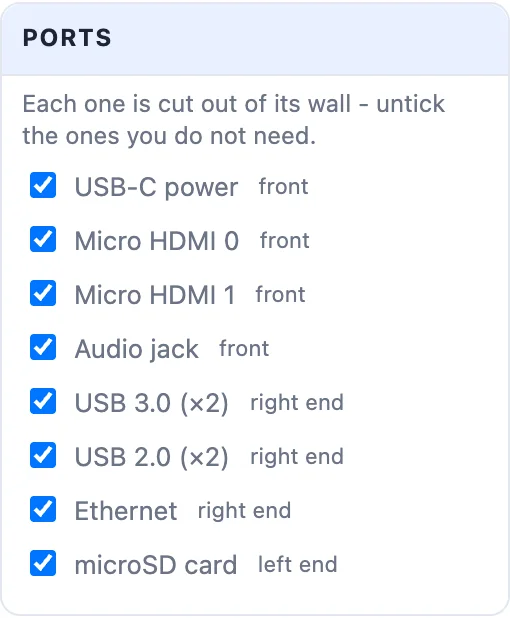
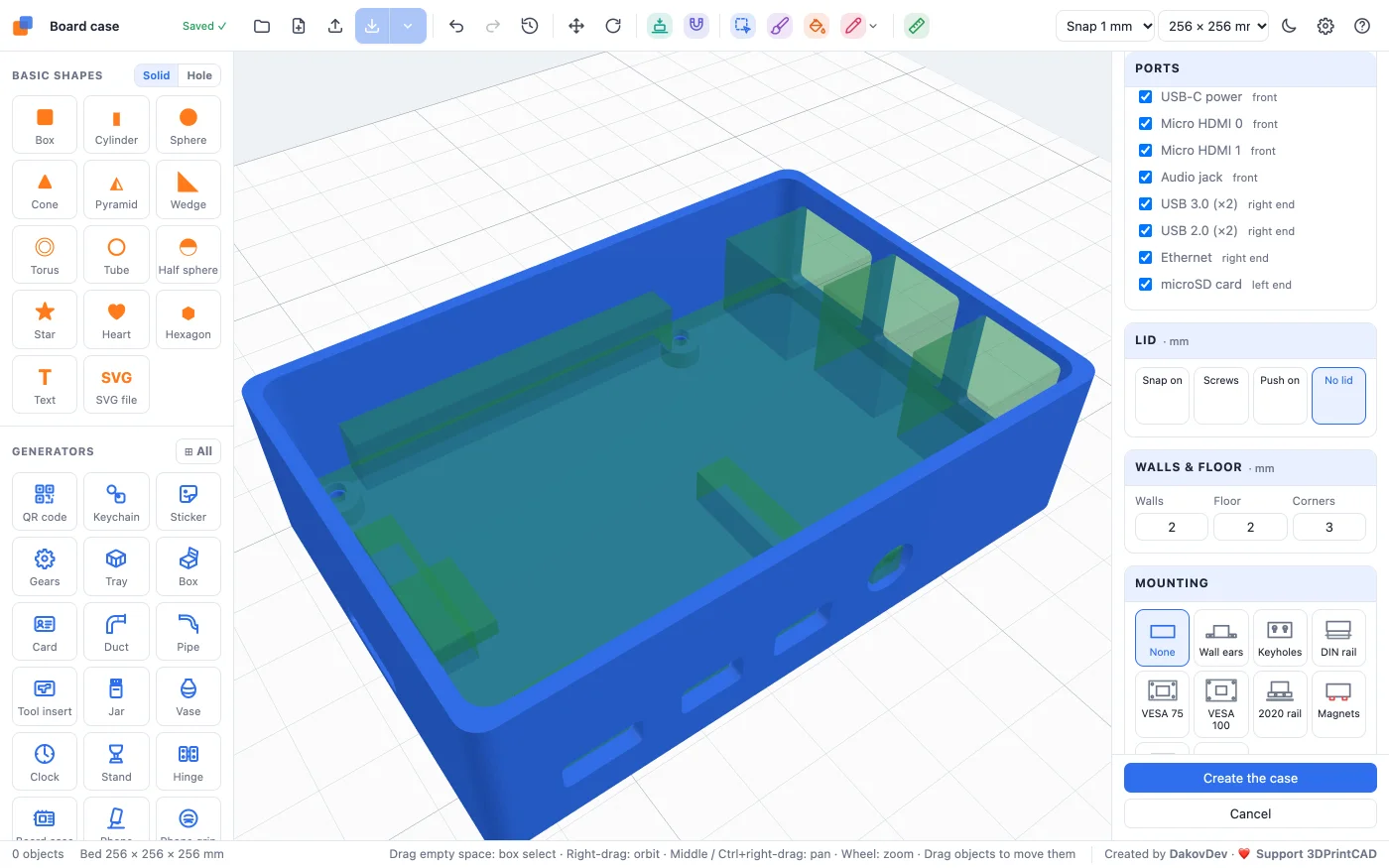
Every port on the board's edges - USB, HDMI, Ethernet, audio, power, the microSD card, buttons, antenna sockets - is cut out of its wall, a Port margin bigger all round. Untick the ones you do not need: that wall stays closed.
6The lid, vents, fan and slots
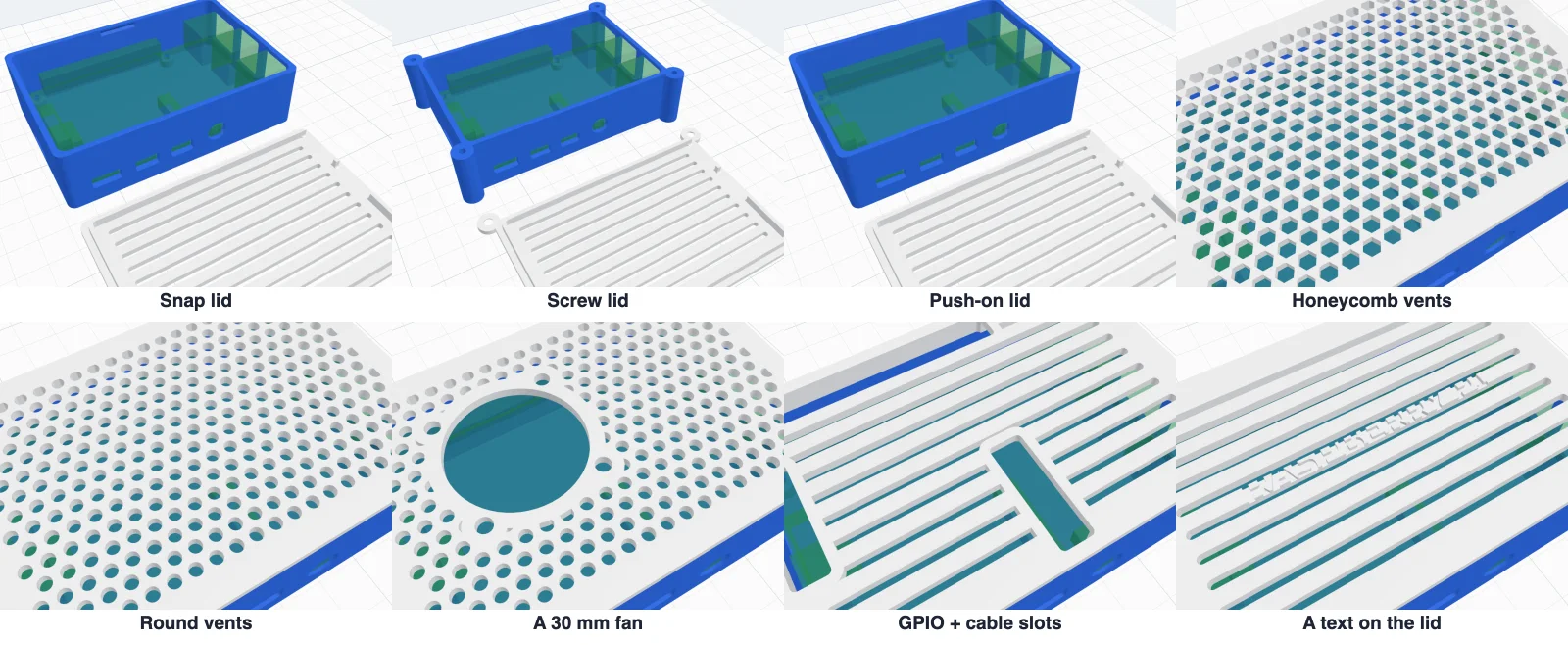
The box's lid closes in one of four ways:
- Snap on - a lip inside the walls with a bump on each long side that clicks into a groove.
- Screws - bosses at the corners and countersunk holes in the lid (M3).
- Push on - a lip held by its fit.
- No lid - an open box.
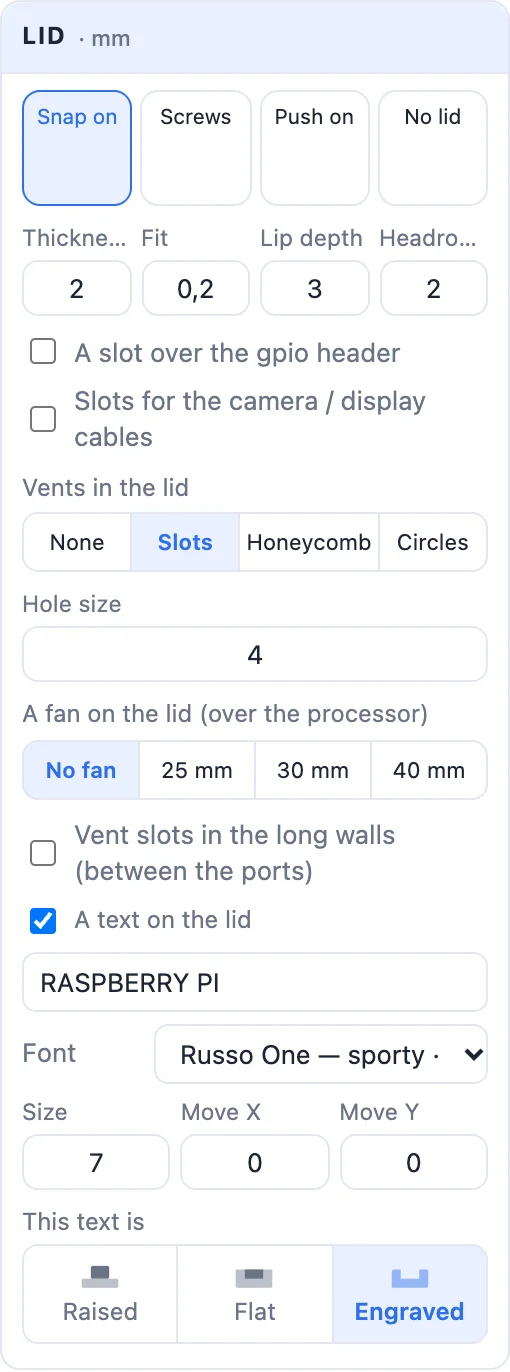
Its sizes: Thickness, Fit (the gap per side), Lip depth and Headroom (room above the tallest part). Then:
- Vents in the lid - None, Slots, Honeycomb or Circles, and their hole size. Every vent keeps clear of the lid's other openings.
- A fan on the lid - a 25, 30 or 40 mm fan opening with its four screw holes, over the processor.
- A slot over the GPIO header, slots for the camera / display cables, and holes over the buttons, LEDs, the camera lens or the display - each only when the board has them.
- Vent slots in the long walls between the ports.
- A text on the lid - raised, flat (inlaid in another colour) or engraved, in any font, moved with Move X / Y.
7Walls and floor
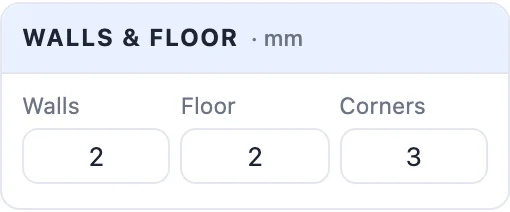
Walls, Floor and Corners (their radius) in mm. A thicker floor is made by itself when magnets or nut pockets need it.
8Mounting
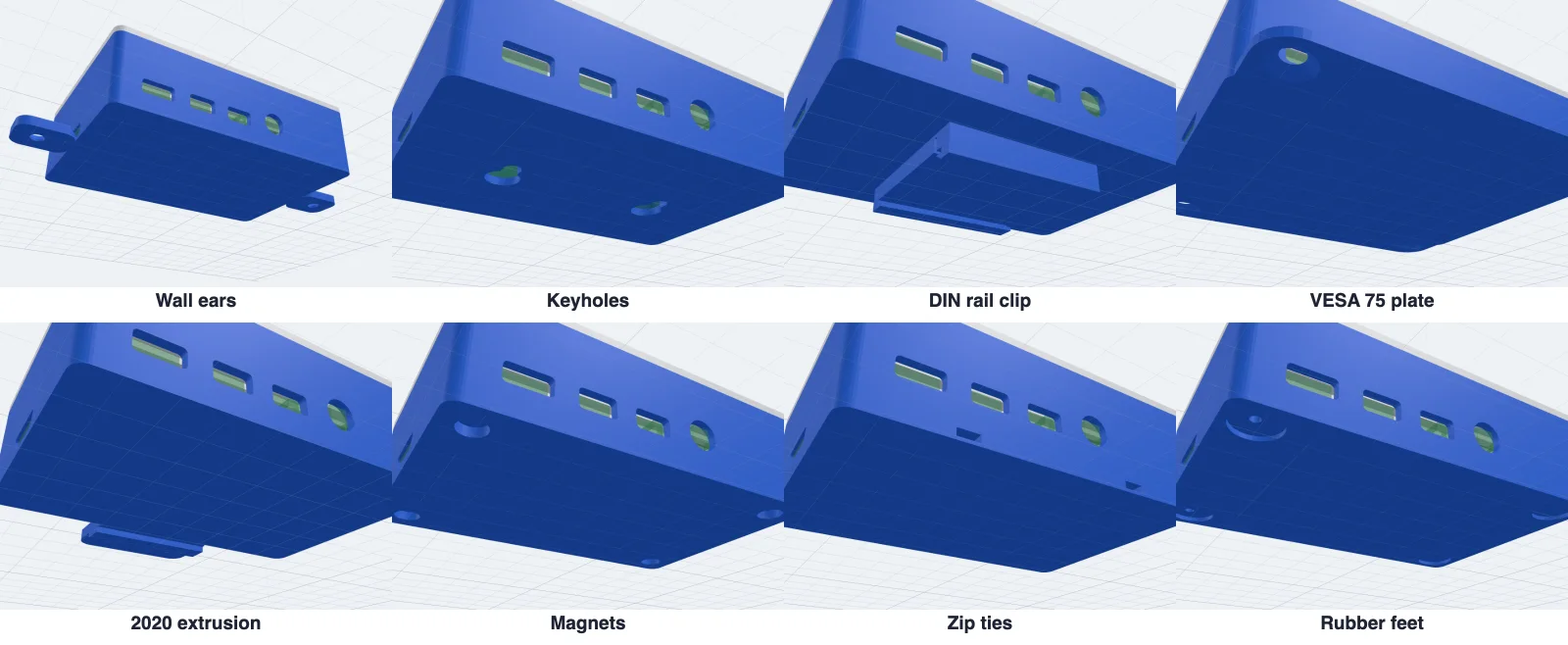
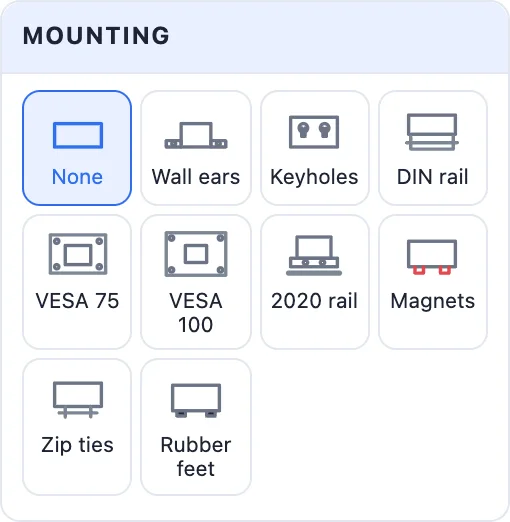
How the case is fixed to something - all of them are part of the case, nothing to glue on:
- Wall ears - tabs at the ends with countersunk holes.
- Keyholes - two keyholes in the floor, to hang it on two screws.
- DIN rail - a clip for a 35 mm top-hat rail: a fixed hook and a springy latch.
- VESA 75 / VESA 100 - a plate with M4 holes for the back of a monitor.
- 2020 rail - a tab with two M5 holes and a key for a 2020 aluminium extrusion.
- Magnets - round pockets at the corners (sizes 6 × 2 to 12 × 3 or your own).
- Zip ties - two channels under the floor, for a pipe, a bike or a bar.
- Rubber feet - four pockets underneath for stick-on feet.
9WisBlock modules
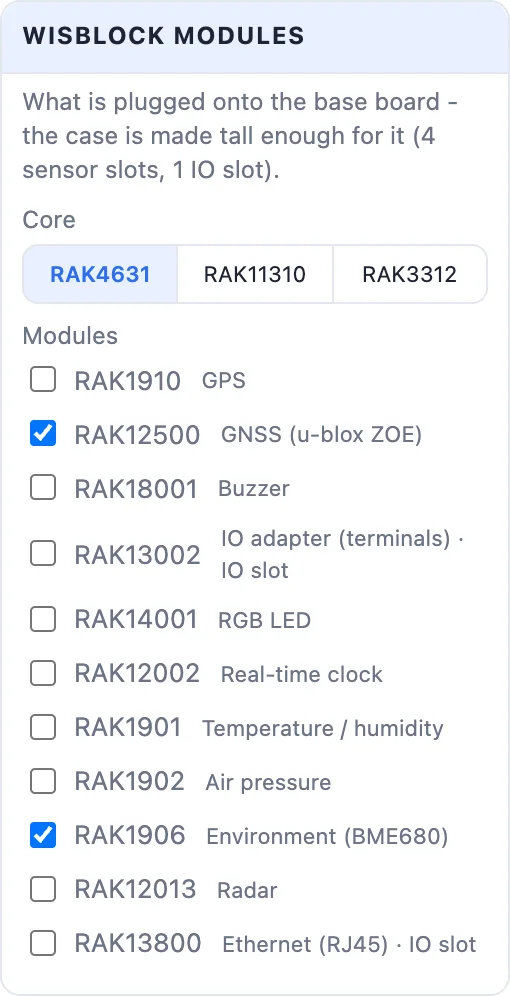
A RAK WisBlock base board carries a core and sensor modules plugged onto it. Pick a base board and the WisBlock modules card appears: choose the core (RAK4631, RAK11310 or RAK3312) and tick the modules you use - GPS, GNSS, buzzer, IO adapter, RGB LED, clock, temperature / humidity, air pressure, environment, radar, Ethernet. The case is made tall enough for the tallest one, and a warning shows when you pick more modules than the base board has slots for.
10Your own board
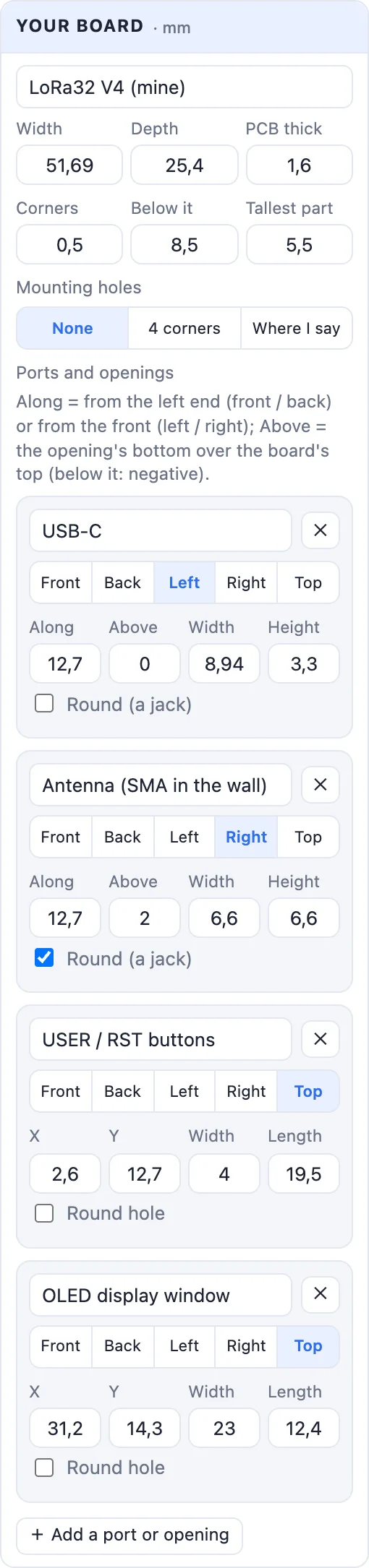
Click Custom under Your own, and type in your board in the Your board card:
- Width, Depth, PCB thick, Corners, Below it (the tallest part underneath) and Tallest part on top.
- Mounting holes - None (rails and clips hold it), 4 corners (the hole size and how far in from the side and the front) or Where I say (up to 16 holes, each with its X and Y).
- Ports and openings - up to 20, each with a name and a side: Front, Back, Left or Right (its position along the side, its height above the board - negative is under it - its width and height, and Round for a jack) or Top (an opening in the lid at X / Y, its width and length).
Faster: pick a board close to yours and click ✎ Adjust as custom under the board list. Its size, holes and ports are copied into Custom, ready to change.
11Printing and the see-through board
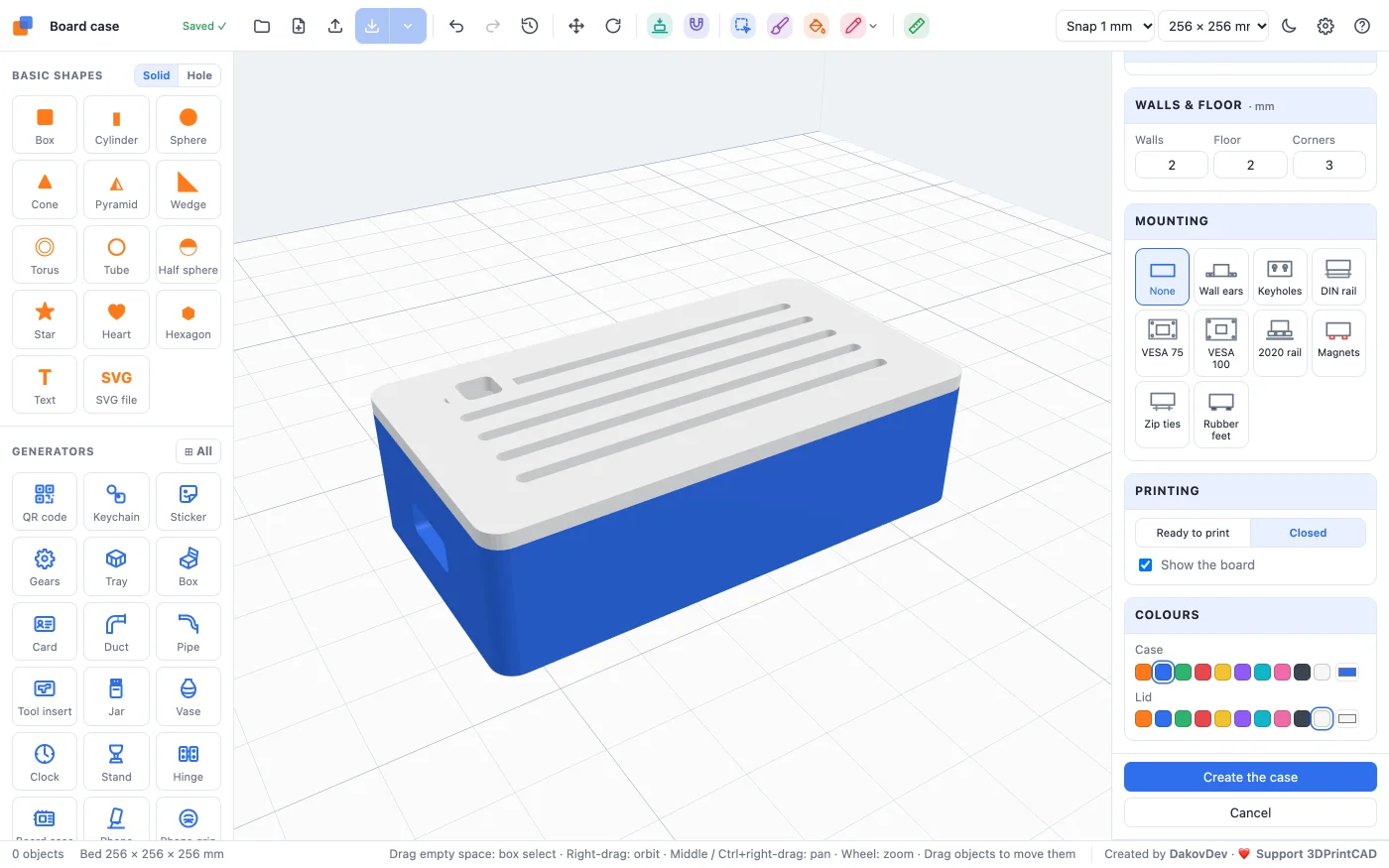
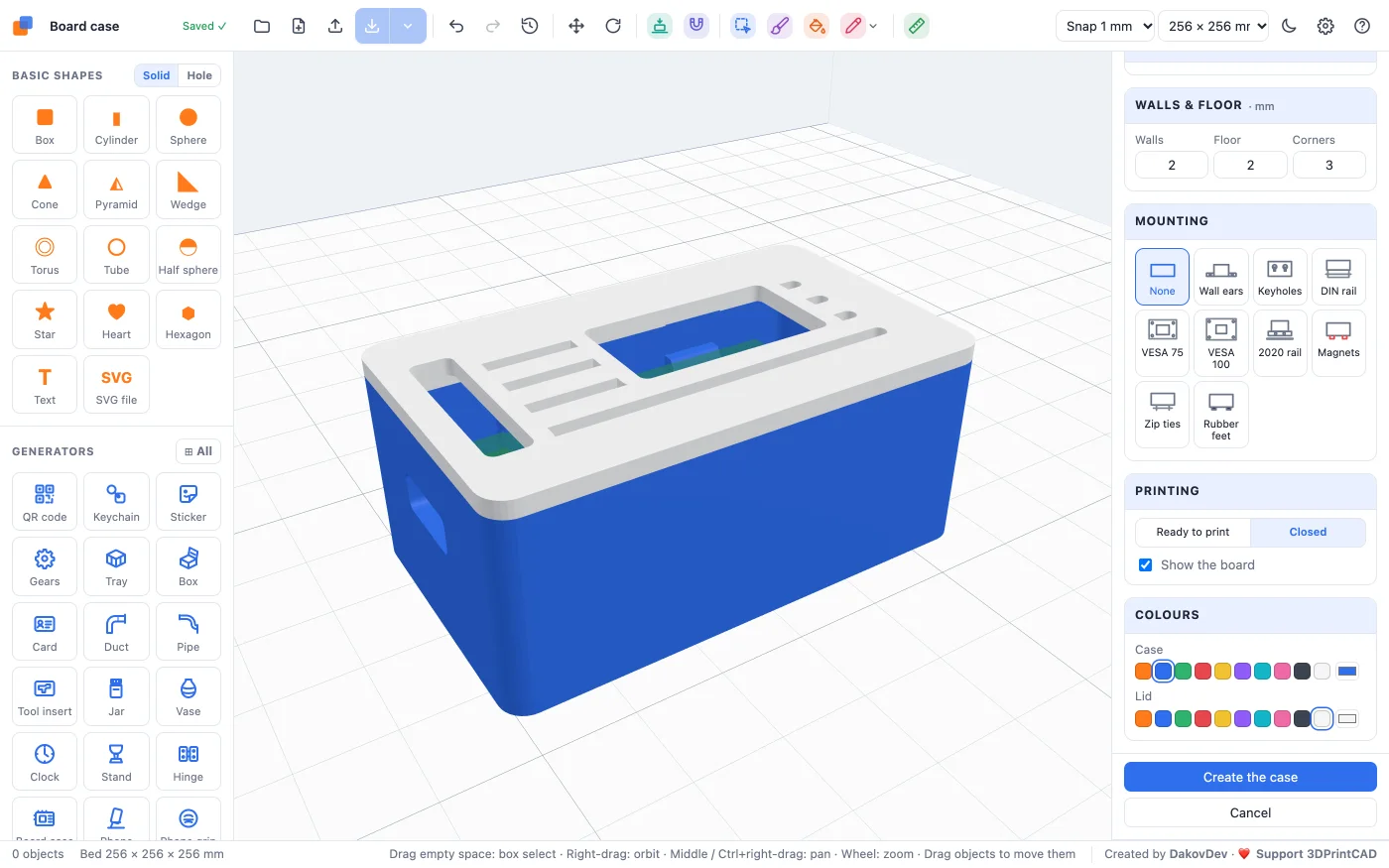
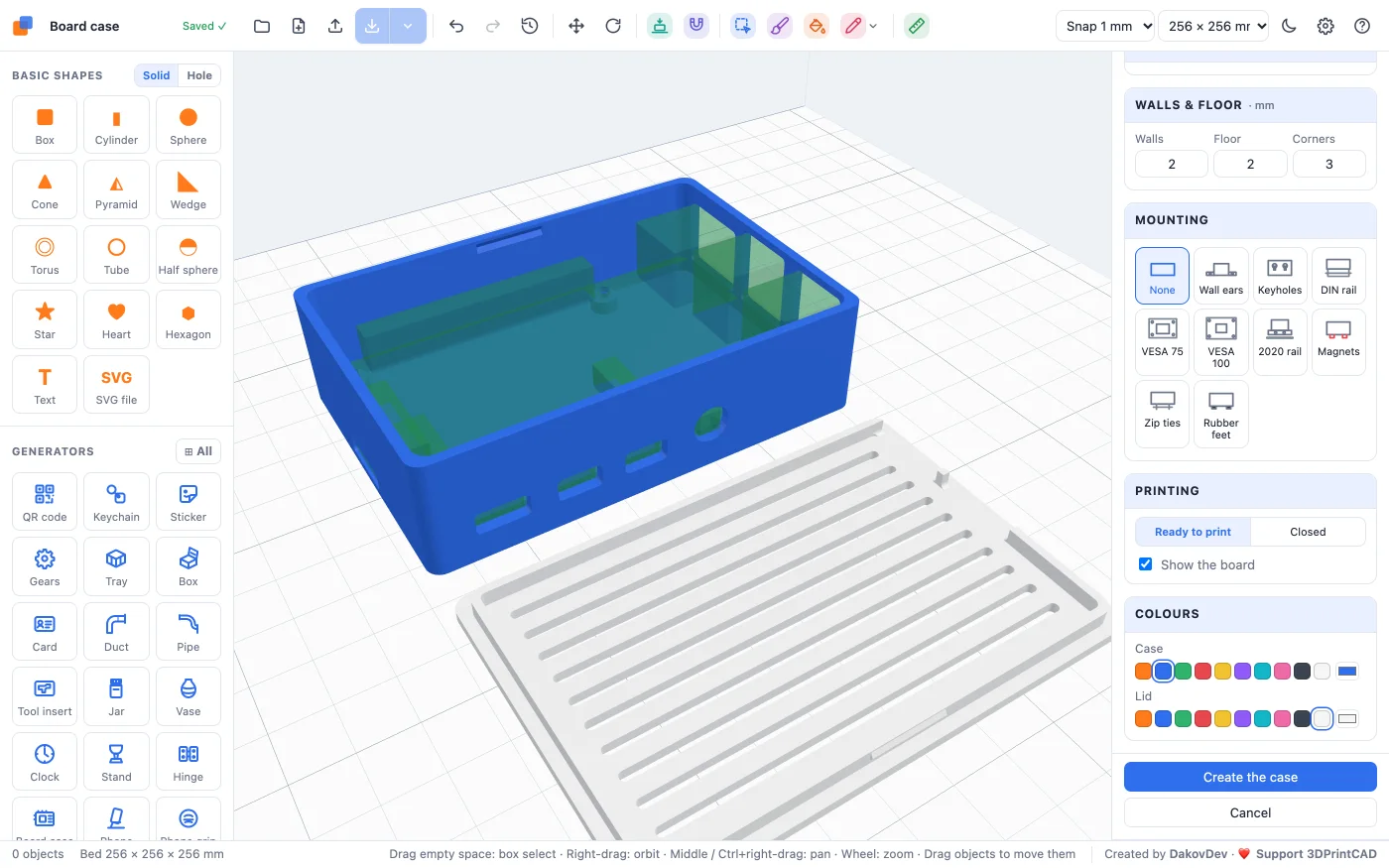
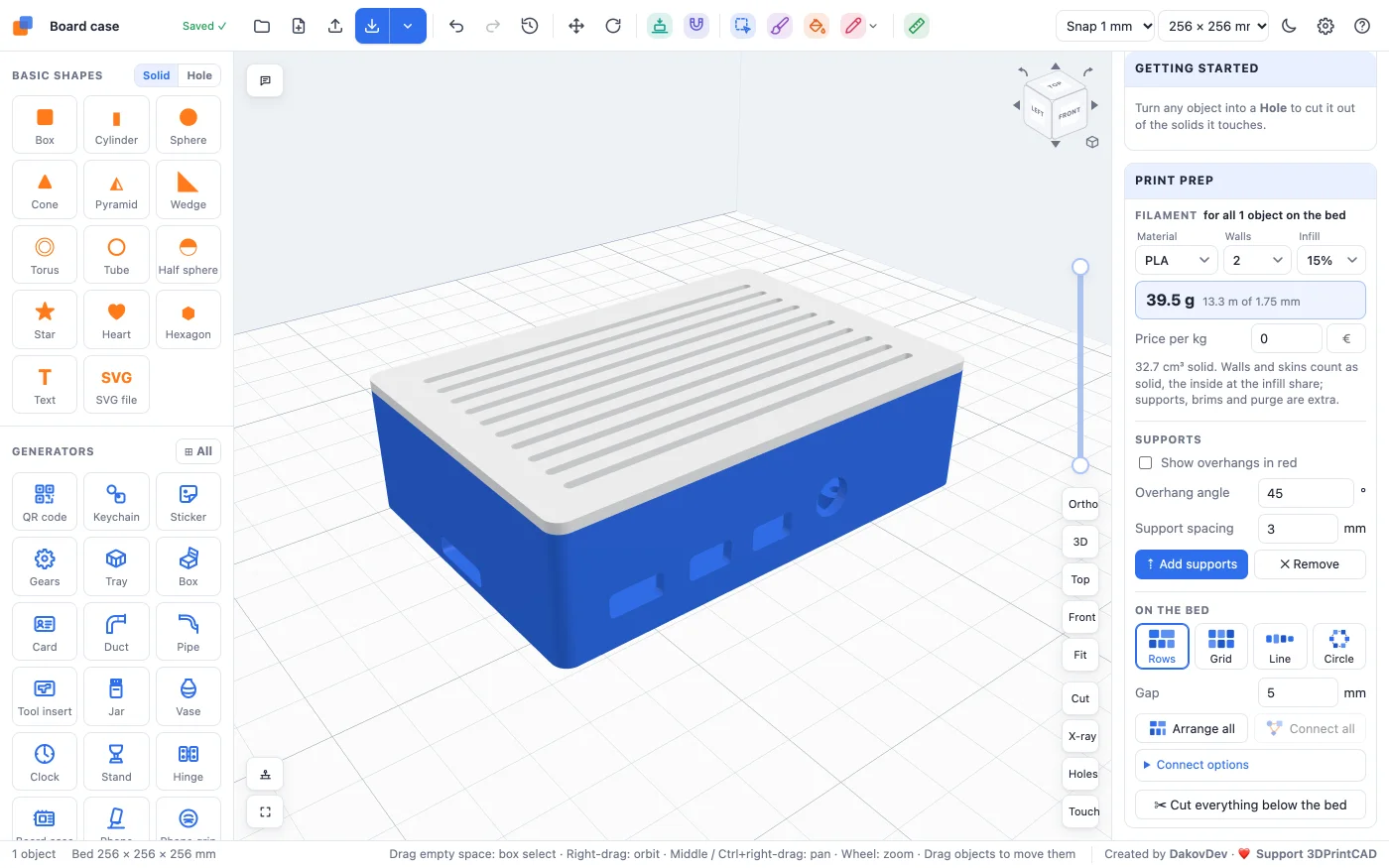
Ready to print lays the lid upside down in front of the box; Closed puts it on, to see how it looks. Show the board switches the see-through board on and off - it is never printed or exported. Choose the case's and the lid's colours (and the text's), then Create the case: the parts become one group in your project, ready to export as STL or a multi-colour 3MF.
12Tips
- Print a test of the standoffs first - a holder plate prints in minutes and shows whether the pins, screws or clips fit your printer.
- If a plug does not go in, raise Port margin to 1 mm; if the board rattles, choose a tighter pin or clip fit.
- For the snap catch, PETG bends before it breaks. In PLA, use a small catch (0.2-0.3 mm) or the ball tip.
- For a board marked approximate, check its ports on the see-through board against your real board, and fix them with Adjust as custom.
- A case that gets warm: honeycomb vents, the side vents, or a 30 mm fan over the processor.
Questions
Which boards can I make a case for?
Raspberry Pi 5, 4 B, 3 B / B+, 3 A+, Zero and Pico; ESP32 DevKitC, DOIT DevKit, ESP32-S3, ESP32-C3 SuperMini, XIAO, NodeMCU, Wemos D1 Mini and ESP32-CAM; Arduino Uno and Nano; the Coralboard SL (Google / Synaptics); RAK WisBlock base boards; LilyGO T-Beam S3-Core, SUPREME and 1W; Heltec LoRa32 V3 / V4, Wireless Stick Lite, Wireless Tracker and Wireless Paper - and any other board with Custom, where you type in its size, holes and ports.
How is the board held in the case?
On standoffs in its mounting holes - for self-tapping screws, heat-set inserts, bolts with nuts, or pins. Pins can have a snap catch (a cone or a ball) that the board clicks over. A board without holes rests on rails and clicks in under snap clips. The pins and clips have Tight, Normal and Loose fits.
Are the ports cut out?
Yes - every port in its wall, a little bigger than the plug (Port margin). Untick the ones you do not need. The GPIO header, camera cables, buttons, LEDs and displays can get openings in the lid.
My board is not in the list - what can I do?
Pick Custom and type in its width, depth, thickness, mounting holes and every port or opening - or pick a board close to yours and click Adjust as custom to start from its numbers.
How do I mount the case?
Under Mounting: wall ears, two keyholes, a 35 mm DIN rail clip, a VESA 75 or 100 plate, a tab for 2020 aluminium extrusion, magnet pockets, zip-tie channels or pockets for rubber feet.
Make a case for your board
Pick the board, the lid and how to mount it - every port cut out.
Open the Board case generatorAlso see: Lid / cap tool, Box generator, Bolt generator, Snap legs tool and Hole pattern tool.