3DPrintCAD › Guides › Greeting card generator
Greeting card generator: 3D print a folding card
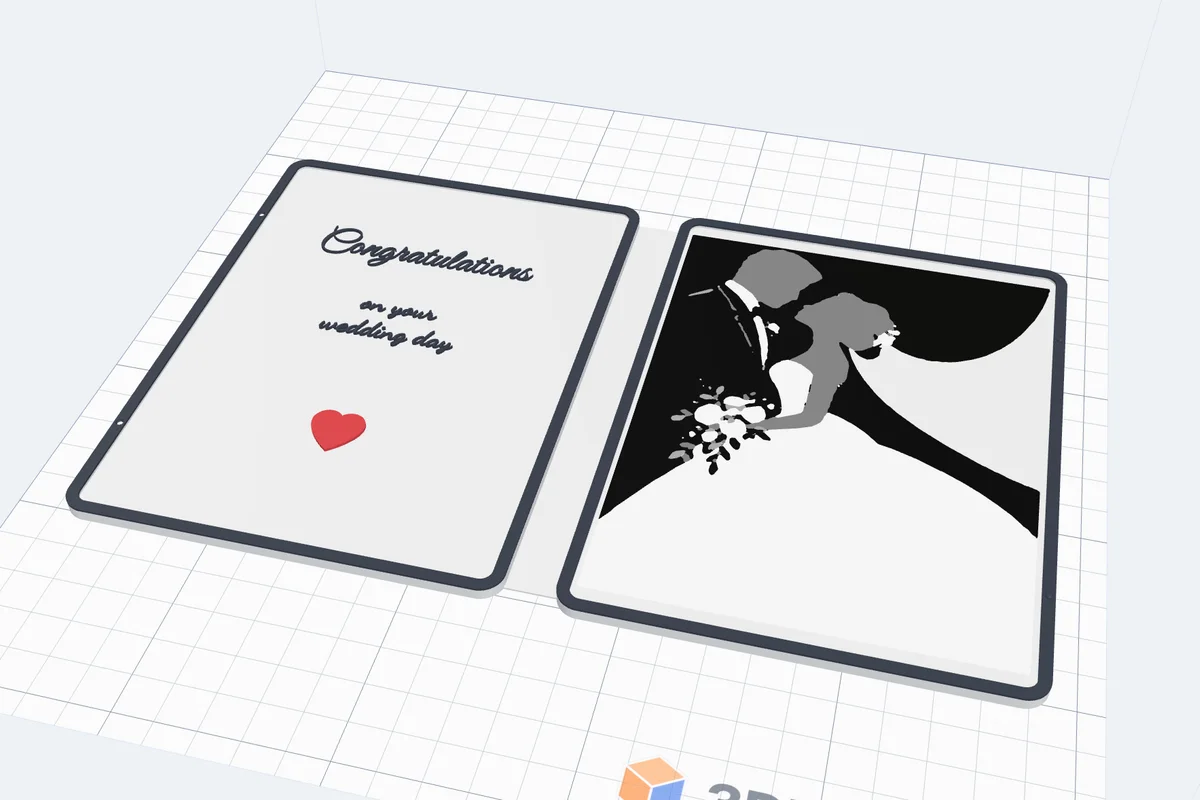
Design a greeting card that prints flat in one piece and folds on its own printed hinge - a wedding card with a picture of the couple, a bright birthday card, or your own. Add texts in any font, SVGs and pictures in their colours on the front, inside and back, give it a border, choose how the hinge bends and what keeps it shut, and print it in colour or as pieces on a one-colour printer.
Watch the tutorial
Every option in under seven minutes, with subtitles: templates and views, shapes and sizes, texts, SVGs and pictures, the border, every hinge, the ten locks and printing. Watch on YouTube ↗
1Open the generator
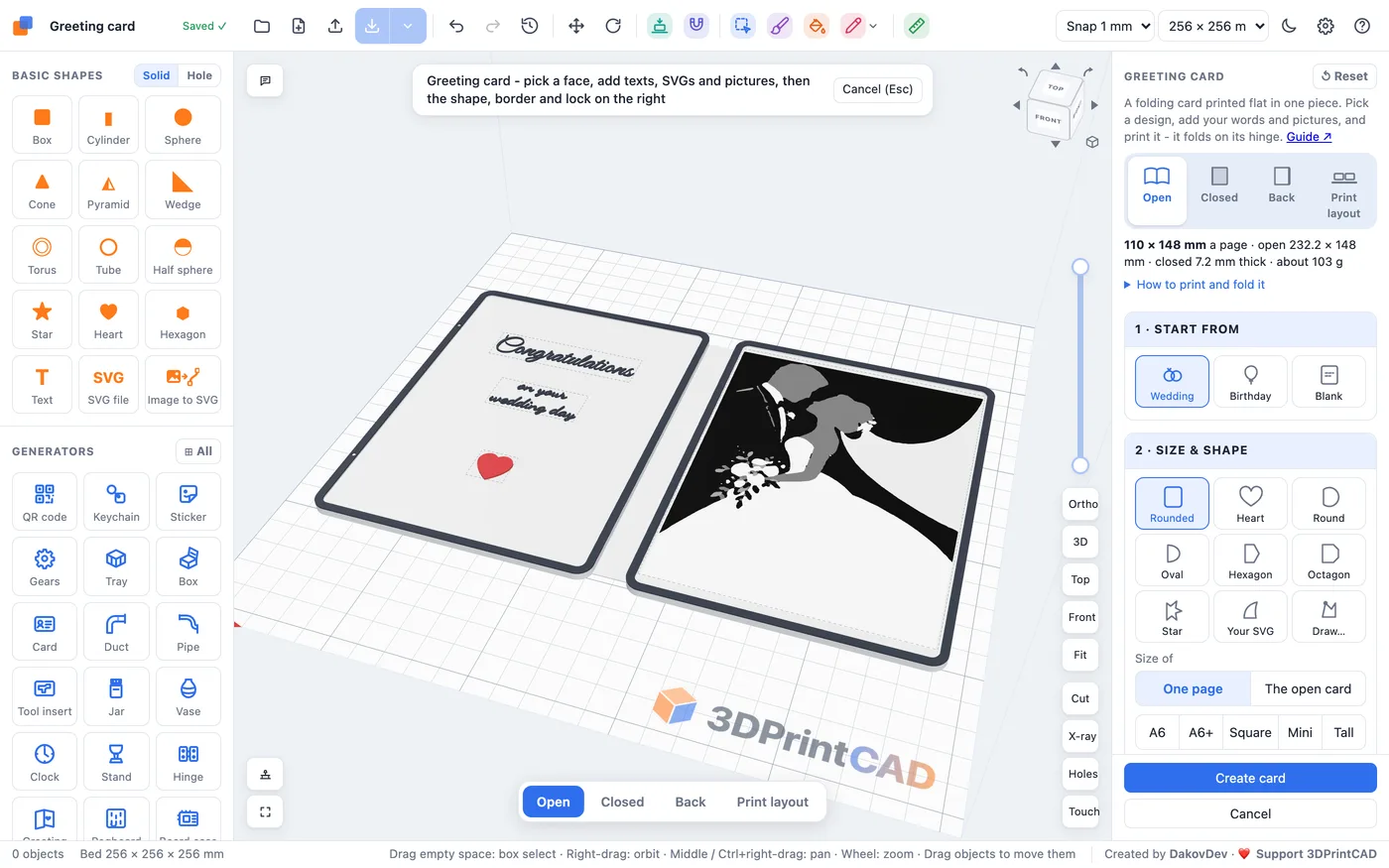
Click Greeting card in the Generators list on the left, or the button above. It opens on the wedding card, and every change shows at once in the view. Nothing is added to your project until you click Create card.

2Open, Closed, Back and Print layout
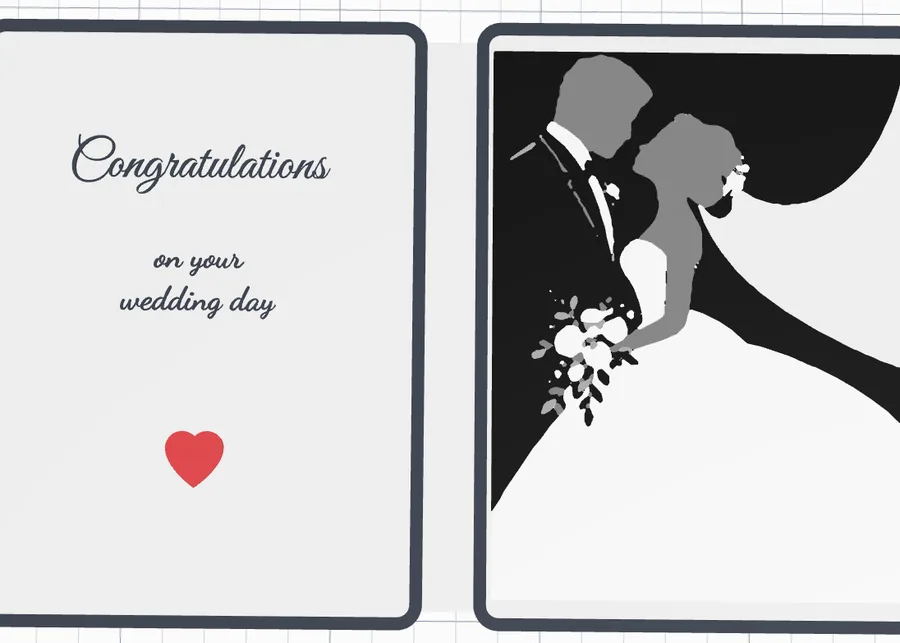
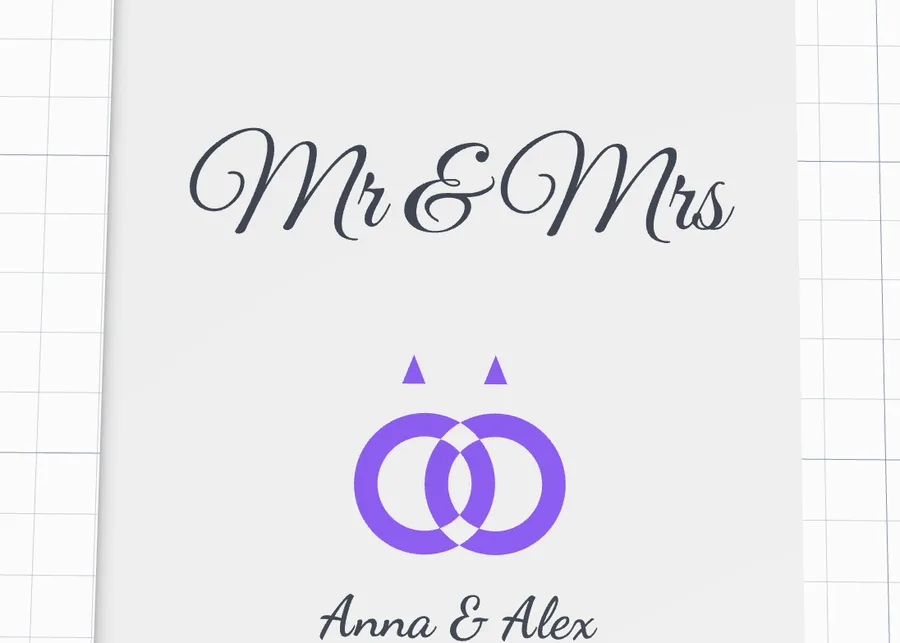
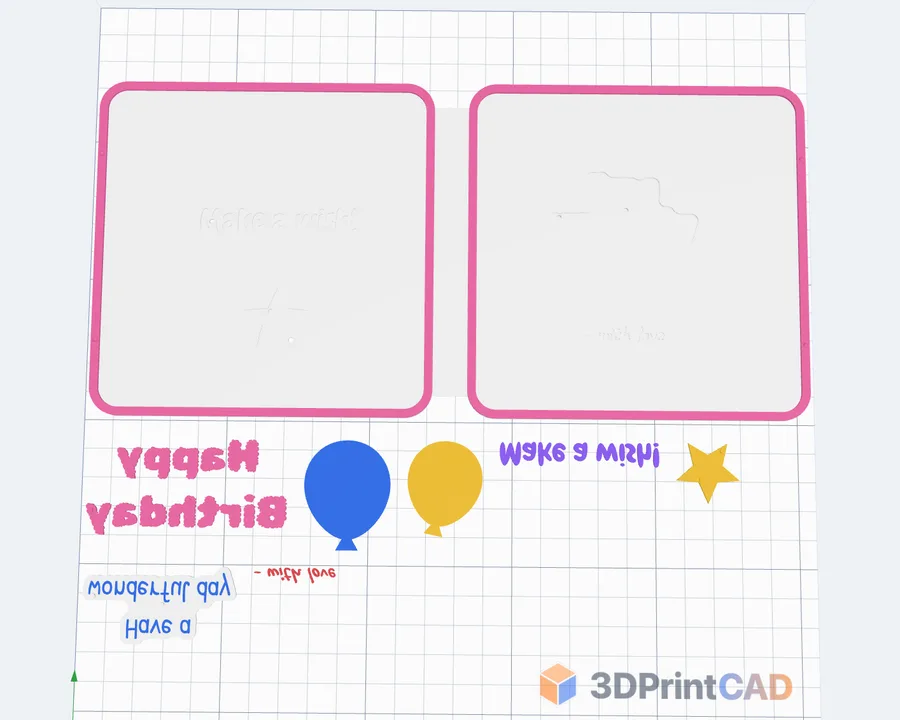
The switch at the top of the panel - and the same one floating at the bottom of the view - shows the card four ways: Open (both inside pages, as you design it), Closed (the front cover), Back (the back cover) and Print layout (what Create card makes: the card flat, the outside on the bed, separate pieces in rows below it). The box under it gives the page size, the open size, the closed thickness and about how many grams it weighs; How to print and fold it explains the hinge and the lock you chose.
3Start from a template
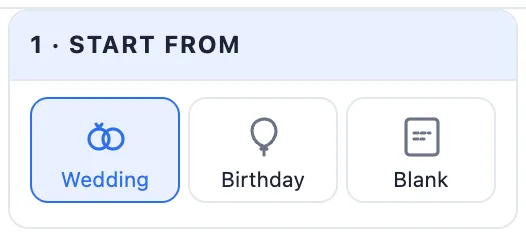
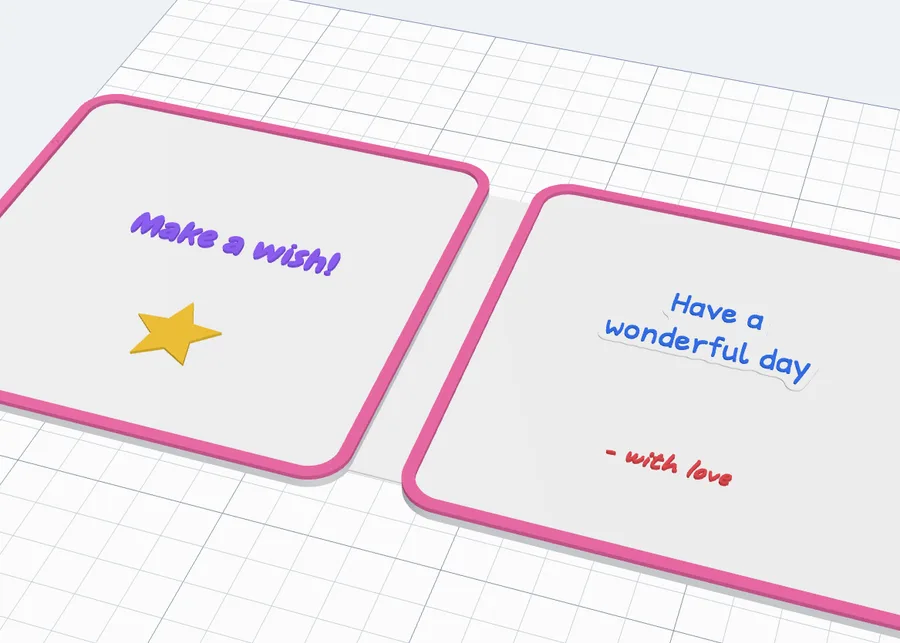
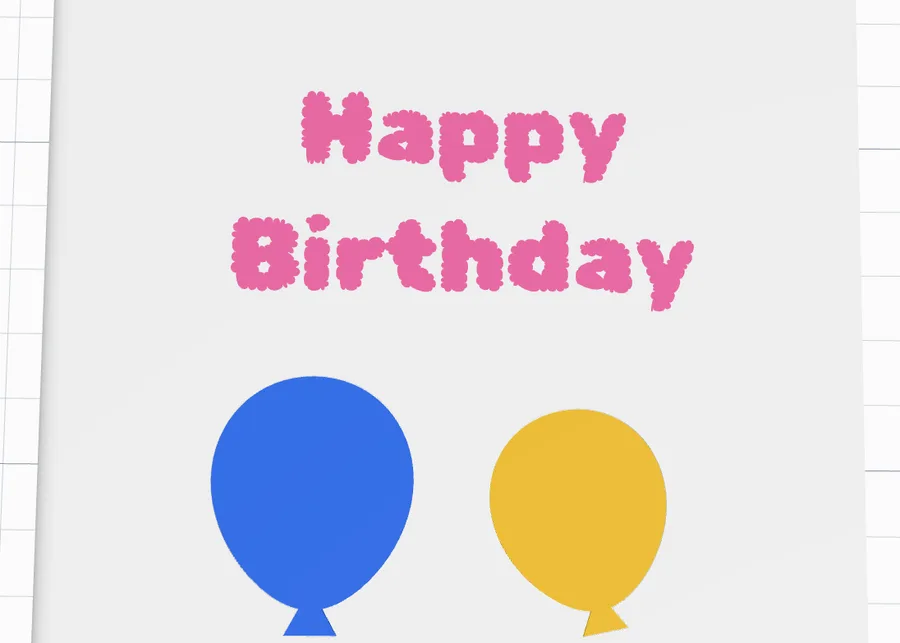
1 · Start from sets the whole card in one click: Wedding (script letters, the rings, the couple's names and the date on the front, the picture of the couple inside, a snap lock), Birthday (bubble letters, balloons and a star in bright colours) or Blank (an empty card with a border and magnets). Then change anything.
4Size and shape
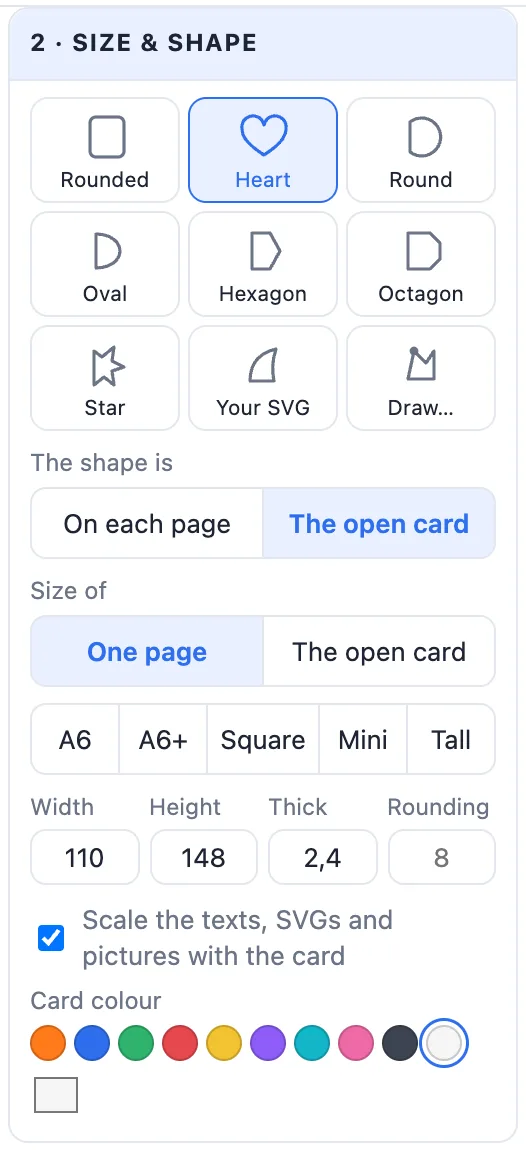
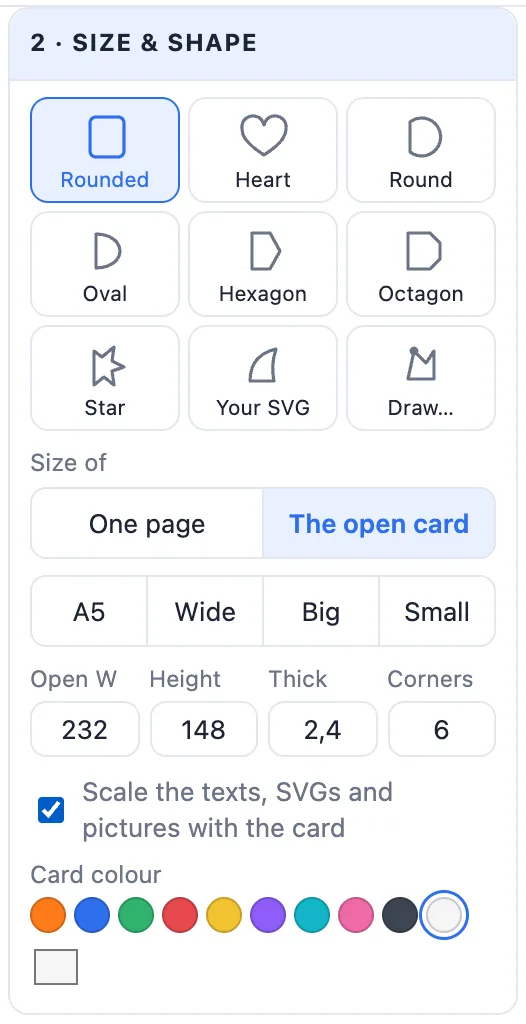
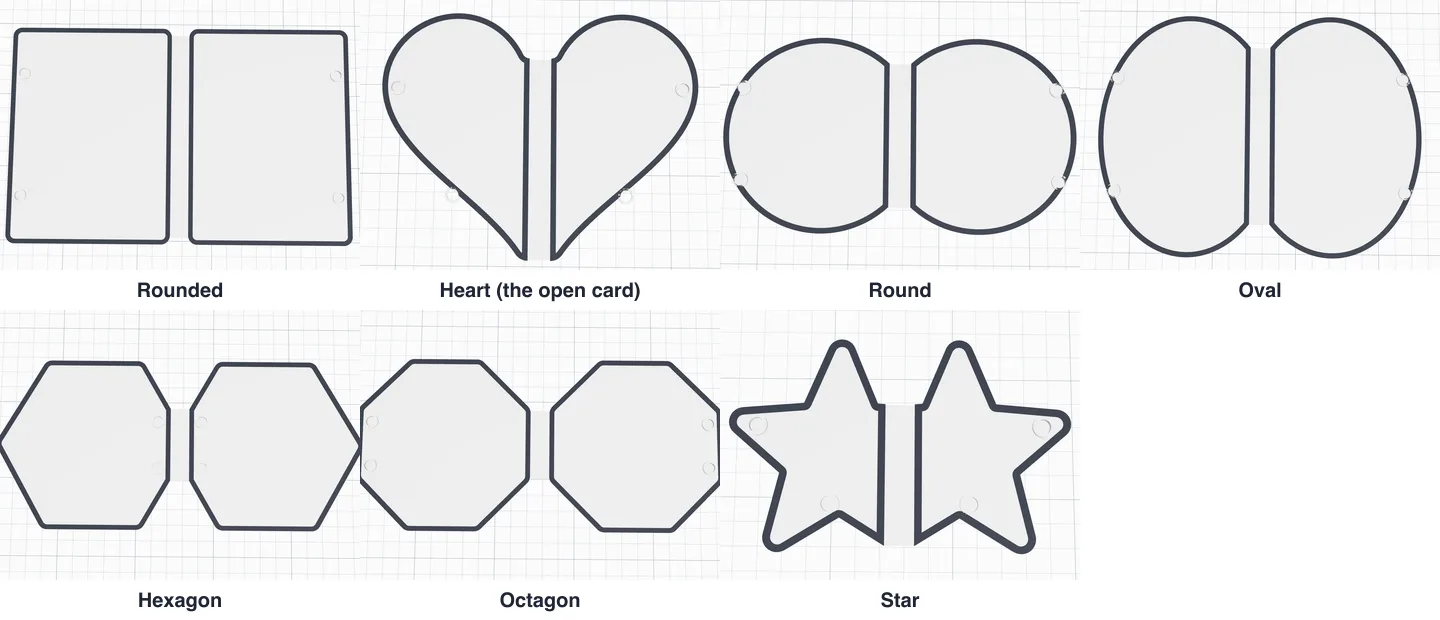
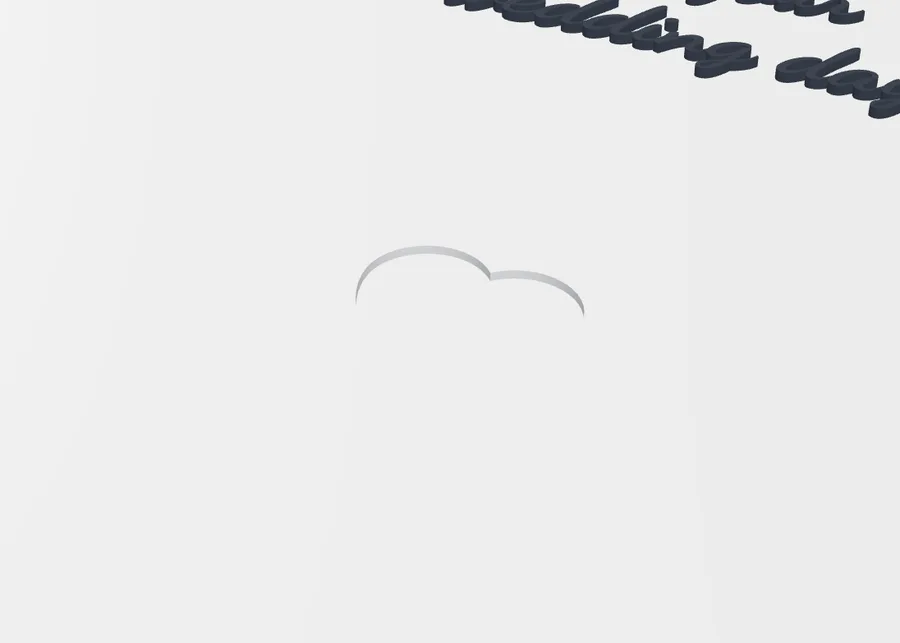
- Shape - Rounded, Heart, Round, Oval, Hexagon, Octagon, Star, Your SVG (the outline of an SVG file) or Draw… (draw the outline yourself). Every shape but the rectangle is cut straight at the spine so the pages meet along a straight edge (Spine sets how much).
- The shape is - On each page (each page has the whole shape) or The open card (the open card makes one shape - each page is half of it: a heart that opens into one heart).
- Size of - One page (the closed card) or The open card (both pages and the hinge), with the size chips A6, A6+, Square, Mini and Tall (or A5, Wide, Big and Small for the open card), Width, Height, Thick, and Corners or Rounding.
- Scale the texts, SVGs and pictures with the card - on, a new size makes everything on the card grow or shrink with it and moves it in proportion; off, they keep their size and place.
- Card colour.
5Texts, SVGs and pictures
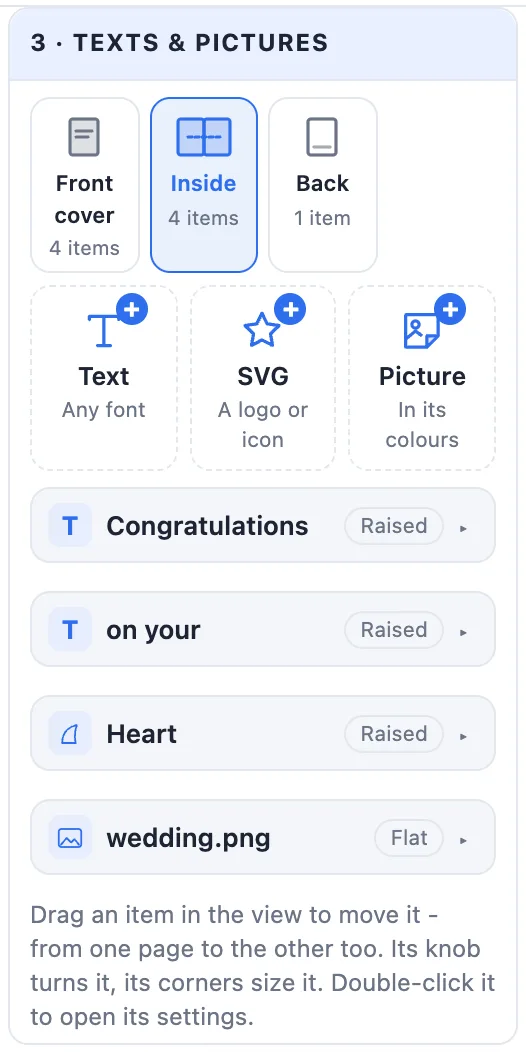
3 · Texts & pictures has a tab for each face: Front cover, Inside (both inside pages at once) and Back, each with how many items it holds. Add a Text, an SVG (a logo or icon) or a Picture (in its colours); every item is a row - click it to open its settings:
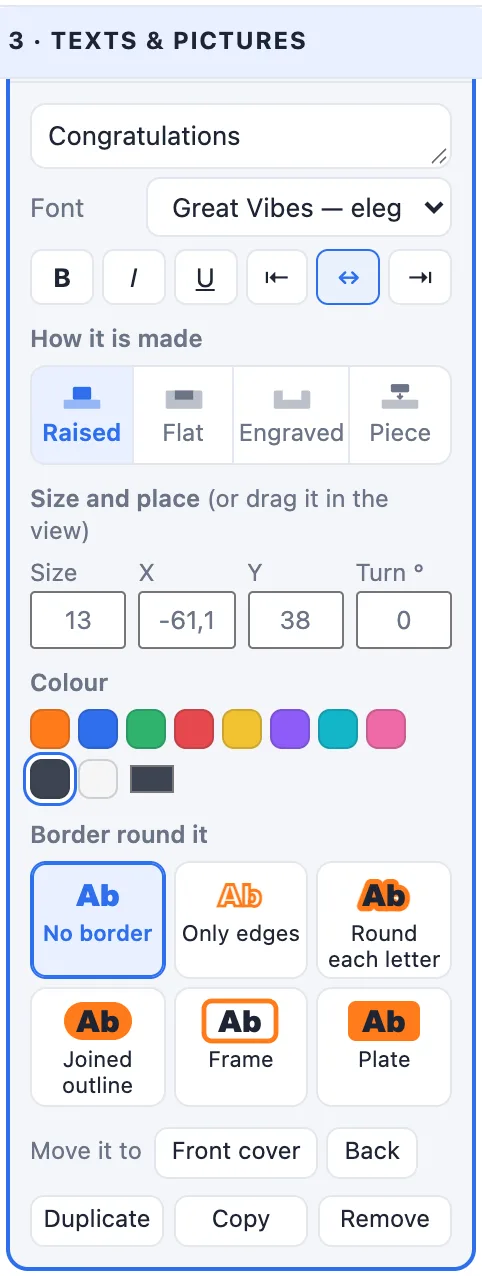
- A text: up to six lines, the Font (every font of the app and your own), B / I / U and the alignment.
- An SVG: Change SVG… and Smooth edges.
- Size, X, Y and Turn - or drag it in the view: the corners size it, the knob turns it, and inside it can go from one page to the other.
- Its Colour and a Border round it (the text borders: only edges, round each letter, a joined outline, a frame or a plate).
- Move it to another face, ⧉ Duplicate, Copy and ✕ Remove.
Double-click an item in the view to open its row. Ctrl+C / Ctrl+V copy and paste the selected item (onto the face open in the panel, or into another card), Ctrl+D duplicates it and Delete removes it.
6Pictures and colour heights
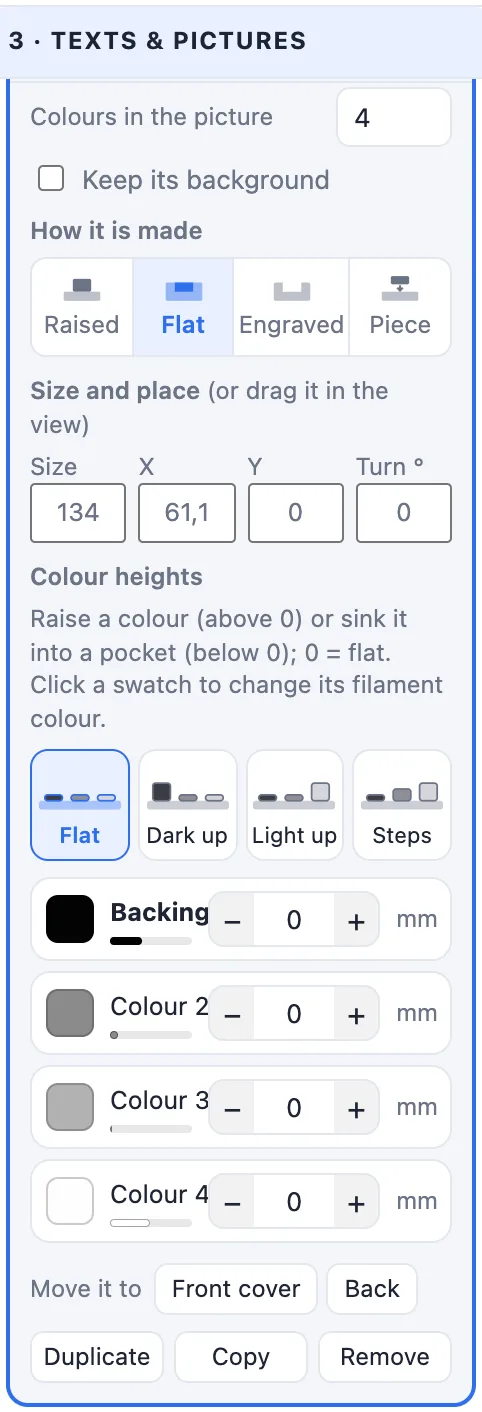
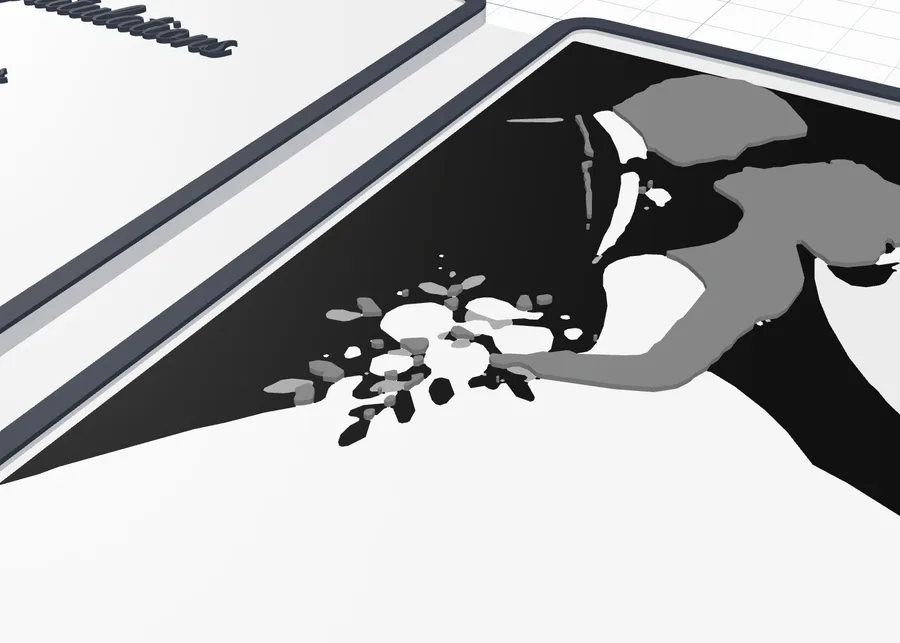
A picture is split into a few colours (Colours, 2-8; Keep its background for a picture without a plain background). Its Colour heights: the presets Flat, Dark up, Light up and Steps, and for every colour its swatch (the filament colour - click it to change), its share and its height in mm: above 0 it stands up by that much, below 0 it sits that deep in a pocket.
7How each item is made
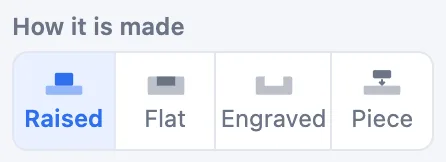
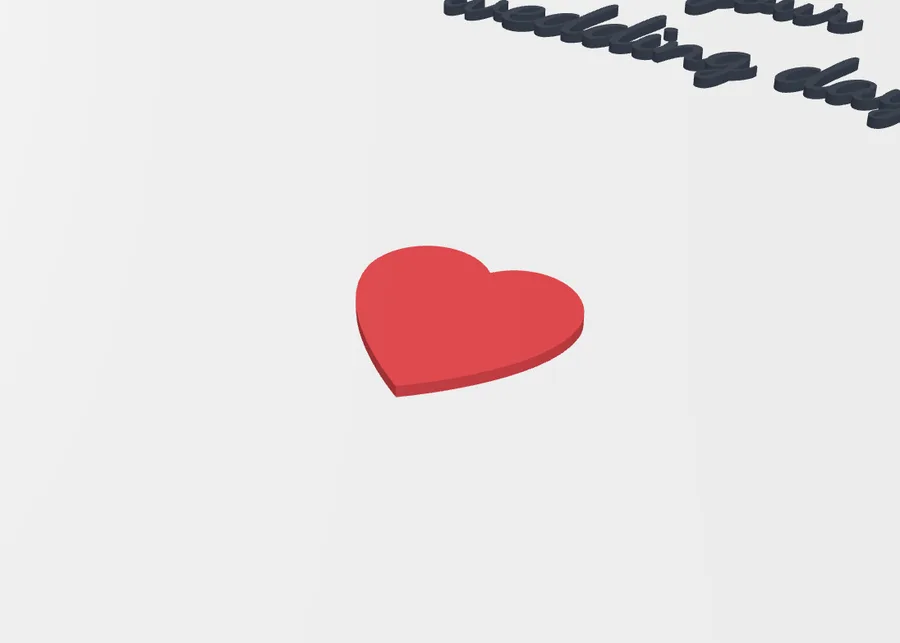
- Raised - standing out of the page inside, in its own colour.
- Flat - inlaid level with the page, in its own colour (the covers lie on the bed, so their items are flat or engraved).
- Engraved - cut into the page.
- Piece - printed on its own and fixed on (see Printing).
8The border
Tick 4 · Border for a band round each page. Closed, the rims meet, so they also leave room for raised items inside.
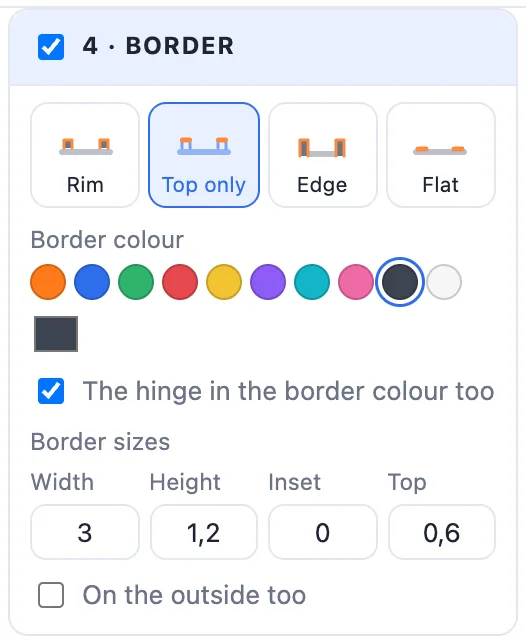
- Rim - a raised rim in its colour.
- Top only - a rim in the card's colour, only its top in the border colour.
- Edge - the edge in its colour from the bed up, and the rim.
- Flat - inlaid level with the inside, no rim.
- Border colour, The hinge in the border colour too, and the border's sizes: Width, Height, Inset, the coloured Top's thickness and On the outside too (the same band round both covers).
9The hinge
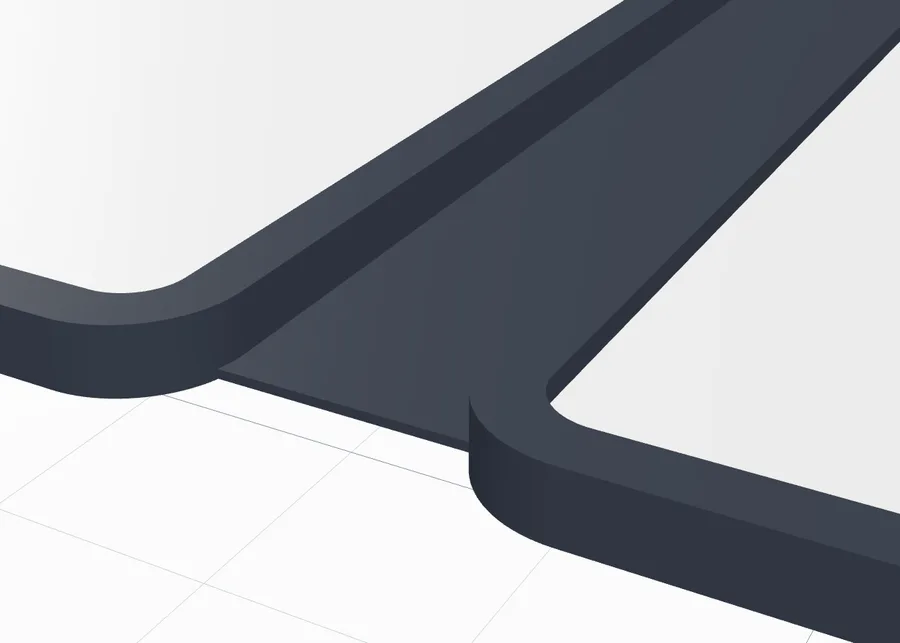
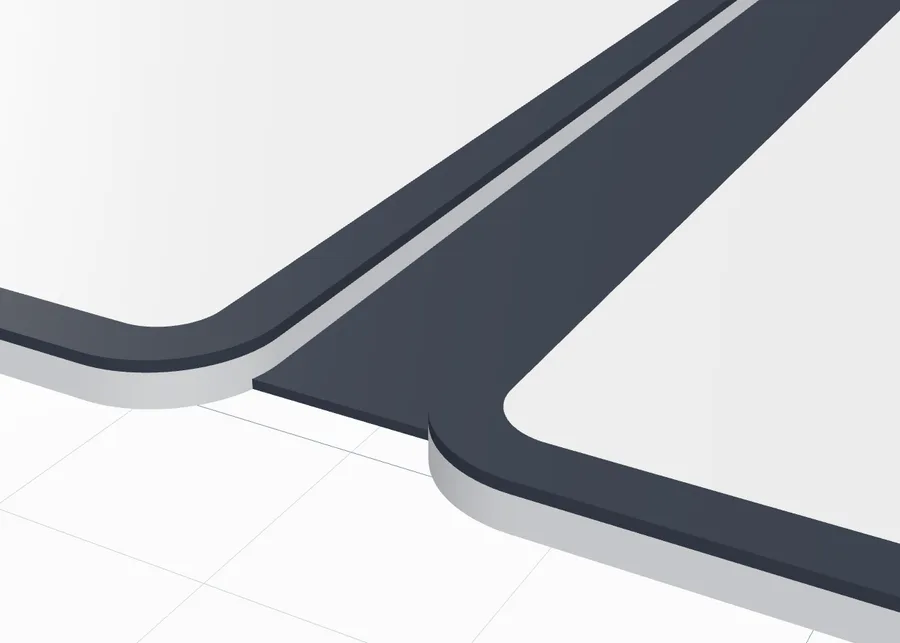
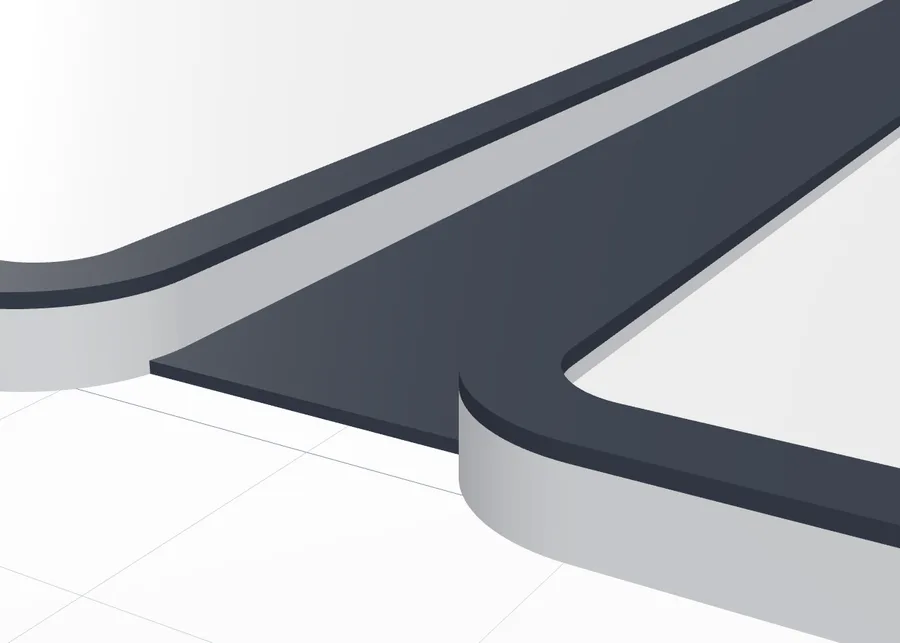
- Flex strip - a thin flexible web across a gap; closed it bends into a half tube (PETG or PP).
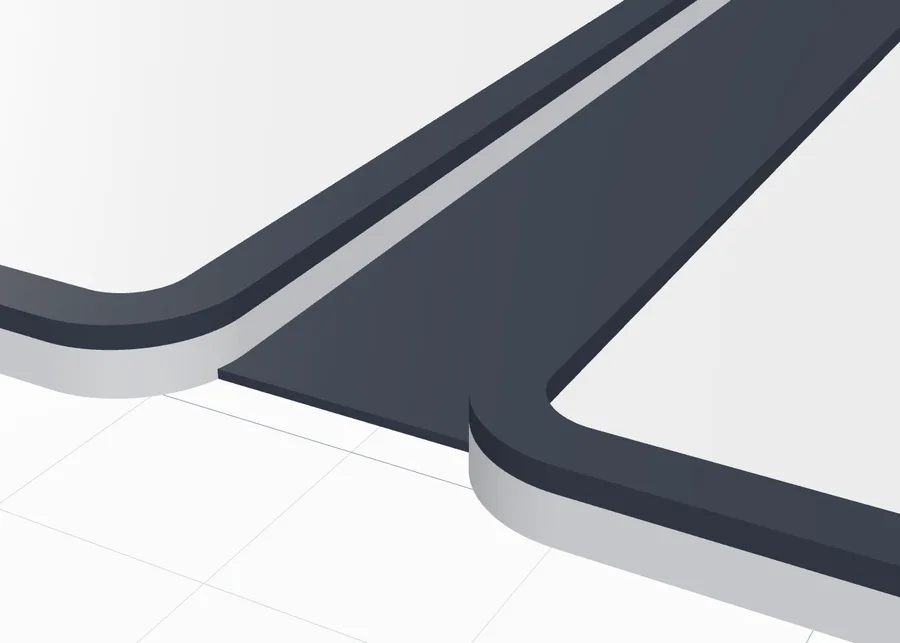
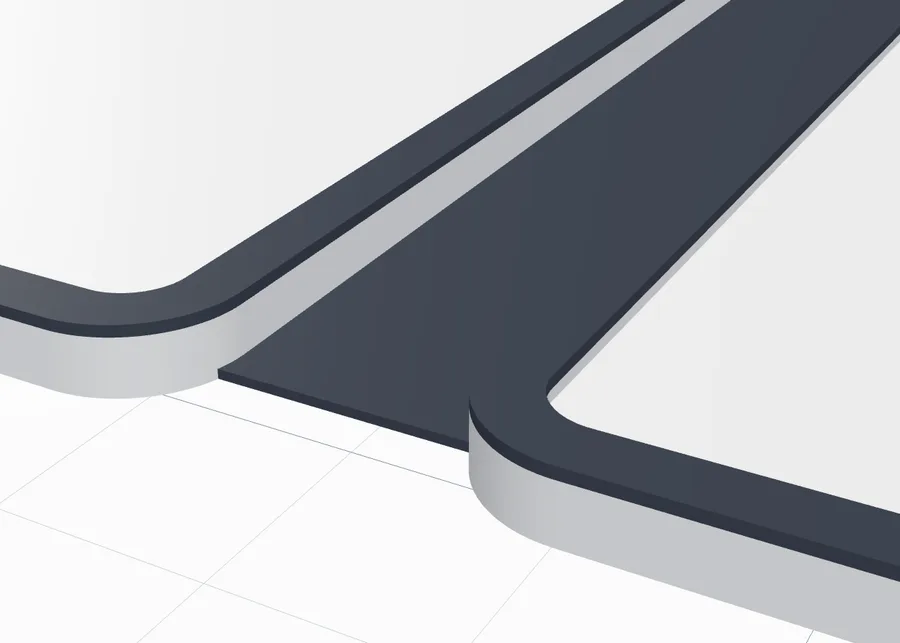
- Book spine - two living hinges with a flat spine between them, as wide as the closed card: it closes like a book.
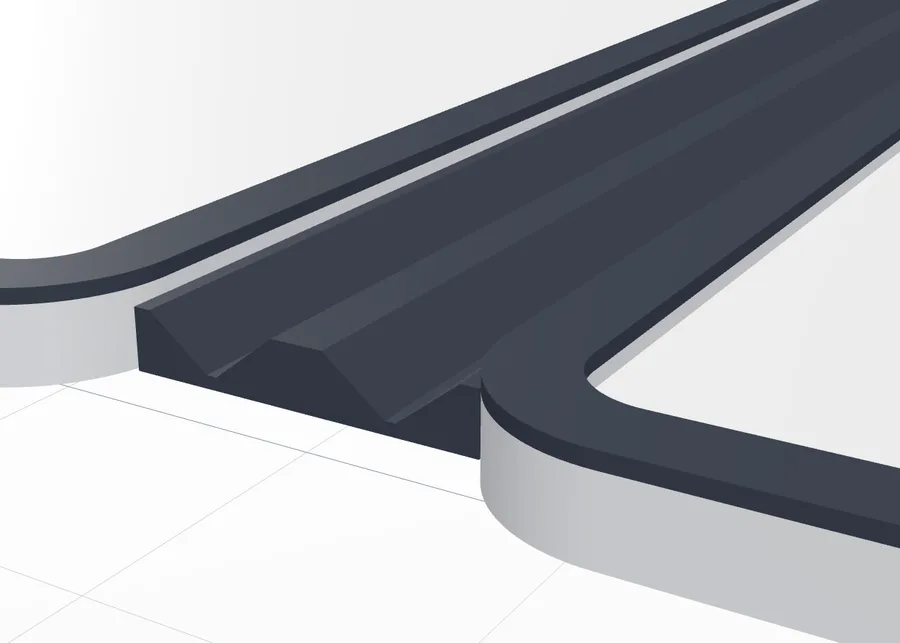
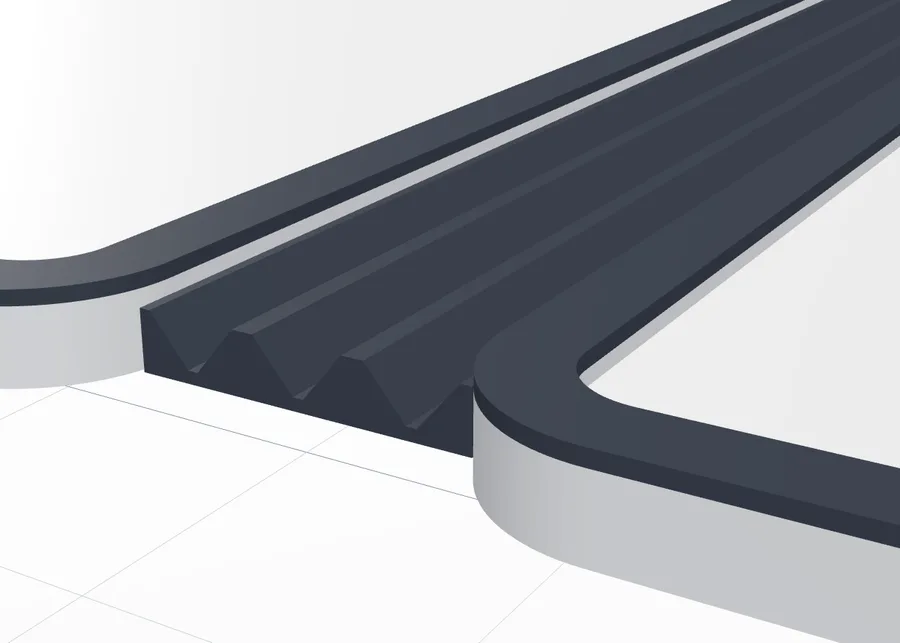
- Grooves - V-grooves like a folding box; Groove angle 30-55°, each groove folds up to twice it.
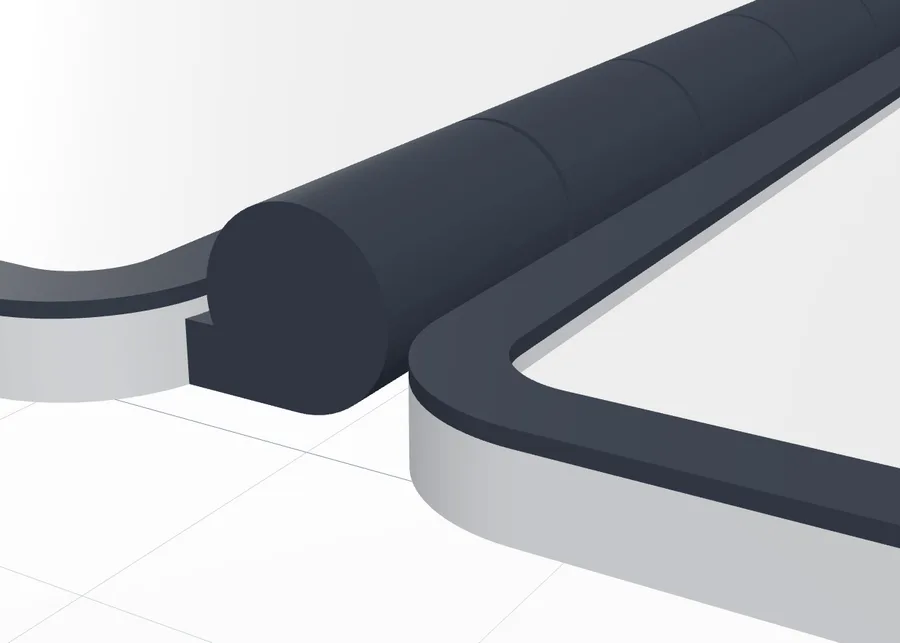
- Knuckles - a print-in-place pin hinge on the spine, held by cones: any material, also PLA. Turn it a few times after printing to loosen it.
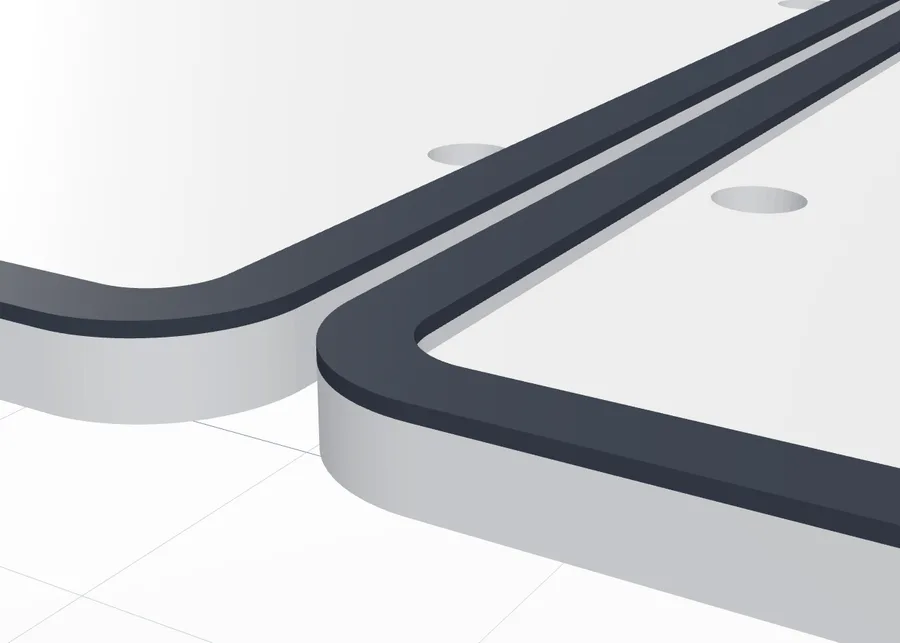
- Apart - two separate pages with holes along the spine for a ribbon or book rings.
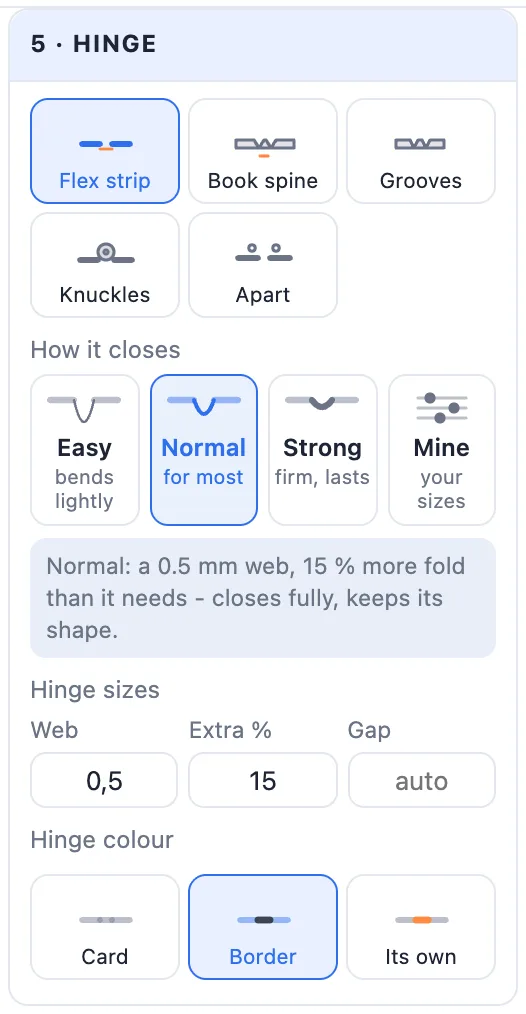
How it closes: Easy (a thin web, 30 % more fold than it needs, loose knuckles - it closes with a light touch), Normal, Strong (a thicker web, tight knuckles - firmer and lasts longer) or Mine (your own Web, Extra % and play). There is always more fold than closing needs, so a grooved or book-spine card closes fully. Hinge colour: the card's, the border's or its own.
10The lock
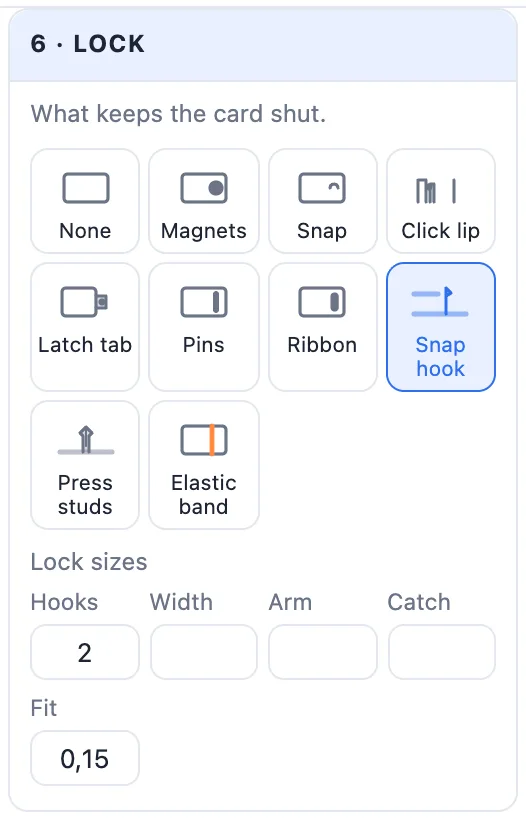
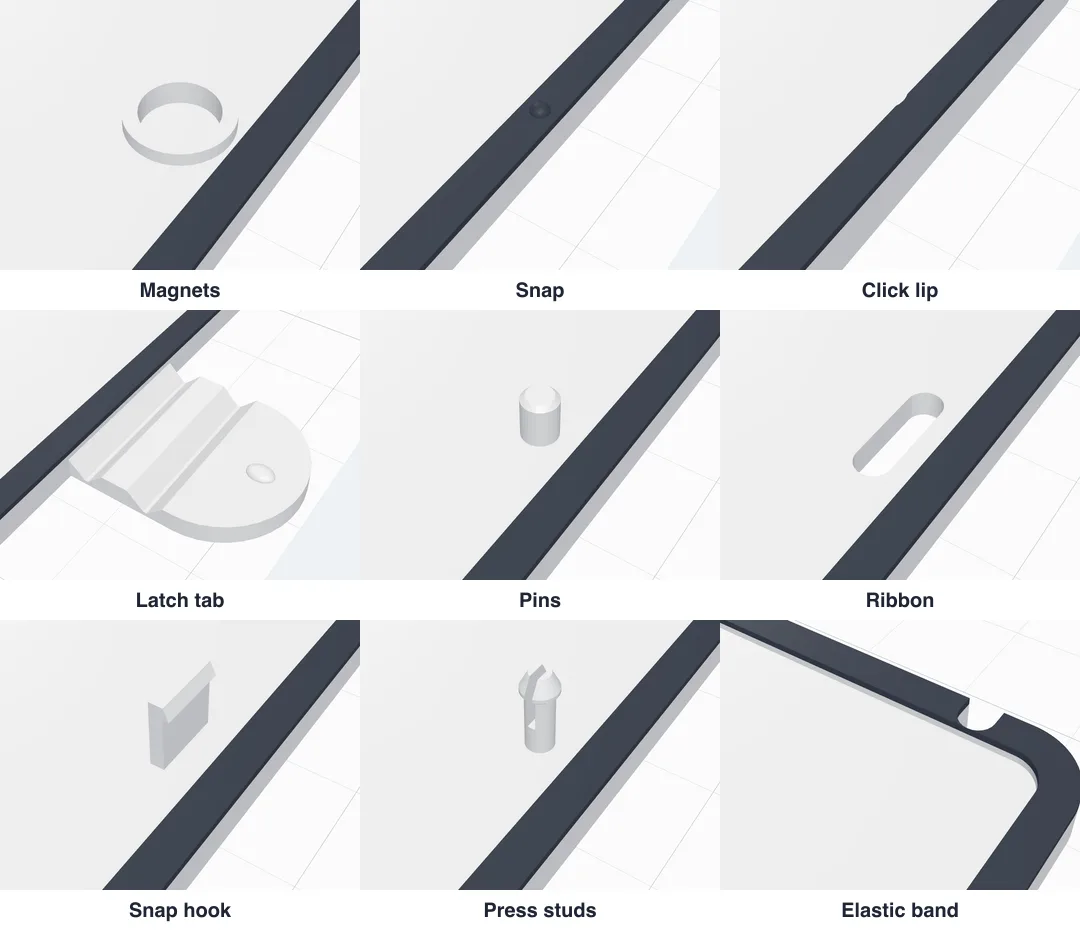
6 · Lock - what keeps the card shut. Each has its sizes under it (Lock sizes):
- Magnets - round magnets set into both pages (6 × 2, 5 × 1, 8 × 2, 10 × 2 mm or your own).
- Snap - bumps on the rim snap into dimples on the other rim.
- Click lip - a lip inside the other page's rim with small bumps that click into grooves (needs a rim).
- Latch tab - a tab on the back's edge folds round the card and clicks onto the front.
- Pins - a pin on one page clicks into a hole on the other.
- Ribbon - slots to tie it shut with a ribbon.
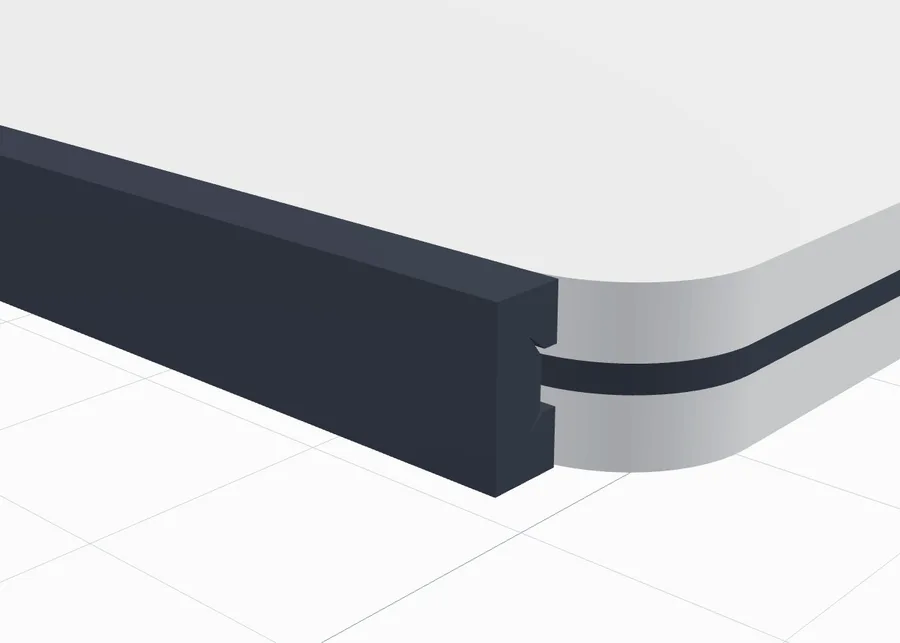
- Snap hook - a springy hook goes through a slot in the other page and clicks under the front cover.
- Press studs - split studs with a catch push through holes in the other page and hold.
- Elastic band - notches at the top and bottom edges hold an elastic band round the closed card.
11Printing in colour or as pieces
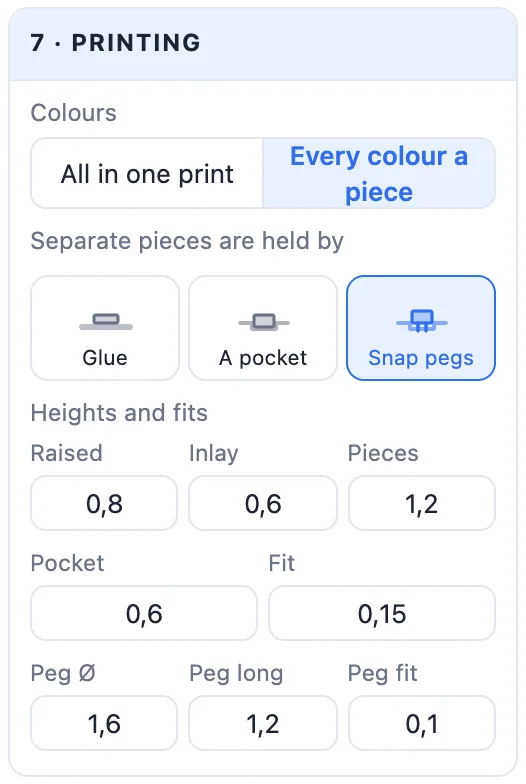
- All in one print - raised and flat parts in their colours, printed with the card: export a multi-colour 3MF for a multi-colour printer, or swap filament at the heights the slicer shows.
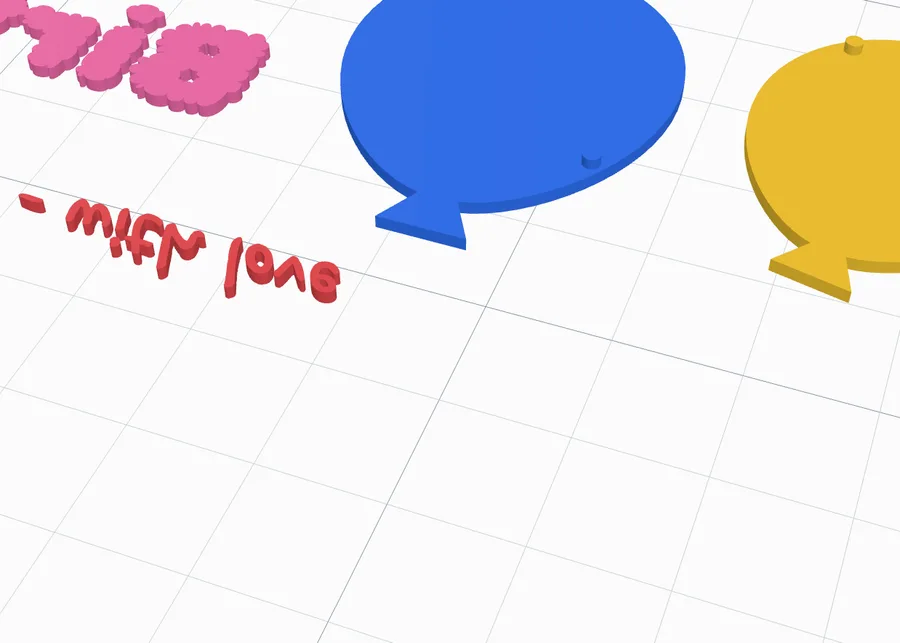
- Every colour a piece - for a one-colour printer: every raised or flat item is printed as a piece of its own, the side you see on the bed, in rows below the card.
- Separate pieces are held by - Glue (flat on the face), A pocket (it drops into a pocket of its shape) or Snap pegs (a pocket and pegs into holes).
- Heights and fits - how high raised parts stand, how deep inlays go, how thick pieces are, the pocket's depth and fit, and the pegs' size and fit.
12Create, print and fold it
- Click Create card: the card is added to your project laid out for printing - the outside on the bed, the inside up. Double-click it later to change it.
- Export it: Multi-colour 3MF keeps every colour; STL works for one colour.
- Print it in PETG or PP for the flex strip, the book spine and the grooves - PLA for the knuckles or a card opened now and then.
- Fold it gently the first time. A knuckle hinge: turn it a few times to loosen it.
- Fit the magnets, or press the pieces into their pockets.
Questions
Can I really 3D print a greeting card that folds?
Yes. The card prints flat in one piece, inside up, with a hinge at the spine - a thin flexible web, a book spine or grooves for PETG or PP, or print-in-place knuckles that work in PLA too. After printing, fold it gently once and it opens and closes like a paper card.
Which filament should I use?
For the Flex strip, Book spine and Grooves hinges use PETG or PP - they bend many times without breaking. PLA works for a card that is opened now and then, or use the Knuckles hinge, which turns on a pin and works in any material.
How do I print the card in several colours?
Leave Colours on All in one print and export a multi-colour 3MF: every text, SVG, picture colour, the border and the hinge are their own coloured parts. On a single-colour printer choose Every colour a piece: every raised or flat item is printed as a separate piece and drops into a pocket, held by glue or snap pegs.
Can I use my own picture on the card?
Yes. Add a Picture: it is split into a few colours, each one a part you can raise or sink with Colour heights and give its own filament colour. The wedding template uses a picture of the bride and groom on the whole inside right page.
Will the card stay shut?
Pick a lock: magnets, snap bumps on the rim, a click lip, a latch tab, pins, a snap hook, press studs, slots for a ribbon or notches for an elastic band.
How do I make the card bigger or smaller?
In Size & shape pick A6, A6+, Square, Mini or Tall, or type the width and height of one page - or of the open card. With Scale the texts, SVGs and pictures with the card ticked, everything on the card grows or shrinks with it.
Make your greeting card
Pick a template, write your words, and print a card that folds.
Open the Greeting card generatorAlso see: Plate generator, Business card generator, Sticker generator, Add text to a 3D model and SVG to 3D model.