3DPrintCAD › Guides › Phone grip generator
Phone grip generator: puffy 70s letter badges for 3D printing
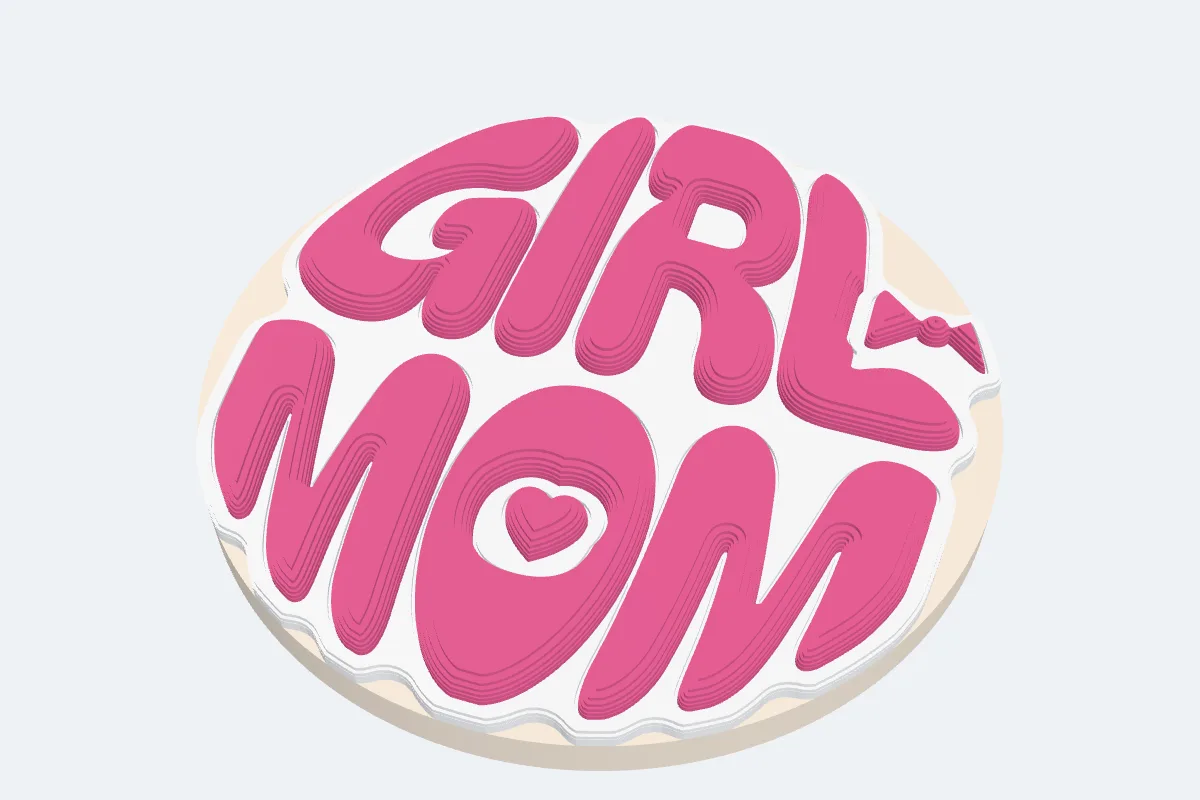
Type a few words - GIRL MOM, CAT MOM, GOOD VIBES, a name - and they fill a round in fat, puffy 70s letters, like the badges everyone prints for phone grips. Make it a phone grip topper, a keychain, a fridge magnet or a badge, add little icons or your own SVG, pick a colour theme and export it ready for a multi-colour print.
Watch the tutorial
Every option in four minutes, with subtitles: words and fonts, the looks and themes, icons and SVGs, the outline, the letters, dots, shape and size, the four kinds and the colours. Watch on YouTube ↗
1Open the Phone grip generator
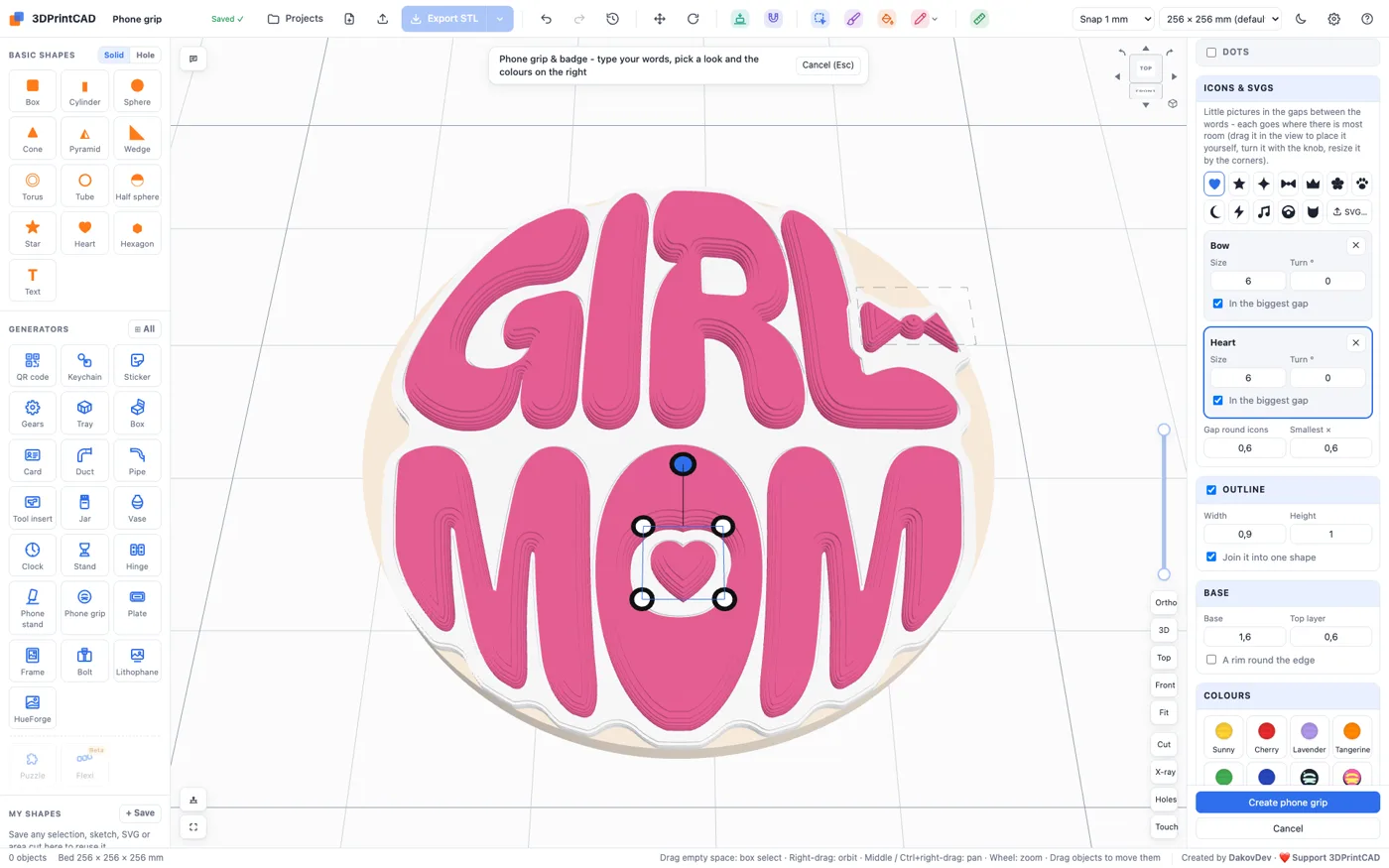
Open the app, start a new project and click Phone grip under Generators on the left (or use the button above). A GOOD VIBES badge appears on the bed and its settings open on the right. Every change shows in the view at once; the line at the top of the panel gives the size, how the words were split into lines and the heights for a filament change.
2Grip, keychain, magnet or badge
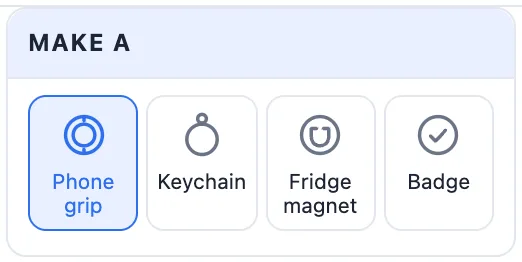
The first card, Make a, says what it is for. Each starts at a size that suits it:
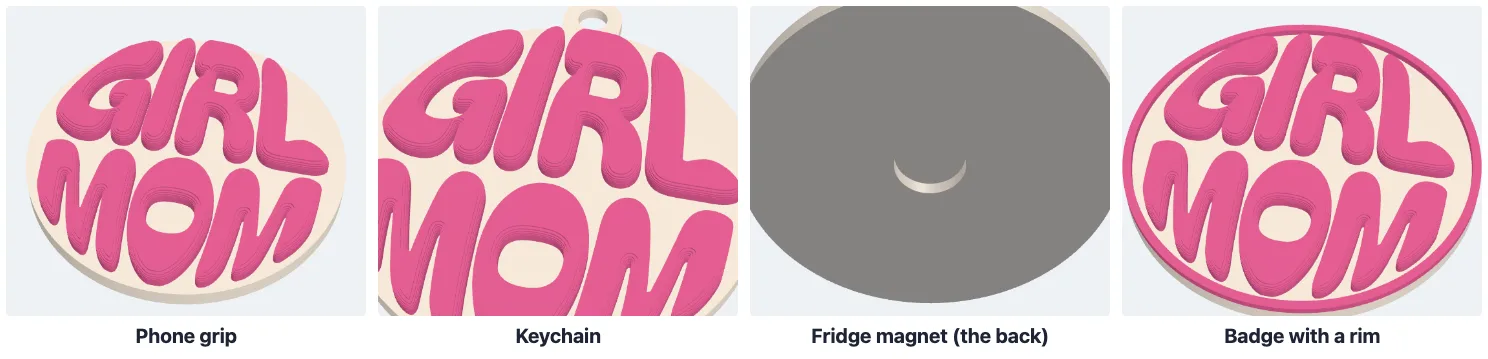
- Phone grip - a topper you glue onto a phone grip. A swappable grip top is 38.8 mm across.
- Keychain - a tab with a hole at the top for a key ring or a ball chain. The Key ring card sets the Hole Ø (4 mm suits a ball chain or a split ring) and the Wall round it.
- Fridge magnet - a pocket in the back for a disc magnet. The Magnet card has buttons for 6 × 2, 8 × 2, 10 × 2, 10 × 3 and 12 × 3 mm magnets, or type the Magnet Ø and Thickness. The base grows thicker when it needs to.
- Badge - just the badge: a coaster, a decoration, a gift.
3Your words, lines and font
Type your words in the Your words box - up to four lines; Enter starts a new line. With Auto the generator tries every way of splitting the words into lines and keeps the one that makes the letters biggest. 1 line, 2 lines and 3 lines set it yourself.
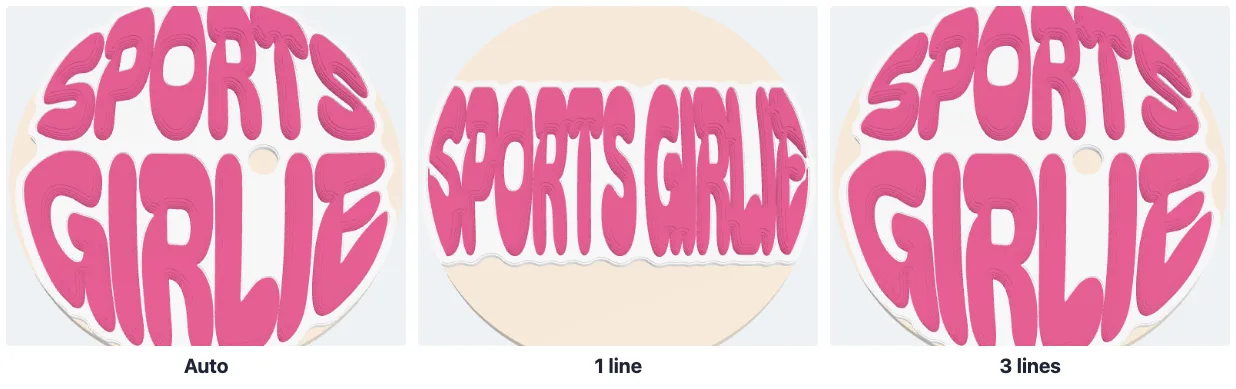
Pick any Font. The 70s fonts - Bagel Fat One, Shrikhand and Chicle - are in the menu's Groovy 70s group, next to every other font of the app, and the last entries upload your own TTF, OTF or WOFF font. Letters a font lacks (Cyrillic, for example) are drawn in a similar font at the same height; the panel tells you which.
Fewer, shorter words give bigger letters. The panel warns when a line is under 4 mm tall: thinner strokes print less cleanly.
4The six looks
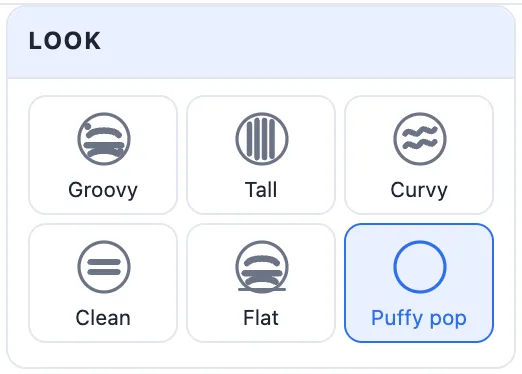
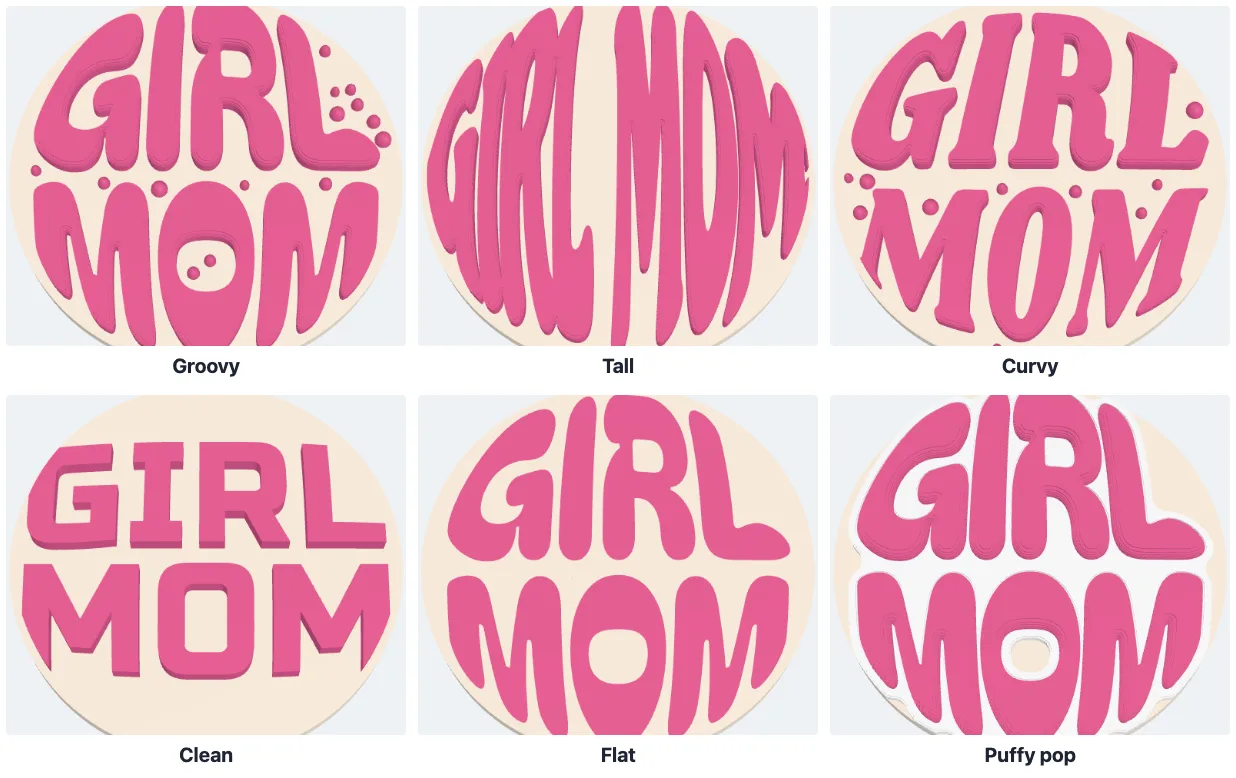
A look sets the font and how the letters fill the shape in one click. Everything can still be changed afterwards.
- Groovy - fat bubble letters filling the round, puffy, with dots: the 70s badge look.
- Tall - tall letters (Chicle) stretched to fill the whole round, good for a name.
- Curvy - swirly 70s curves in Shrikhand.
- Clean - straight lines in a bold font (Russo One) with flat tops.
- Flat - the letters inlaid level with the top: smooth to touch.
- Puffy pop - big puffy bubble letters with an outline round them in another colour, like a sticker, and room for little icons.
5The letters
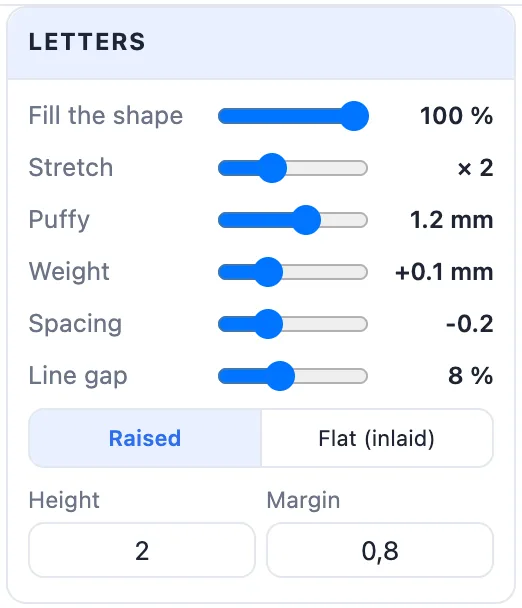
The Letters card fine-tunes how the words fill the shape:
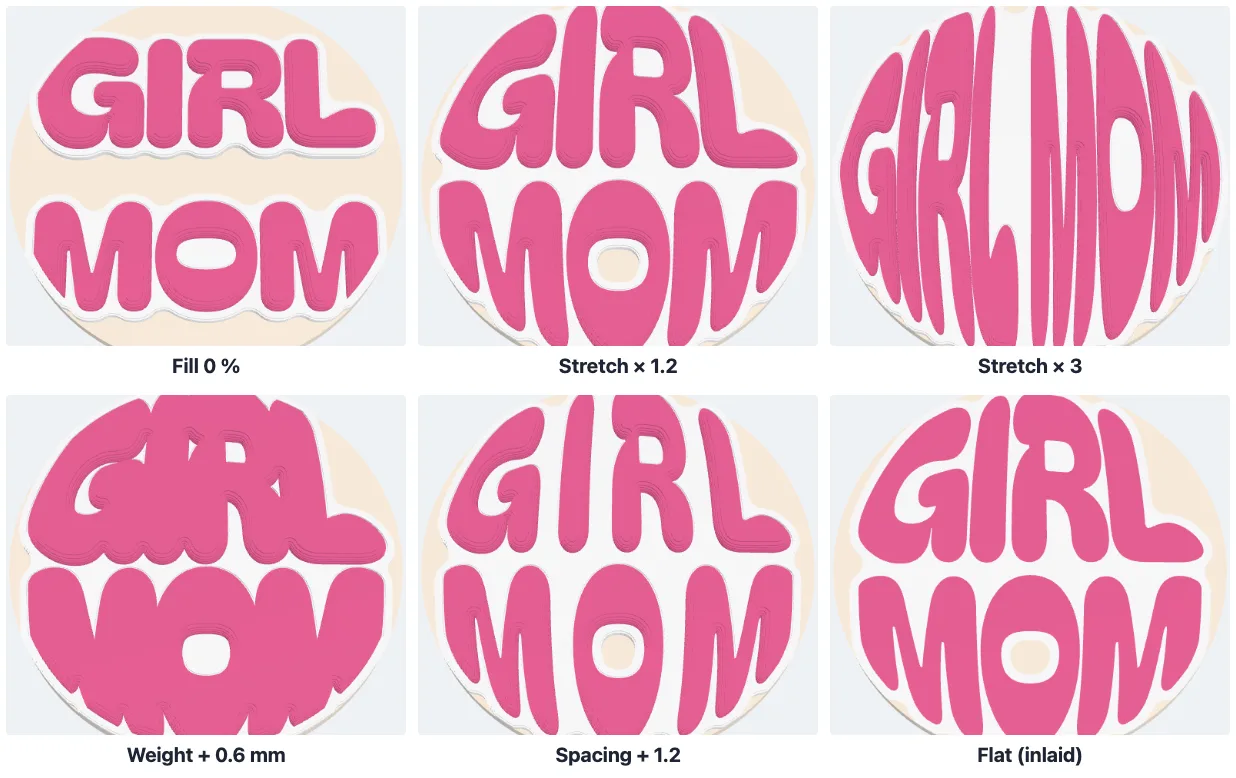
- Fill the shape - how far the letters are pushed out to the edge: 0 % is plain straight lines, 100 % fills the round, the top line's tops and the bottom line's feet following its edge.
- Stretch - how much taller than its own shape a line may be pulled to fill the round (× 1 to × 4).
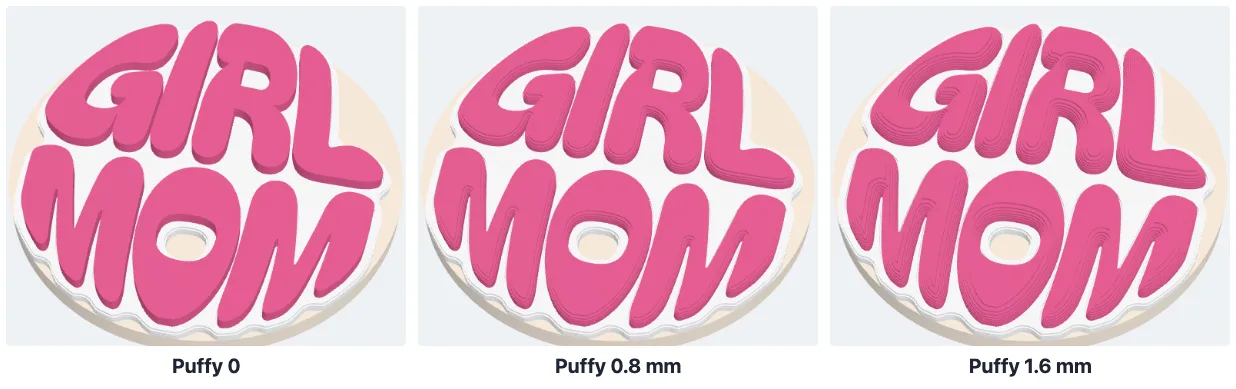
- Puffy - how round the letters' top edges are; 0 gives flat tops.
- Weight - bolder or thinner letters: millimetres added round each letter.
- Spacing - the room between the letters.
- Line gap - the room between the lines.
- Raised or Flat (inlaid) - letters that stand up from the top (Height), or set into the top level with it (Depth).
- Margin - the room kept between the letters and the edge.
6Icons and your own SVG
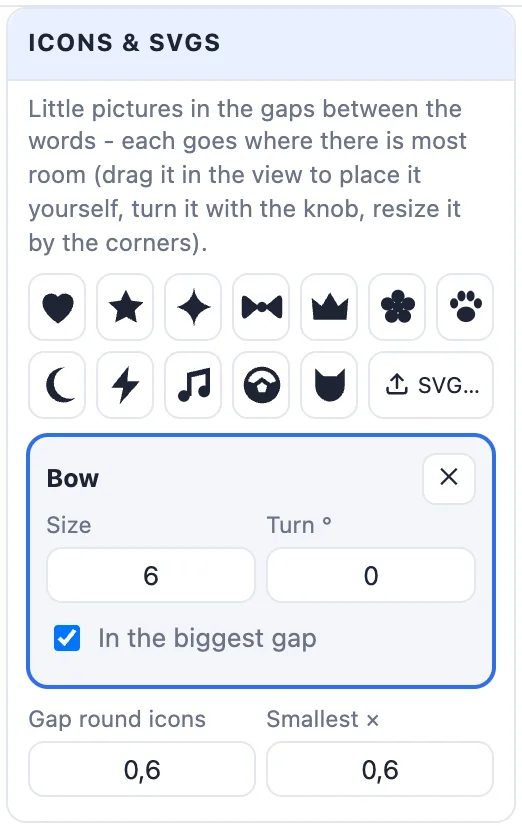
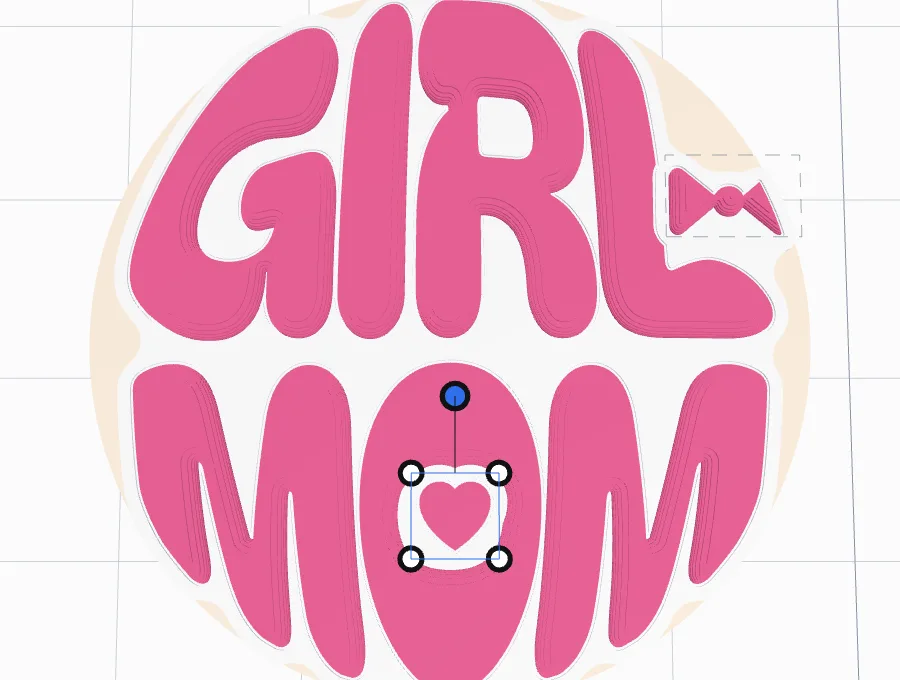
Under Icons & SVGs click a built-in icon - heart, star, sparkle, bow, crown, flower, paw, moon, lightning, music, ball or cat - to add it. Each icon goes into the biggest gap between the words and shrinks to fit. SVG… loads your own SVG files (a logo, a crown, a name tag), several at once.
Every icon gets a card: its Size (its height in mm), Turn, and In the biggest gap. Under the cards, Gap round icons is the room kept between an icon and the letters, and Smallest × is how far an icon may shrink to fit a gap - below that the letters make room round it instead. ✕ removes an icon.
You can also place icons in the view: click one to select it, drag it where you want it, turn it with the round knob above it (Shift: 15° steps) and resize it by its corners. A dragged icon is no longer in a gap, and the letters move aside for it; tick In the biggest gap again to put it back.
7The outline
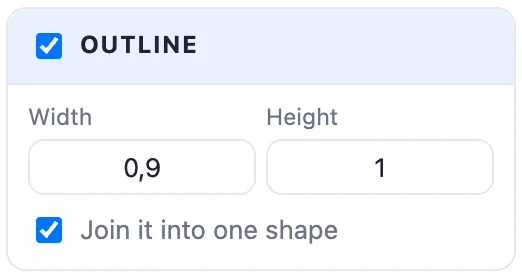
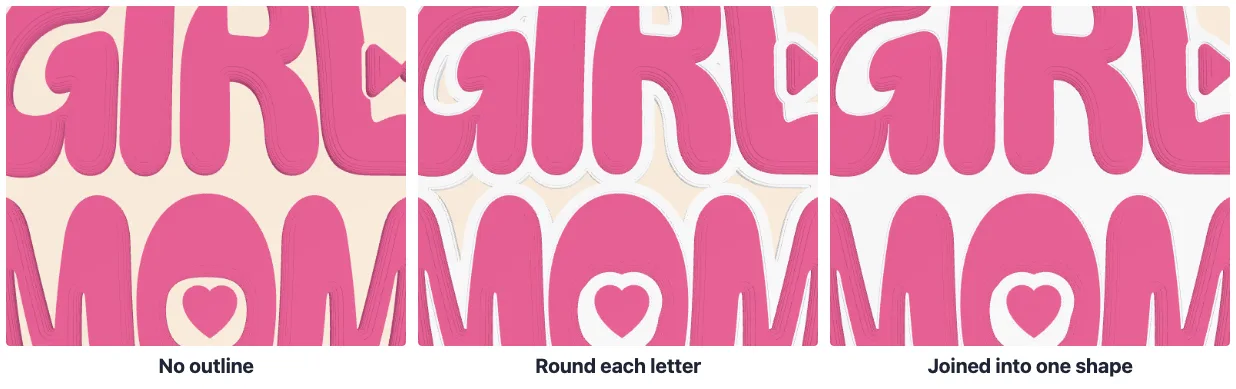
Tick Outline for a band round the letters and icons in another colour - the puffy sticker look. Width is how wide the band is, Height how high it stands (at most the letters' height). Join it into one shape fills the gaps between the letters, so the outline is one sticker shape round all the words; untick it to outline each letter on its own.
8Dots
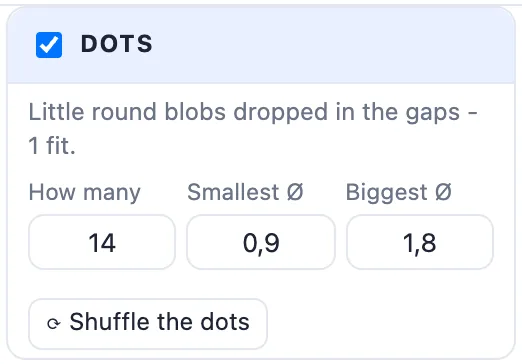
Tick Dots to drop little round blobs into the gaps between the letters - the groovy badge look. Set How many, the Smallest Ø and Biggest Ø; the hint tells you how many fit. The dots never touch each other or the letters. Shuffle the dots lays them out again in a new way.
9Shape and size
The badge can be Round, Oval, Rounded (a rounded rectangle, with its Corners), Hexagon or Heart; the words fill whichever you pick. The size buttons suit the kind (38.8, 40 and 45 mm for a phone grip, 40-60 mm for a keychain, 50-75 mm for a magnet or badge), or type the Diameter - or the Width and Height for an oval, a rounded rectangle or a heart.

10Base and rim
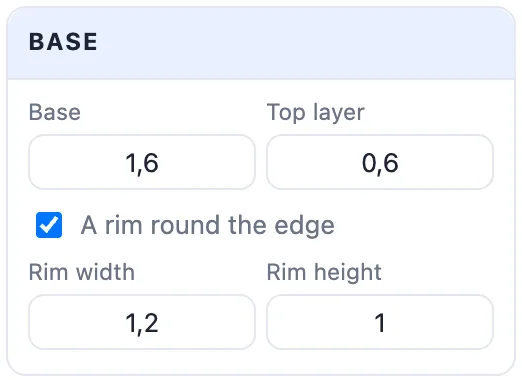
The badge is built in layers: the Base at the bottom, a Top layer in its own colour on it (0 = none), and the letters, outline, icons and dots on top. Tick A rim round the edge for a raised ring round the badge, with its Rim width and Rim height.
11Colours and themes
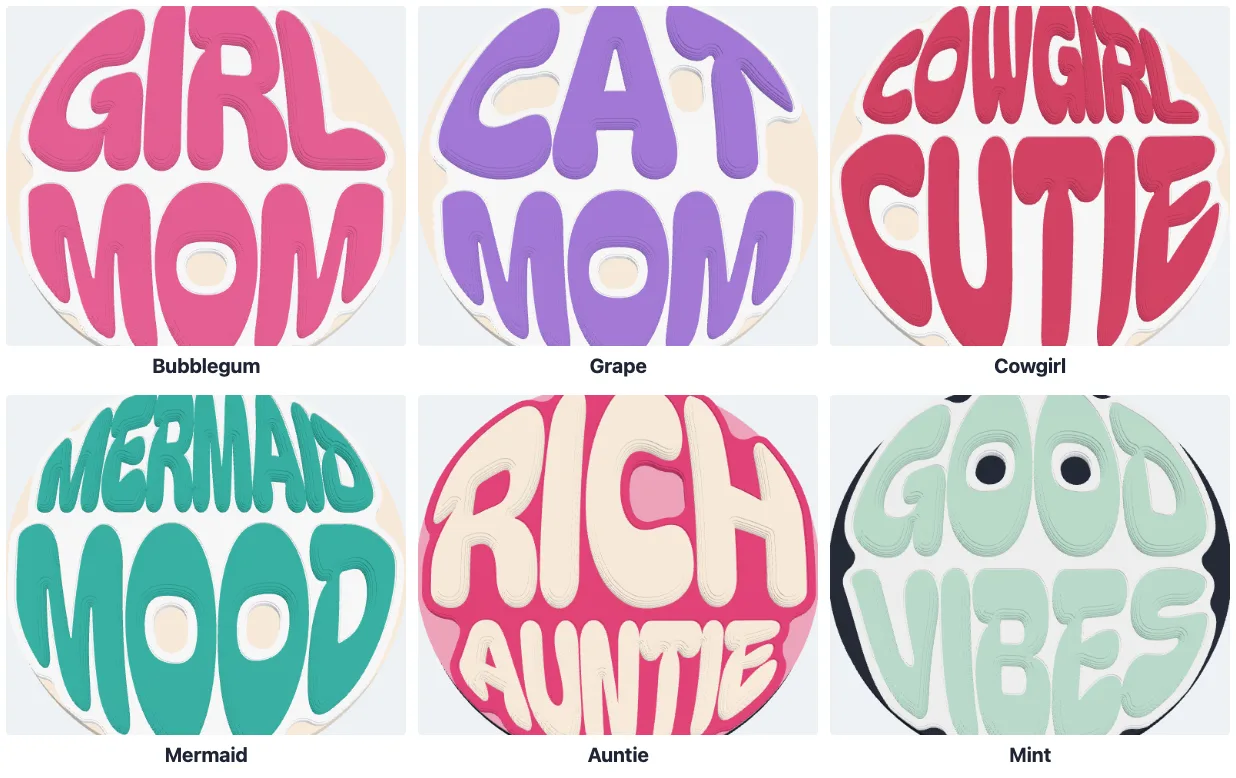
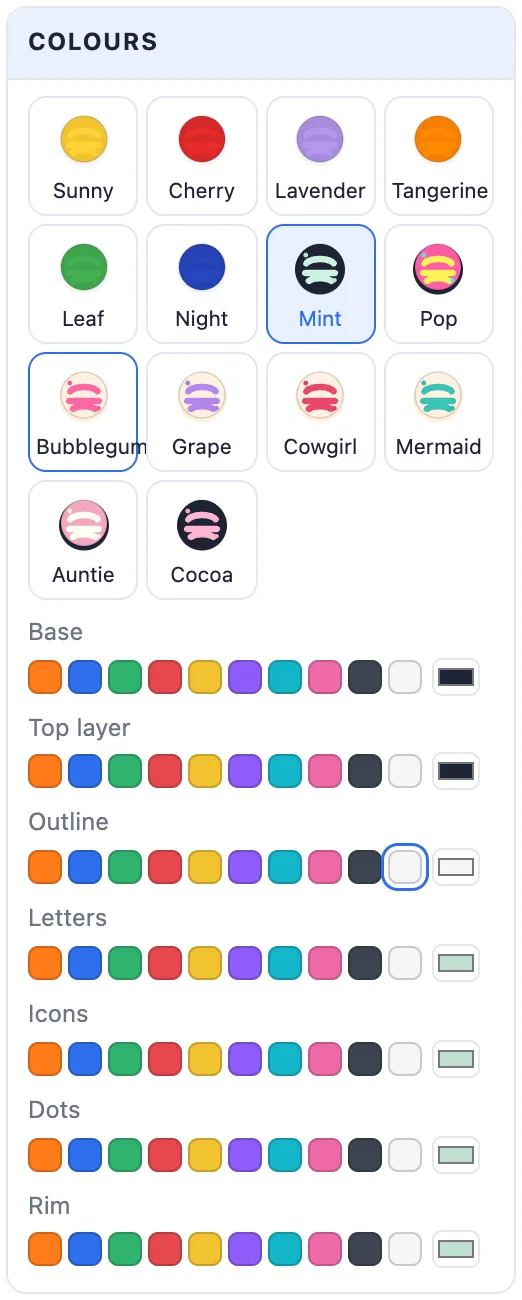
The Colours card starts with ready themes - Sunny, Cherry, Lavender, Tangerine, Leaf, Night, Mint, Pop, Bubblegum, Grape, Cowgirl, Mermaid, Auntie and Cocoa - each a set of colours for every layer. Below them every layer has its own row of swatches (and Any colour): the base, the top layer, the outline, the letters, the icons, the dots and the rim, whichever are in use.
12Create, export and print
Click Create phone grip (or keychain, magnet, badge). Every colour is its own part, so you can export:
- a Multi-colour 3MF for a multi-colour printer - each layer already on its filament;
- an STL for one nozzle - the info line gives the heights where the colour changes (the top layer, the letters); add a filament change at those heights in your slicer;
- or use Split by colour to print each colour on its own and glue them together.
To change it later, double-click it: the generator opens with all its settings.
13Tips for printing
- Print it flat, as it comes out of the generator - no supports.
- A 0.4 mm nozzle and 0.12-0.16 mm layers keep the puffy edges smooth.
- For a phone grip, sand the back lightly and glue it on with a drop of super glue.
- On a fridge magnet, push the magnet in after printing, with a drop of glue if it is loose.
- If small letters come out blobby, use fewer words, more Stretch or a bigger size.
Questions
What size is a phone grip topper?
A swappable phone grip top is usually 38.8 mm across, so the Phone grip starts at that size. The 40 and 45 mm buttons, or any diameter you type, suit other grips. Glue the print onto the grip's top with a drop of super glue.
How do I print it in two or more colours with one nozzle?
The info line at the top of the panel gives the heights where the colour changes - the top layer and the letters. Add a filament change (a pause) at those heights in your slicer. With a multi-colour printer export a Multi-colour 3MF instead.
My words come out very small. What can I do?
Fewer or shorter words fill the round with bigger letters. Leave Lines on Auto, which picks the split that makes the letters biggest, raise Stretch, or make the shape bigger. The panel warns when a line is under 4 mm tall.
Can I use my own picture or logo?
Yes. Under Icons & SVGs click SVG and load one or more SVG files. Each one goes into the biggest gap between the words, or you drag it where you want it in the view, turn it with the knob and resize it by the corners.
Can I use letters from other alphabets?
Yes. Letters a font does not have, such as Cyrillic in some 70s fonts, are drawn in a similar font at the same height, and the panel tells you which letters were borrowed. You can also upload your own TTF, OTF or WOFF font from the font menu.
Make your phone grip
Open the app, type your words and pick a look.
Open the Phone grip generatorAlso see: Keychain generator, Sticker generator, Plate generator (name plates and birth letters) and Phone stand generator.