3DPrintCAD › Guides › Offset tool
Offset tool: a frame of even width from any shape
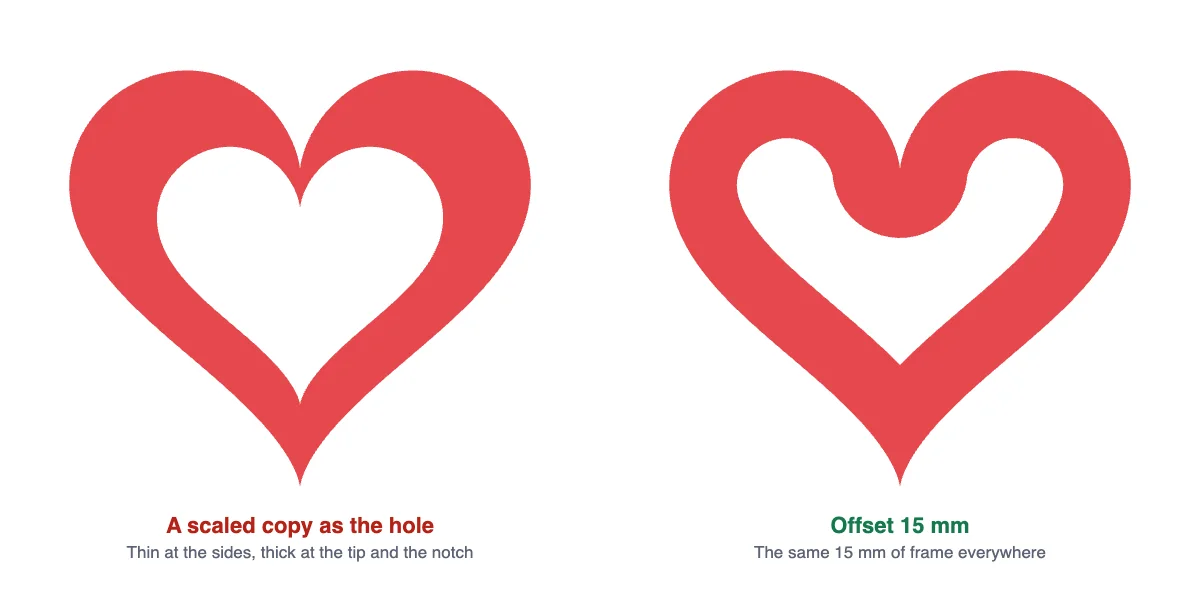
You have a heart, a star, a logo or a letter and want a frame from it - the same shape with a hole that leaves, say, 15 mm of material all round. Scaling a copy down and cutting it out does not work: a scaled shape shrinks toward its middle, so the frame comes out thin in some places and thick in others. The Offset tool moves the outline in or out by the same distance everywhere. It cuts the hole for you, or gives you the new shape as a Hole body, a smaller copy, a ring or a bigger copy.
Watch the tutorial
Every step in under three minutes, narrated with subtitles: the distance, what to make, how deep, outside, the corners and cutting it. Watch on YouTube ↗
1Select the body and open Offset
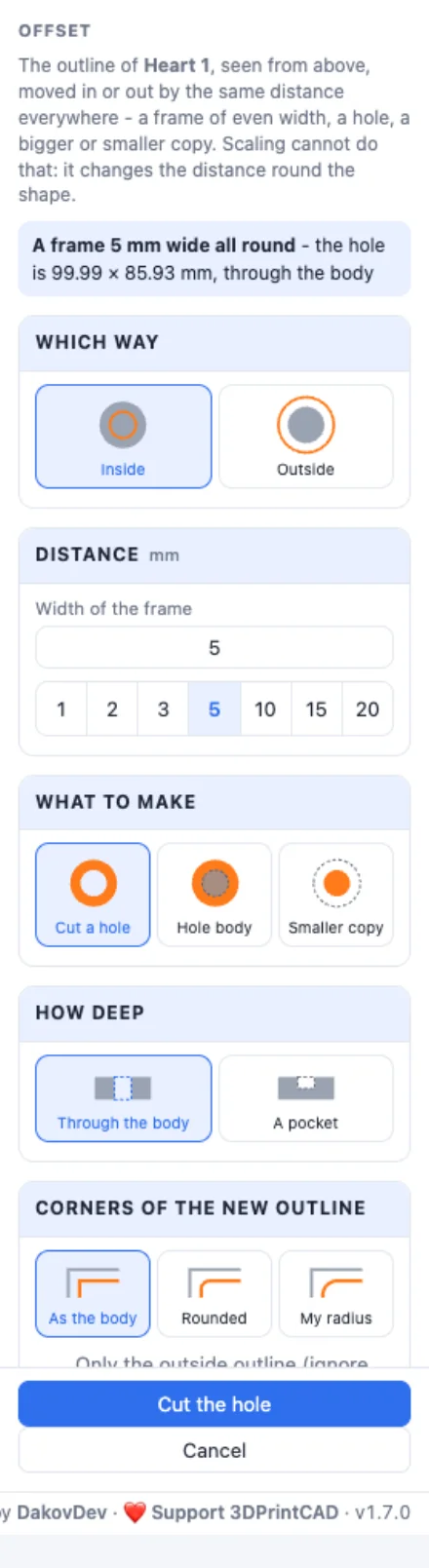
Select your body and click Offset in the Body card. The preview at once shows a hole that leaves a frame 5 mm wide, and the blue box at the top of the panel says the size of the hole.
2Offset against scaling
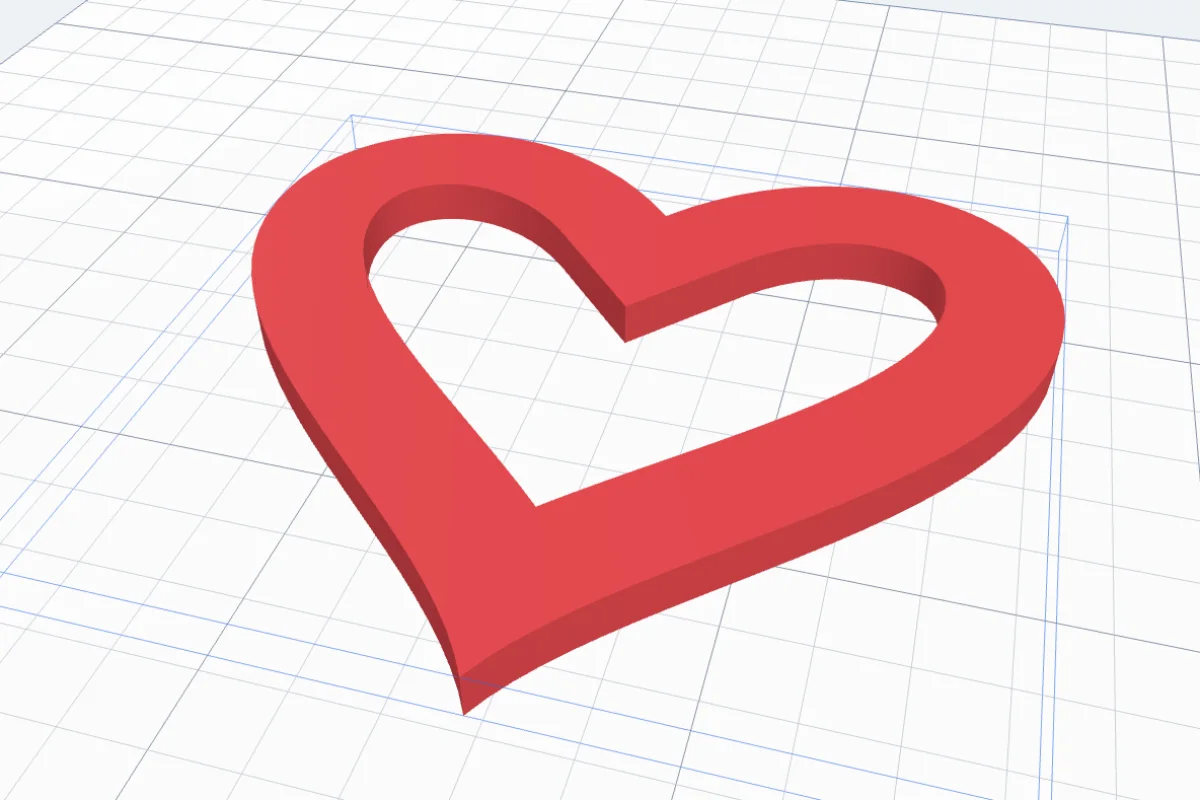
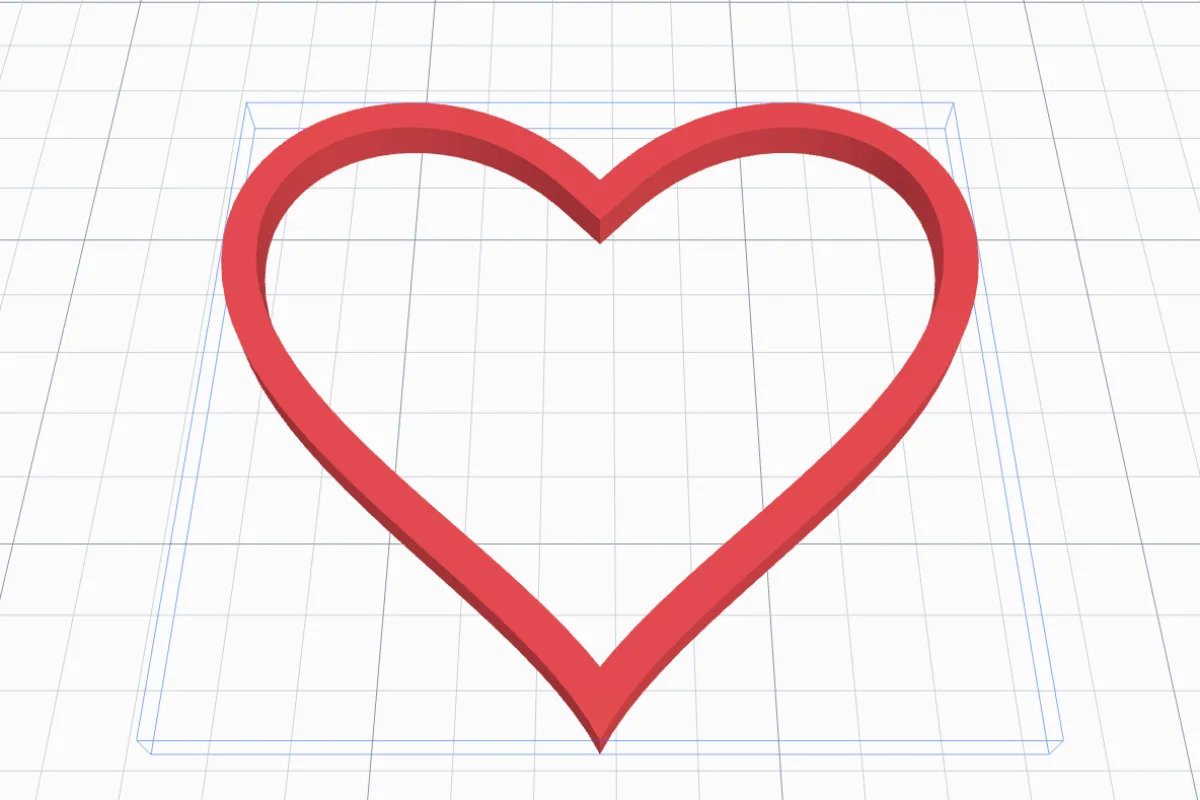
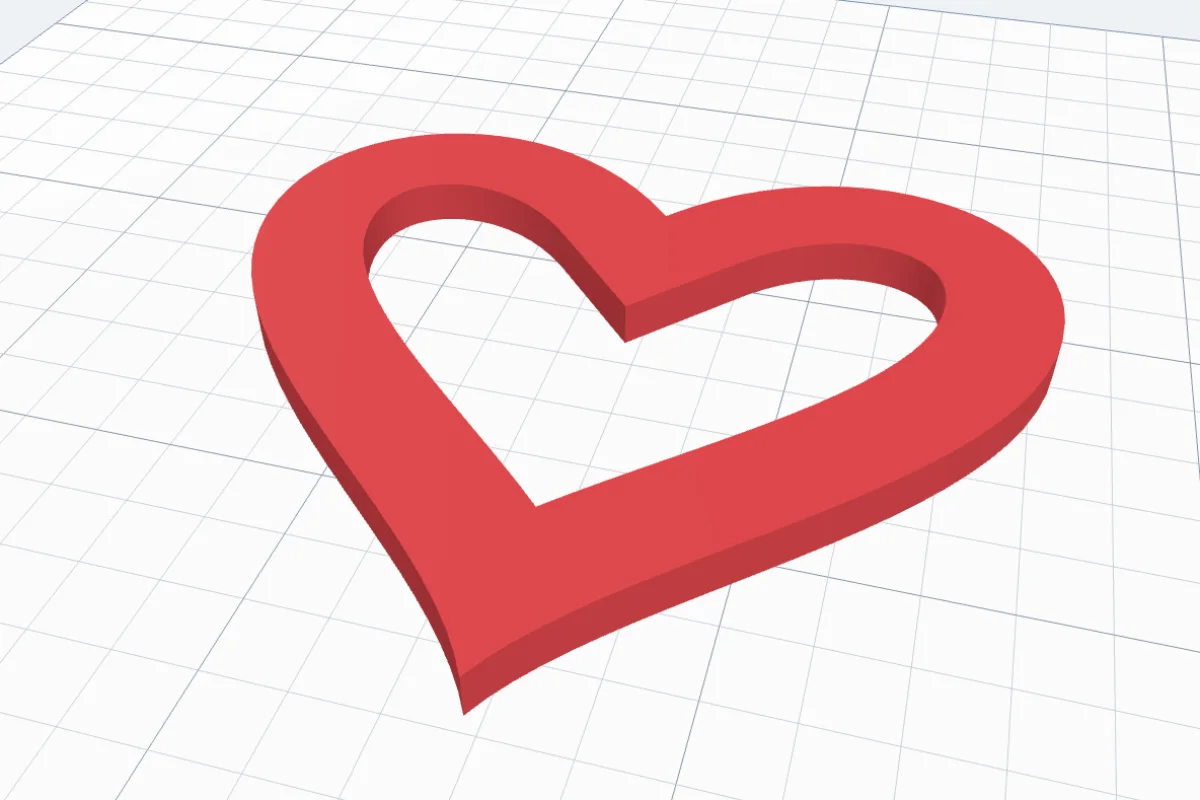
On the left a scaled copy of the heart was cut out: the frame is thin at the sides and thick at the tip and at the notch. On the right the hole is the outline moved in by 15 mm: the frame is 15 mm wide wherever you measure it.
3The distance
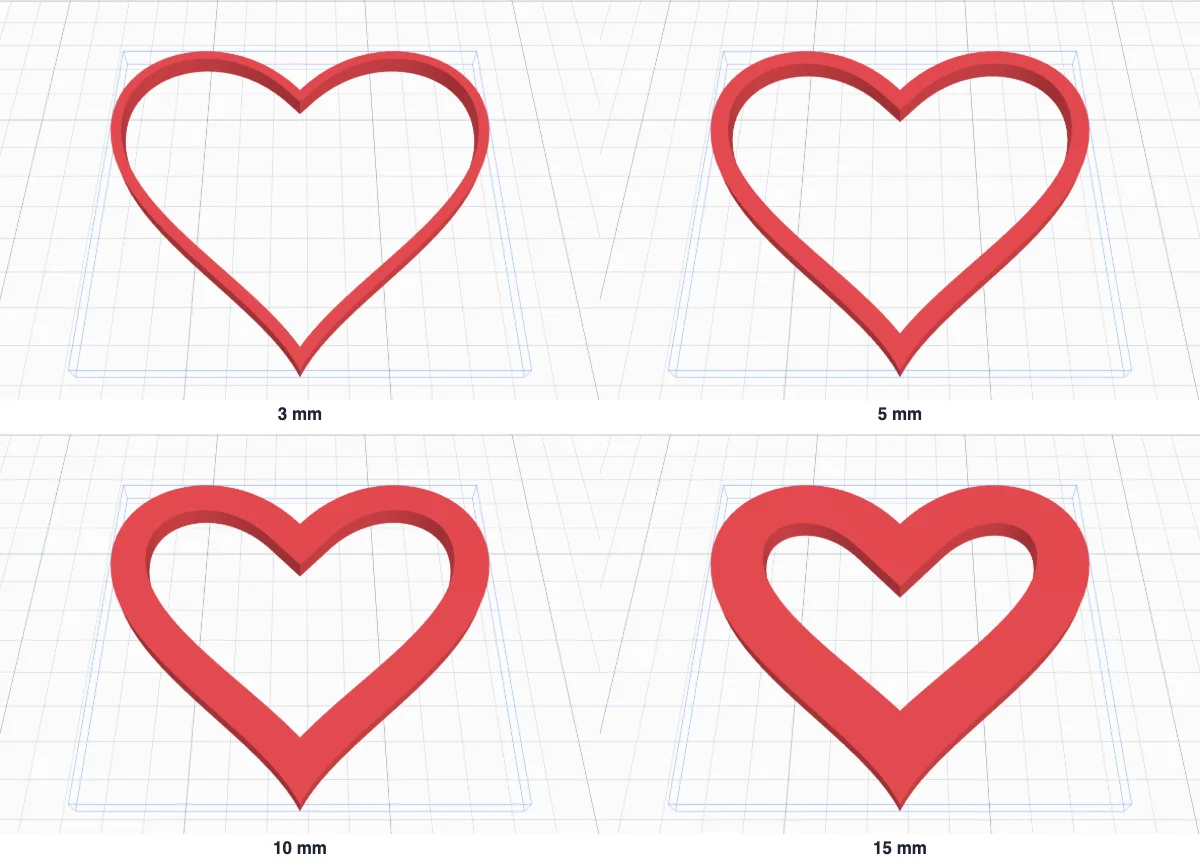
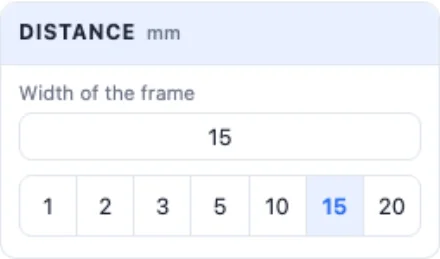
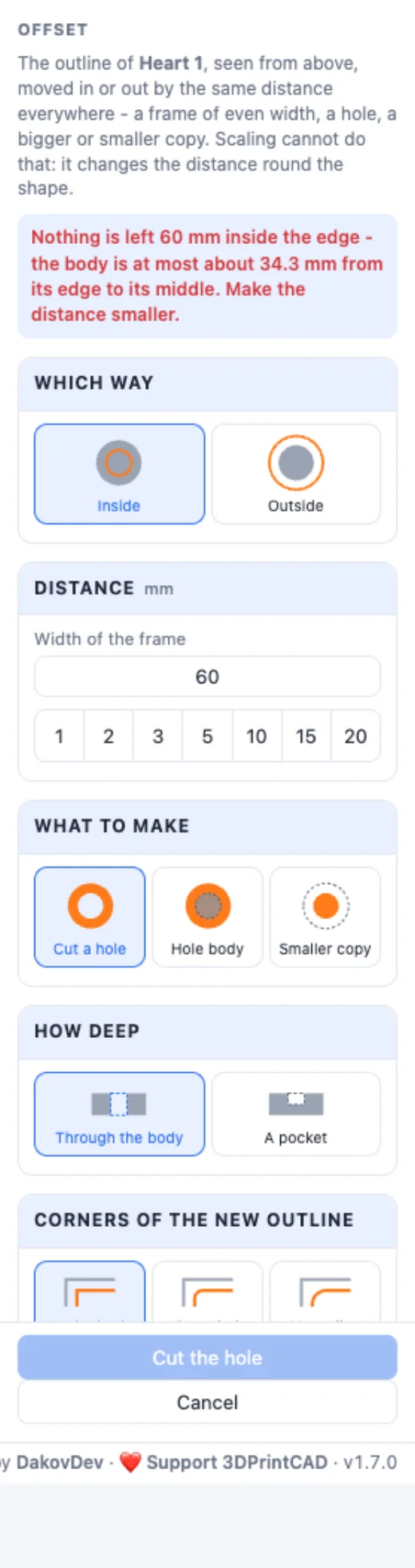
Type the distance or click a chip from 1 to 20 mm. With Inside it is the width of the frame that stays. When the distance is too big for the body, the panel says how far its edge is from its middle.
4What to make
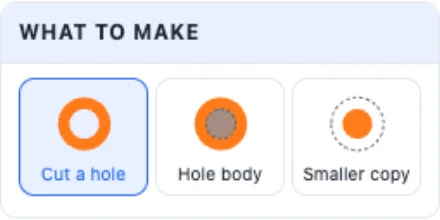
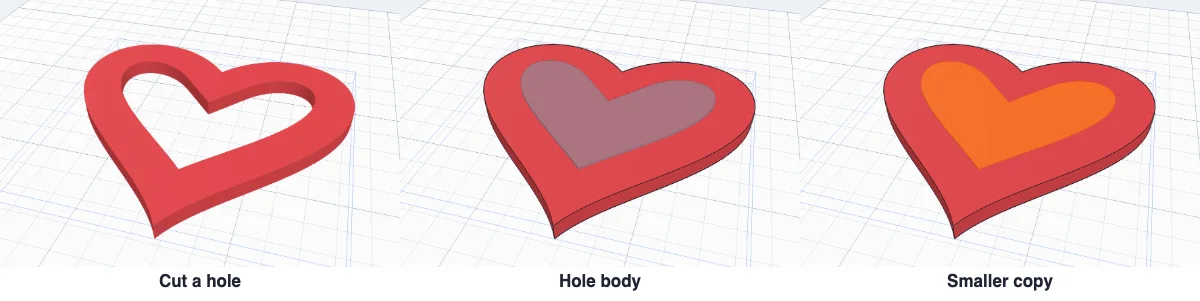
With Inside there are three results. Cut a hole cuts the inside out now - the frame stays. Hole body adds the inside shape as a Hole body: move or change it first, then select it with the body and press Cut. Smaller copy adds the inside shape as a new body - an inlay, or a piece that sits in the frame.
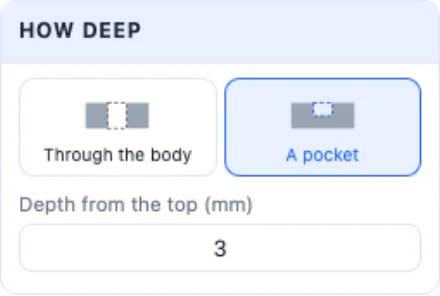
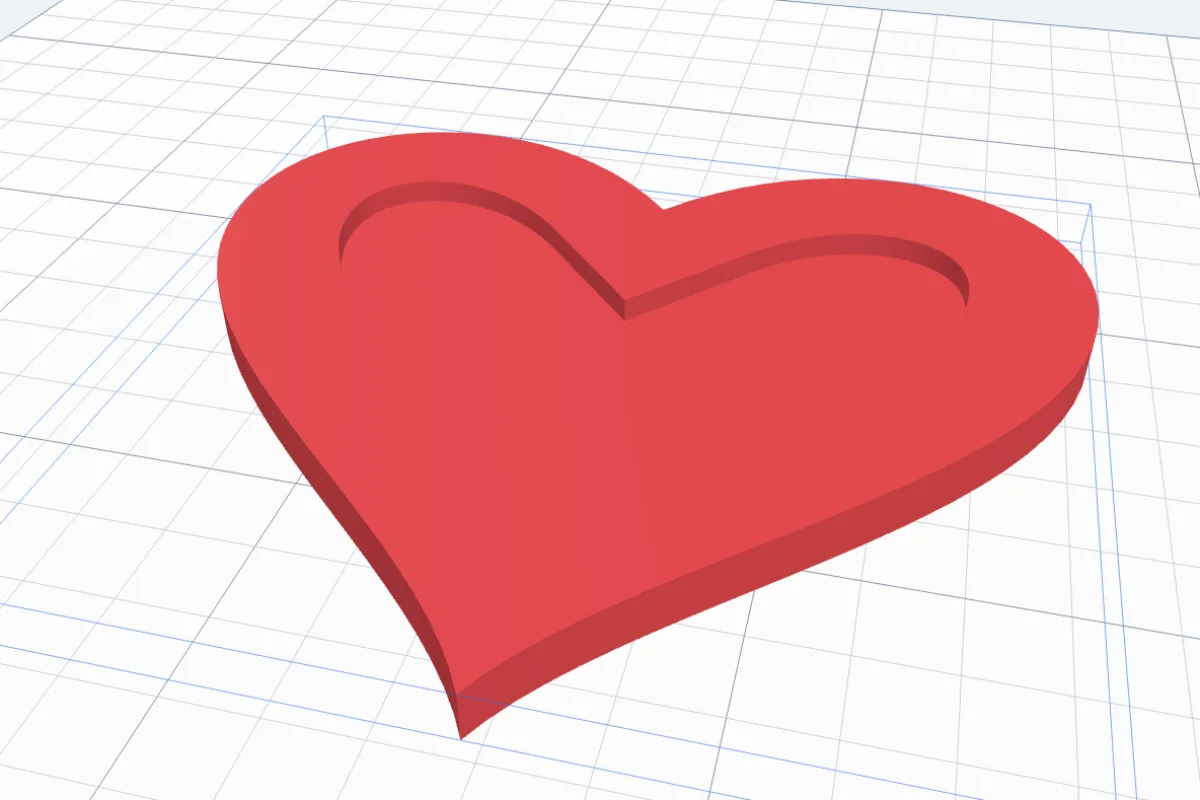
How deep: Through the body, or A pocket only so deep from the top - a recess for a photo, a mirror or an inlay.
5Outside: a ring or a bigger copy
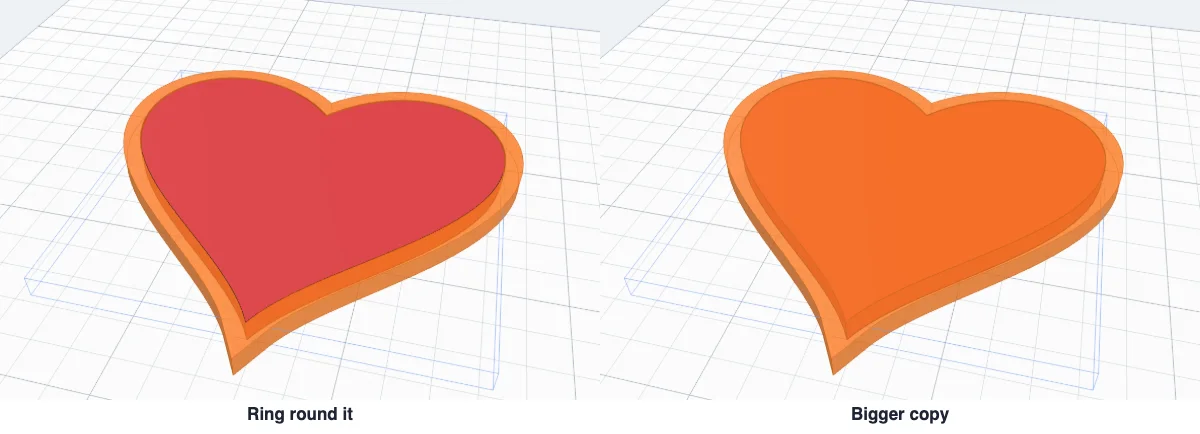
Choose Outside and the outline grows by the distance. Ring round it is a band of that width round the body - a rim, a bumper, a border in another colour. Bigger copy is the whole larger shape - a backing plate or a mat behind the body. Height is how tall the new body is; empty means as tall as the body.
6Corners of the new outline
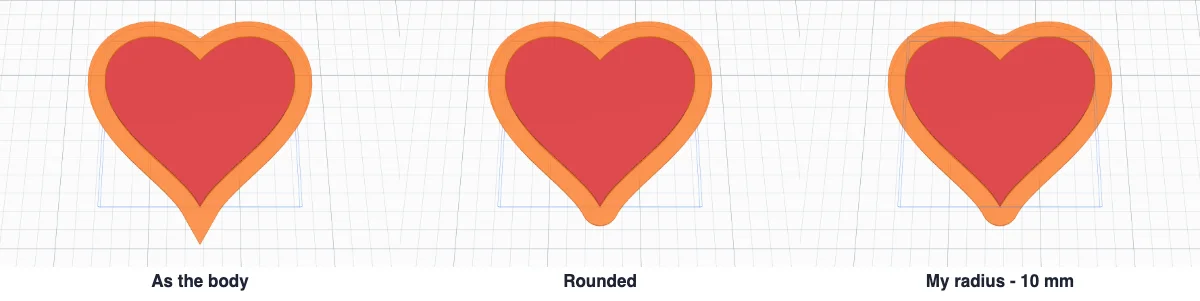
As the body leaves the corners as they are - sharp stays sharp, round stays round. Rounded rounds every corner that points away from the body by the distance. My radius rounds every corner by the radius you type; a radius too big for the shape is made smaller and the panel says so.

7Cut it
Click Cut the hole (or Add the Hole body, Add the body, Add the ring). It is one undo step, and a body in several colours keeps them.
A rim in another colour on a flat body: the Border tool. Your own shape from a drawing or a logo: SVG to 3D model.
Questions
Why not just scale a copy and cut it out?
Scaling moves every point toward the middle by a share of its distance, so far points move more than near ones. On anything but a circle the gap between the two outlines changes round the shape. An offset keeps the gap the same everywhere - that is what a frame, a rim or a fit needs.
Which bodies does it work on?
Any solid body. The tool uses the outline as seen from above, so it suits flat things best: an SVG or a text lying on the bed, a plate, a basic shape. Lay the body flat first (Lay on face) if it stands on its edge.
It says nothing is left inside the edge. Why?
The distance is bigger than half the narrowest part of the body, so no room is left for a hole. The message tells you how far the edge is from the middle - choose a smaller distance.
How do I make an inlay in another colour?
Run Offset twice on the body. First choose Cut a hole with A pocket, for example 10 mm from the edge and 2 mm deep. Then choose Smaller copy with the distance 0.2 mm bigger (10.2 mm) and the height of the pocket, so the piece is a little smaller than its pocket and drops in. Give the copy another colour and print both.
What do the corner choices change?
As the body keeps every corner as it is: sharp stays sharp, round stays round. Rounded rounds every corner that points away from the body by the distance - the classic offset. My radius rounds every corner by a radius you type.
My body already has holes. What happens to them?
The offset follows them too: with Inside the material shrinks away from every edge, with Outside it grows into them. Tick Only the outside outline to ignore the holes and use just the outer edge.
Make a frame of even width
Select a shape, type the distance and cut - the same width all round.
Open 3DPrintCADAlso see: Border tool, SVG to 3D model, Basic shapes and body tools and Hole pattern tool.