3DPrintCAD › Guides › Money bank generator
Money bank generator: 3D print a piggy bank, a jar bank or any shape
A money bank is a hollow body with a coin slot and a way to get the coins out again. Make a classic piggy bank, a jar or a tin, or a standing shape - a heart, a house, a star, a name, one big letter or your own picture - and put your texts and pictures on it. This guide goes through every option of the generator.
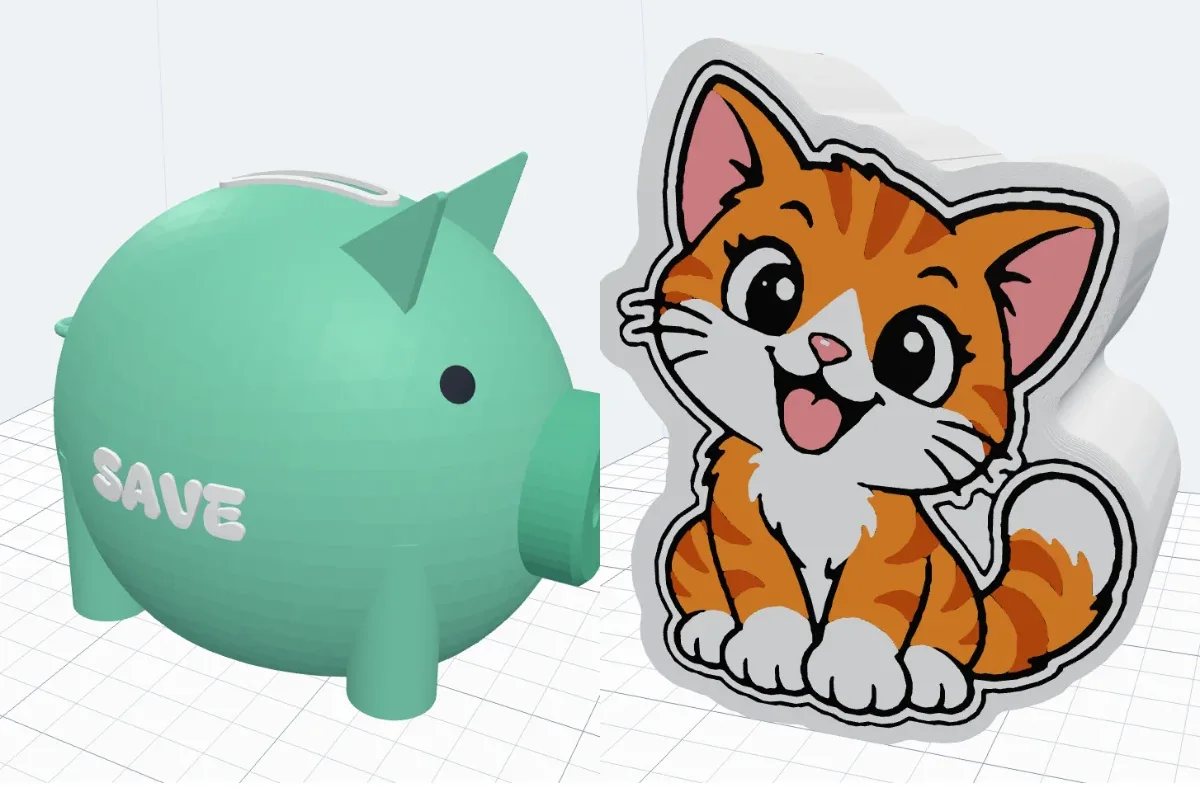
Watch the tutorial
Every option in about seven minutes, with subtitles: the designs, a piggy, a jar and standing shapes, a bank shaped like your picture, a name or a letter, your SVG, the coin slot, getting the money out, texts and pictures in the view, a base and printing every colour as a piece. Watch on YouTube ↗
1Open the generator
Click Money bank in the Generators list on the left, or the button above. It opens on the piggy bank. The preview shows it Put together; the switch at the top of the panel shows the Print layout - the bank and its plug or lid beside it, the way Create makes it. Nothing is added to your project until you click Create money bank.
2Start from a design
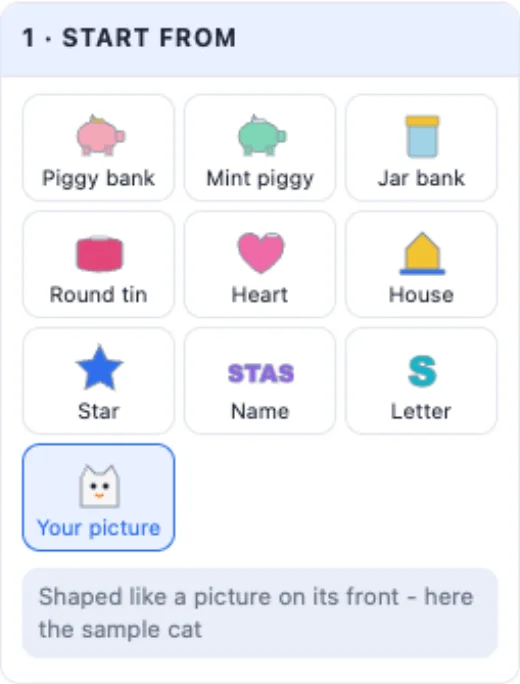
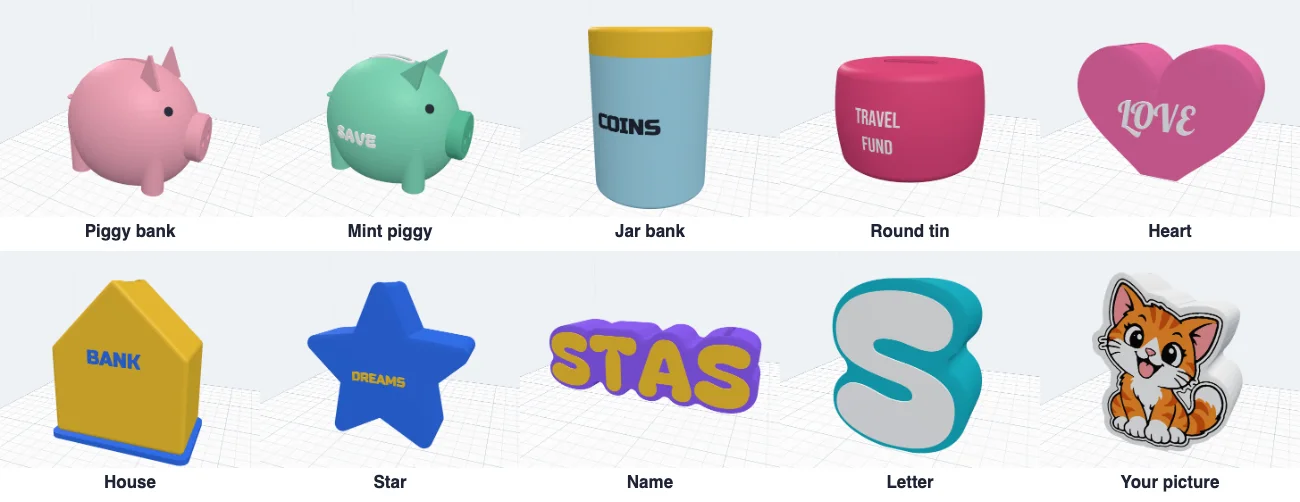
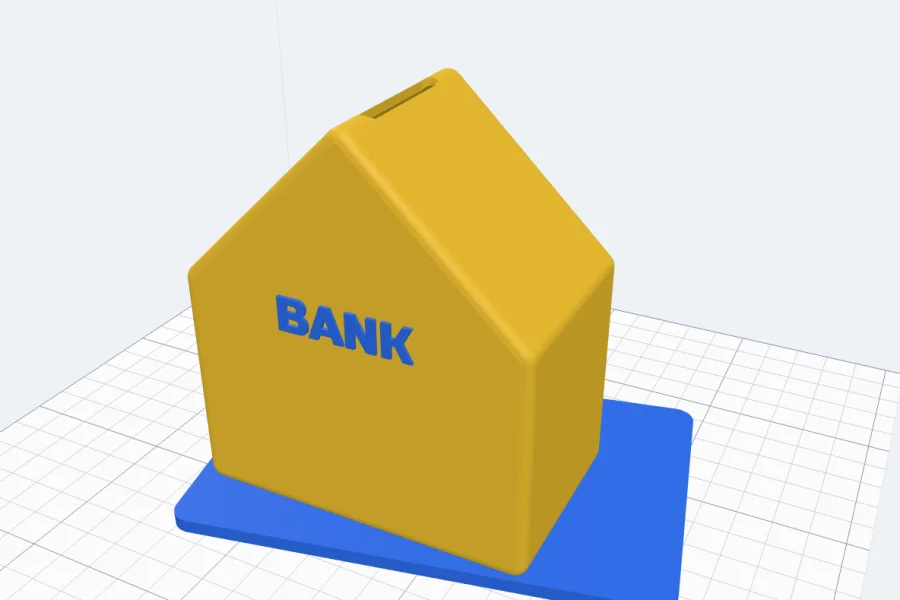
1 · Start from - ten ready designs: Piggy bank, Mint piggy, a Jar bank with a lid, a Round tin, a Heart, a House on a base, a Star, a Name, a Letter and Your picture. Picking one starts again from it; ↺ Reset goes back to the piggy bank. The summary at the top tells the size, how much it holds (in ml, and about how many big coins), how the money comes out and the weight.
3The type
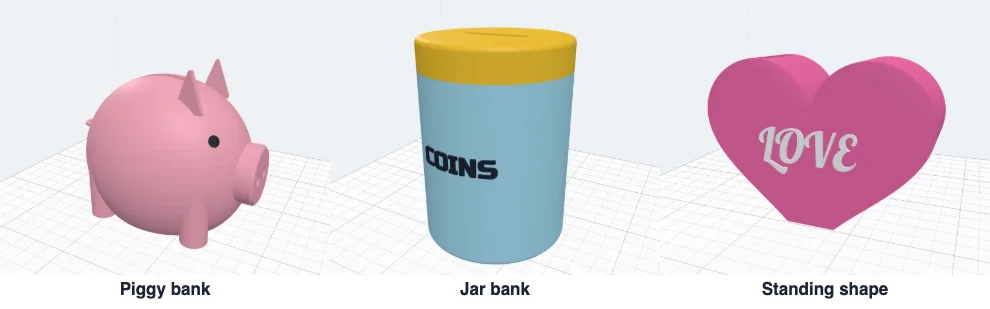
2 · Type - a Piggy bank (the classic pig), a Jar bank (a jar, a tin or a box in any shape seen from above, the slot in its top) or a Standing shape (a shape seen from the front, given a depth and cut flat at the bottom so it stands). Your texts and pictures stay when you change the type.
4Shape and size
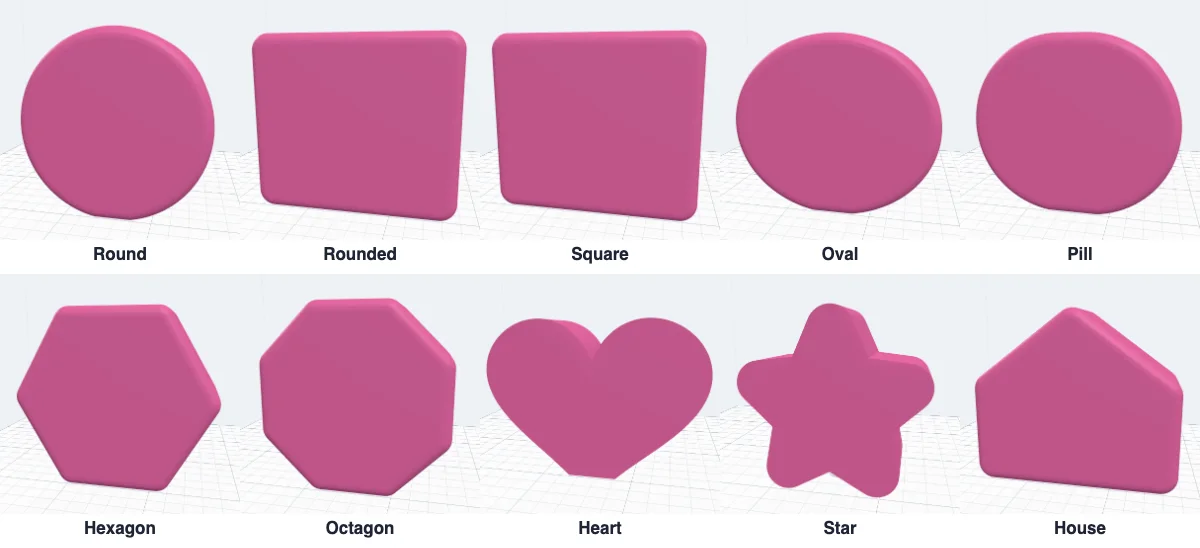
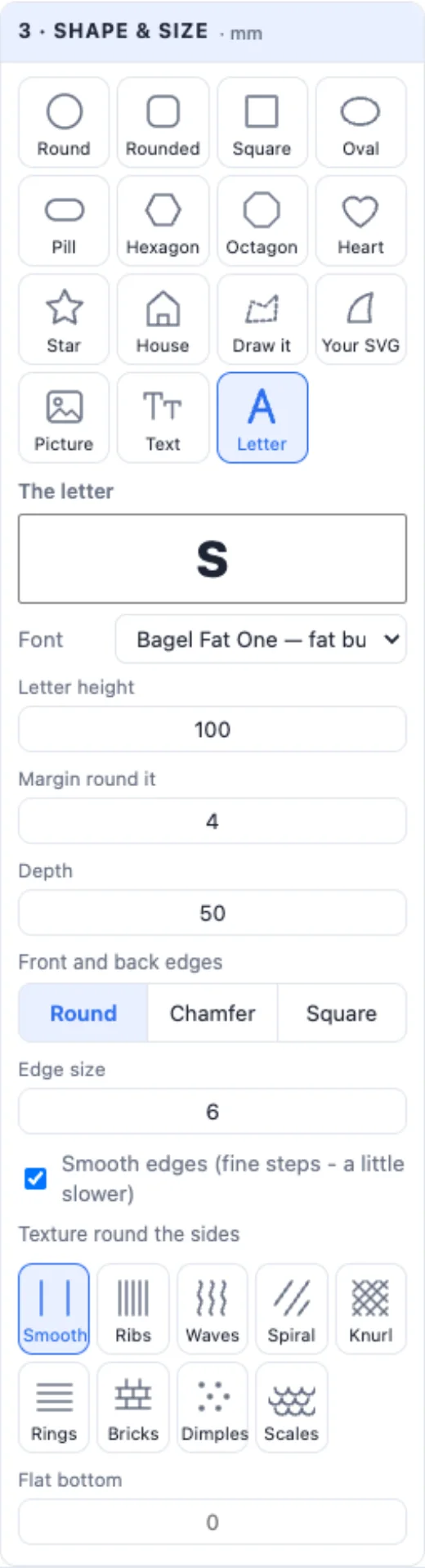
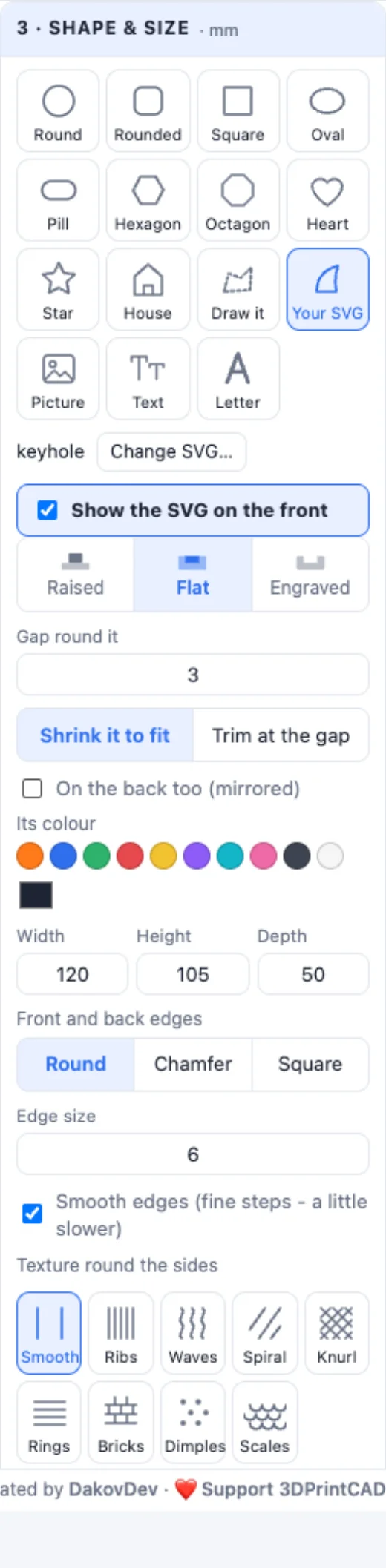
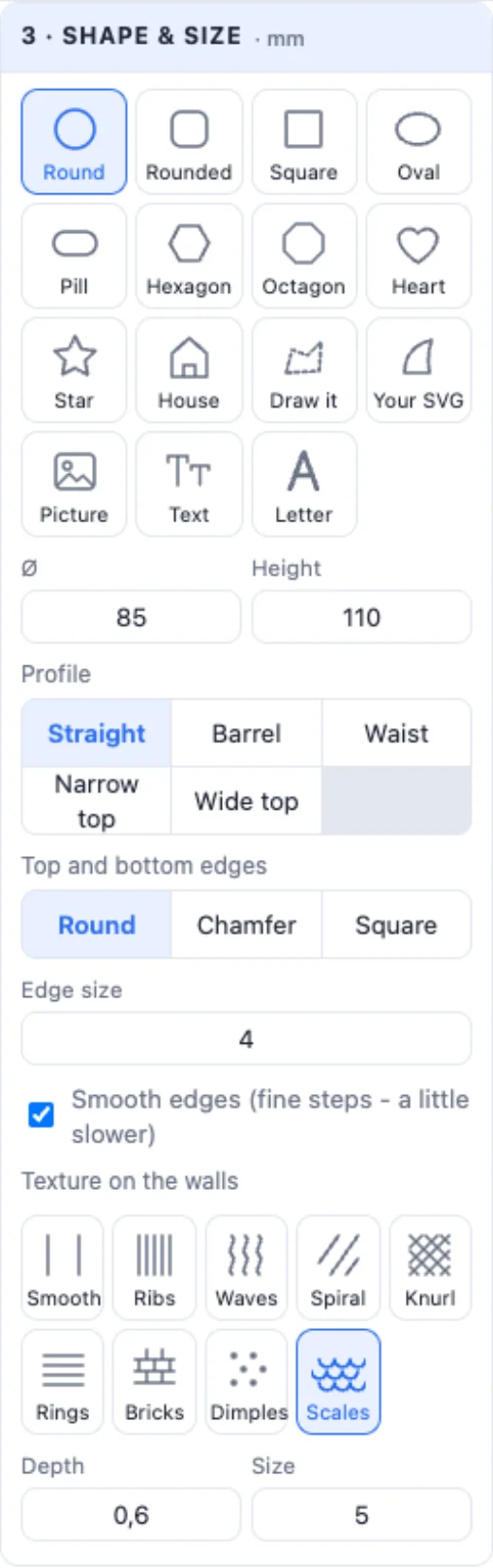
3 · Shape & size - Round, Rounded, Square, Oval, Pill, Hexagon, Octagon, Heart, Star, House, your own drawing (Draw it), Your SVG, a Picture, a Text or a Letter. Width, height and depth in mm, and the corners. A standing shape gets a Flat bottom - just enough of it is cut off so it stands (type your own).
5A picture, a text or a letter
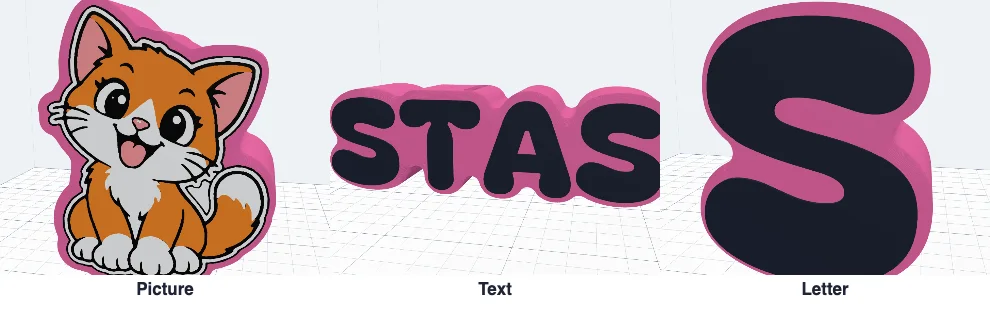
Picture opens the picture picker; the bank takes the picture's outline and the picture stays on its front in its colours. Text shapes it like a word or a name - type it right in the card, pick the font and the letter size. Letter is one big letter in a big box. Margin round it sets how far the bank reaches past the outline. A bank like this gets a lift-off lid - its bottom is usually too narrow for a plug. Pick another shape and the picture or text it was made from goes with it.
6Your SVG
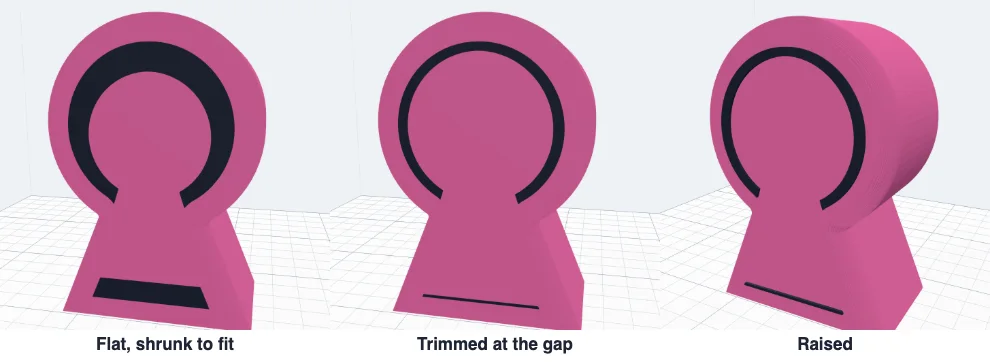
Your SVG - the bank takes the outline of your SVG file, and Show the SVG on the front puts the SVG itself on it (on a jar: the top) - raised, flat or engraved, in its own colour, mirrored on the back too if you like. Gap round it keeps a plain border between it and the rounded edge; Shrink it to fit makes the whole SVG smaller, Trim at the gap keeps its size and cuts it there.
7A jar's profile, edges and texture
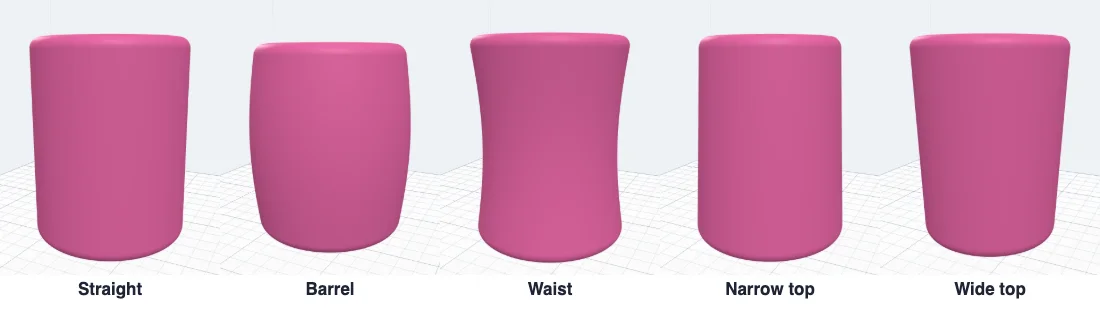
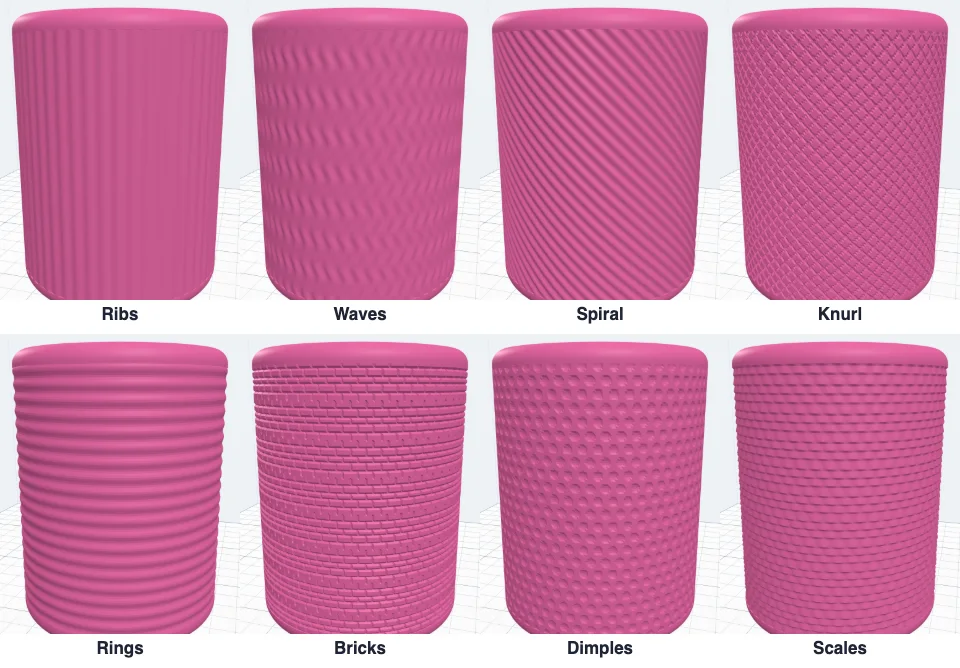
A jar's Profile - Straight, Barrel, Waist, Narrow top or Wide top, and How much. Its edges (the top and the bottom; on a standing shape the front and the back) are Round, Chamfer or Square, with the edge size - Smooth edges builds them in fine steps. A Texture on the walls (a standing shape: round its sides) - Ribs, Waves, Spiral, Knurl, Rings, Bricks, Dimples or Scales, how deep and how big. The wall under your texts and pictures, and round the slot, stays smooth.
8The pig
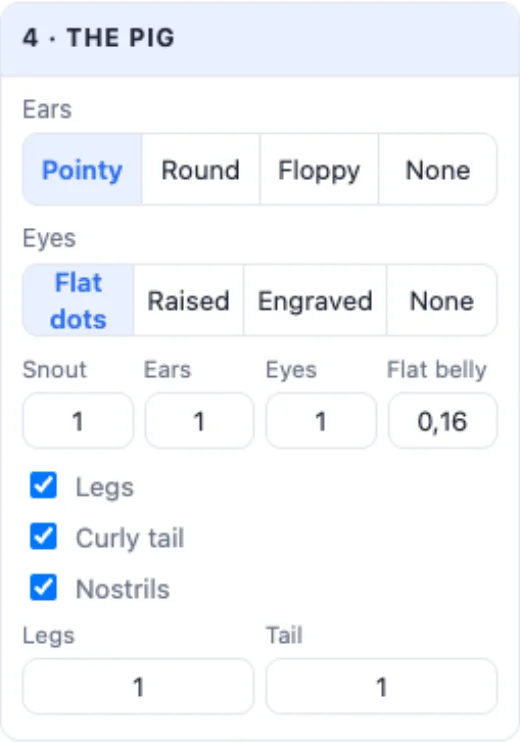
4 · The pig - its Ears (pointy, round, floppy or none), its Eyes (flat dots in their own colour, raised, engraved or none), the size of the snout, the ears and the eyes, legs, a curly tail and nostrils. Flat belly sets how much of the body is cut flat to stand on the bed - more is steadier and prints with less overhang. Length, width and height are in the size card.

9The coin slot
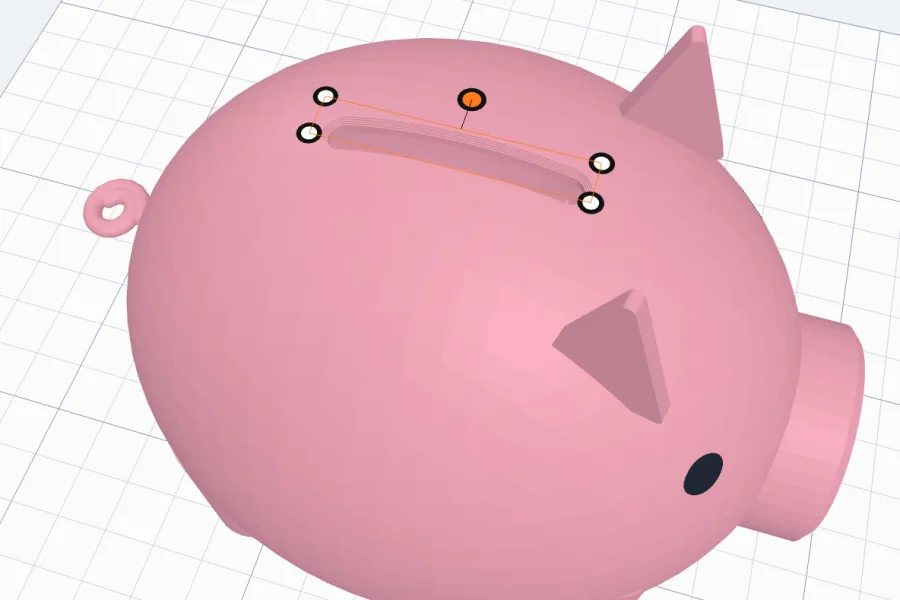
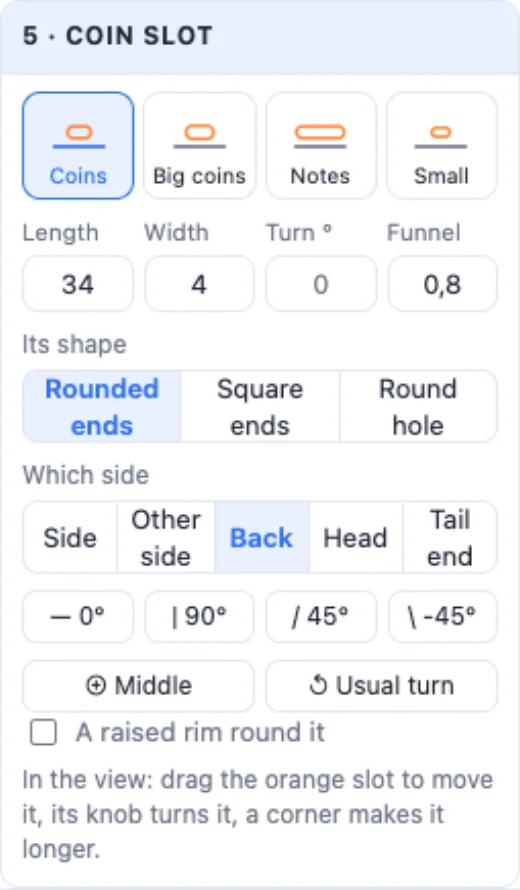
Coin slot - quick sizes Coins, Big coins, Notes and Small, or type its Length and Width (from 1 mm). Rounded ends, square ends or a Round hole; a Funnel - a bevel round it that guides the coins in; a raised rim round it in its own colour. Which side - the top, the front, the back or a side. The turn buttons set 0, 90, 45 or -45°, Middle puts it back (on a curved top: the highest flat place), Usual turn lays it the usual way for the shape.

10Getting the money out
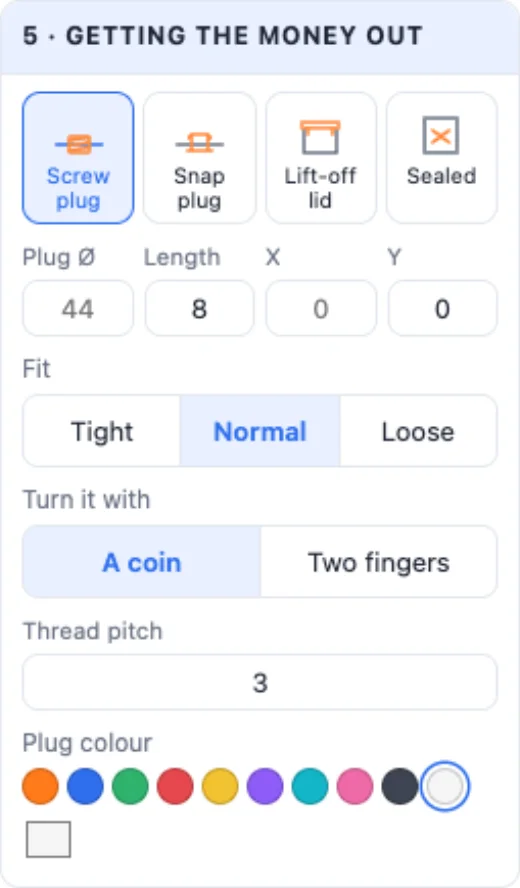
Getting the money out - a Screw plug in the bottom (it screws into a collar inside; turn it with a coin in its groove, or with two fingers), a Snap plug (it clicks into the bottom and pulls out again), a Lift-off lid (on a jar or a standing shape: its top clicks on with a lip inside the walls; lid height, lip depth and fit) or Sealed (break it open when it is full). The plug's size and place are automatic - the biggest that fits the bottom - or type them; its fit is Tight, Normal or Loose.

11Texts, SVGs and pictures
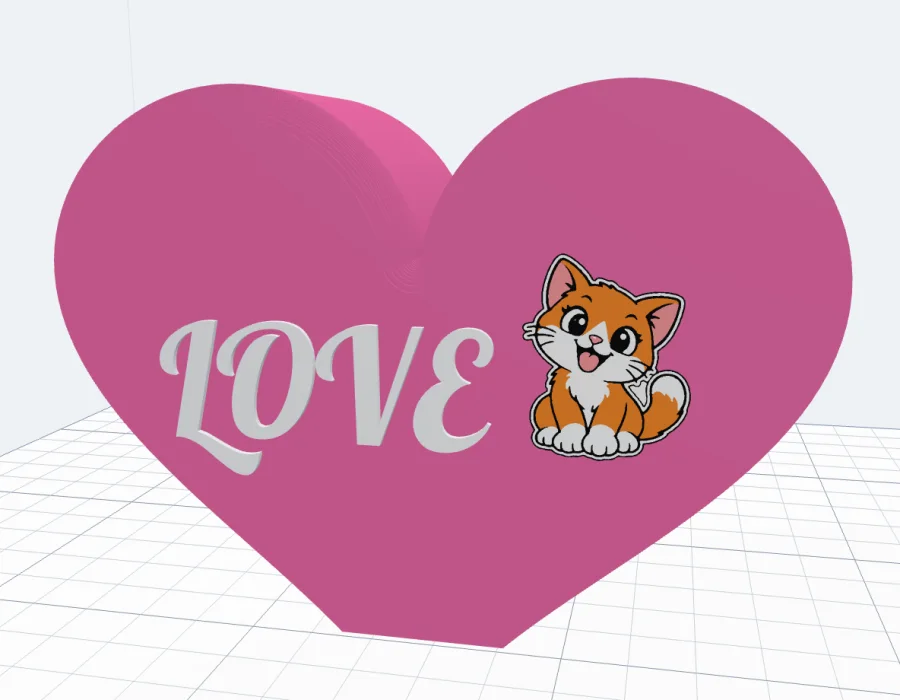
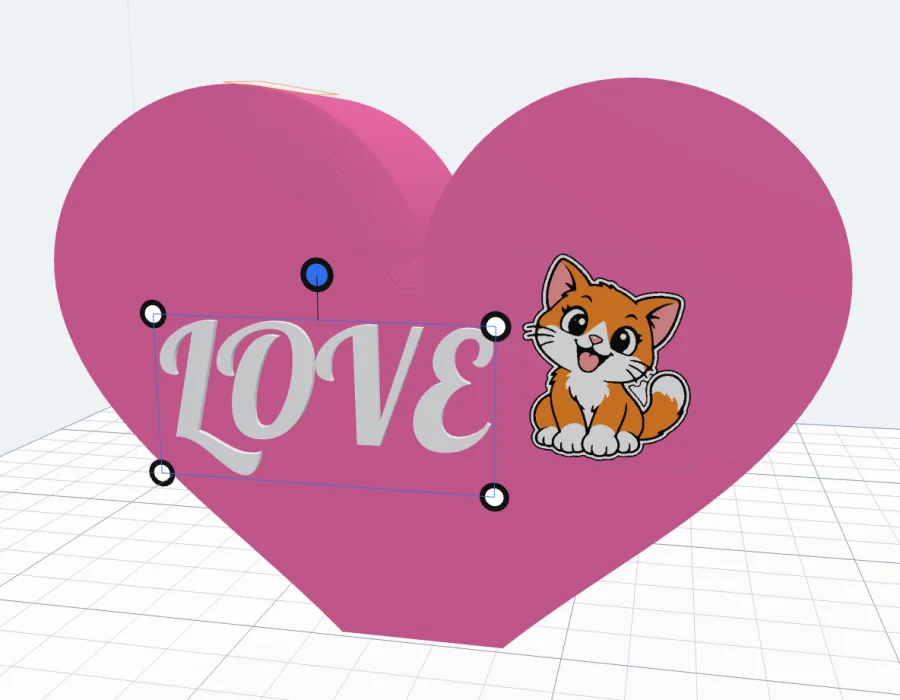
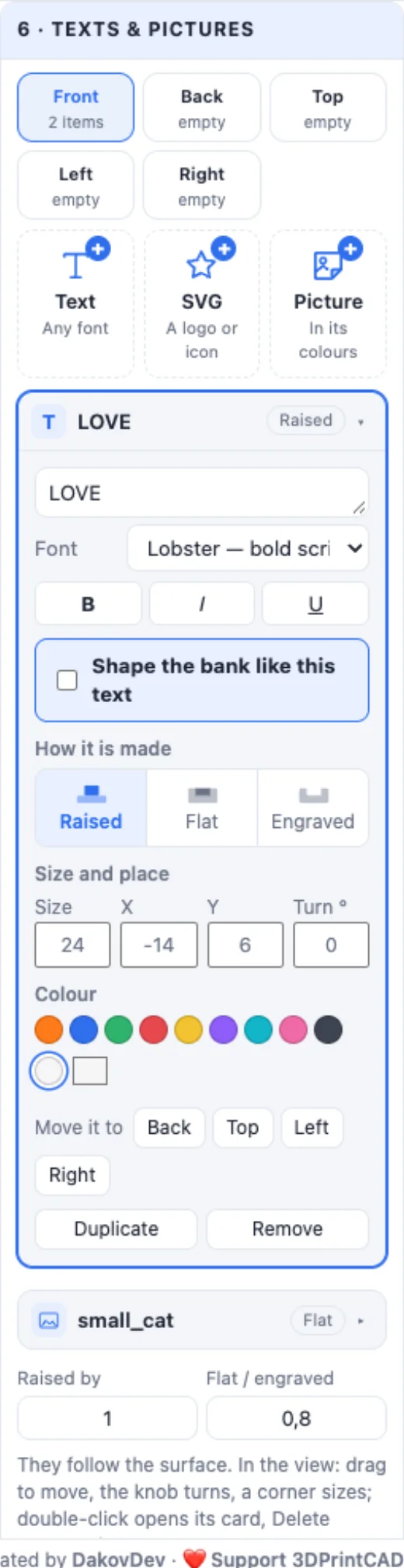
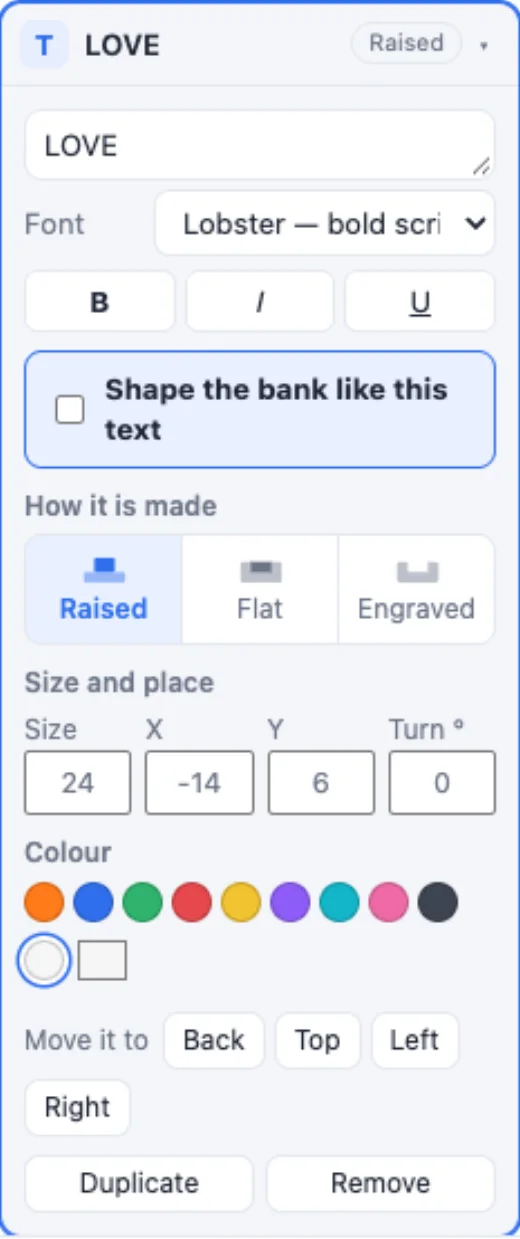
Texts & pictures - tabs for every face (on a pig: its side, other side, back, head and tail end), then Text, SVG or Picture. Each is Raised, Flat (inlaid in its own colour) or Engraved and follows the surface, even round a jar; a picture's colours each go up or down (Colour heights). In its card: the text, font, bold / italic / underline, size, place, turn, colour, Move it to another face, Duplicate and Remove - and Shape the bank like this. In the view, click one: drag it to move, the knob turns it, a corner sizes it; a double-click opens its card, Delete removes it.
12The base
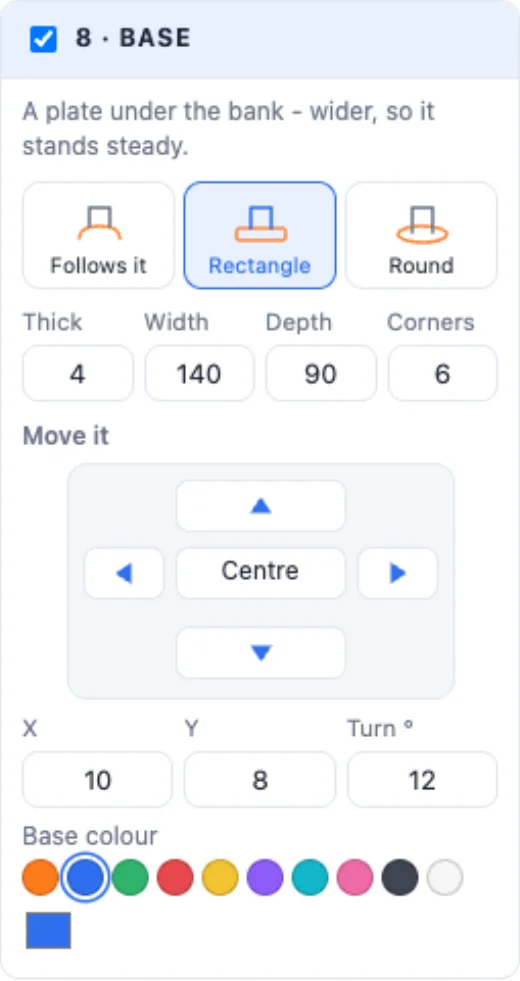
Base - a plate under the bank, wider so it stands steady: it Follows it, is a Rectangle or Round; its thickness, width and depth (or how far it reaches past the bank) and corners. Move it with the arrows (1 mm, Shift 5 mm) or by X / Y, turn it, and give it its own colour. The panel warns if the bank stands partly off it.
13Printing, colours and Create
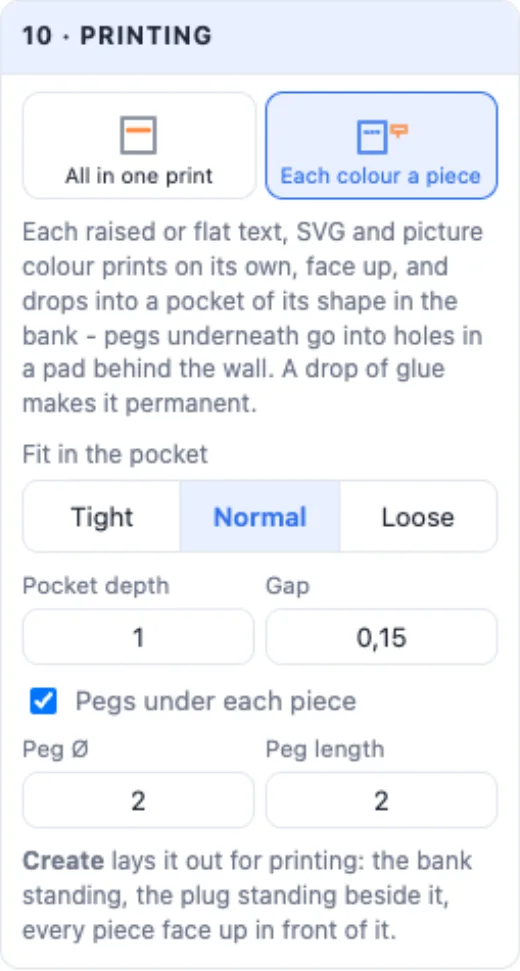
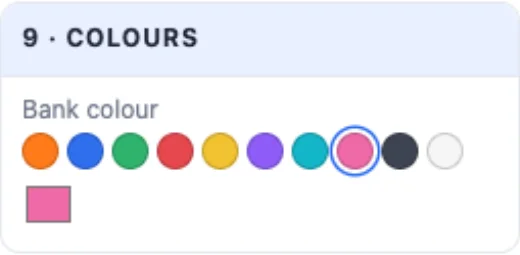
Printing - All in one print (every colour a part: export a Multi-colour 3MF for a multi-colour printer) or Each colour a piece for a single-colour printer: every raised or flat text, picture colour, the slot rim, the eyes and a base of its own colour print on their own, face up, and drop into a pocket of their shape; the fit, the pocket's depth and pegs under each piece (where a part is wide enough) are settings; Split into Every colour or Every item - a text, SVG or picture printed whole, all its colours together, dropping in as one piece. Easy print: the bottom prints on its own - the bank prints open at the bottom so the supports inside are easy to break out, and everything below a cut - the bottom, with the plug's collar and the base - prints beside it, a lip rising from it inside the walls: it Snaps in, is a Press fit or you Glue it. The cut goes by itself to the lowest height where the bottom is one piece (a name whose letters join higher up); put together, a blue plate in the view shows it - drag it up or down. A lift-off lid has an orange plate the same way. The gap and the lip's height are settings. Walls & base sets the wall, the bottom and the top. Colours - the bank, the plug, the lid, the slot rim, the snout and the eyes.
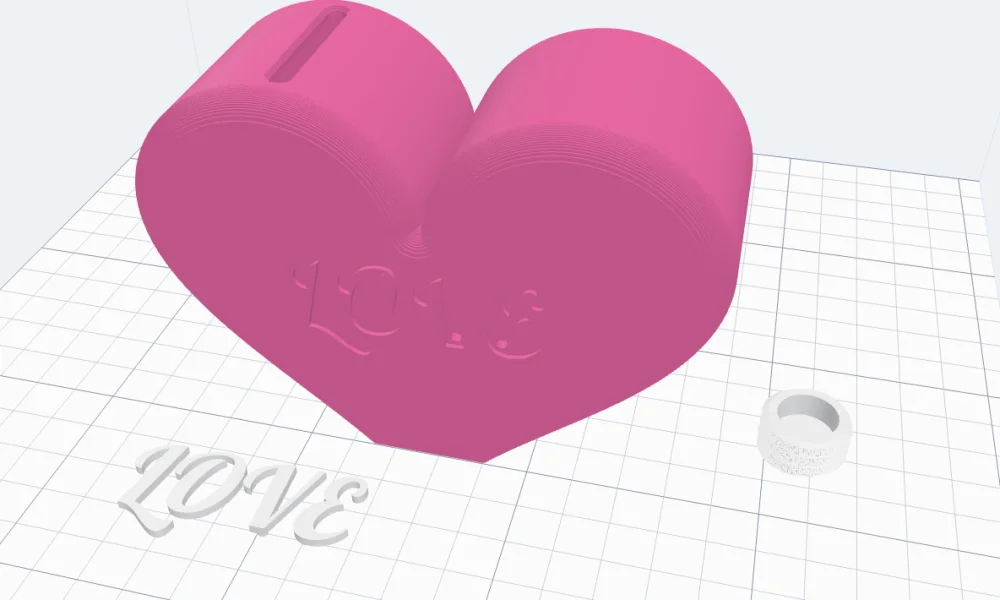
Click Create money bank: it lands in your project laid out for printing, each part a body of its own colour. Print the plug or the lid as laid out, then screw, snap or press it on. Print a small one first to check the fits on your printer.
Questions
How do I get the money out?
Pick a Screw plug (a round plug in the bottom you turn with a coin - its thread is printed), a Snap plug (it clicks into the bottom and pulls out again) or a Lift-off lid (the top clicks on with a lip inside the walls). Sealed has no way in - break it open when it is full.
Which coins fit through the slot?
The Coins size (34 × 4 mm) takes every coin up to 2 € or a US quarter; Big coins (40 × 4.5 mm) takes bigger ones like 5 CHF; Notes (70 × 4 mm) takes folded bank notes. You can type any length and a width from 1 mm.
Do I need supports?
The jar banks and the standing shapes print as they stand - the inside of the top bridges over the coins. The piggy bank stands on its flat belly; turn on supports under the snout and the ears if your printer does not bridge well. With Easy print the bank prints open at the bottom, so any supports inside are easy to break out, and the bottom snaps in afterwards.
Can I print it on a single-colour printer?
Yes. Under Printing pick Each colour a piece: every raised or flat text, picture colour, the slot rim and the eyes print on their own, face up, and drop into a pocket of their shape - with pegs where a part is wide enough. Or export a Multi-colour 3MF for a multi-colour printer.
How do I make a bank shaped like my name or my picture?
In Shape and size pick Text and type the name, Letter for one big letter, or Picture and choose a picture - the bank takes its outline, and the picture stays on its front in its colours.
Make your money bank
Pick a design, put your name or your picture on it - and start saving.
Open the Money bank generatorAlso see: Gift box generator, Jar generator, Sticker generator and Clicker generator.