3DPrintCAD › Guides › Clicker generator
Clicker generator: 3D print a fidget clicker with a keyboard switch
A clicker is a real mechanical keyboard switch in a small base, with a cap that snaps onto its stem - press it and it clicks, like a key. Make one key or a whole word, in any shape, with letters, icons or pictures on top; or turn it into a real macropad you wire yourself. This guide goes through every option of the generator.
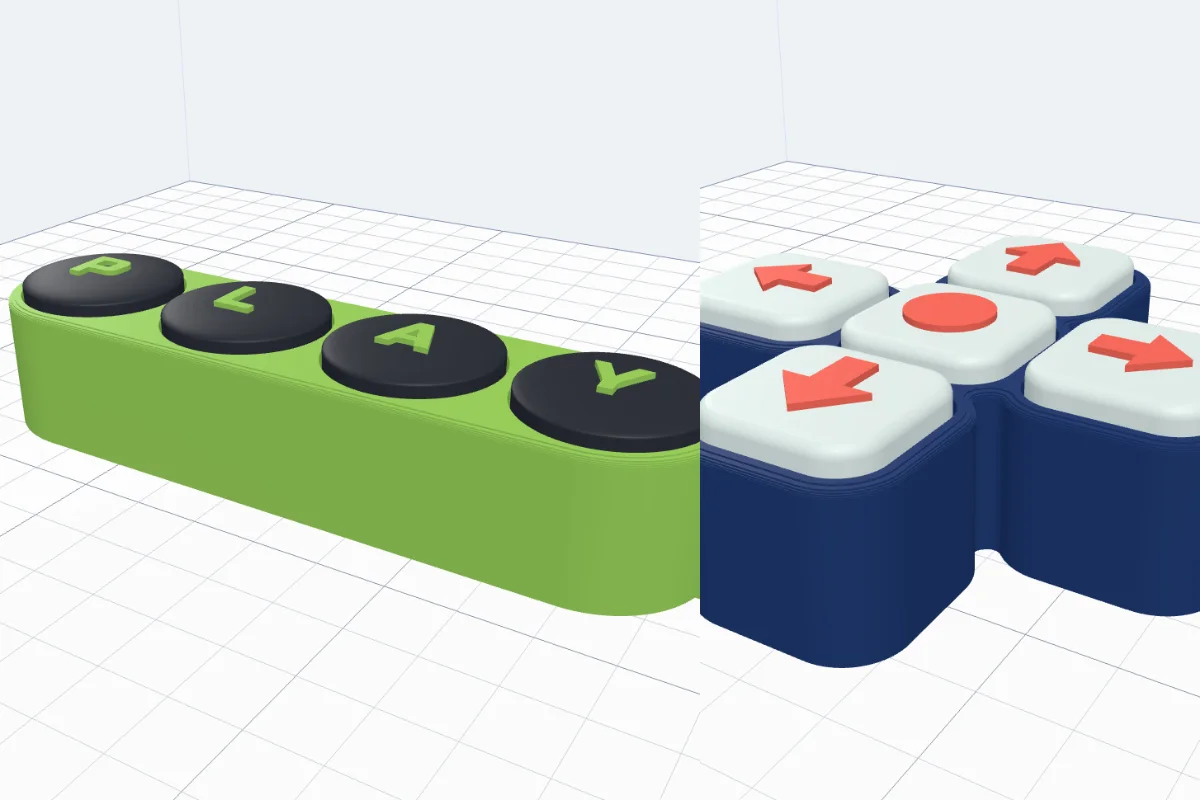
Watch the tutorial
Every option in under five minutes, with subtitles: the designs, the switch, shapes and letters, several keys and a word, pictures on the caps, moving and turning keys in the view, textures, a key ring and an open bottom for a real macropad. Watch on YouTube ↗
1Open the generator
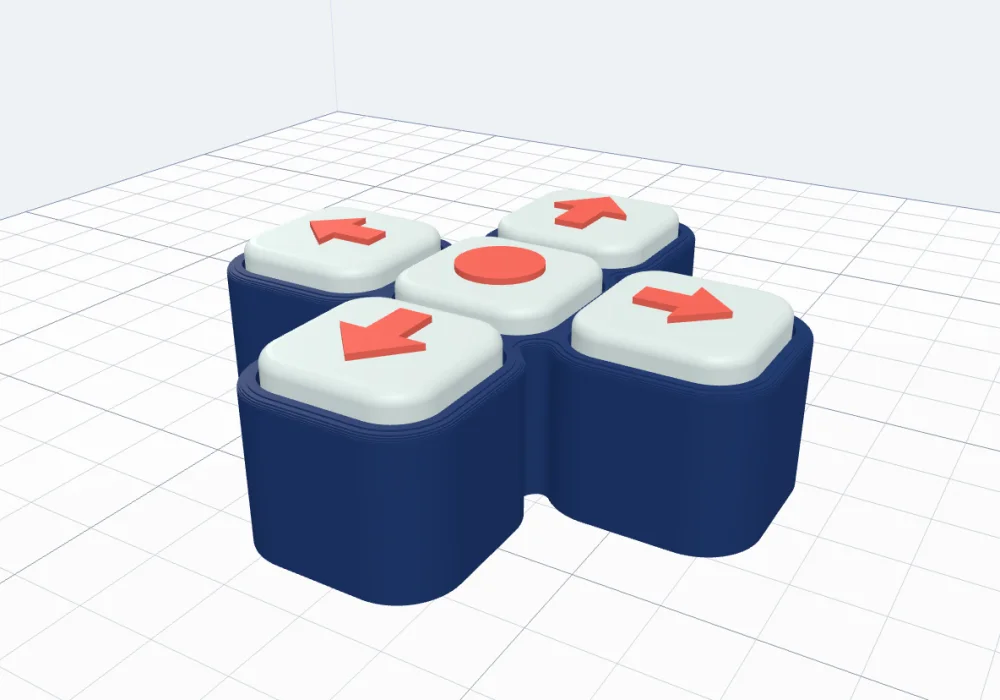
Click Clicker in the Generators list on the left, or the button above. The preview shows the clicker put together; use the switch at the top of the panel to see it Pressed or laid out for printing (Print layout). Nothing is added to your project until you click Create clicker.

2Start from a design
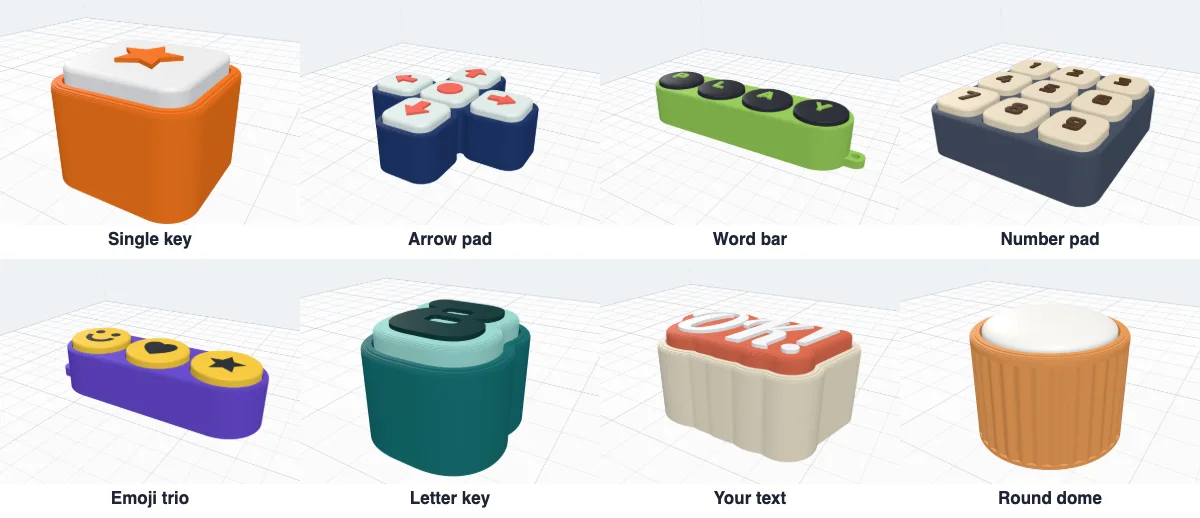
1 · Start from - eight ready designs to change: a Single key, an Arrow pad, a Word bar, a Number pad, an Emoji trio, a Letter key, Your text and a Round dome. Picking one starts again from it; ↺ Reset goes back to the single key.
3The switch and how it locks
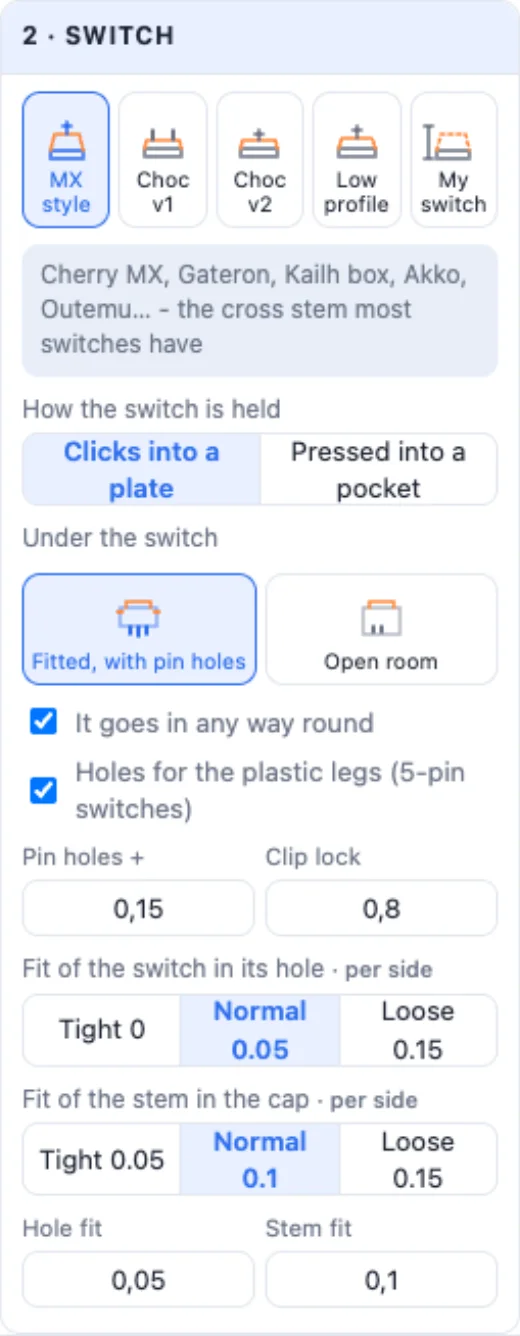
2 · Switch - MX style (Cherry MX, Gateron, Kailh box, Akko, Outemu and most others with a cross stem), Choc v1, Choc v2, Low profile (Gateron KS-27 / KS-33), or My switch with every size typed from its drawing. The switch clicks into a 1.5 mm plate like on a keyboard - its side clips snap under the plate. Fitted, with pin holes adds a snug pocket under it, notches where the clips snap out and holes for the centre post, the two pins and the plastic legs of 5-pin switches (It goes in any way round puts them on all four sides); Open room leaves an open space instead. The fits - the switch in its hole and the stem in the cap - are Tight, Normal or Loose, or any gap you type.
4The style
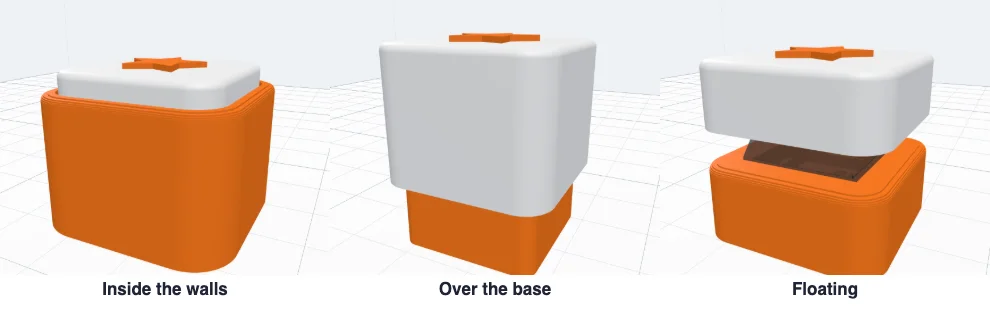
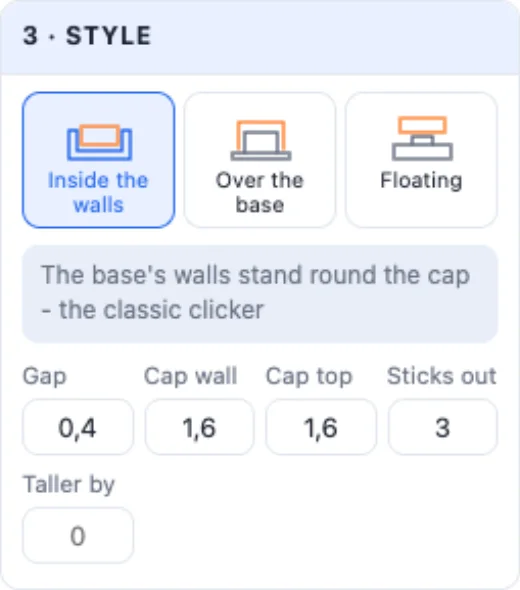
3 · Style - Inside the walls (the base's walls stand round the cap - the classic clicker), Over the base (the cap's skirt reaches down over a pedestal) or Floating (a flat base, the cap floats over it and you see the switch). The gap round the cap, the cap's wall and top, how far it sticks out and how much taller the base is are numbers.
5Shape and size
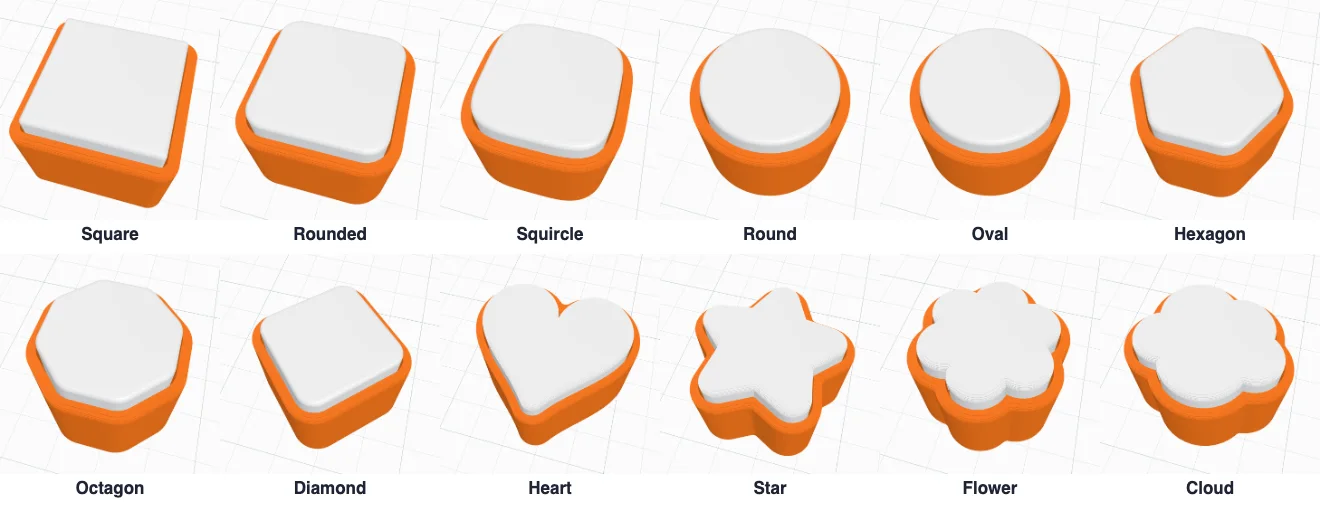
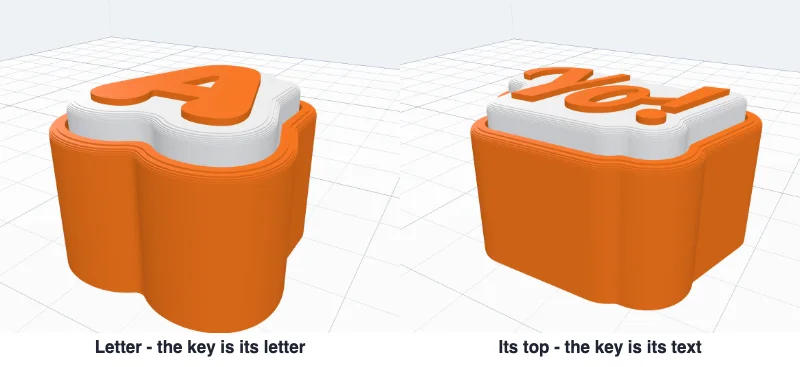
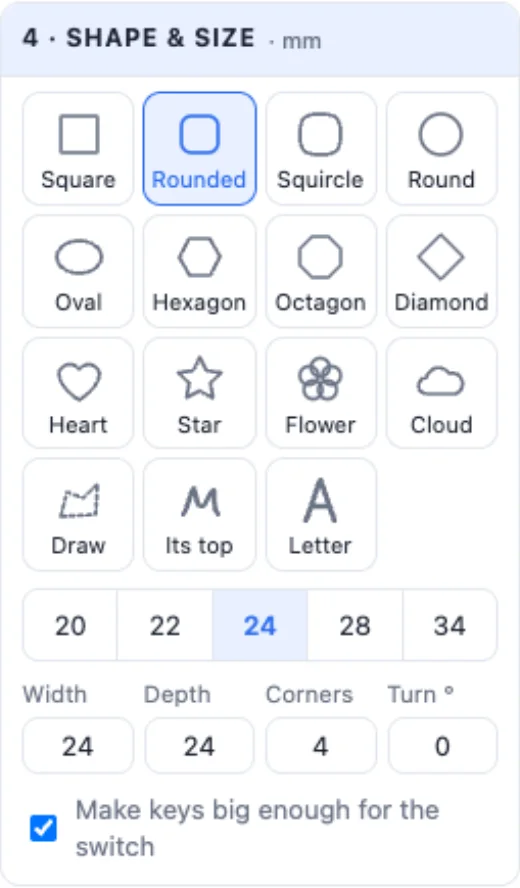
4 · Shape & size - Square, Rounded, Squircle, Round, Oval, Hexagon, Octagon, Diamond, Heart, Star, Flower, Cloud, your own Drawing, Its top (the key is the outline of the text, SVG or picture on it) and Letter (the key is the shape of its letter, the letter standing on top). Sizes 20-34 mm or any width and depth; corners and a turn. A key too small to cover the switch is made just big enough in its own shape (Make keys big enough for the switch), with a note.
6Several keys
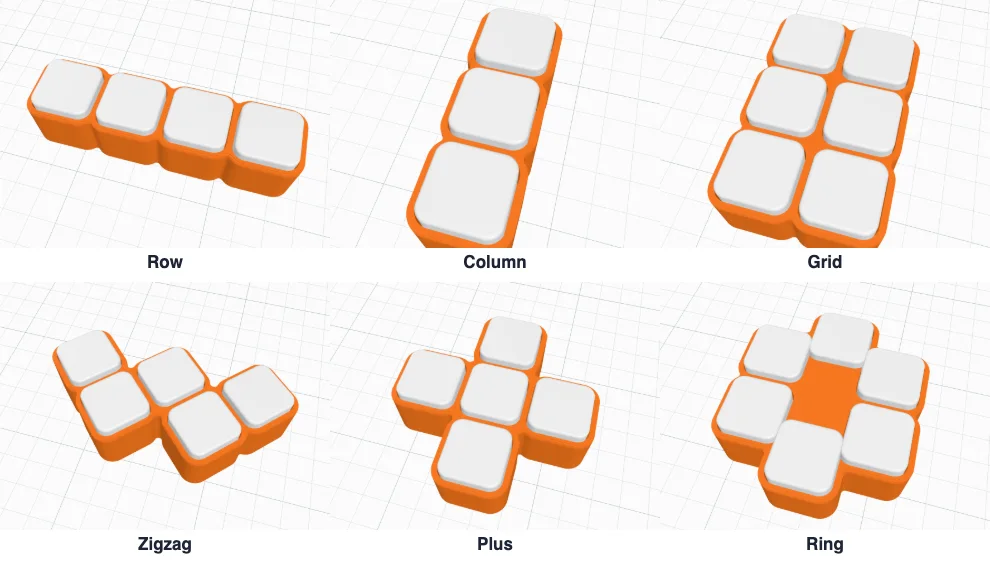
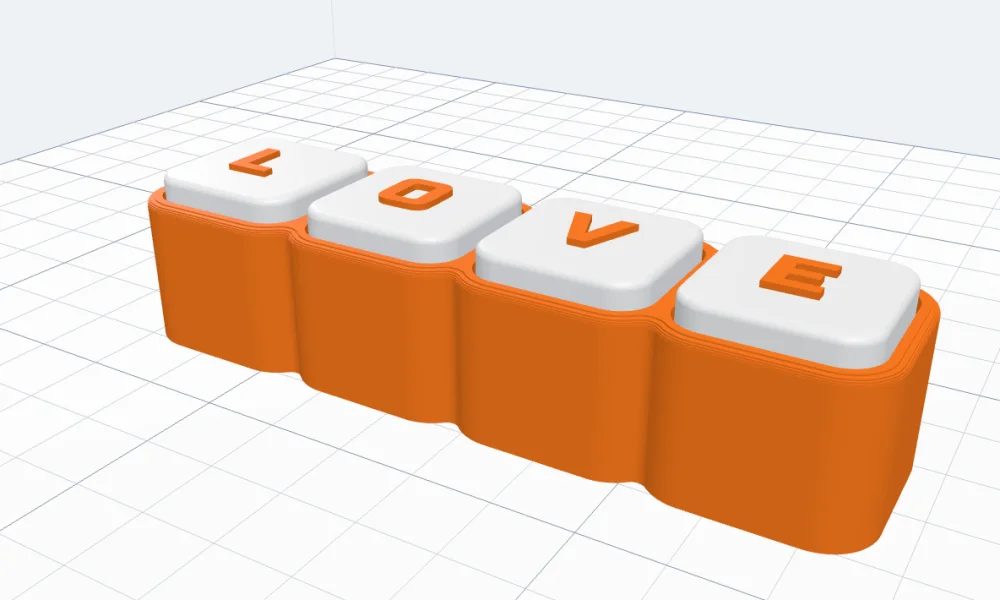
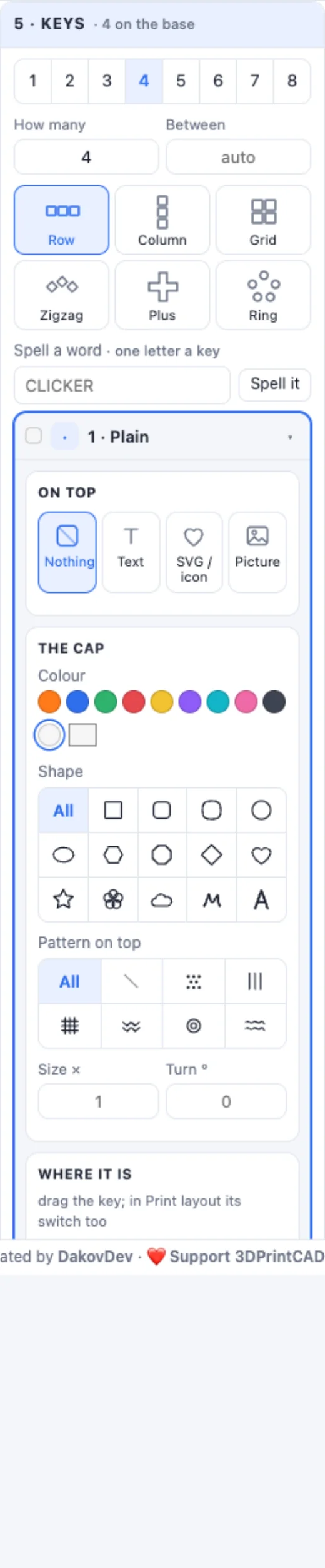
5 · Keys - up to 16 keys on one base in a Row, a Column, a Grid, a Zigzag, a Plus or a Ring, and the space between them. Spell a word makes one key per letter. Each key has its own card: what is on top, its colour, shape, size, turn and pattern - ◀ ▶ reorder, ⎘ copies (paste with Ctrl+V), ⧉ duplicates (Ctrl+D), ✕ or Delete removes.
7What goes on top
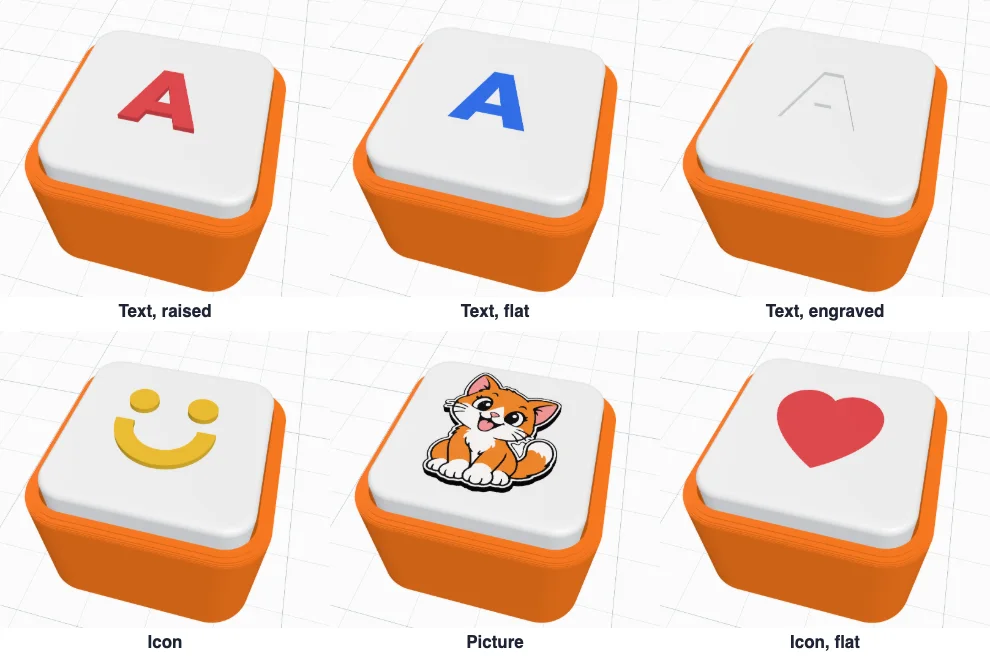
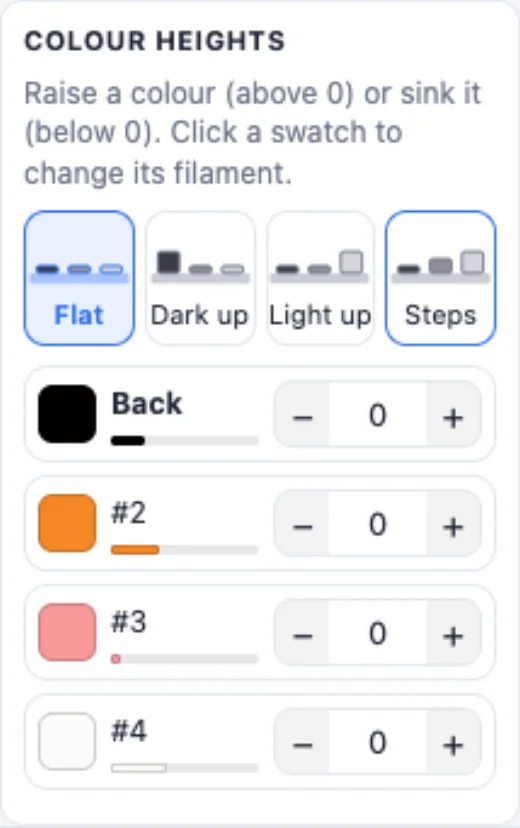
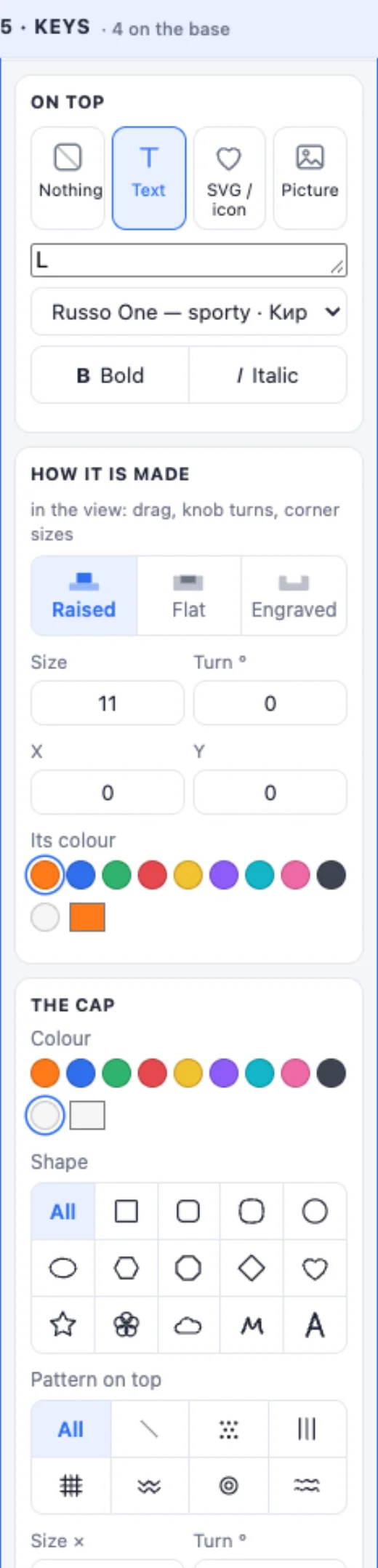
In a key's card, On top is Nothing, a Text (any font, bold, italic), an SVG / icon (a built-in icon - a smile, arrows, a heart, a star… - or your own SVG) or a Picture (its colours become parts). Each is Raised, Flat (inlaid level in its own colour) or Engraved, with its size, turn, place and colour. A picture gets Colour heights: raise or sink each colour, or pick Flat, Dark up, Light up or Steps.
8Move, turn and size in the view
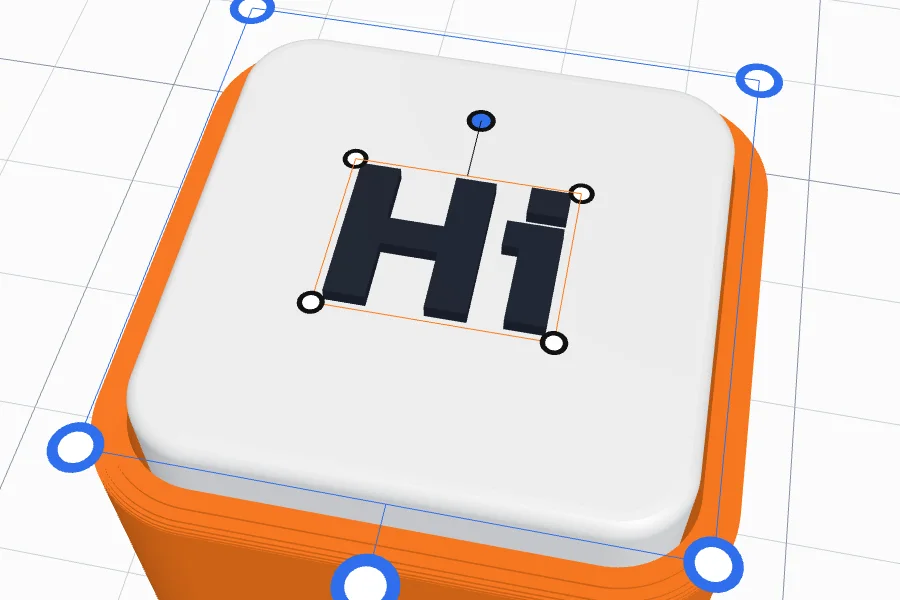
Click a key in the view. The orange frame is its top: drag it, turn it with its knob, size it by a corner. The blue frame is the key itself: its corners resize it, the knob below it turns it, and dragging the key moves it (it snaps back to its place in the layout). While you drag, the key moves at once and a blue outline shows where it lands - it is rebuilt when you let go. In Print layout you can drag the switch inside its key. A double-click opens the key's card.
9Cap tops and patterns
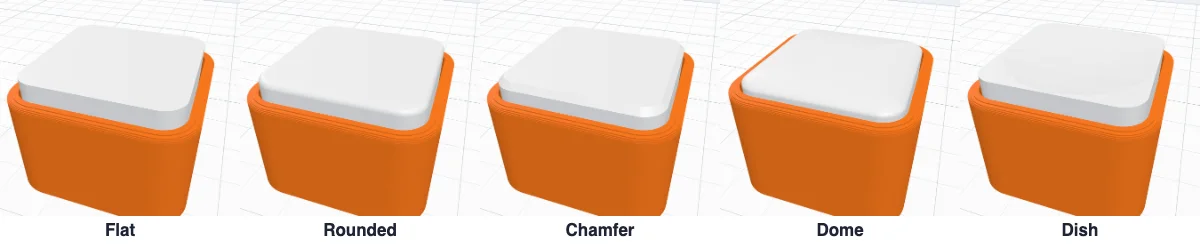
6 · Cap top - Flat, Rounded, Chamfer, Dome or Dish, with quick sizes; a pattern on every top - Dots, Lines, Grid, Chevrons, Rings or Waves, raised or engraved (or each key its own).

10The base and its texture
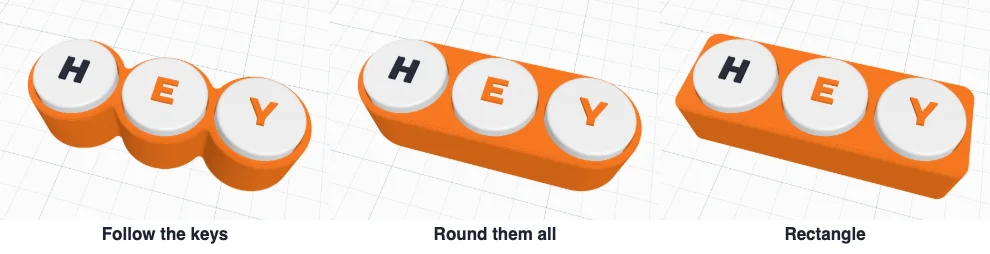
7 · Base - its outline follows the keys, goes round them all like a rubber band, or is a rectangle; its wall, margin, floor and top edge. Holes to push the switches out leaves a small hole under each switch. 8 · Wall texture - smooth, ribs, waves, spiral, knurl, rings, bricks or dimples, how deep and how far apart.

11Key ring and label
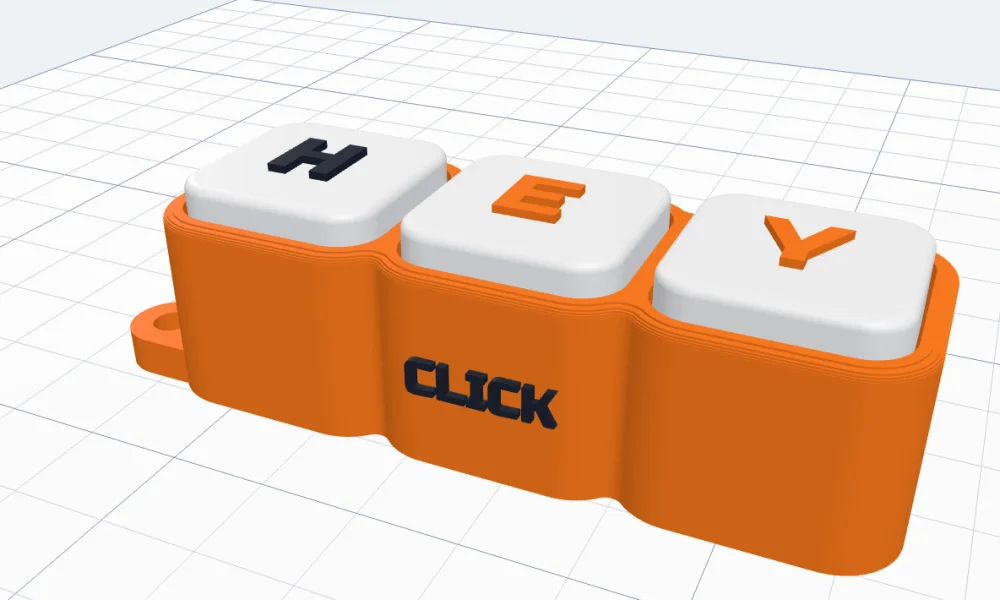
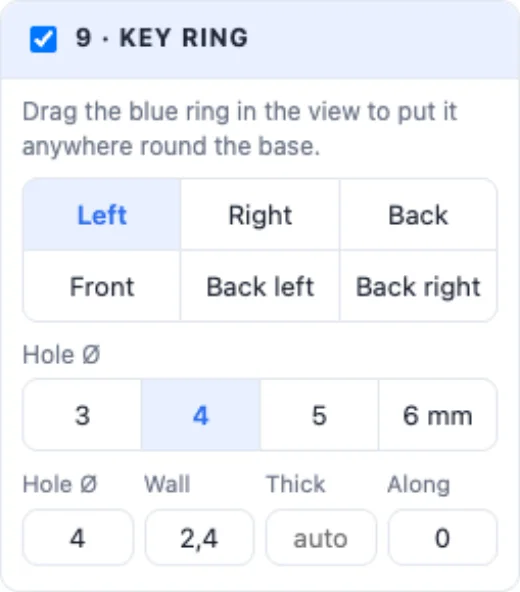
9 · Key ring - a tab with a hole on any side, or drag the blue ring in the view anywhere round the base. 10 · Label on the base - a word on its front, back or a side, raised, flat or engraved.
12An open bottom for wiring
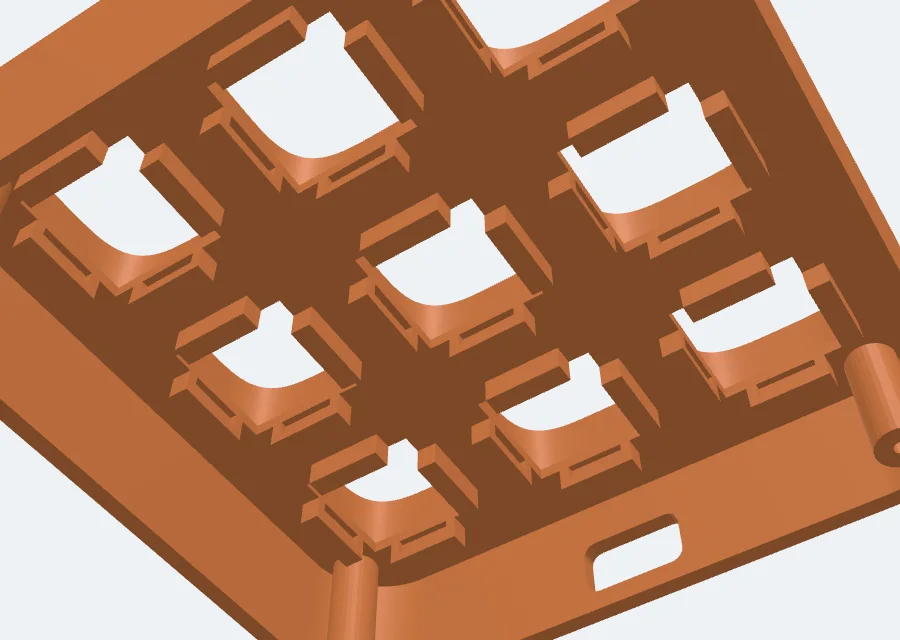
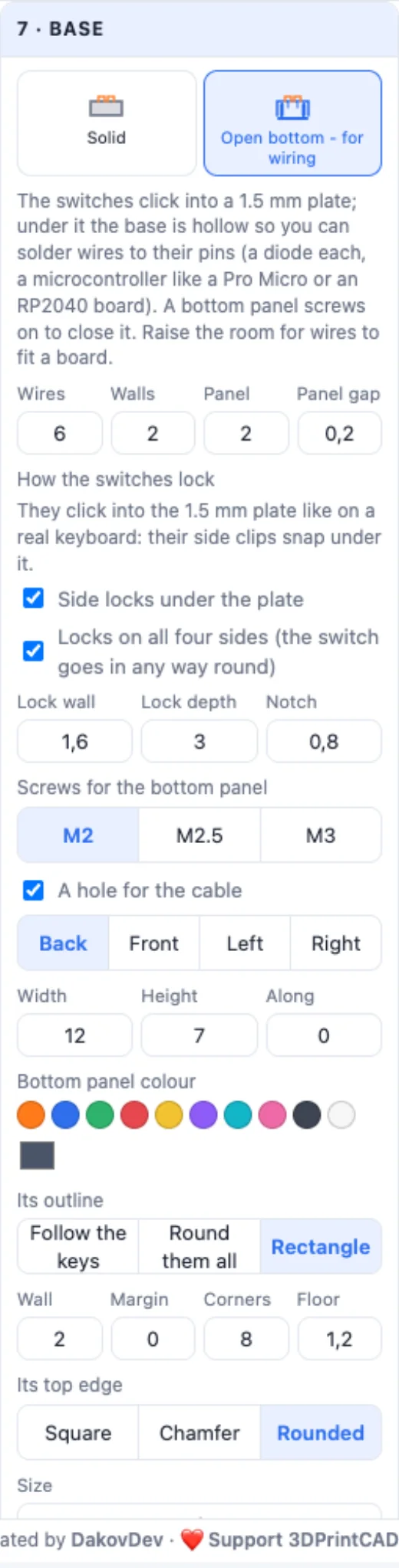
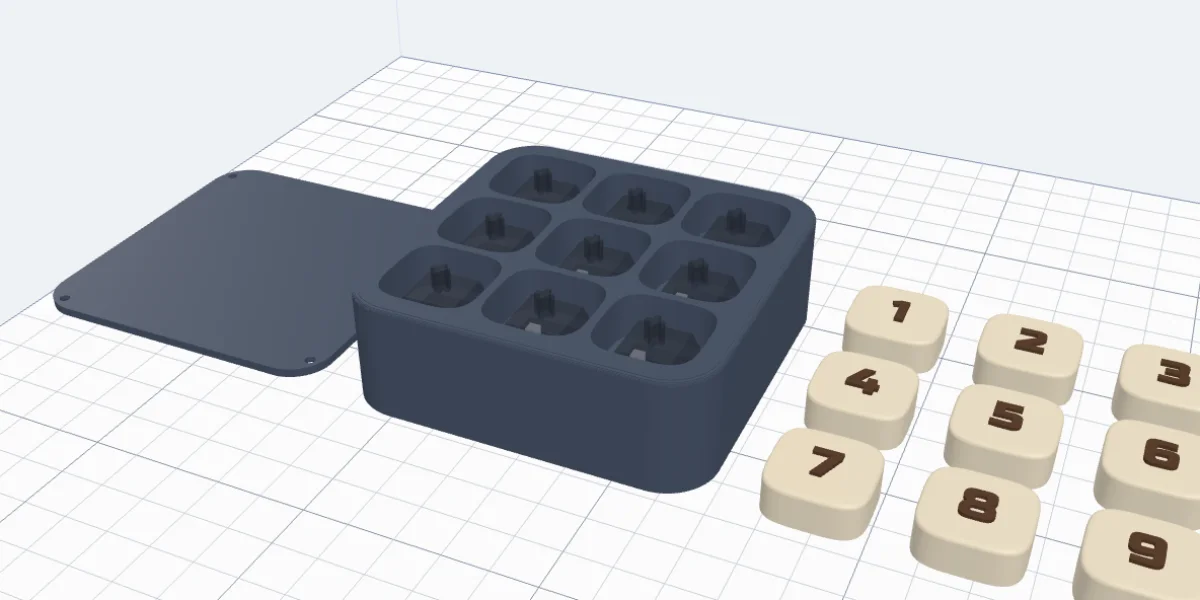
For a real keyboard or macropad pick Open bottom - for wiring under Base. The switches click into a 1.5 mm plate; side locks under it hold each one while you solder - a notch on each side where its clip snaps out. The base is hollow under the plate, so you can solder wires, a diode for each key and a small board (a Pro Micro, an RP2040) to the pins; Wires sets the room. A bottom panel screws onto posts (M2, M2.5 or M3), and a slot lets the cable out of any side.
13Printing, colours and Create
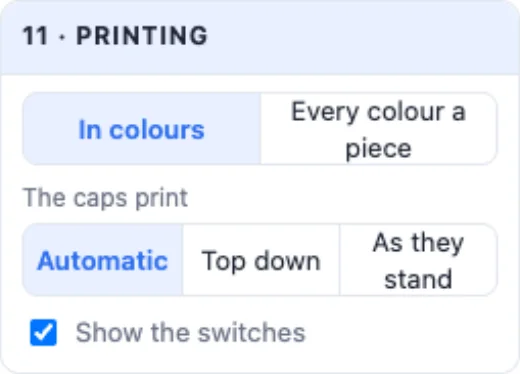
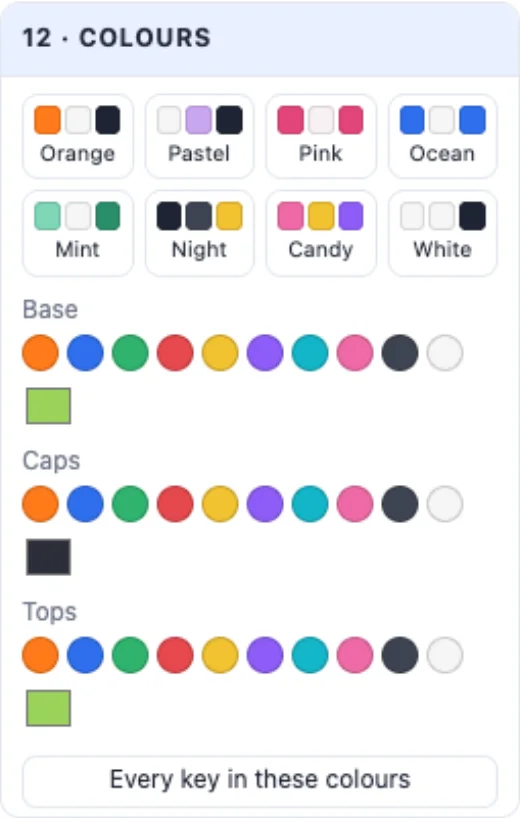
11 · Printing - In colours (the tops are parts of their own colours, for a multi-colour printer or a filament change) or Every colour a piece (the coloured tops print on their own and are glued into pockets). The caps print top down when nothing stands up on them, else as they stand - no supports. 12 · Colours - ready colour sets, or the base, the caps and the tops each your own colour. Create clicker adds it to your project, laid out for printing.
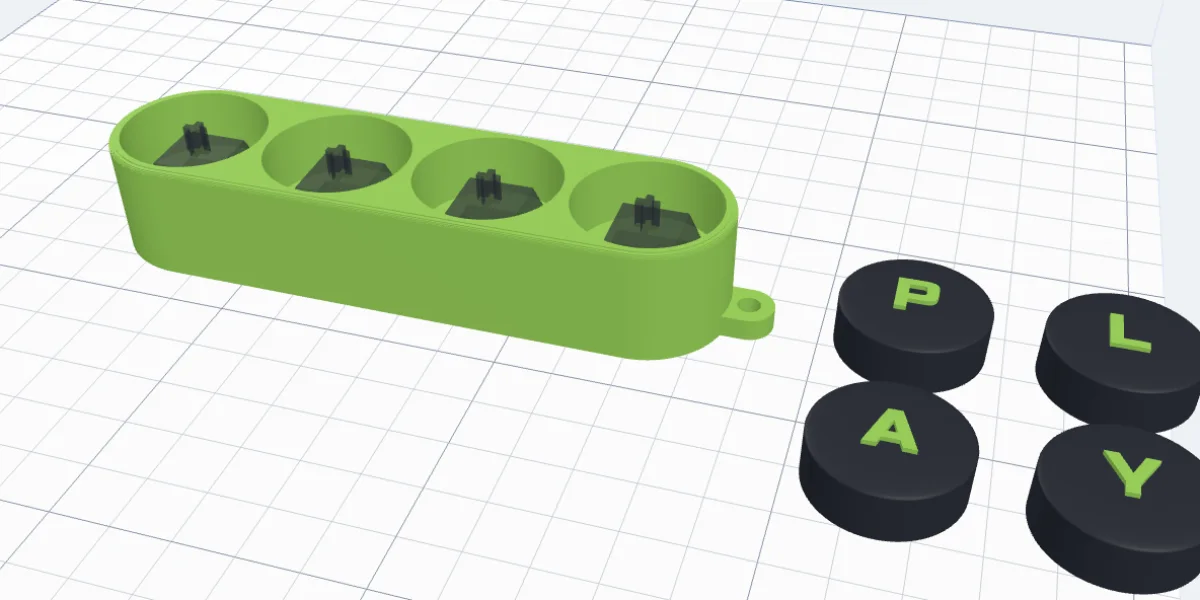
To put it together: push each switch into its hole from above until it clicks, then press the cap onto its stem. Print one key first to check the fits on your printer.
Questions
Which switches fit?
MX style switches (Cherry MX, Gateron, Kailh box, Akko, Outemu and most others with a cross stem), Kailh Choc v1 and v2, and Gateron low profile. For any other switch pick My switch and type its sizes from its drawing.
How does the switch stay in?
It clicks into a 1.5 mm plate like on a keyboard: its side clips snap under the plate. A fitted pocket under it has notches where the clips snap out and holes for its pins. In an open-bottom base, side locks under the plate do the same.
Do I need supports?
No. The base prints as it stands and each cap prints top down when nothing stands up on it, else as it stands - the inside of its top bridges over the switch.
The cap is loose or too tight on the stem - what do I change?
Under Switch, set the fit of the stem in the cap: Tight, Normal or Loose, or type the exact gap. The fit of the switch in its hole is set the same way.
Can I make a real keyboard or macropad?
Yes. Pick Open bottom - for wiring under Base: the switches click into a plate, the base is hollow under it so you can solder wires, diodes and a small board to their pins, and a bottom panel screws on. A slot lets the cable out.
Make your clicker
Pick a design, put your letters or pictures on the keys - and print it.
Open the Clicker generatorAlso see: Keychain generator, Sticker generator, Phone grip generator and Board case generator.