3DPrintCAD › Guides › Reduce STL file size
How to reduce STL file size online
Scans, sculpts and generated models often come with a million triangles or more - files of 50 MB and up that slow down your slicer and are too big to upload or email. 3DPrintCAD merges the tiny triangles where the surface barely changes, so the file gets many times smaller while the shape stays the same to a few hundredths of a millimetre. All in your browser.
Watch the tutorial
The whole process in under two minutes, with subtitles: checking the mesh, Make solid, every Reduce level, a custom target size and the export. Watch on YouTube ↗
The short version
- Click Import and choose your STL.
- In the Mesh health card, click Run full check (large meshes). Not watertight? Click Make solid.
- Click Reduce file size, keep Balanced and click Apply.
- Click Export STL.
1Why STL files get so big
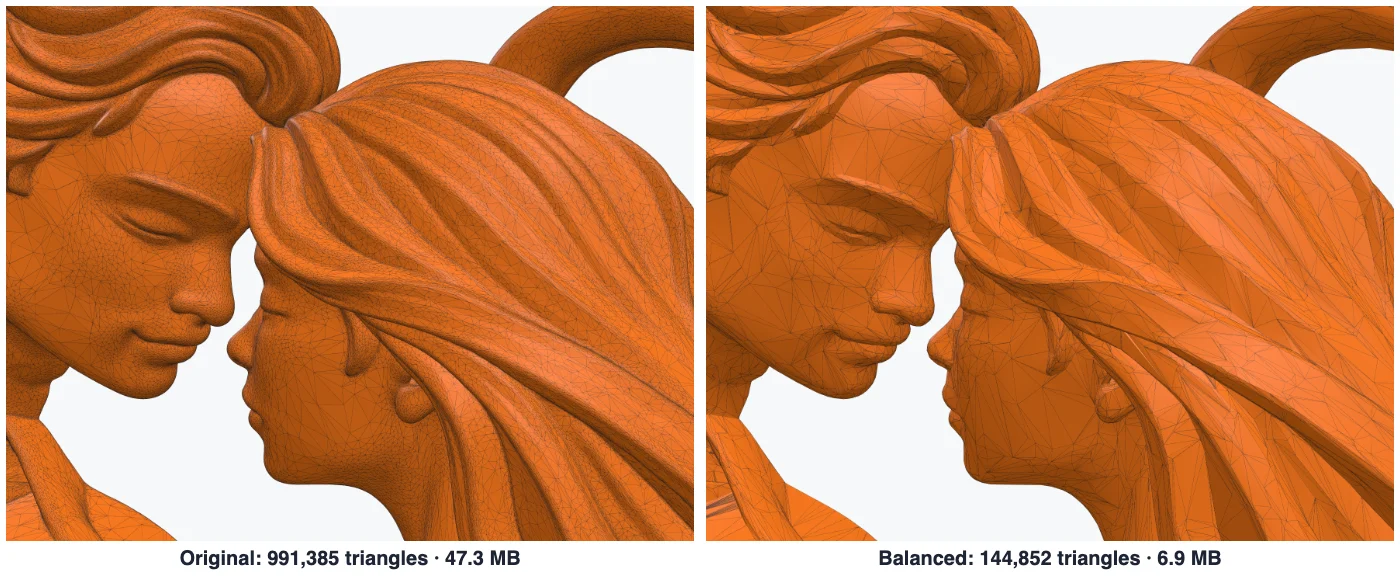
An STL file is a list of triangles, and every triangle takes 50 bytes. A million triangles is therefore about 47 MB, however simple or detailed the shape looks. 3D scans, sculpting apps and AI model generators make triangles of the same tiny size everywhere - even on smooth areas that a few large triangles would describe just as well. That is what reducing removes.
2Import it and open Mesh health
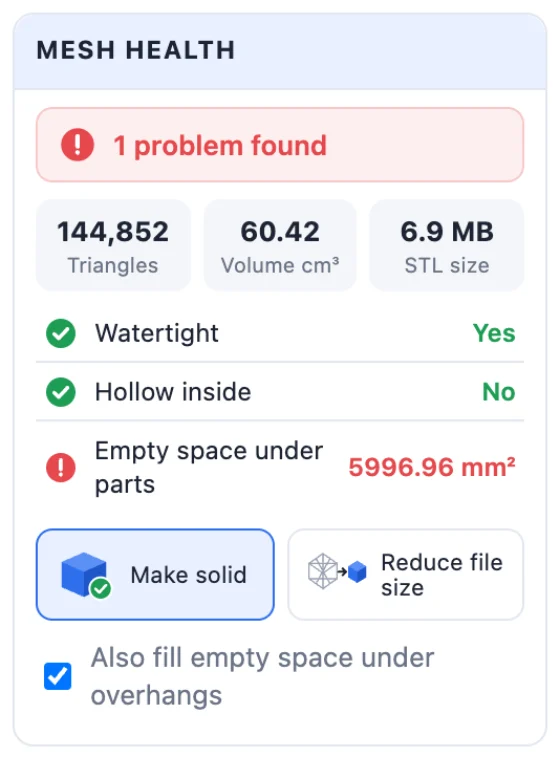
Open 3dprintcad.com, start a new project and click Import (or drop the STL on the bed). With the model selected, scroll the right panel to the Mesh health card. It shows the number of triangles, the volume and the STL size of the model.
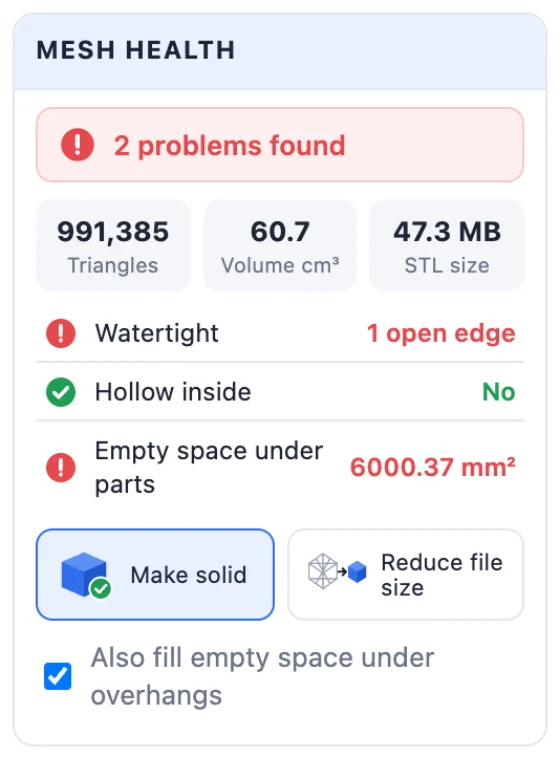
Meshes with more than 300,000 triangles are not checked automatically - click Run full check. The rows then tell you whether the mesh is watertight, hollow inside or has empty space under parts.
3Make it solid first
Reducing works on a closed (watertight) mesh only - otherwise the dialog says Not possible. The example file has a single open edge: one stray triangle lying on the surface. Click Make solid: it removes stray triangles, closes holes, fills hollow cavities and fixes inverted normals. On the example it takes a few seconds and reports removed 1 stray triangle.
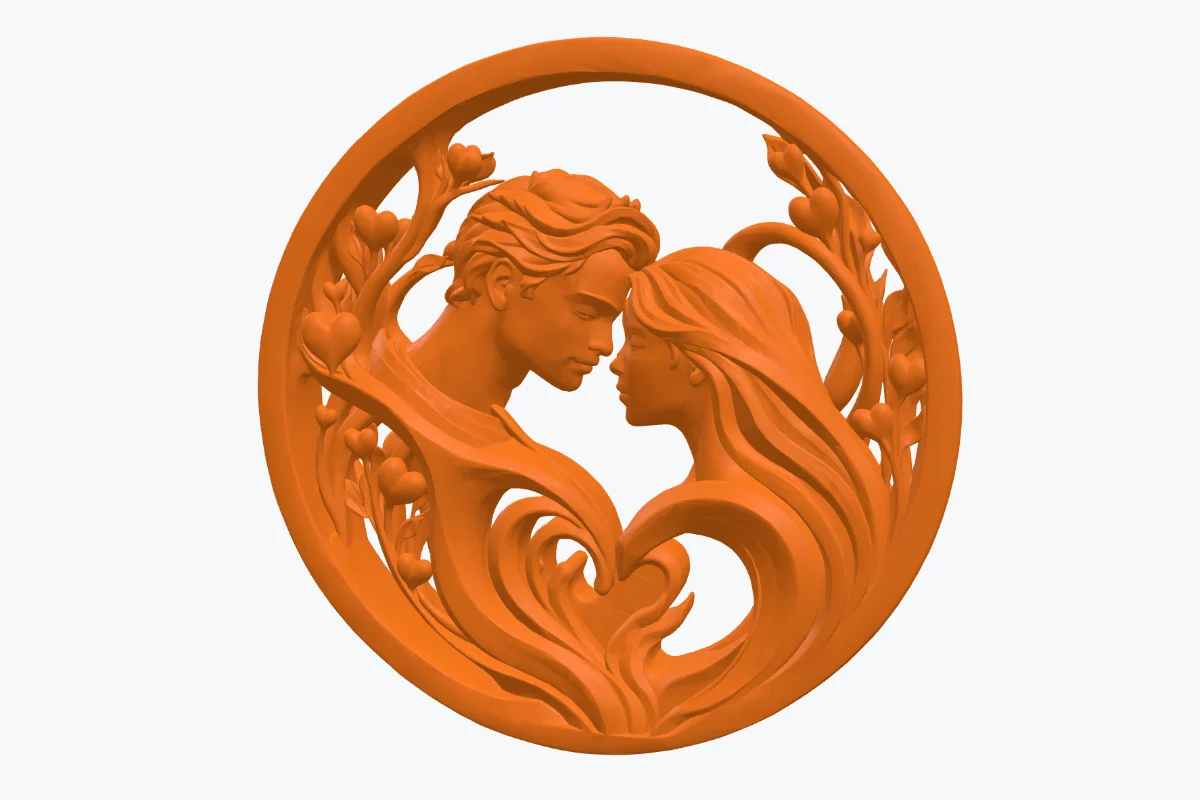
Also fill empty space under overhangs extends every overhang straight down to the bed. That suits a relief lying flat, but not a model with openings or arches - this medallion stands upright, so untick it before clicking Make solid. The empty space under parts row may then stay red: those are just its overhangs.
4Reduce file size: pick a level
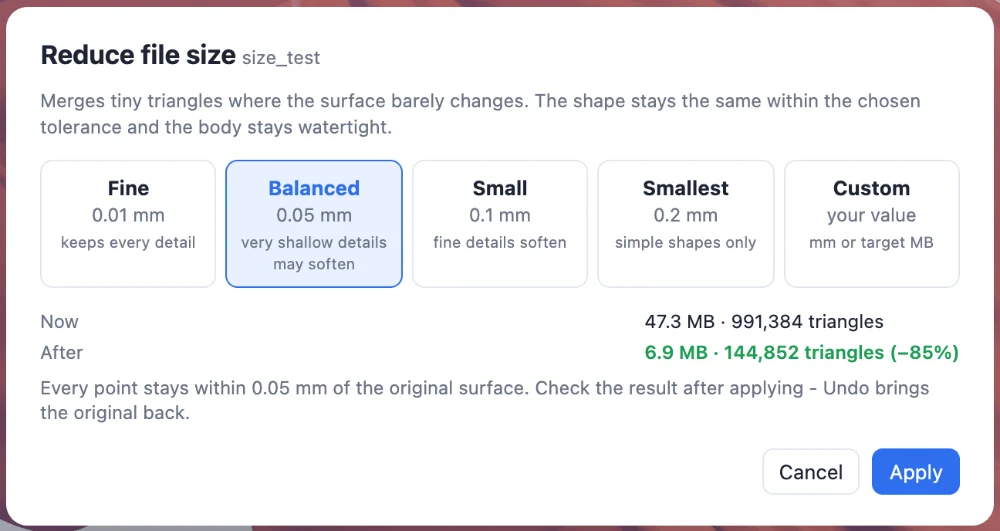
Click Reduce file size. The dialog shows the size now and after, and every level is calculated when you click it:
- Fine - 0.01 mm: keeps every detail, even fine engravings.
- Balanced - 0.05 mm: the default; very shallow details may soften. The example goes from 47.3 MB to 6.9 MB (991,384 → 144,852 triangles, −85 %).
- Small - 0.1 mm: fine details soften.
- Smallest - 0.2 mm: for simple shapes; the example becomes 4.9 MB (−90 %).
The value is the most any point may move away from the original surface. For comparison, a common layer height is 0.2 mm and a nozzle line 0.4 mm wide, so Balanced makes no difference you can see in the print.
5Custom: a tolerance or a target size
Choose Custom for your own value:
- Max change: type the tolerance in mm.
- Target file size: type the size you need in MB - for an upload limit, for example - and click Calculate. The app searches for the smallest change that gets close to it; a 10 MB target gave 10.2 MB with every point within 0.031 mm.
6Apply, check and export
Click Apply. The Mesh health card shows the new triangle count and STL size, and the model is still watertight. Look at the details up close - if anything softened too much, Undo (Ctrl+Z / ⌘Z) brings the original back and you can pick a finer level.
Then click Export STL (Ctrl+E) - or choose 3MF in the menu next to it.
Tips
- Resize first, then reduce: the tolerance is in millimetres at the current size, and scaling a model up afterwards scales its deviations too. See how to resize an STL file.
- For models with small text or fine engravings, start with Fine.
- Reducing also makes every later step faster: booleans, supports, cutting and slicing.
Questions
Will a smaller STL print worse?
Not at the Balanced level. Every point of the reduced mesh stays within 0.05 mm of the original surface - much less than a 0.2 mm layer or a 0.4 mm nozzle line - so the print looks the same. Fine (0.01 mm) keeps even the smallest engraved details.
Why does Reduce file size say "Not possible"?
Reducing needs a closed (watertight) mesh. Click Make solid in the Mesh health card first: it closes holes, removes stray triangles and inner cavities and fixes inverted normals. Then reduce again.
How much smaller will my STL get?
It depends on the model. Scans, sculpts and generated models with many tiny triangles often shrink by 80-90 %: the 47.3 MB example in this guide became 6.9 MB. Simple shapes that are already efficient shrink less.
Can I ask for a certain file size?
Yes. Choose Custom, select Target file size, type the size in MB and click Calculate: the app finds the smallest change that gets close to it.
Is my STL file uploaded anywhere?
No. 3DPrintCAD runs entirely in your browser: the file is opened, repaired and reduced on your computer.
Shrink your STL now
Import it, make it solid, reduce, export. Nothing to install.
Open 3DPrintCADAlso see: How to resize an STL file, Jigsaw puzzle generator, Image to 3D sticker and QR code STL generator.