3DPrintCAD › Guides › Puzzle generator
3D printable jigsaw puzzle generator with custom knobs
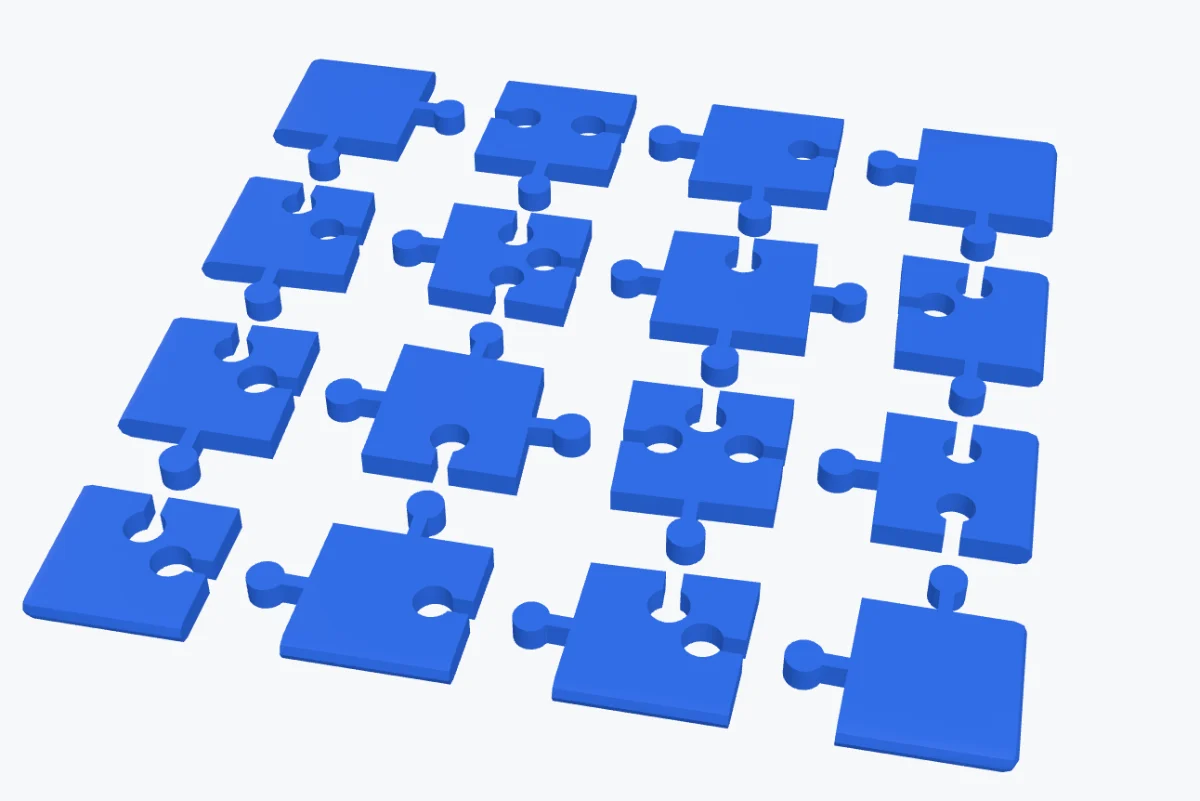
Turn any flat body - a plate, a sticker, a relief, a lithophane - into interlocking jigsaw pieces you can 3D print. Choose a grid, a circular or a random layout, the classic, wavy or straight knob, or draw your very own knob shape. Pieces come out spread for printing, as one snap-off sheet or with a tray, and multi-colour bodies keep their colours.
Watch the full tutorial
Every option in under six minutes, with subtitles: layouts, knob styles, one sheet and a tray, custom knobs drawn, sketched and made from an SVG, sharing them, and a puzzle from a sticker. Watch on YouTube ↗
What you can make
- Jigsaw puzzles from any flat body: plates, signs, reliefs, lithophanes and imported STL files.
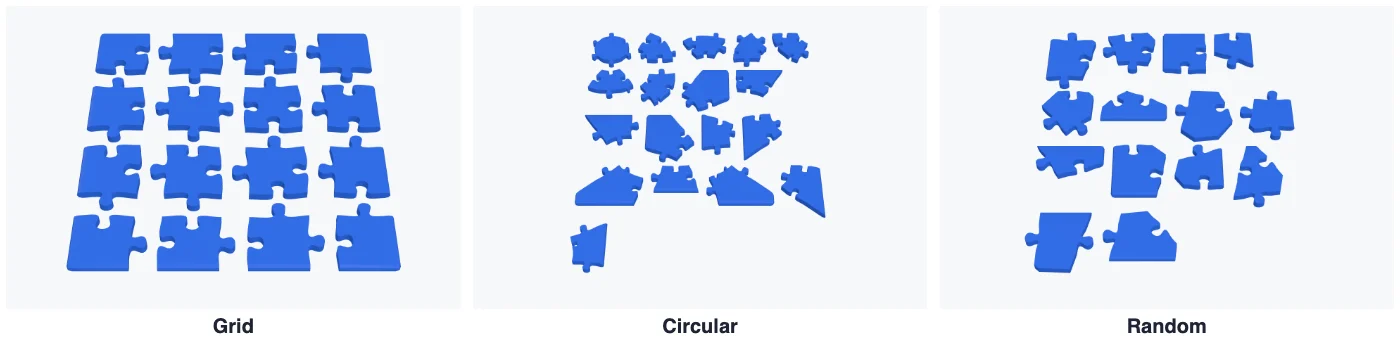
- Three layouts: a grid, a circular puzzle with rings, or random pieces that are all about the same size.
- Your own knob shape: hearts, stars, mushrooms, a logo from an SVG - or anything you draw.
- Frame puzzles: cut only part of a body and keep the rest as a frame the pieces fit into.
- Multi-colour puzzles from stickers and keychains, every piece in its colours.
1Open the puzzle generator
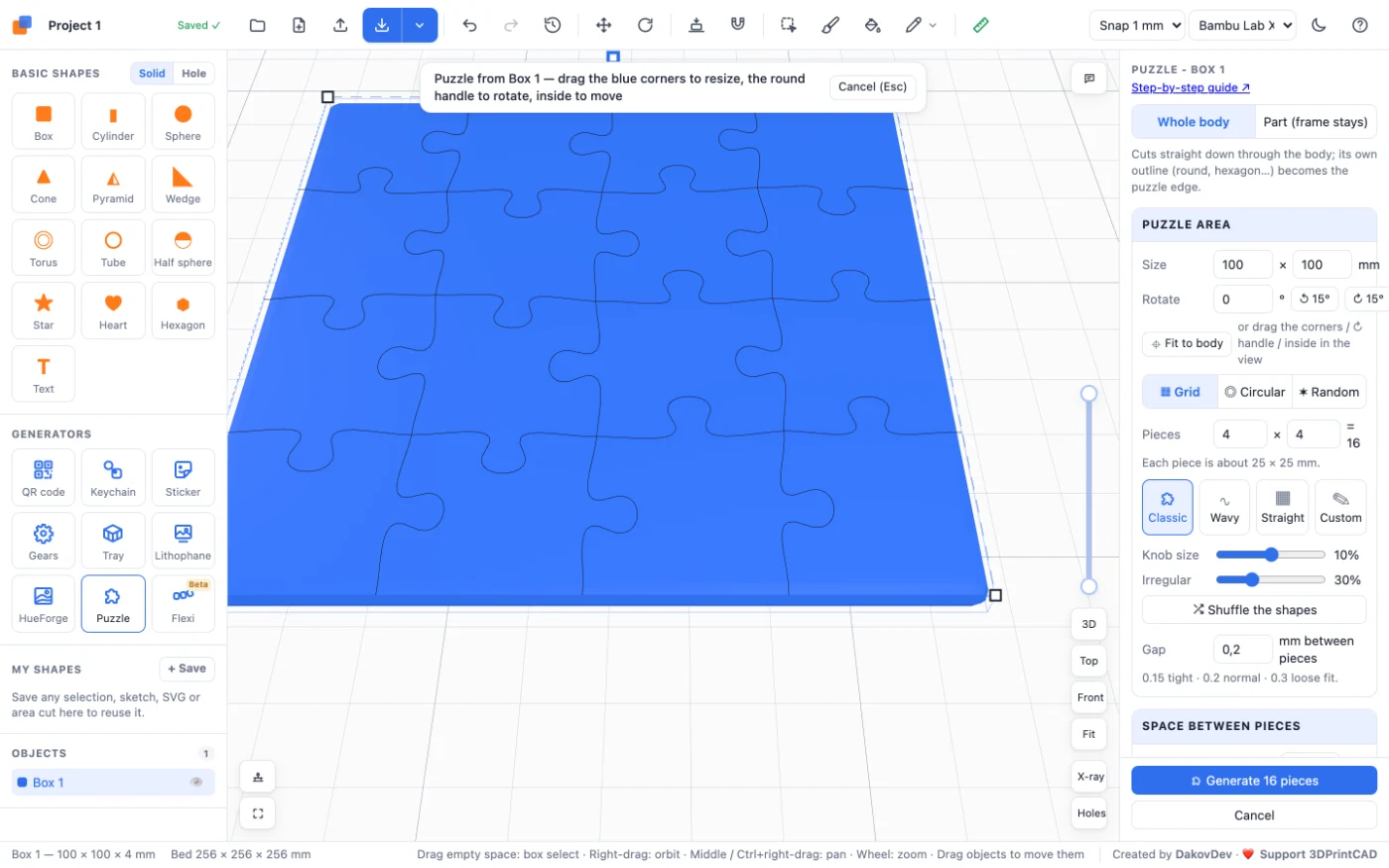
Start with a body. Any flat shape works: add a Box from Basic shapes and make it 100 × 100 × 4 mm with rounded corners, import an STL, or make a sticker or a lithophane first. Then click Puzzle under Generators in the left panel. With one body it starts right away; with several, click the one you want in the view.
2Whole body or part, and the puzzle area
- Whole body: the body's own outline - round, a heart, a hexagon - becomes the edge of the puzzle.
- Part (frame stays): only the area is cut into pieces; the rest of the body stays as a frame the pieces fit back into.
- The puzzle area is the blue rectangle in the view: drag its corners to resize it, the round handle to turn it, or the inside to move it. You can also type its size and angle, turn it in 15° steps, or click Fit to body.
3Grid, circular or random
- Grid: choose the number of pieces across and down (up to 20 × 20). The panel shows how big each piece will be.
- Circular: a round centre piece and rings of pieces around it. Choose the number of rings, the pieces in the first ring and the size of the centre; outer rings get more pieces so they stay about square.
- Random: pieces of irregular shapes, all about the same size - just choose how many. Shuffle gives new shapes.
4Knob style, size and irregular
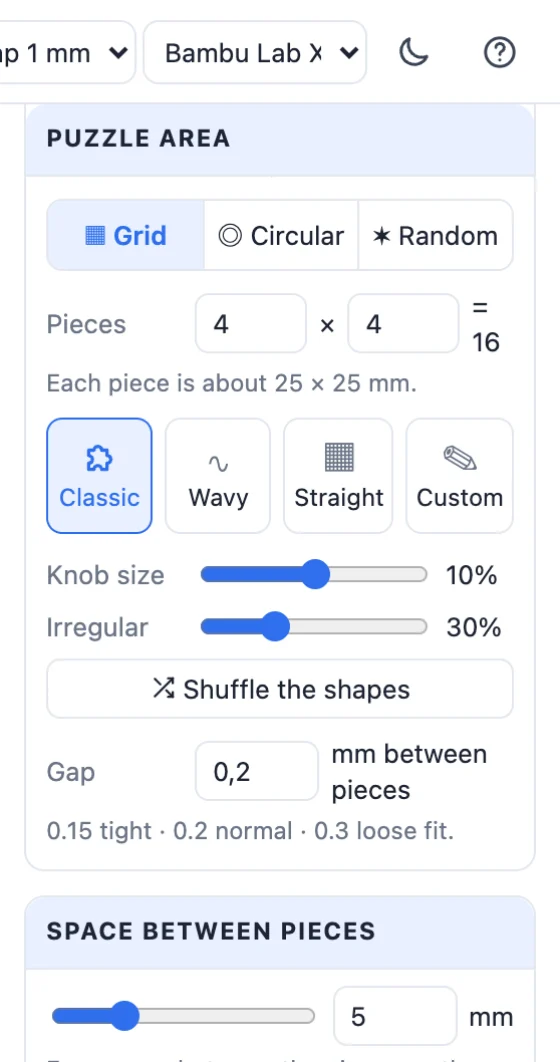
- Classic is the familiar jigsaw knob, Wavy a gentle wave, Straight plain straight edges (a tile puzzle), and Custom your own shape.
- Knob size makes the knobs bigger or smaller compared to the pieces.
- Irregular varies the pieces and the knobs, so every piece is a little different. Shuffle the shapes makes a new variation.

5Gap, spacing, one sheet and a tray
- Gap: the clearance between pieces. 0.2 mm is a normal fit; 0.15 tight, 0.3 loose.
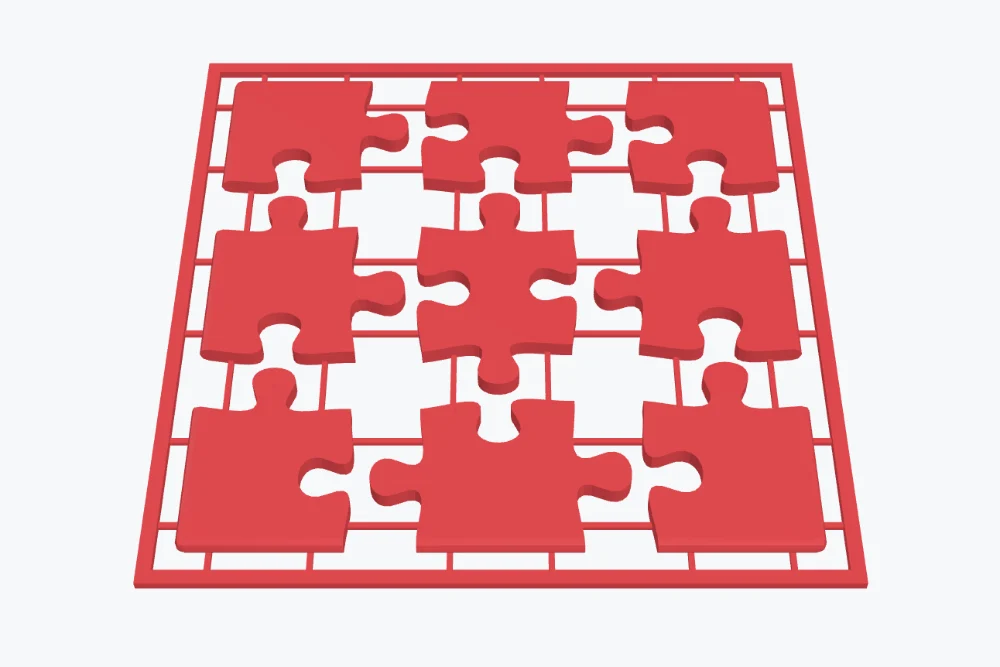
- Space between pieces: how far apart the pieces lie on the bed, measured from the tips of the knobs (0 = assembled).
- Print as one sheet: thin bridges join the spread pieces like a model kit, with an optional border around them - snap the pieces out after printing.
- Add a tray: a frame the finished puzzle sits in, with its own wall, floor, rim height and tolerance.
6Make a custom knob
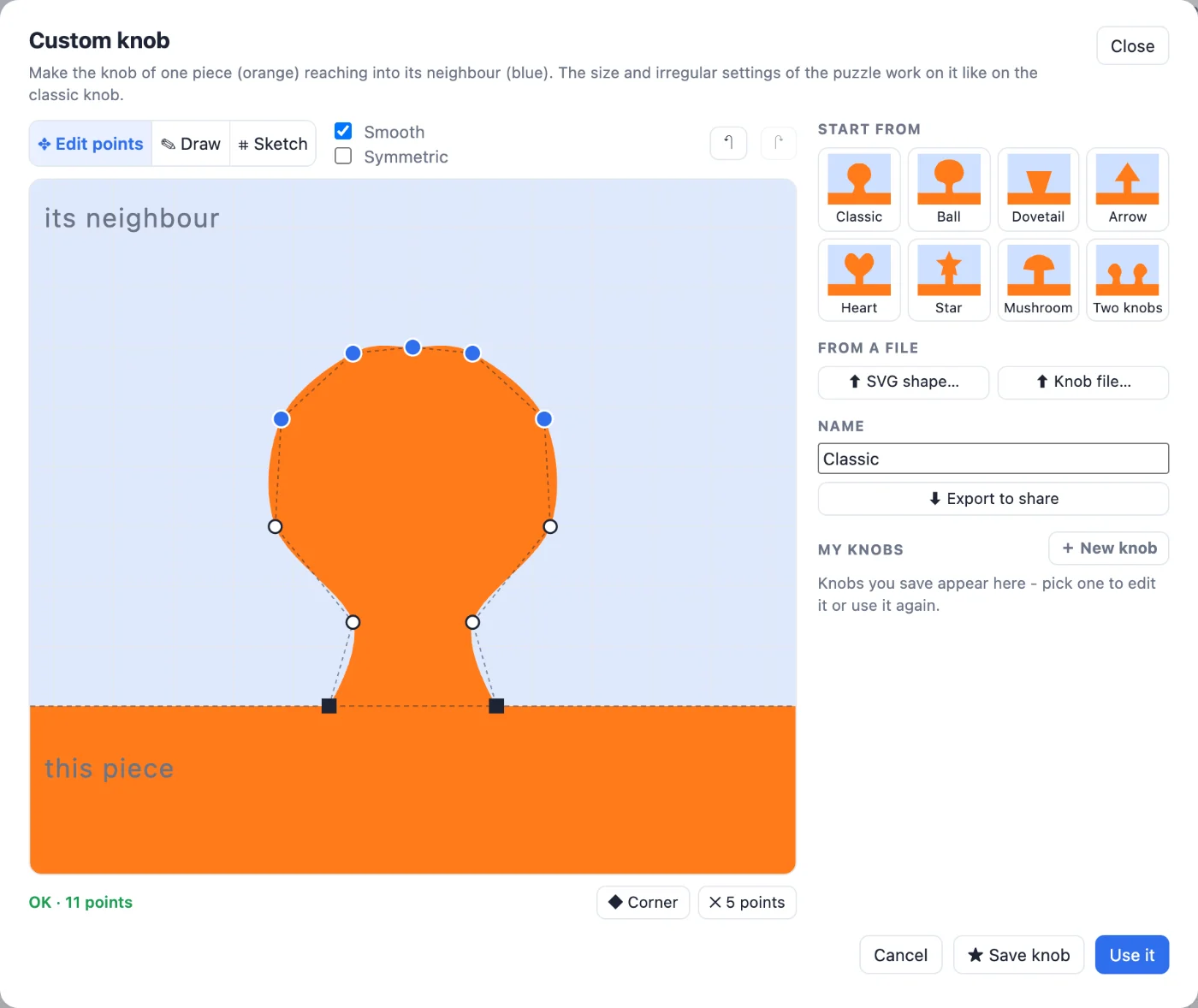
Click Custom to open the knob editor. The orange area is one piece, the blue area its neighbour: you shape the knob that reaches from one into the other. The knob size and irregular settings work on your knob like on the classic one.
Start from a preset
Classic, Ball, Dovetail, Arrow, Heart, Star, Mushroom and Two knobs - click one to start from it.
Edit points
- Drag a point to move it. Shift-, Ctrl- or ⌘-click to select several, or drag a box around them, then drag them together. The arrow keys nudge the selection.
- Right-click (or double-click) the outline to add a point; double-click a point, or press Delete, to remove it.
- Corner turns the selected points sharp, Smooth switches between curves and straight lines, and Symmetric mirrors every change onto the other side.
Draw it by hand
Choose Draw and drag the mouse from the edge, over the top, back to the edge. The line is smoothed into a knob you can then edit point by point.
Sketch it
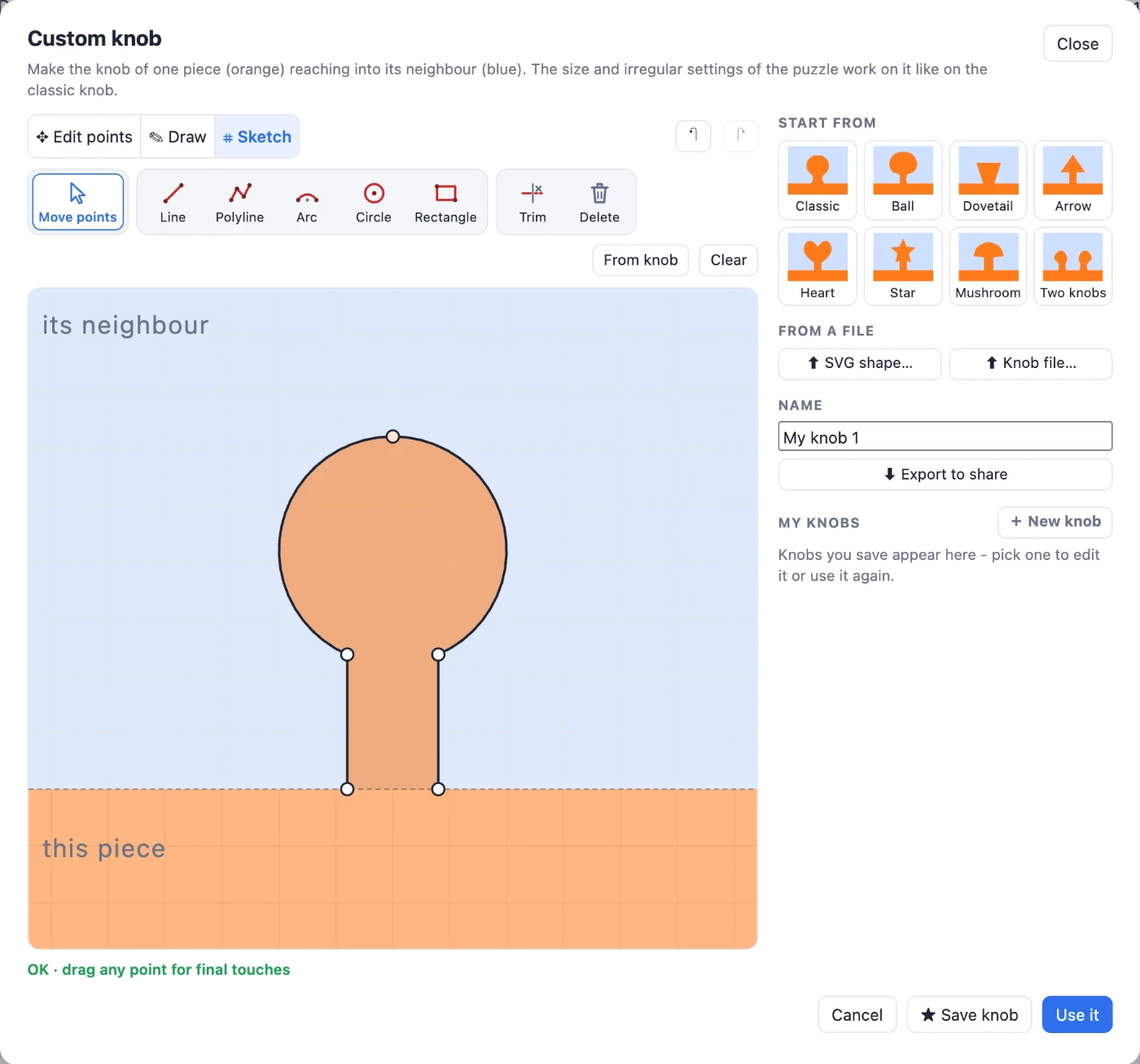
Sketch works like the app's sketch tool: Line, Polyline (press M to switch between a line, an arc and a mirrored arc), Arc, Circle and Rectangle, then Trim to cut away the pieces between crossings and Delete to remove a line. Every closed shape that stands on the edge (the dashed line) becomes the knob. With Move points you drag any end, corner, arc or circle for final touches. Right-click goes back to Move points.
Make it from an SVG
Click SVG shape… and pick an SVG file: its biggest shape becomes the knob's head, set on a neck. Edit it like any other knob.
7Save, export and import knobs
- Give your knob a name and click Save knob: it appears in My knobs, kept in this browser. Whenever you open Custom again, pick it there to use or change it. New knob starts an empty one.
- Export to share saves a small
.knobfile. Send it to a friend: they open it with Knob file… in the same editor - and can edit it too. - Use it puts the knob on the puzzle.
8A puzzle from a sticker
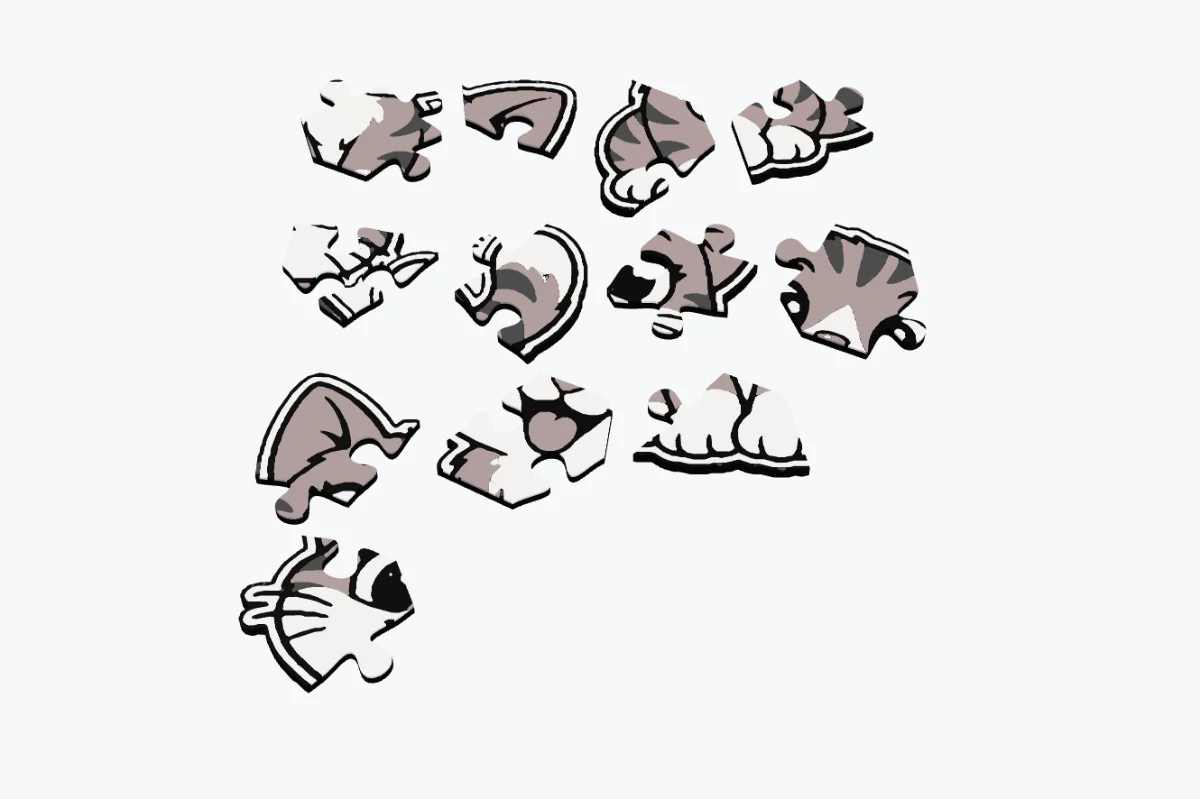
Make a sticker with the sticker generator - a multi-colour cat, for example - then open Puzzle on it. Every piece keeps the sticker's colours, with a part per colour, ready for a multi-colour print.
9Generate, export and print
Click Generate: each piece becomes a body of its own (a group per piece for multi-colour bodies). Export them as STL, or open the menu next to Export and choose Multi-colour 3MF (for the slicer).
Printing tips
- Print the pieces flat, as they come out, with 0.2 mm layers or finer.
- Do a test print of two pieces first to check the gap on your printer.
- Pieces of about 15 mm and more are easy to print and to hold.
- A brim helps small pieces stay on the bed; a one-sheet puzzle stays put on its own.
Questions
What gap should I use between pieces?
0.2 mm is a normal fit for most printers. Use 0.15 mm for a tight fit and 0.3 mm if the pieces are hard to put together.
Can I design my own knob?
Yes. Choose the knob style Custom: start from a preset, drag its points, draw one by hand, sketch it with lines, arcs and circles, or upload an SVG. The knob size and irregular settings work on it like on the classic knob.
How do I share a custom knob?
Click Export to share in the knob editor: it saves a small .knob file. Anyone can load it with Knob file…, use it and edit it.
Can a multi-colour model become a puzzle?
Yes. A sticker, a keychain or any group of coloured parts keeps its colours: every piece gets a part per colour, ready for a multi-colour 3MF.
How small can the pieces be?
Pieces of about 15 mm and more print and handle well. The panel warns when pieces get very small.
Make your puzzle now
Start with the sample heart, or cut your own body into pieces.
Open the puzzle generatorAlso see: Image to 3D sticker for multi-colour stickers to turn into puzzles, Keychain generator and QR code STL generator.