3DPrintCAD › Guides › Pipe generator
Pipe generator: draw pipes, bends and fittings
Draw your pipes from above and get them in 3D: straight and curved pipes, smooth bends, tees, crosses and manifolds, pipes that change size, and every kind of end - caps, sockets, spigots, hose barbs, reducers and flanges. For hoses, water and air lines, handles, frames and anything made of tubes. Everything happens in your browser and the pipes are ready for the slicer.
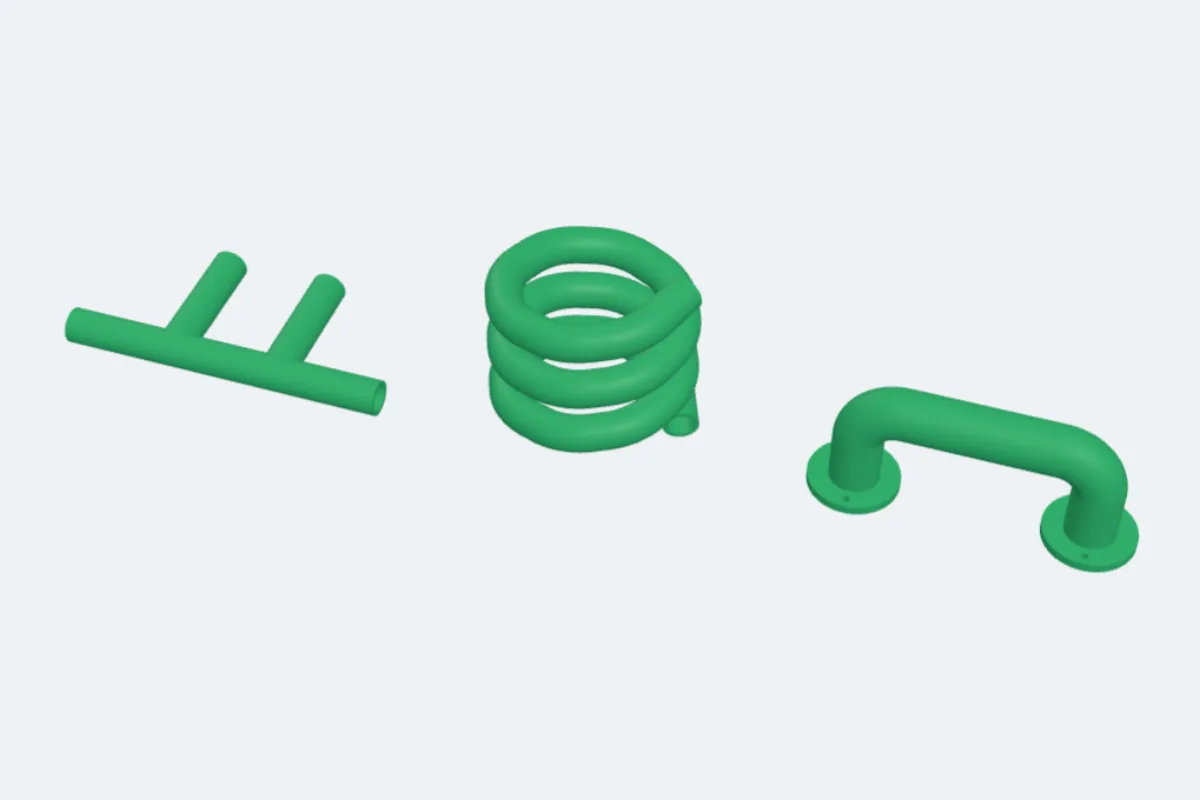
Watch the tutorial
From the sketch to the print in under two minutes, with subtitles: drawing pipes and branches, templates, junctions and ends. Watch on YouTube ↗
1Open the pipe generator
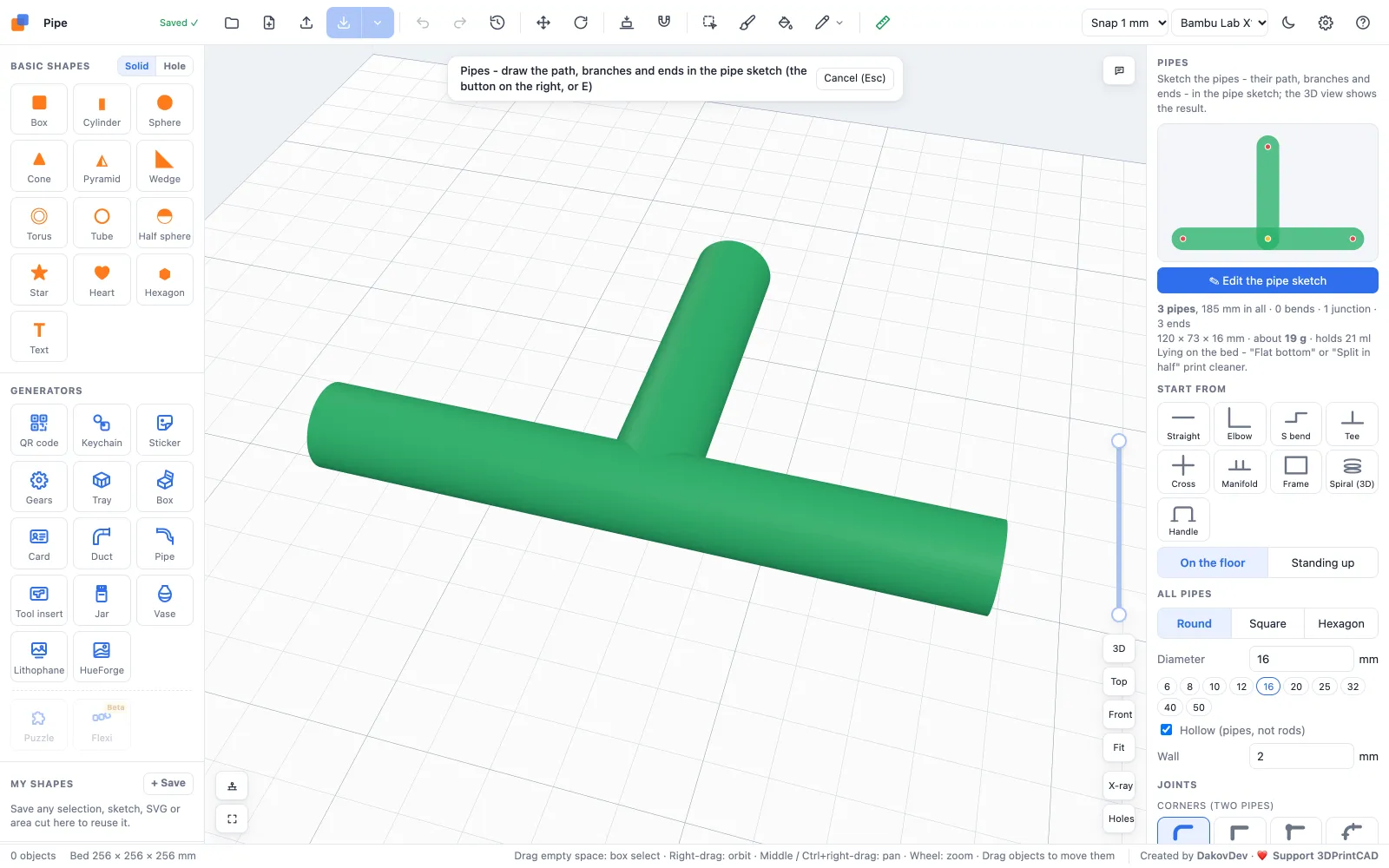
Open the app and click Pipe under Generators on the left (or use this link). The pipe sketch opens: you draw the pipes from above, and the 3D view shows the result. The panel on the right sets everything that applies to all pipes; its top lines give the number of pipes, their length, bends, junctions and ends, the size, the plastic and how much it holds.
2Draw the pipes
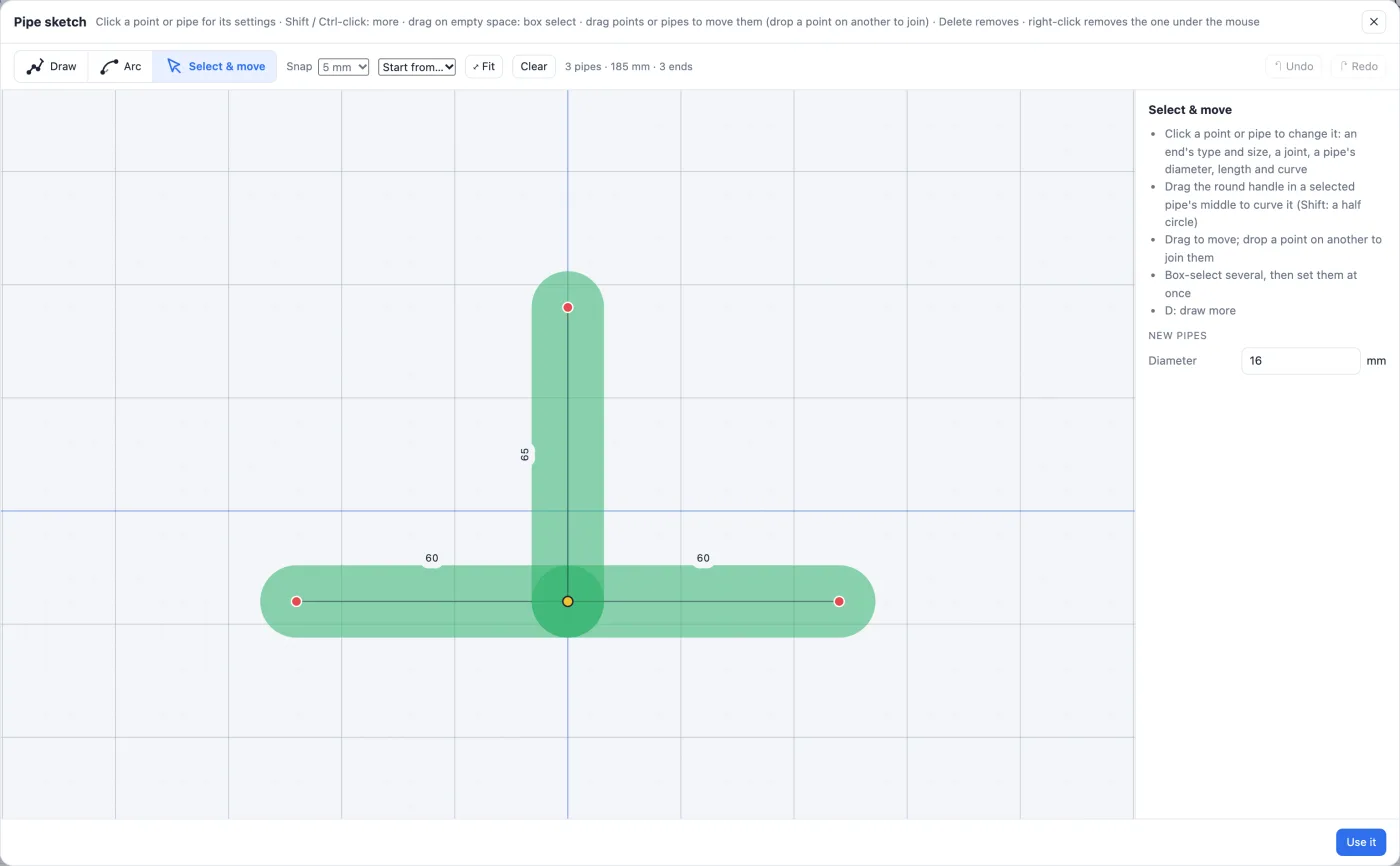
The pipe sketch shows the pipes from above at their real width, with their lengths. ✎ Edit the pipe sketch (or the thumbnail, or the key E) opens it again.
- Draw (D): click to start a line and click again for each corner; right-click, Enter, Esc or a double-click ends it. Click on a pipe to branch off it, or on a point to go on from it. Shift keeps 15° steps; points snap to the grid and to other points.
- Arc (A): click the start and the end, then move the mouse to bend it and click - a curved pipe.
- Select & move (V): drag points or pipes, box-select, Delete. A selected pipe shows a round handle in its middle - drag it to curve the pipe.
- The side panel edits what is selected: a point's position and height (lift it to make a 3D path), an end's type and size, a joint's kind; a pipe's exact length, its own diameter, a taper (a different size at each end) or a wider or narrower section at its end for another pipe to plug into or over.
- Use it applies the sketch. Undo / redo work inside the sketch.
3Start from a template
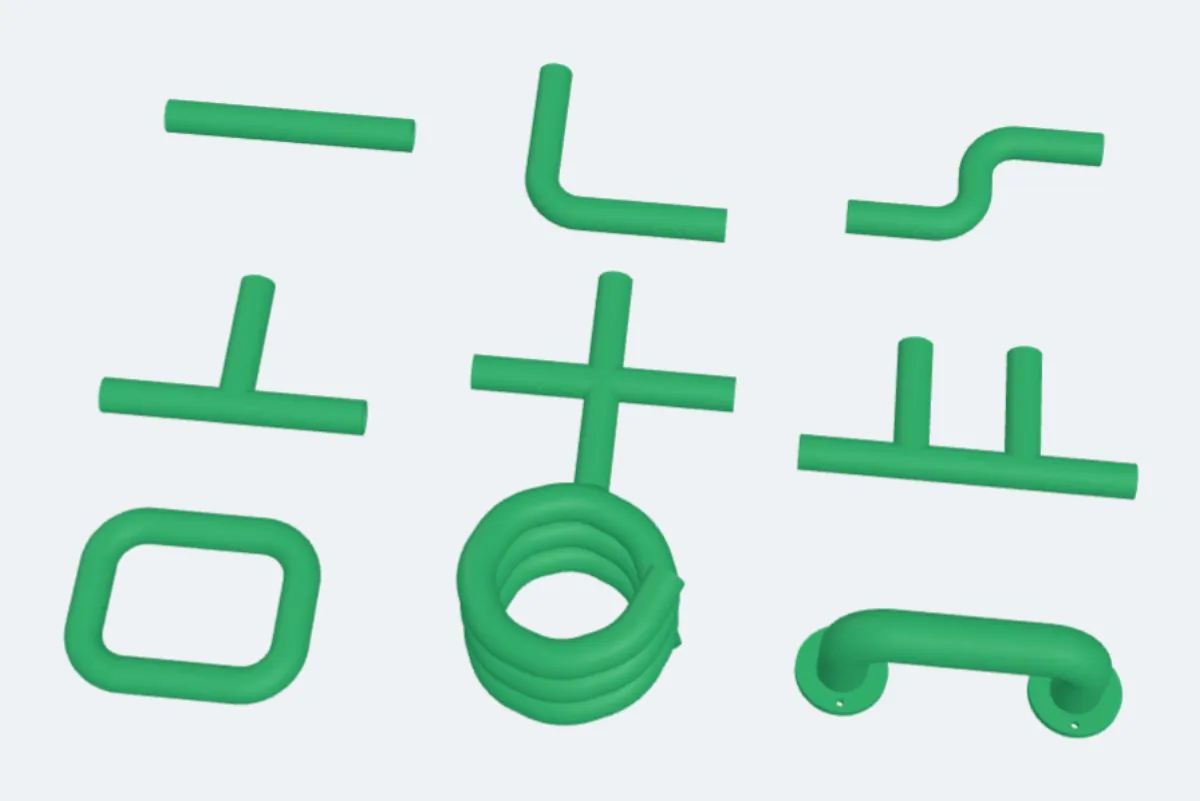
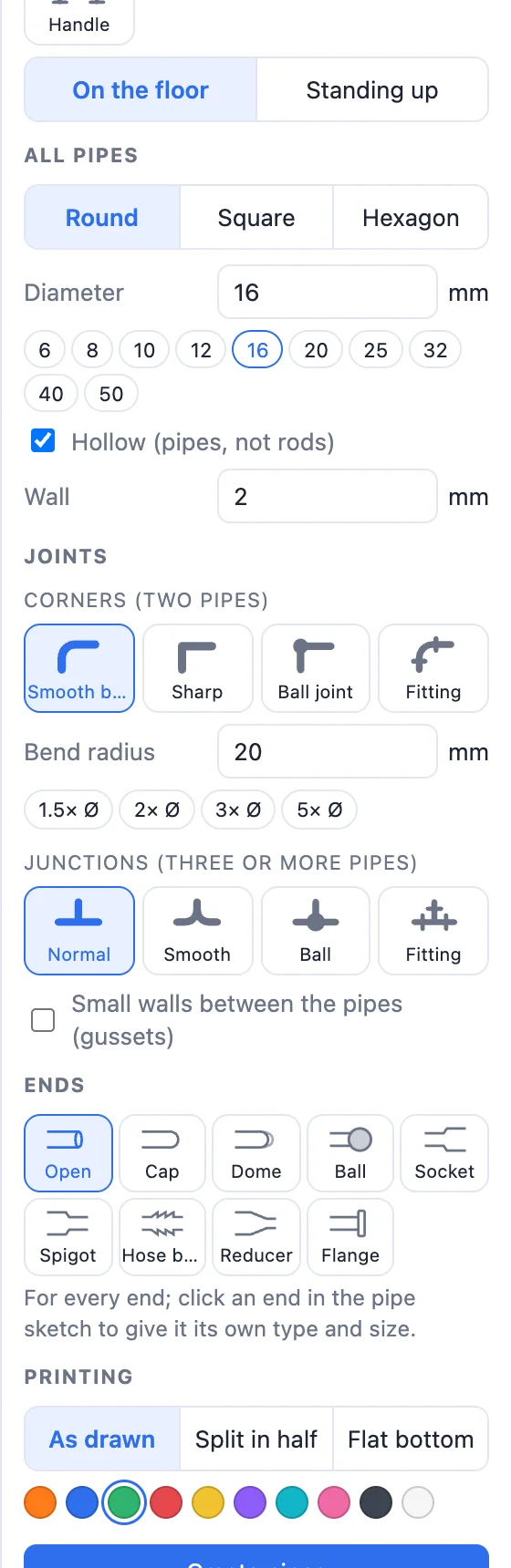
Start from: Straight, Elbow, S bend, Tee, Cross, Manifold, Frame, Spiral (3D) or Handle - then change it in the sketch. On the floor lays the network flat on the bed; Standing up draws it on a wall.
4All pipes, joints and junctions
- All pipes: Round, Square or Hexagon, the Diameter (6 to 50 mm presets), Hollow (pipes, not rods) and the Wall.
- Corners (where two pipes meet): Smooth bend with its Bend radius (1.5 to 5 × the diameter), Sharp, Ball joint or Fitting (collars at the bend).
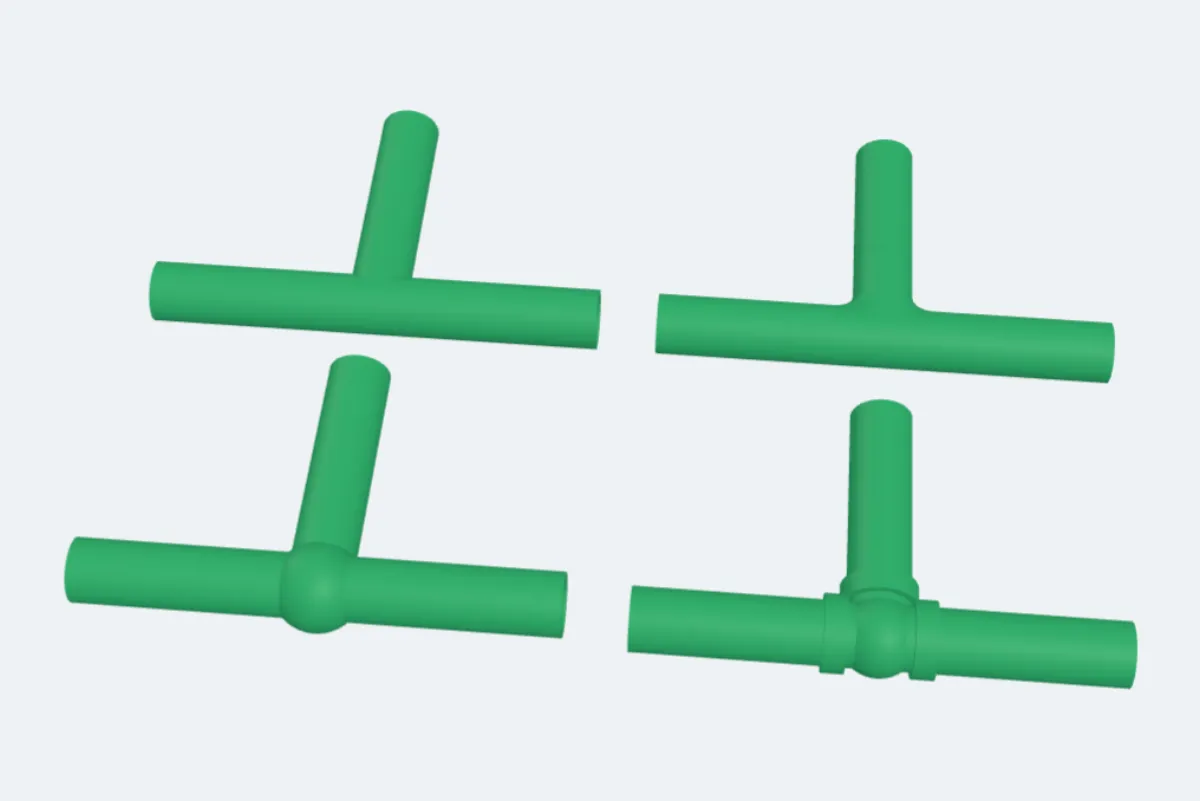
- Junctions (three or more pipes): Normal, Smooth (the pipes blend into each other with a rounded fillet), Ball or Fitting. Gussets add small walls between the pipes for strength.
5Ends
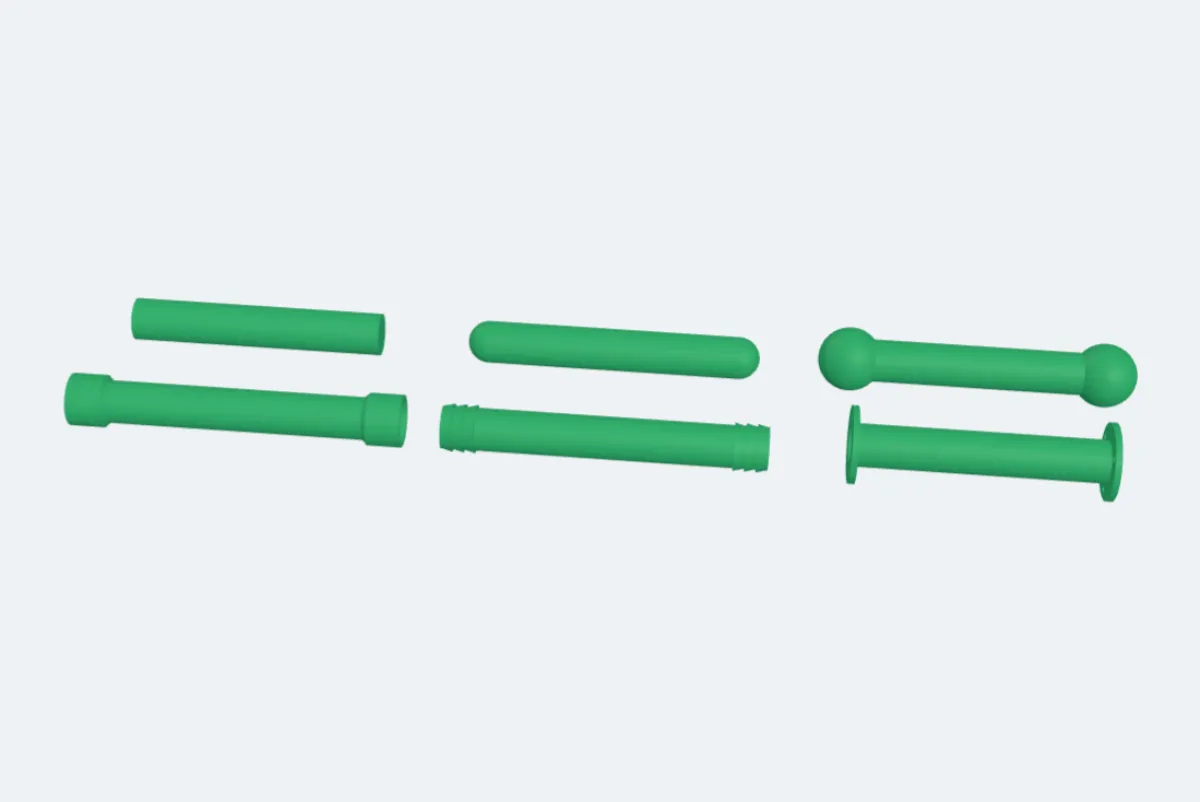
Ends sets every open end: Open, Cap, Dome, Ball, Socket (another pipe slides in), Spigot (it slides into another pipe), Hose barb, Reducer (a cone to another size) or Flange. Click an end in the sketch to give it a type and size of its own.
6Create and print
- Printing: As drawn, Split in half (two halves, each flat side down - the cleanest print for pipes lying on the bed) or Flat bottom (the underside cut flat so it sits on the bed).
- Pick a colour, click Create pipes and Export.
Questions
How do I make a pipe that goes up?
Select a point in the pipe sketch and give it a lift (its height): the pipes to it climb. The Spiral template is a 3D path made this way.
Can one pipe be wider than the others?
Yes. Select the pipe in the sketch and give it its own diameter, a different size at each end (a taper), or a wider or narrower section at its end for another pipe to plug into or over.
What is the best way to print pipes?
Pipes lying on the bed print cleanest Split in half: two halves, each lying flat side down, glued together. Flat bottom is a quick alternative for one piece.
Can I make a curved pipe?
Yes. Draw it with Arc, or select a straight pipe and drag the round handle in its middle.
Can I change the pipes after creating them?
Yes. Double-click the pipes (or select them and click Edit generator) and the generator opens with its sketch and settings.
Draw your pipes now
Open the pipe generator, start from a template or draw your own, and print.
Draw pipes nowAlso see: Duct generator, Box generator, Gear generator and all guides.