3DPrintCAD › Guides › Flexible fabric generator
Flexible fabric generator: 3D print chain mail and fabric that drapes
The Flexible fabric generator makes a sheet of small tiles that hang together, so the print drapes like cloth: chain mail, a flag, a fidget, a bracelet, a cover. Pick how the tiles are linked, their shape and size and the sheet's outline, paint tiles with a click, and put texts, SVGs and stickers across them. Most kinds print in one go, with no supports.
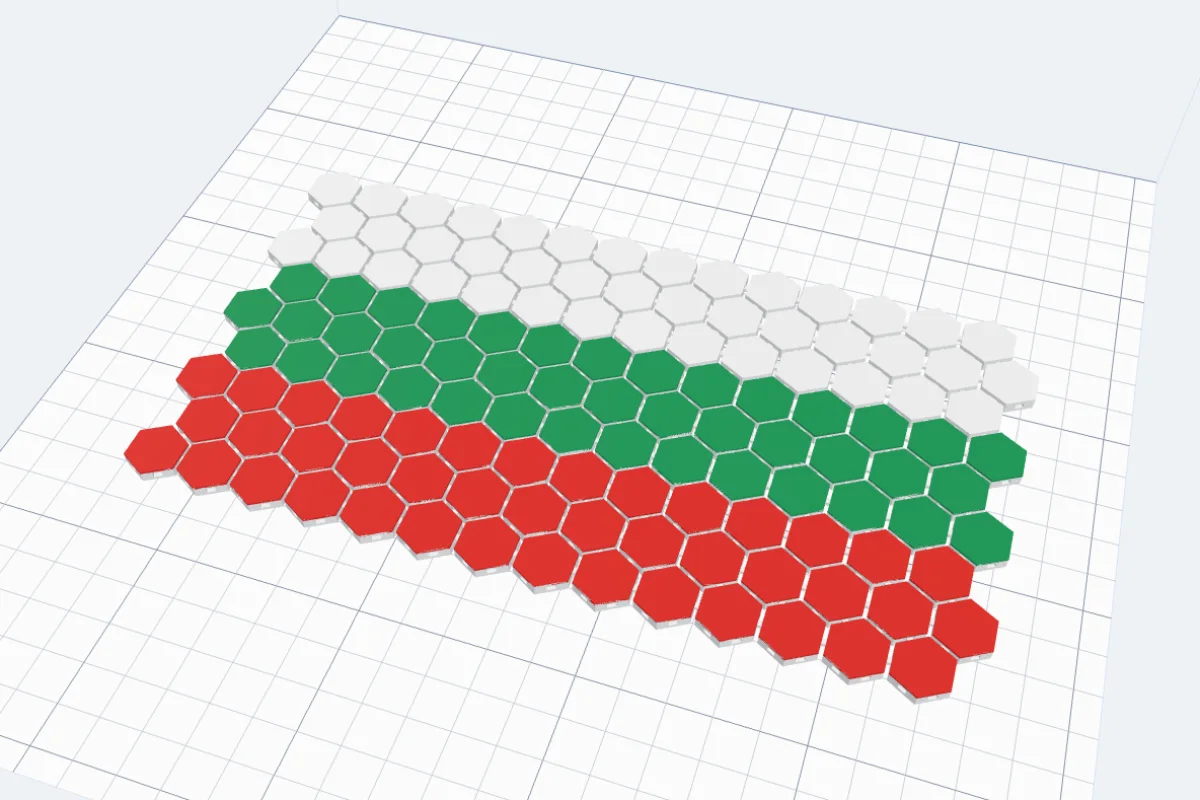
Watch the tutorial
Every step in about three minutes, narrated with subtitles: the links, the tiles, the outline, painting, texts and joining pieces. Watch on YouTube ↗
1Open the Flexible fabric generator
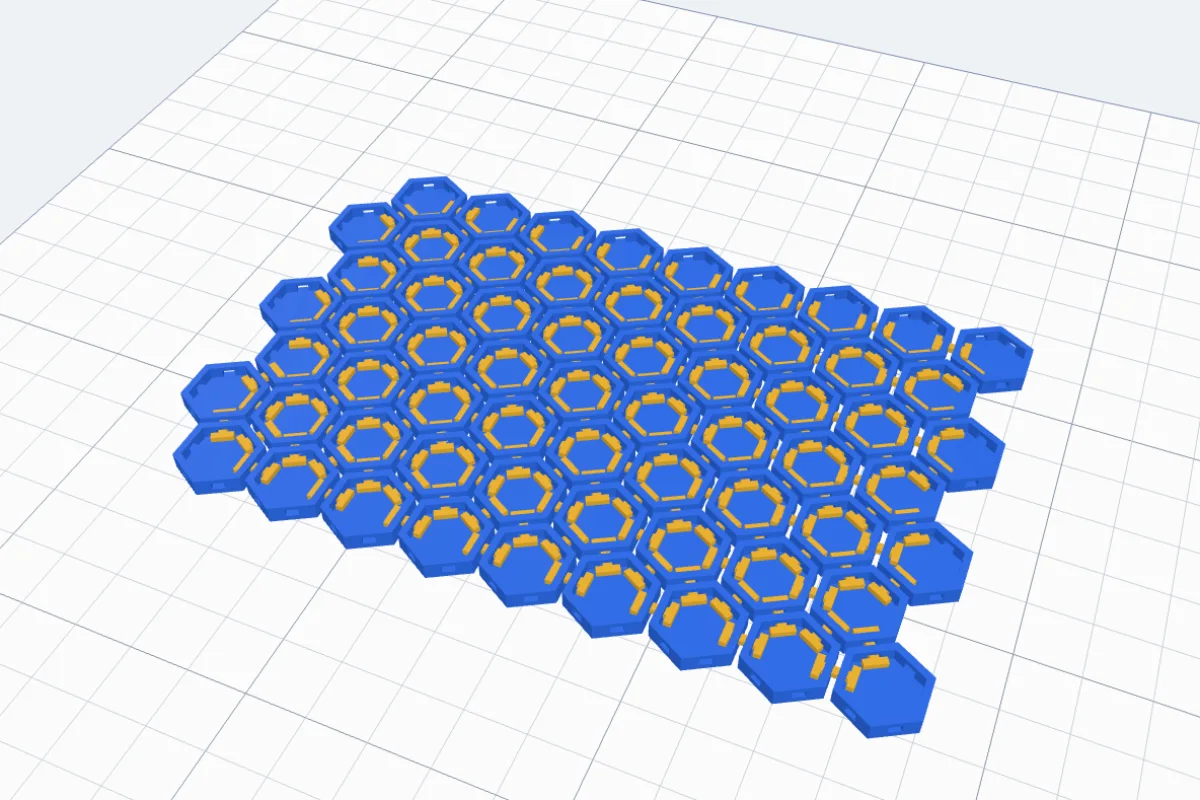
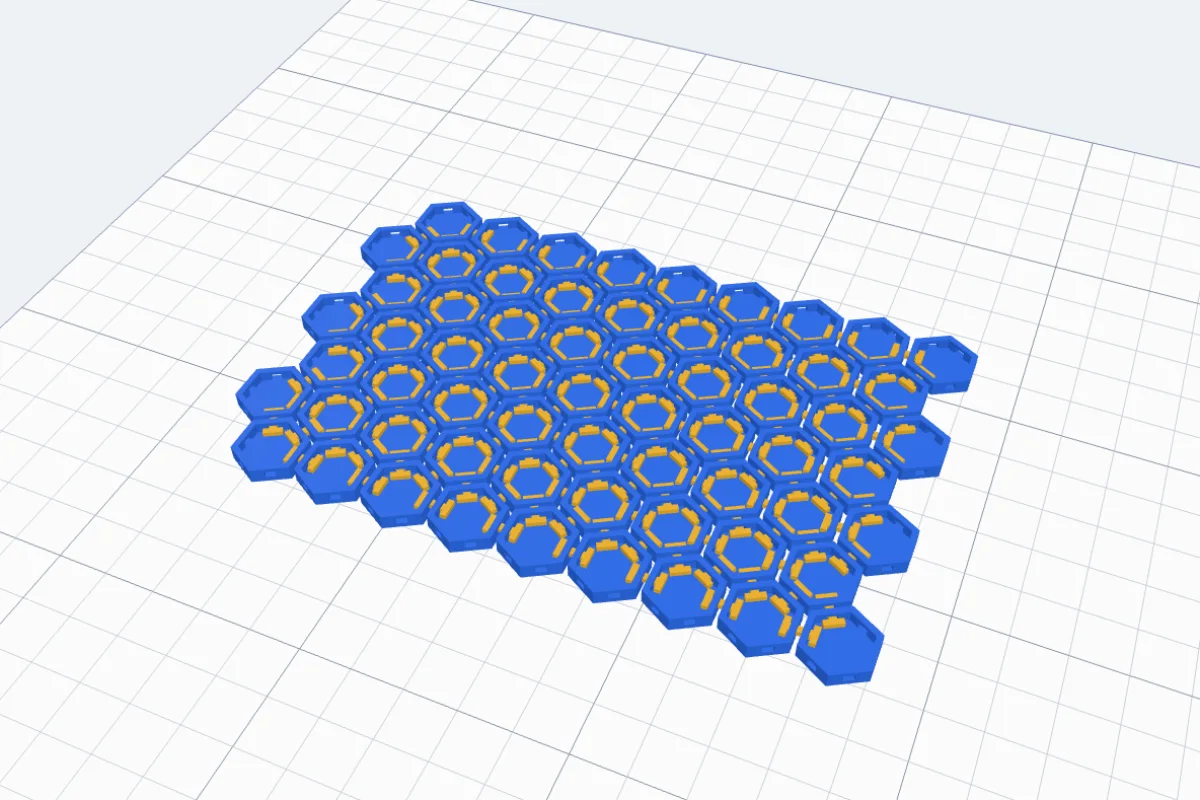
Click Fabric under Generators. It starts with a clean sheet of hexagons on bar links. Design shows it face up; Print layout shows it as it lies on the bed.
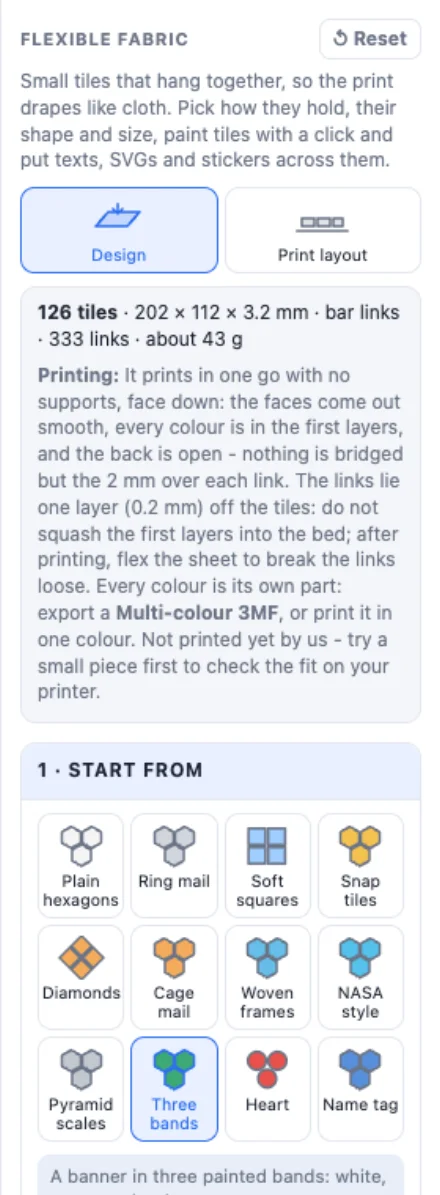
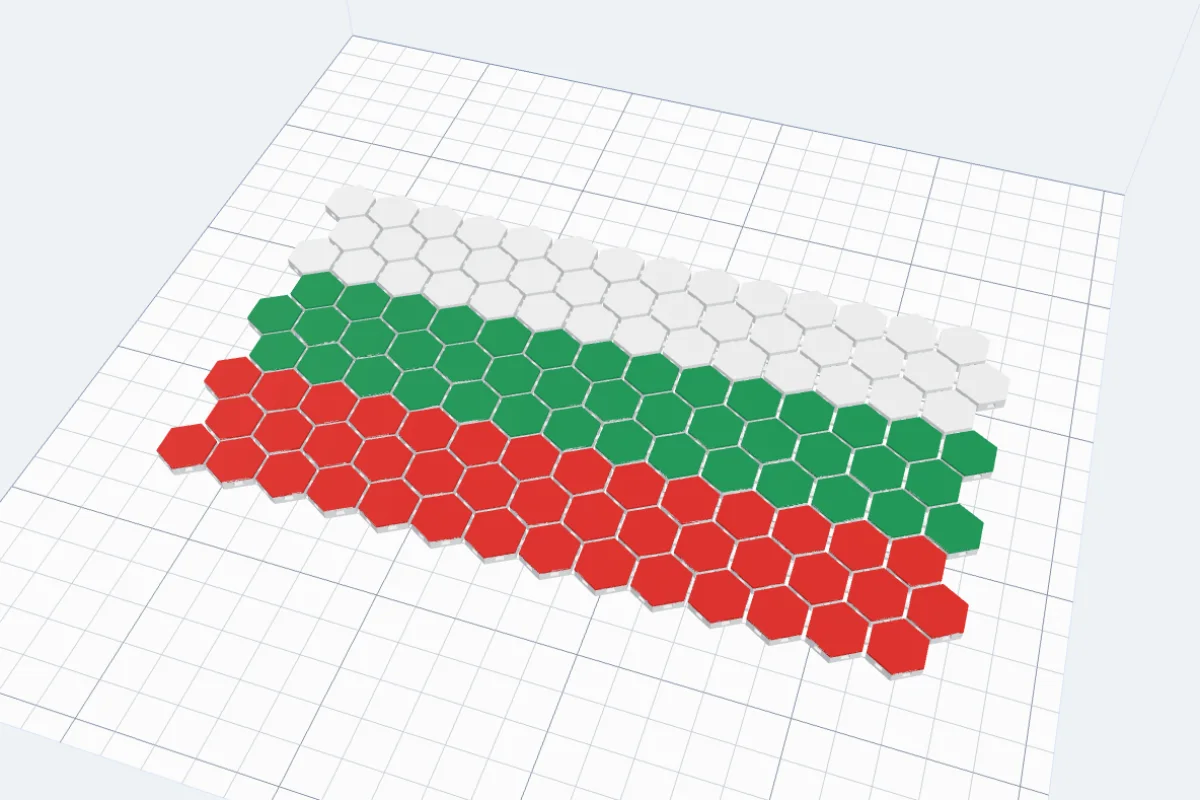
Start from has ready designs: plain hexagons, ring mail, soft squares, snap tiles, diamonds, cage mail, woven frames, NASA style, pyramid scales, three bands, a heart and a name tag.
2How the tiles hold together
Seven kinds. Bar links: a short bar goes through a window in the walls of two tiles, with a cross head inside each - the easiest. Ring links: flat rings round the corner posts of the tiles that meet, like chain mail. Cage links: open cages hooked into each other by round tubes. Woven frames: square tiles on frames woven under and over each other.
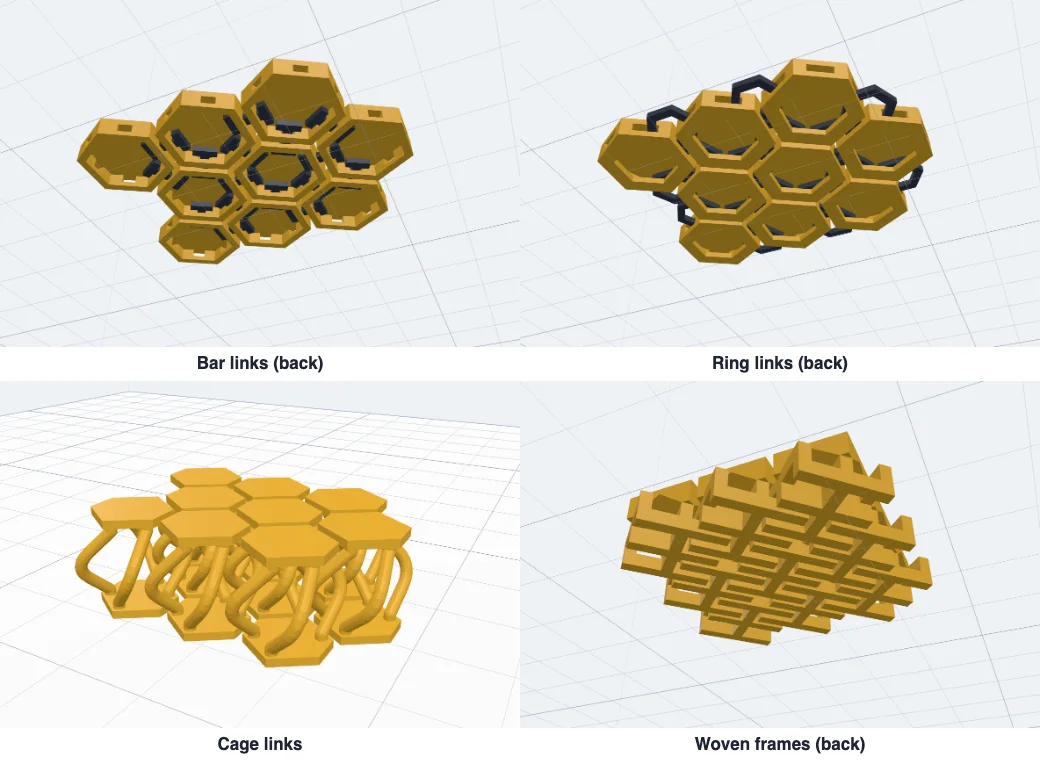
NASA style: a hexagon tile, a cone in its middle and six swirling arms hooked into the next tiles - tiles on one side, loops on the other. Flexible layer: tiles on one thin layer that bends at the gaps. Snap together: every tile printed on its own; a ball on one side clicks into the socket of the next.
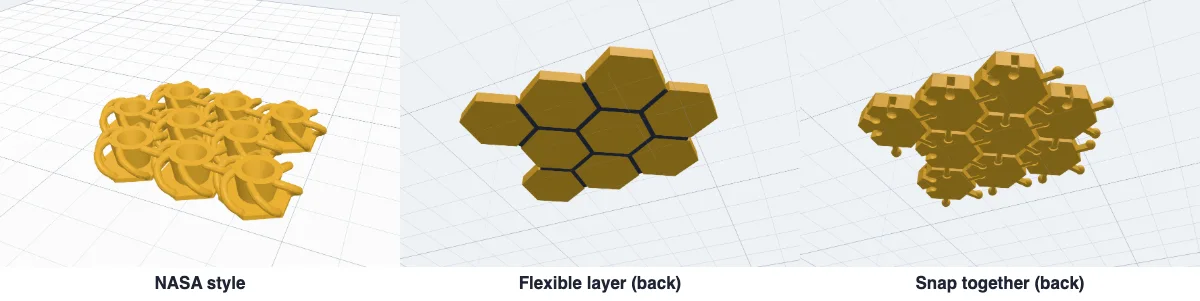
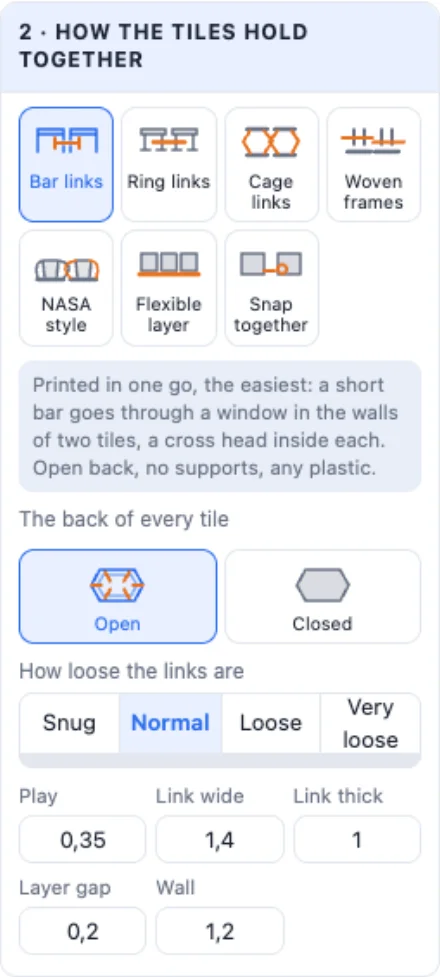
Each kind has its own settings under the tiles: how loose the links are, an open or a closed back, the layer's thickness, the ball joints.
3Tile shape, size and face
Six tile shapes - hexagon, square, diamond, round, octagon, rounded - or Draw it: draw one closed shape and it becomes every tile. The drawing shows the sizes: A the tile (middle to middle), B the gap, C the thickness. A wider gap lets the sheet bend further.
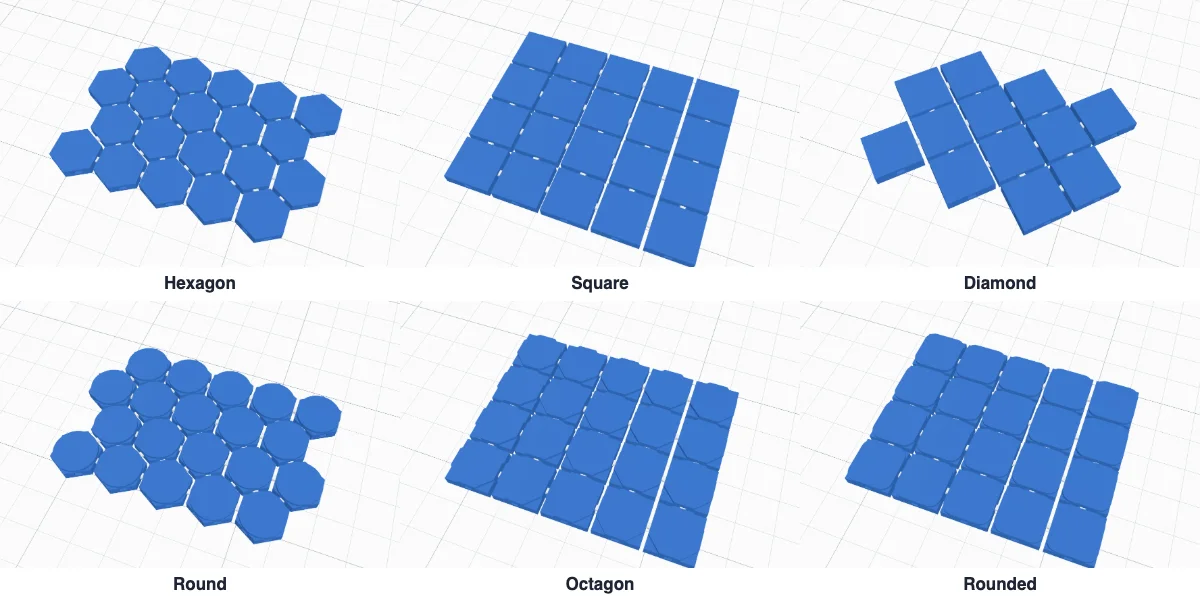
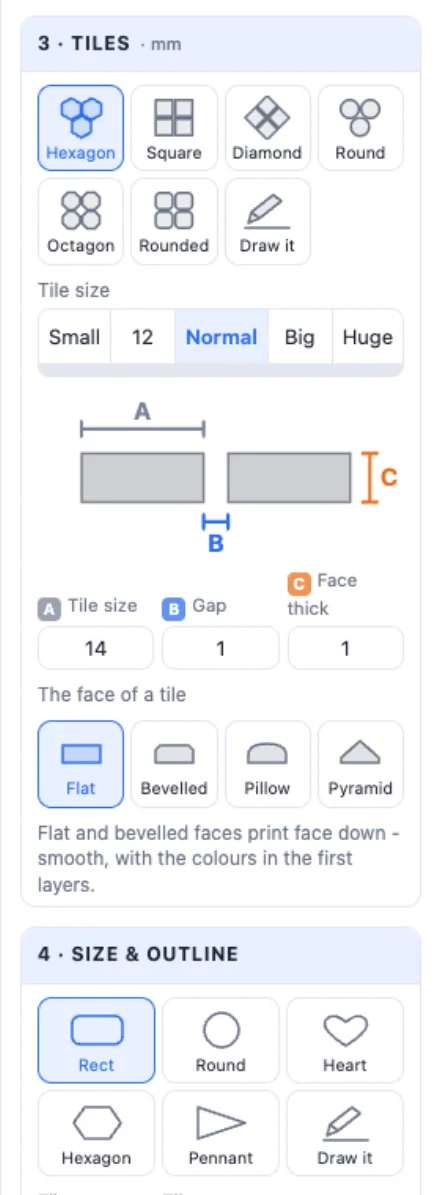
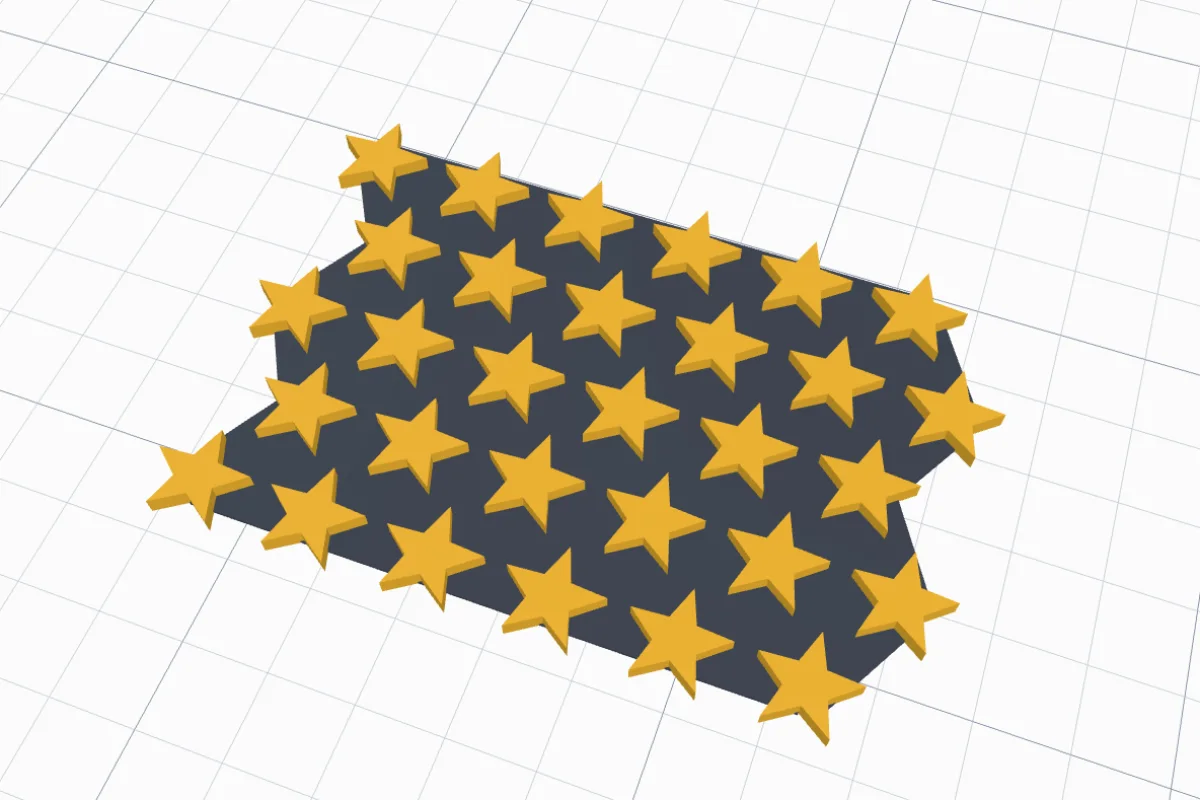
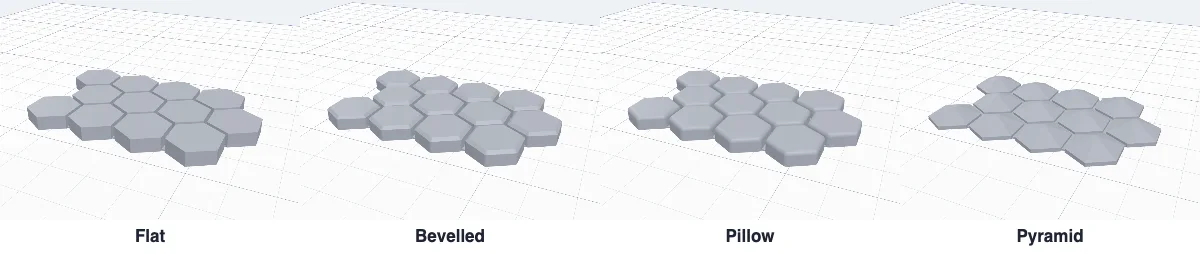
The face of a tile is flat, bevelled, a pillow or a pyramid. Flat and bevelled faces print face down (smooth, the colours in the first layers); pillows and pyramids print face up.
4Size and outline
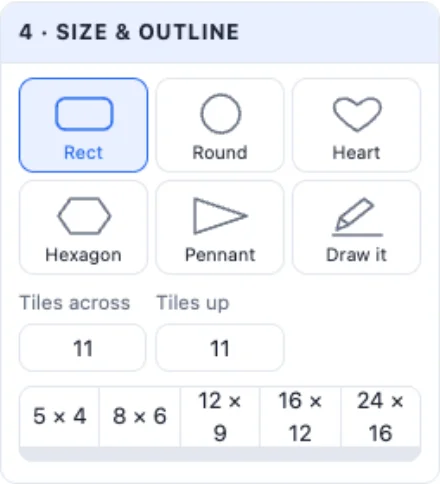
Set how many tiles go across and up, and the outline: a rectangle, round, a heart, a hexagon, a pennant, or Draw it - every tile whose middle lies inside your drawing is made.

5Paint the tiles
Painting is off until you turn it on: click Paint tiles (or pick a colour). Then click a tile in the view to paint it and drag to paint many; hold Shift, or pick the Eraser, to take paint off. Quick fills paint all, stripes, bars, checks or a border in one click.
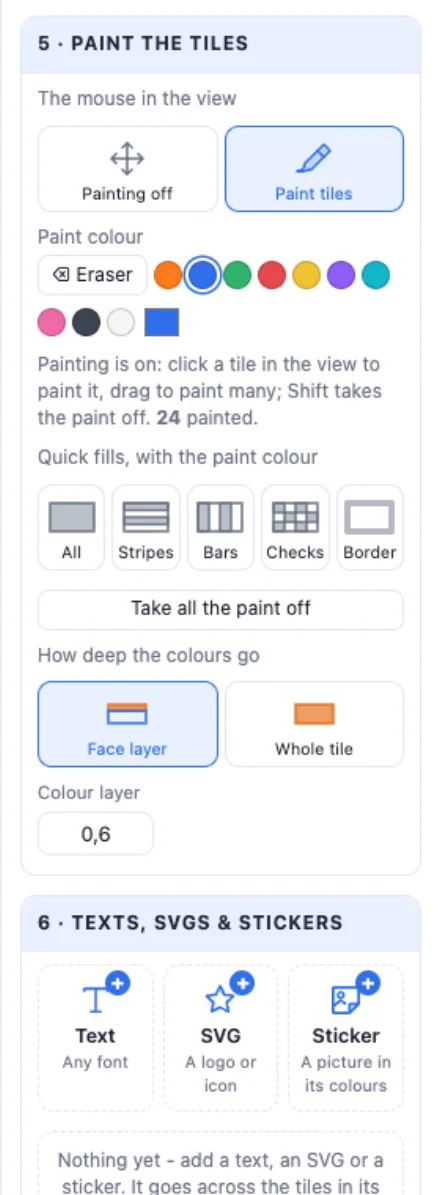
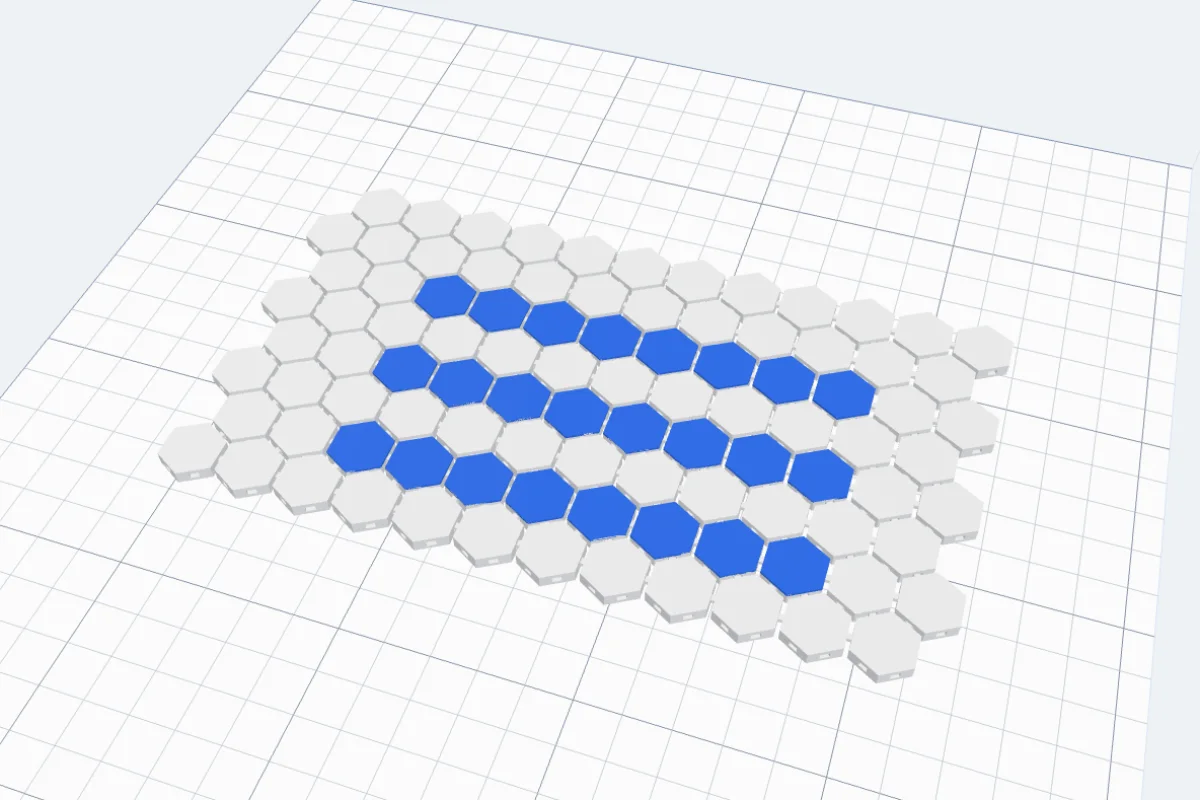
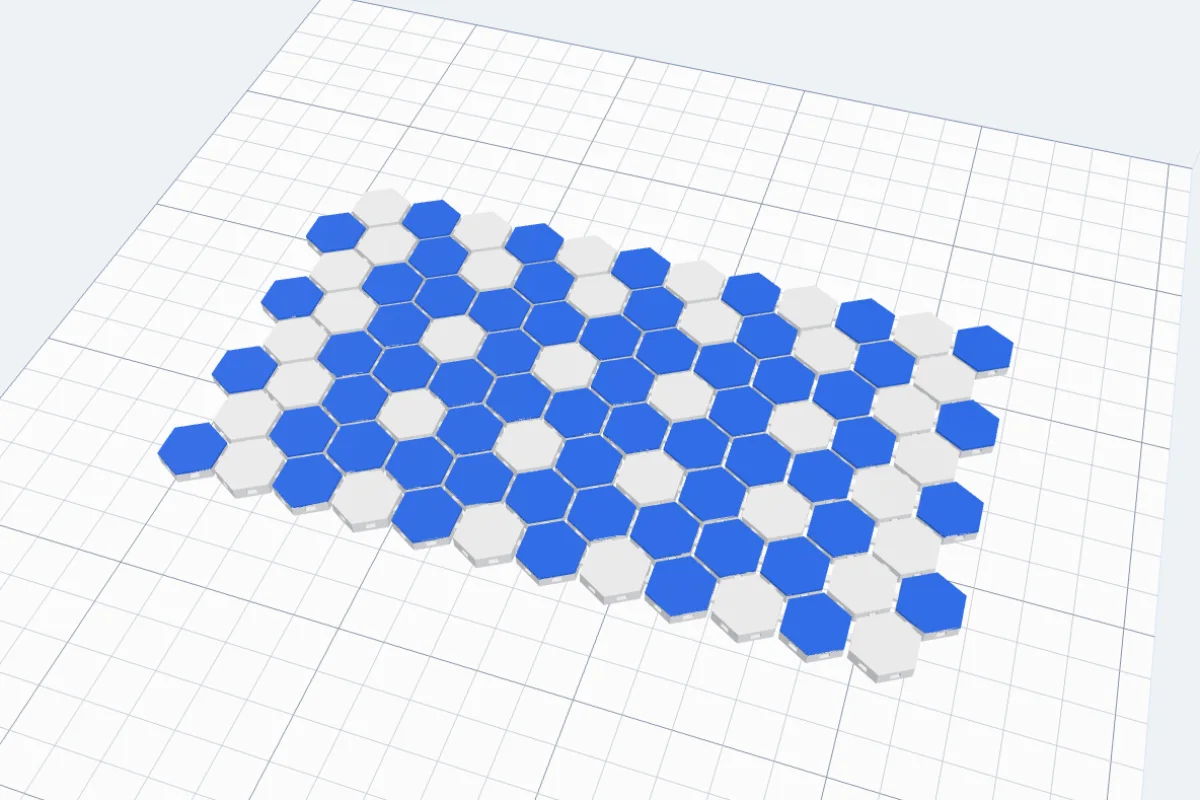
How deep the colours go: Face layer colours only the face (few colour changes), Whole tile makes a painted tile that colour all through - for tiles printed one colour at a time.
6Texts, SVGs and stickers
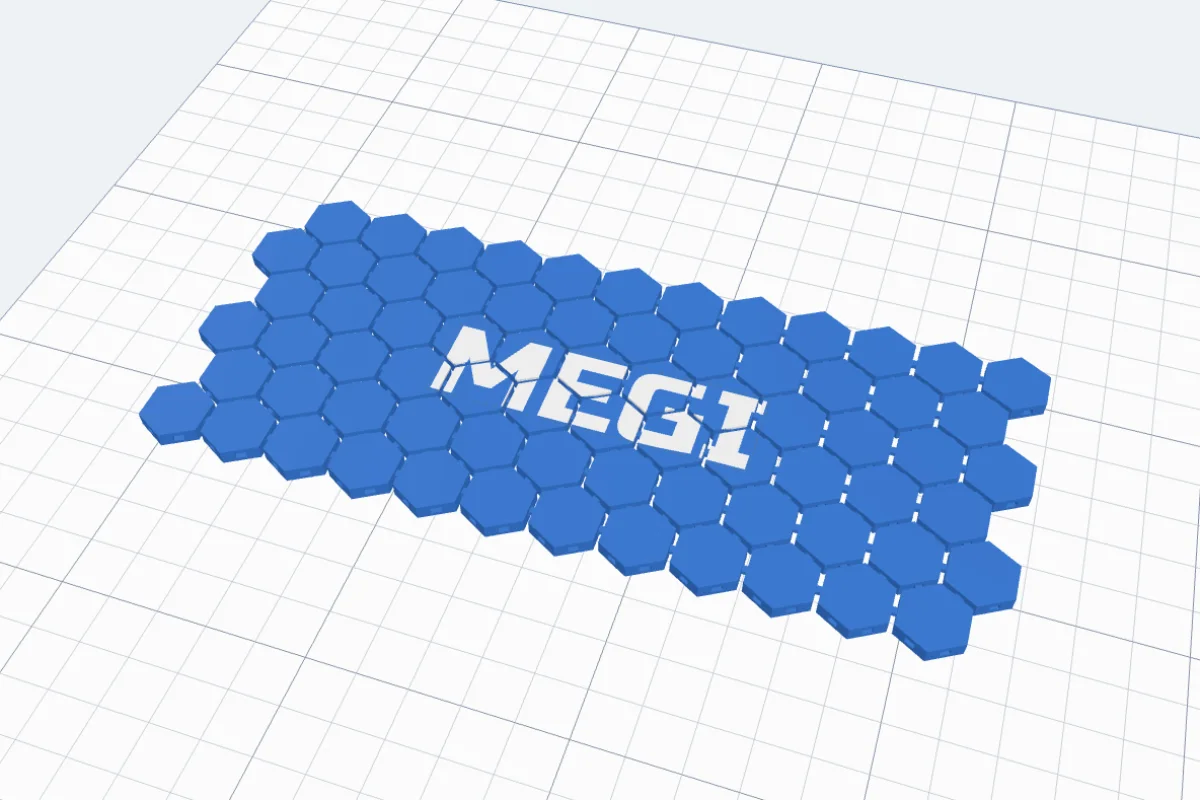
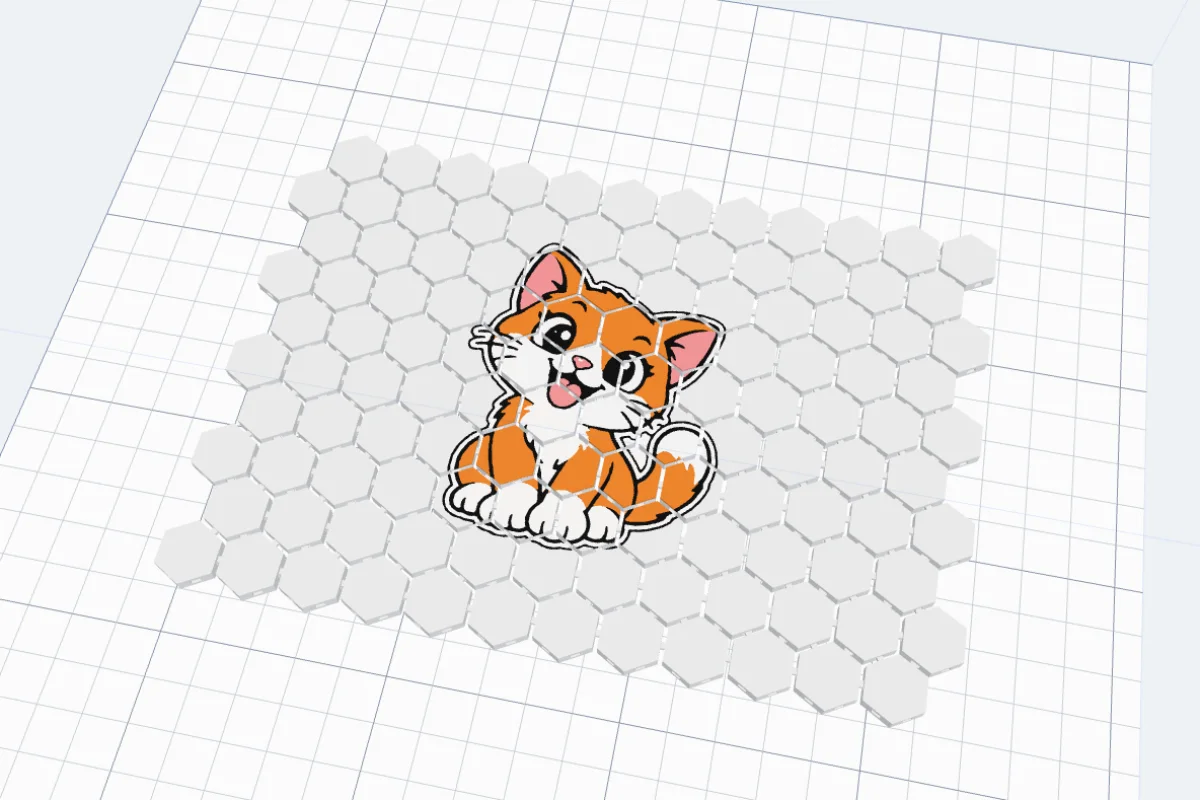
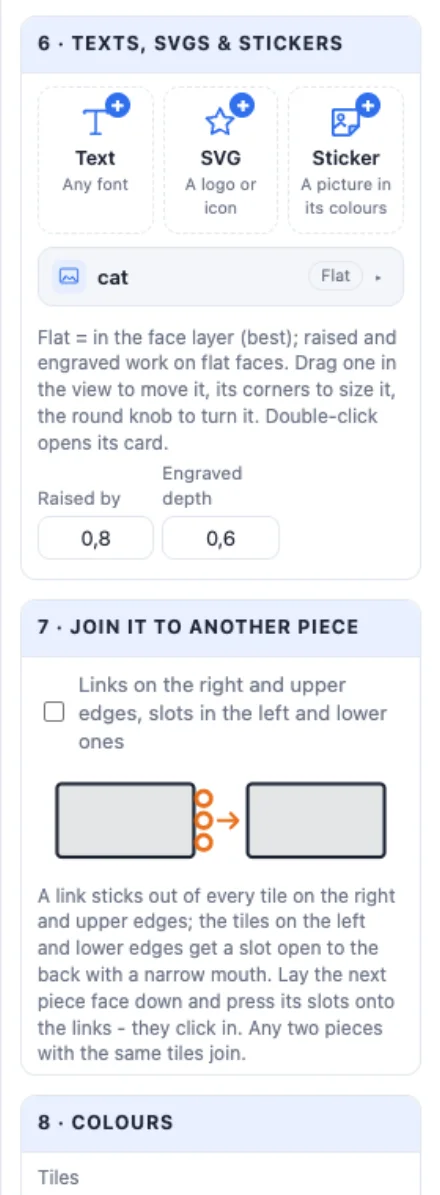
Add a Text, an SVG or a Sticker (a picture - every colour becomes its own part). It goes across the tiles in its own colour, like the picture on a flag. Drag it in the view, pull a corner to size it, turn it with the round knob; double-click opens its card.
7Join two pieces
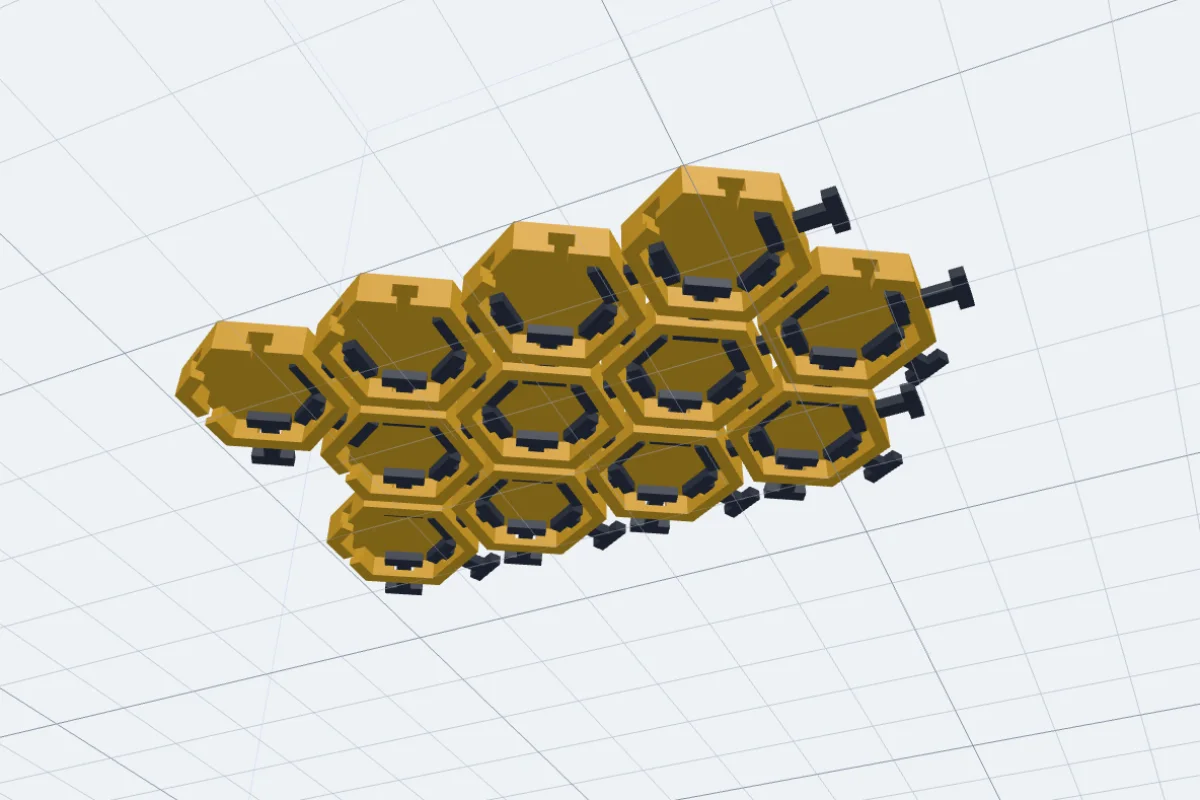
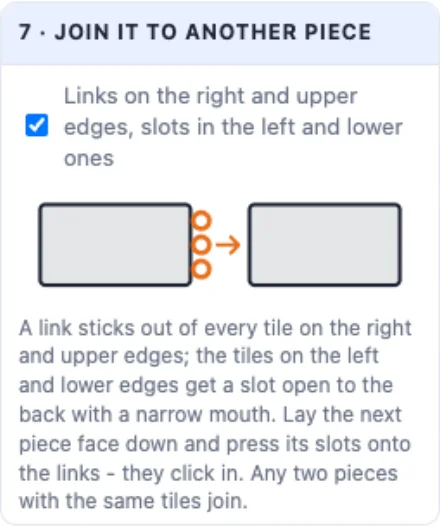
Tick the box under Join it to another piece to make sheets bigger than your bed. With bar links, a link sticks out of every tile on the right and upper edges, and the tiles on the left and lower edges get a slot with a narrow mouth: press the next piece on and it clicks.
8Printing
Print layout shows how it lies on the bed - most kinds face down. Click Create fabric: the tiles, the links and every colour are parts of their own. Print with 0.2 mm layers and no supports, the first layers slowly; afterwards flex the sheet to break the links loose.
Questions
Which kind is the easiest to print?
Bar links, the one the generator starts with. It prints face down in one go: the faces come out smooth, the back of every tile is open, and the only thing bridged is about 2 mm of wall over each link. No supports.
Do the links fuse together?
The links lie one layer (0.2 mm) off the tiles, like any print-in-place part. Do not squash the first layers into the bed, print the first layers slowly, and after printing flex the sheet to break the links loose. If they stick, choose Loose under How loose the links are, or a 0.3 mm layer gap.
Which filament?
Any. Bar links, ring links, cage links, woven frames and NASA style are chains - they drape in PLA or PETG. The Flexible layer kind bends at a thin layer between the tiles: print it in TPU, or give the layer its own colour and print only that in TPU.
How do I print it in several colours?
Every colour is its own part: export a Multi-colour 3MF and assign a filament to each. With Face layer the colours are only in the first layers (the sheet prints face down), so there are few colour changes. On a one-colour printer choose Snap together and Whole tile, and print the tiles one colour at a time.
Can I make a bigger sheet than my bed?
Yes. Tick Join it to another piece: bar links stick out of the right and upper edges and click into slots in the left and lower edges of the next piece; ring links get open rings; the flexible layer gets ball joints. Any two pieces with the same tiles join.
Has it been test printed?
The generator checks that every link is separate and really hooked, but the fits depend on your printer. Print a small piece (5 by 4 tiles) first.
Make your own fabric
Pick the links and the tiles, paint it, add a name - and print it in one go.
Open 3DPrintCADAlso see: Flexi generator, Sticker generator and Hype chain generator.