3DPrintCAD › Guides › Clone / mirror tool
Clone / mirror tool: copies round a point, in a row or mirrored
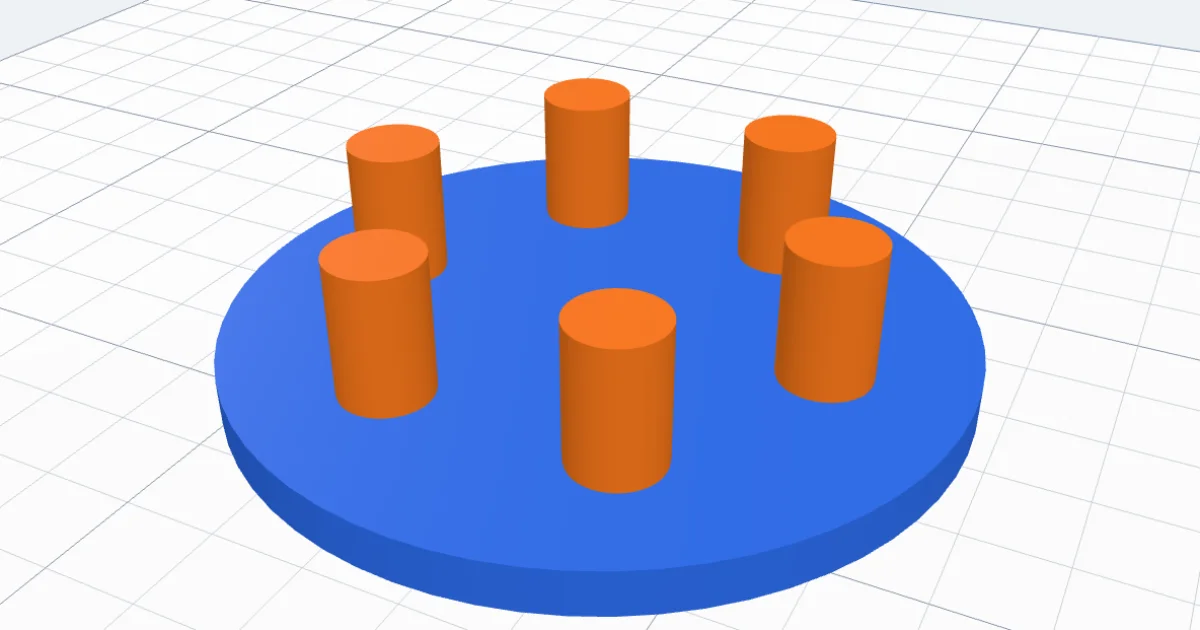
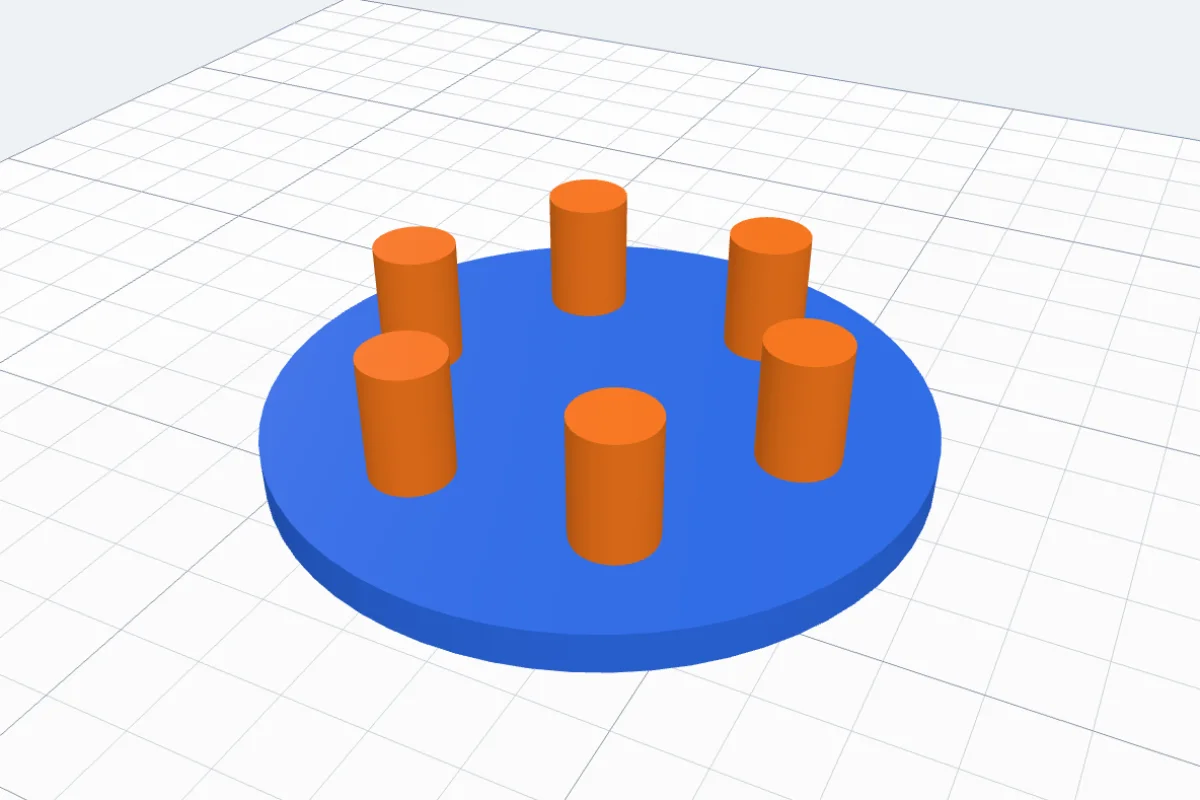
Six pegs round a disc, a row of hooks along a rack, a grid of feet, the left and right half of a part - all the same object, placed again and again. The Clone / mirror tool makes the copies for you: round a point (the middle of a face, a hole or a cylinder), in a row or in rows, or mirrored. See-through copies show where they go while you set them, and one click places them all.
Watch the tutorial
Every way to copy, narrated with subtitles: round a point, in a row, mirrored - and in a sketch. Watch on YouTube ↗
1Select the object and open Clone / mirror
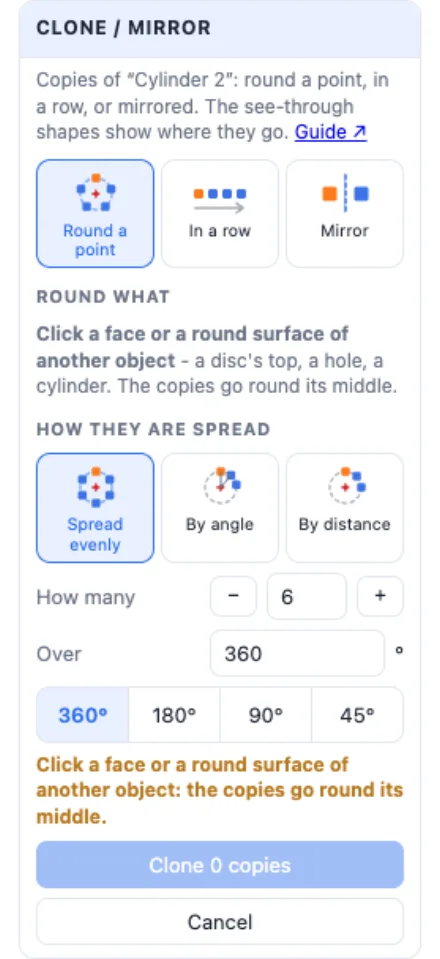
Select the object to copy and click Clone / mirror in the Body card. The panel has three ways to copy: Round a point, In a row and Mirror.

2Round a point
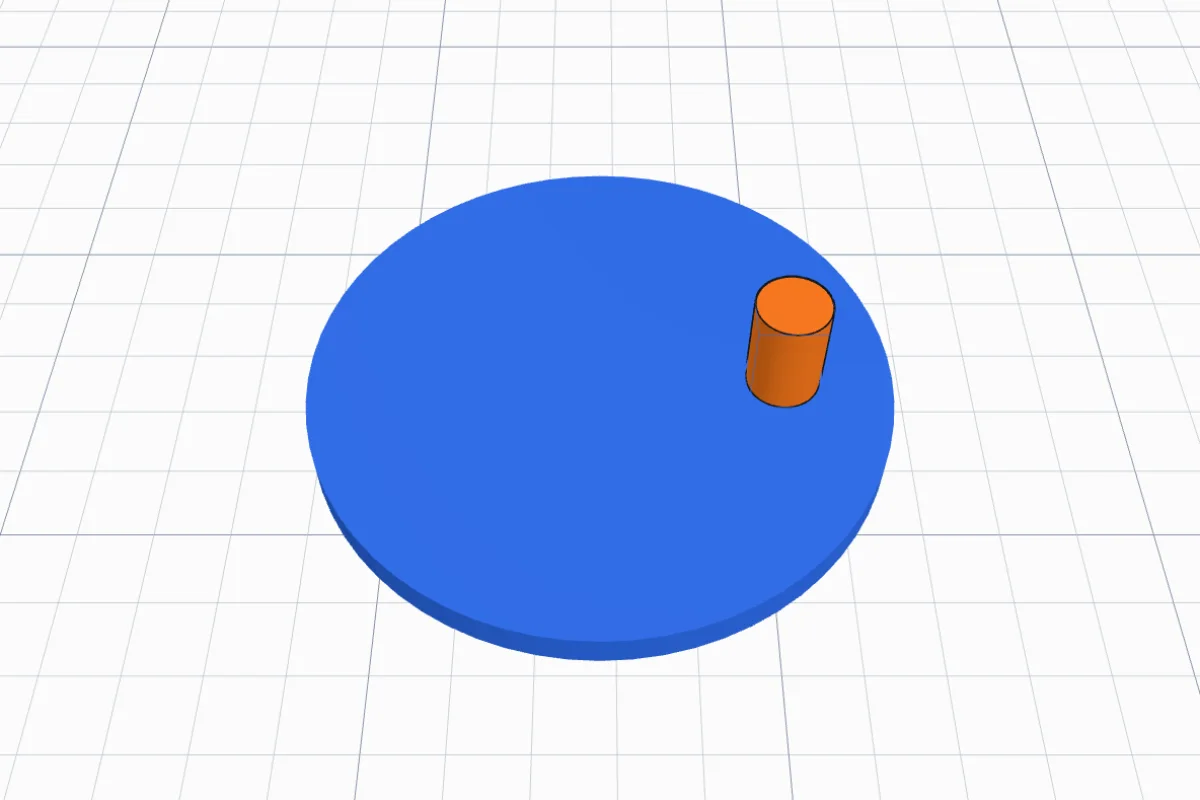
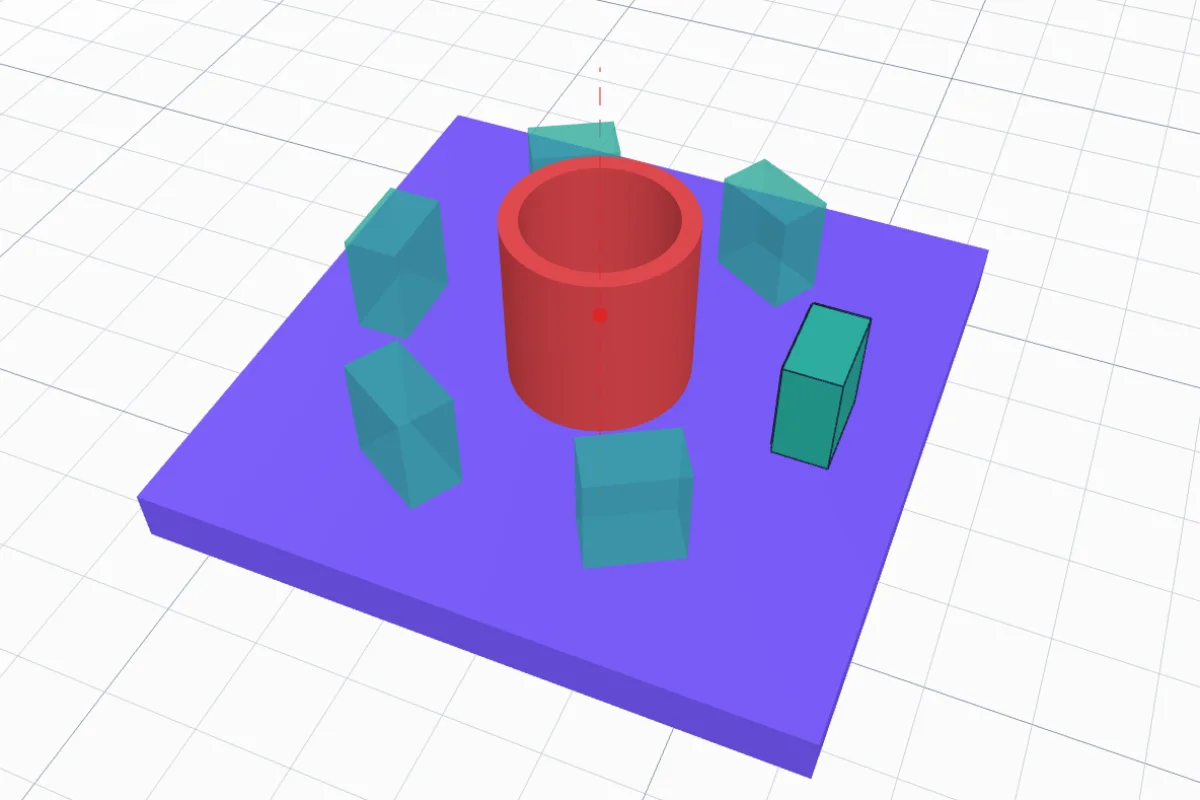
With Round a point the panel asks for the centre: click a face or a round surface of another object. A flat face (the top of a disc or a plate) - the copies go round its middle. The inside of a hole or the side of a cylinder - they go round its axis. A red dashed line shows the axis, and see-through copies show where they will go.
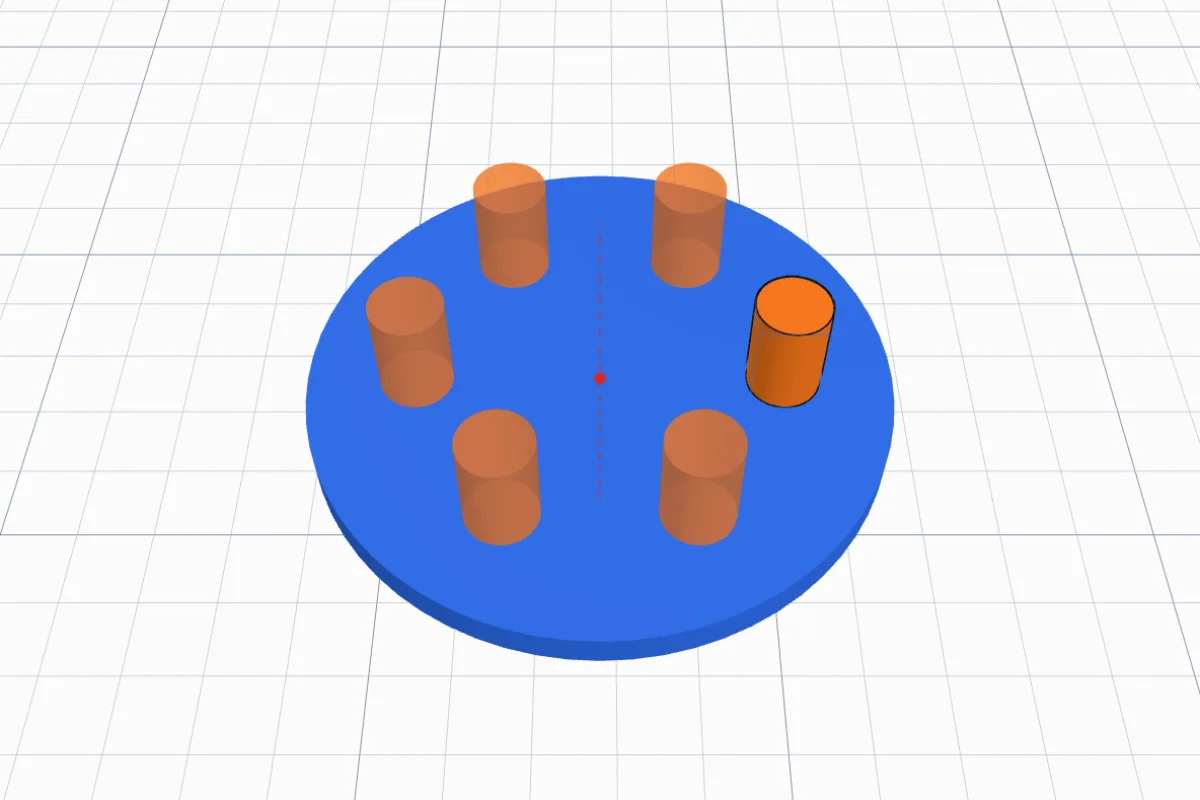
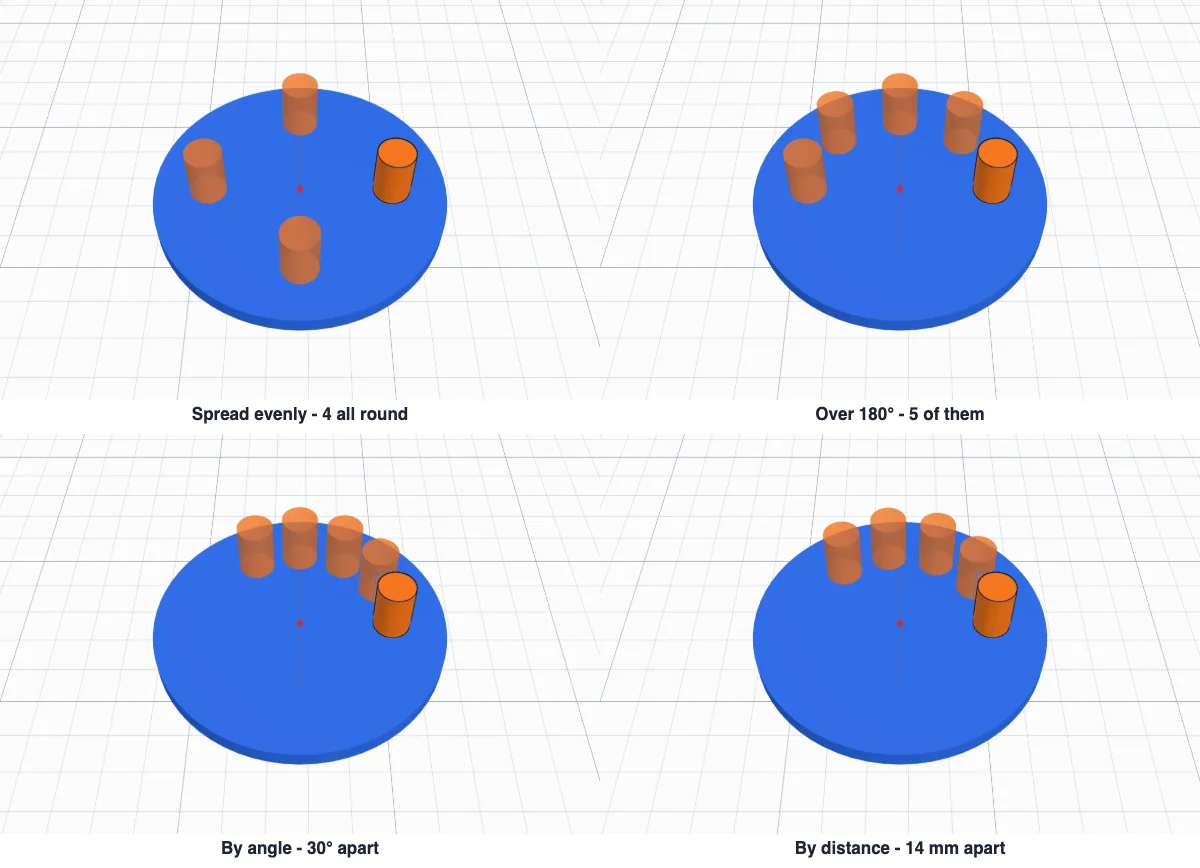
Set How many with − and + (the original counts too) and how they are spread: Spread evenly all the way round, or over an angle (360°, 180°, 90°, 45° or your own); By angle - each copy this many degrees on from the last; By distance - each copy this far from the last, from middle to middle or edge to edge. The line under it says the angle and the distance between them.
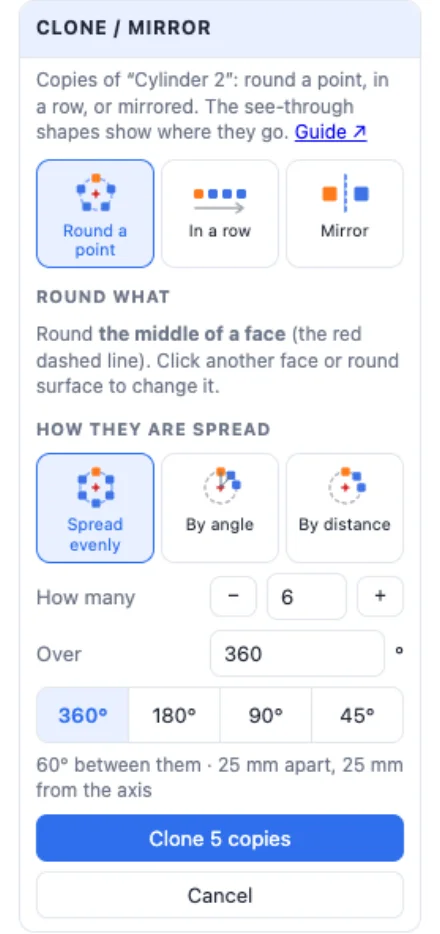
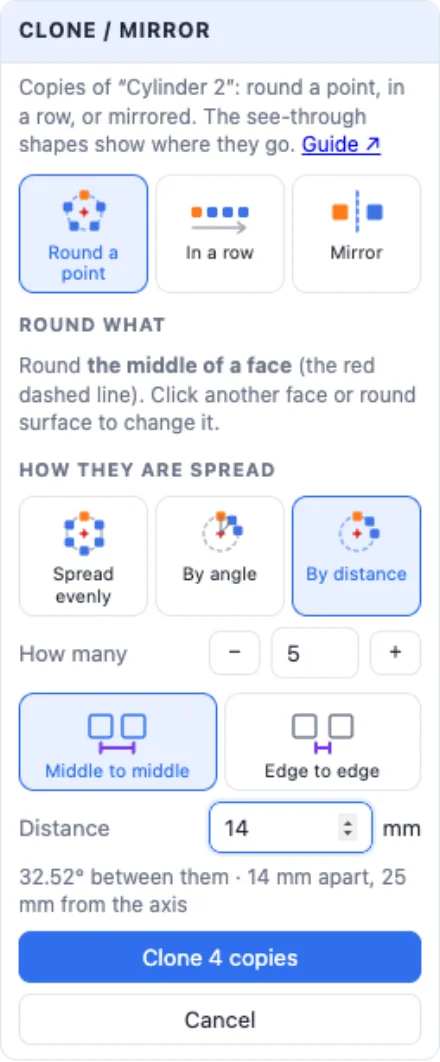
Click Clone: the copies are placed, turned to face the centre like the original.
3In a row
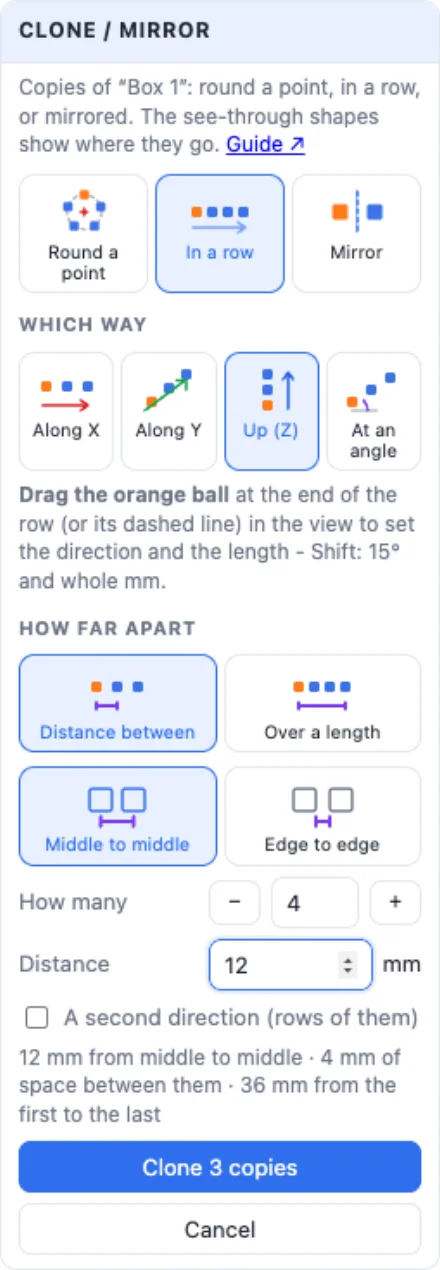
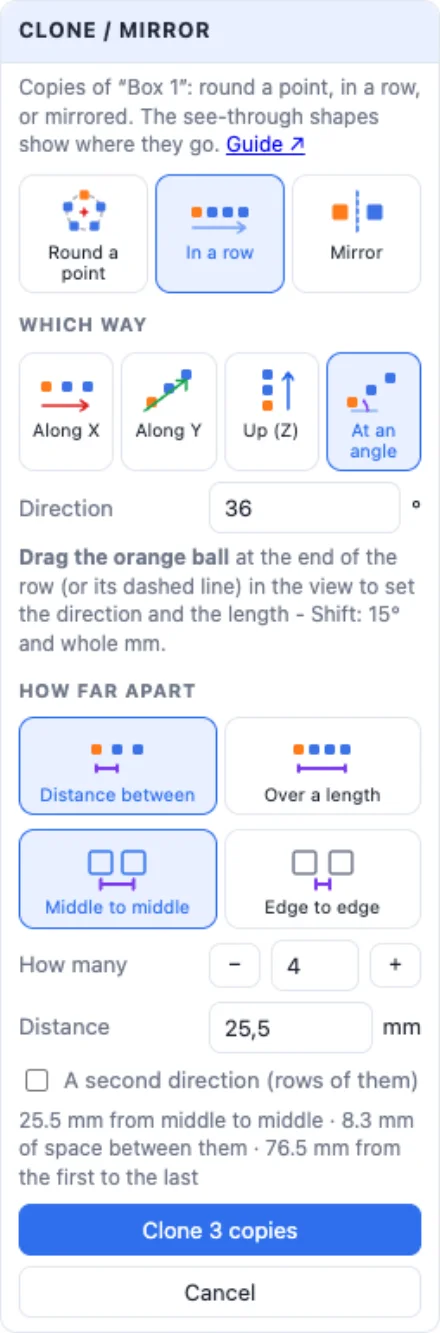
Choose In a row and the way: Along X, Along Y, Up (Z) or At an angle on the bed. Then how far apart: Distance between each copy, or Over a length from the first to the last. Middle to middle measures the pitch, Edge to edge the empty space between them.
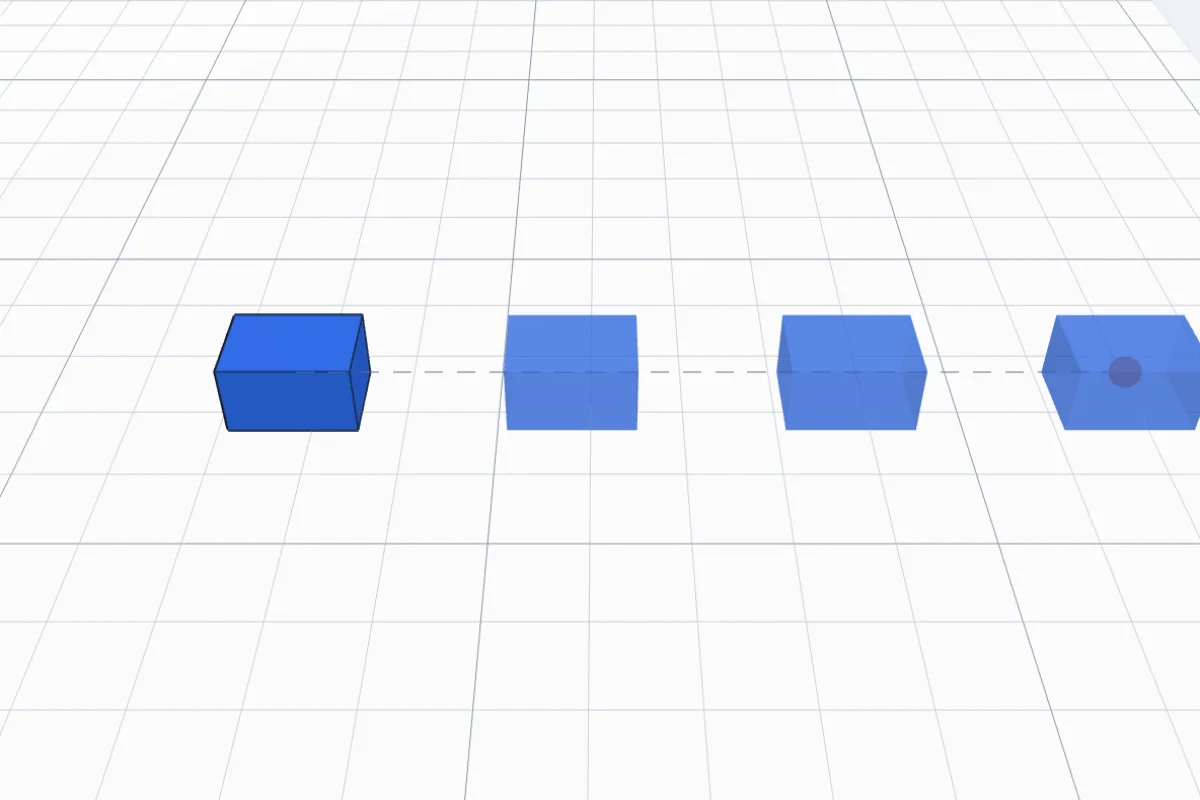
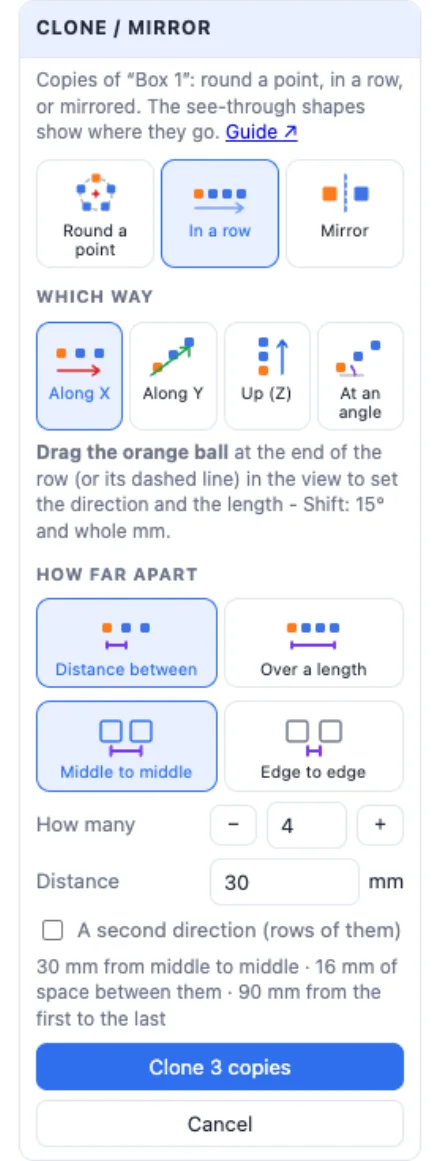
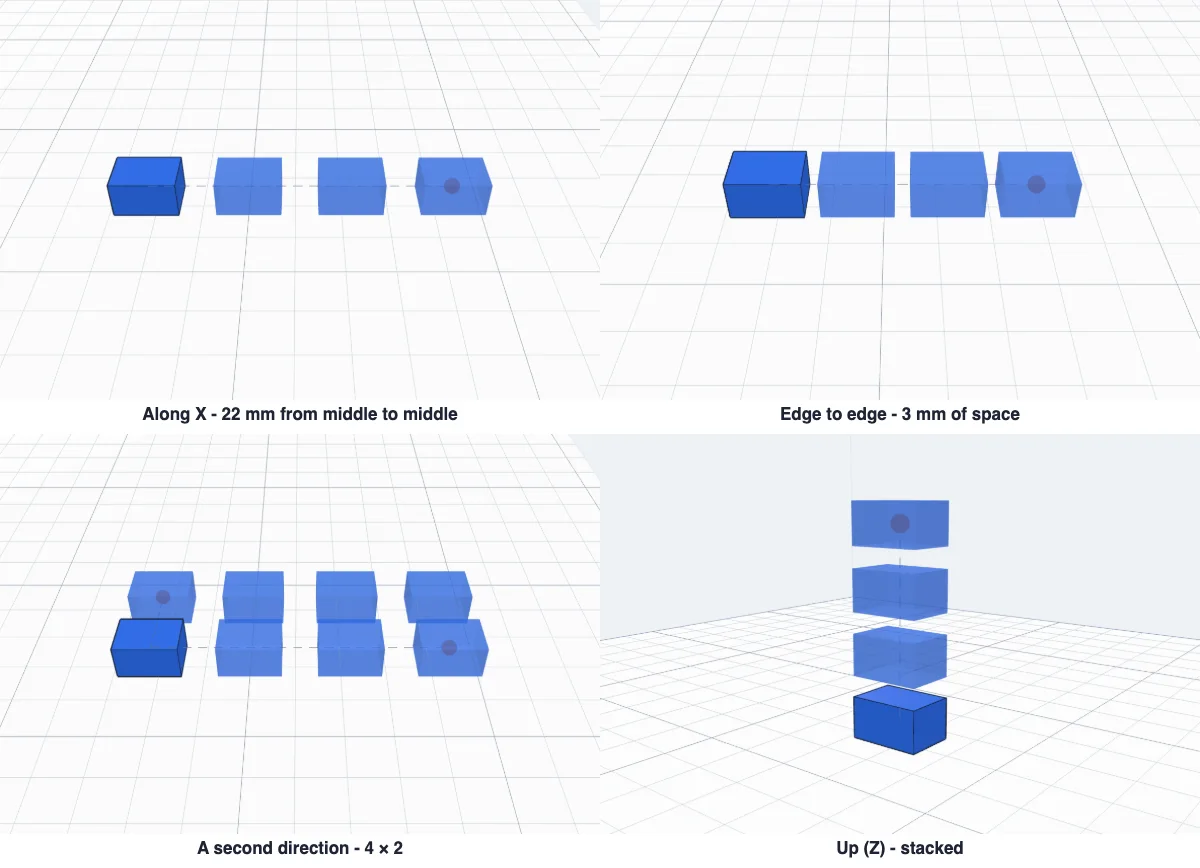
Tick A second direction (rows of them) for a grid: set how many rows and how far apart they are.
4Drag the row in the view
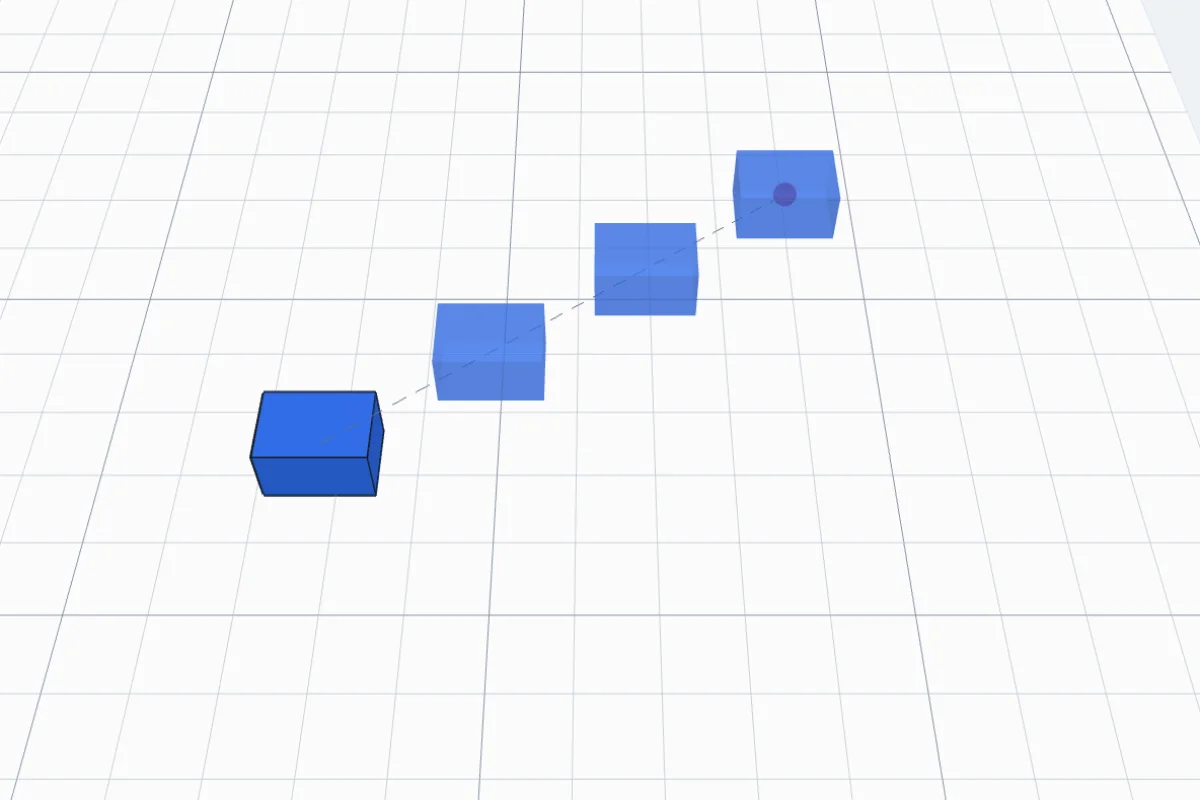
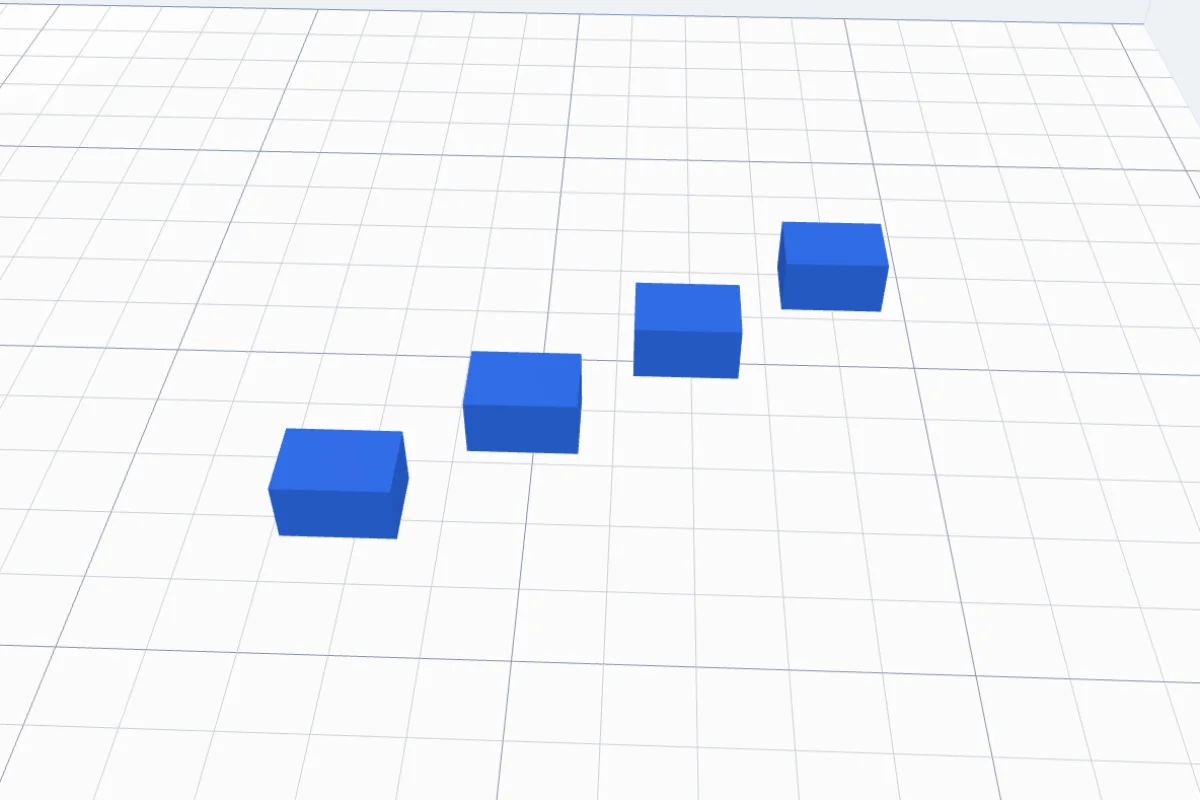
The row has a dashed line and a ball at its end. Drag the ball (or the line) with the mouse: it sets the direction and the length together - the copies follow as you move. It snaps to Along X and Along Y; hold Shift for 15° steps and whole millimetres. The panel's numbers change with it.
5Mirror
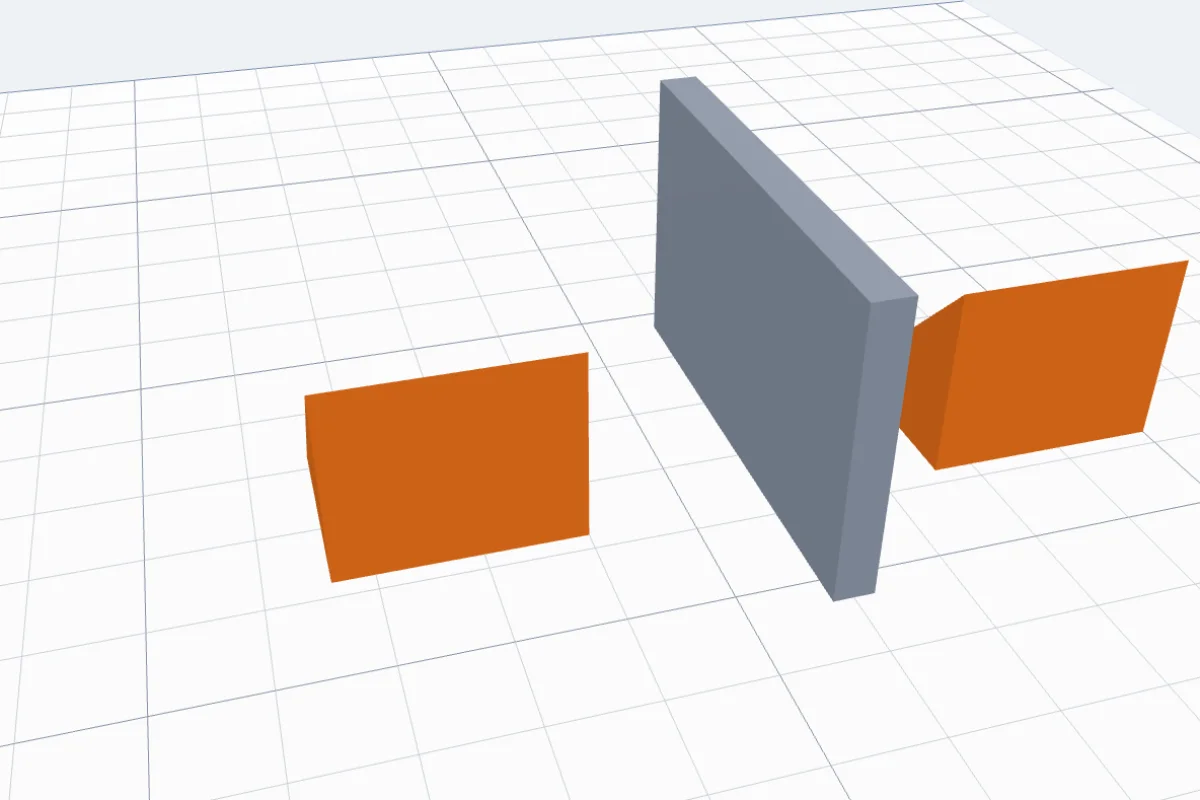
Choose Mirror and where the mirrored copy goes: The right, The left, The back, The front or On top, with Space between the two (0 = they touch). Or A face I click: click a flat face of another object and the copy is mirrored across it. A blue plane shows the mirror.
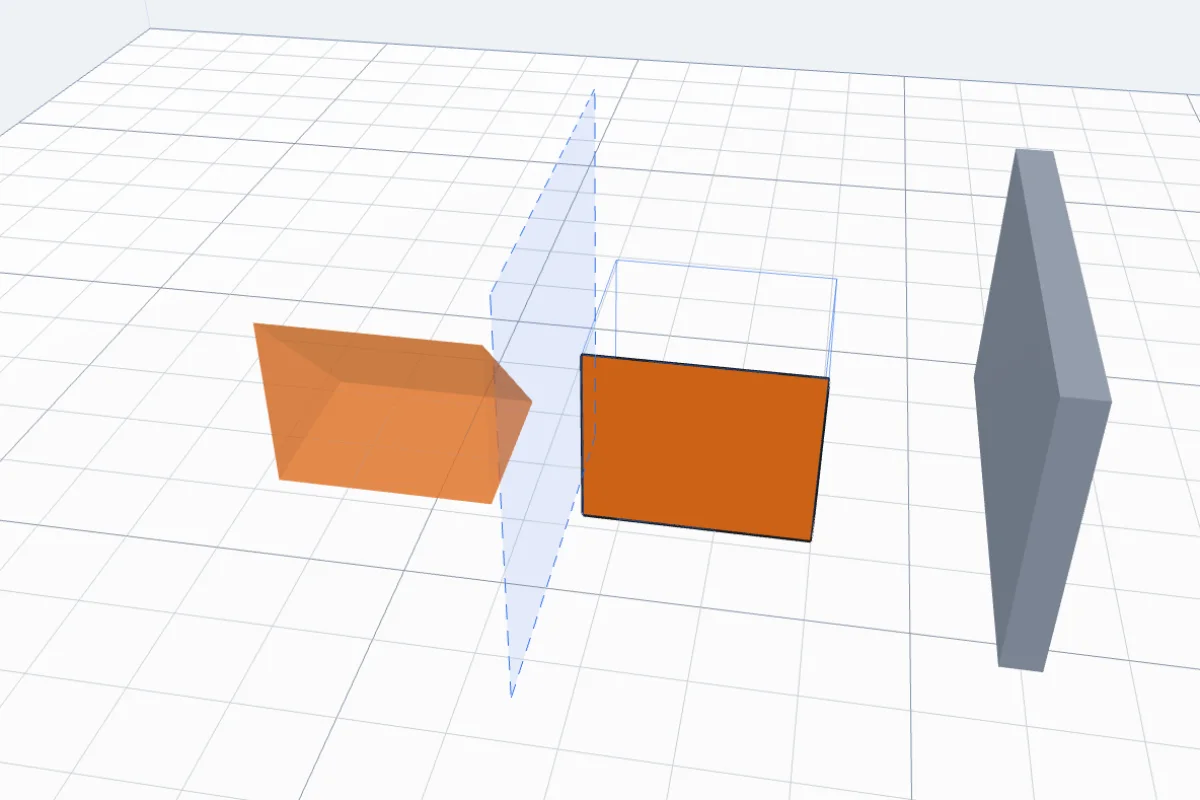
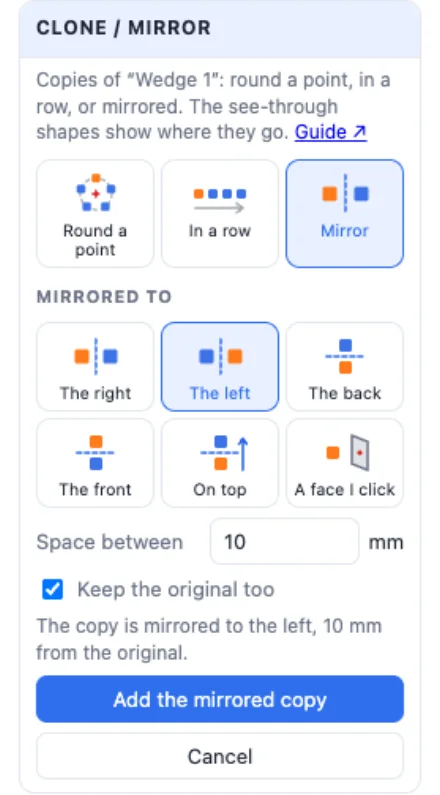
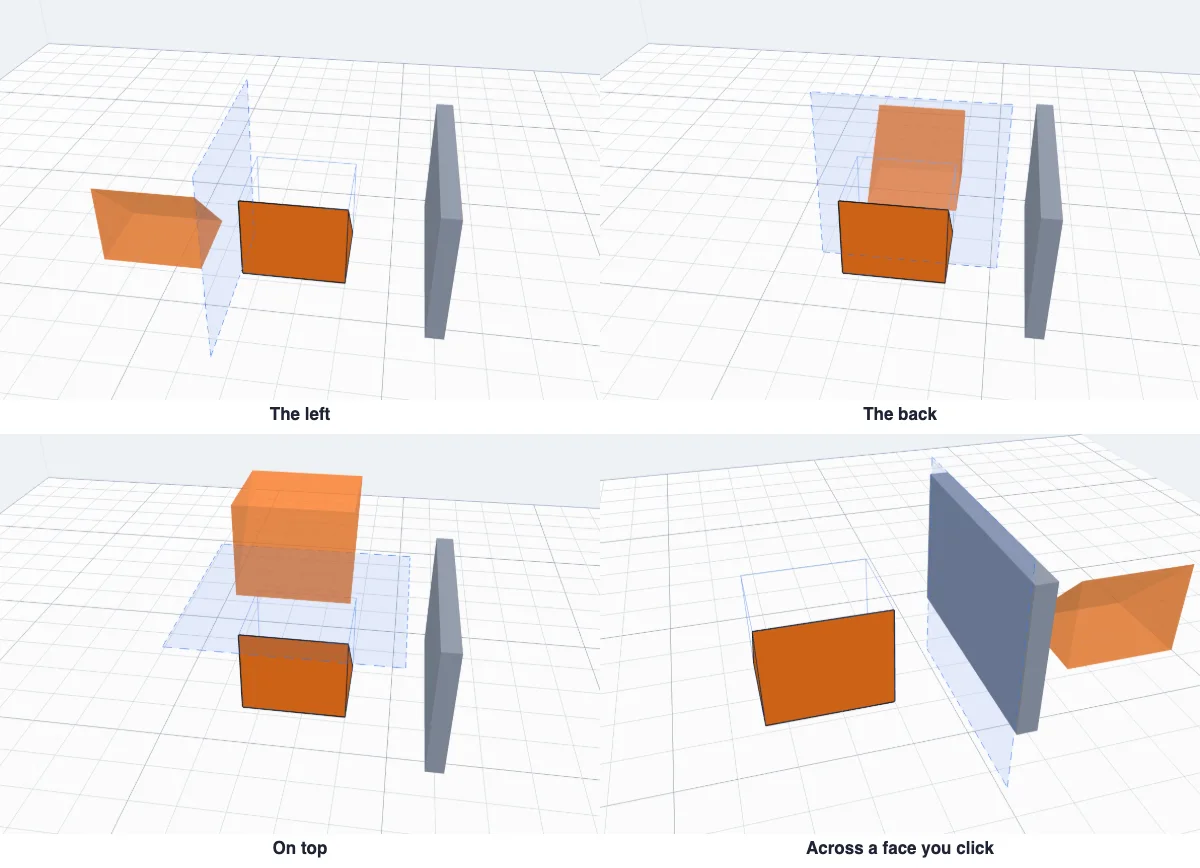
Keep the original too - on, a mirrored copy is added. Off, the object itself is mirrored and nothing is added. Mirroring makes the other hand of a part: a left and a right bracket, a pair of shoe-shaped feet.
6Clone in a sketch
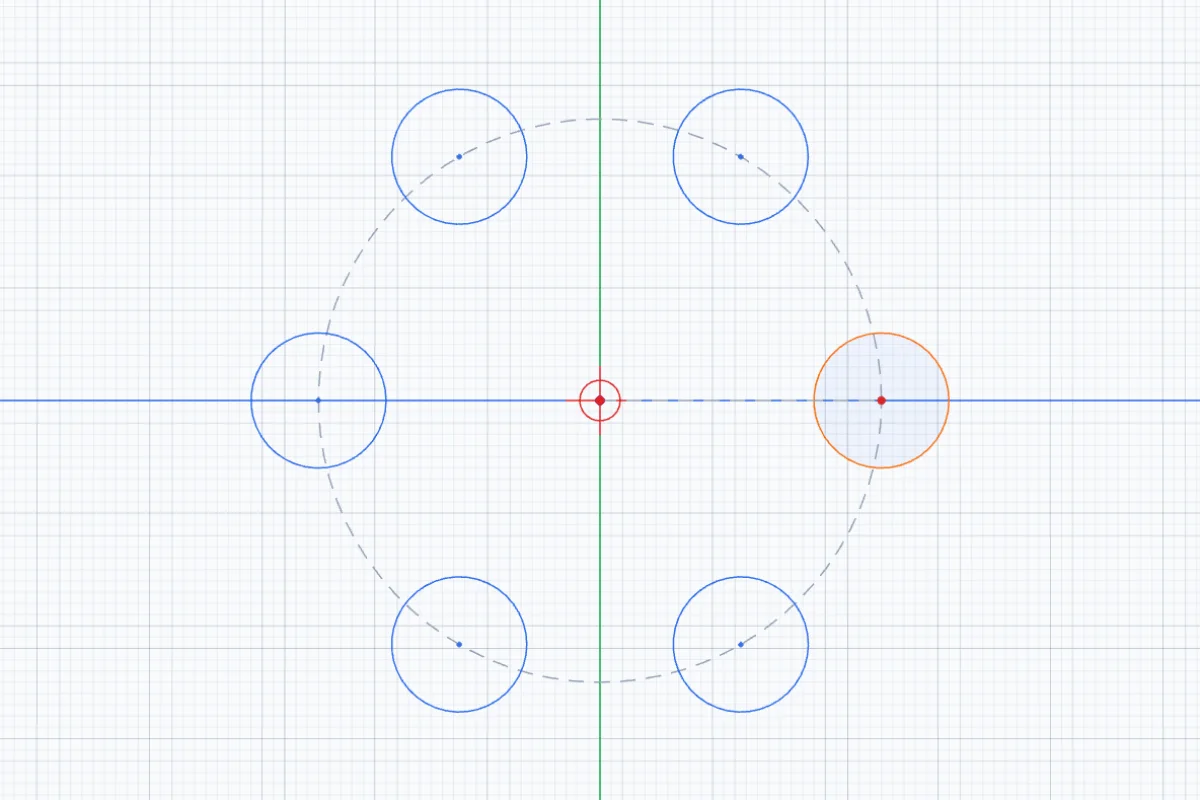
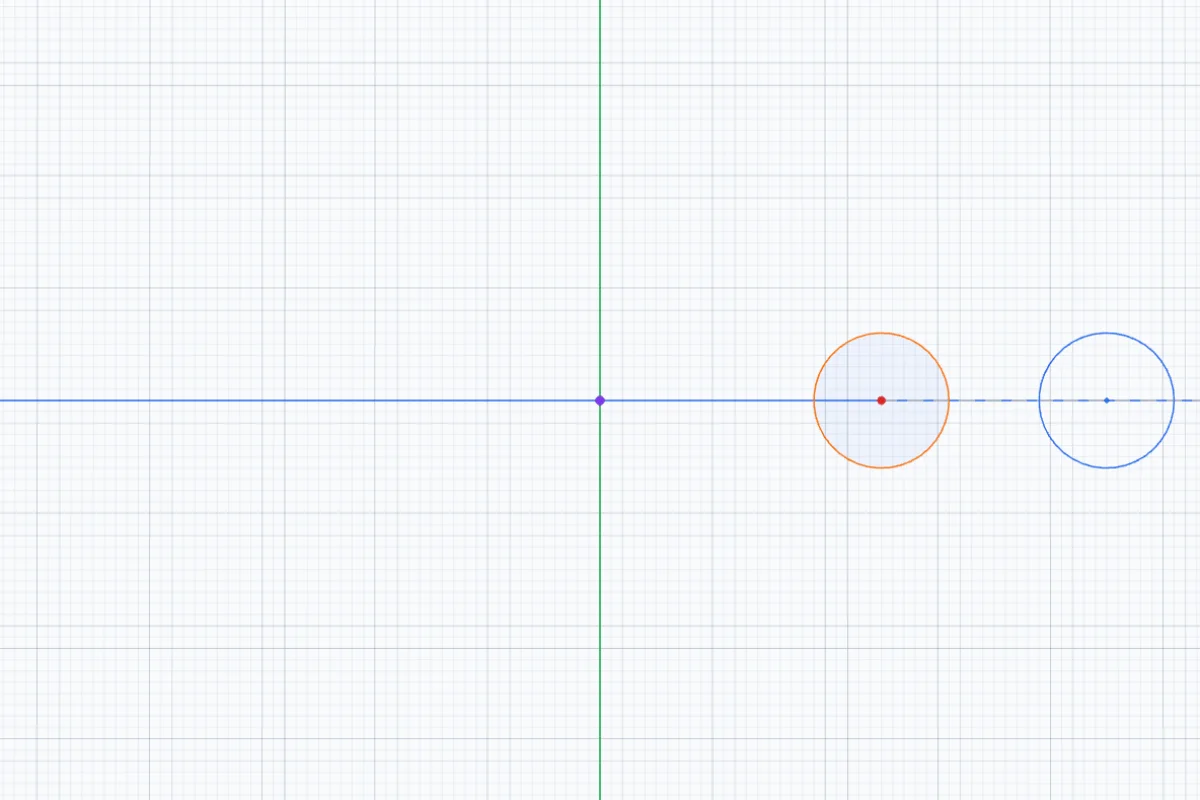
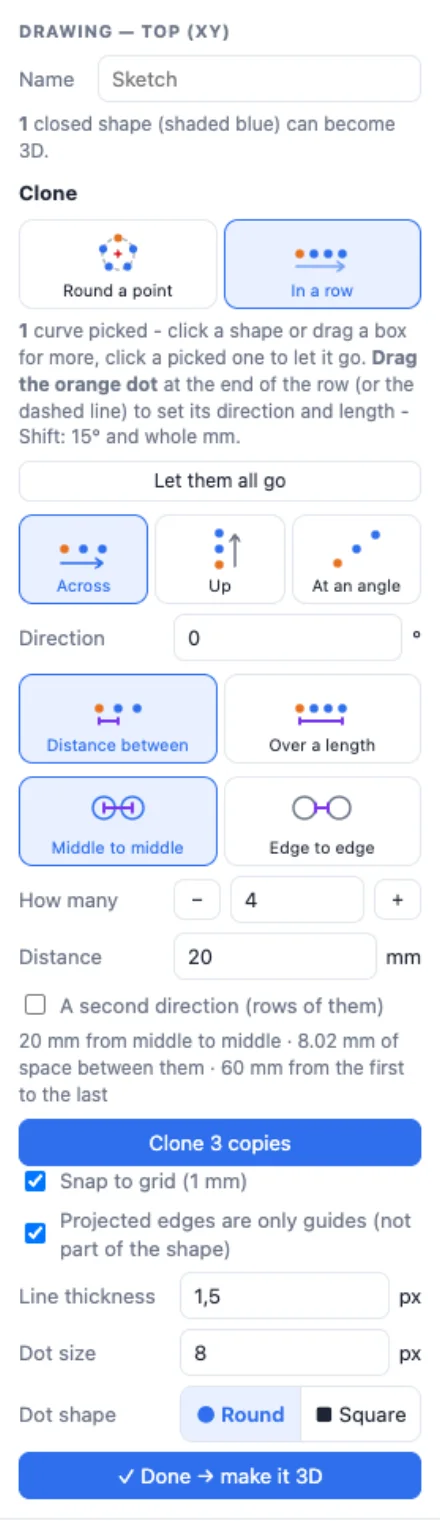
Inside a sketch the Clone tool (Shift+P) copies drawn shapes the same way. Click a shape to pick it (the whole shape, all its lines, at once - Ctrl or Cmd picks one line), or drag a box round it. Round a point goes round the sketch's middle, shown with a red cross - click a dot or an empty place to move the centre. In a row goes across, up or at an angle; drag the orange ball or the dashed line to set the direction and length. Set how many and click Clone.

More on drawing: the Sketch tool guide.
Questions
Which objects can I clone?
Any object or several at once - a basic shape, an imported STL, a group, a generator's result. Select them, then open Clone / mirror. Every copy is a normal object you can move, change or join afterwards.
How do I copy round the middle of a disc or a plate?
Choose Round a point and click the top of the disc (or any flat face): the copies go round its middle, square to that face. Click the inside of a hole or the side of a cylinder to go round its axis instead.
What is the difference between middle to middle and edge to edge?
Middle to middle measures from the middle of one copy to the middle of the next - the pitch, as on a drawing. Edge to edge is the empty space between them - type 3 and there are 3 mm between every two copies, whatever their size. Switching keeps the copies where they are; only the number changes.
How do I make a grid?
Choose In a row, tick A second direction and set how many rows and how far apart they are. 4 copies × 3 rows makes 12.
Mirror makes a copy - can it flip the object itself?
Yes: untick Keep the original too. Then the object itself is mirrored, with the same name, and no copy is added.
Is there a limit?
Up to 300 copies at once. It is one undo step - Ctrl+Z takes them all back.
Copy anything round a point, in a row or mirrored
Select it, pick the way and click Clone - the see-through copies show where they go.
Open 3DPrintCADAlso see: Sketch tool, Basic shapes and body tools and Offset tool.